Require members to accept a legal document
By Julien RiouxUpdated August 31, 2026
Publish an agreement in your workspace so members can read and accept it on the shop.
By Julien Rioux·Updated August 31, 2026
Publish an agreement in your workspace so members can read and accept it on the shop.
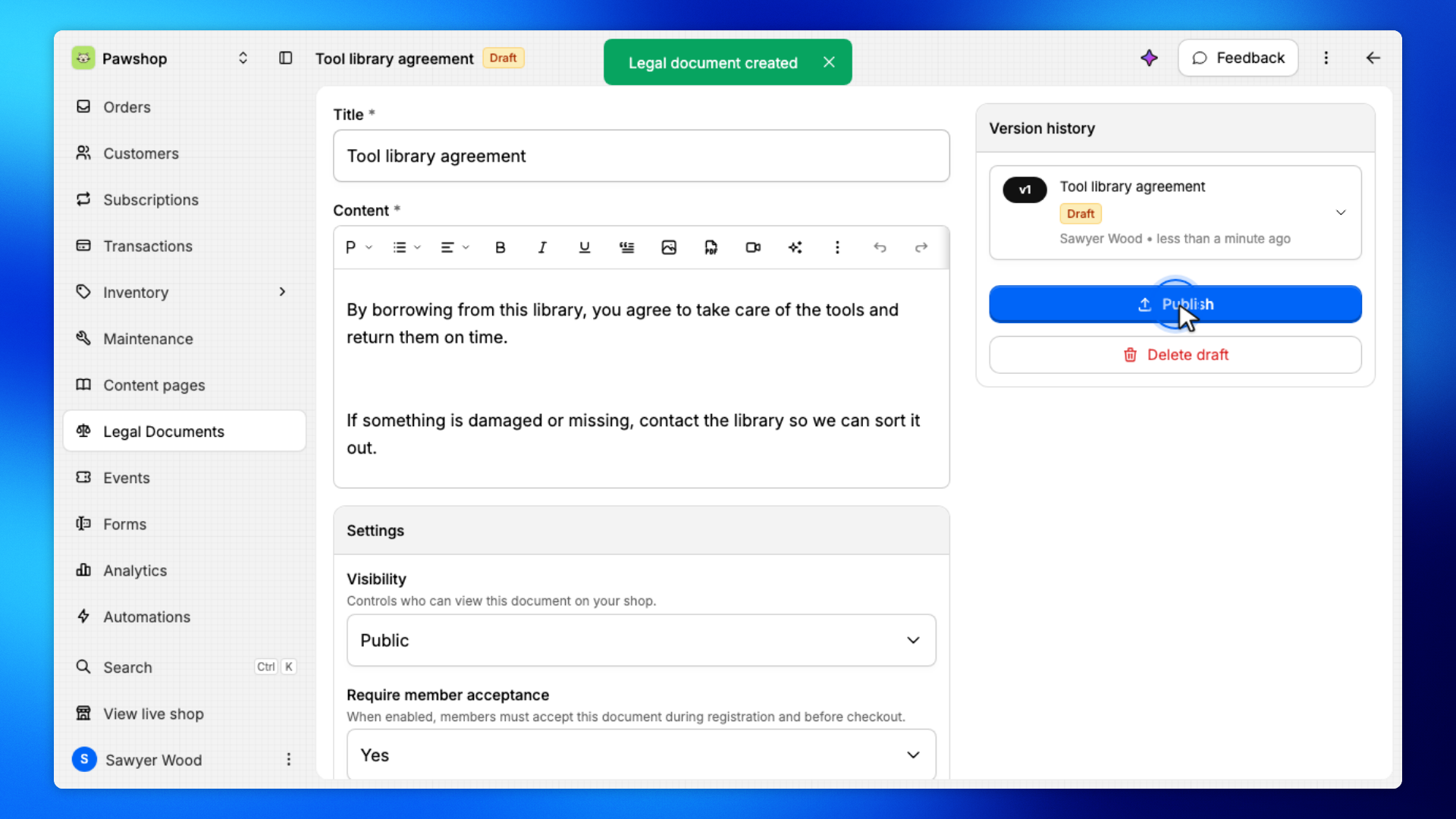
Open Legal Documents and click Document. You'll land on New legal document. Enter a Title and the document body, set Require member acceptance to Yes, Require signature to Yes, and Signature style to Initials, then click Create document. Publish it so it appears on the shop.
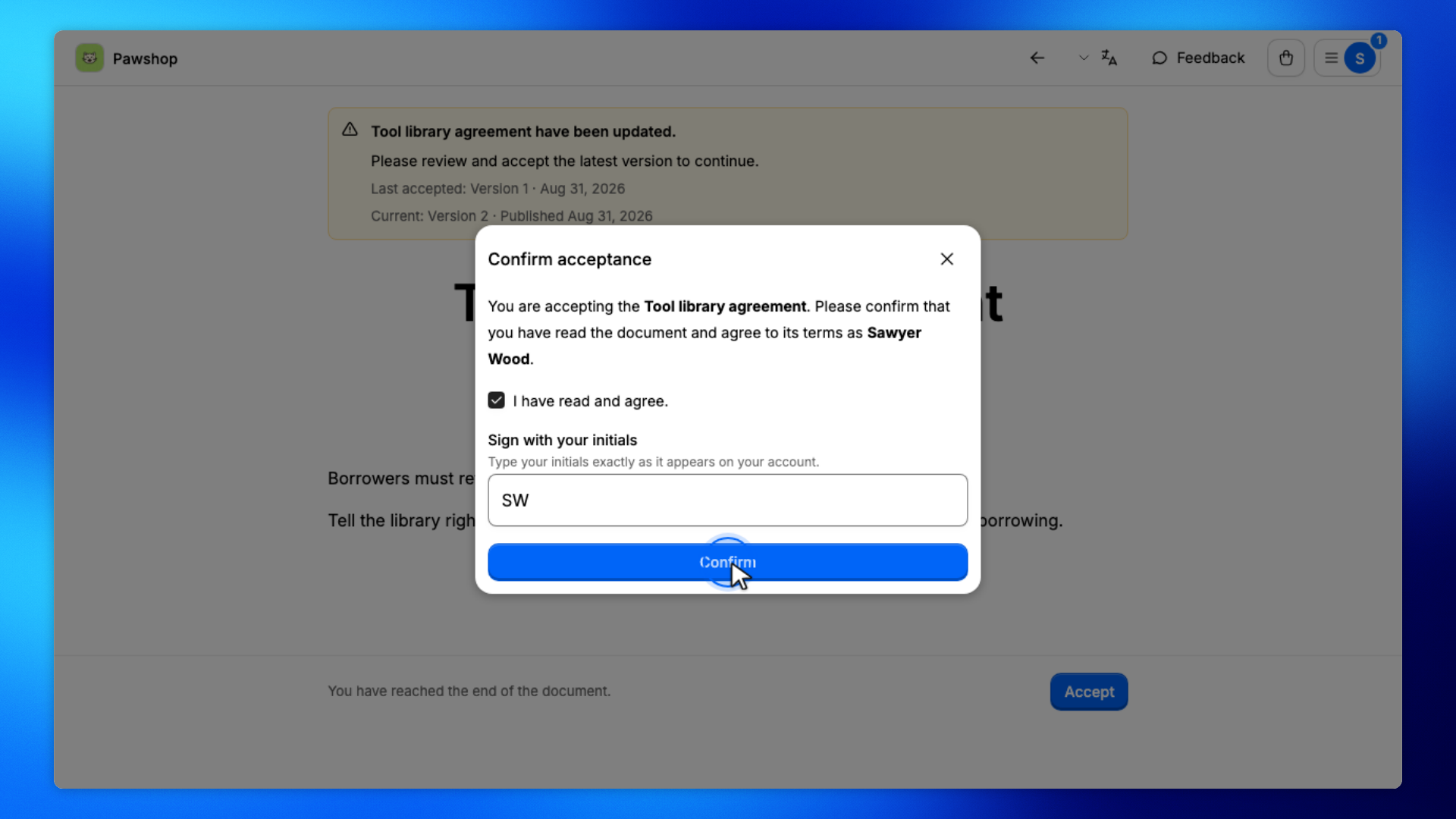
Open the shop, click the menu at the top right, then under Required actions click Review required documents. For example, a Tool library agreement can ask members to take care of borrowed tools. Confirm, and type your initials. The document is also listed under Policies & Support.
When the agreement changes, open the document and Create new version. Edit the draft, save, and publish. Members who already accepted must accept again before checkout.
These steps are yours. You create the document under Legal Documents.
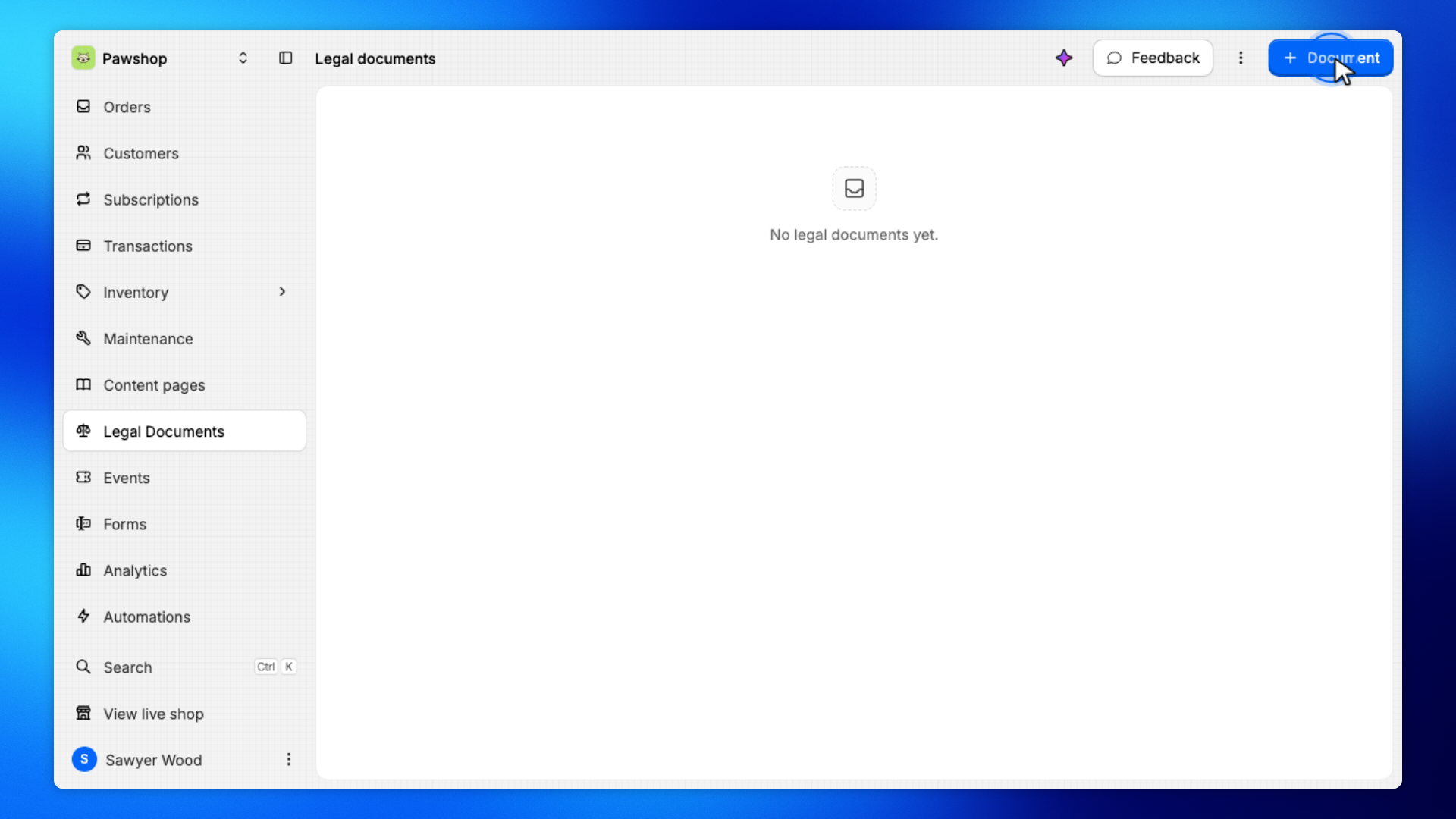
Open Legal Documents from the workspace sidebar, then click Document.
You'll land on New legal document.
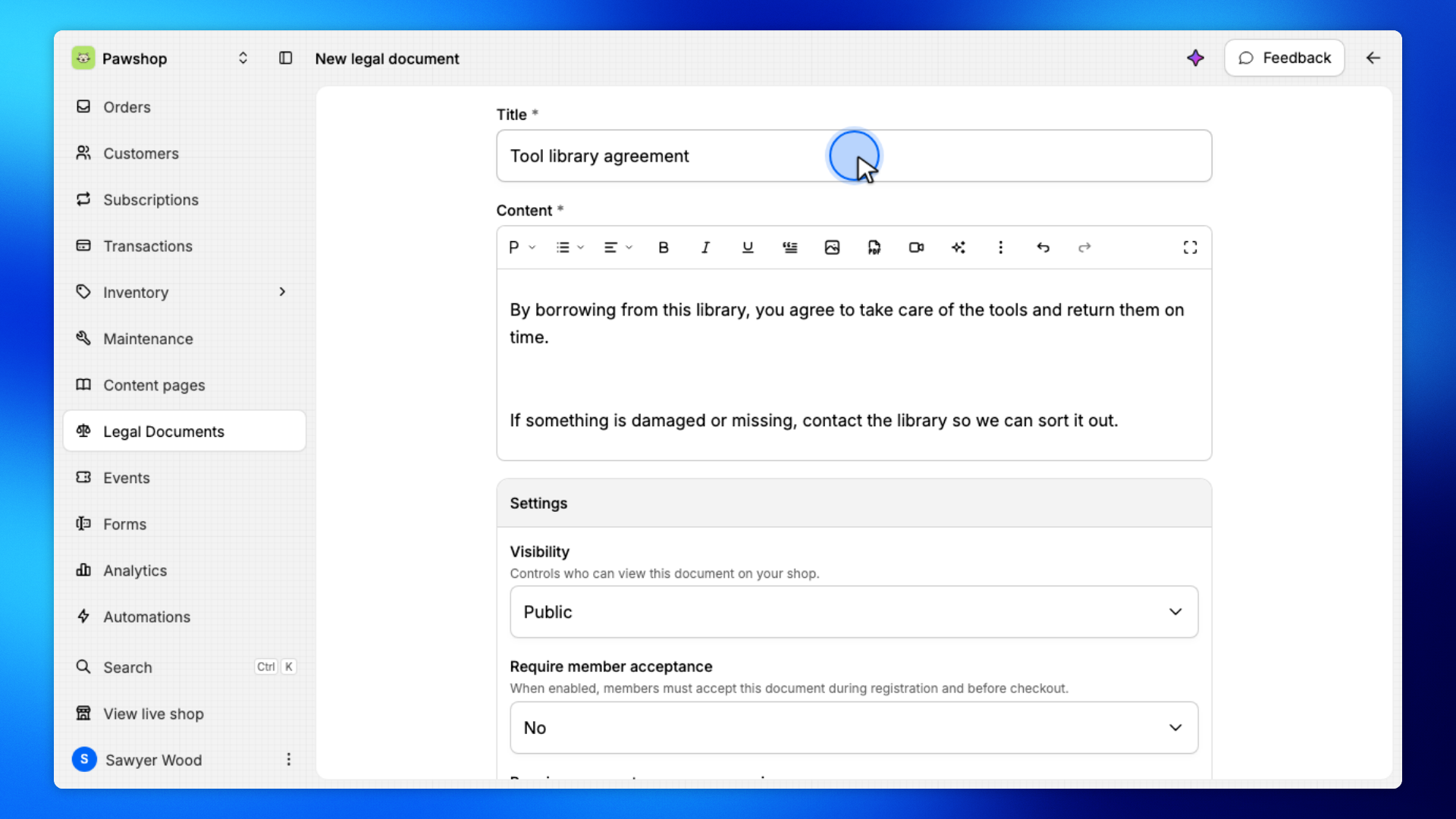
Enter a Title and write the document body. Set Require member acceptance to Yes, Require signature to Yes, and Signature style to Initials.
Leave visibility Public so customers can also find it in the shop menu under Policies & Support.
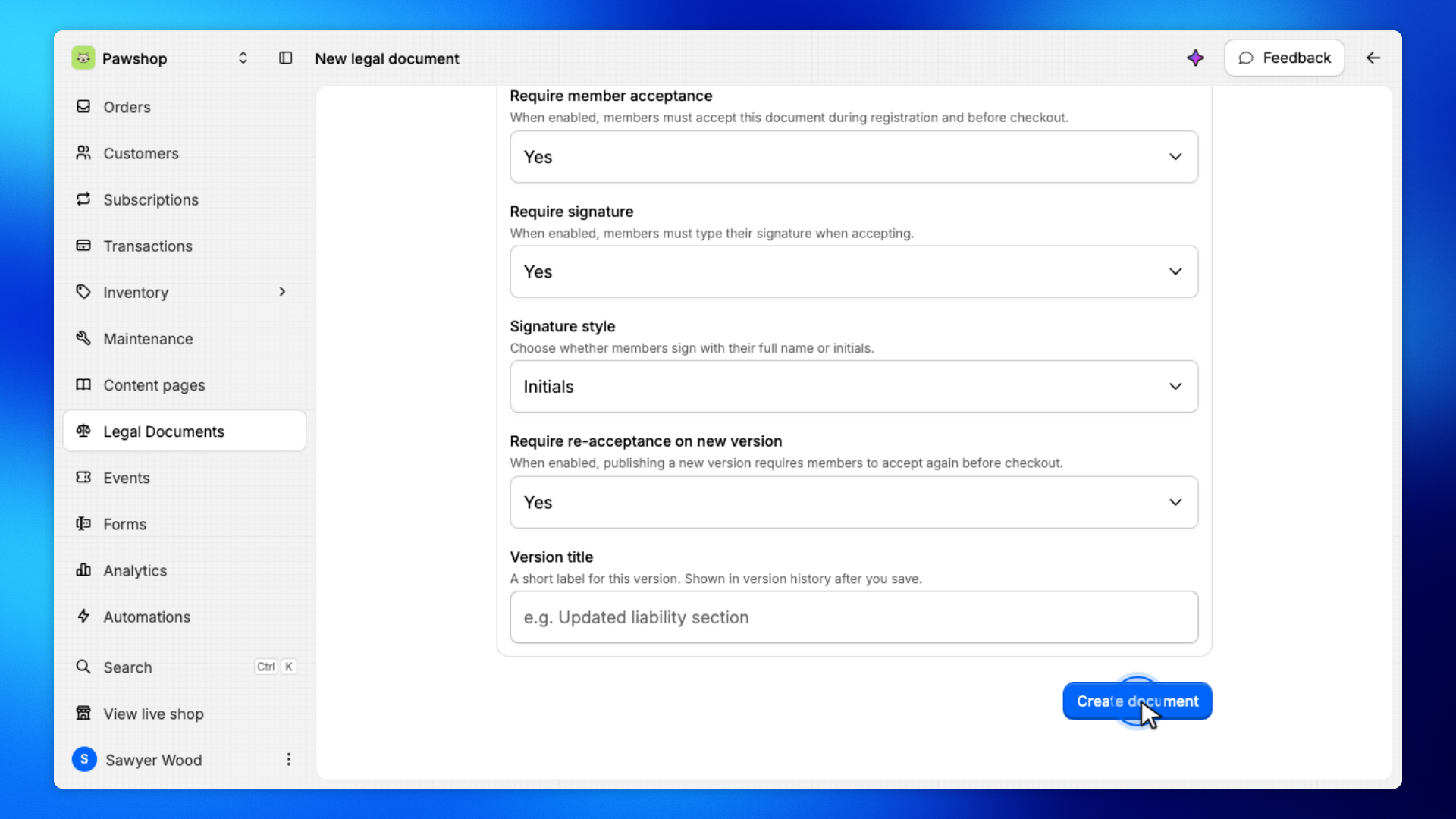
Click Create document.
You'll land on the document once it is saved as a draft.
Click Publish. Confirm Publish new version? so members must accept it before checkout.
The document is now live on your shop.
These steps are what customers see. Pending documents appear under Required actions. Public documents also appear under Policies & Support.
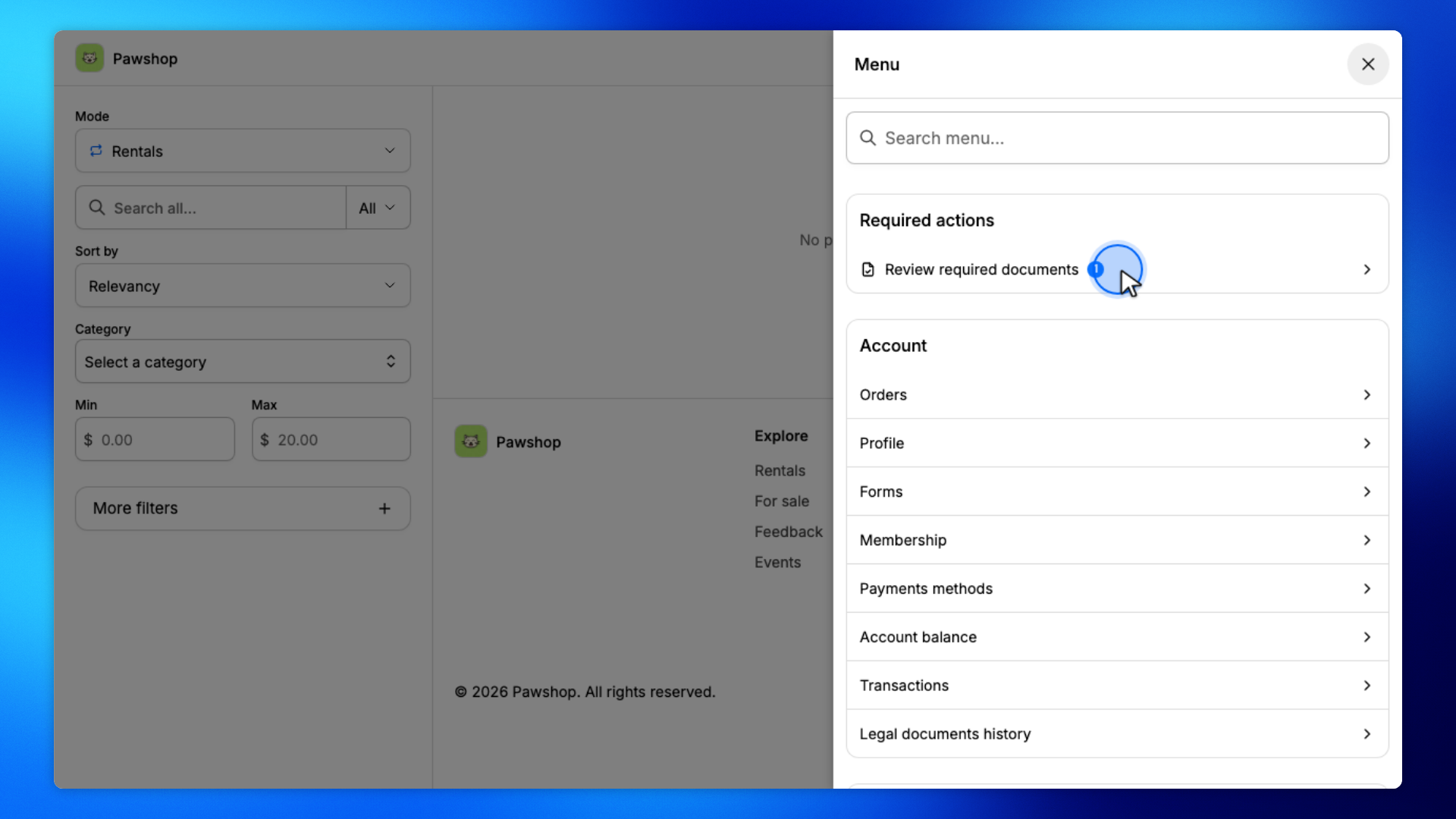
Open the shop, click the menu at the top right, then under Required actions click Review required documents.
The document is also listed under Policies & Support. The menu in the top right shows a count while documents are pending.
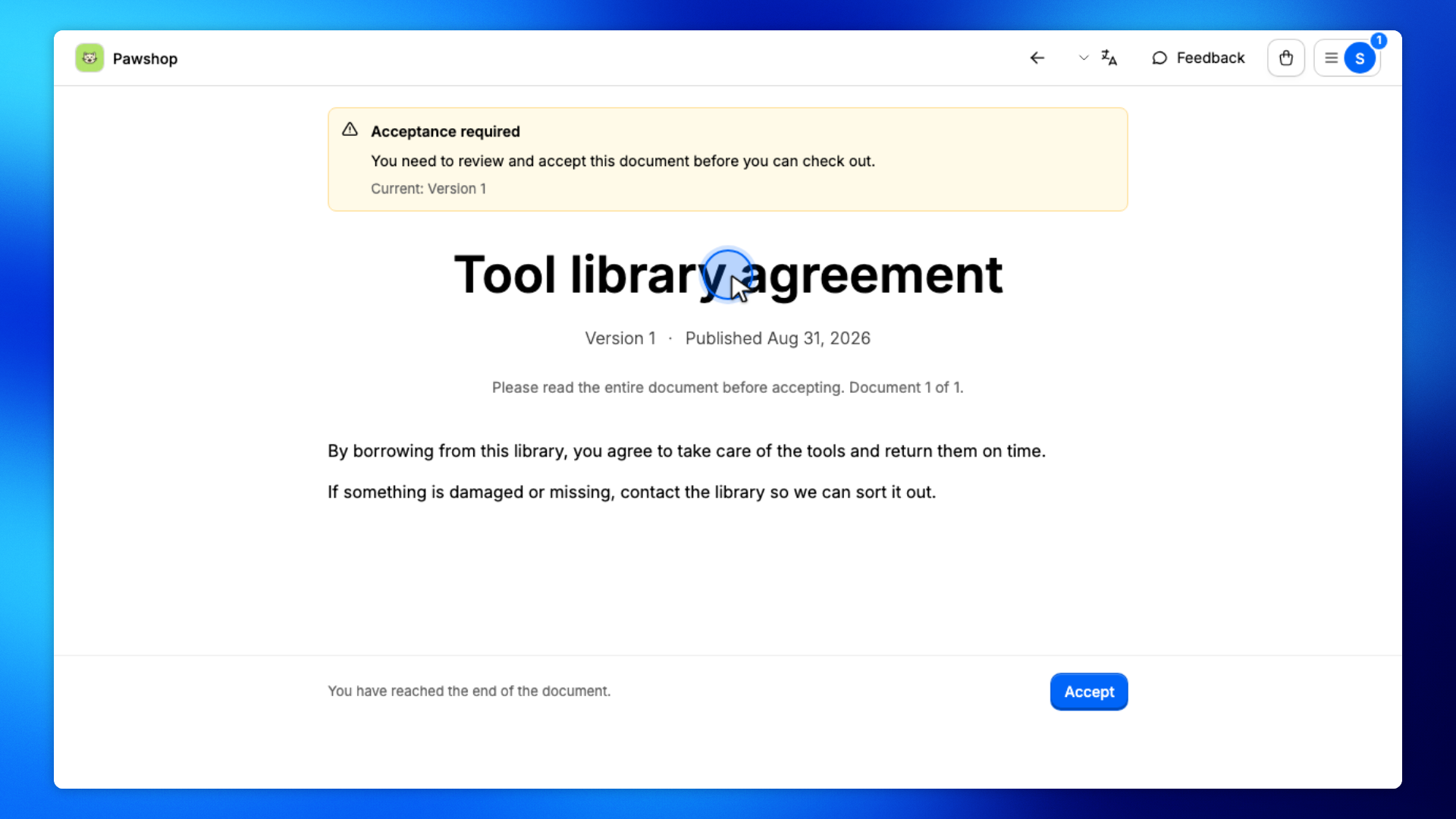
You'll land on the document in accept mode.
Check that the title and body look right.
Scroll to the bottom if Accept is disabled.
Members must read the document before they can accept it.
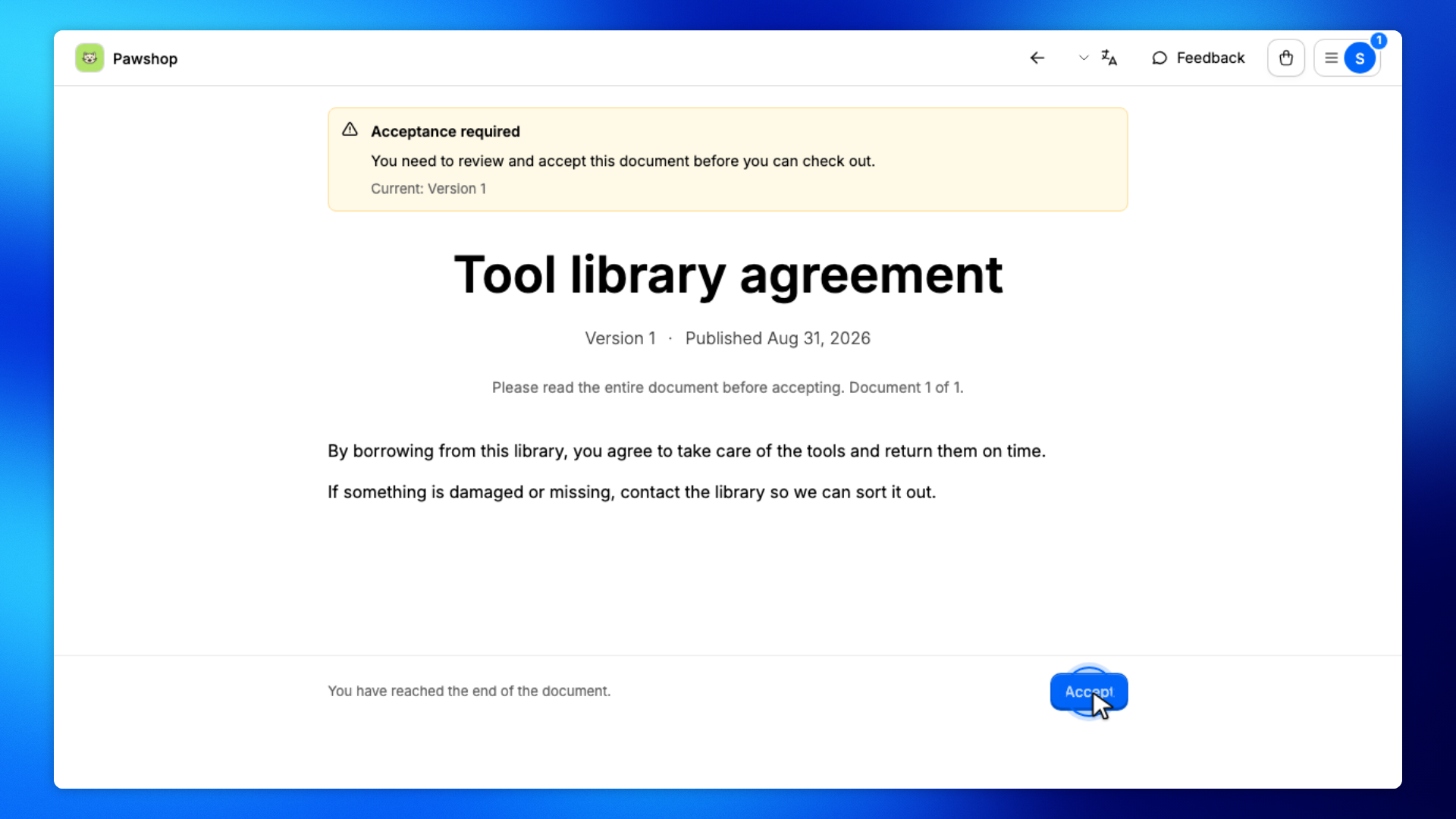
Click Accept, check I have read and agree., type your initials, then click Confirm.
You'll see Document accepted. The count on the menu in the top right goes away.
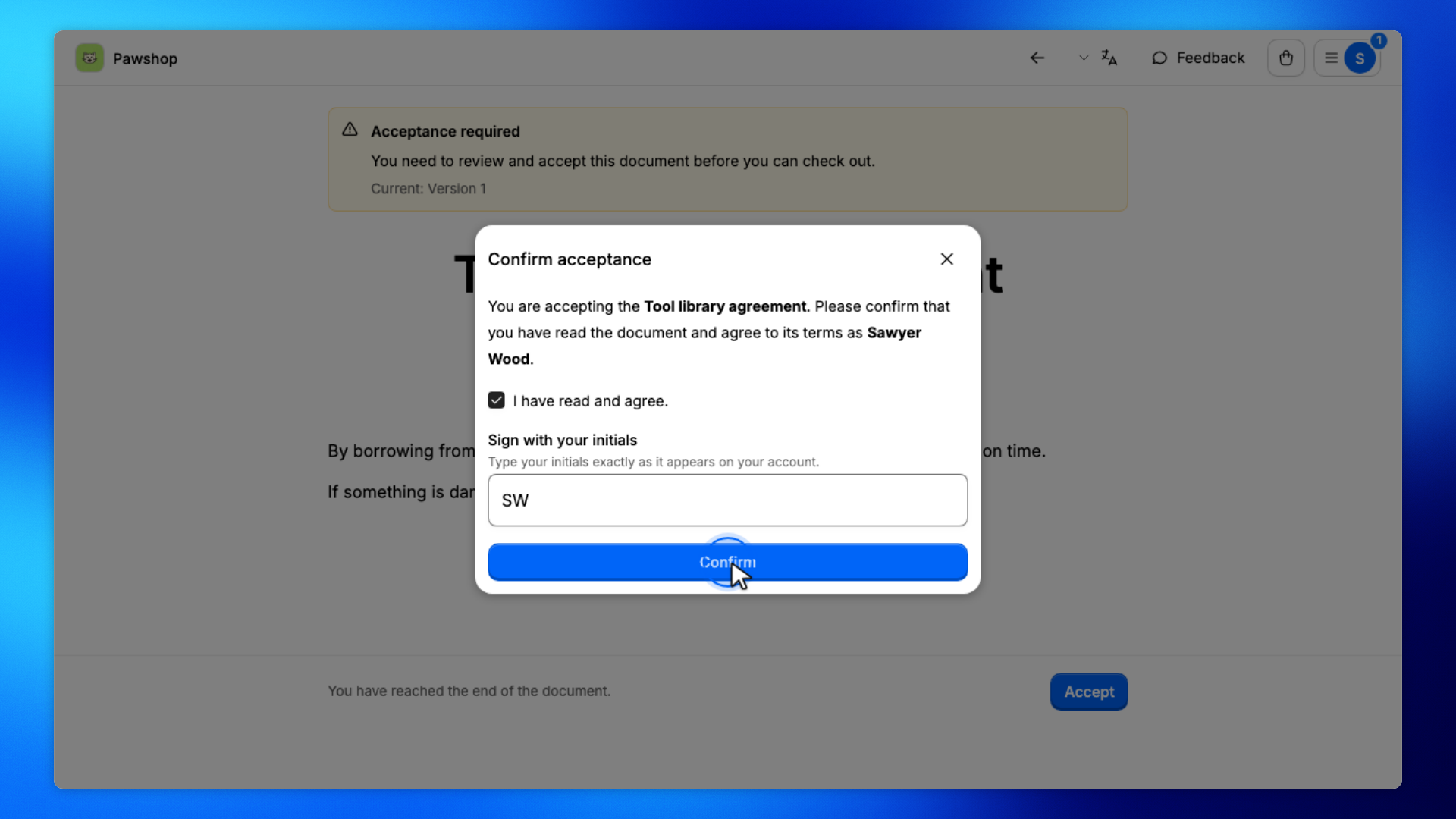
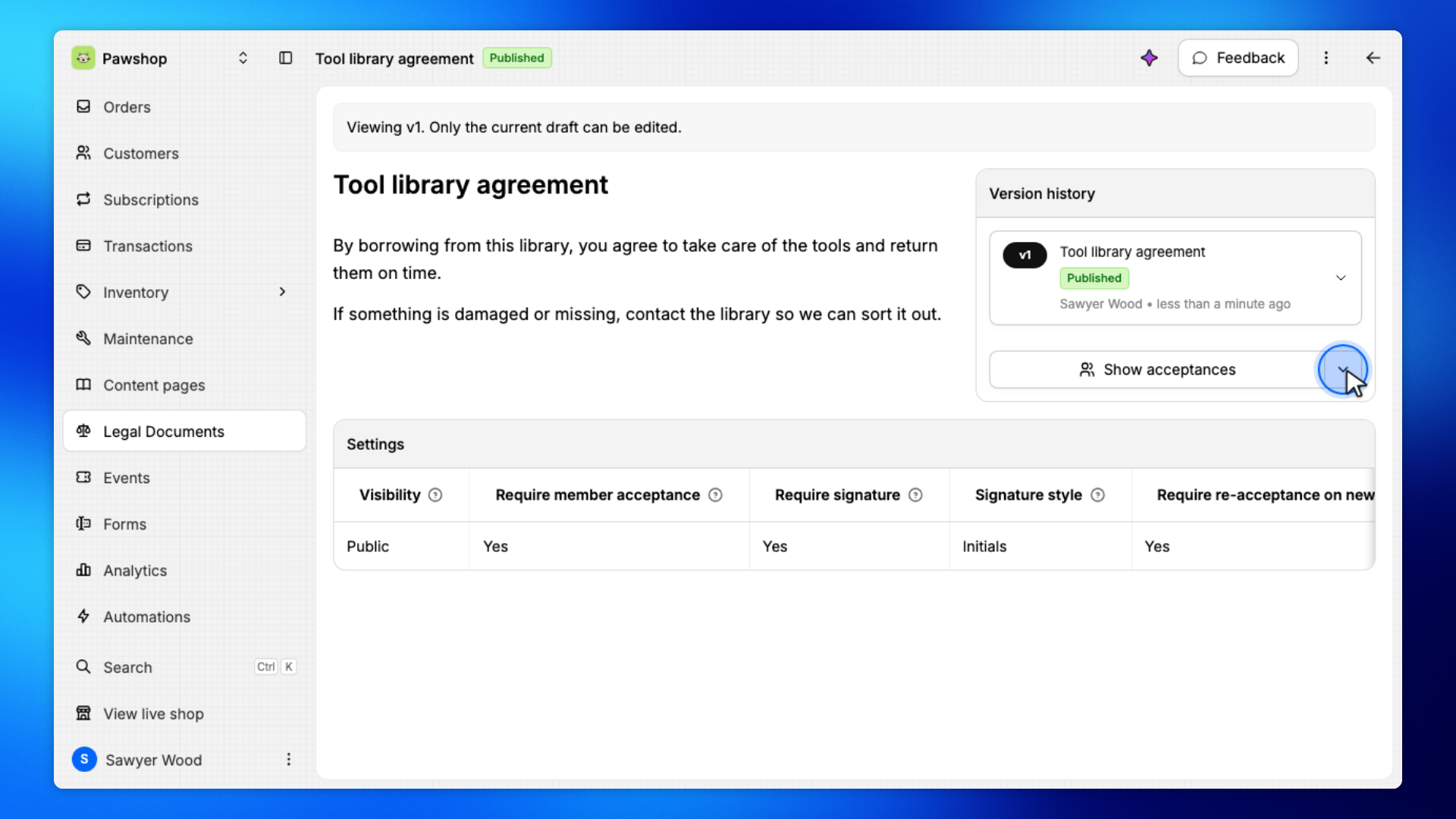
When the agreement changes, create a new version in Legal Documents. Members who already accepted must accept again.
Open the published document. Next to Show acceptances, open More version actions and click Create new version.
Confirm Create draft. The published version stays live until you publish the new draft.
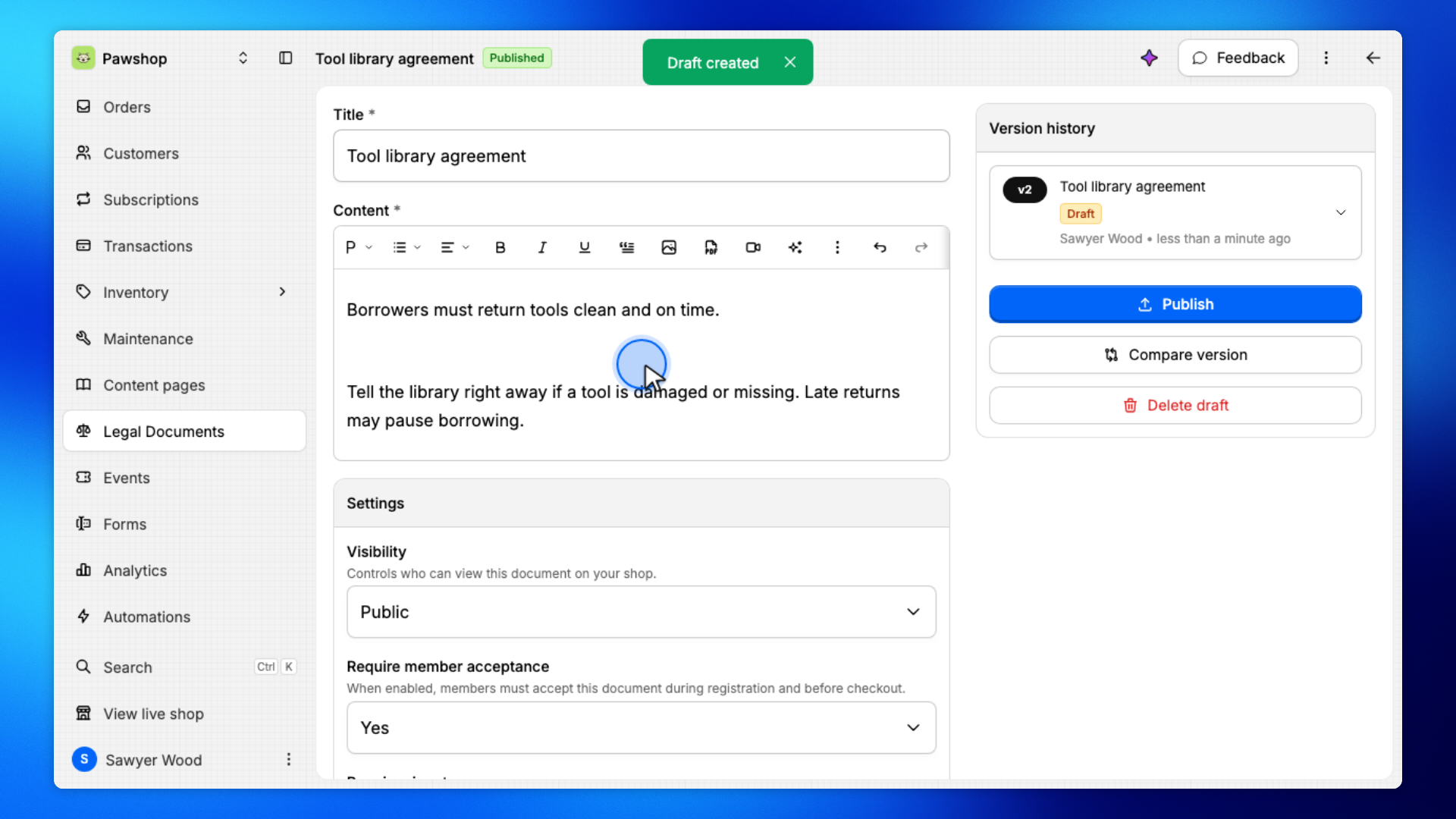
Update the document body, then click Save draft.
Leave the Title the same so the shop menu link stays familiar.
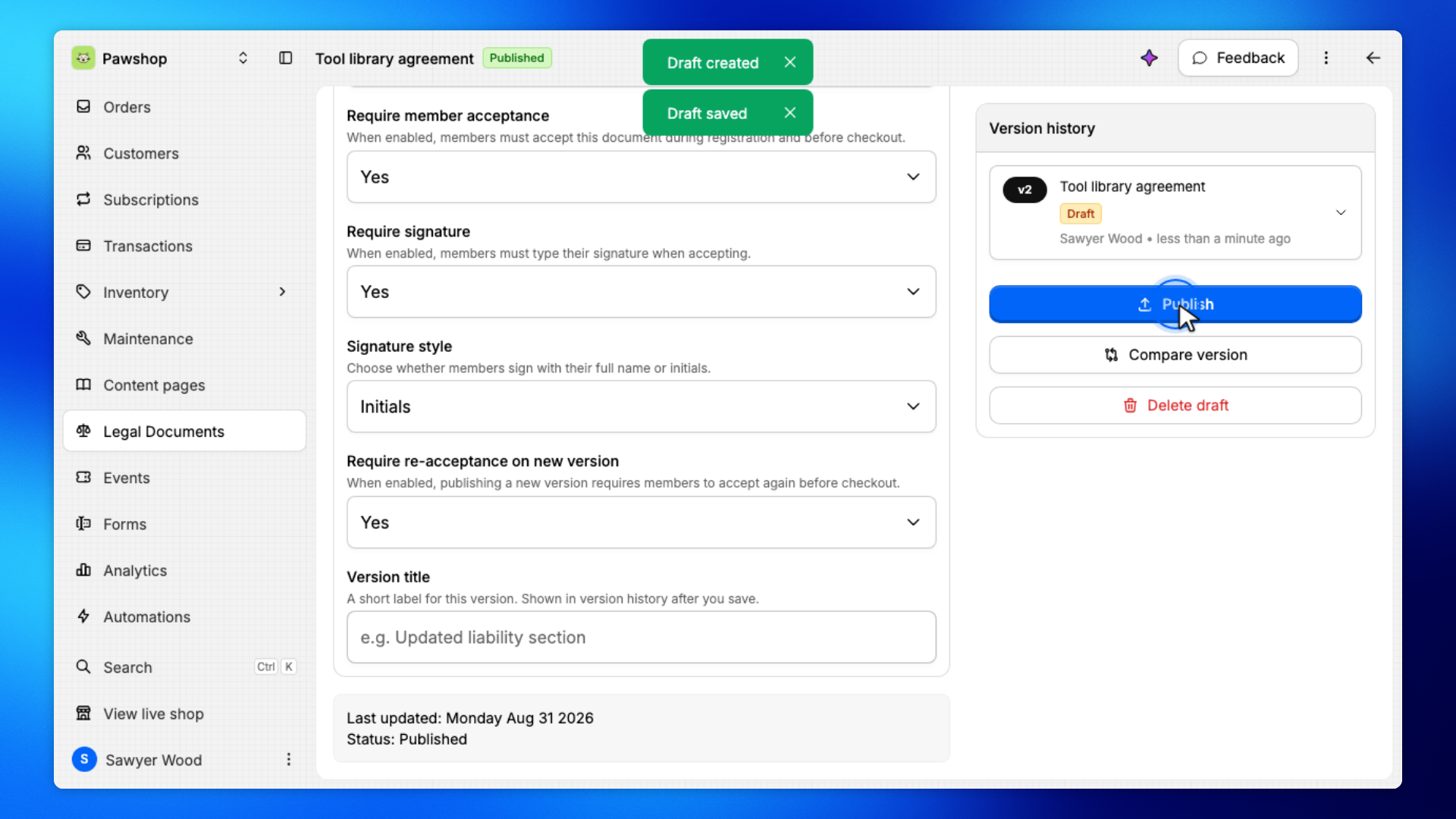
Click Publish. Confirm Publish new version?.
Members who already accepted must accept this version before checkout.
These steps are what customers see after you publish a new version. They must accept again.
Open the shop, click the menu at the top right, then under Required actions click Review required documents.
The document is also listed under Policies & Support. The menu in the top right shows a count while documents are pending.
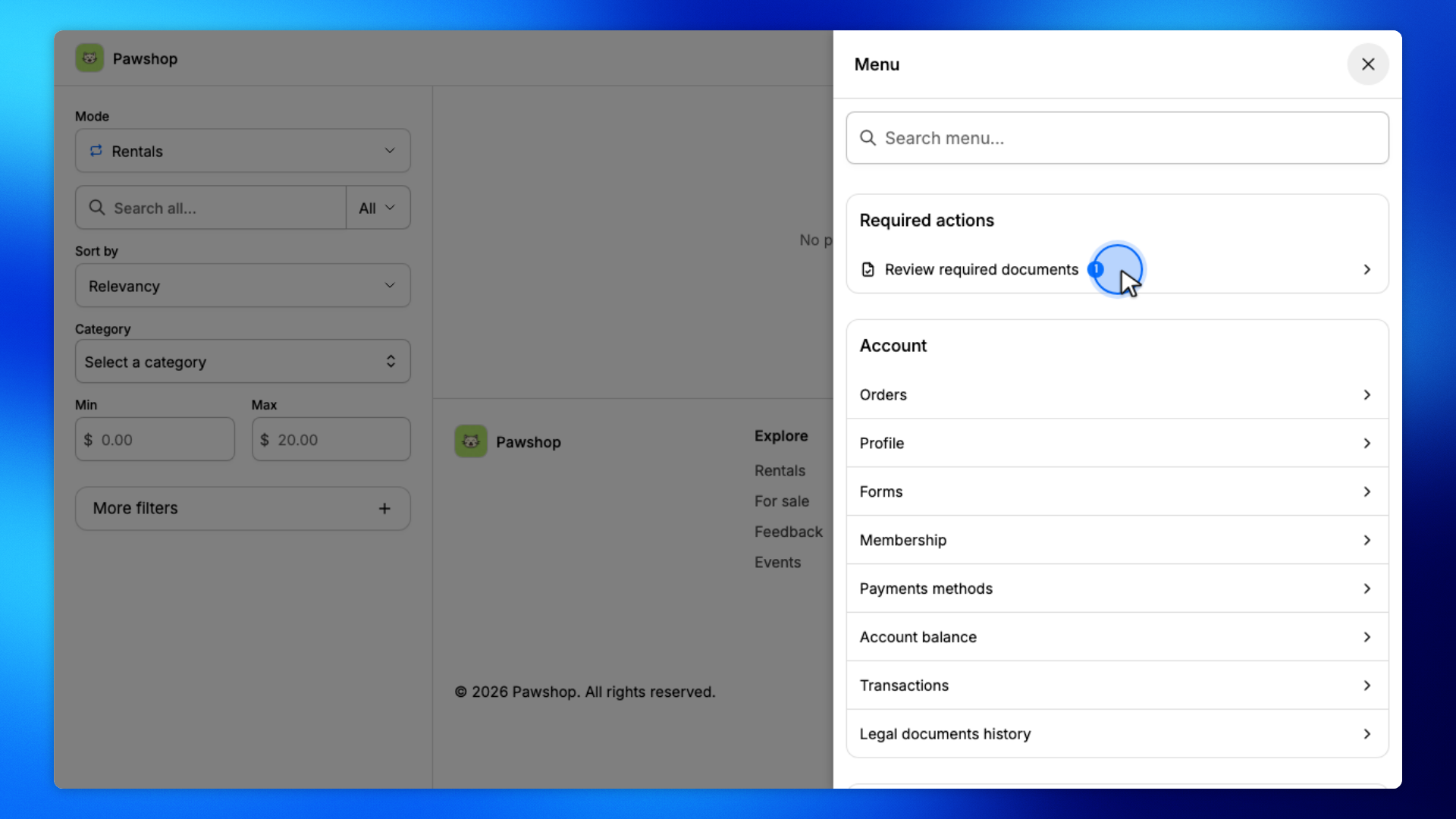
You'll land on the document in accept mode.
Check that the new body is there, and that members are asked to accept the latest version.
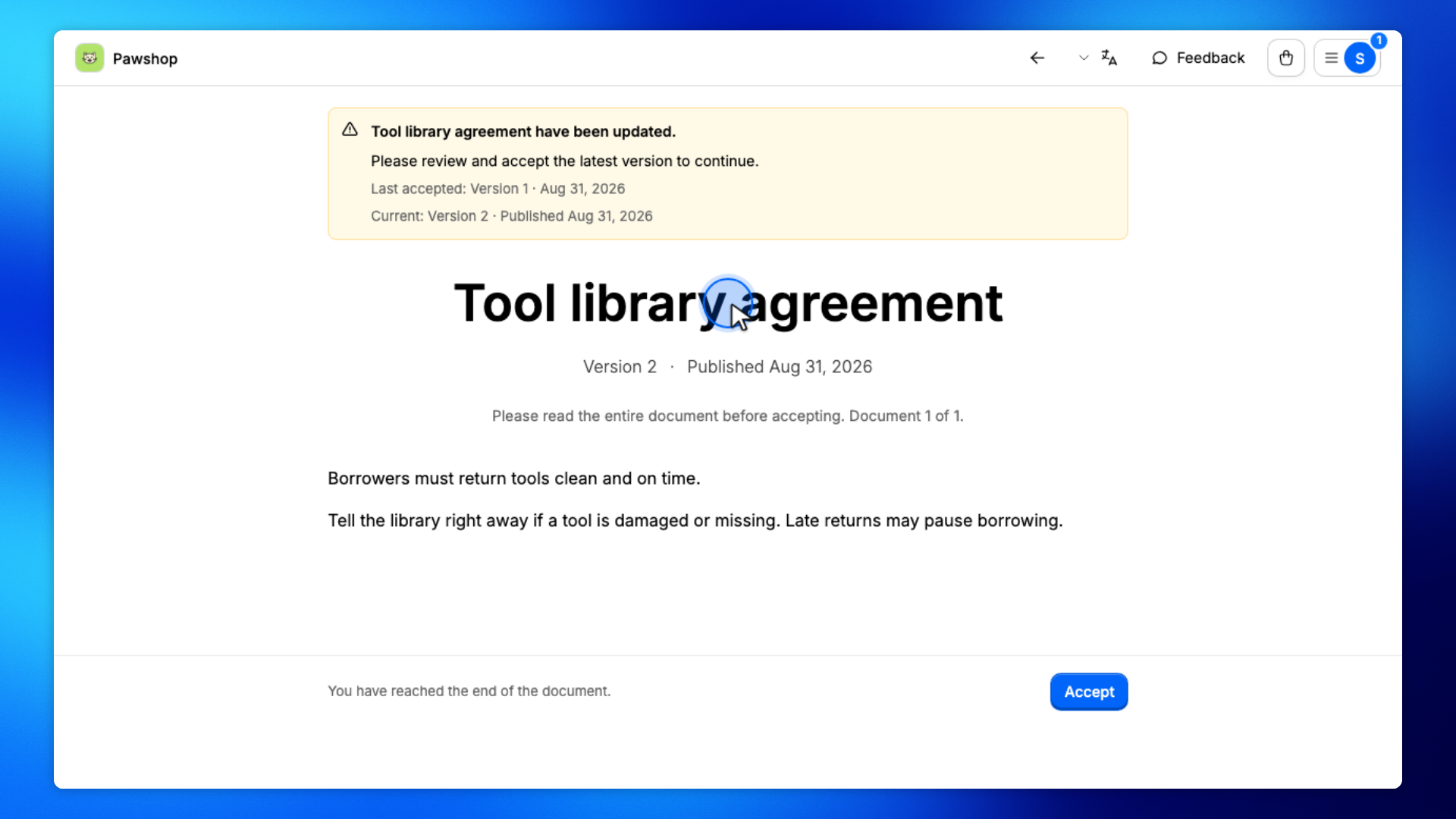
Scroll to the bottom if Accept is disabled.
Members must read the updated document before they can accept it.
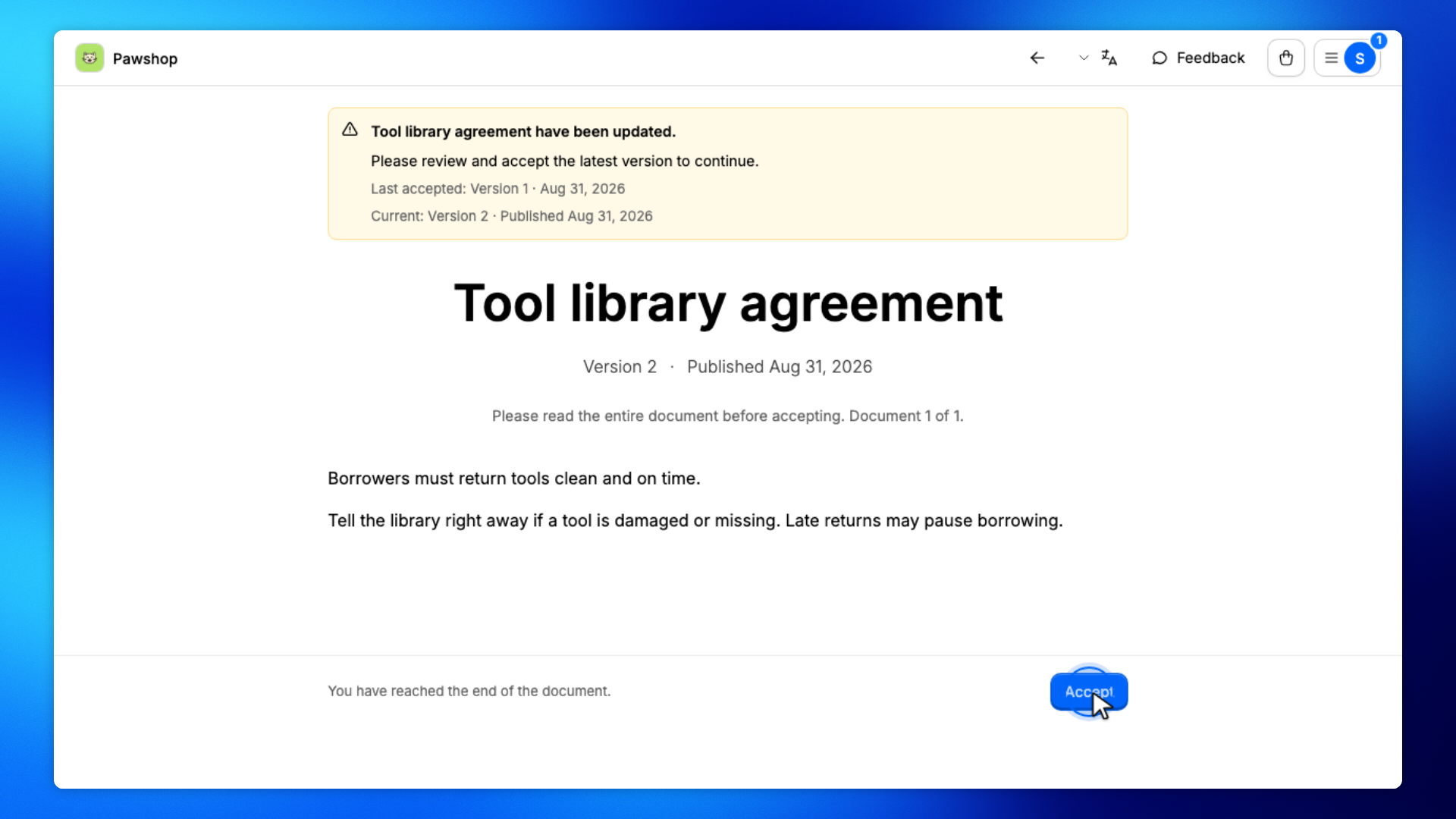
Click Accept, check I have read and agree., type your initials, then click Confirm.
You'll see Document accepted. The count on the menu in the top right goes away.