Invite a customer
By JulienUpdated August 31, 2026
Send a customer invitation from your workspace, then see how they join the shop.
By Julien·Updated August 31, 2026
Send a customer invitation from your workspace, then see how they join the shop.
This tutorial has two parts: what you do in the workspace, and what the invited person does with the invite link.
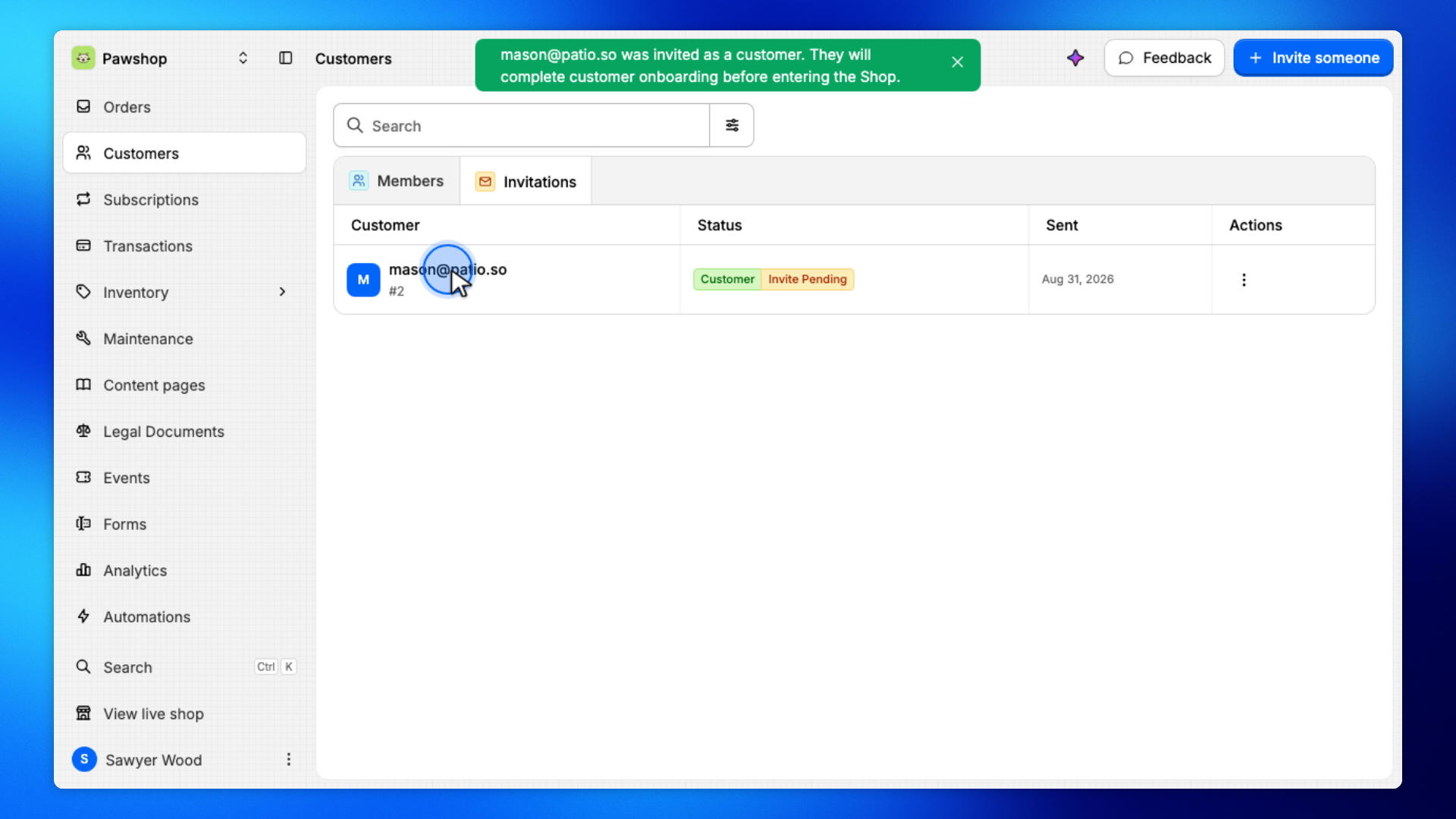
In Customers, invite them to Join as a customer and send the invite. You will see them on Invitations until they finish shop onboarding.
The invited person opens the link, signs in, completes shop signup (including payment), and then appears as a customer in your workspace.
These steps are yours. You send the invitation from Customers.
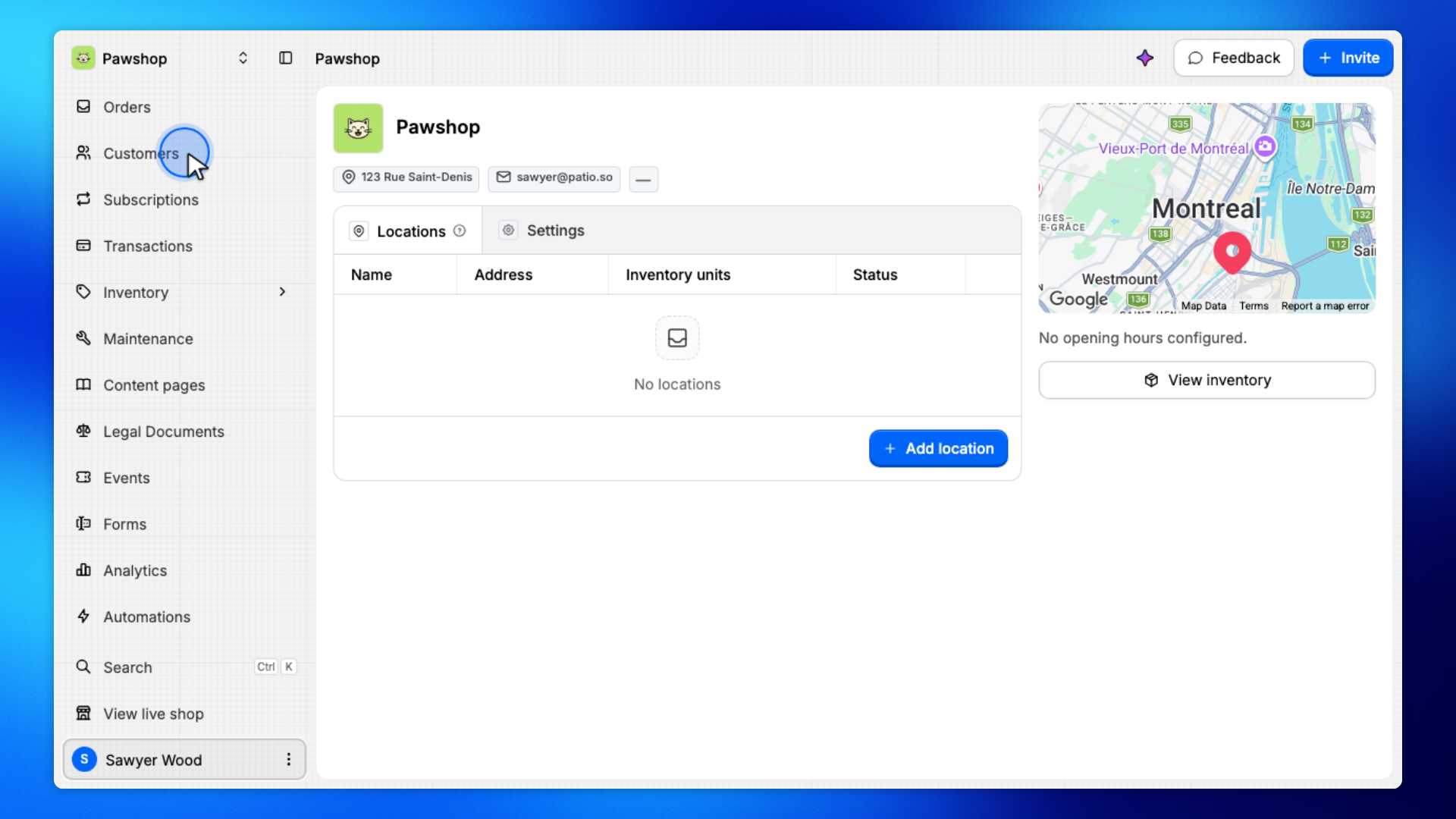
Open Customers from the workspace sidebar.
This is where you invite people to the team or to the shop.
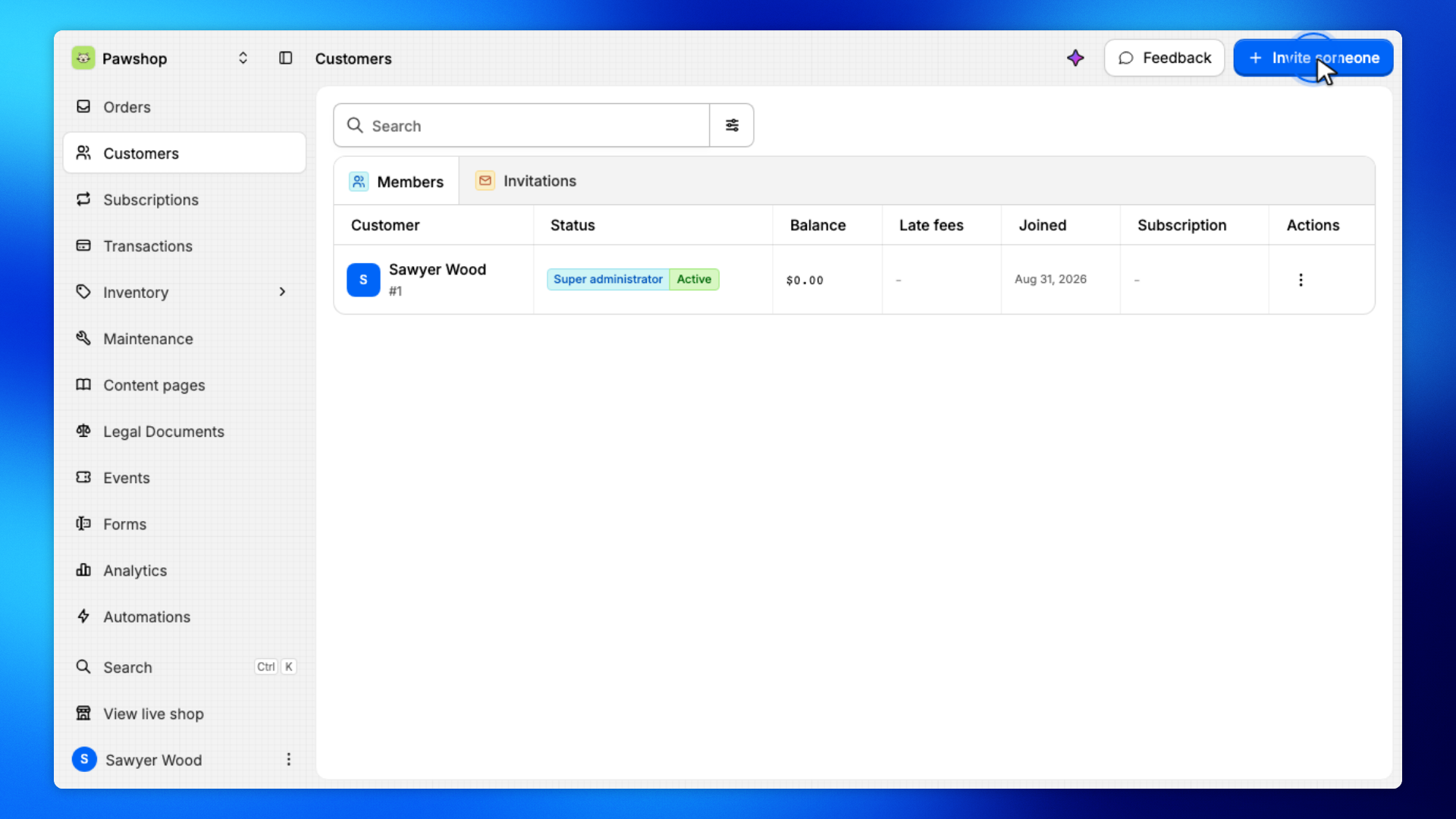
Click Customer (the invite button).
You will choose whether they join the team or join as a customer.
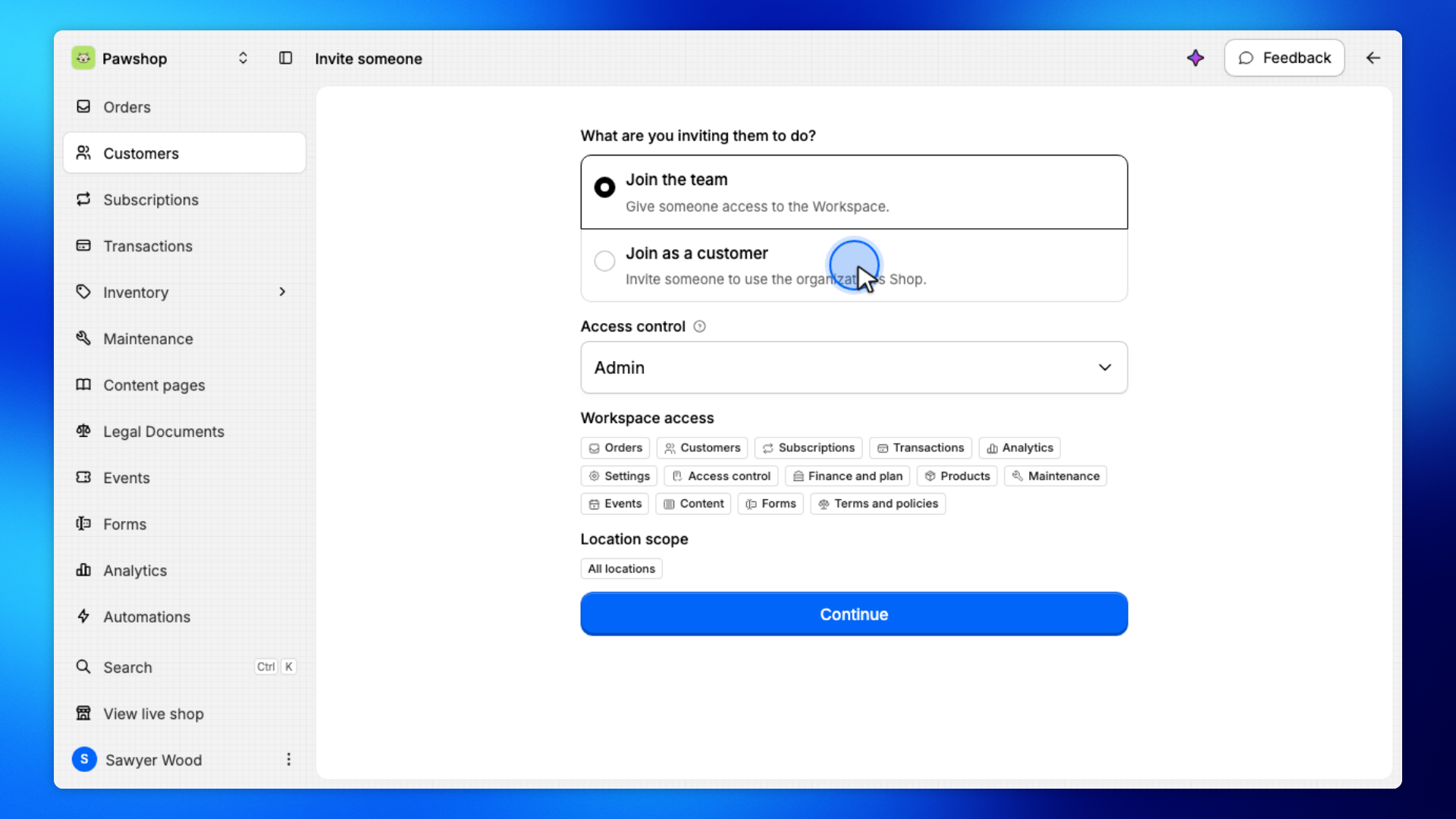
Select Join as a customer.
They will complete shop onboarding before they can rent.
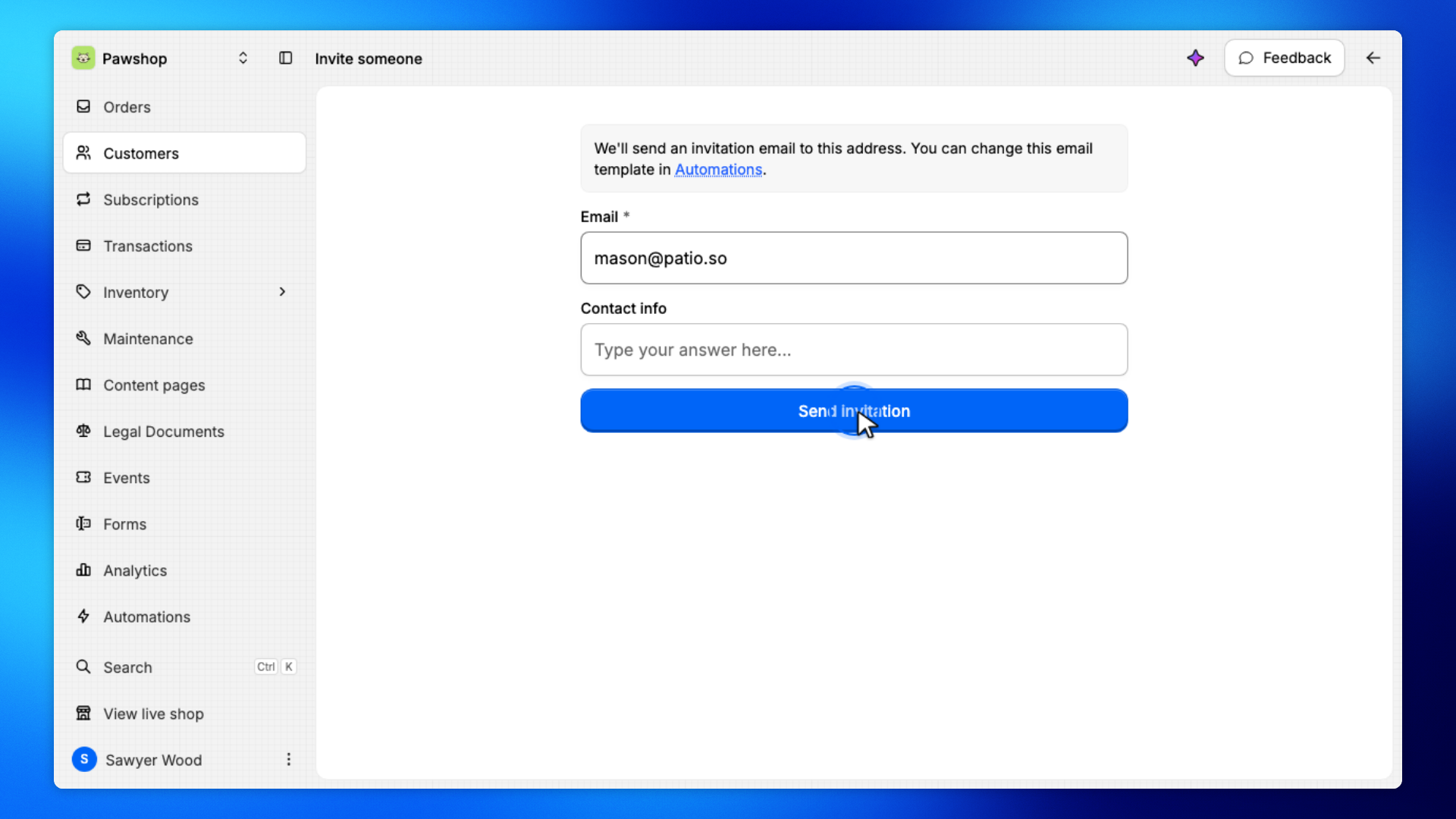
Enter their email, then click Send invitation.
Patio emails them a link. The next screens are theirs, not yours.
Still in Customers, open Invitations. The invited person stays listed here until they finish shop onboarding.
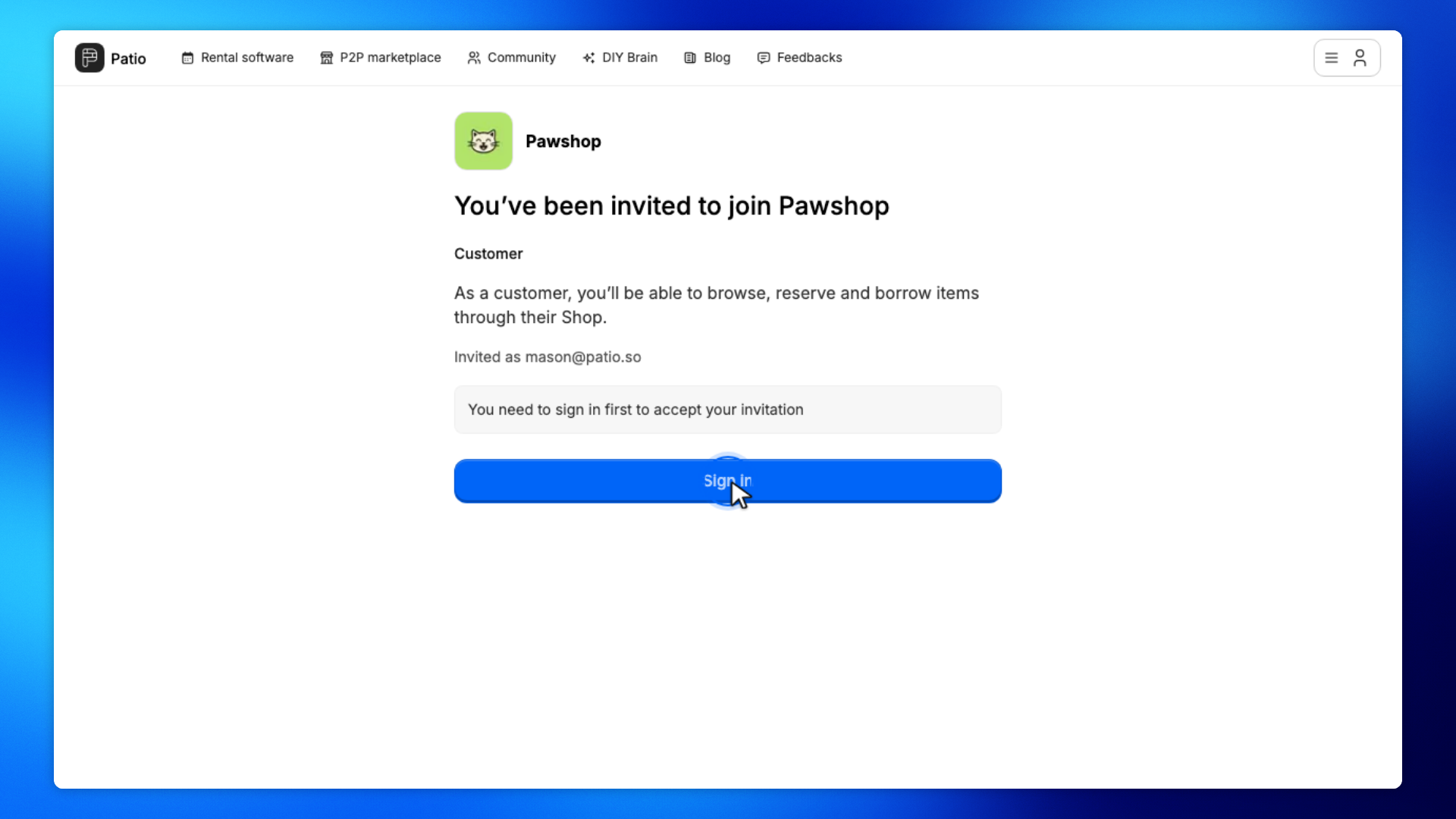
These screens are on the invite link in their browser, not in your workspace.
The invited person opens the invite link and clicks Sign in.
They must sign in before they can accept. This is not the workspace.
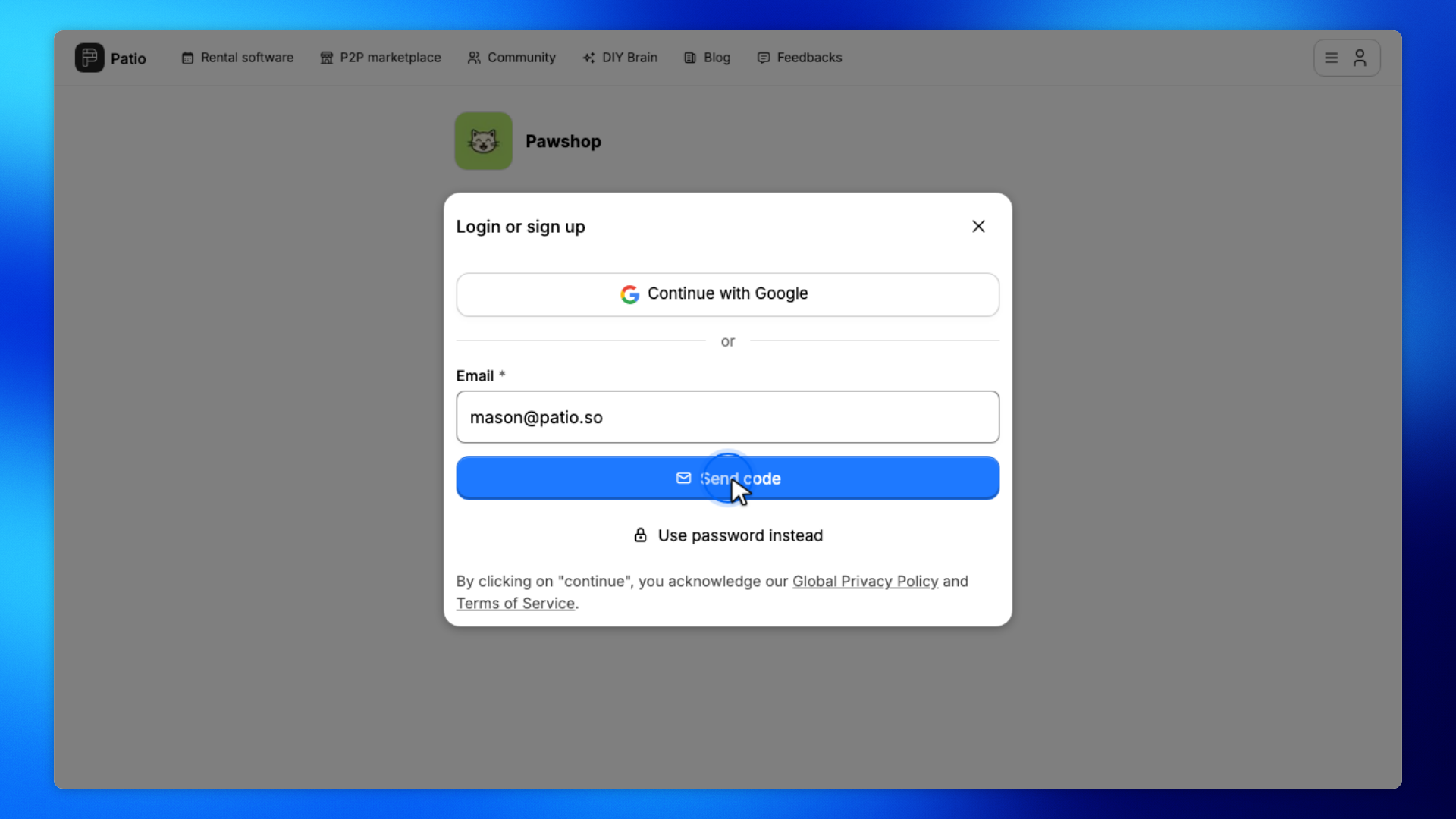
The invited person enters the invited email and clicks Send code.
Patio emails them a one-time code.
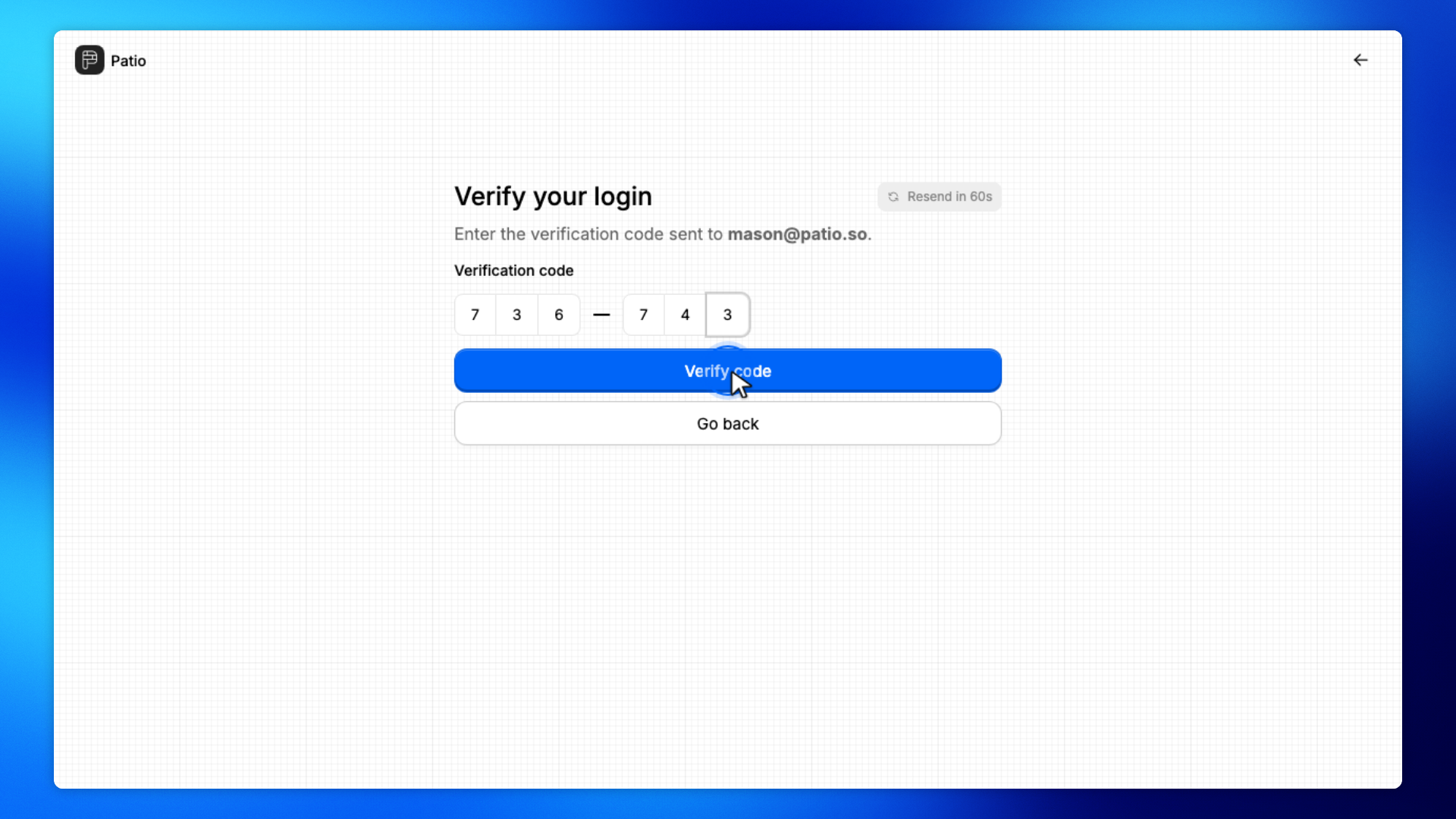
The invited person enters the code from their email and clicks Verify code.
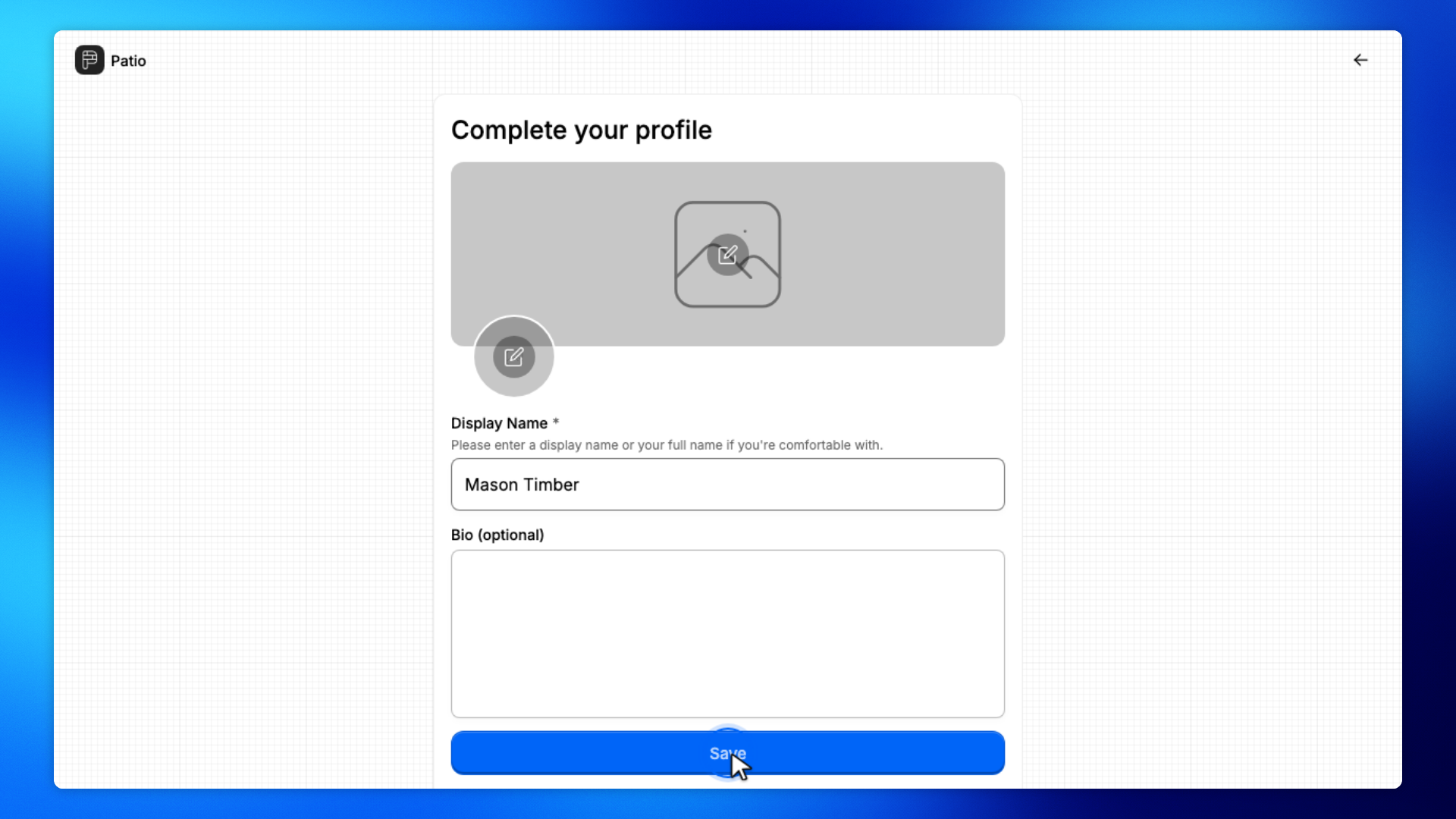
The invited person enters their name on Complete your profile and clicks Save.
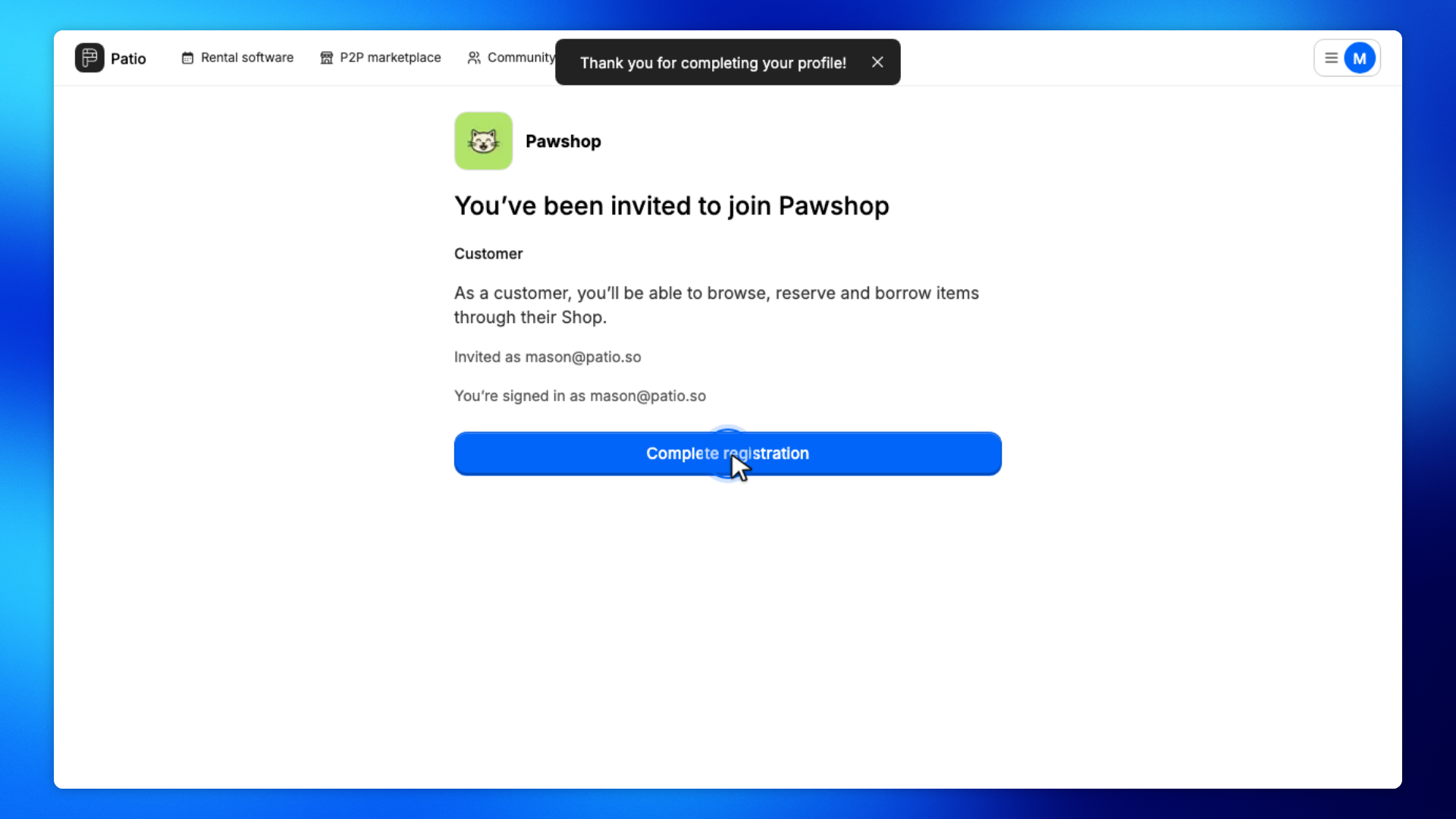
The invited person clicks Complete registration.
That opens shop onboarding in their browser, not in your workspace.
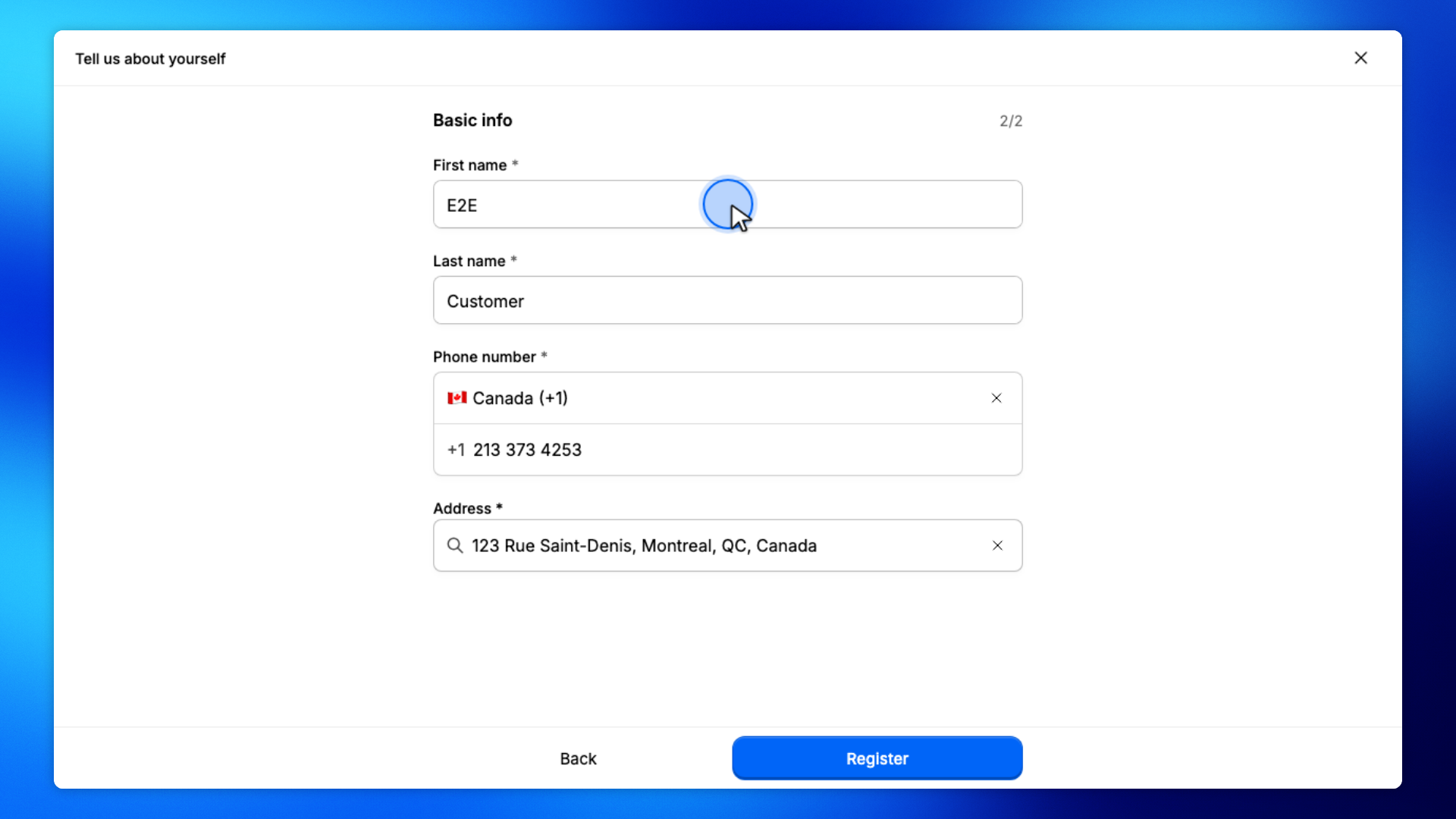
These screens are shop signup for the invited person, after Complete registration.
The invited person enters their name and contact details, then continues.
This is shop signup in their browser, after Complete registration.
The invited person picks a membership plan.
The plan is what they subscribe to in the shop.
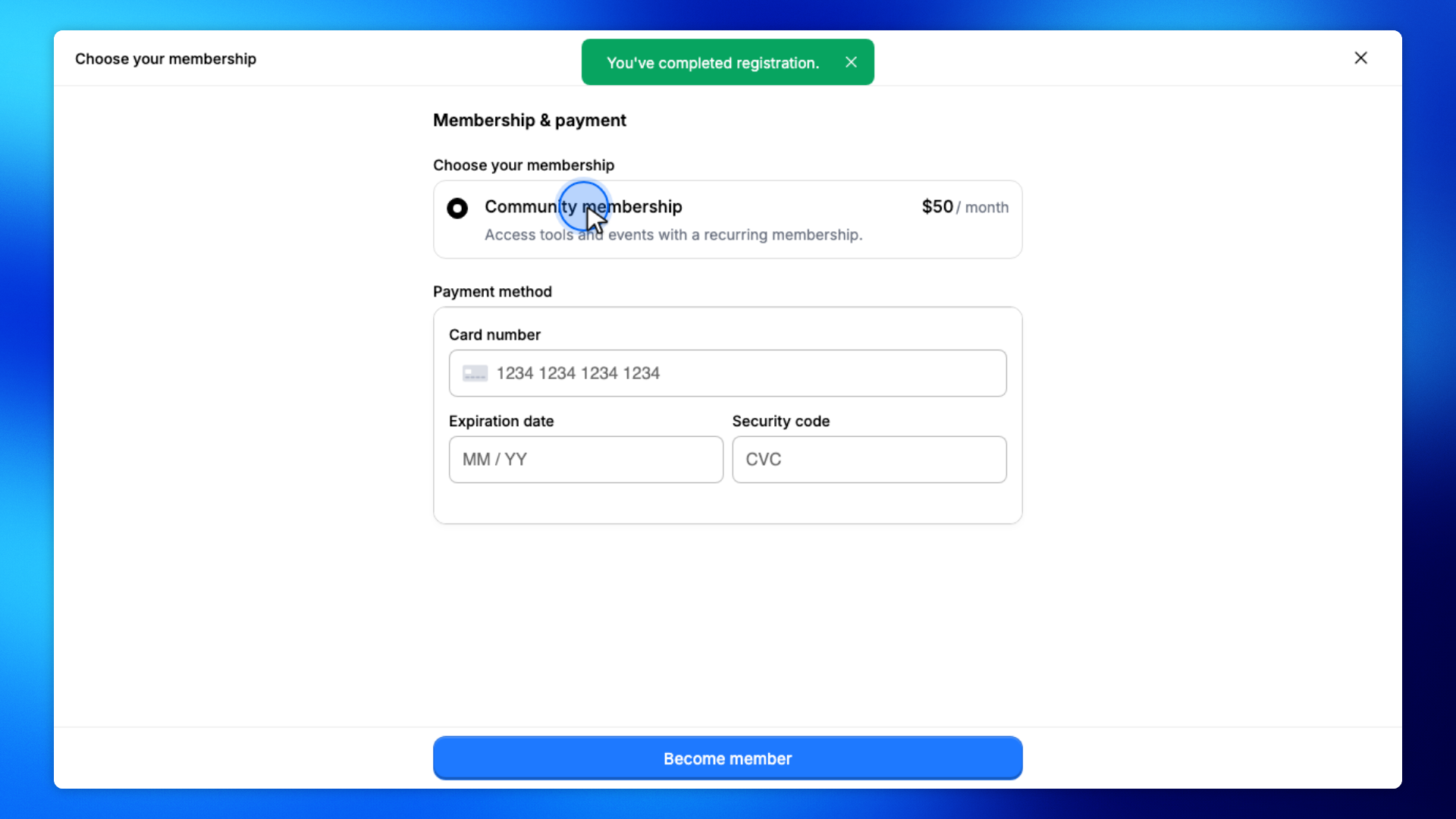
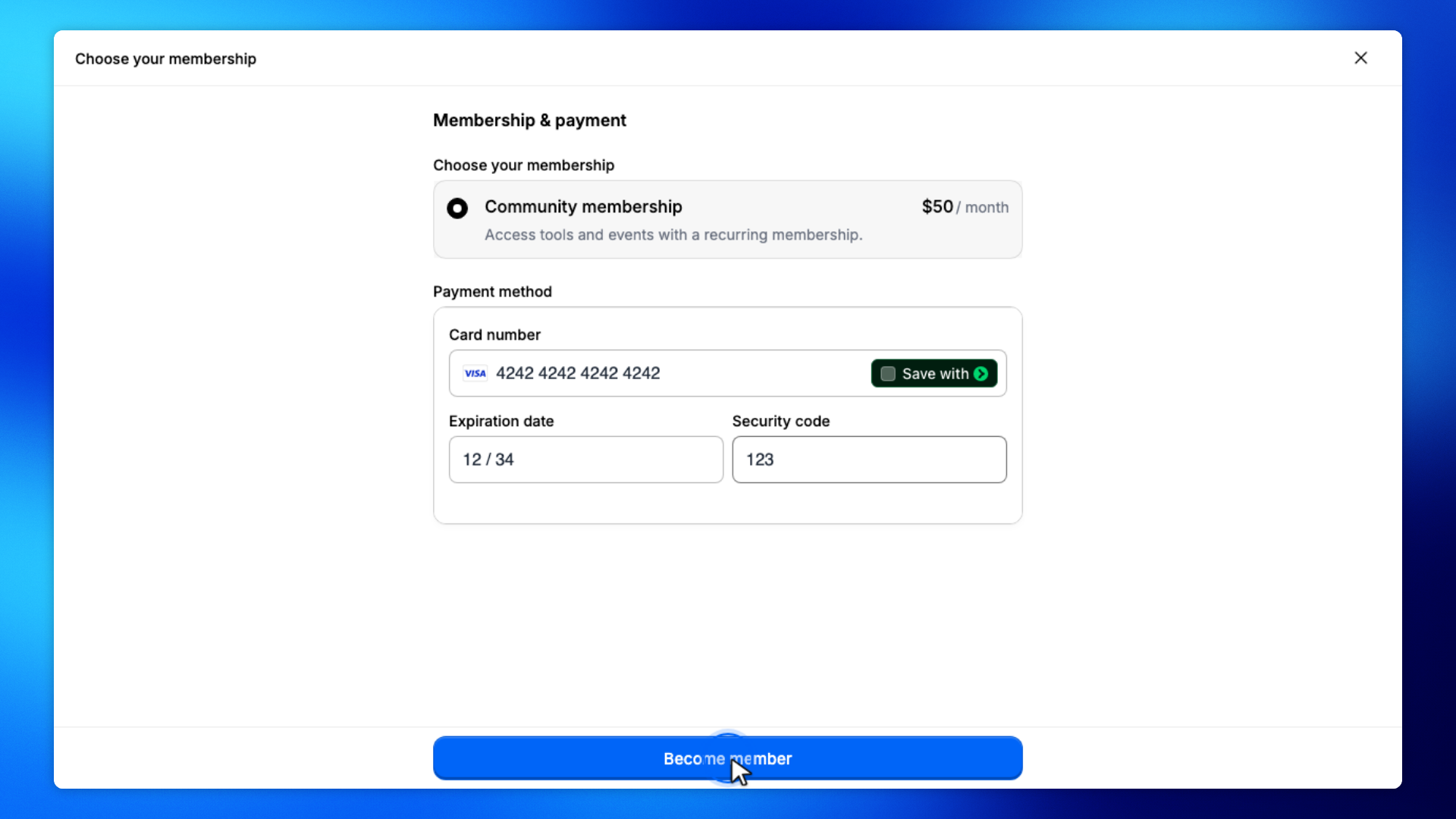
The invited person enters their payment details and clicks Become member.
When payment succeeds, they can use the shop.
These steps are yours again. The invited person has finished joining.
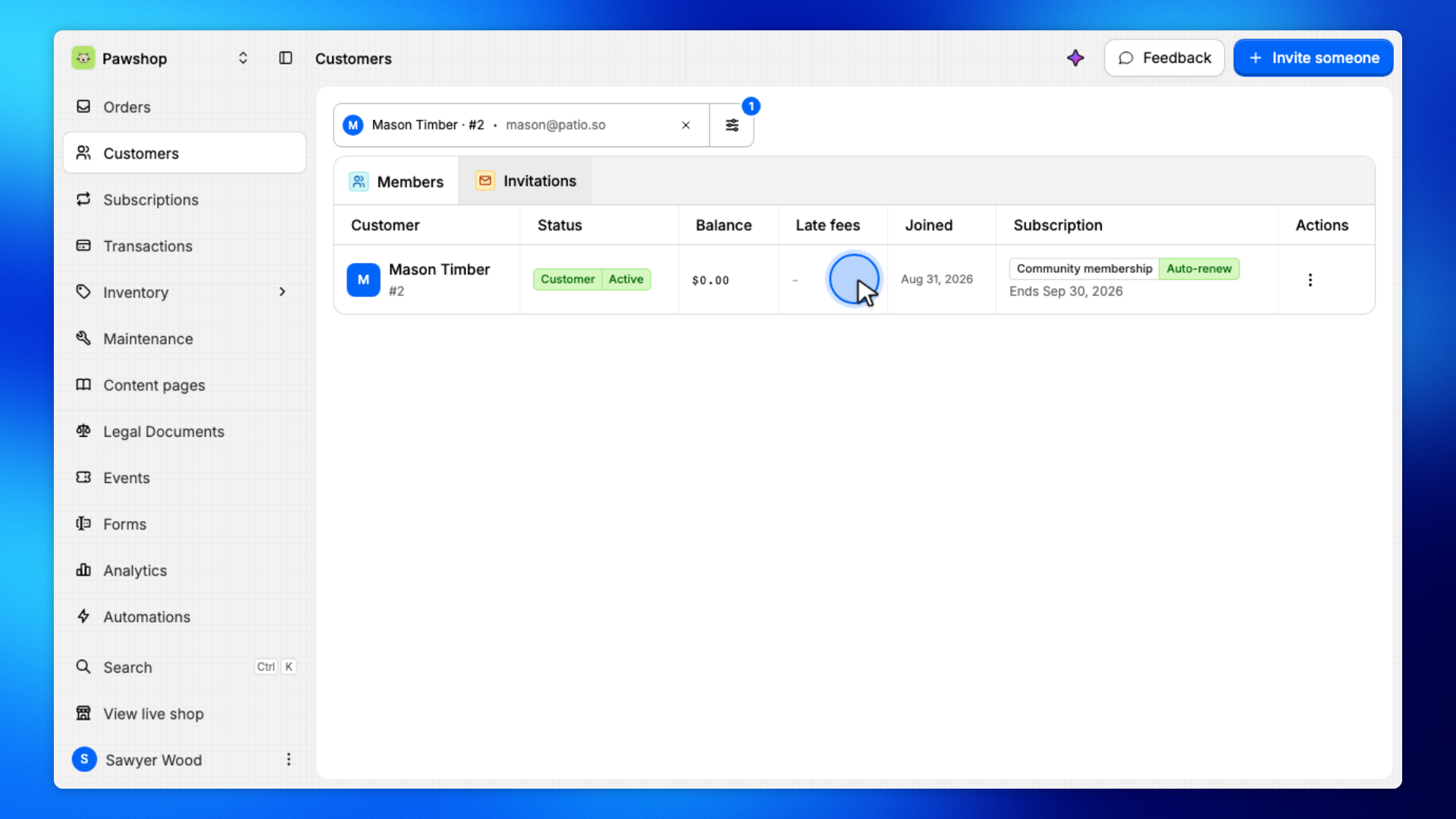
Open Members. They should show as Customer and Active.