Customize your shop navigation
By Julien RiouxUpdated August 31, 2026
Set where the shop opens and which links sit in the header. The homepage does not have to be the catalog.
By Julien Rioux·Updated August 31, 2026
Set where the shop opens and which links sit in the header. The homepage does not have to be the catalog.
The shop can open on the catalog, or on a page, a policy, For sale, or Events. The header is a separate list of links you choose.
For example, a library can greet people with a mission page, and keep Rentals in the header so they can still browse tools.
Set the homepage and the links customers see on the shop.
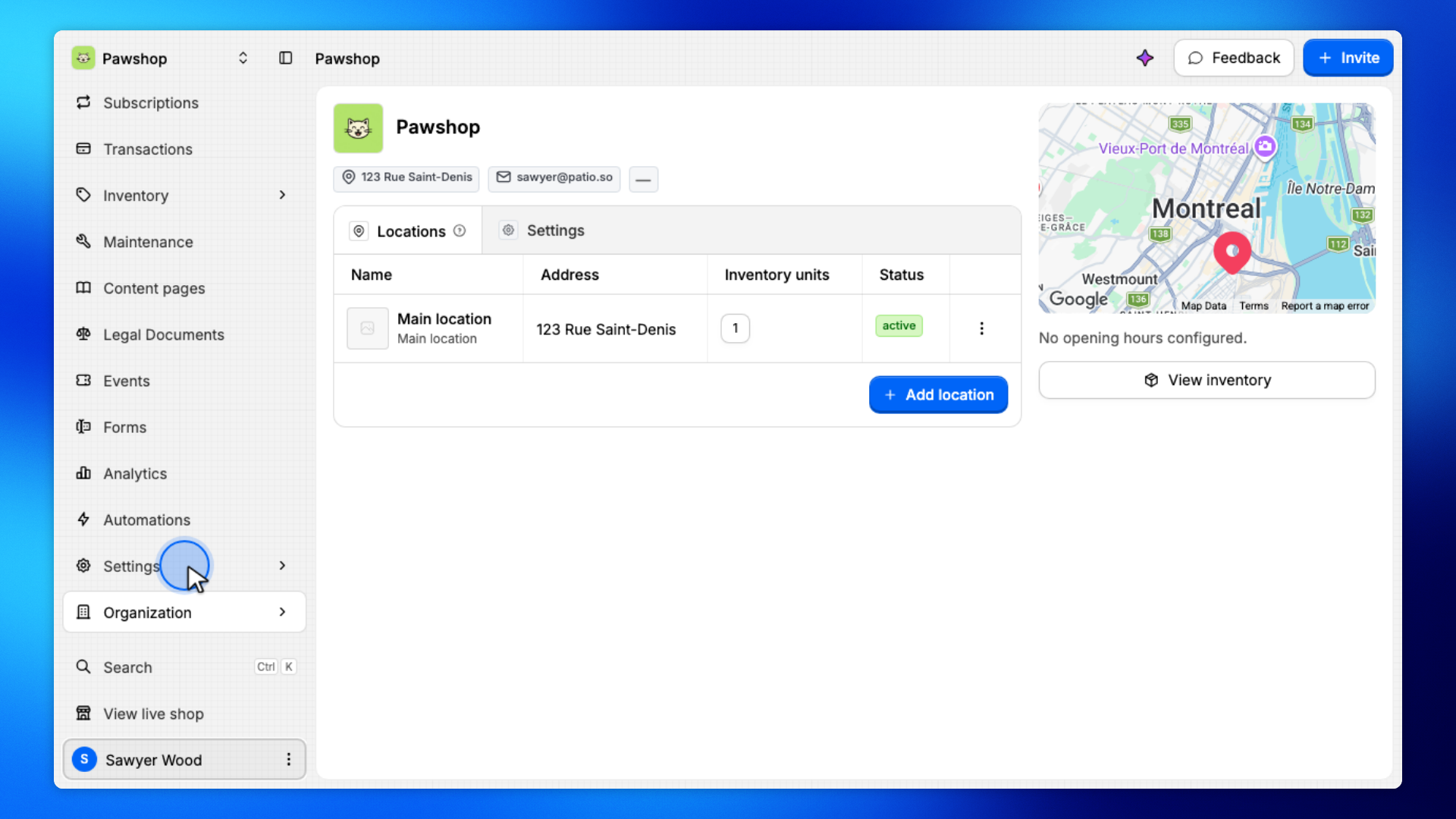
Open Settings from the workspace sidebar.
Navigation lives under Settings because it belongs to the shop, not to a single product.
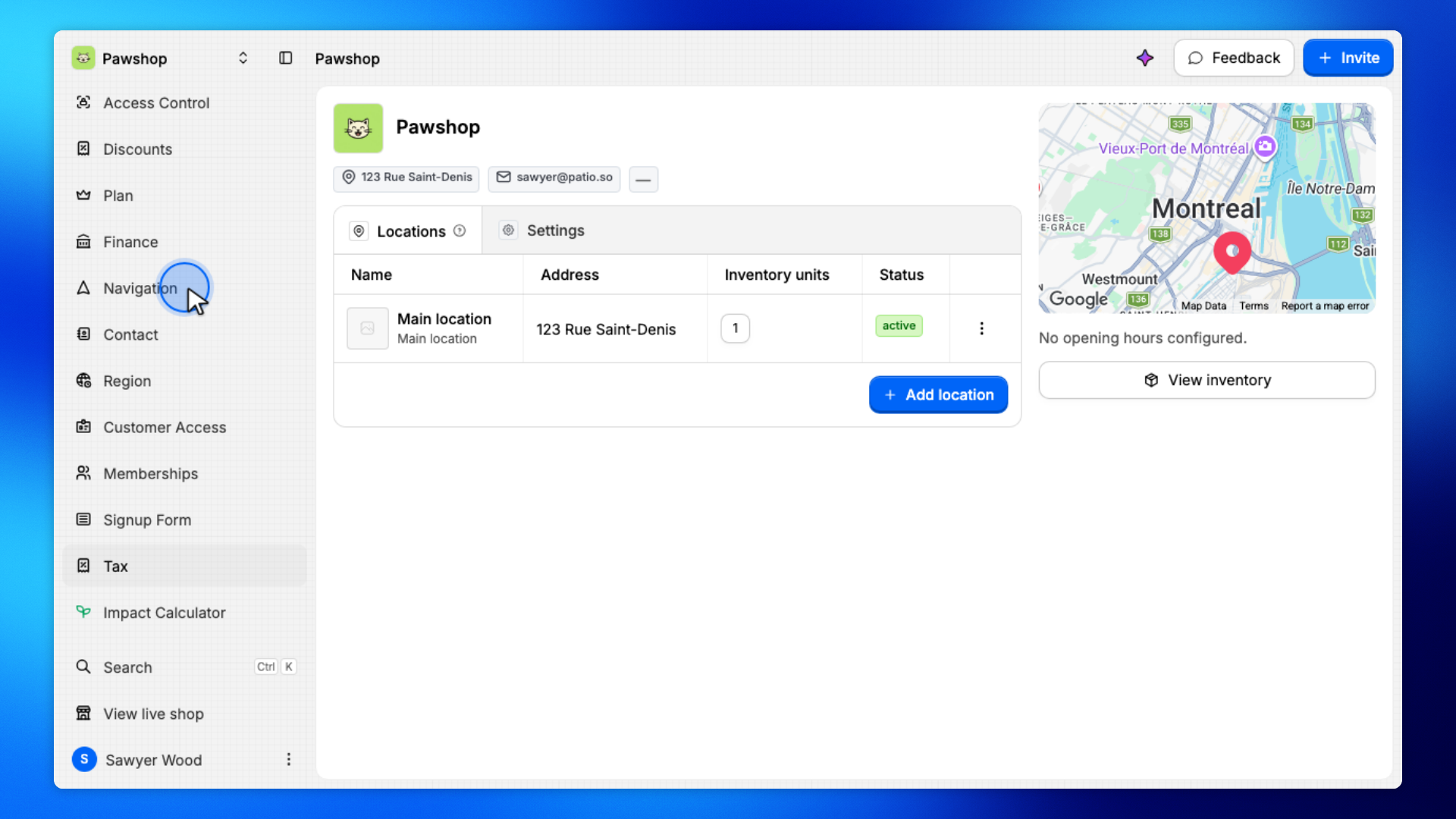
Click Navigation.
This is where you choose the shop homepage and the links in the header.
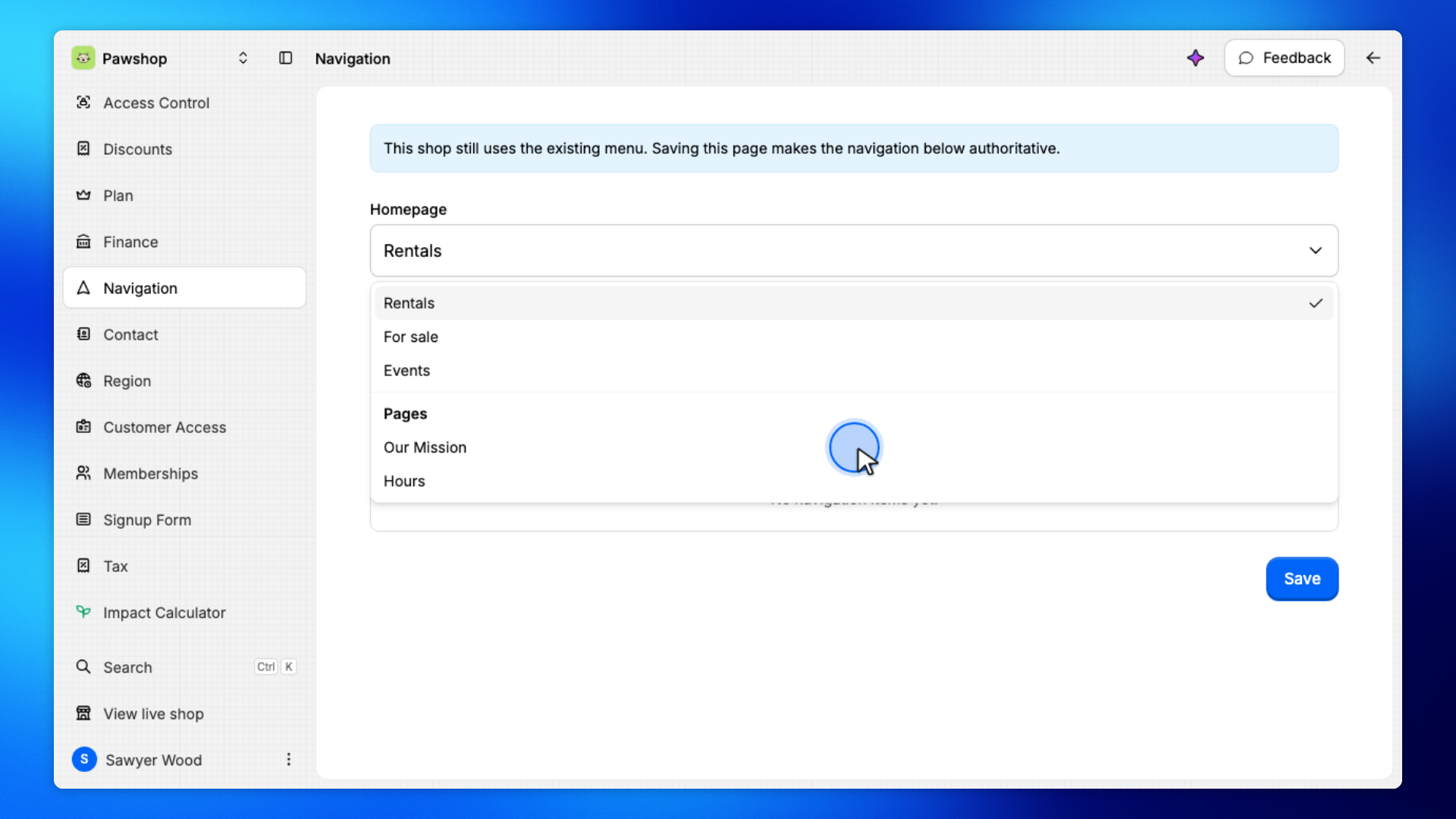
Set Homepage to wherever visitors should land first. A content page works if you want a welcome before the catalog. You can also use Rentals, For sale, Events, or a policy.
The first time, a notice explains that the old menu is still in use until you save.
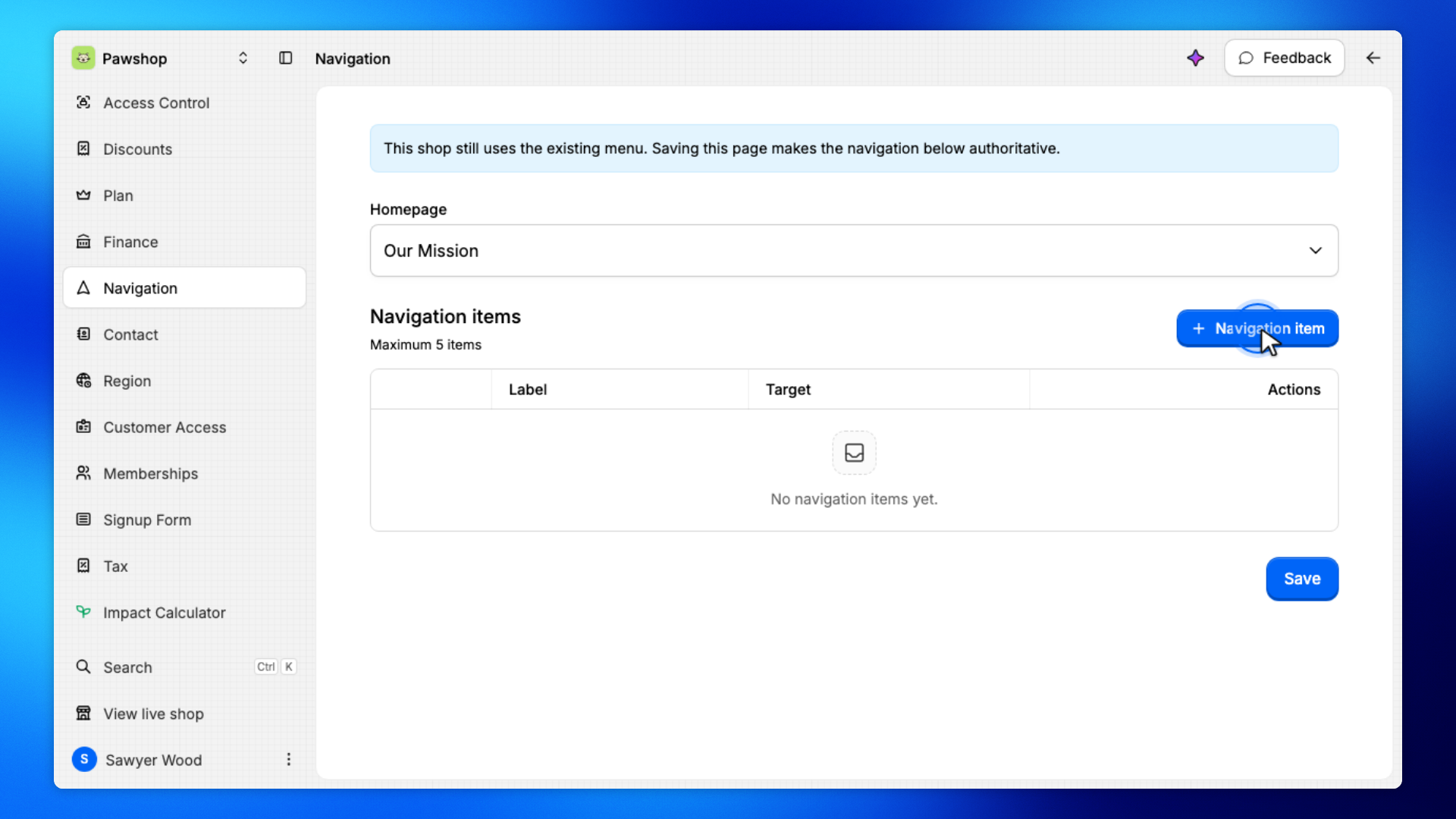
Click Navigation item.
You can add up to five links.
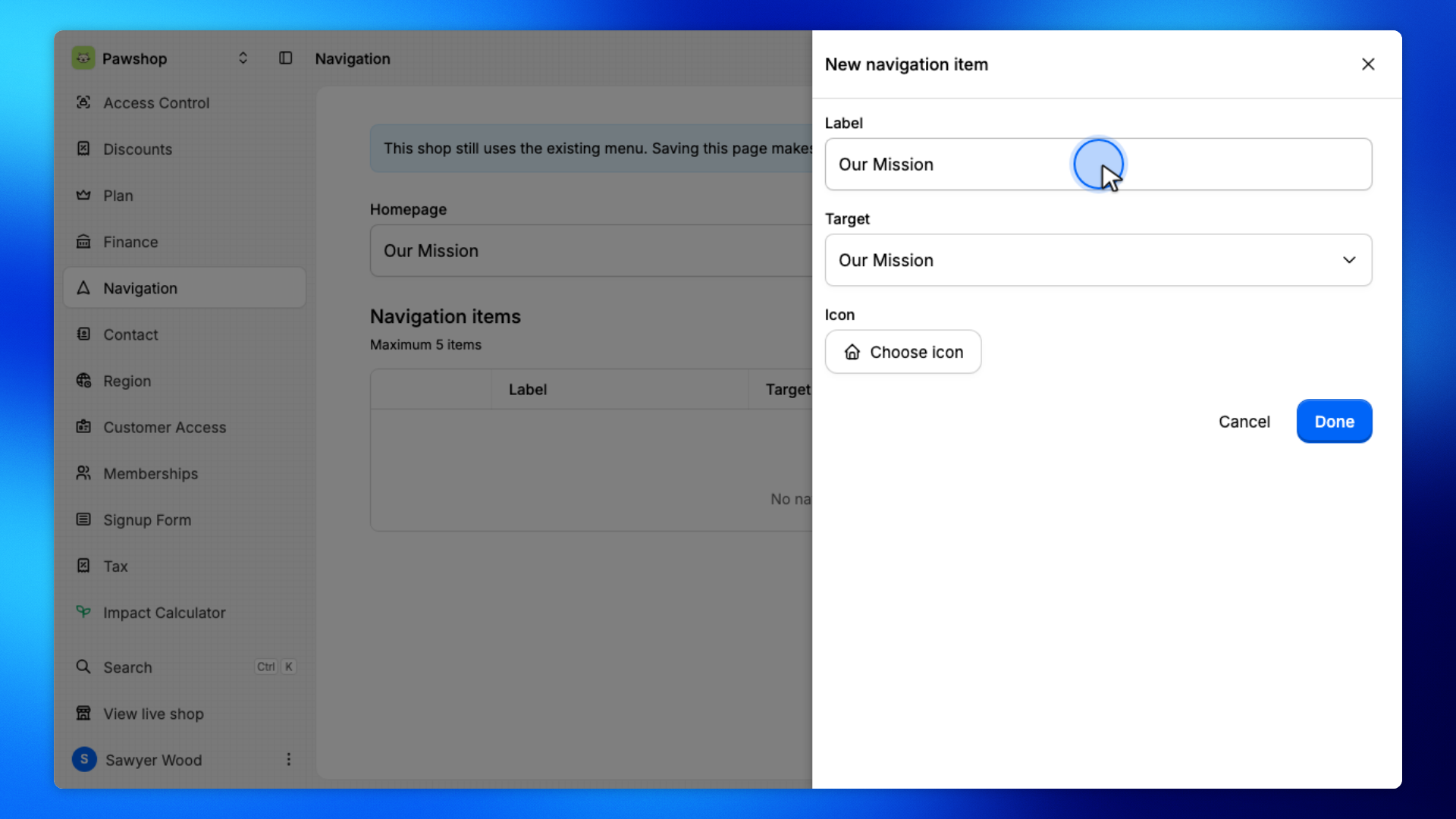
Enter a Label (what customers read) and pick a Target (where it goes), then click Done. Repeat for each link you want in the header. Include a catalog target such as Rentals or For sale if people still need to browse items.
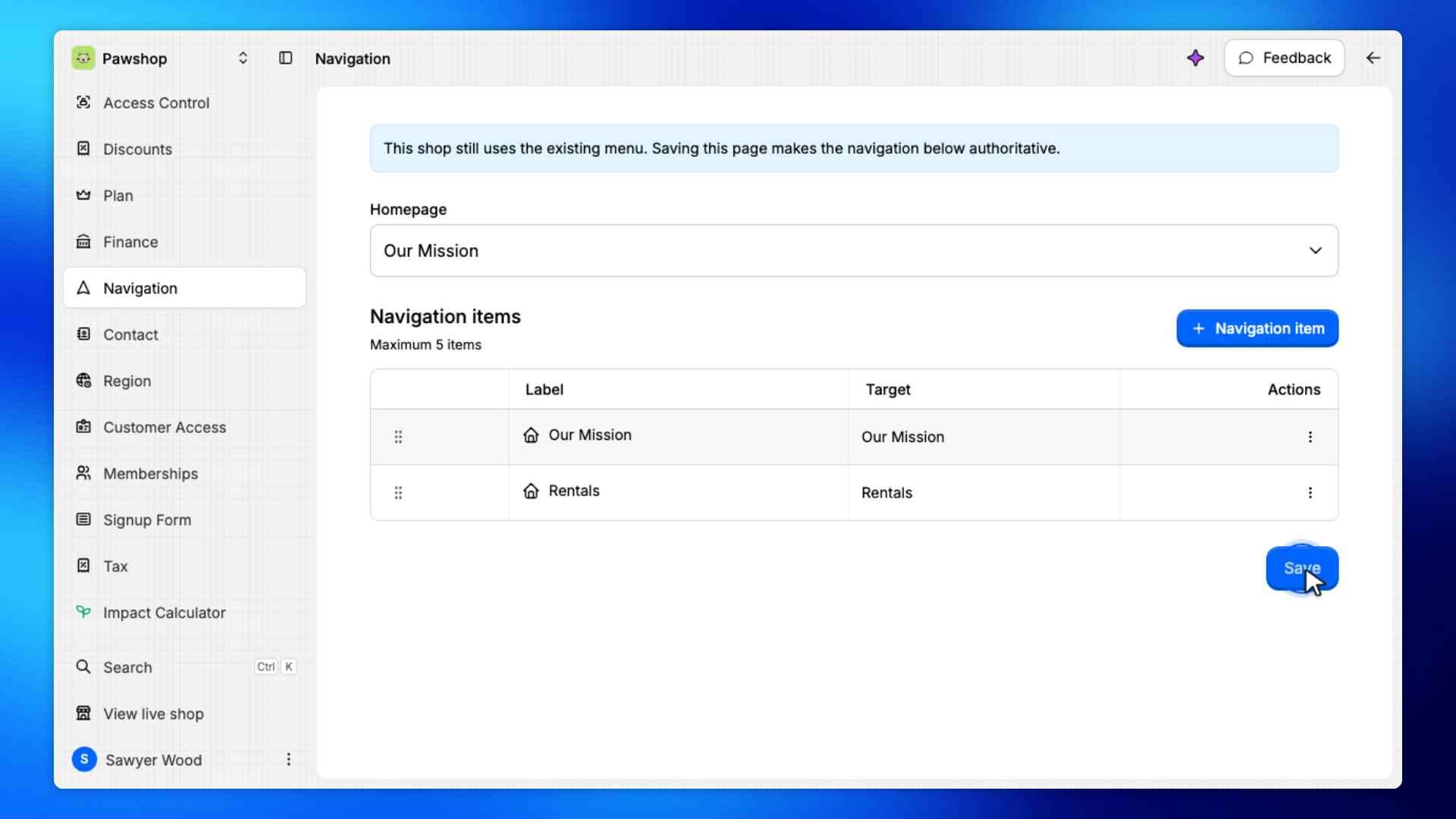
Click Save. Until you save, the shop keeps the previous menu.
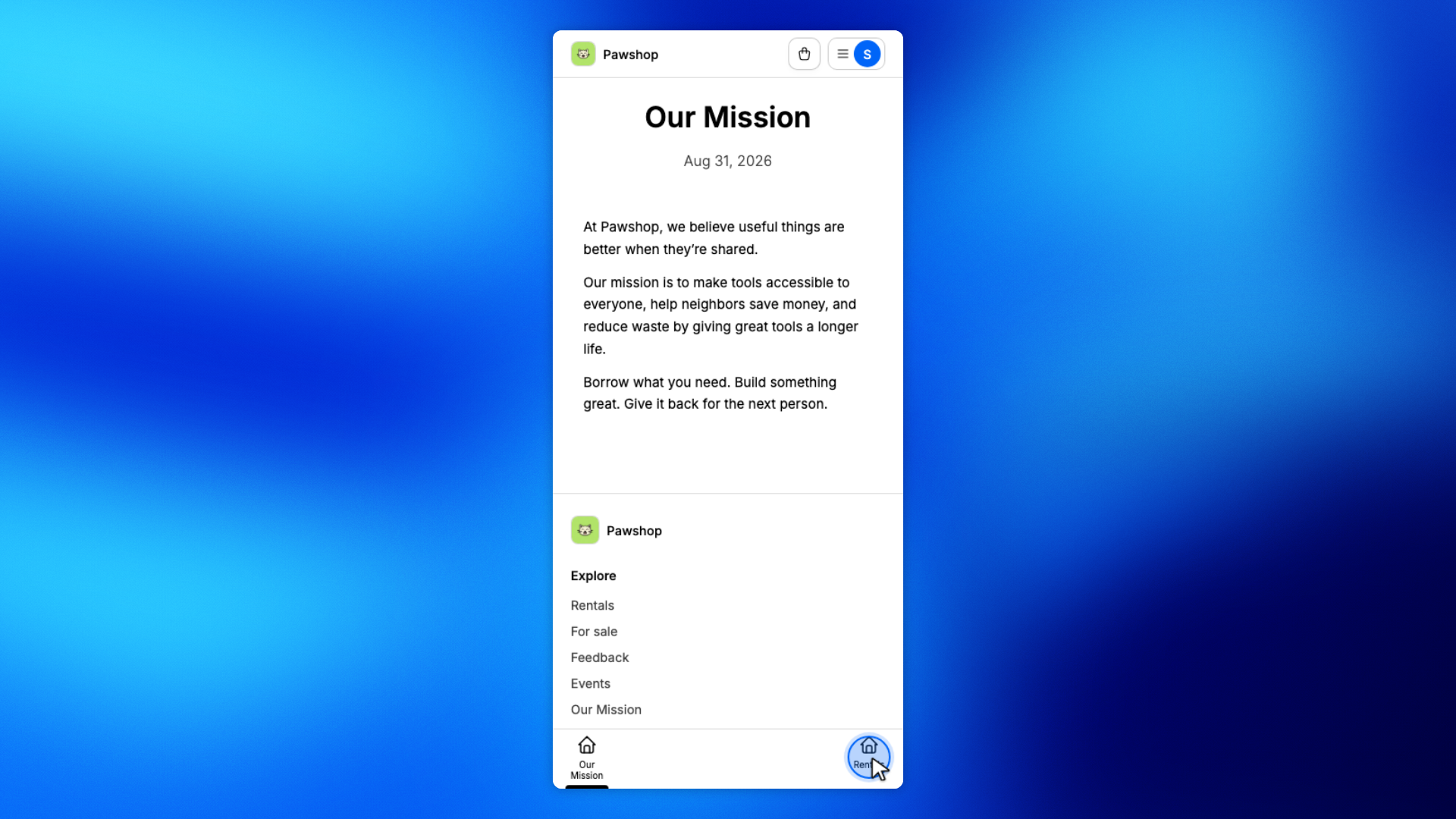
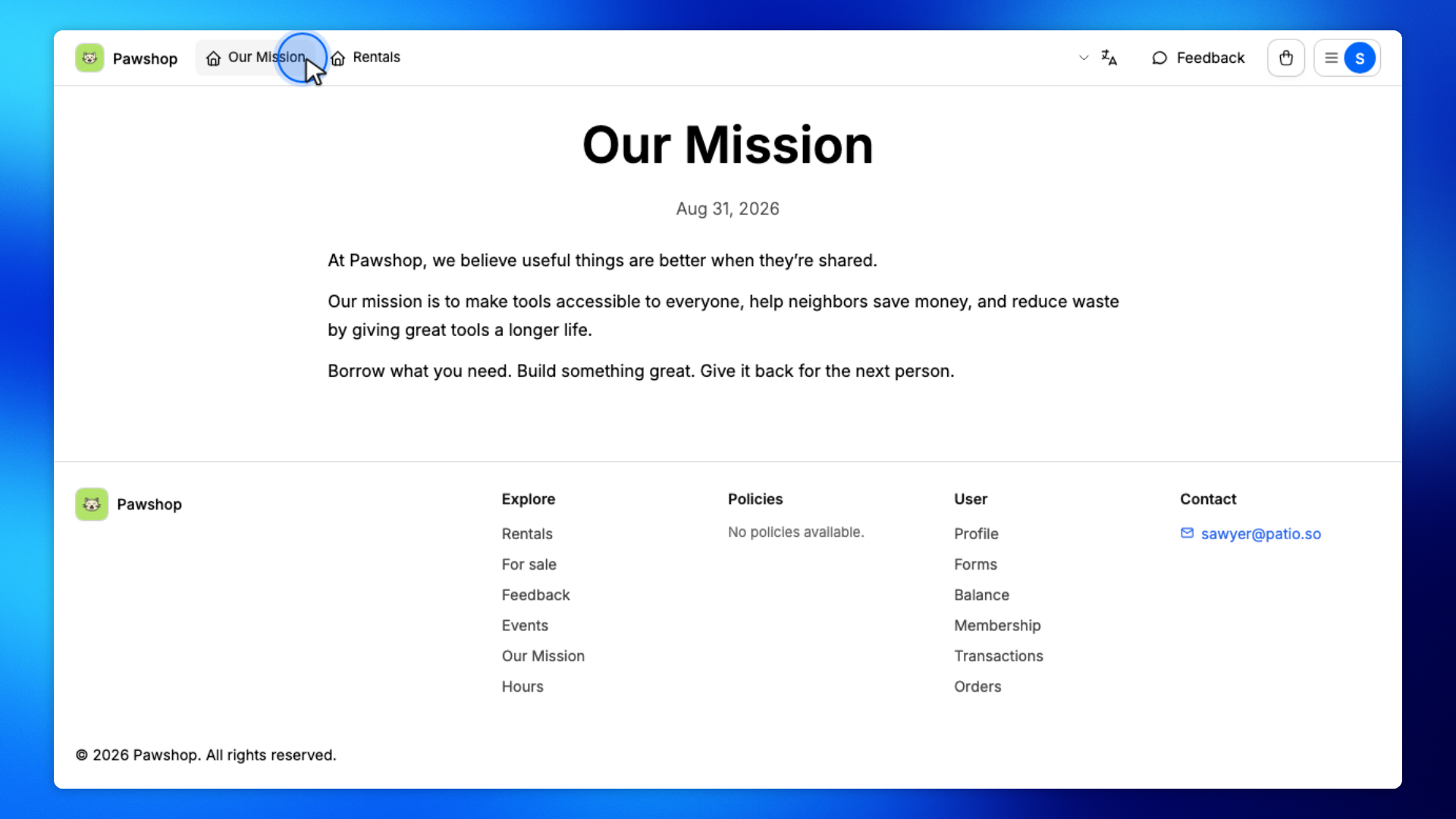
Customers see your labels in the header, and on a phone in the bar at the bottom.
Open the shop. The header shows the labels you saved. If Homepage is a page, visitors land on that page instead of the catalog. A catalog target still opens rentals or sales.
On a smaller screen, the same items sit in the bar at the bottom.