How to add new location
By Julien RiouxUpdated August 31, 2026
A location is a branch where you keep inventory and check items out.
By Julien Rioux·Updated August 31, 2026
A location is a branch where you keep inventory and check items out.
When you have more than one branch, add each one as a location.
Locations live under Organization › Locations. Each location can have its own address, hours, and inventory.
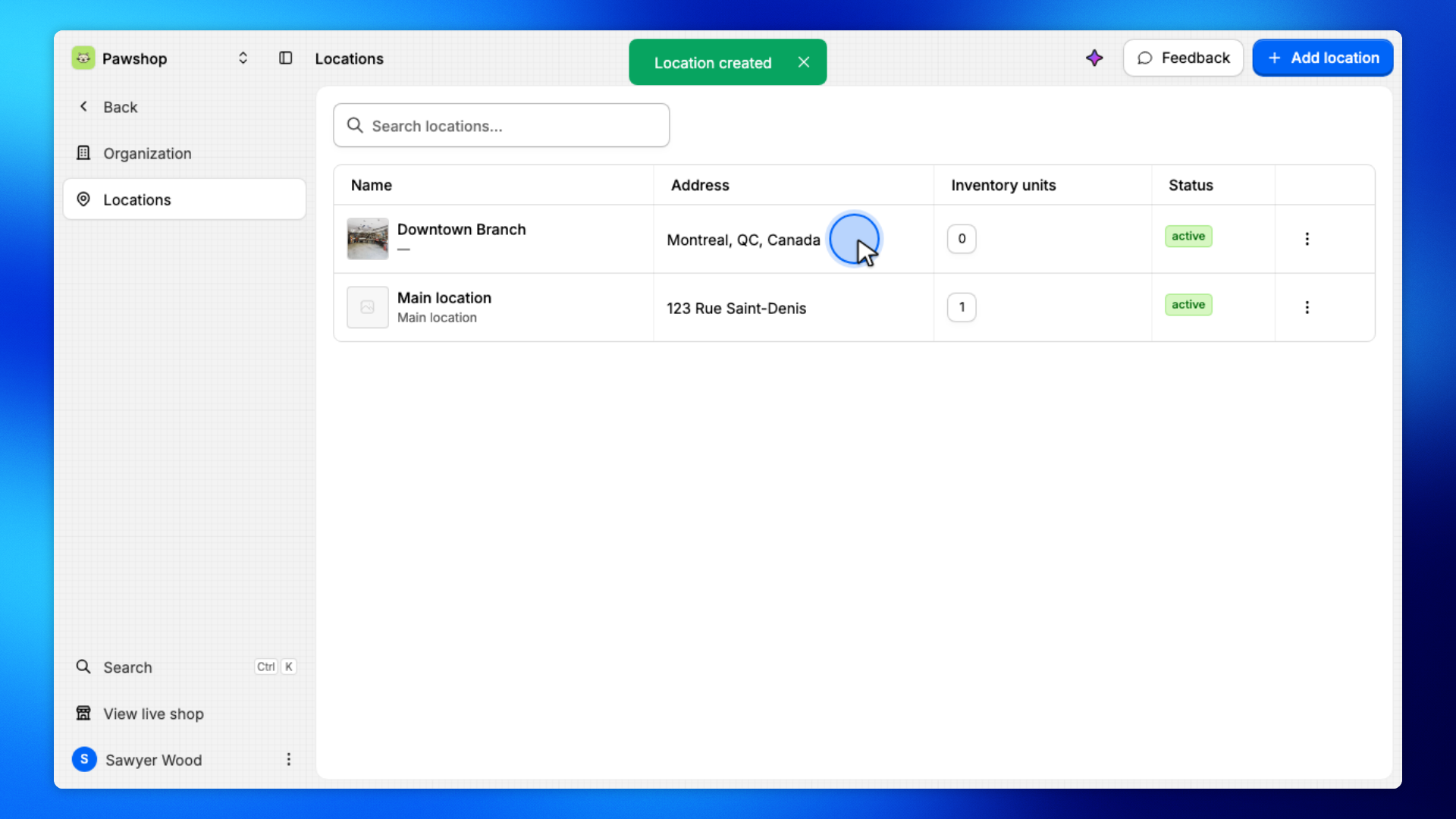
For example, you might add a Downtown Branch with a photo of the site so staff can check items out from there.
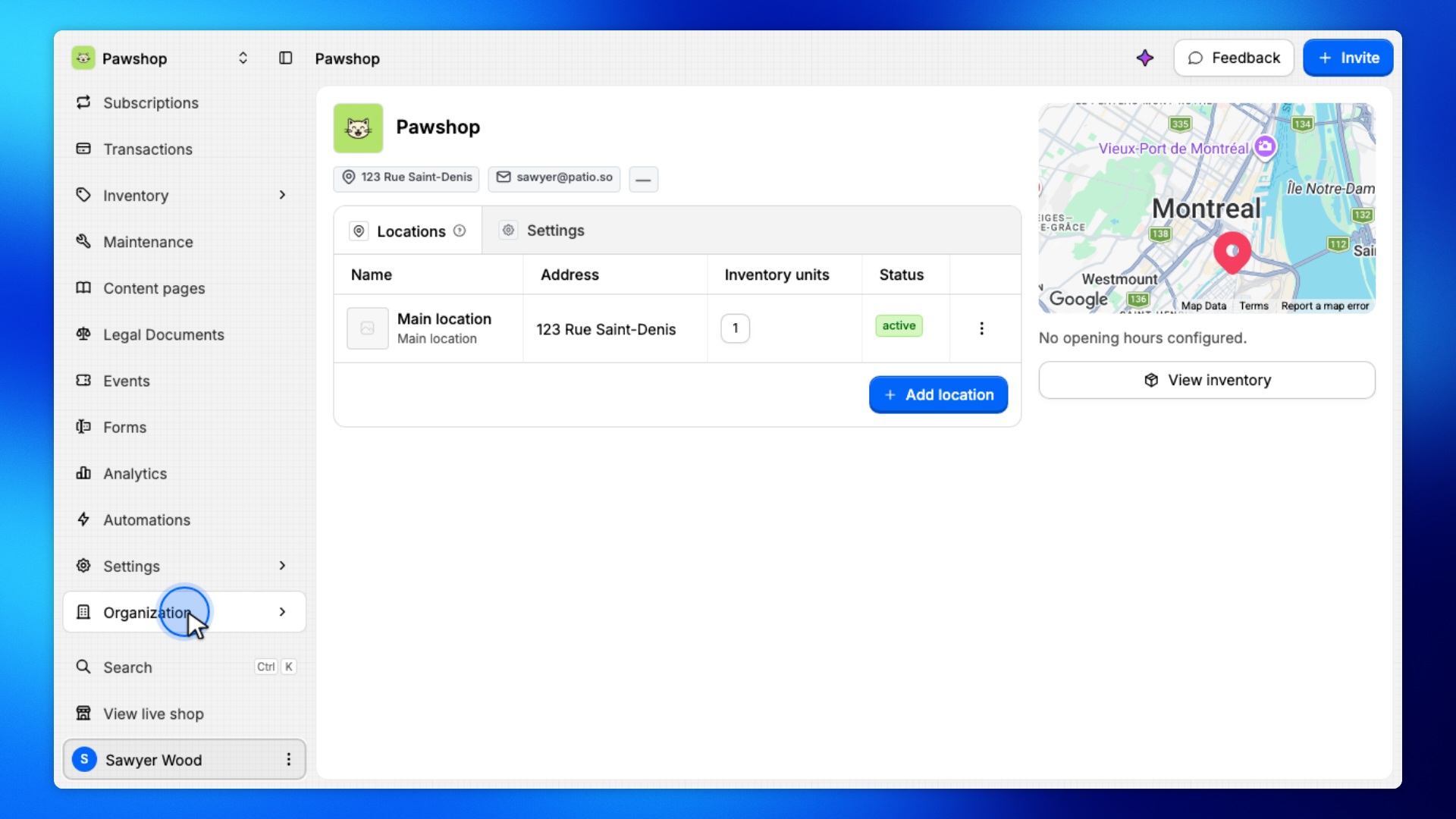
Open Organization from the workspace sidebar.
Locations live under Organization because each branch belongs to the workspace.
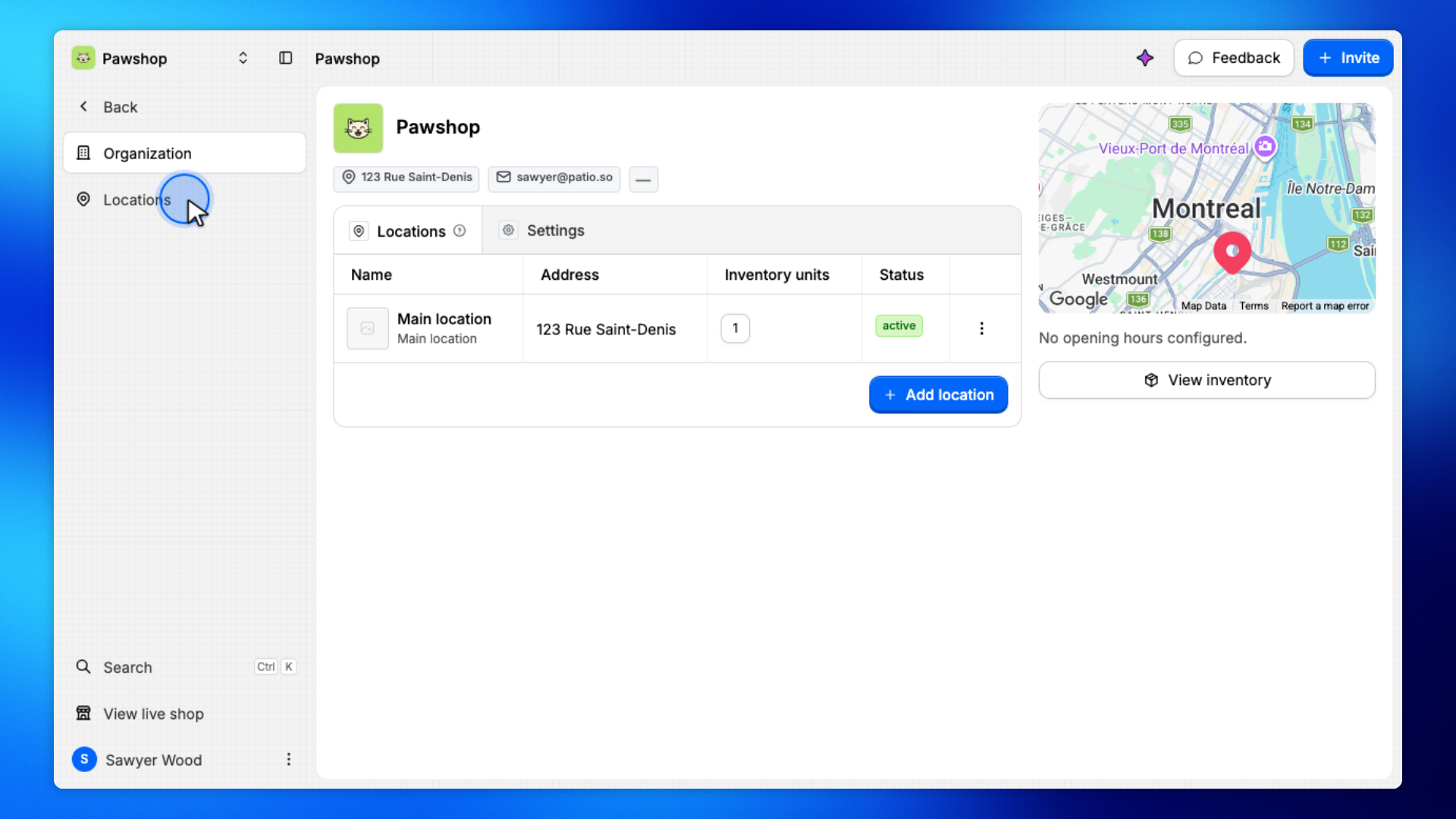
Click Locations.
You'll see the list of branches for this workspace.
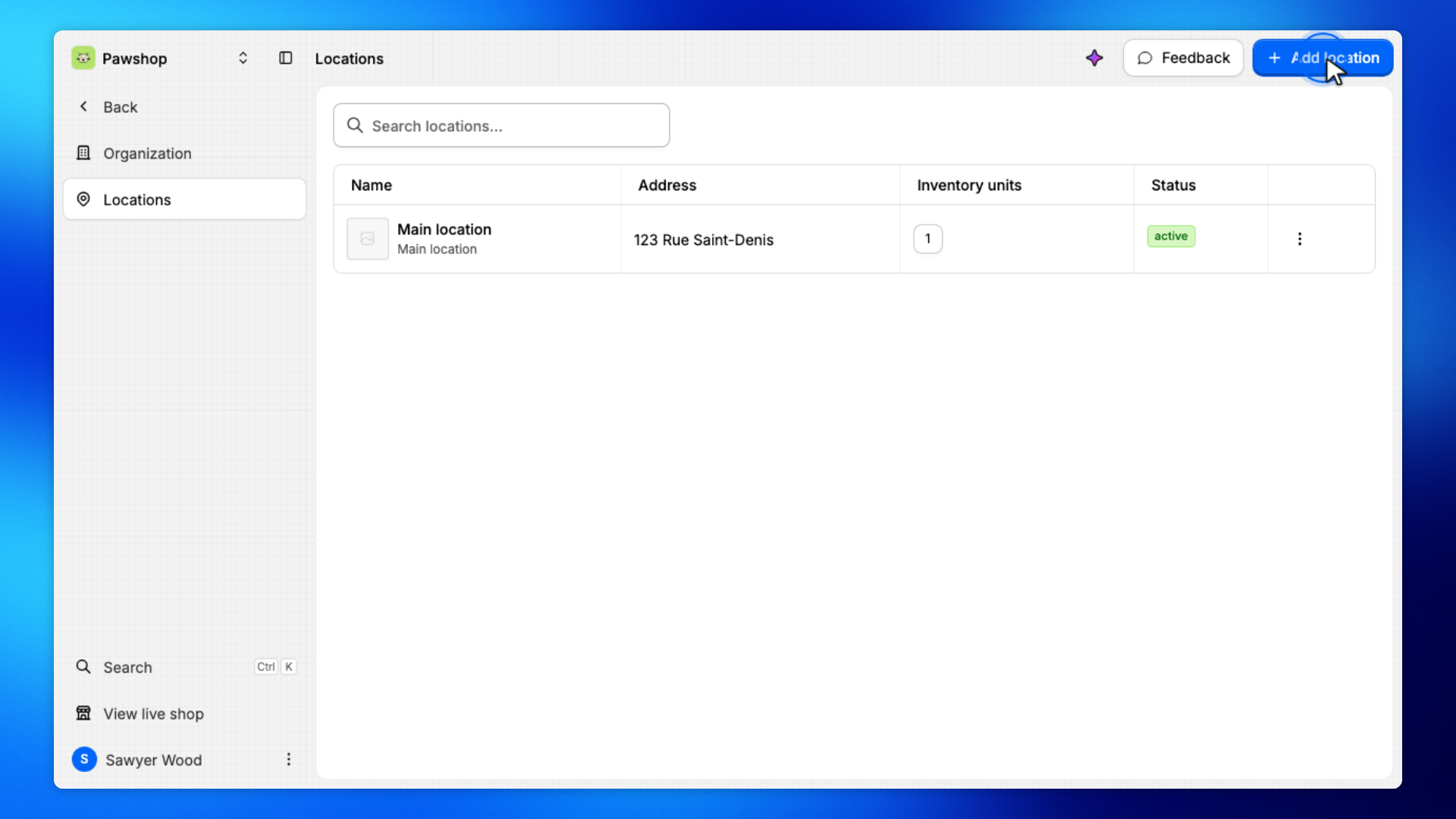
Click Add location.
You'll land on New location, which is the form for a branch.
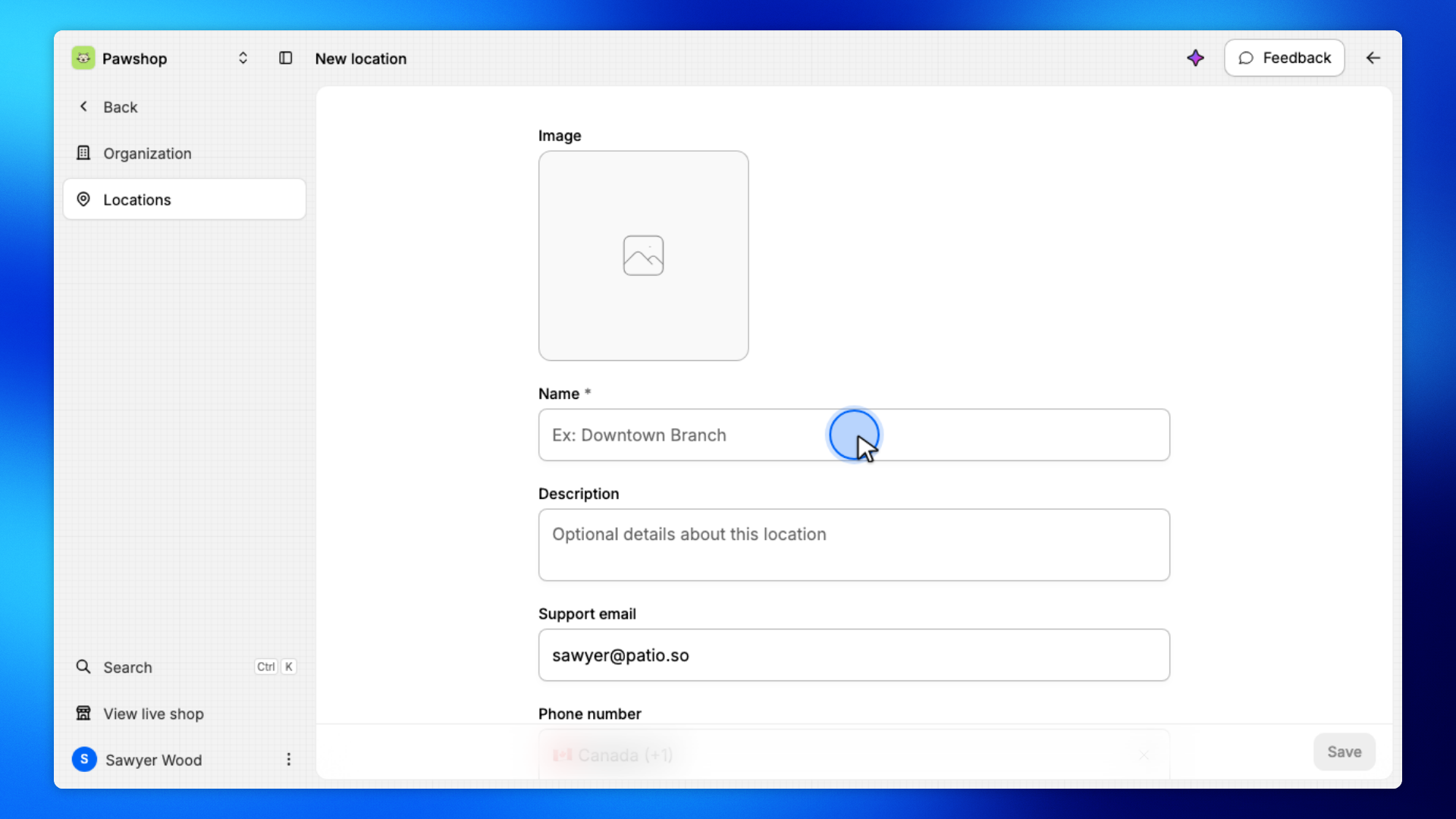
Give the location a name, such as Downtown Branch.
You can add an address and hours later. The name is what staff see when they check items out.
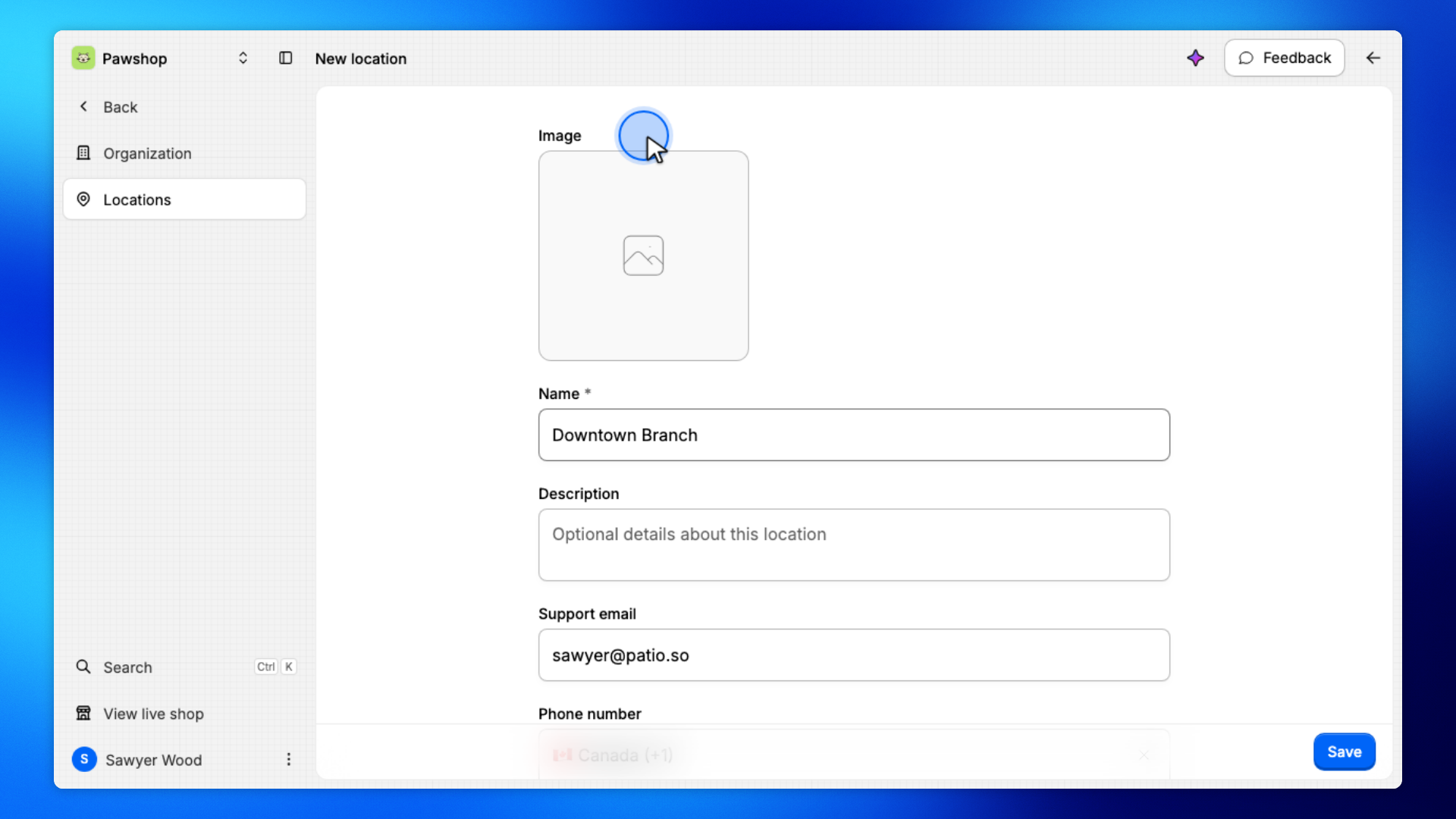
Upload a photo of the location. If a crop editor opens, click Save.
The photo helps staff recognize the branch in lists and on the location page.
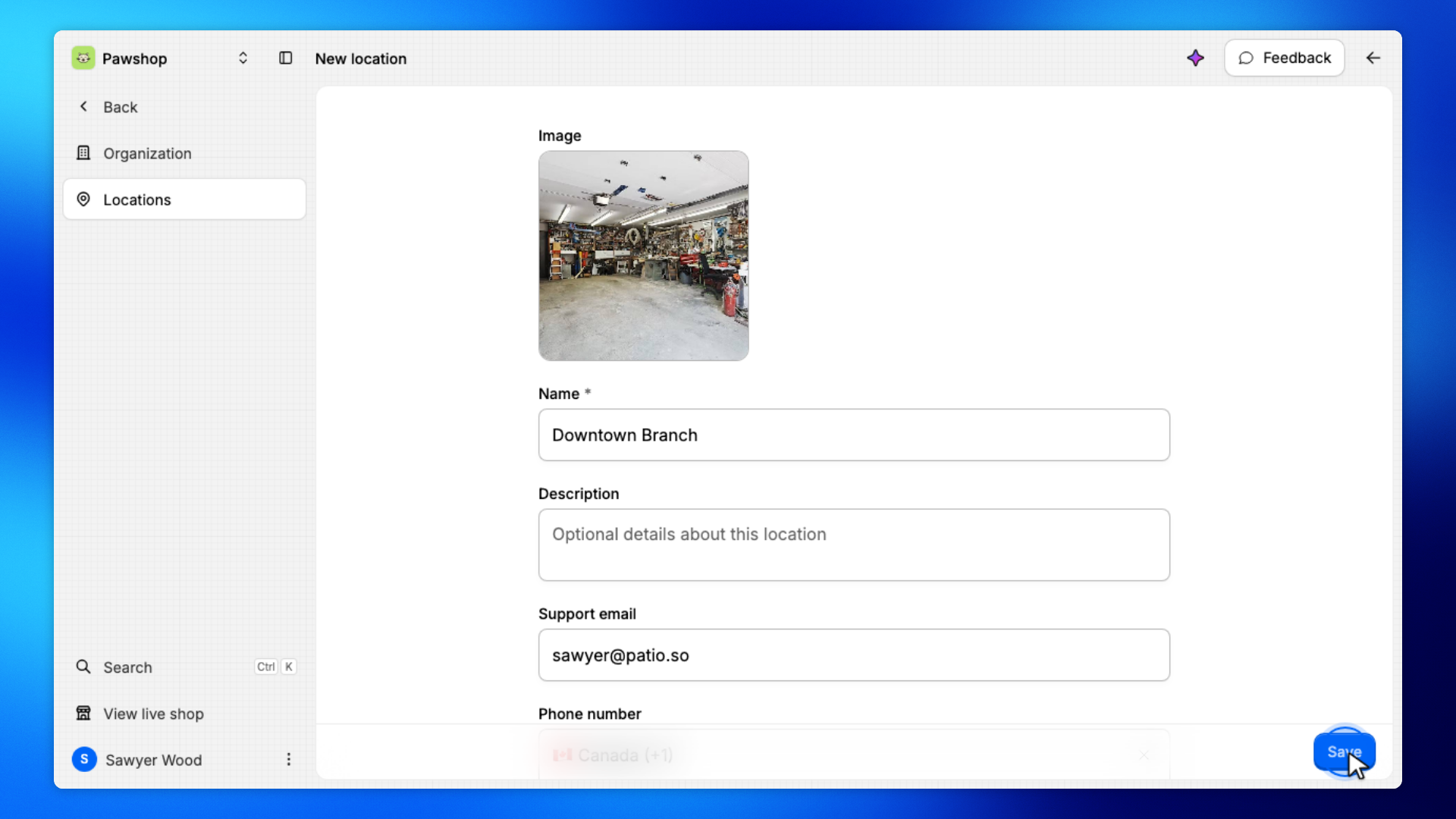
Click Save.
The location is added to the list and ready to use.
The new location appears in the Locations table. Staff can select it when they check items out.