How to change where an inventory item is stored
By Julien RiouxUpdated August 31, 2026
Move an inventory unit to a different location and section.
By Julien Rioux·Updated August 31, 2026
Move an inventory unit to a different location and section.
Open the product in Inventory, then open the inventory unit.
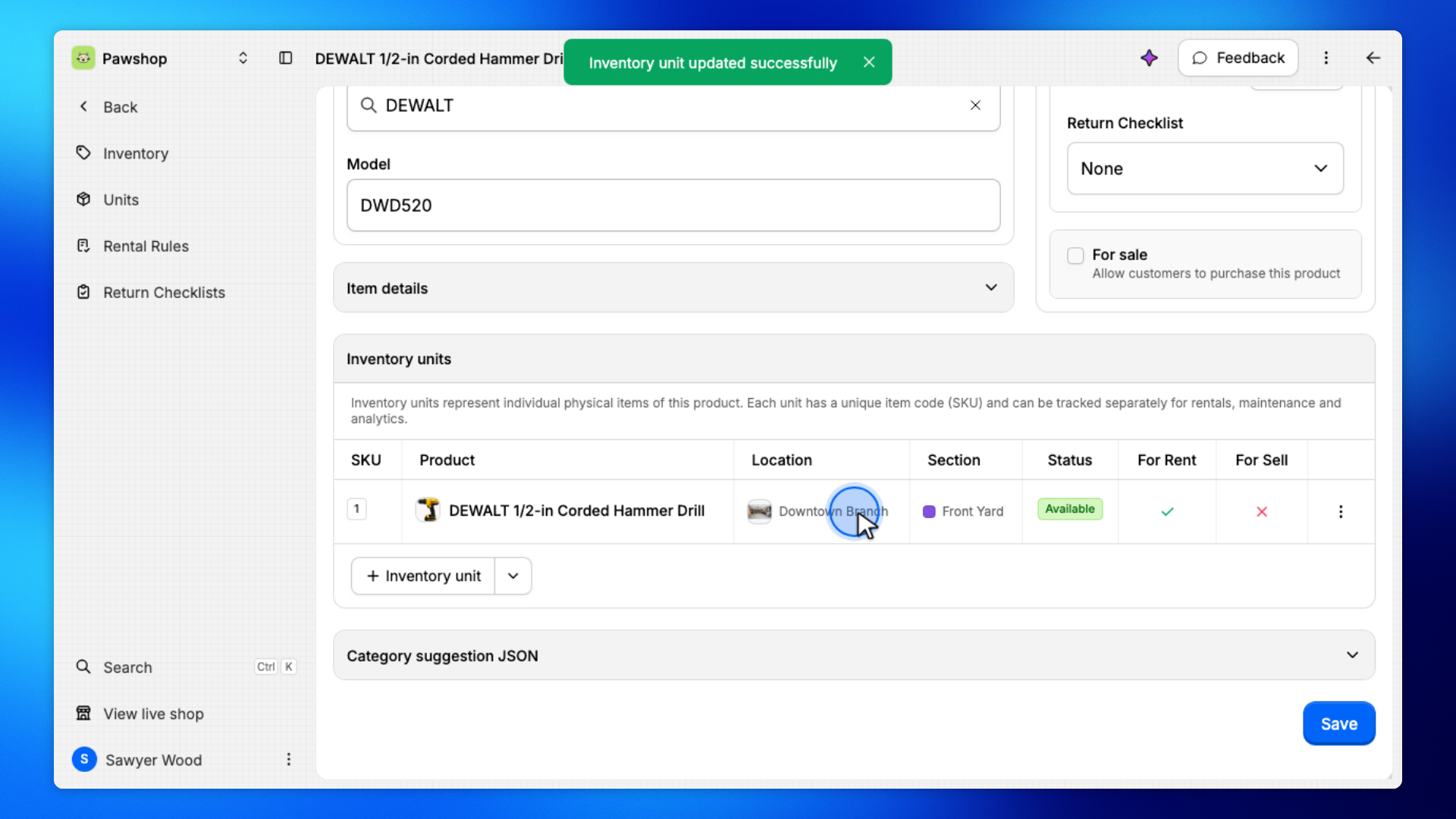
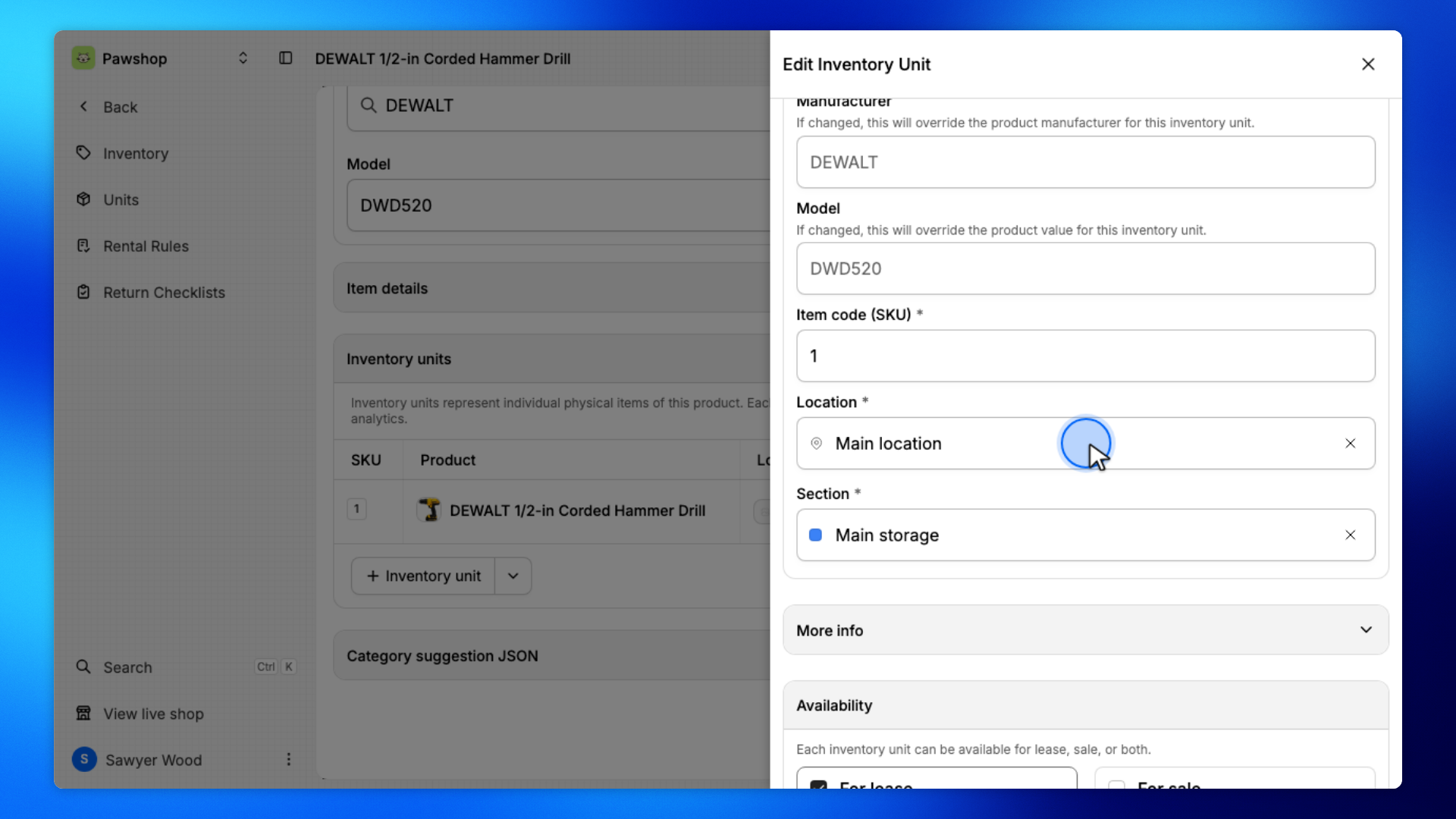
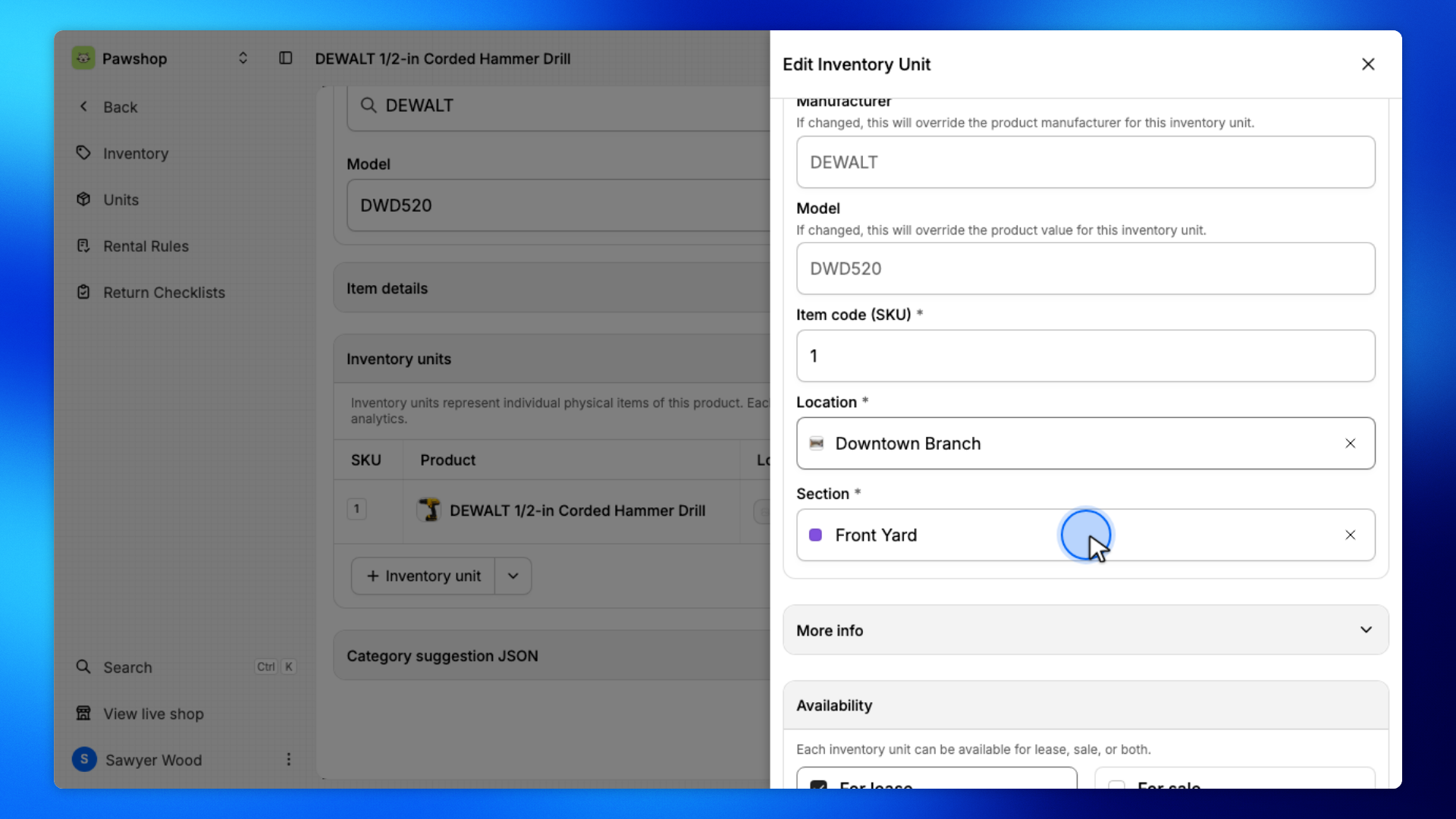
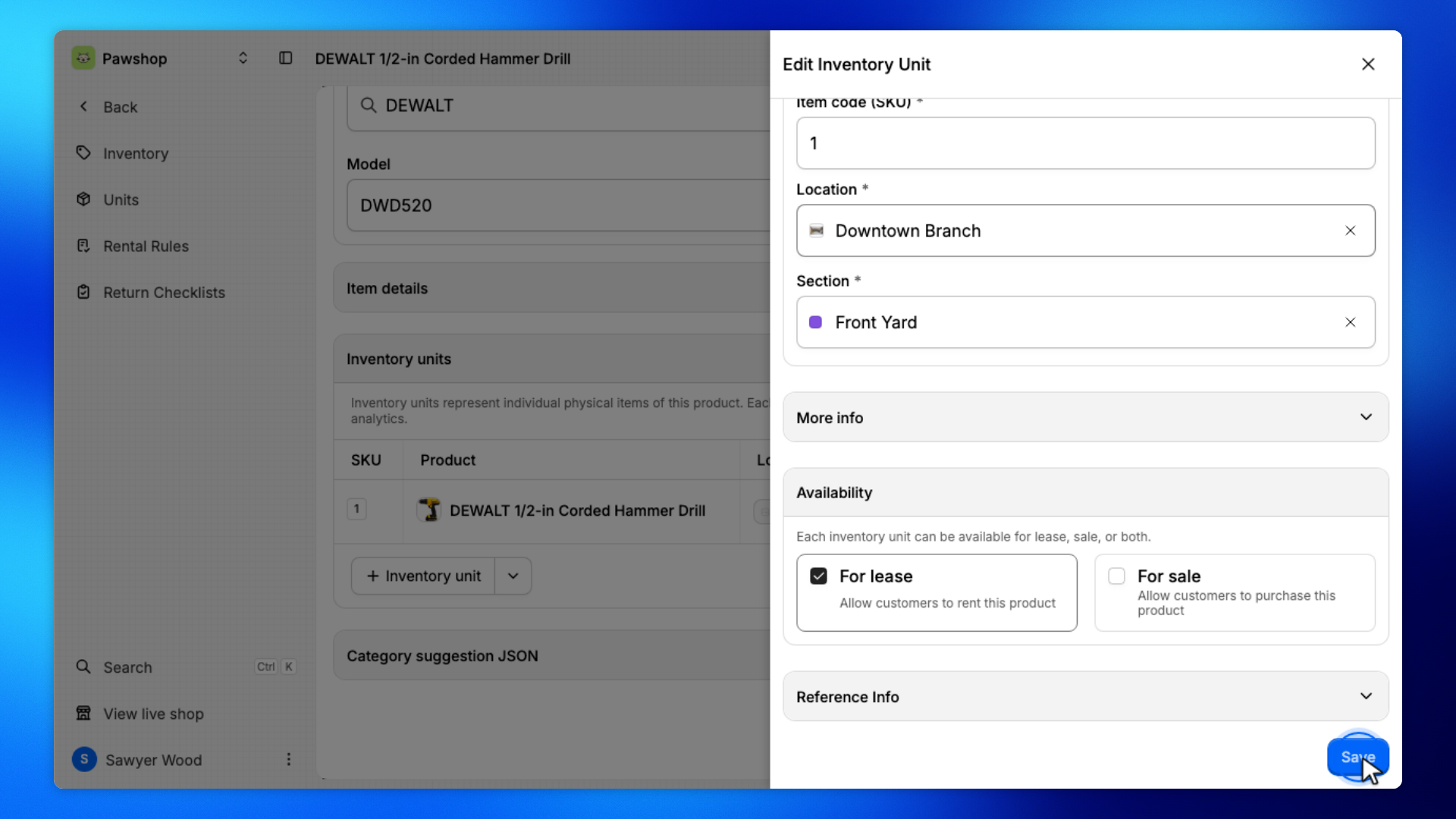
Change Location and Section, then Save. For example, move the hammer drill from Main location to Downtown Branch › Front Yard.
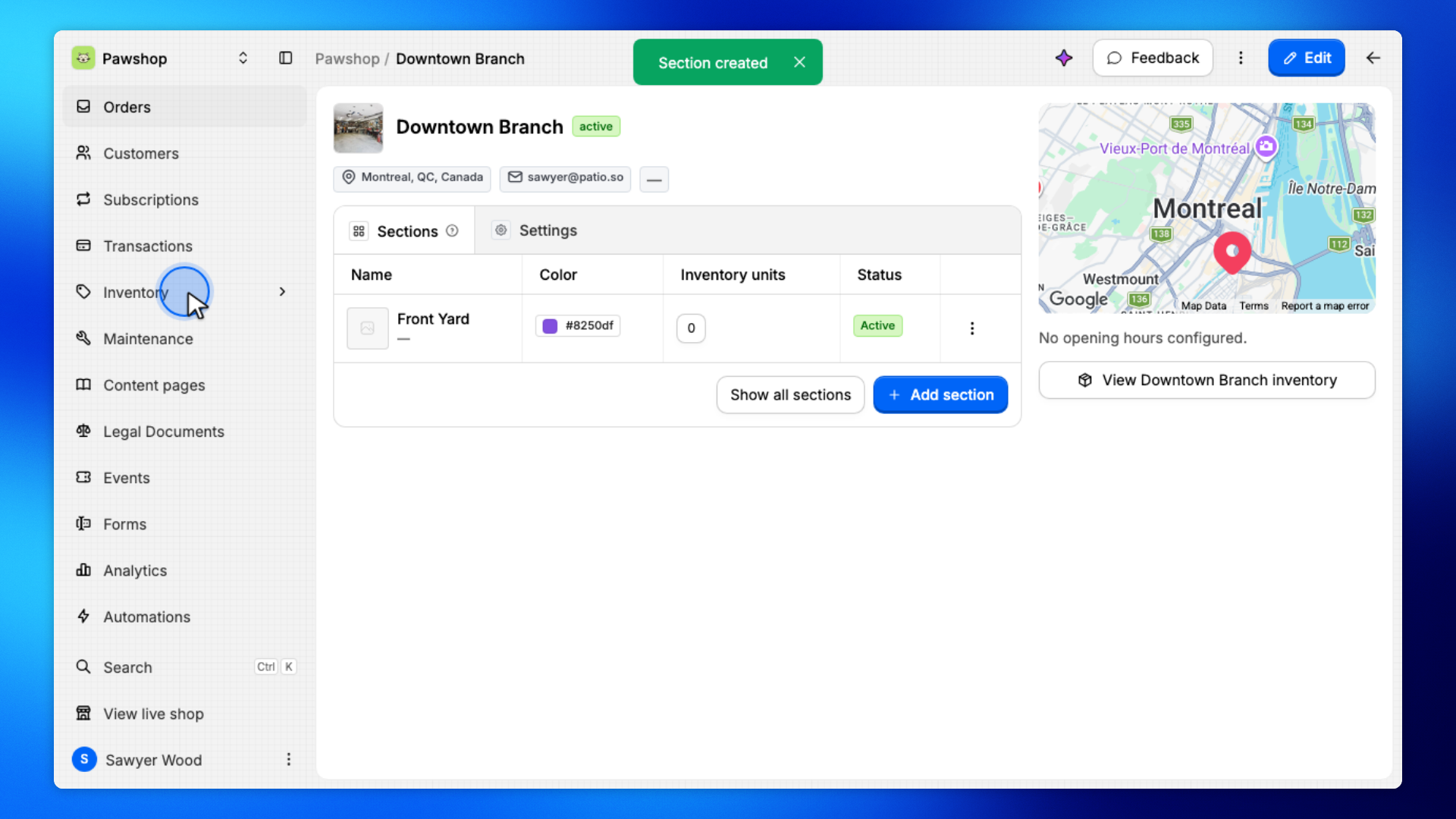
Open Inventory from the workspace sidebar.
That's the list of products you rent out.
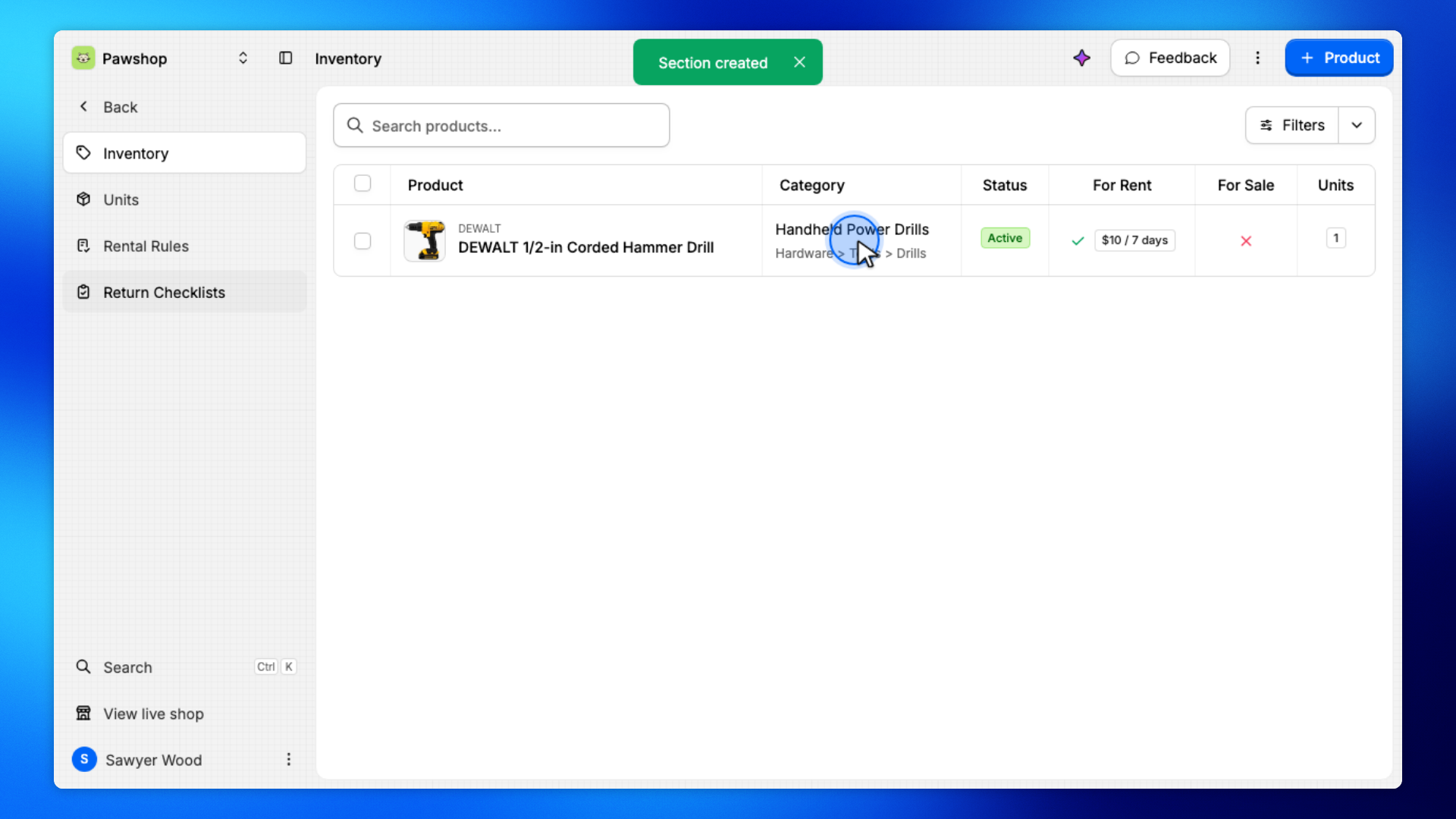
Click the product whose item you want to move.
Storage lives on the inventory unit, not on the listing itself.
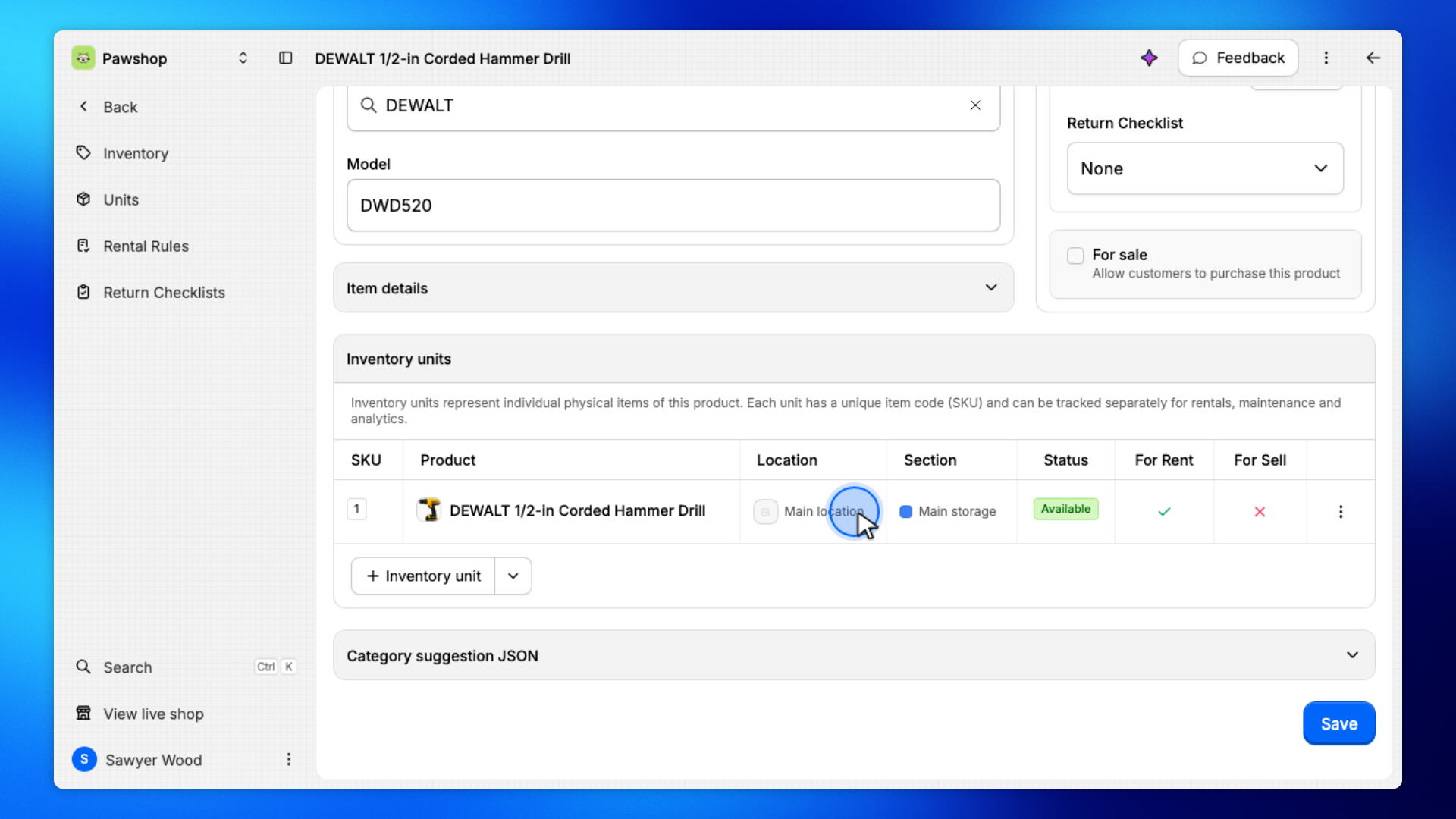
Click the unit in Inventory units.
You'll get a drawer where you can change location and section.
Clear Location, then pick the branch where this item should live, such as Downtown Branch.
Pick the section inside that location, such as Front Yard.
If the location has only one section, it may already be selected.
Click Save.
The unit now checks out from the new location and section.
The Inventory units table shows the new location and section.