Add product to rent
By JulienUpdated August 31, 2026
A product is the listing customers see. An inventory unit is the physical item you check out.
By Julien·Updated August 31, 2026
A product is the listing customers see. An inventory unit is the physical item you check out.
When you want to rent something out, add it as a product in Inventory.
A product has two parts:
Listing: the name, photo, and details customers and staff see.
Inventory unit: the physical item you will check out, identified by a SKU.
You also choose a rental rule, which sets the fee, rental period, and deposit.
For example, you might add a hammer drill with a photo and model number, then rent it for $10 per 7 days with a $50 deposit.
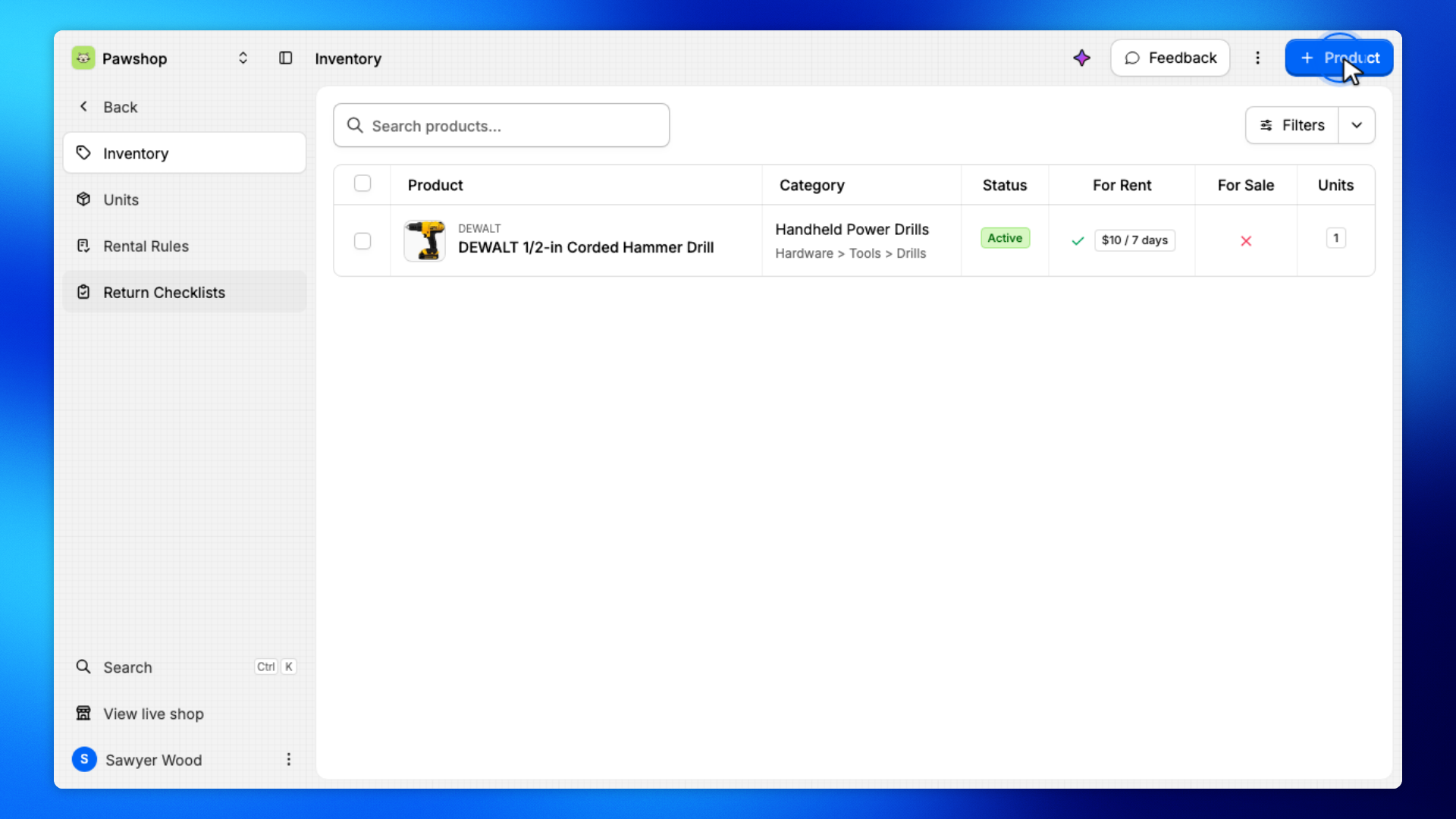
Open Inventory from the workspace sidebar, then click Product.
You'll land on New product, which is the form for a rental listing.
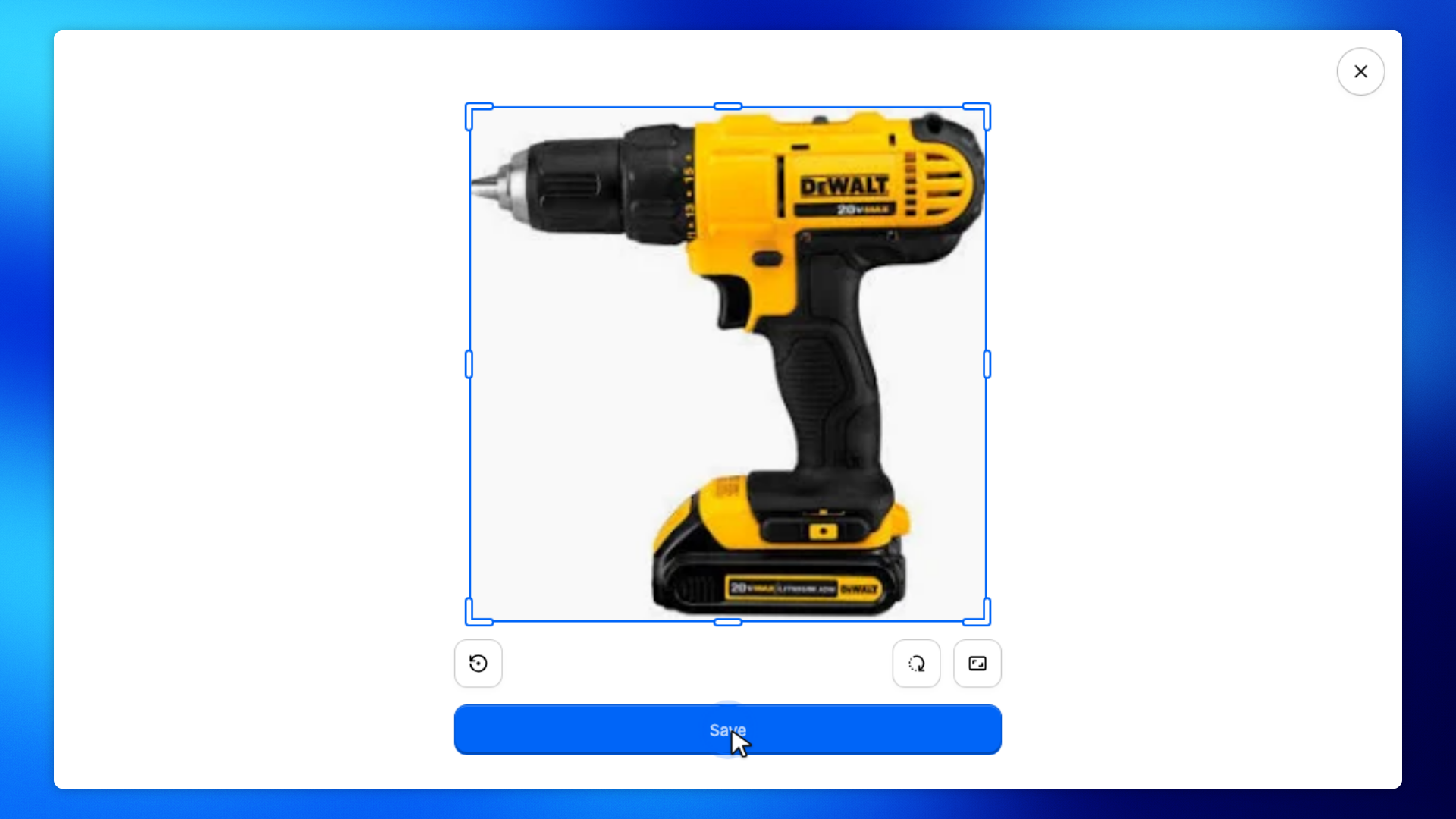
Upload a photo of the item. If a crop editor opens, click Save. If Automated listing appears, click Skip to fill the form yourself.
The photo is what staff and customers use to recognize the item.
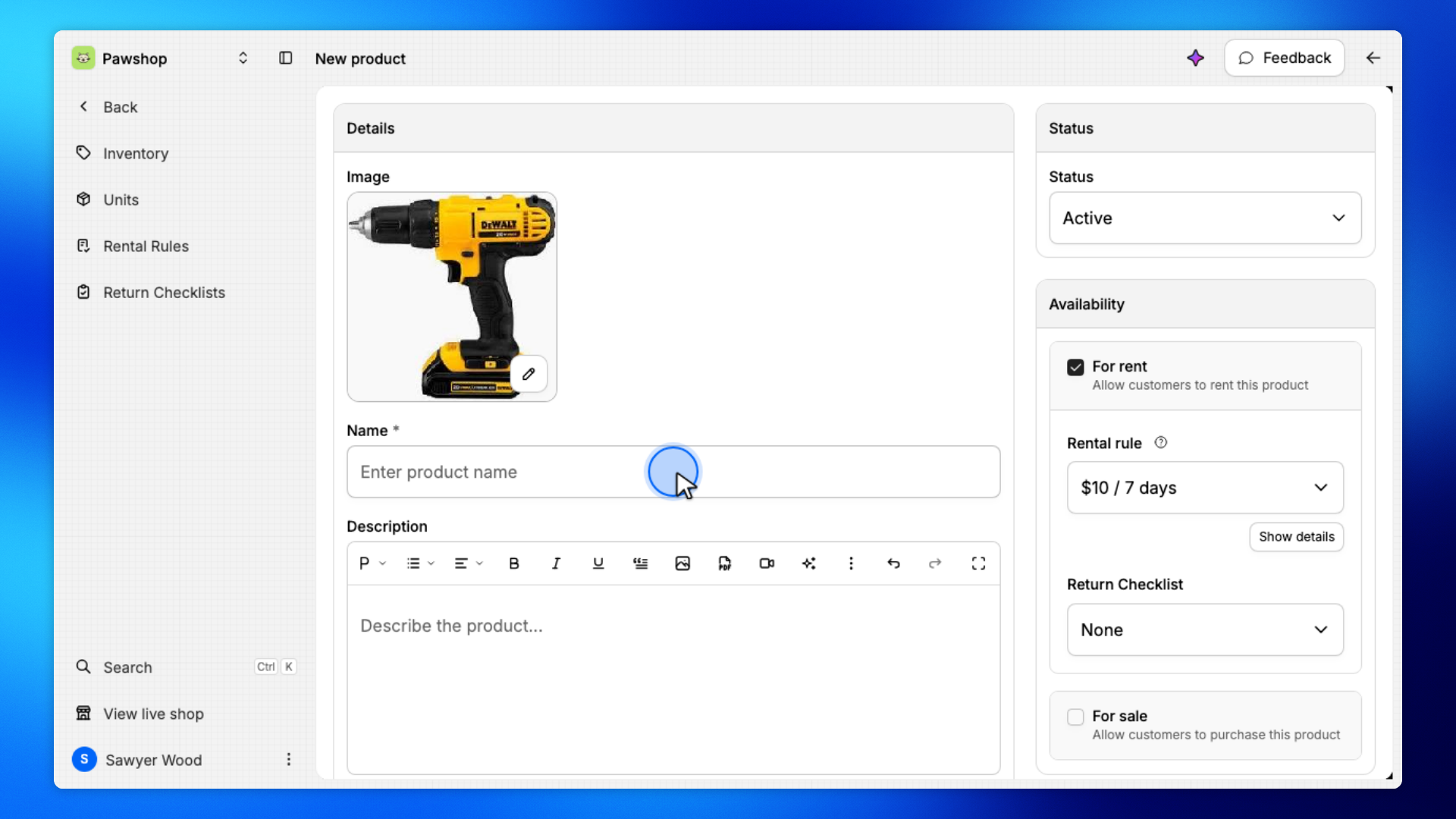
Fill in the product name, a short description, manufacturer, and model.
These details appear on the listing so staff and customers can recognize what you're renting out.
Click Suggest a category, then pick the matching category from the list.
Categories make the product easier to find later in Inventory and in the shop.
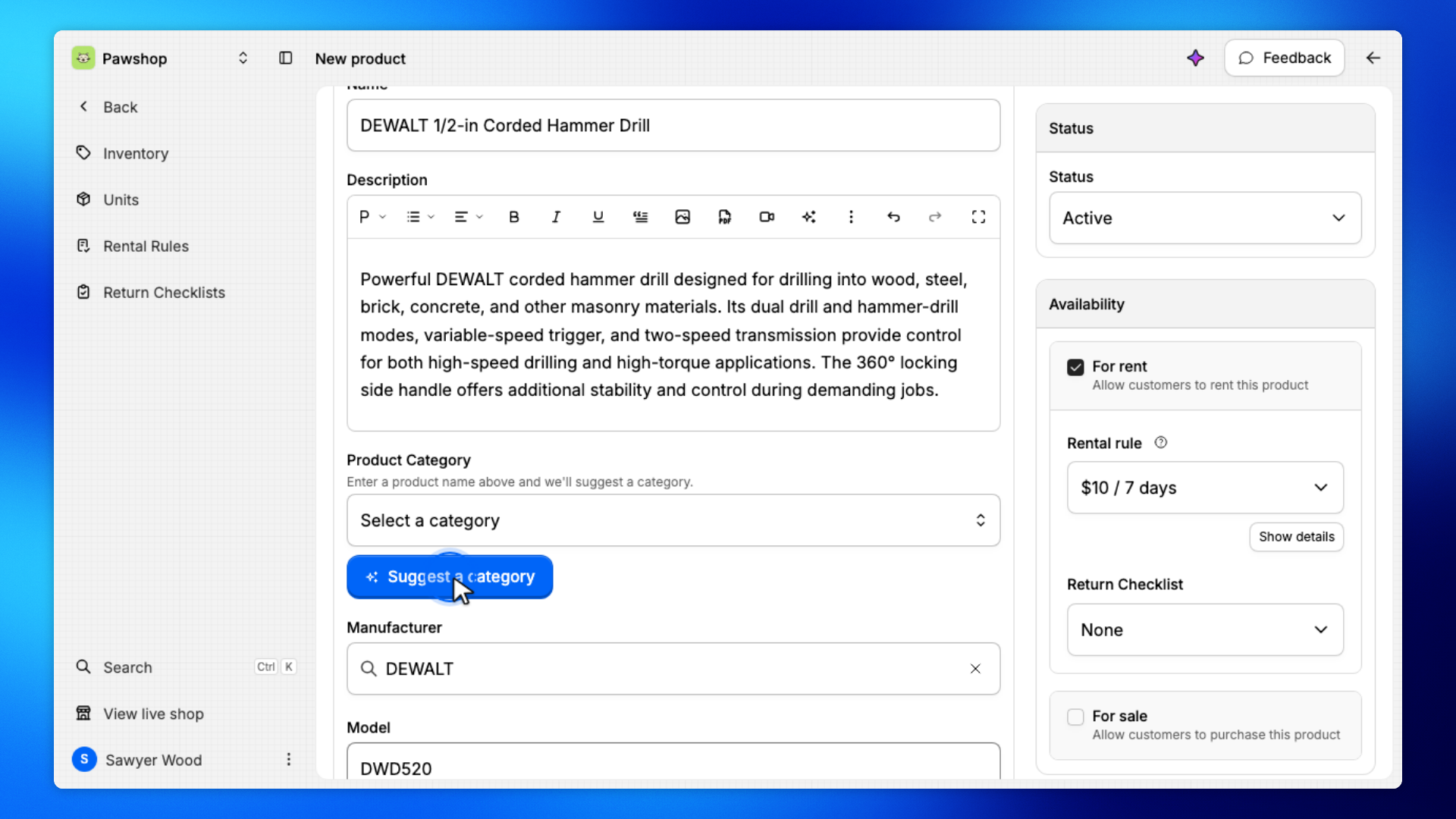
Keep For rent checked so the product can go out on loan. Open the rental rule menu and choose a rule.
A rental rule sets the fee, rental period, and deposit. If you need a new rule, pick New rental rule and save it to reuse on other products.
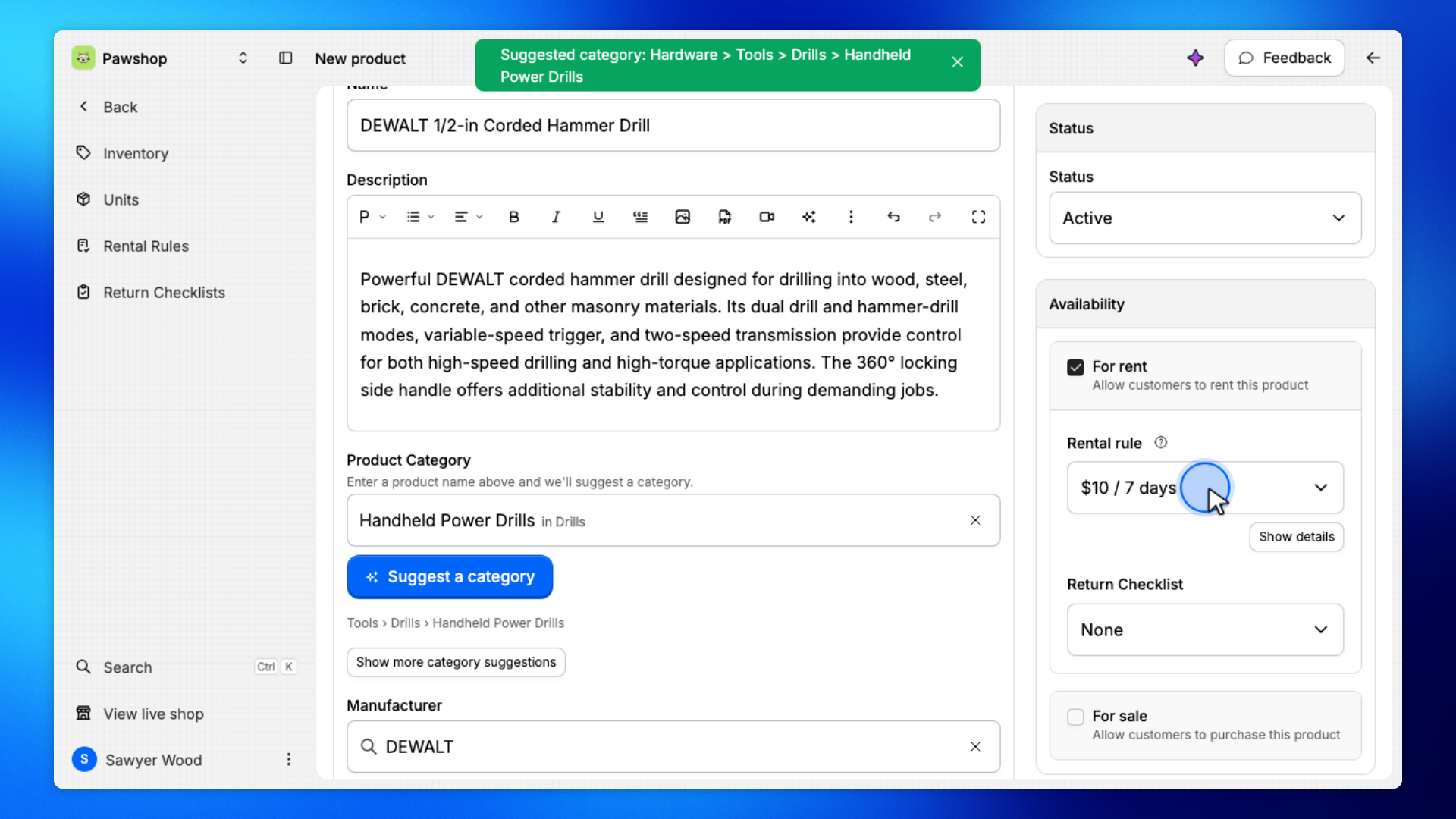
A product is the listing customers see. An inventory unit is one physical item you can rent out.
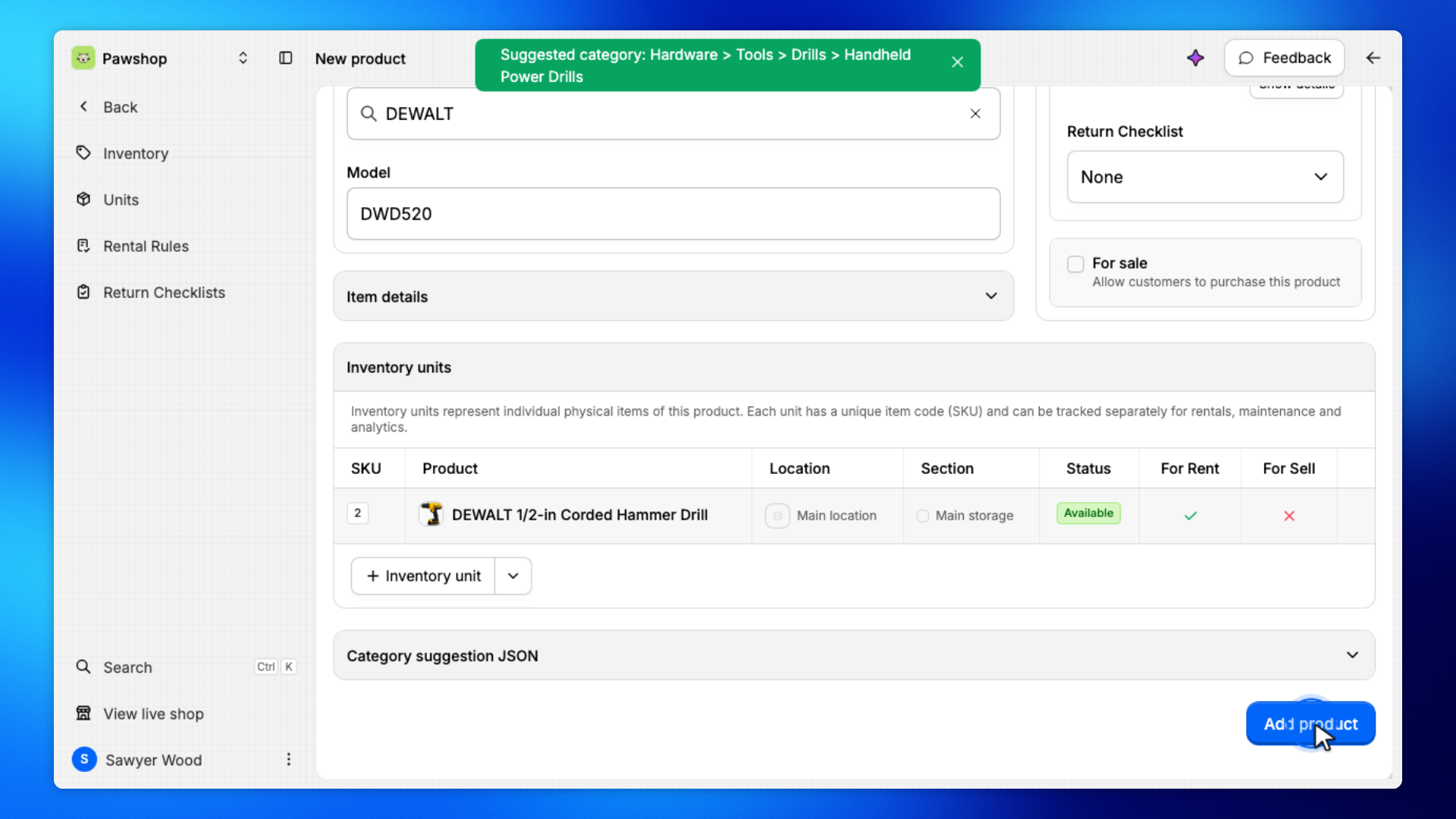
New product already adds one unit with a unique SKU. Click the unit to open its drawer. You can change the item code, location, and section, and add a serial number or notes if you need them.
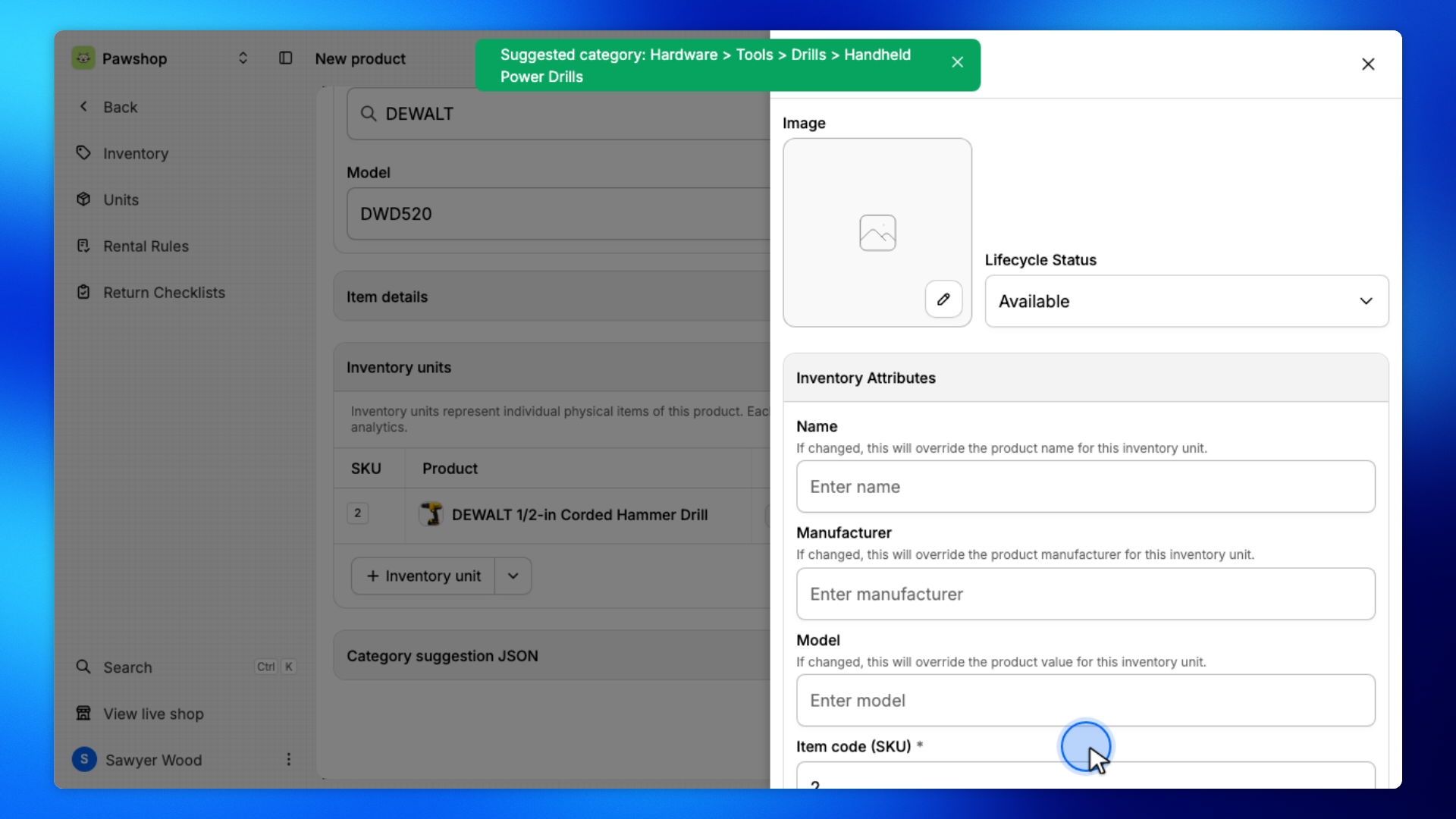
Click Add product.
You'll land on the product page when it's created, with the listing and inventory unit ready to check out.