Create a rental rule
By JulienUpdated August 31, 2026
A rental rule sets the fee, rental period, and deposit. You can reuse one rule on many products.
By Julien·Updated August 31, 2026
A rental rule sets the fee, rental period, and deposit. You can reuse one rule on many products.
When you rent items out, a rental rule controls the fee, how long they can be out, and the deposit.
You create rules under Inventory › Rental Rules, then assign them on each product.
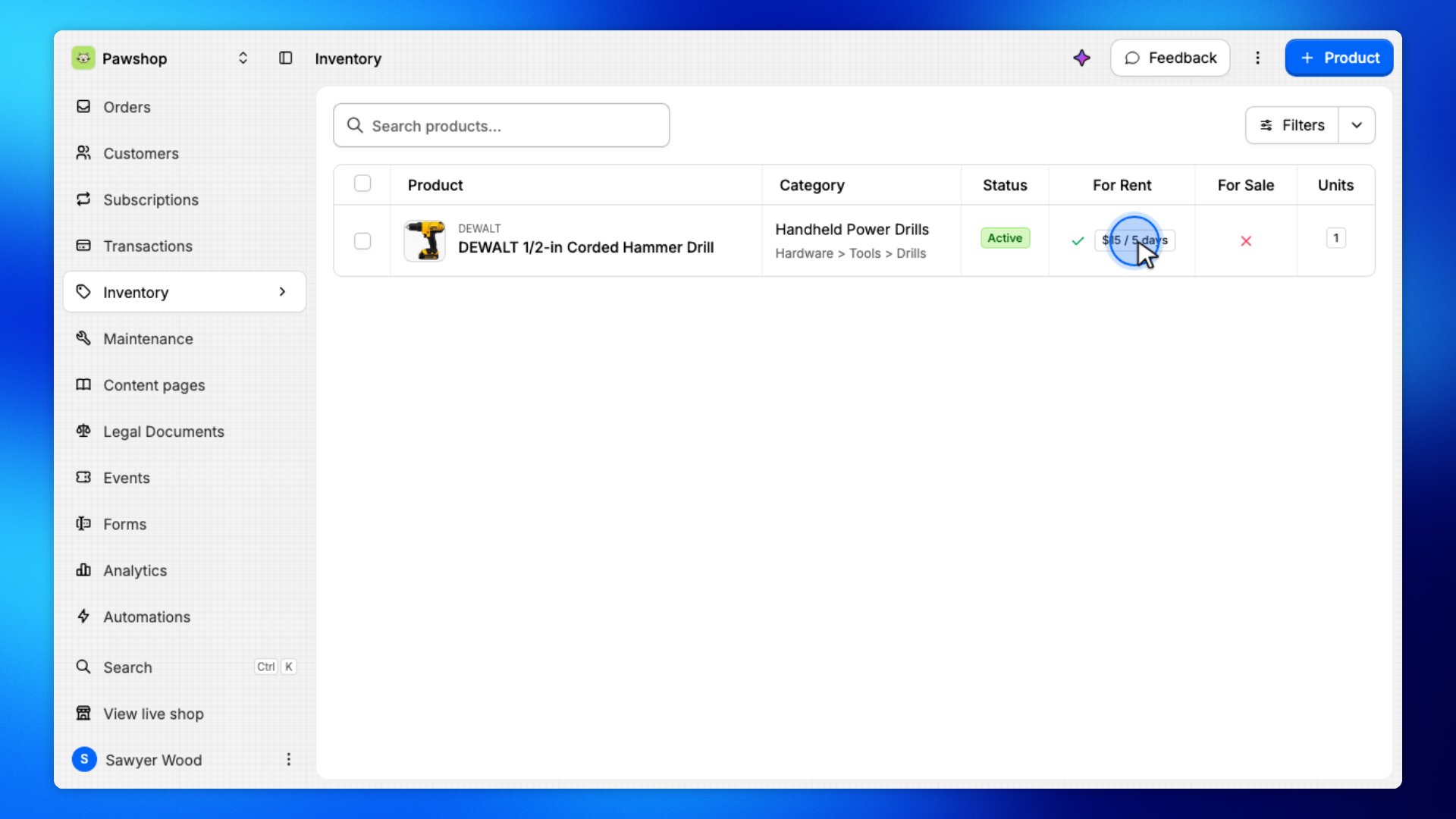
For example, you might create a $15 / 5 days rule with a $25 deposit, then apply it to a drill.
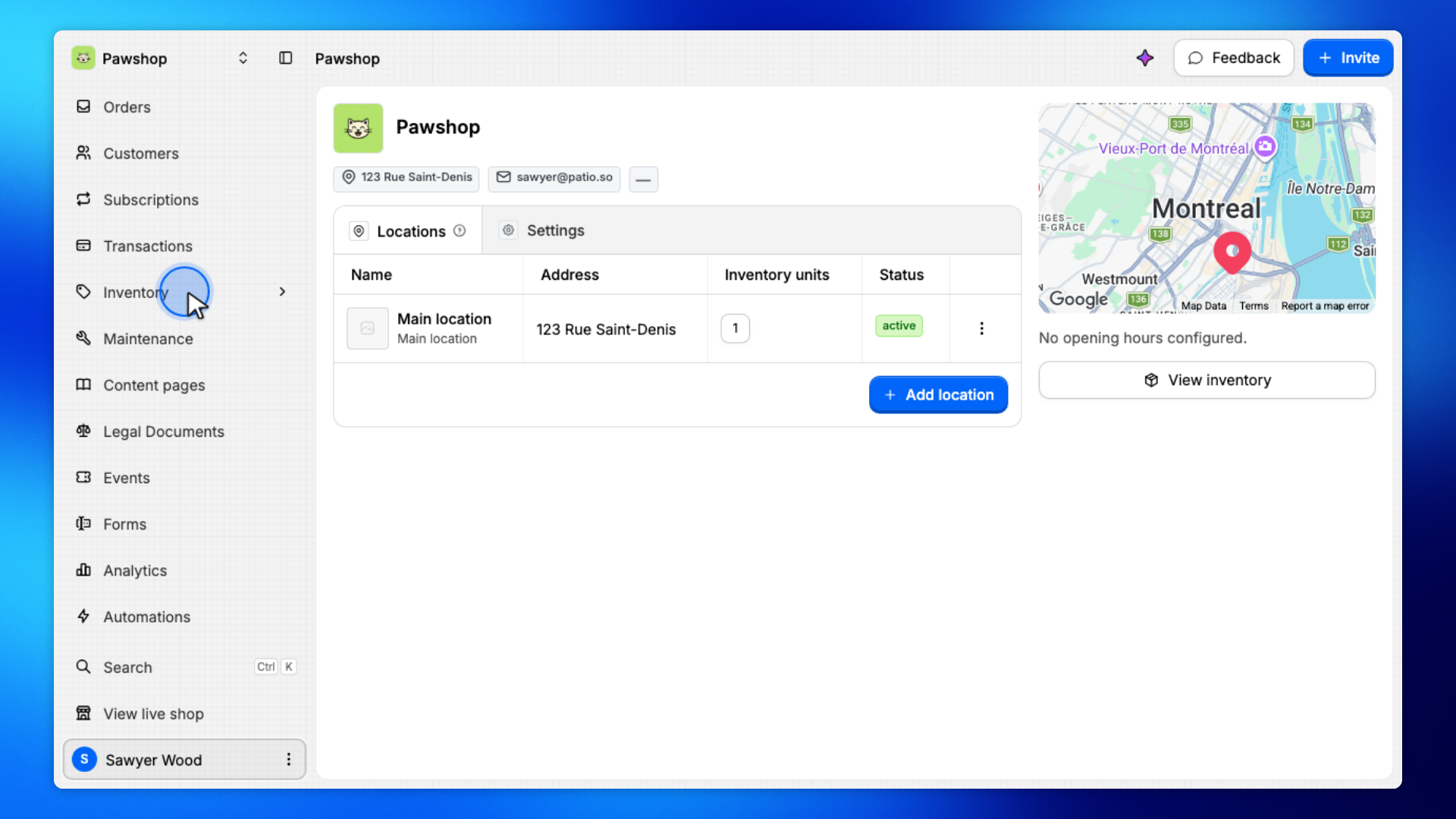
Open Inventory from the workspace sidebar.
Rental rules live with inventory because they control how products rent: the fee, how long they can be out, and the deposit.
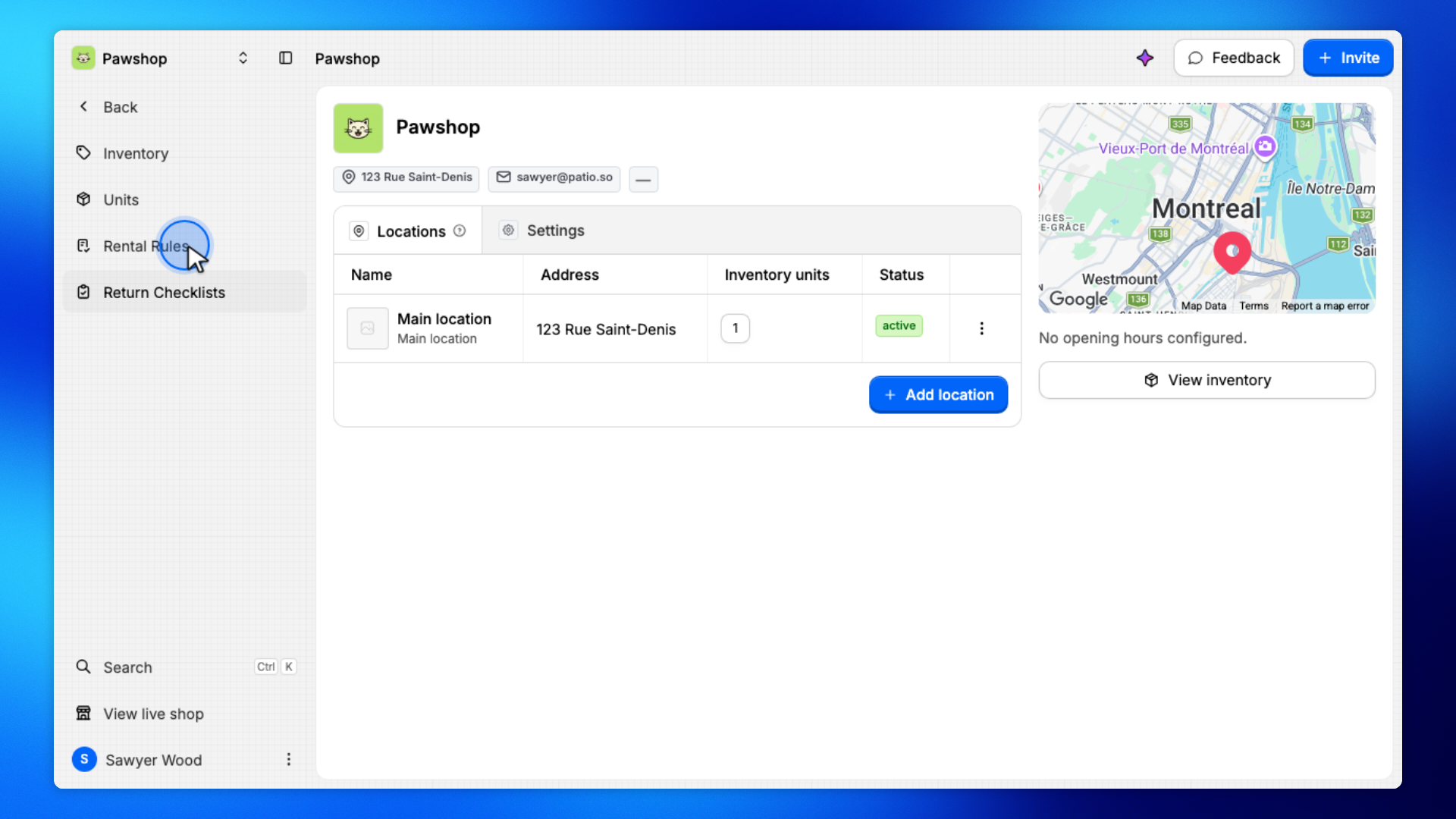
Click Rental Rules.
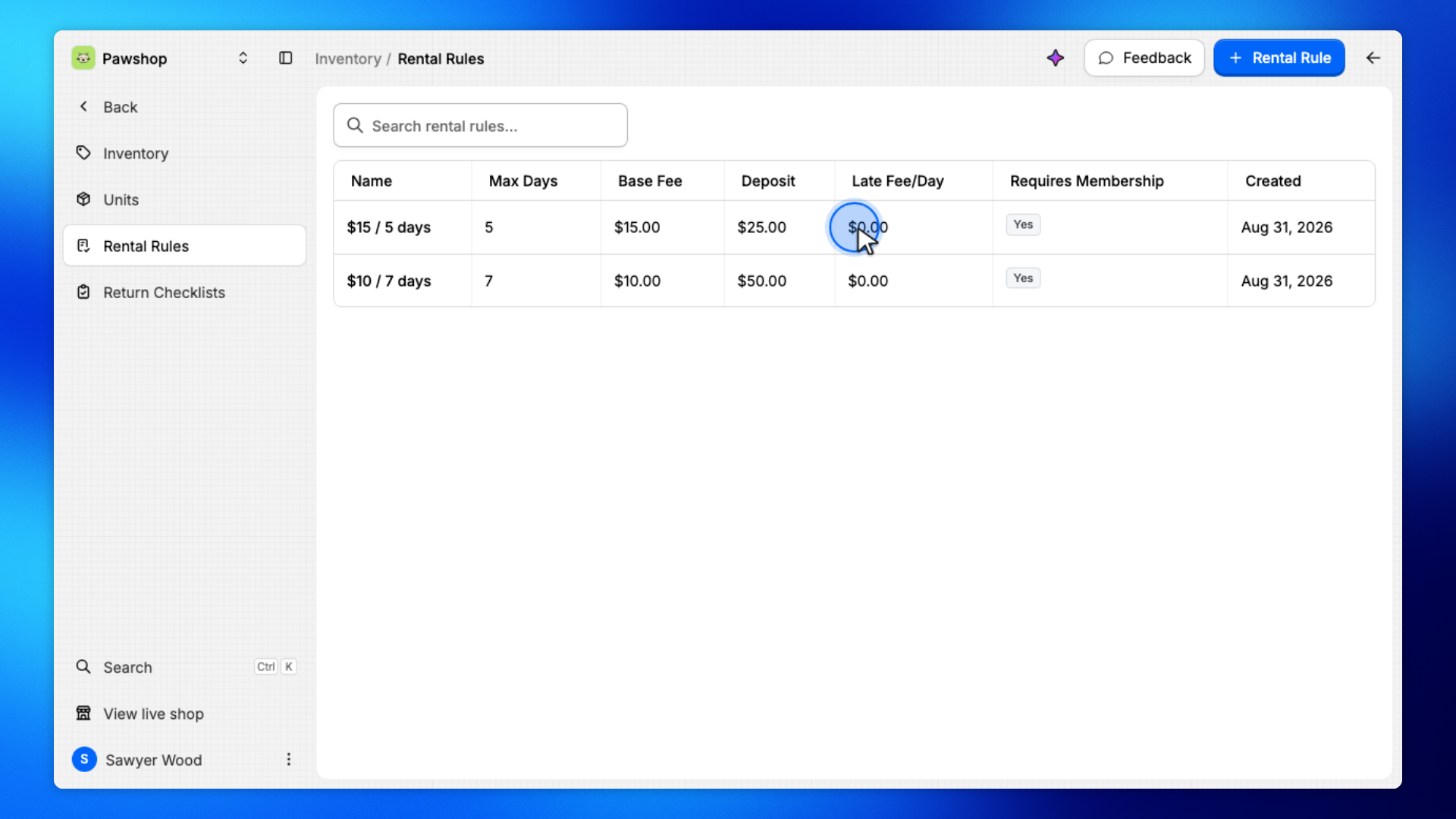
You'll see the list of rental rules for this workspace.
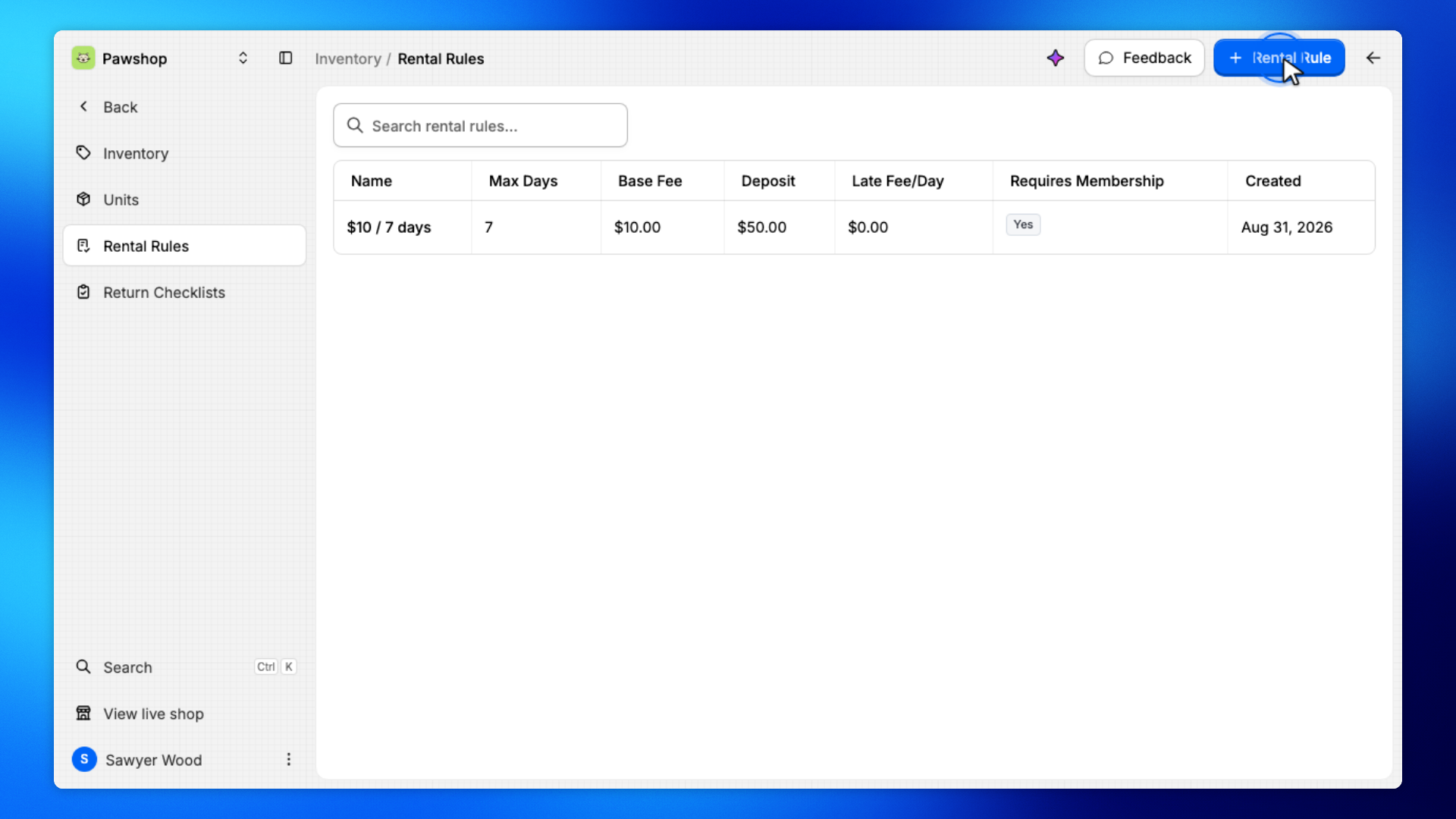
Click Rental Rule.
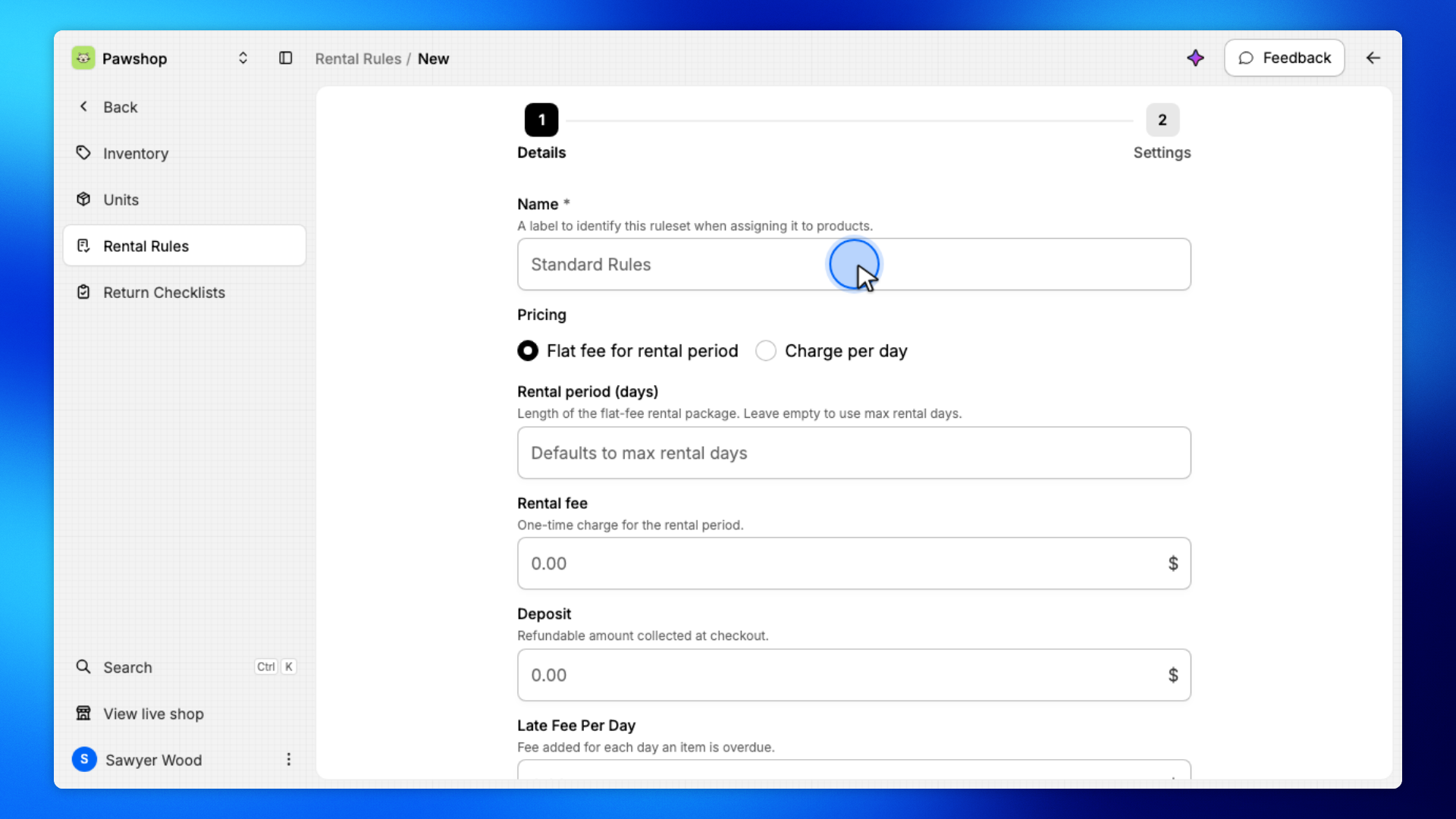
You'll land on New, which is the form for a reusable rental rule.
Give the rule a name, then set the Rental fee, Rental period, Deposit, and Max rental days.
These values apply to every product that uses this rule. For example, $15 / 5 days with a $25 deposit.
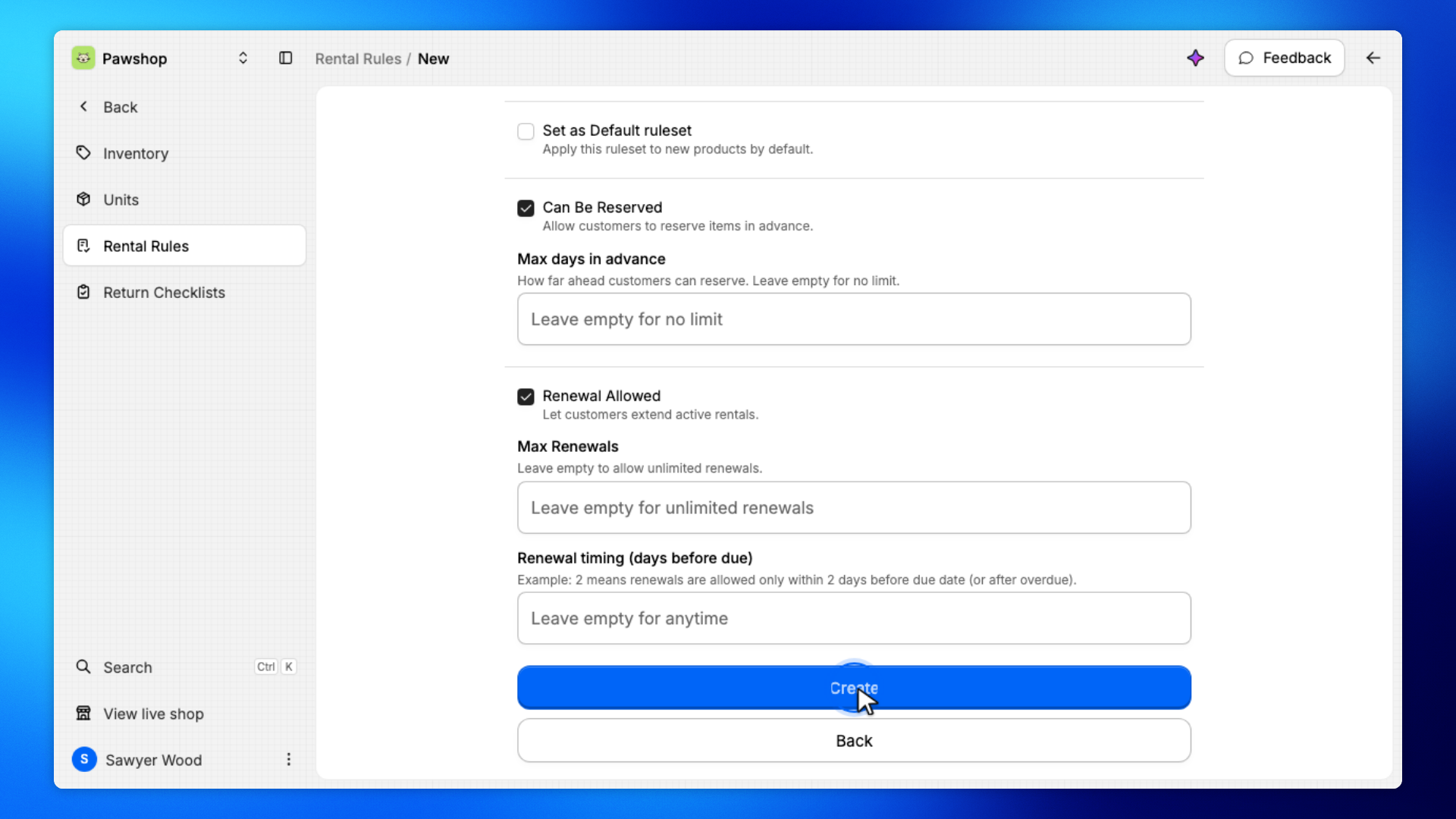
Click Next, then Create.
The rule is saved and ready to assign to products.
Go back to Rental Rules. The new rule appears in the table and can be reused on products.
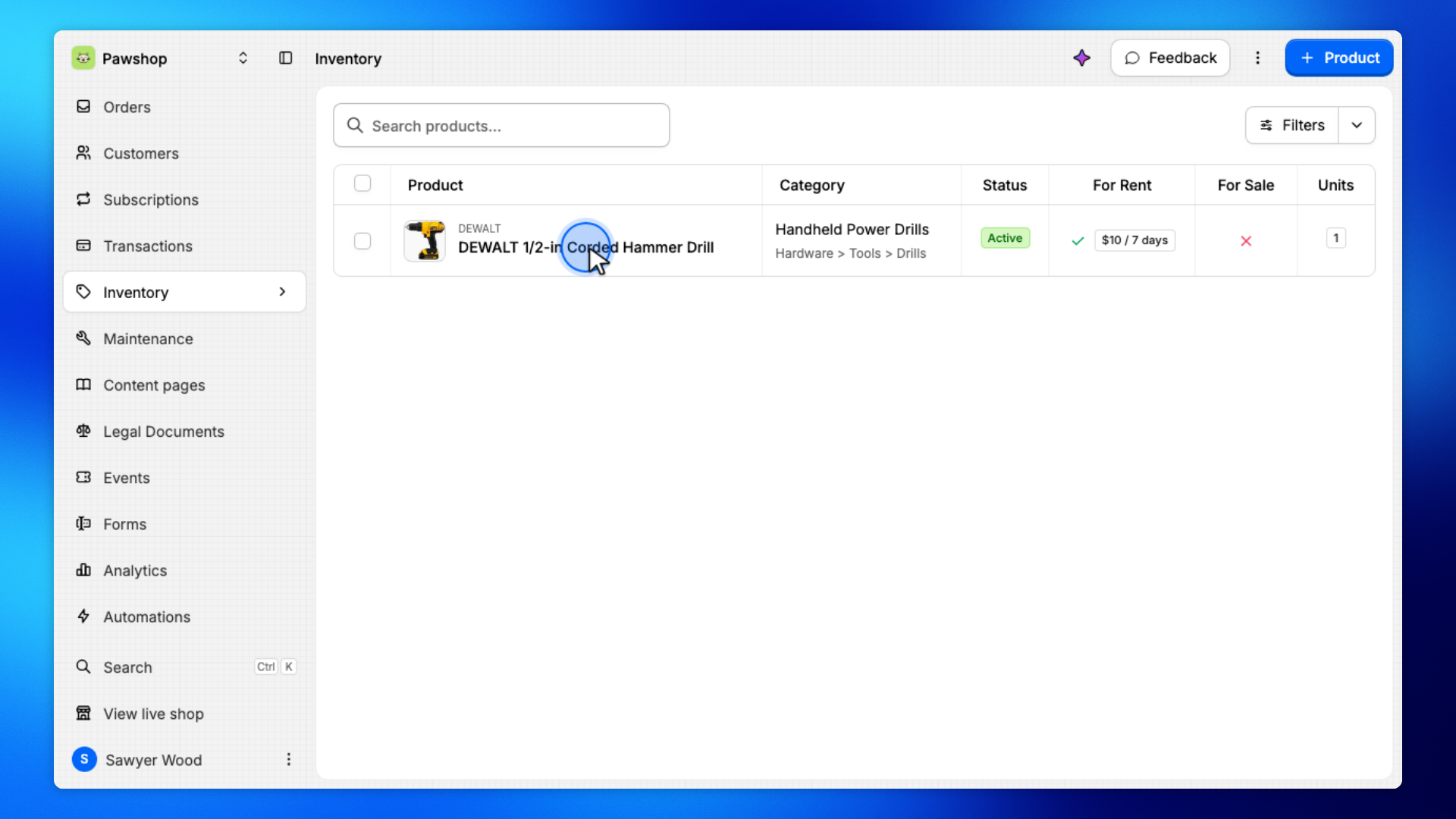
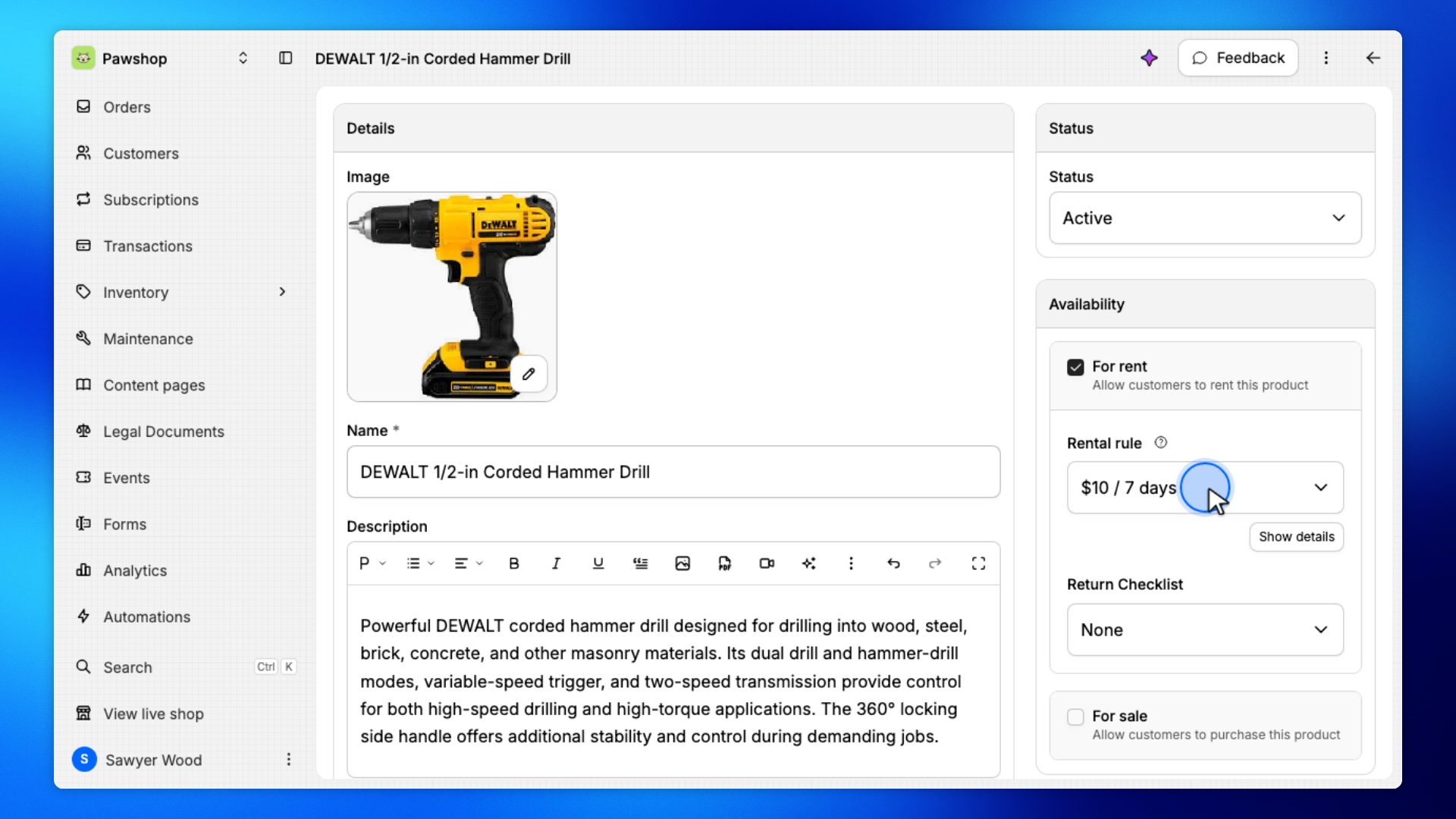
Open Inventory, then click the product you want to use this rule.
You'll land on the product page, where you can change how it rents.
Open the rental rule menu and pick the rule you just created.
The product will use that fee, rental period, and deposit.
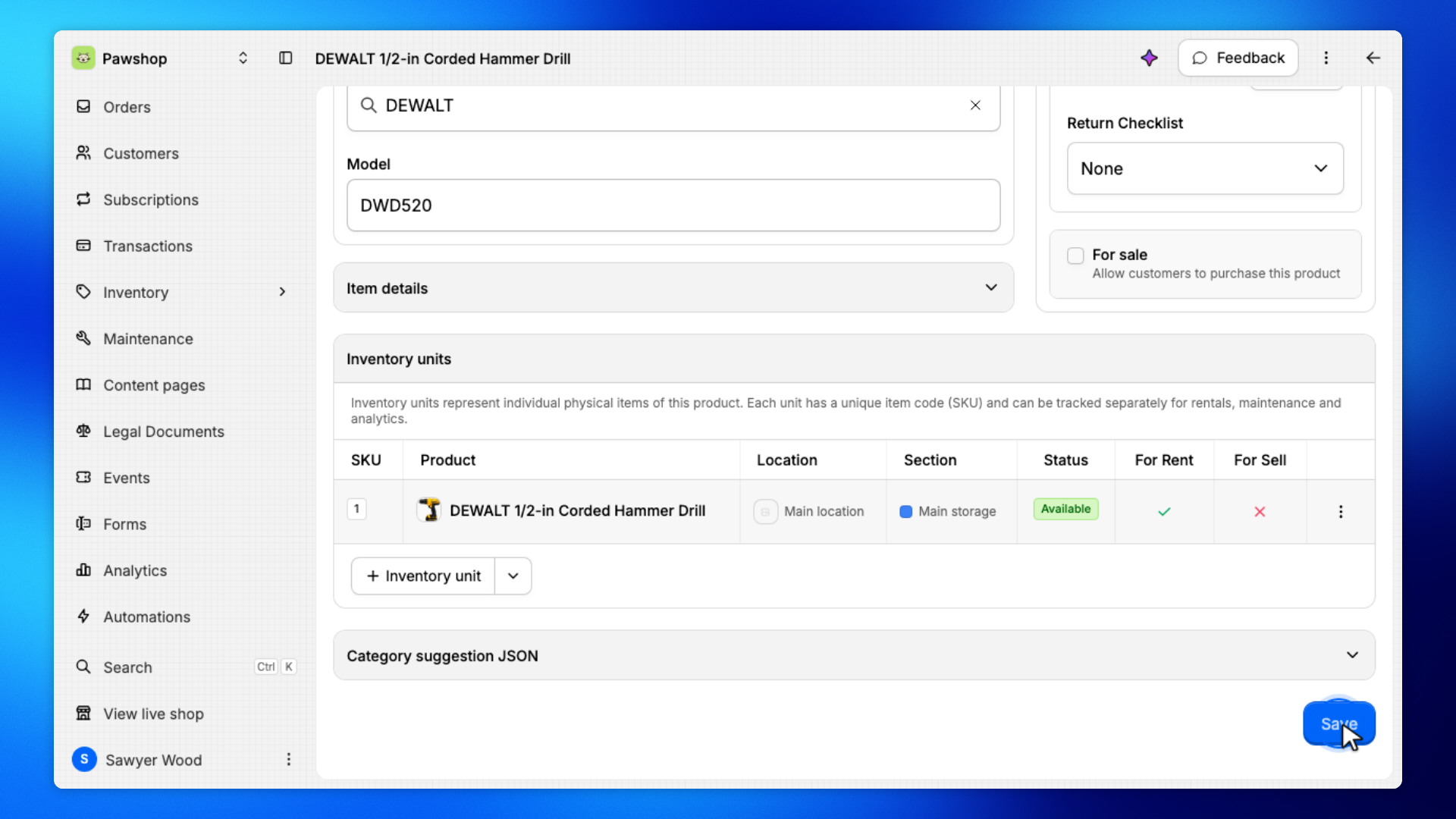
Click Save.
The inventory list shows the rental rule on the product.
Open Inventory. The product now shows the rental rule you assigned.