Check out items to a customer
By JulienUpdated August 31, 2026
Checkout creates an in-person rental and records it on the customer's account.
By Julien·Updated August 31, 2026
Checkout creates an in-person rental and records it on the customer's account.
When a customer is ready to rent in person, create the order from Checkout.
Checkout walks through four things:
Customer: who is taking the items.
Items: what they are taking today.
Payment: how they will pay, such as a saved card, cash, or account balance.
Order: the record of the loan on their account.
For example, a customer at the front desk can be checked out with a drill, charged to their account, and leave with an active rental.
Open Orders from the workspace sidebar, then click Order.
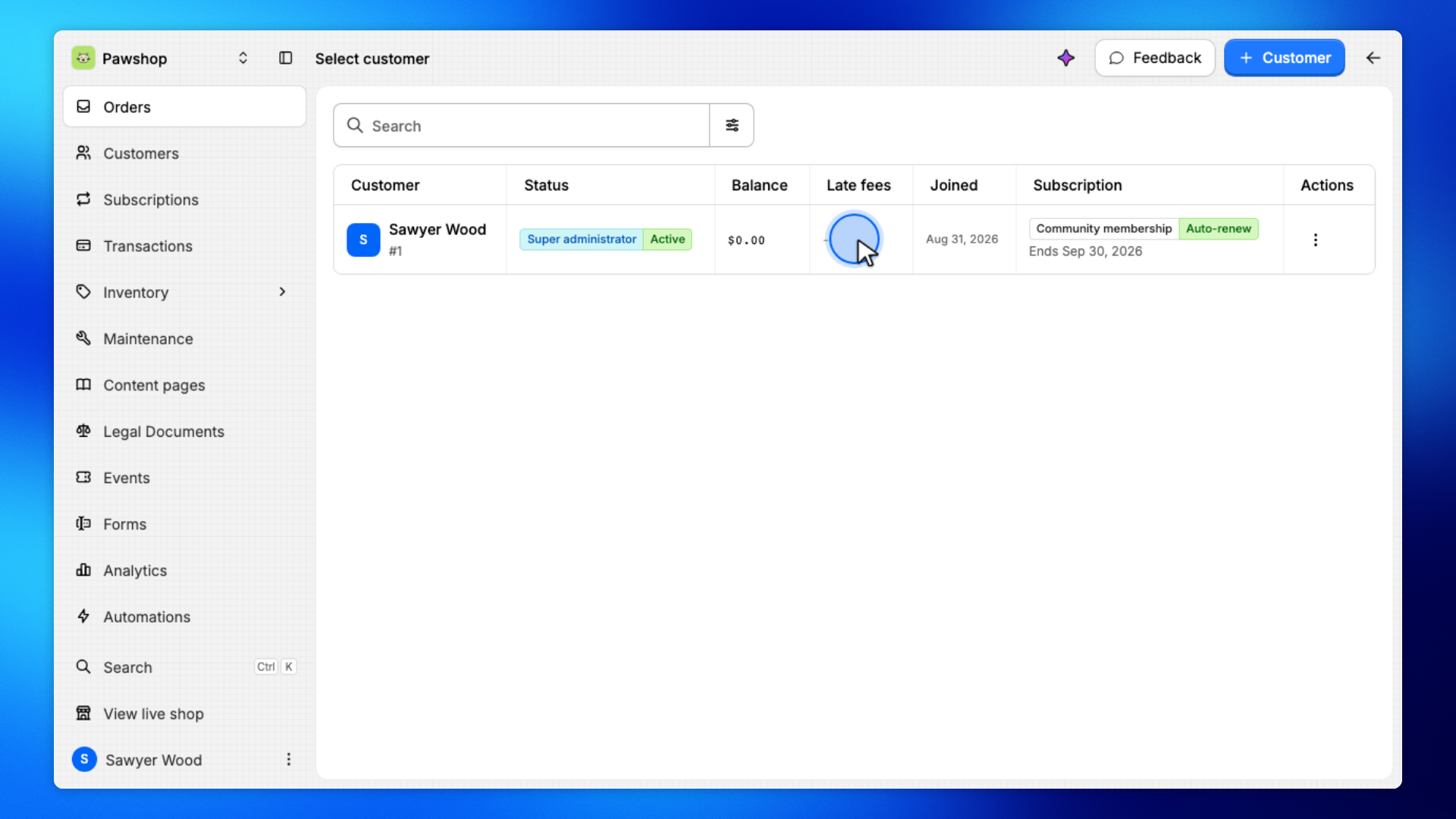
You'll land on Select customer. Search by name or email, then click their row. Checkout starts with a person, so the loan is recorded on the right account.
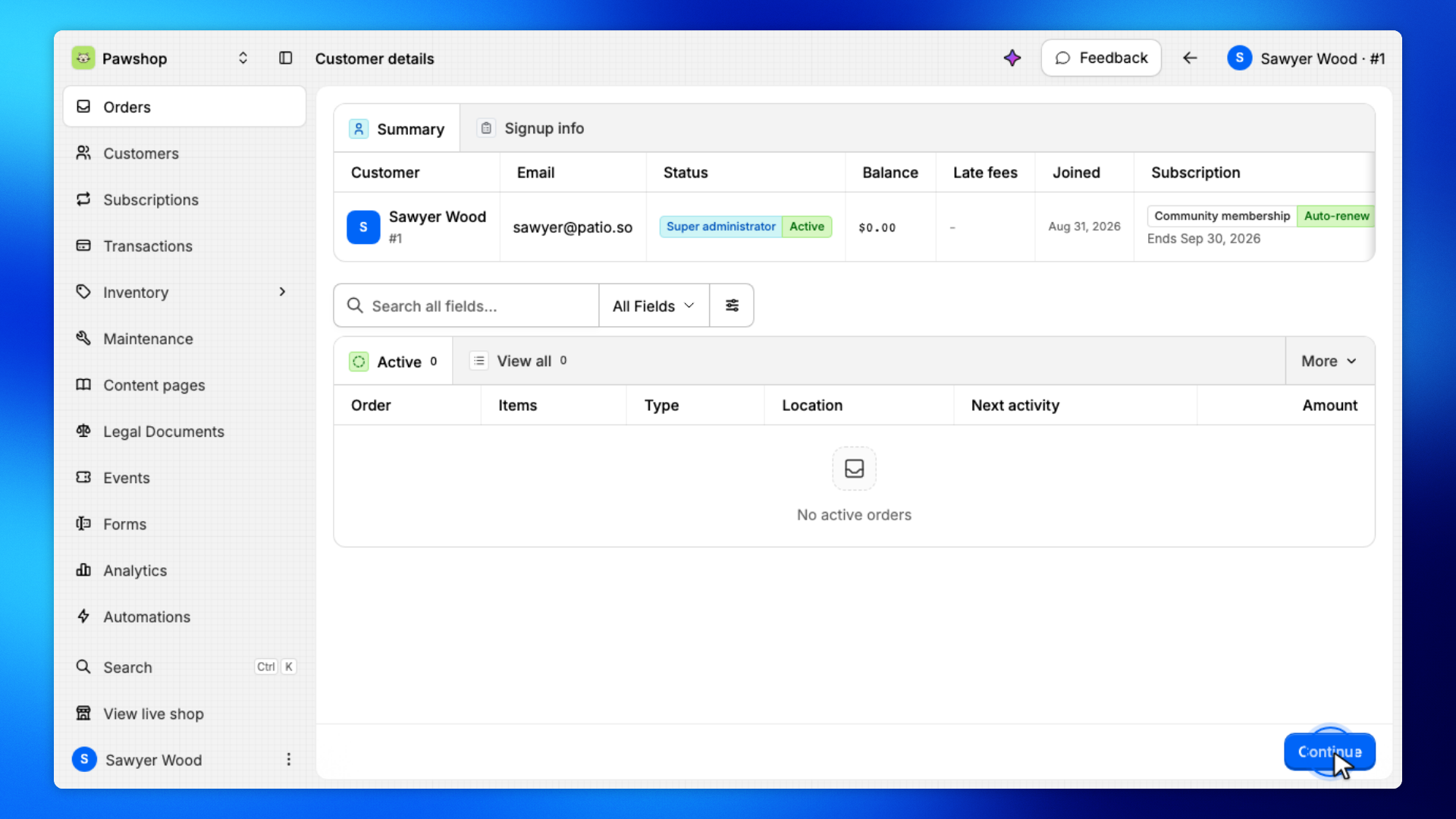
Customer details shows who you're checking out. When it's the right person, click Continue.
Confirm the name and membership so the items and payment land on the right account.
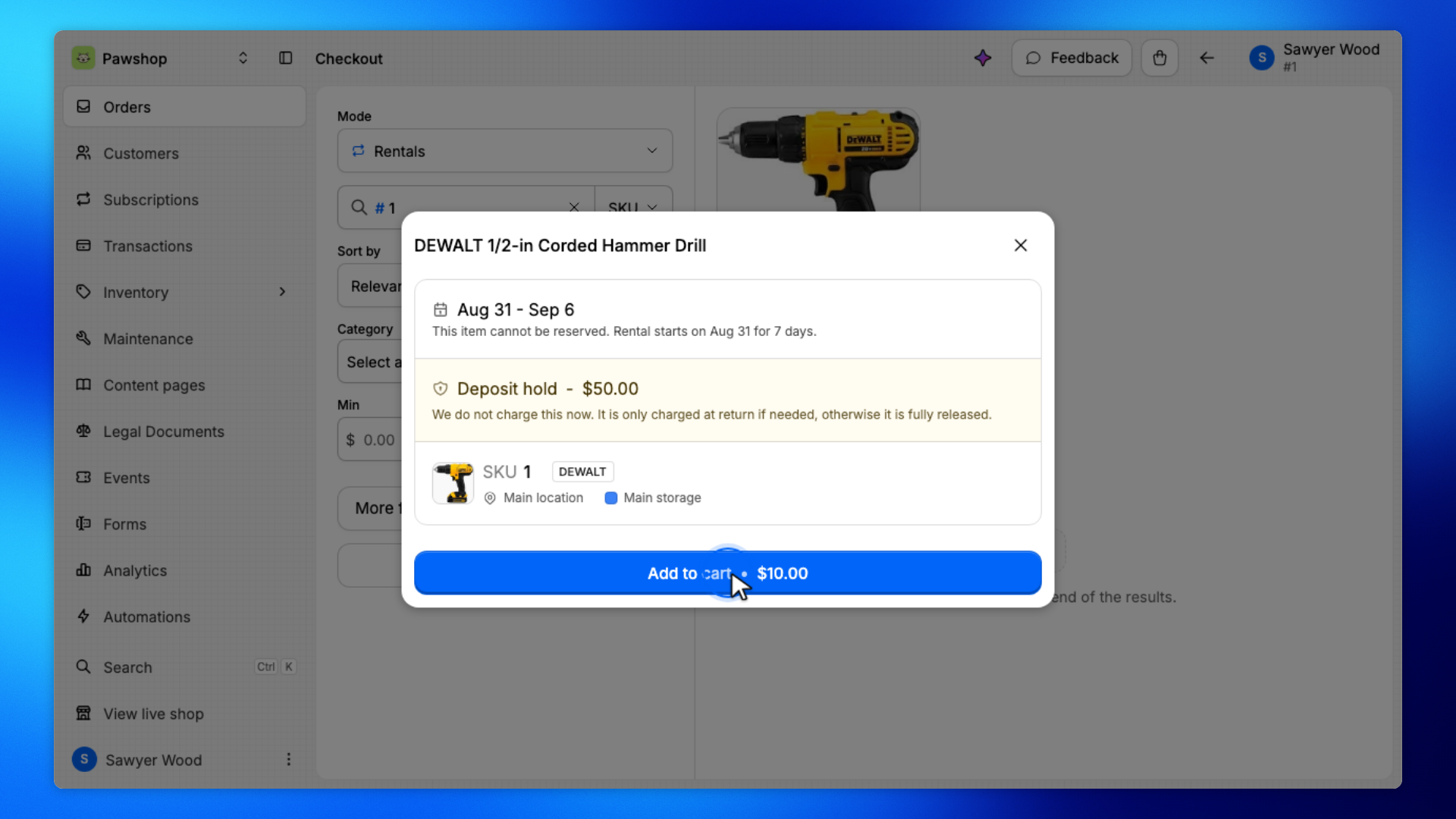
Search for the tool or item by name or SKU. You can type # followed by the SKU. Open it, then click Add to cart.
Repeat for any other items the customer is taking today. The cart is what will be recorded on the order.
Check that the customer, items, and amounts look right. Open the payment section and choose how they'll pay.
They can pay with a saved card, cash, or their account balance. If you charge the account and they don't have enough credit, you'll be asked to confirm before continuing.
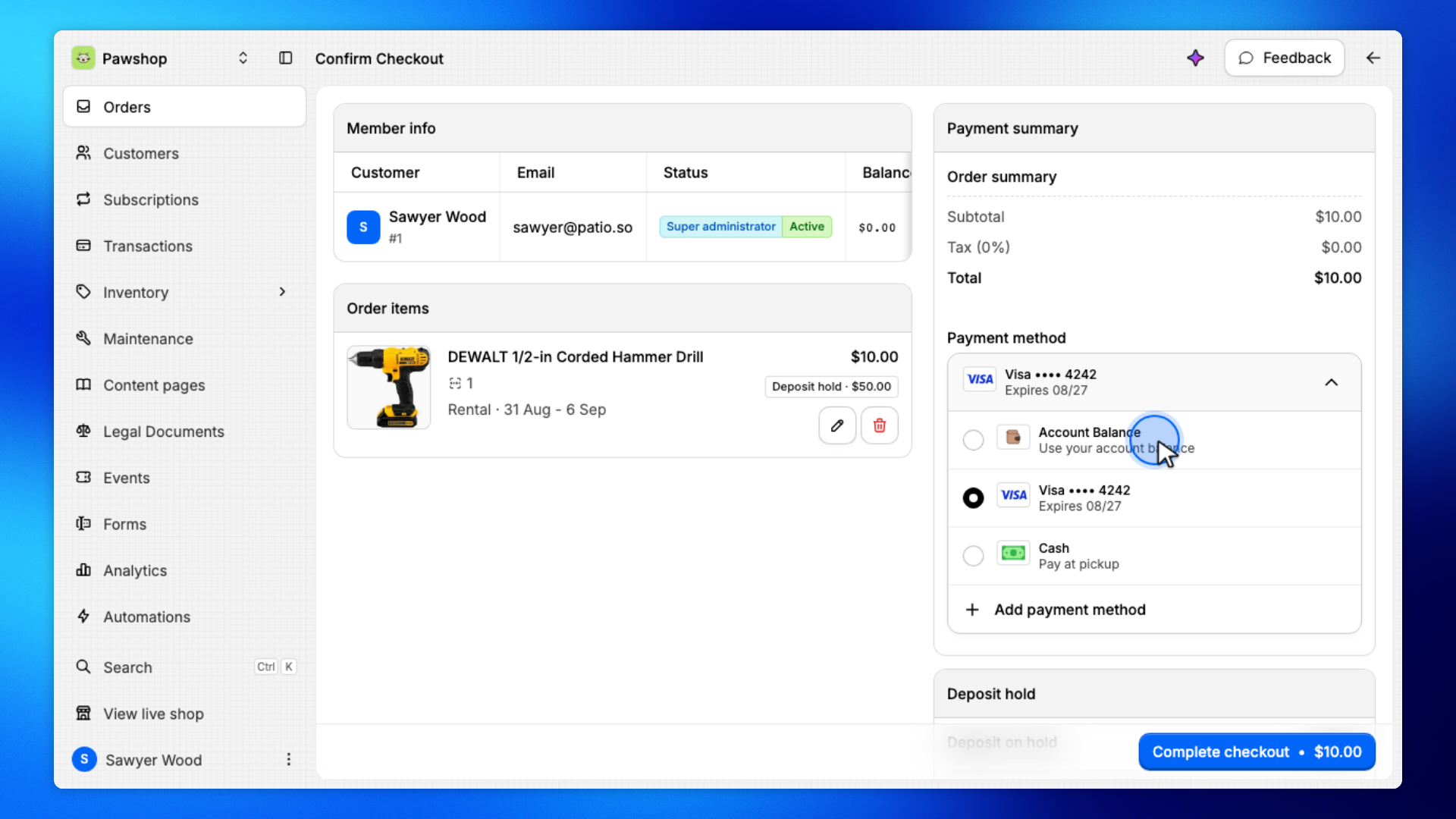
Click Complete checkout, or Accept Cash if you're taking cash. Confirm the payment if a dialog appears.
This records the loan and charges the customer. Until you finish, the items are only in the cart.
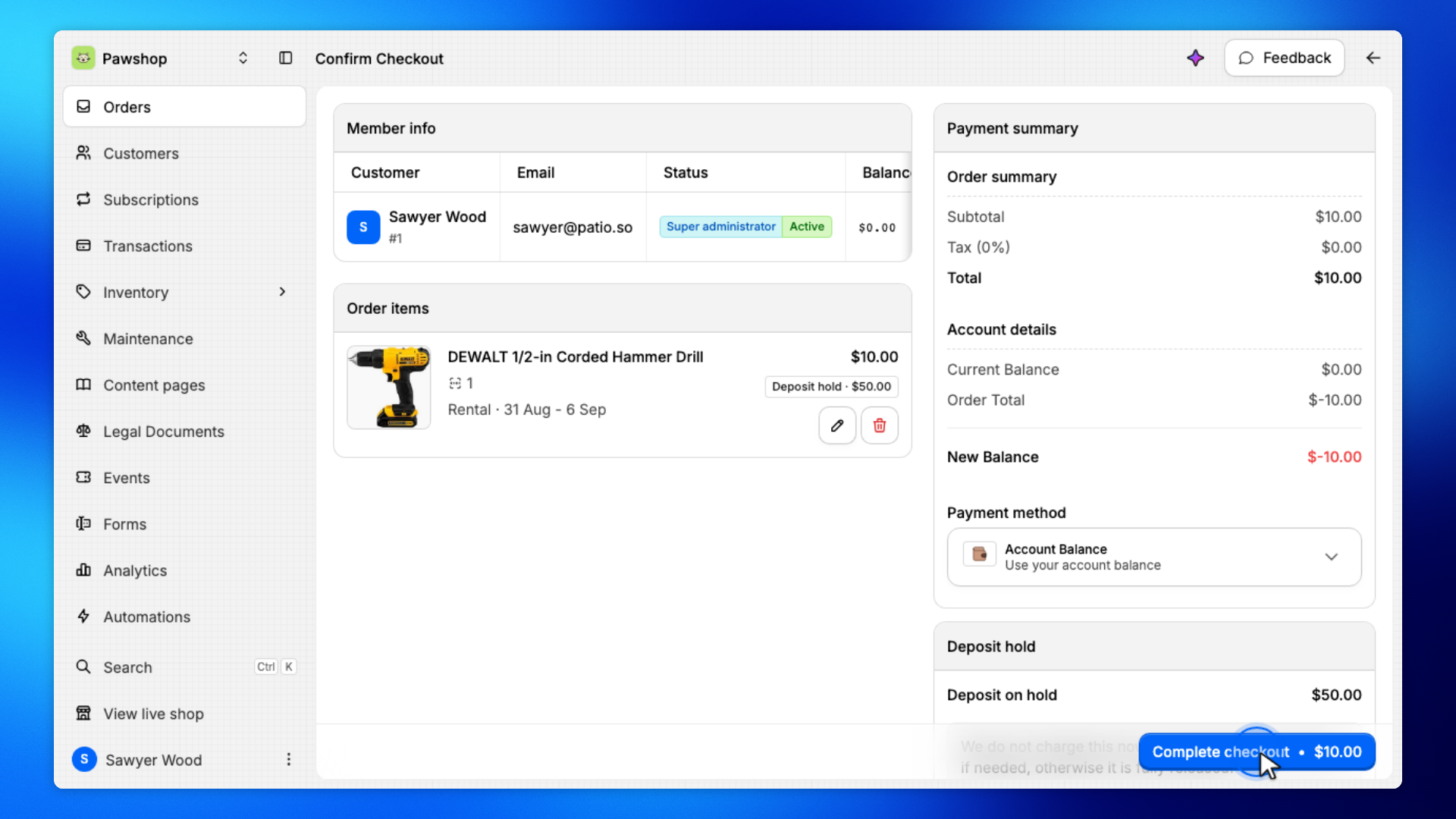
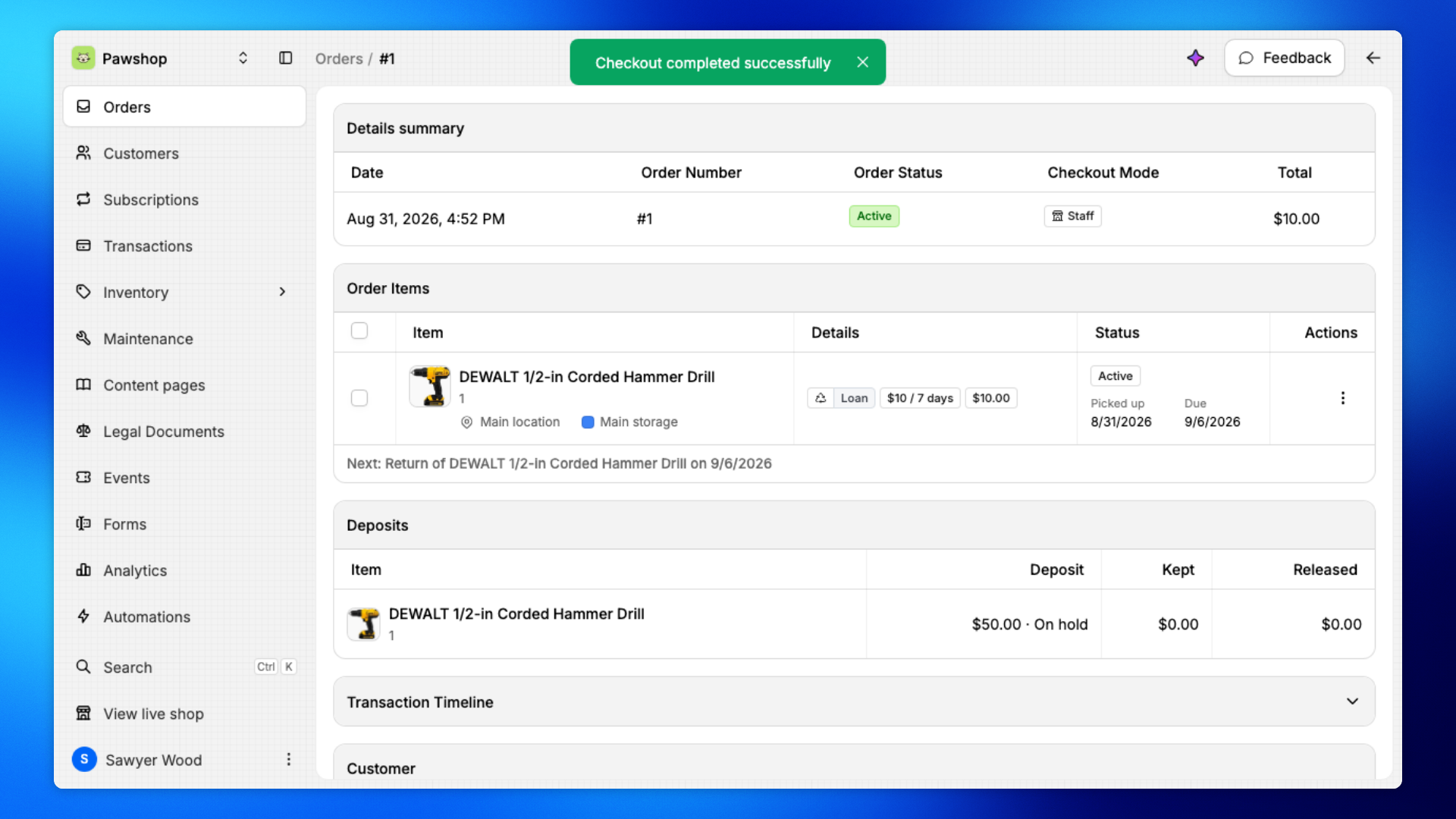
You'll land on the order page.
Check that the customer, items, and status look right. That's your confirmation the rental was created and is now active on their account.