How to add a new section
By Julien RiouxUpdated August 31, 2026
A section is a storage area inside a location, such as a yard, aisle, or room.
By Julien Rioux·Updated August 31, 2026
A section is a storage area inside a location, such as a yard, aisle, or room.
After you have a location, add sections so staff know where items sit.
Open the location, click Add section, and give it a name and a color. For example, Front Yard at Downtown Branch.
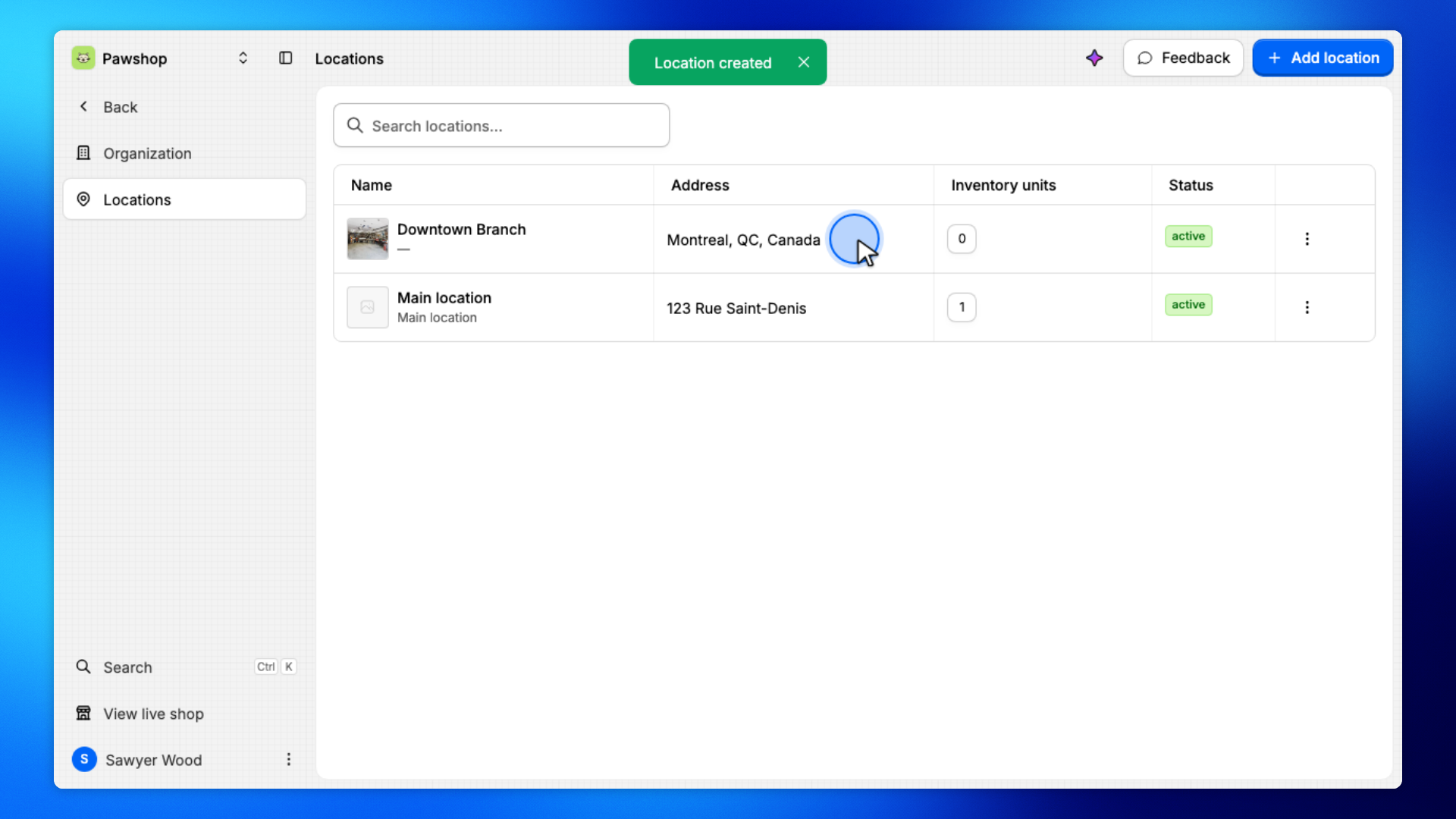
Click the location in the Locations table.
Sections belong to a location, so you add them from that branch's page.
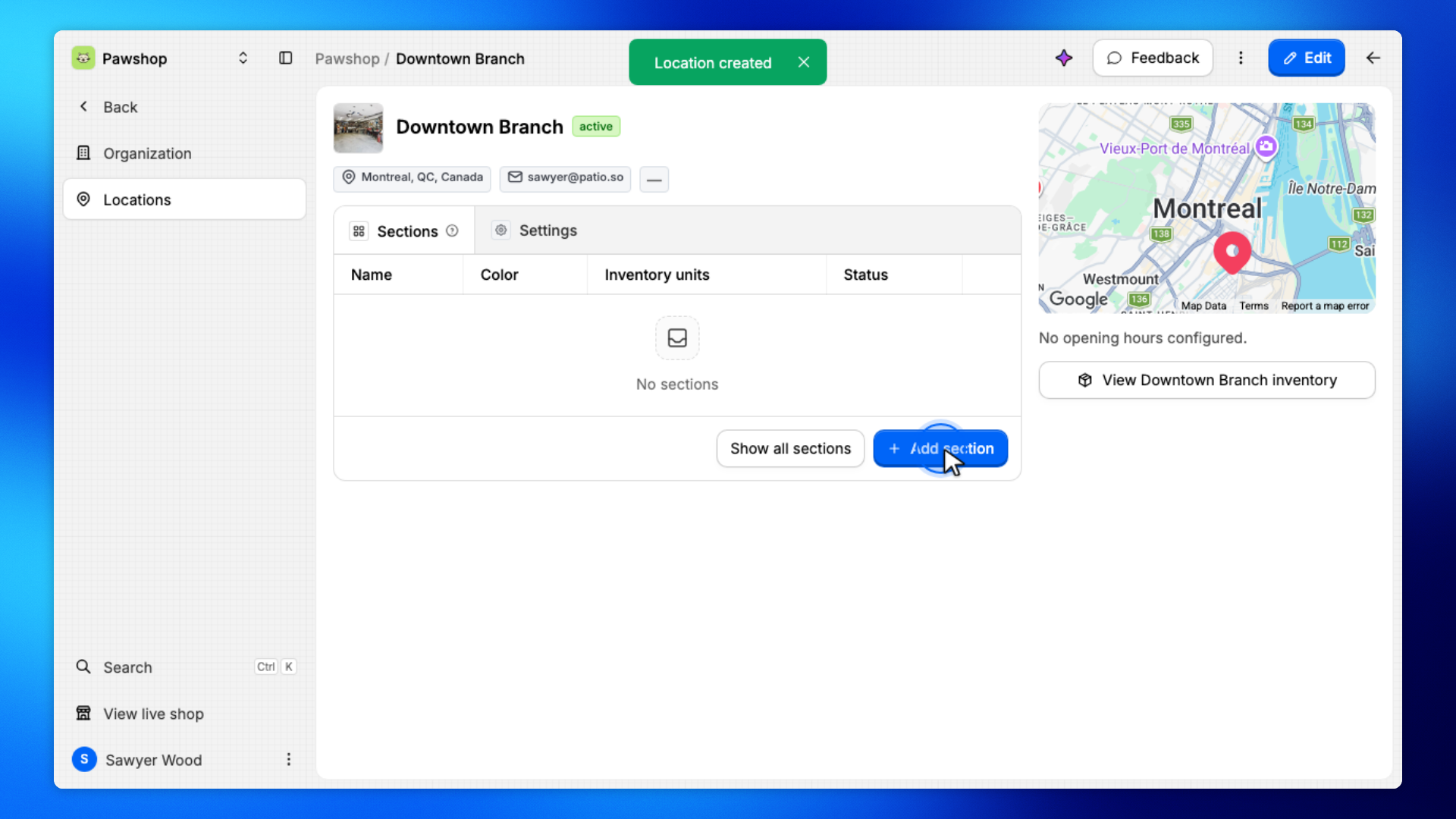
Click Add section.
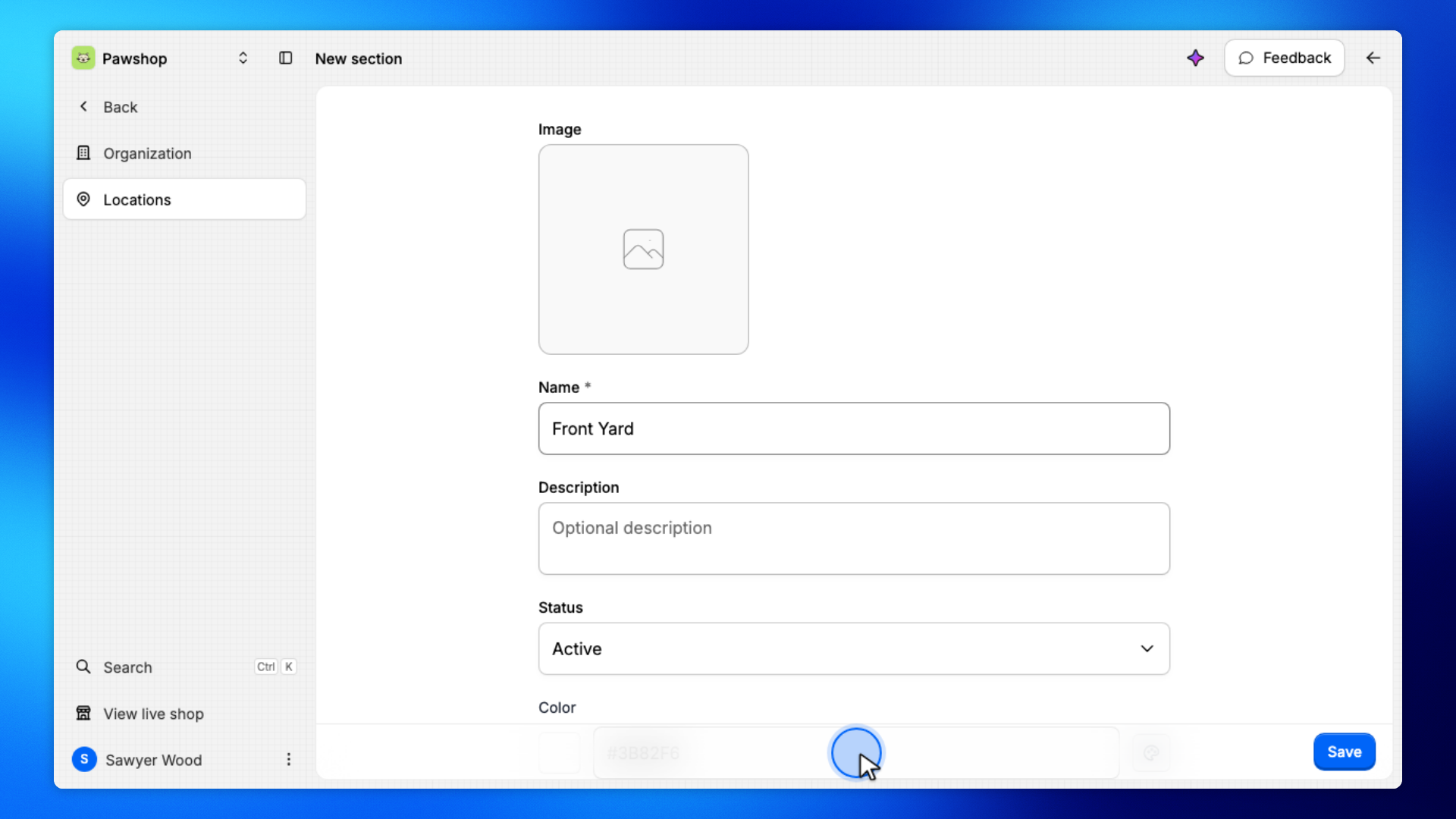
You'll land on New section, which is the form for a storage area inside this location.
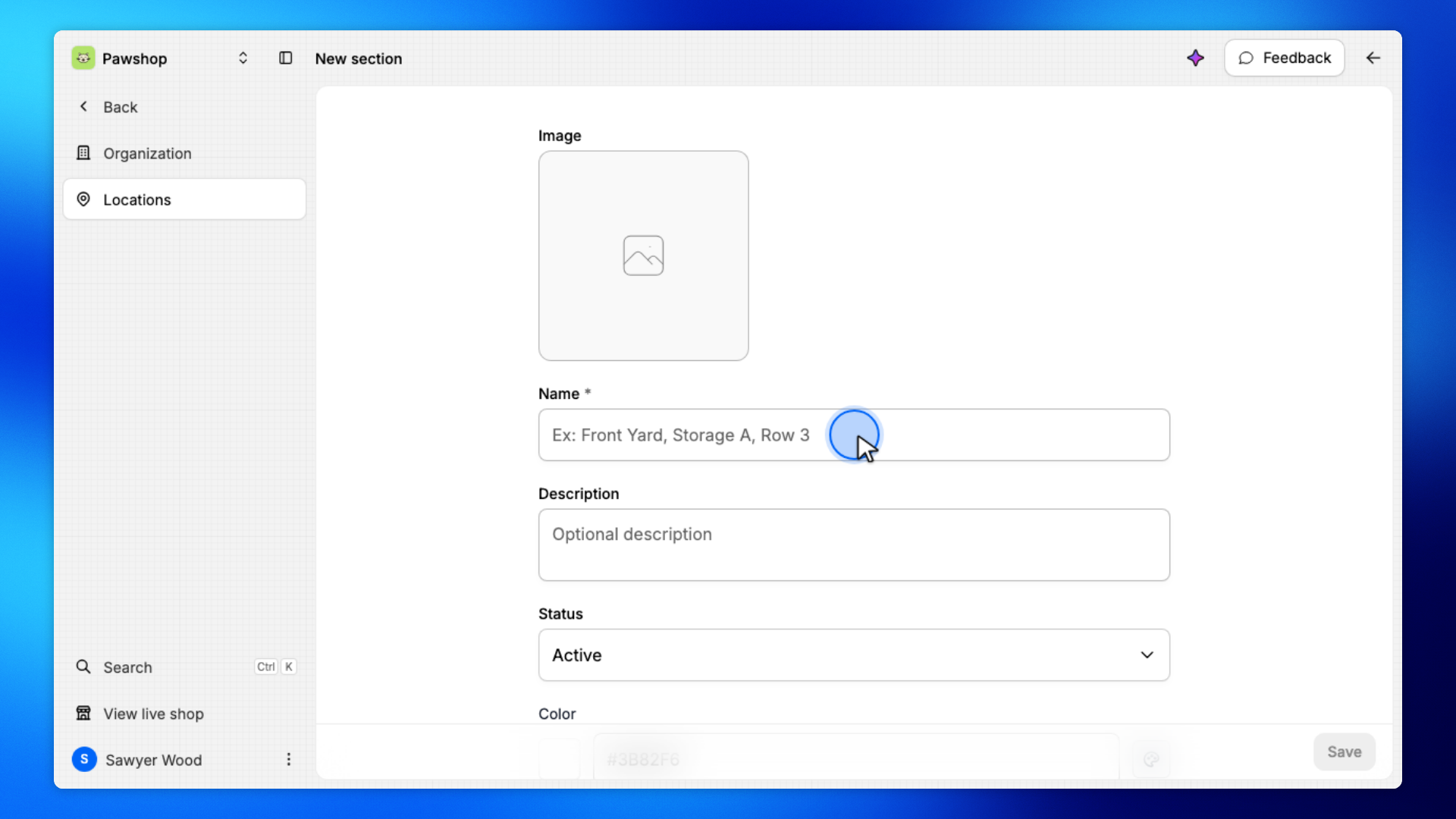
Give the section a name, such as Front Yard.
Staff use this name when they put an item away or look it up later.
Set a color for the section, such as #8250df.
The color makes this storage area easy to spot in lists and on inventory units.
Click Save.
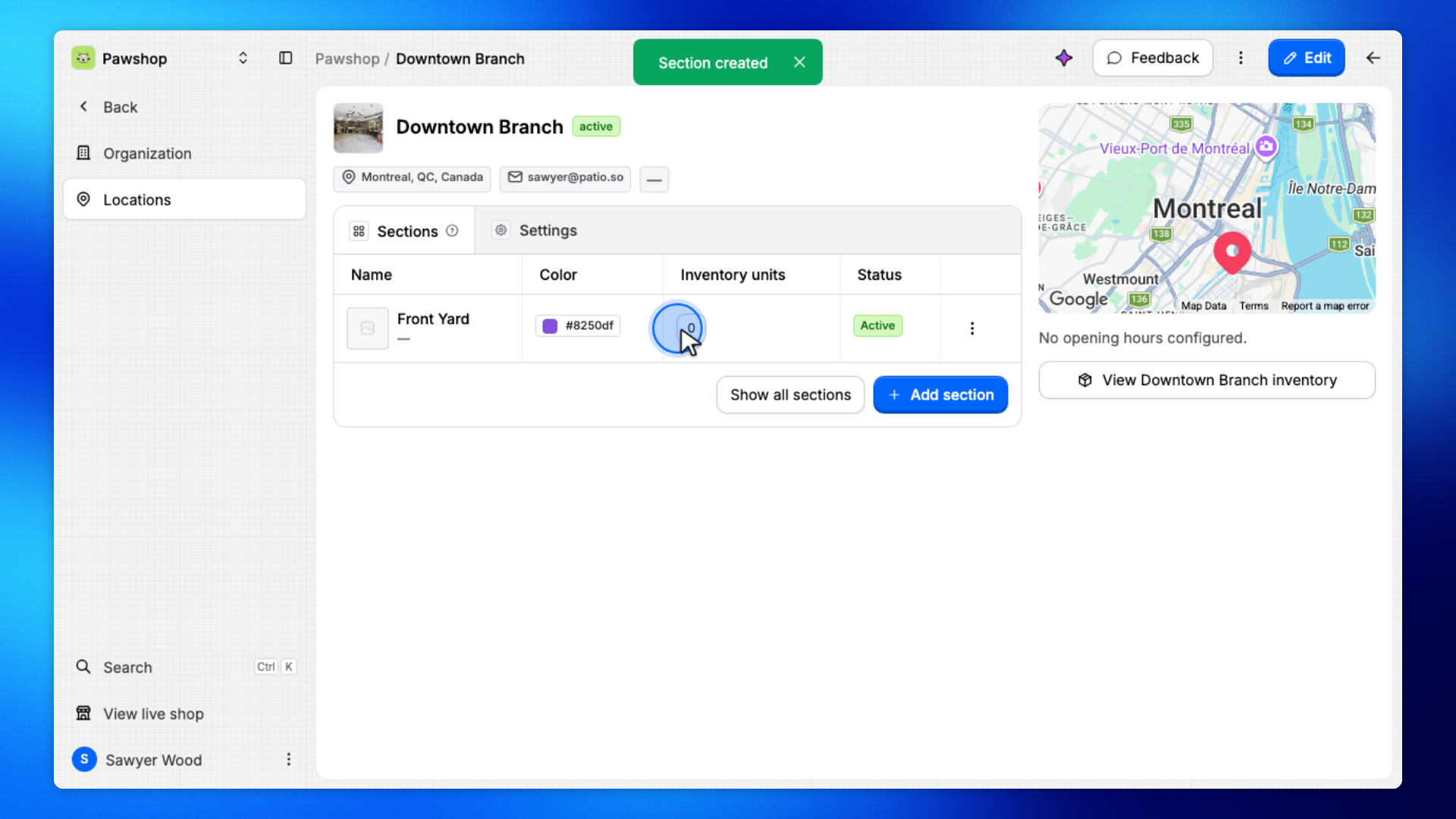
The section is added to this location and ready to store inventory.
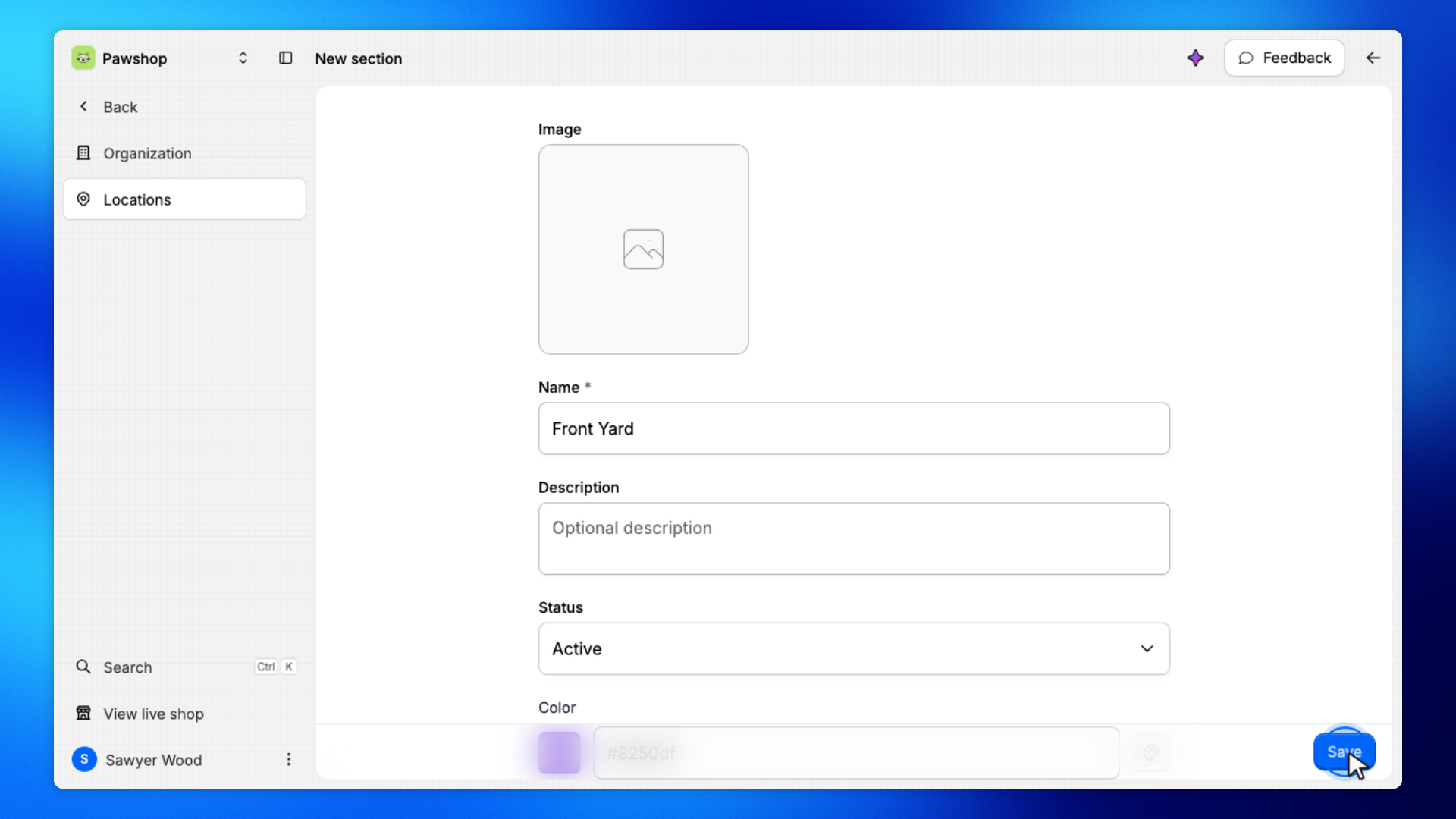
The new section appears under Sections on the location page.