Customize the member signup form
By Julien RiouxUpdated August 31, 2026
Update the form members fill when they join your shop.
By Julien Rioux·Updated August 31, 2026
Update the form members fill when they join your shop.
Open Settings, then Signup Form, and click Edit signup form. Every workspace starts with a default form (Welcome and Basic info). Add a question on Basic info, then click Page for anything extra.
On the new page, add Rich editor content and a Dropdown. Save when you are done.
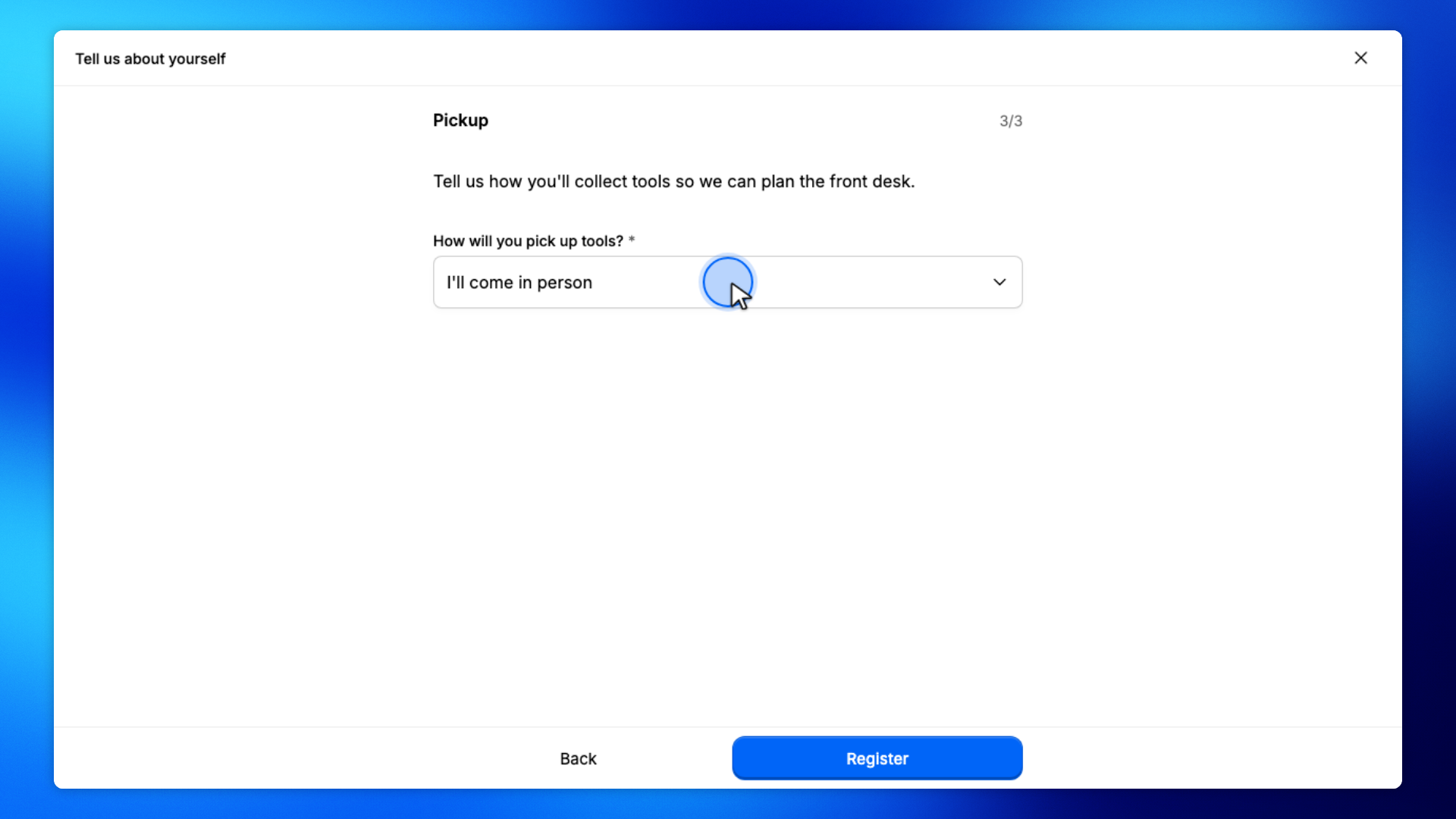
On the shop, members fill that form when they sign up. For example, a Pickup page can ask How will you pick up tools?
These steps are yours. You update the form under Settings, then Signup Form.
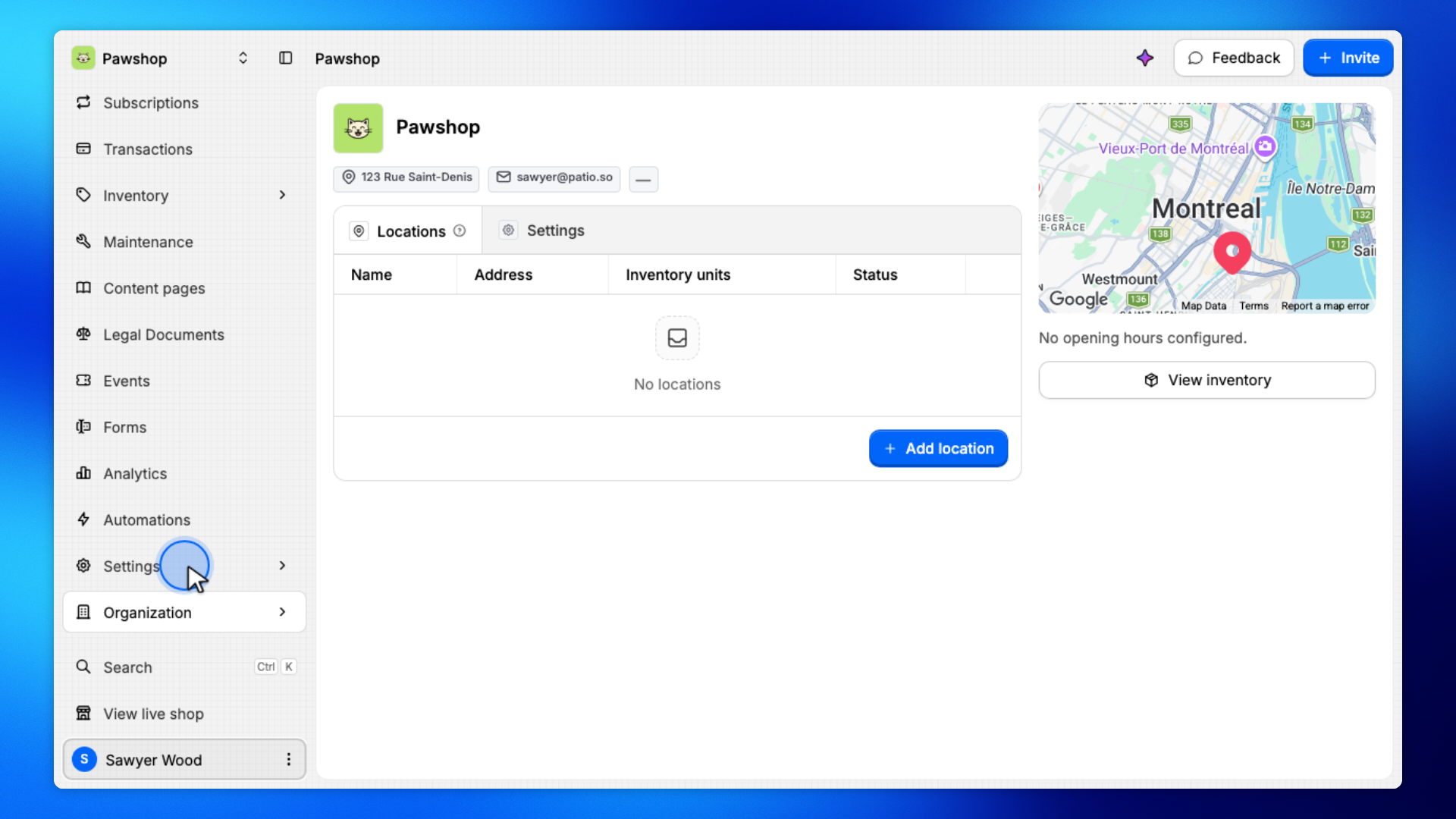
Open Settings from the workspace sidebar.
Signup Form lives under Settings because it belongs to the workspace, not to a single product.
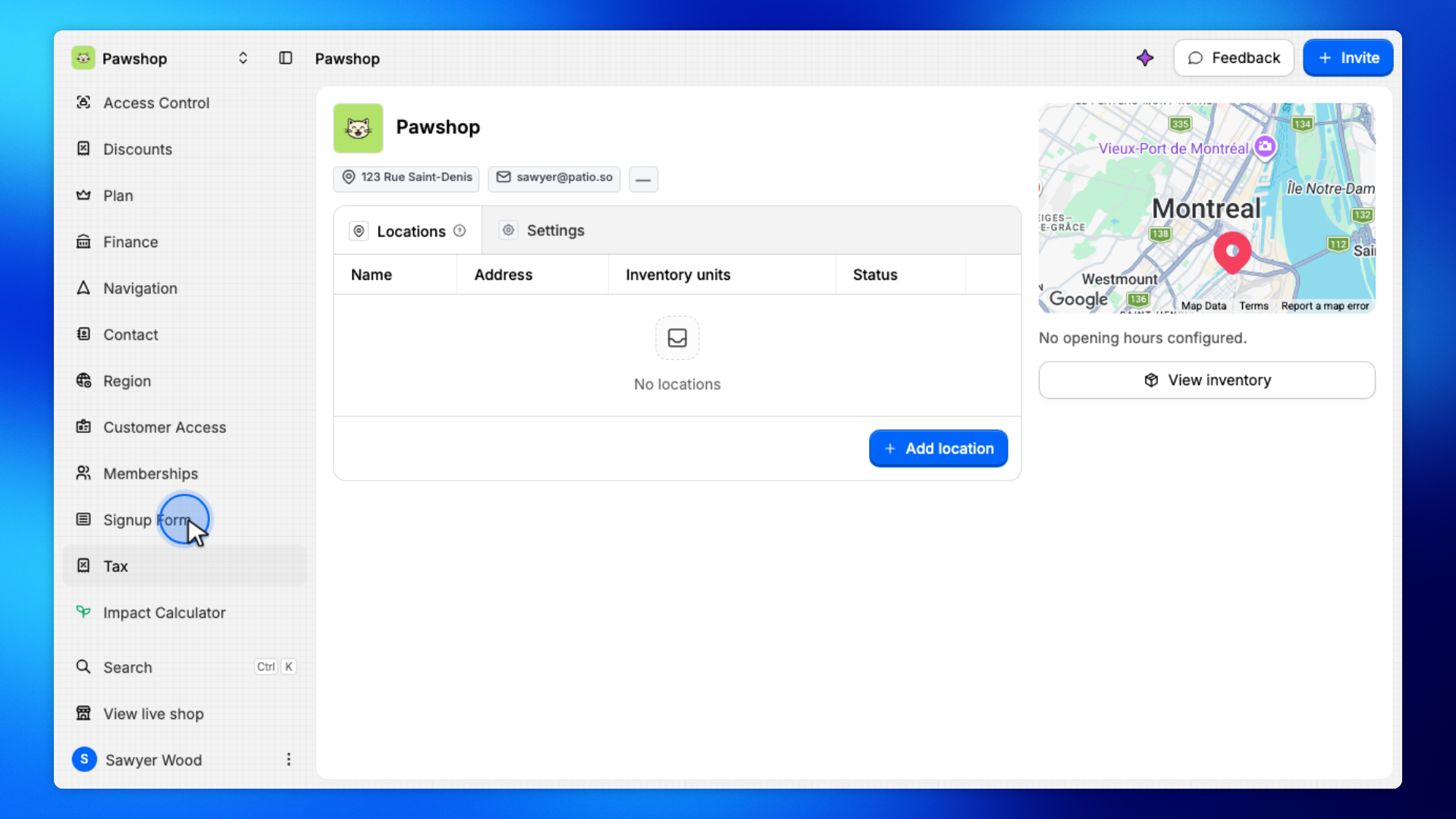
Click Signup Form.
This is the form members fill when they join your shop. Every new workspace starts with a default one.
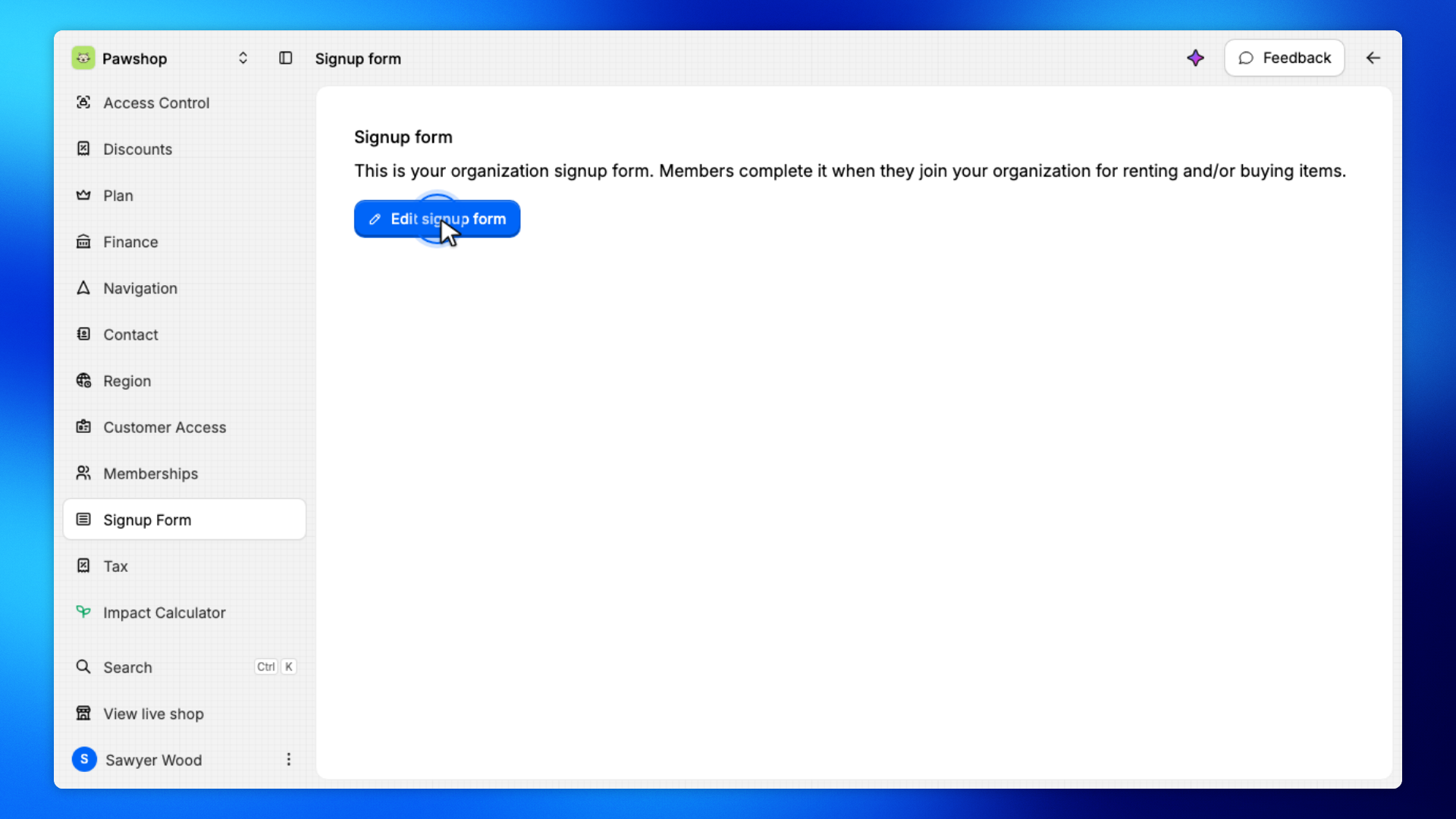
Click Edit signup form.
You'll land on the form builder, with the default Welcome and Basic info pages.
On Basic info, click Content, then choose Checkbox.
That opens the question in Edit.
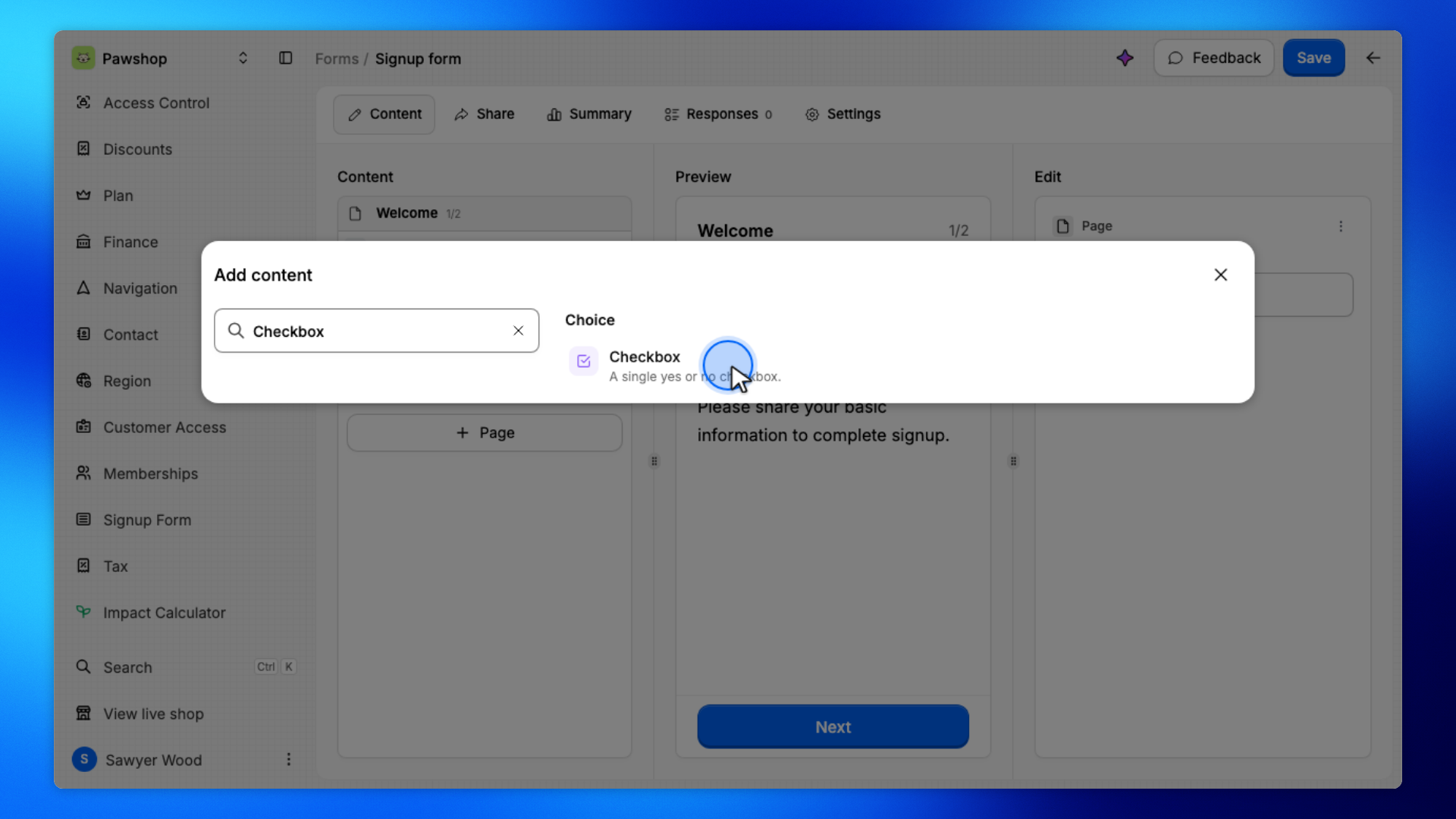
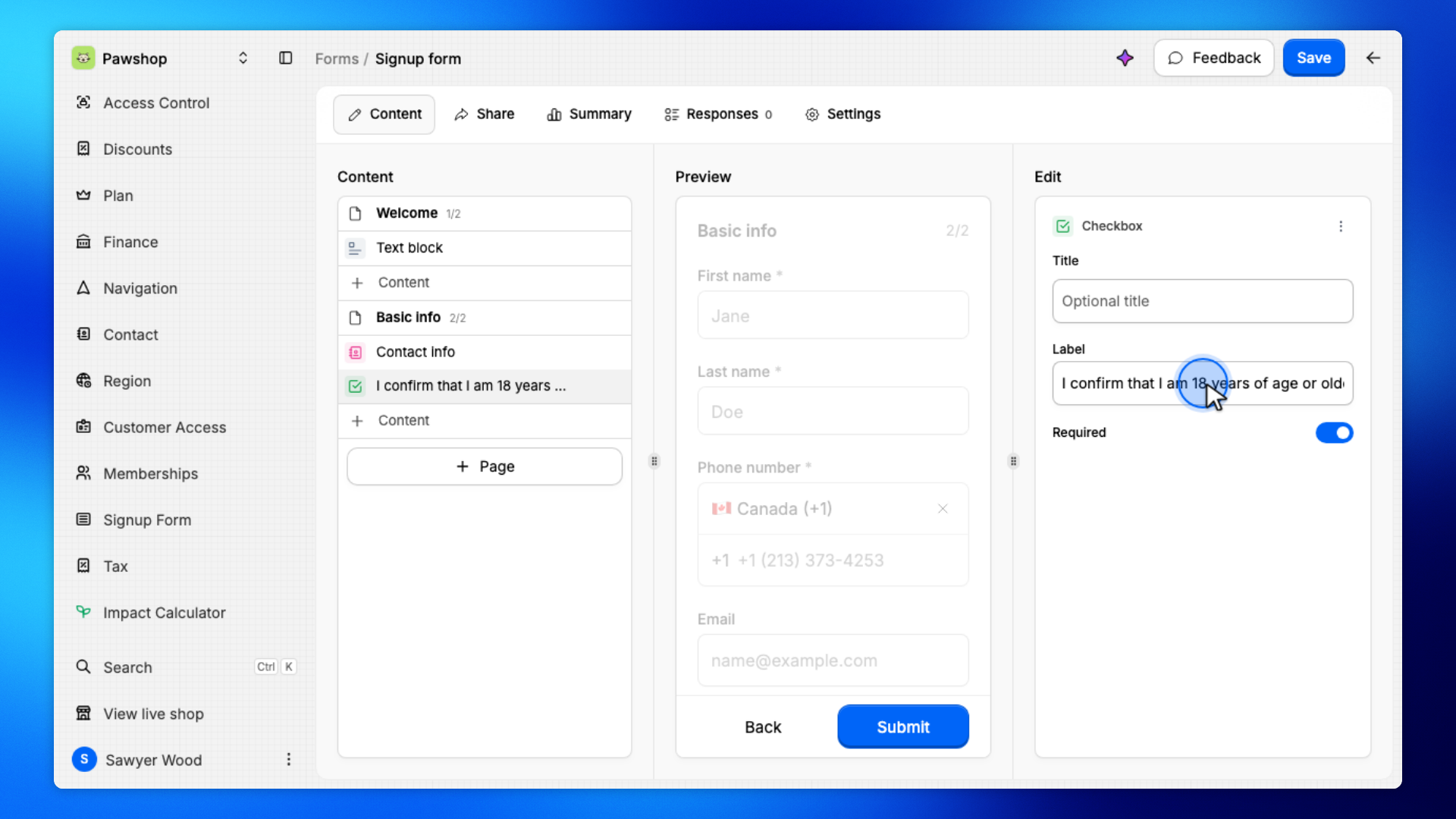
Enter the Label and turn Required on.
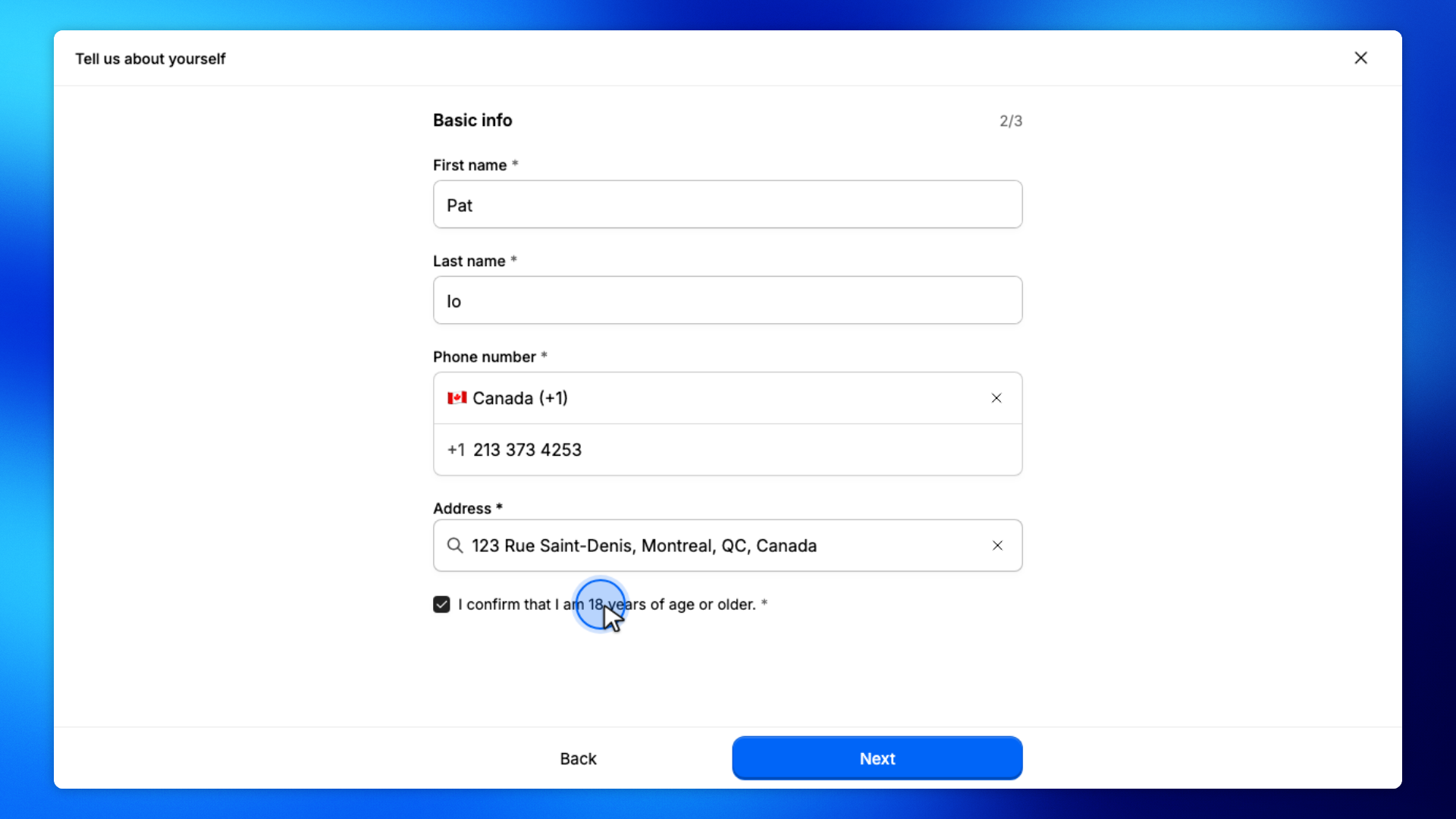
For example, I confirm that I am 18 years of age or older. asks members to confirm their age.
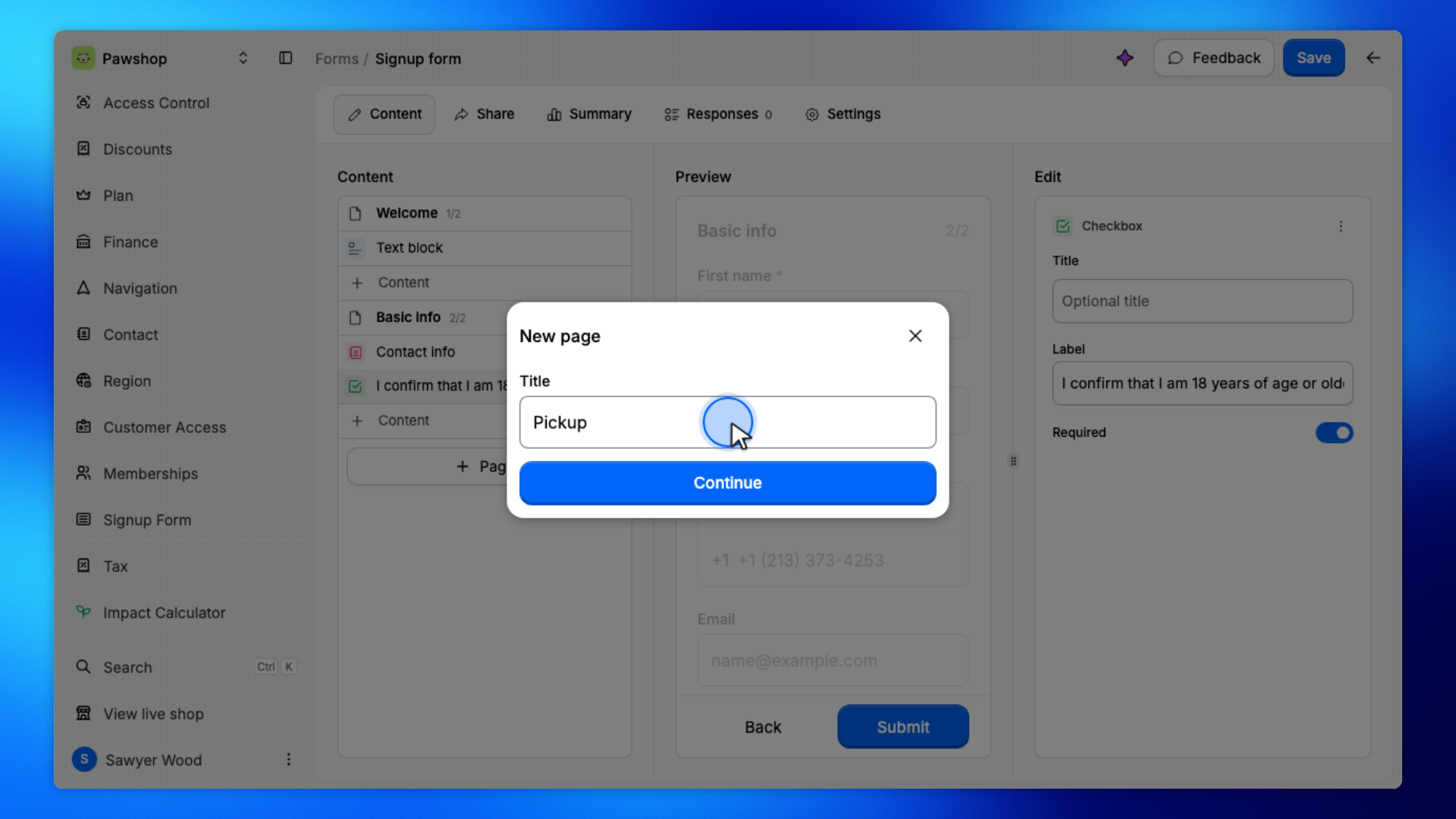
Click Page, enter a title, then click Continue.
A third page is useful when you need a follow-up question that does not belong on Basic info.
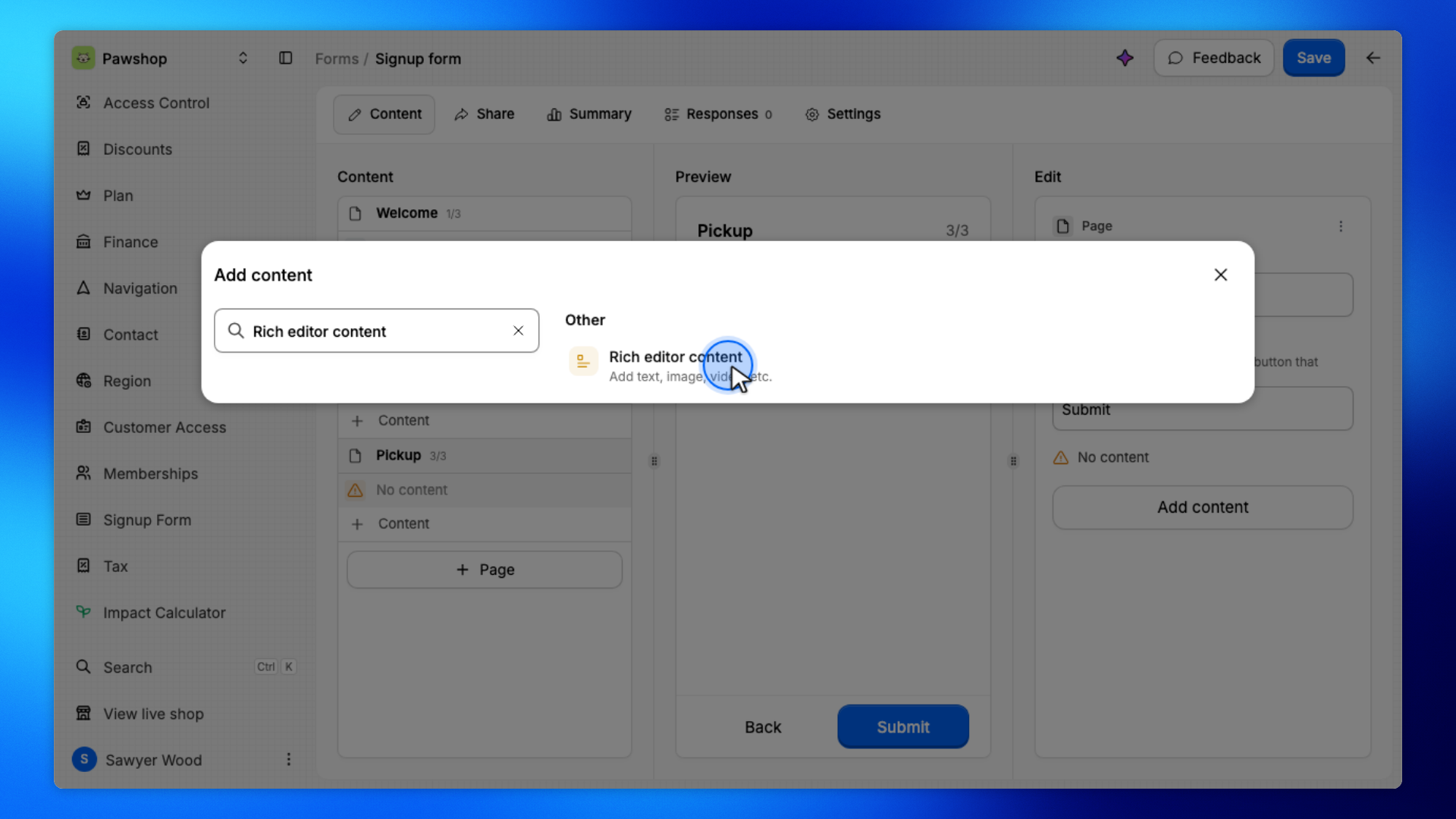
On the new page, choose Rich editor content.
This text is display-only. It does not collect an answer.
Write a short intro so members know why you are asking.
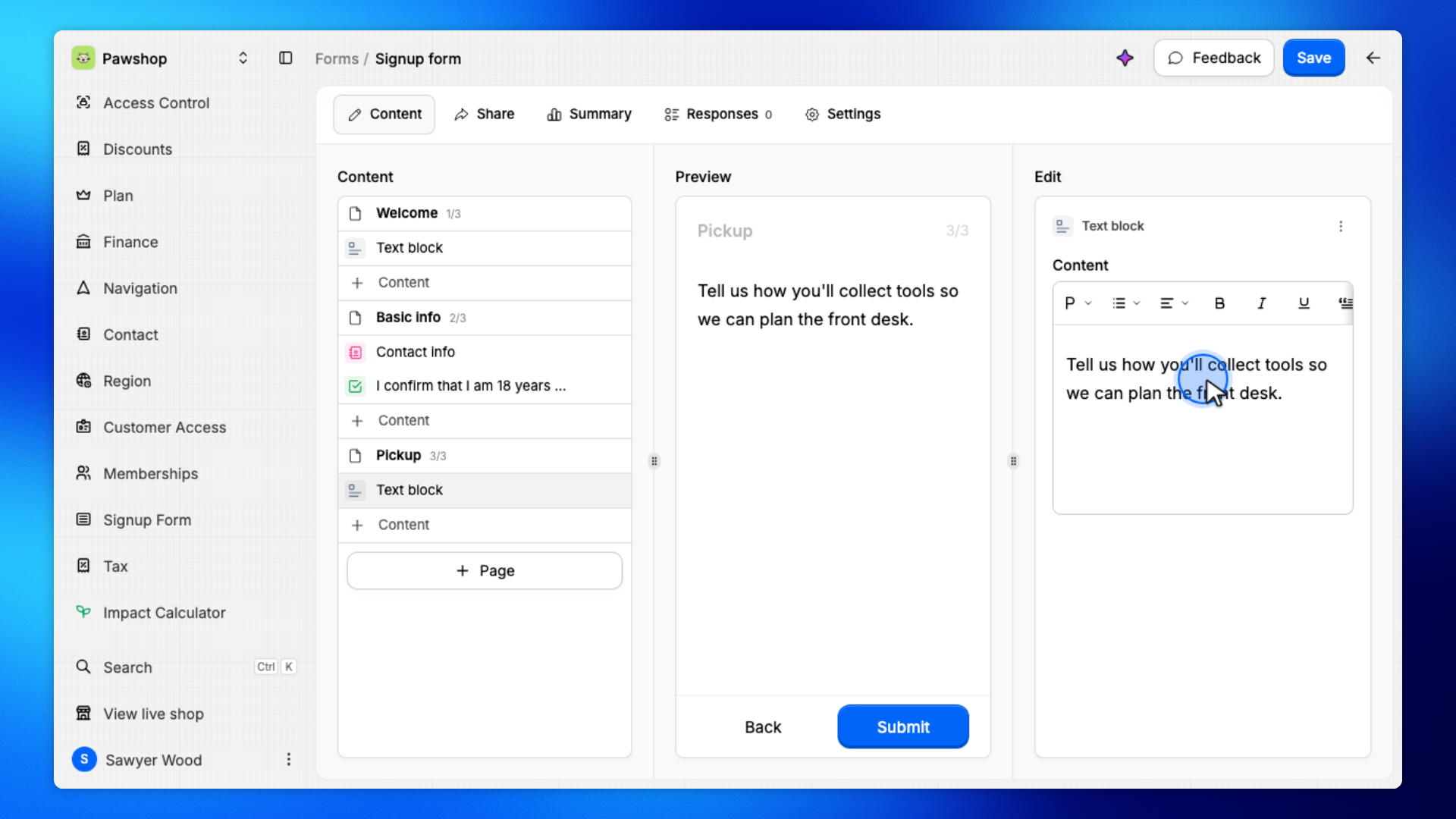
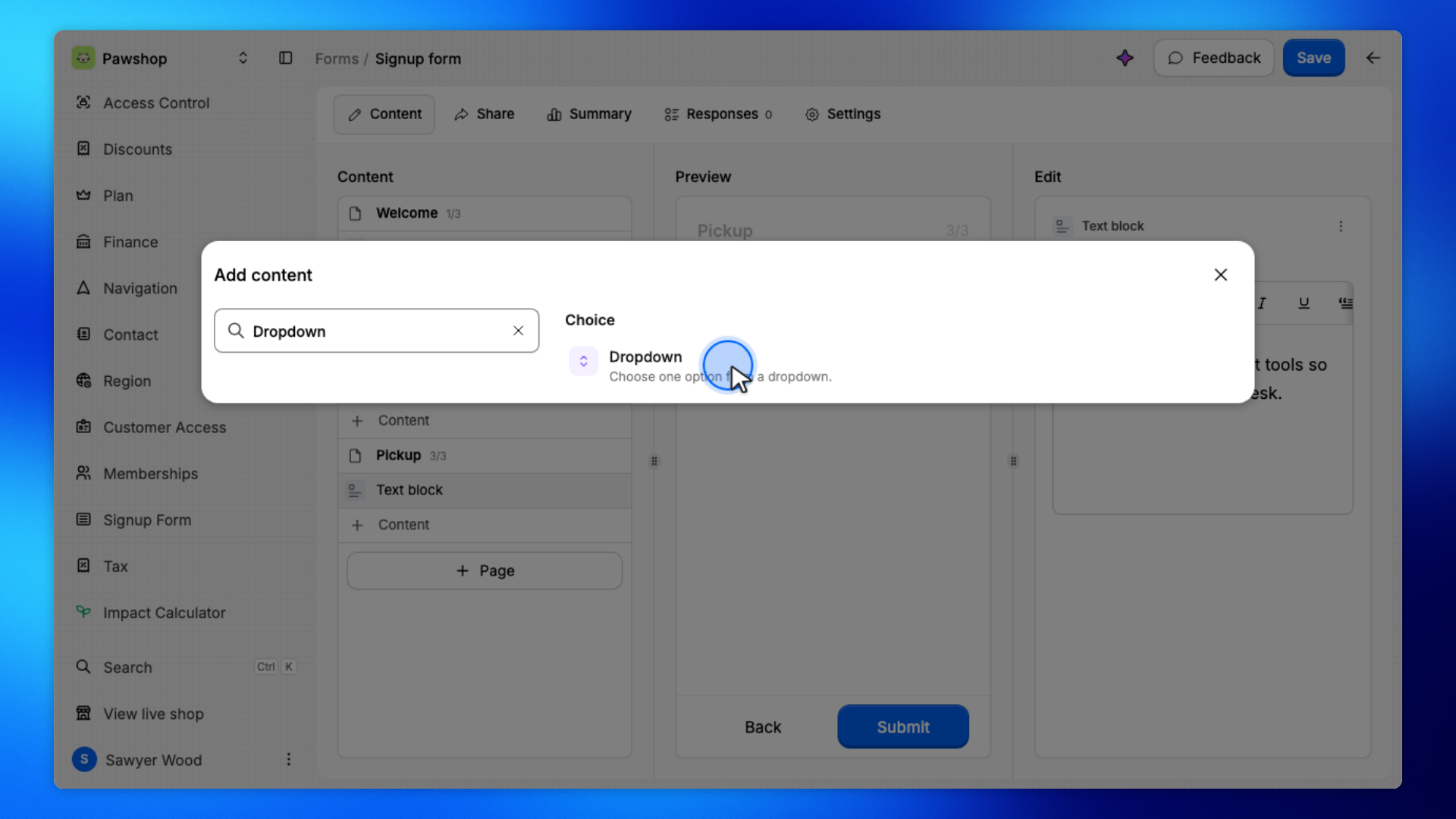
Click Content again, then choose Dropdown.
Members pick one answer from the options you set.
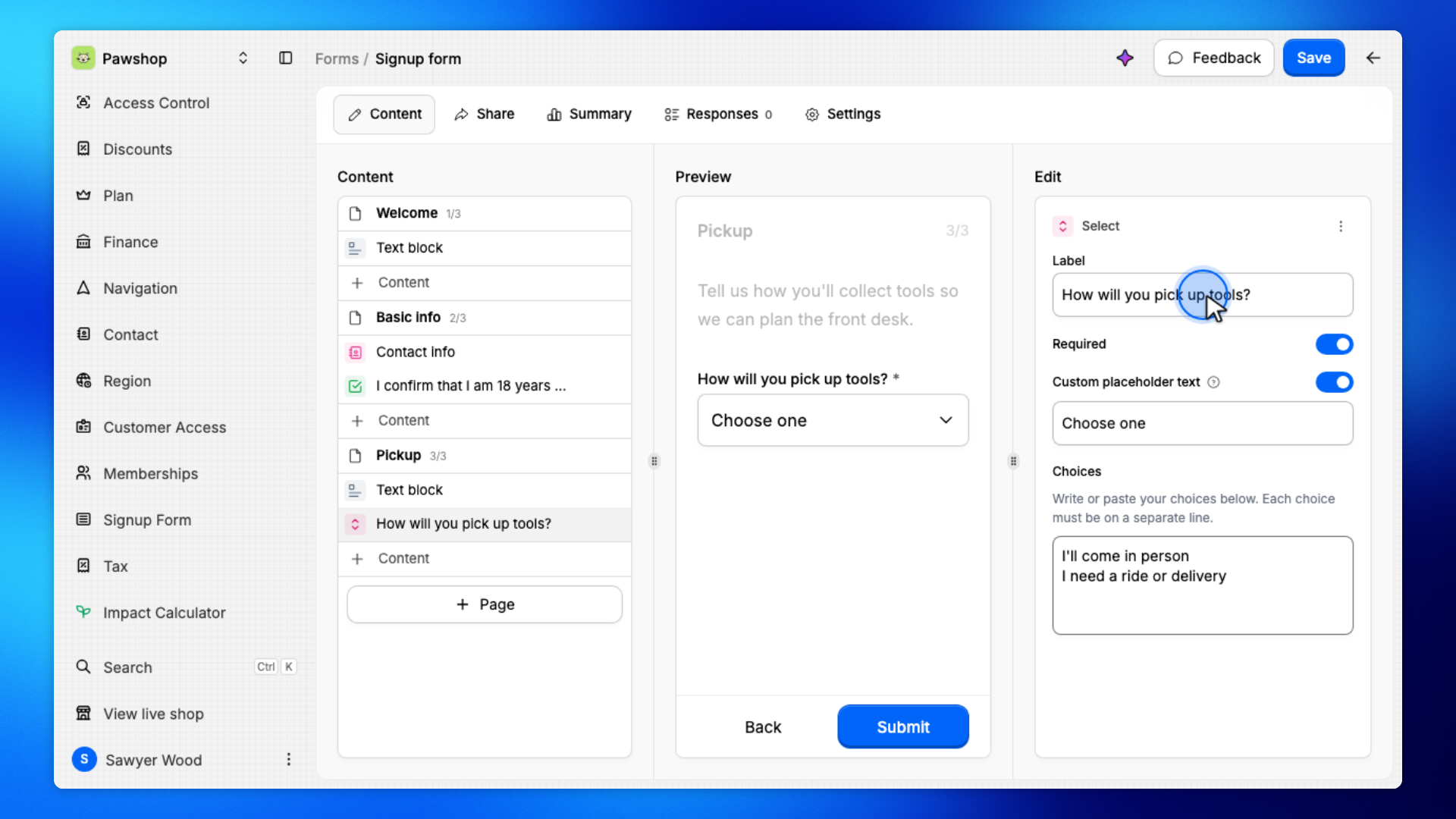
Set the Label, turn Required on, and edit Choices, one option per line.
For example, How will you pick up tools? can offer in-person pickup or a ride.
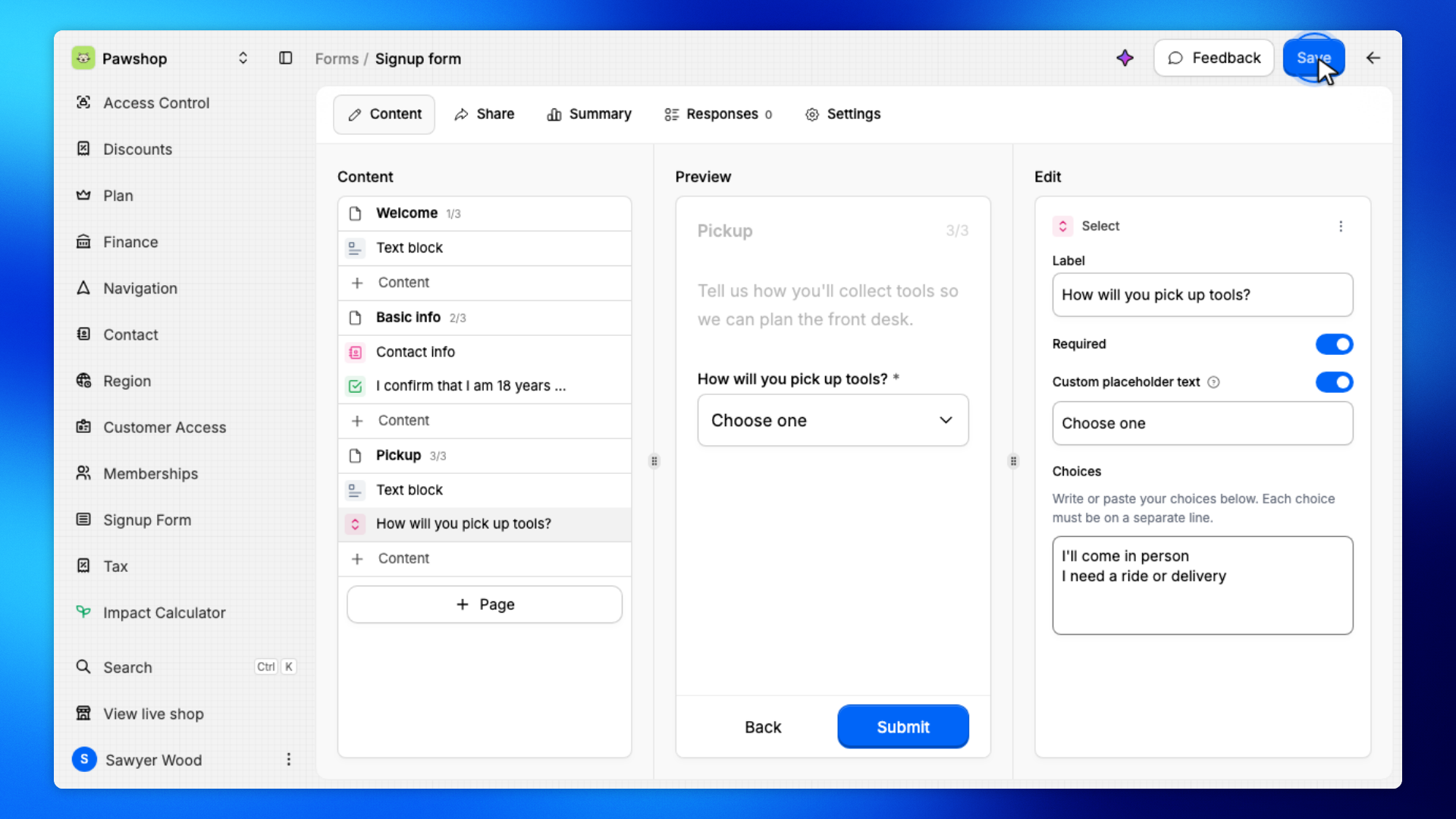
Click Save.
Members will see the new page and questions the next time they sign up on the shop.
These steps are what members see at shop signup, not in your workspace.
A new member opens the shop signup form.
They start on Welcome, then continue to Basic info.
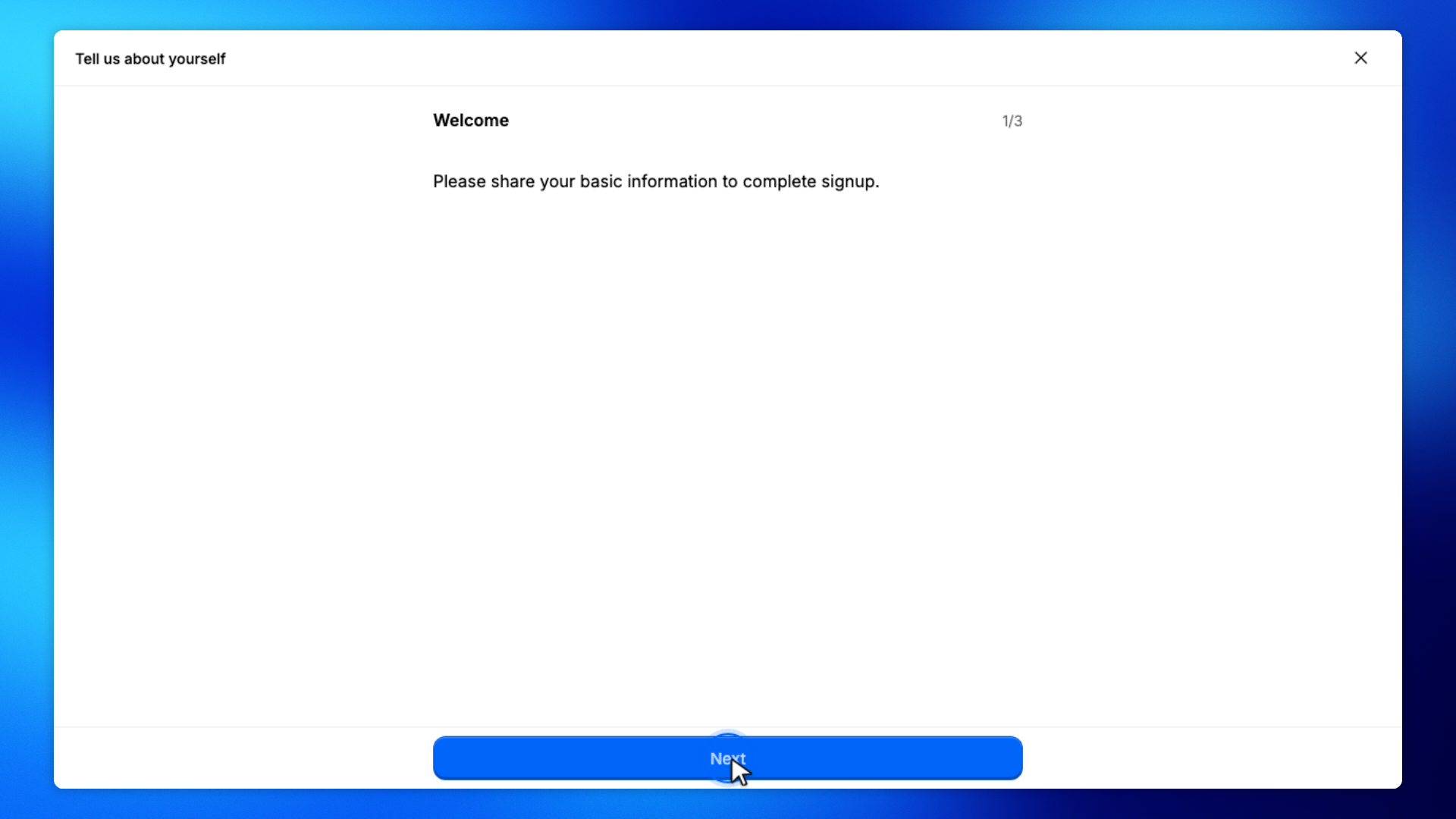
They enter their name, address, and phone number, and answer the checkbox you added.
Then they click Next to reach the extra page.
They read the text block, pick an option from the dropdown, then click Register.
You'll see You've completed registration., then they are taken to the shop.