Create a form
By Julien RiouxUpdated September 1, 2026
Start a tool wishlist from Forms, add two pages of questions, then publish it for anyone.
By Julien Rioux·Updated September 1, 2026
Start a tool wishlist from Forms, add two pages of questions, then publish it for anyone.
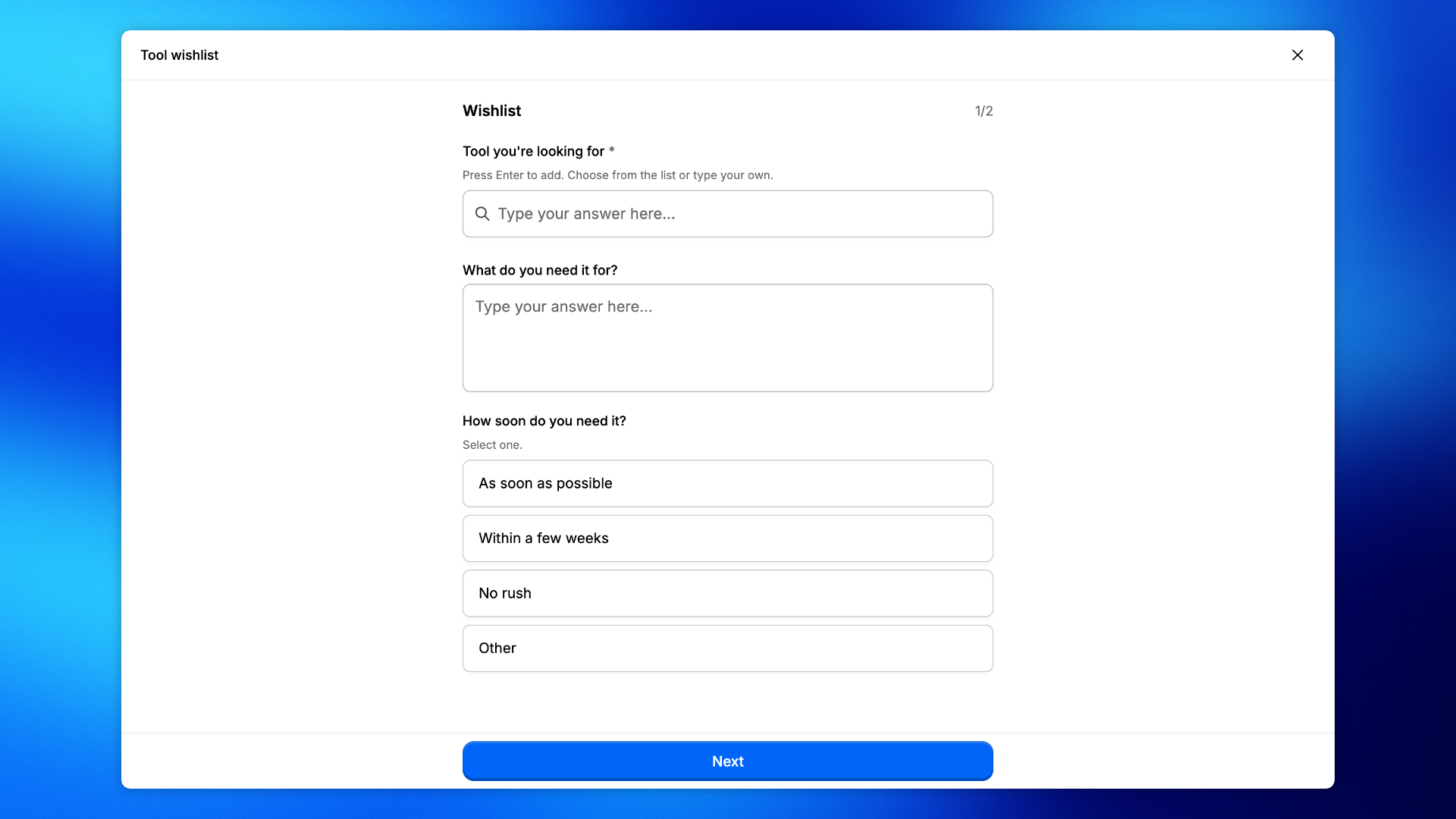
In the sidebar, open Forms. Click Form, and name it Tool wishlist. Build two pages, then open Settings, choose Anyone and Published, copy the link from Share, and open it to see the form people fill.
Use a wishlist when people want a tool you may not have yet.
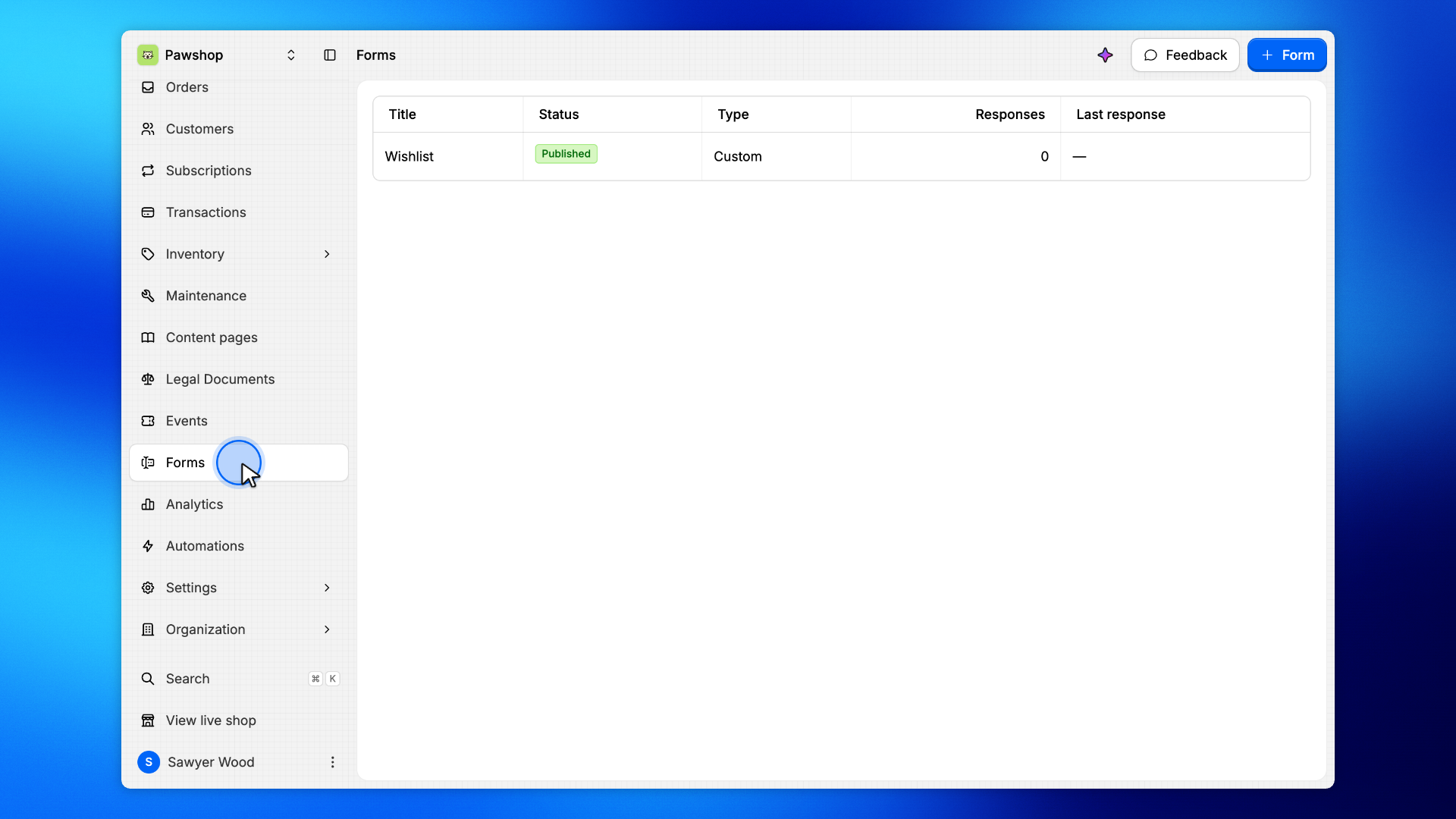
In the sidebar, open Forms. The list shows every form in this workspace, including drafts.
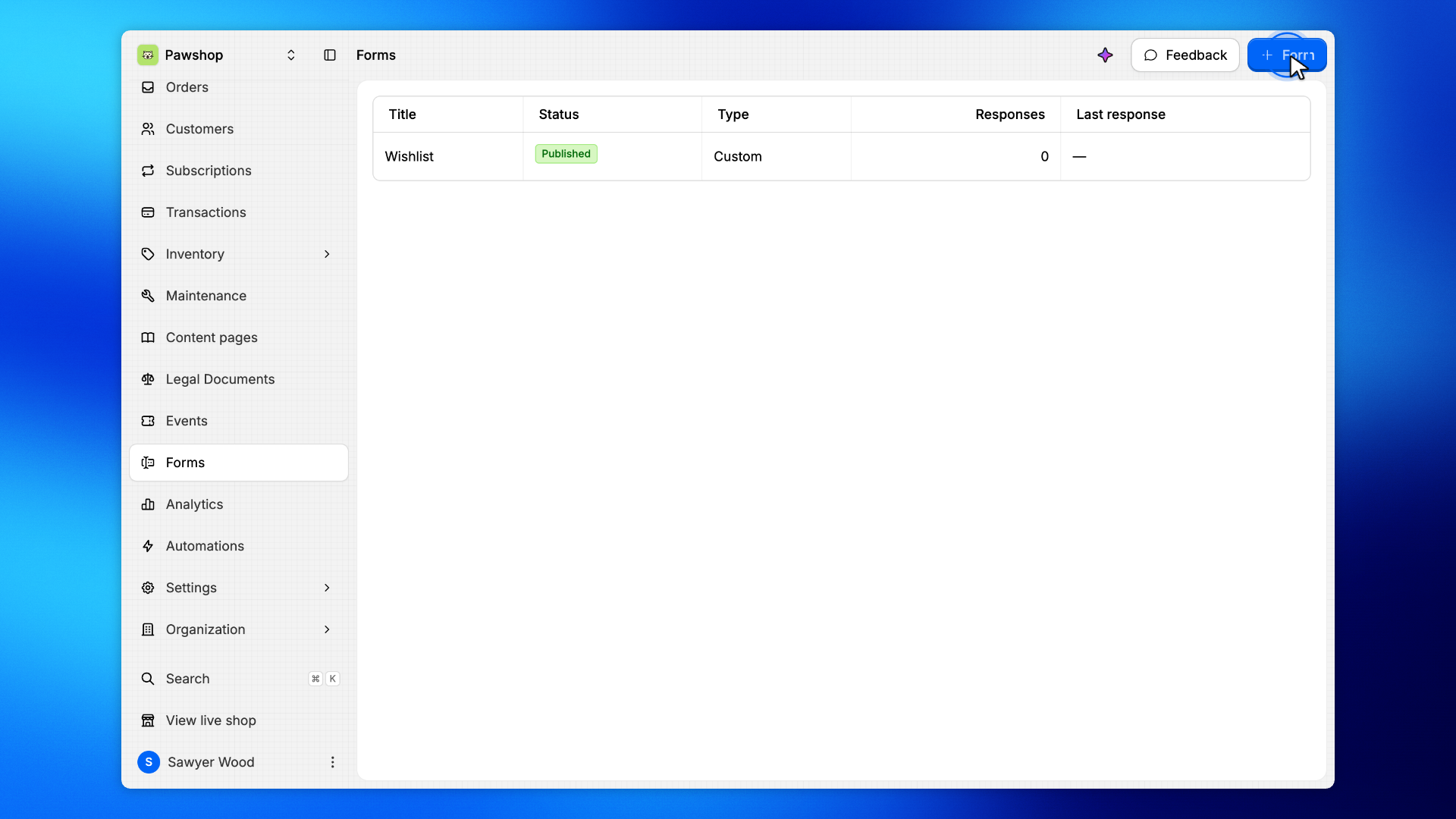
Click Form in the top right.
That opens a name prompt before anything is created.
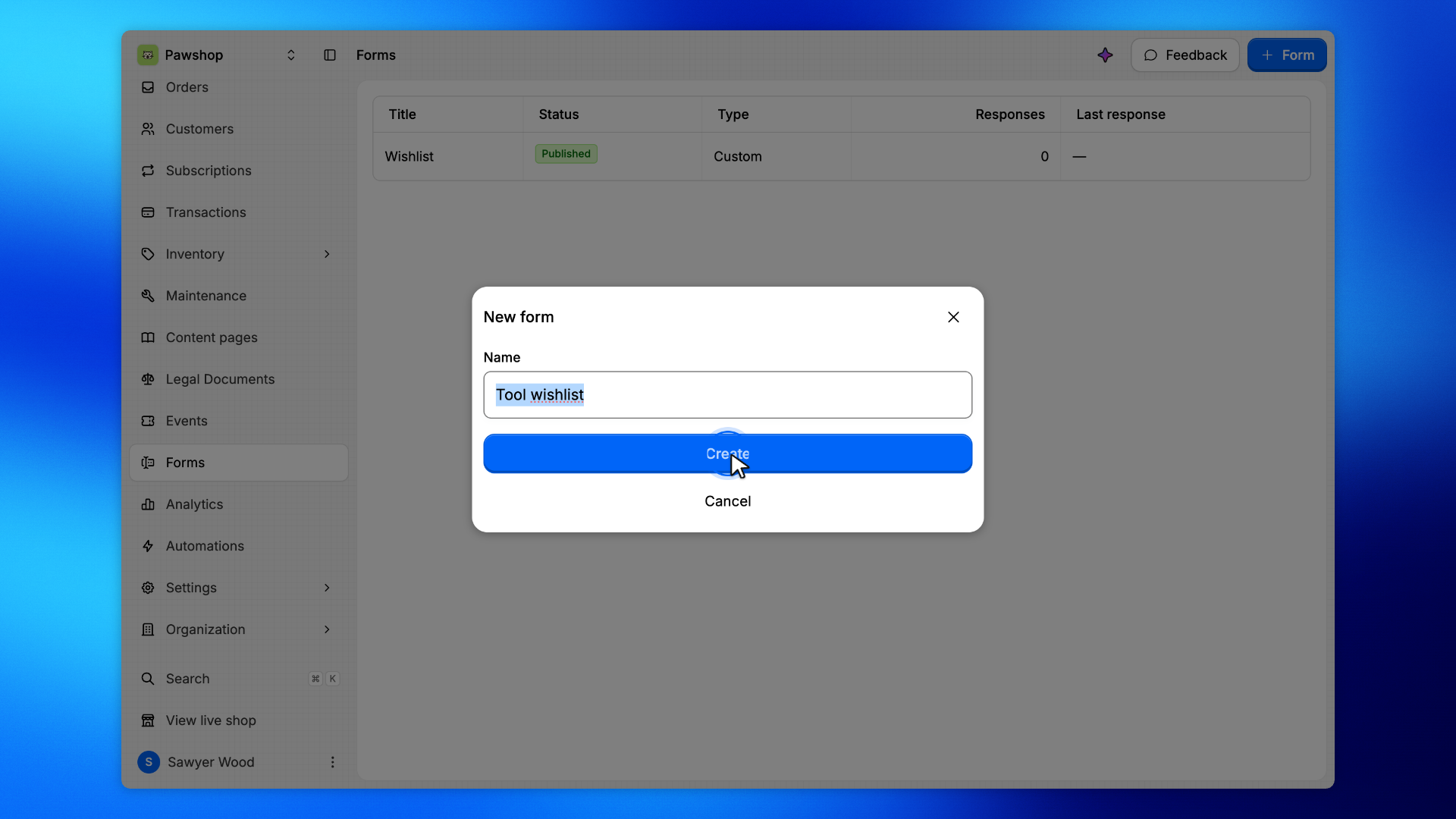
Enter Tool wishlist, then click Create.
Patio opens the builder so you can add questions next.
A new form starts with one empty page.
In Edit, change Title to Wishlist.
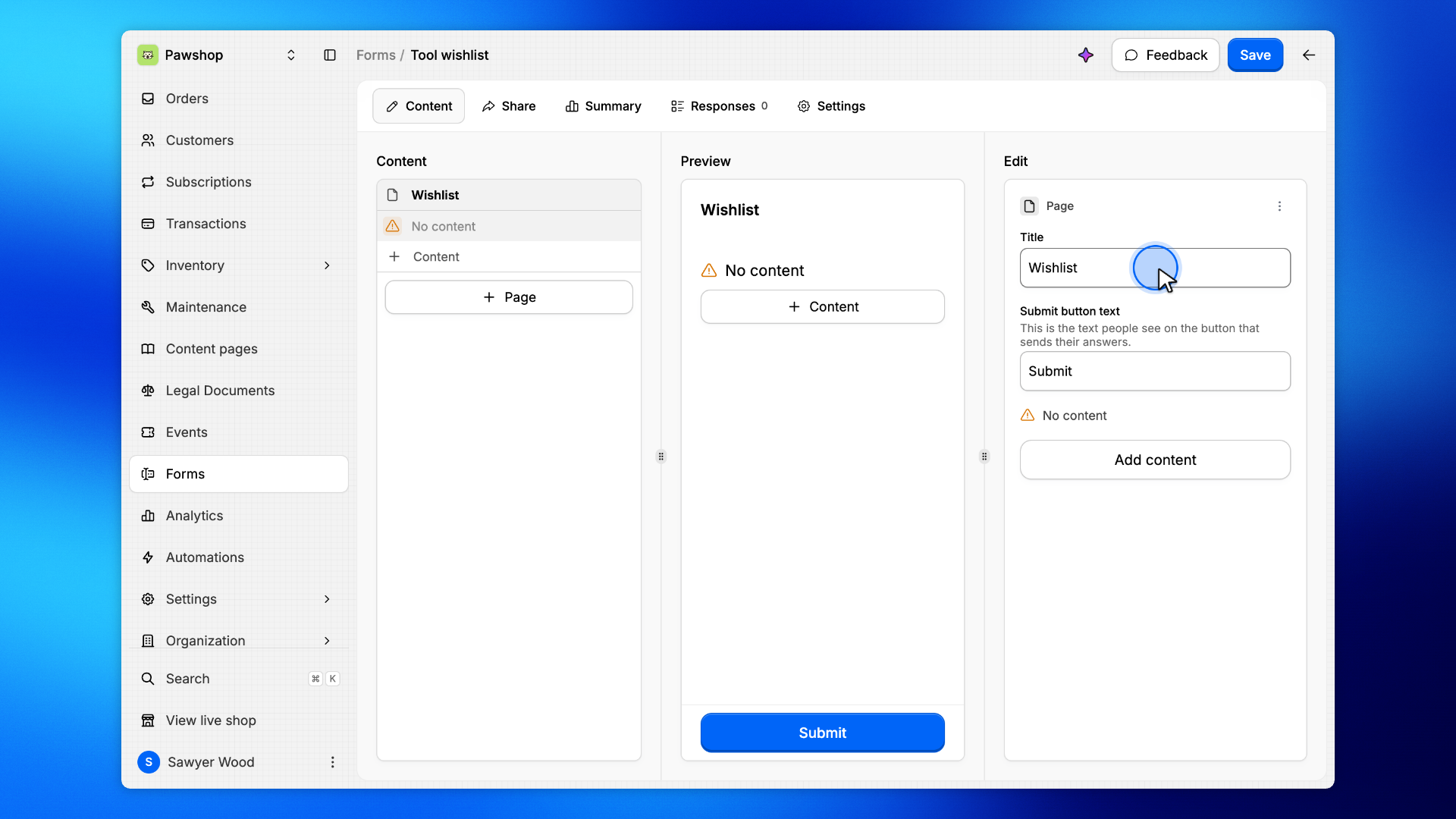
Under Wishlist, click Content.
The Add content list is every question type you can add.
Contact info - Contact info, Name, email, phone, and address in one field. - Email, Collect an email address. - Phone Number, Collect a phone number. - Address, Collect a street address.
Choice - Multiple Choice, Choose one or more options from a list. - Radio, Choose one option from a list. - Dropdown, Choose one option from a dropdown. - Autocomplete, Search a list or type your own answer. - Checkbox, A single yes or no checkbox.
Text - Short text, A single-line text answer. - Long text, A multi-line text answer.
Other - Number, Collect a number. - Date, Collect a date. - Rich editor content, Add text, image, video, etc.
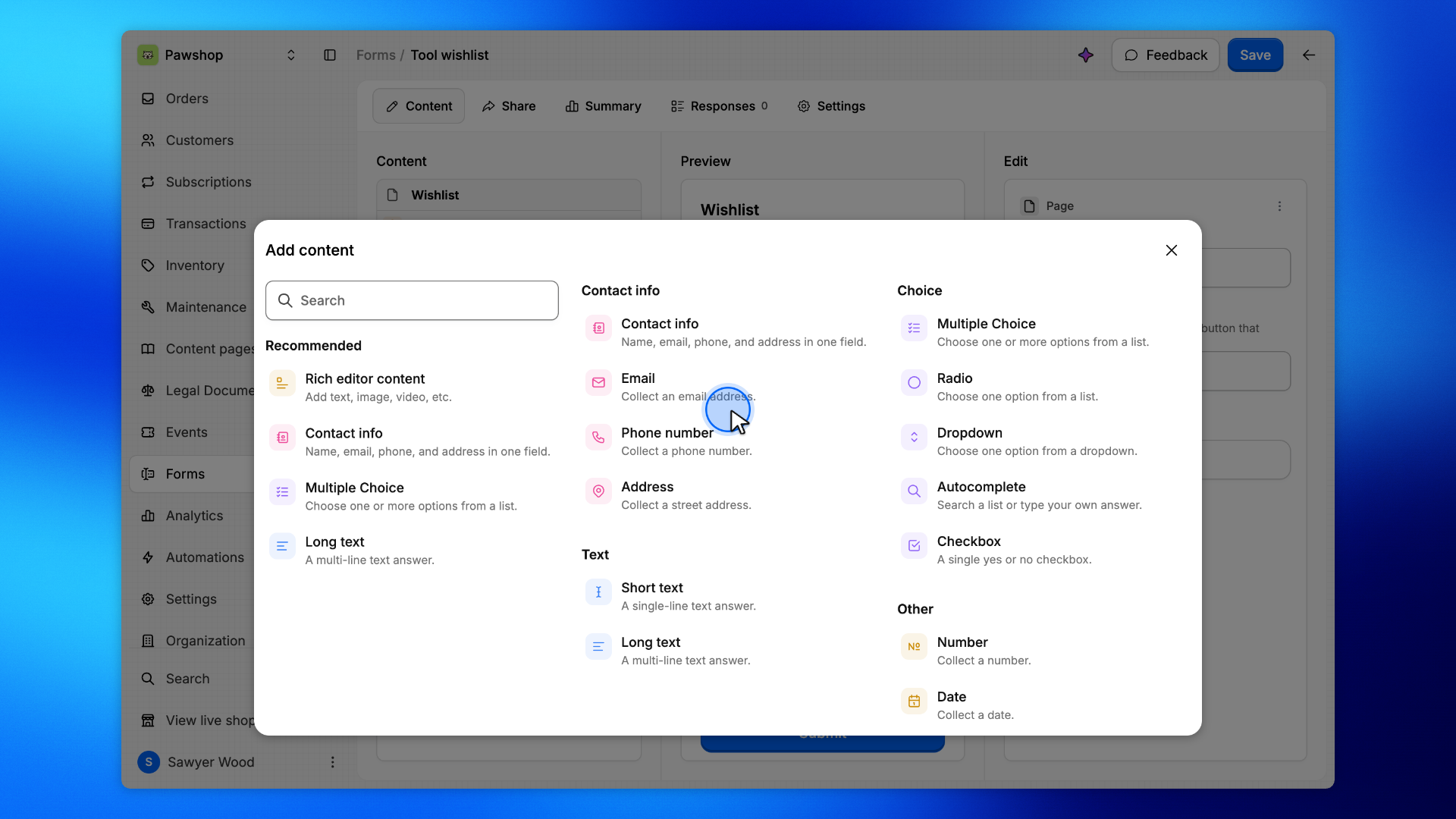
Choose Autocomplete. Set the Label to Tool you're looking for, turn Required and Multiple selection on, and list generic tools in Choices, one per line.
Leave Allow custom answers on so people can type a tool that is not in the list.
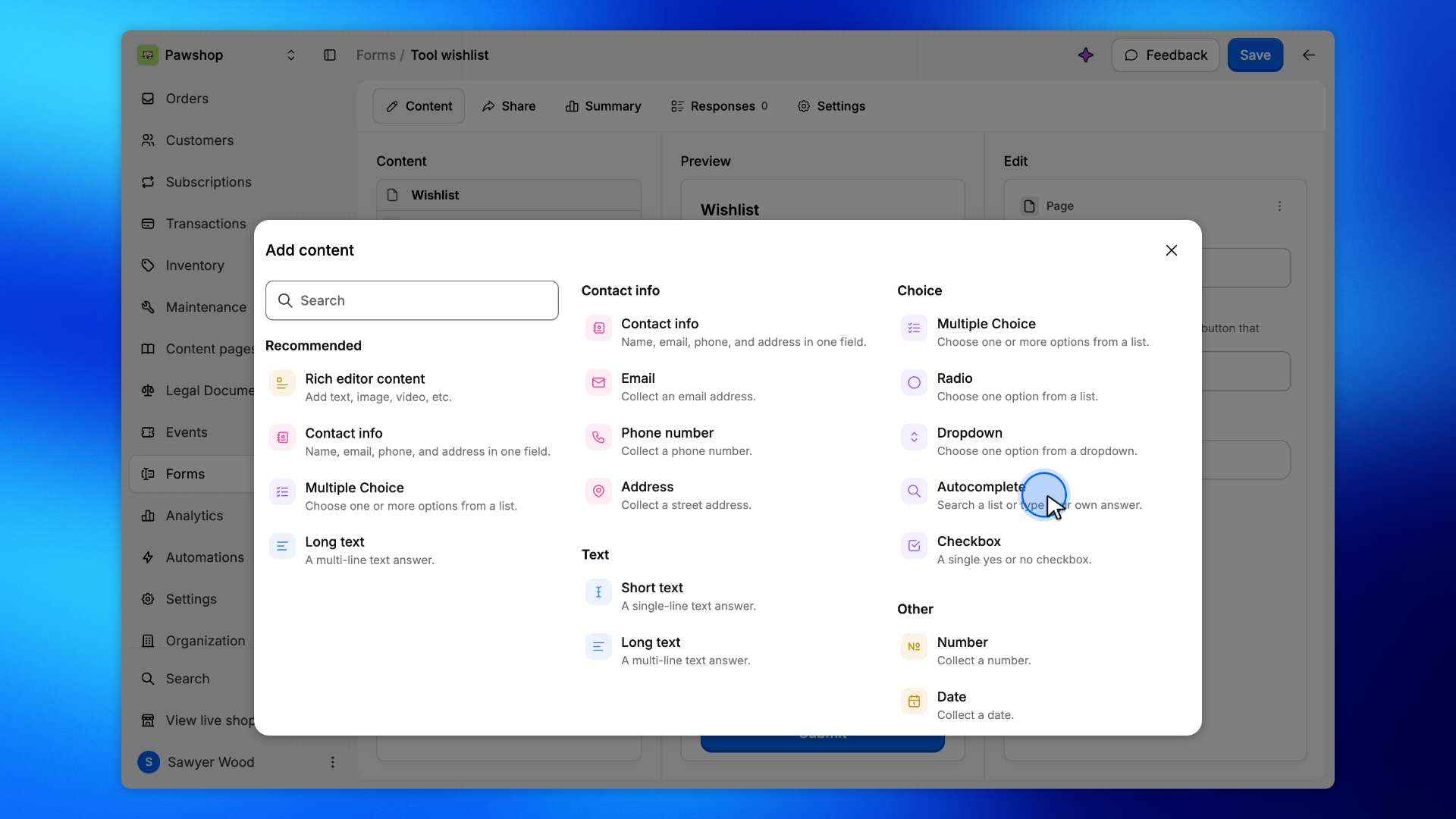
Click Content again, choose Long text, and set What do you need it for?.
Leave Required off so people can skip it.
Add Multiple Choice. Set How soon do you need it?, turn Other option on, and list As soon as possible, Within a few weeks, and No rush.
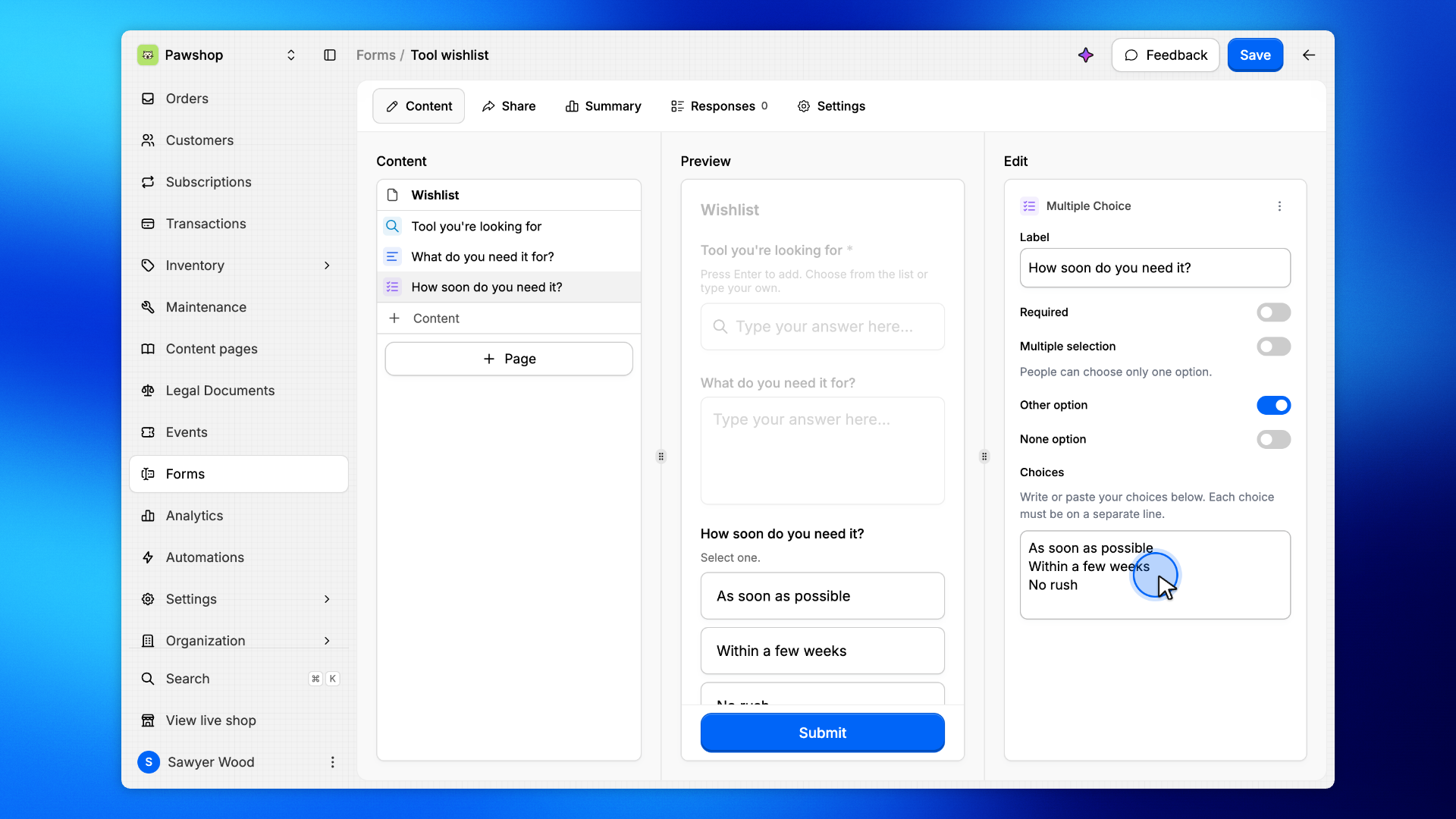
Click Page, enter Contact, then click Continue.
Keep contact details off the first page.
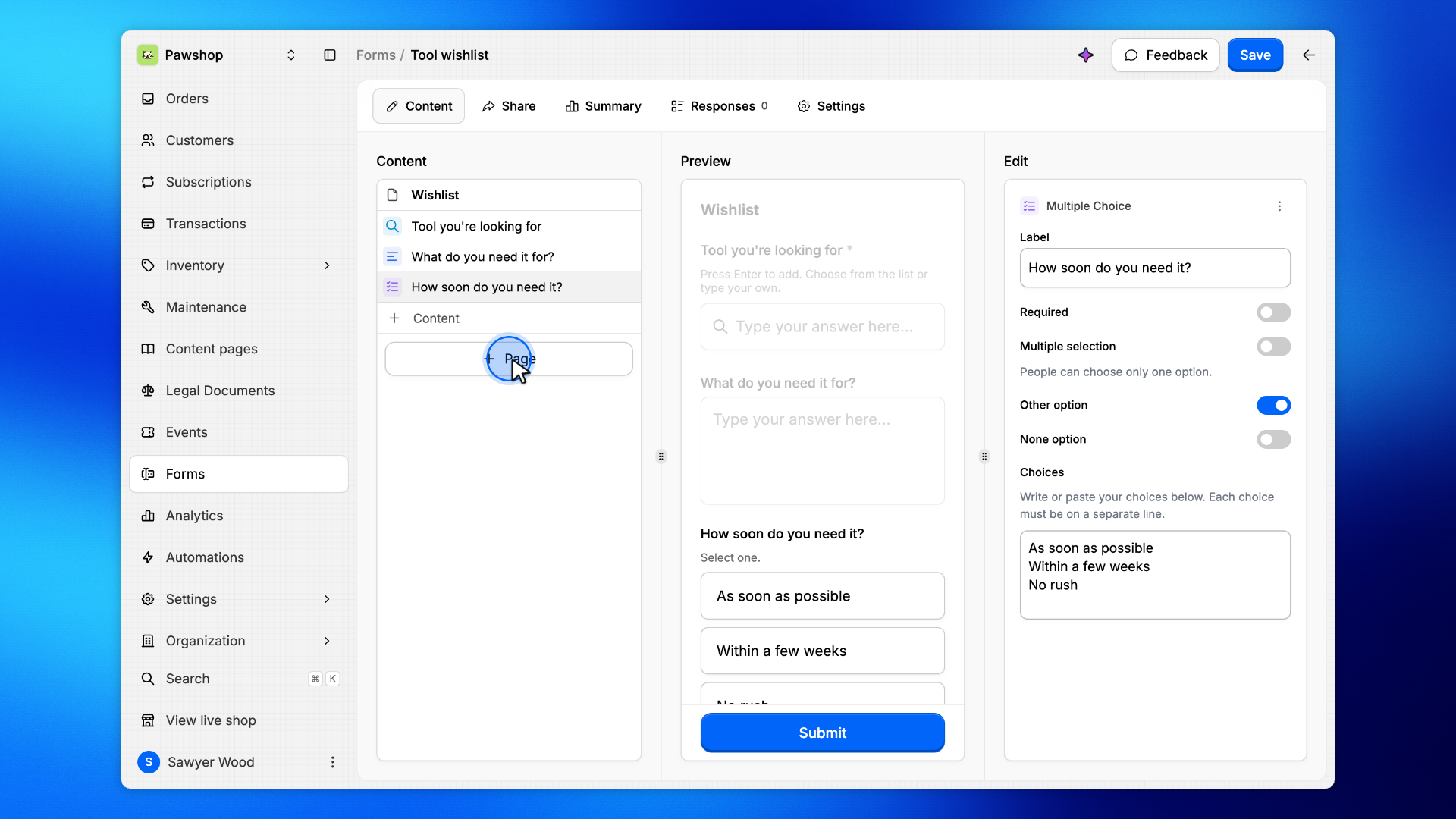
On Contact, choose Contact info.
First name and last name stay required. Hide Address so people only share name and phone.
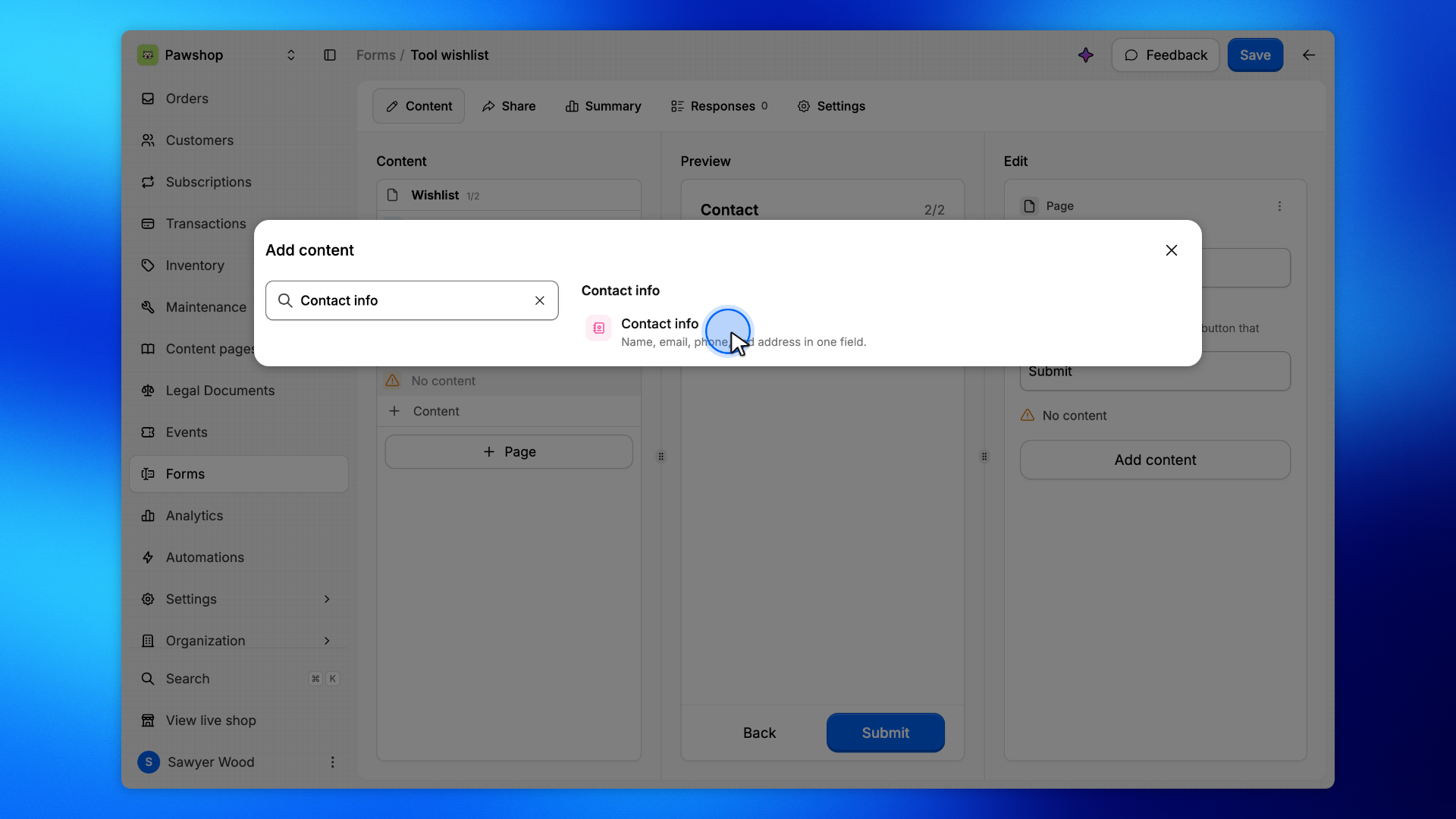
Click Save.
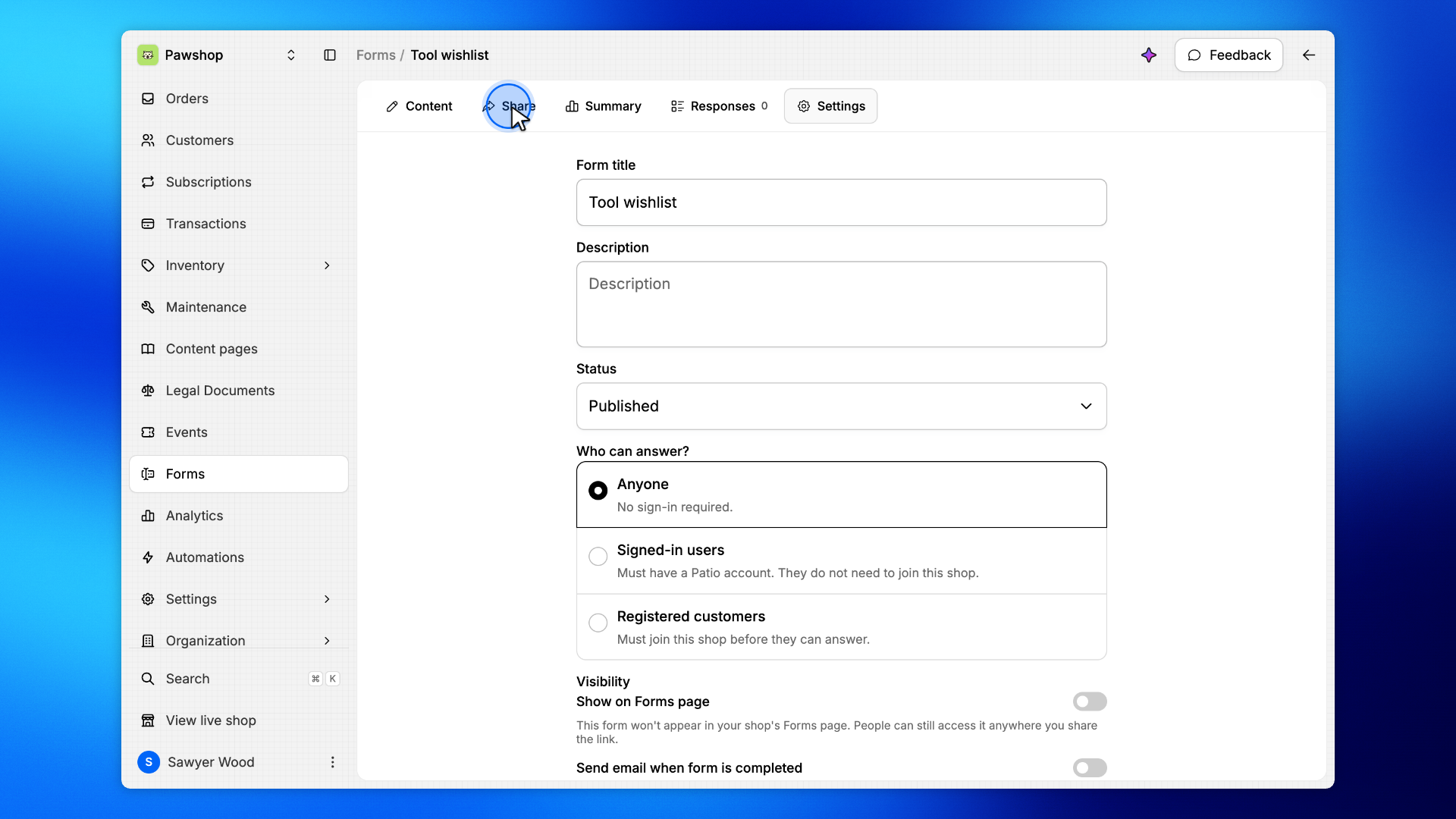
Click Settings.
That's where you choose who can answer and whether the form is live.
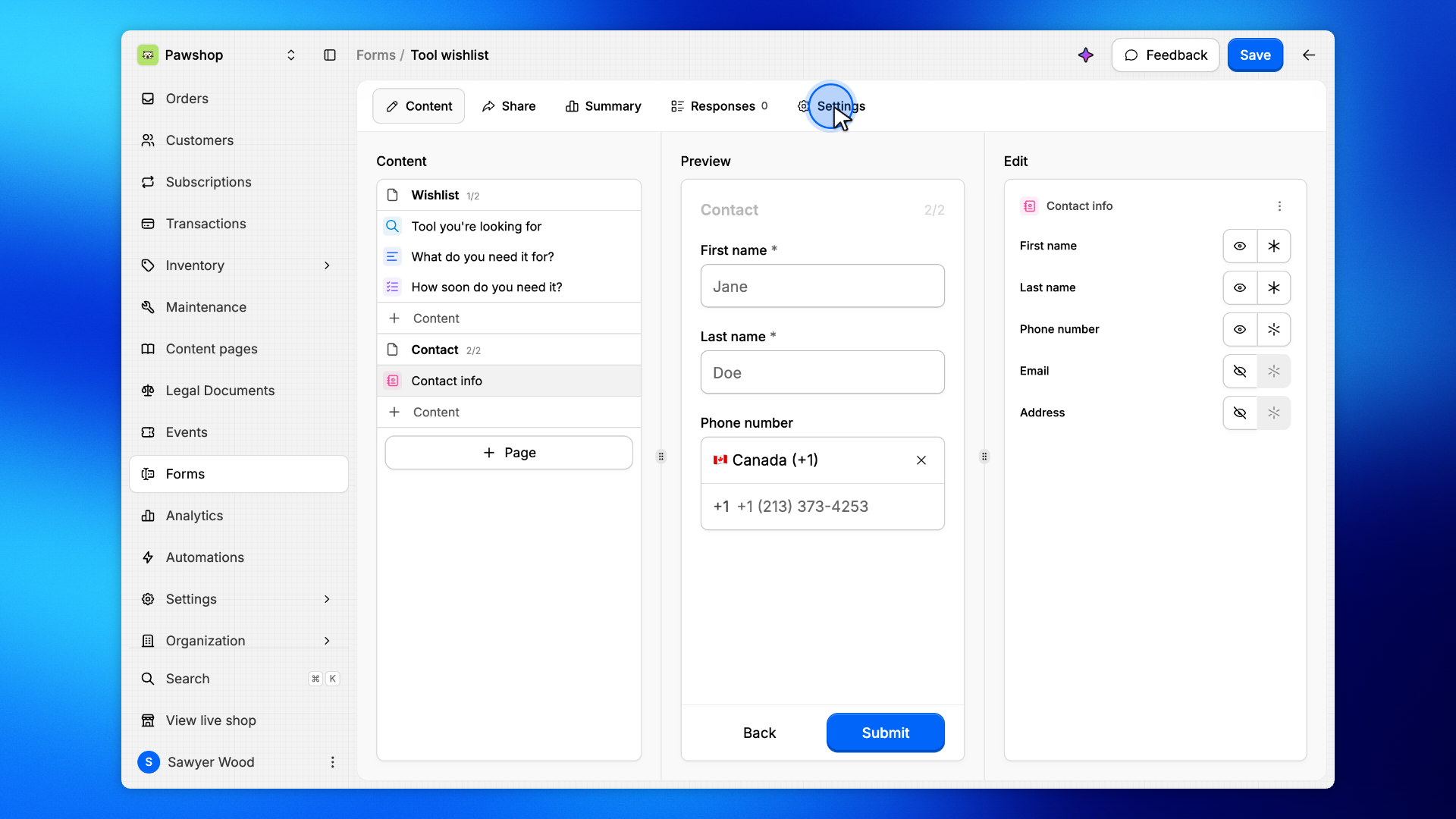
Form title and Description are what people see on the form.
Status is Draft (not live), Published (open), or Archived (closed).
Who can answer? - Anyone, No sign-in. - Signed-in users, Need a Patio account, not shop membership. - Registered customers, Must join this shop.
Allow multiple responses lets the same person submit more than once. It only applies when sign-in is required.
Show on Forms page lists the form in your shop. Turn it off to share the link only.
Send email when form is completed notifies the addresses you add.
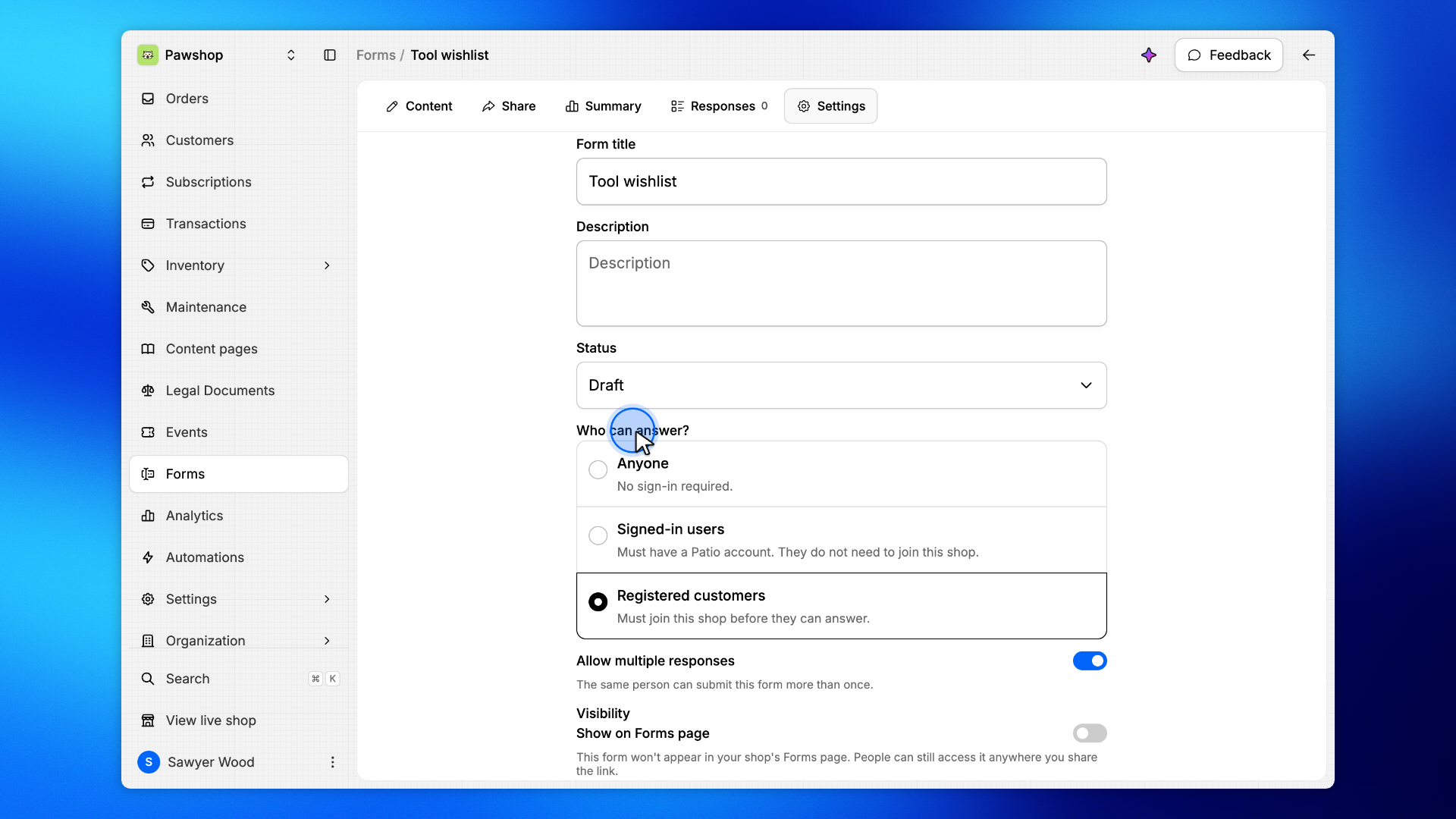
Under Who can answer?, choose Anyone.
Visitors can fill the wishlist without signing in.
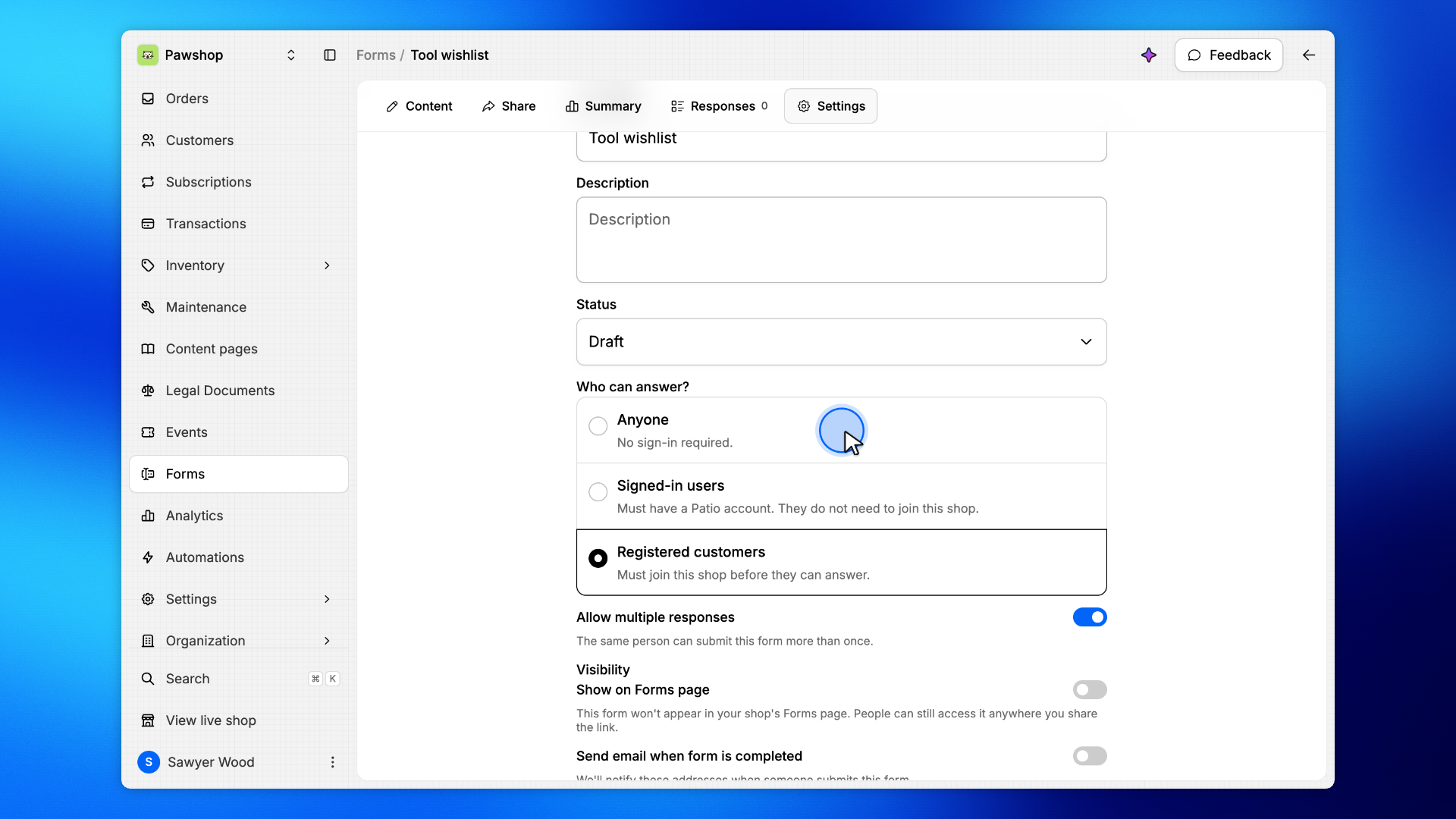
Set the status to Published, then click Save.
People can open the wishlist on the shop.
Click Share.
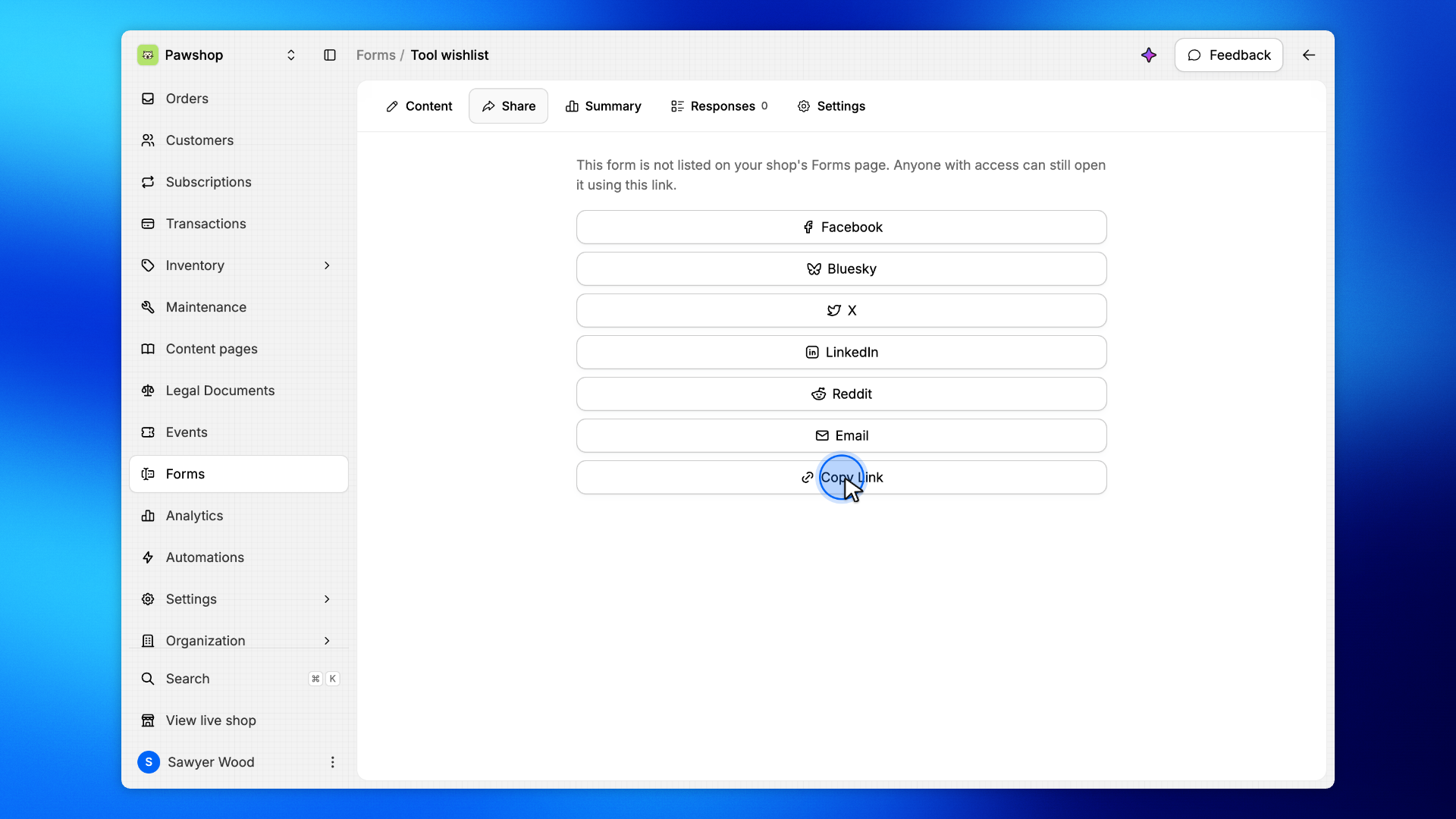
That's the form link you send to people.
Click Copy Link.
Anyone with the URL can open the wishlist on the shop.
Open the copied link.
This is the Tool wishlist people fill on the shop.