Save items to a wishlist
By Julien RiouxUpdated October 15, 2026
Tap the heart on an item to save it to a wishlist, then find everything you saved under My wishlists.
By Julien Rioux·Updated October 15, 2026
Tap the heart on an item to save it to a wishlist, then find everything you saved under My wishlists.
Keep items for later in wishlists, one for each project or idea. Tap the heart on an item to save it, and find everything you saved under My wishlists.
You need to be signed in to save items. Only you can see your wishlists, and each shop keeps its own.
In the shop, tap the heart in the corner of an item's photo. On an item's own page, the heart is beside its name.
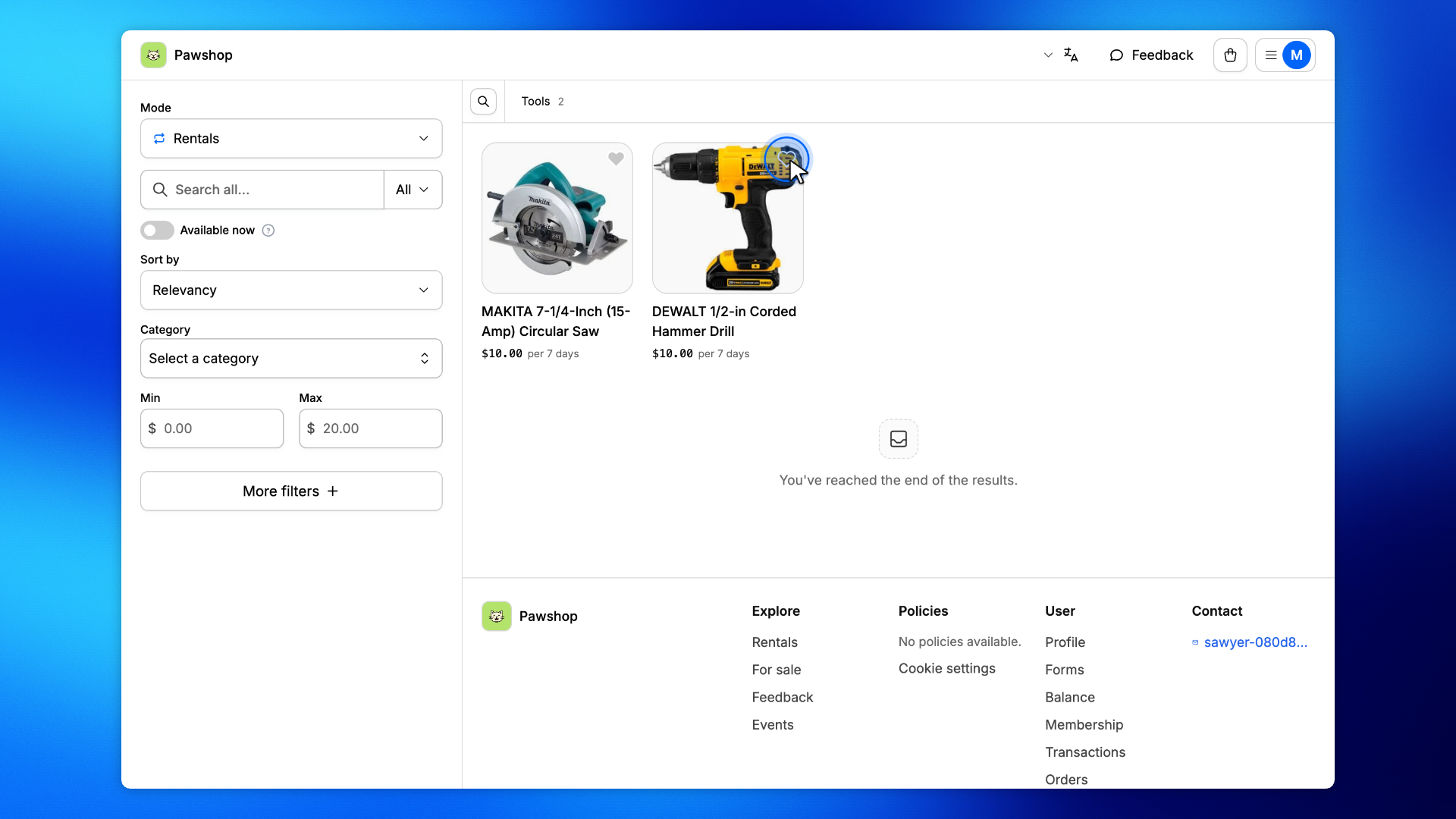
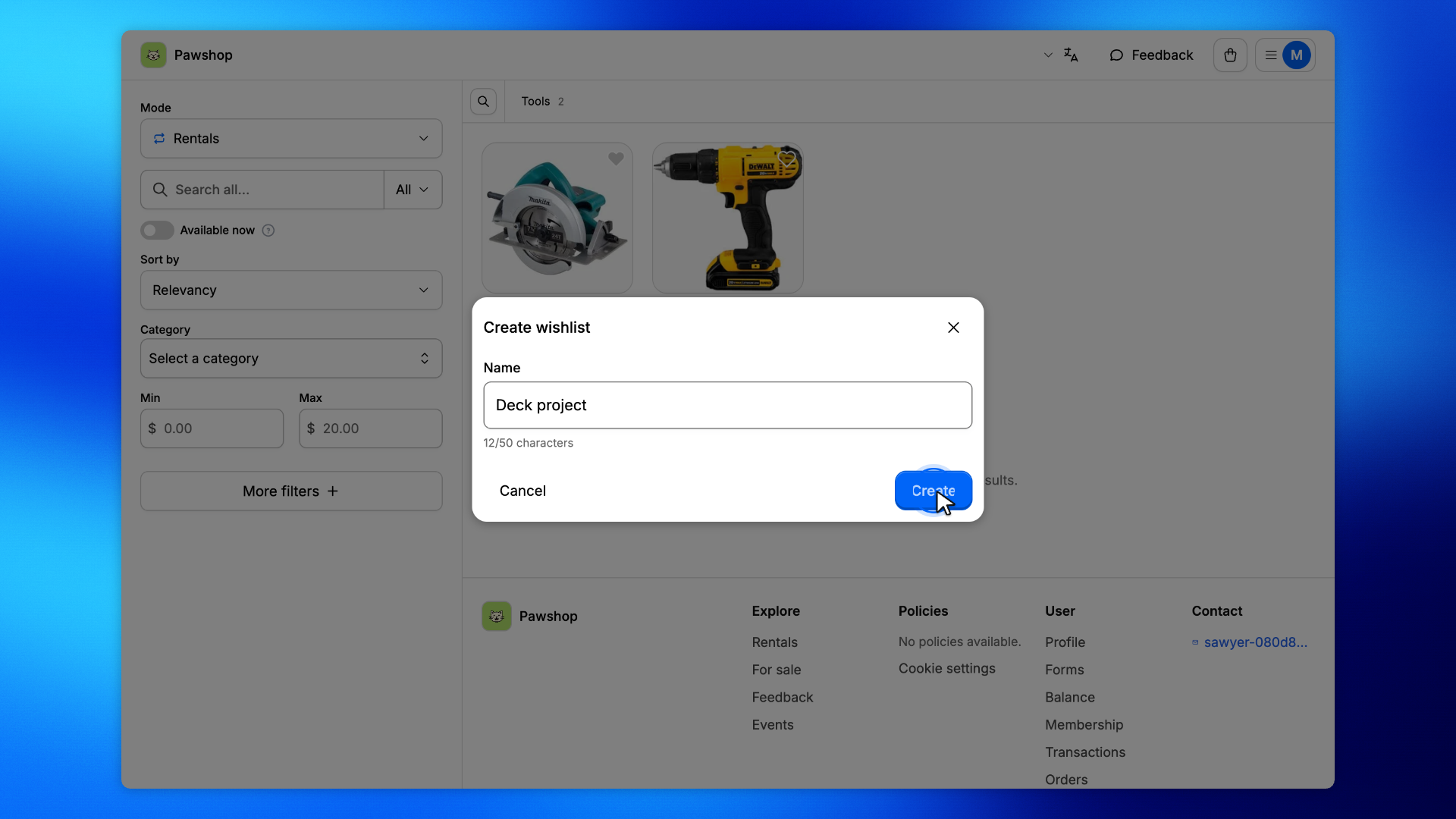
The first time, you name your wishlist. Type a name, like "Deck project", and click Create.
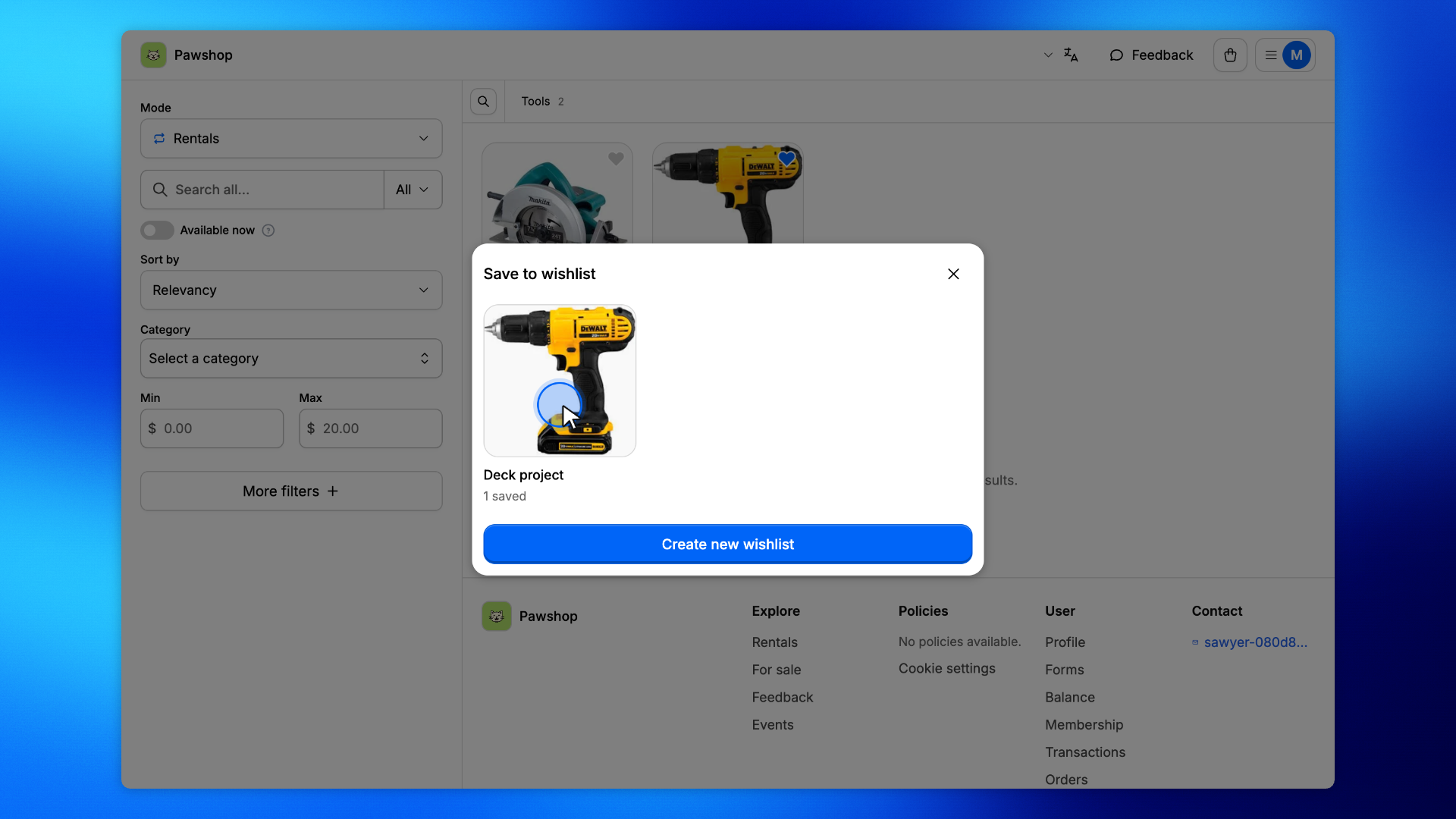
The item is saved there and its heart fills in.
Tap the heart on another item. Save to wishlist lists your wishlists: tap one to save the item there, or click Create new wishlist to start another.
An item is in one wishlist at a time. Saving it to another wishlist moves it there.
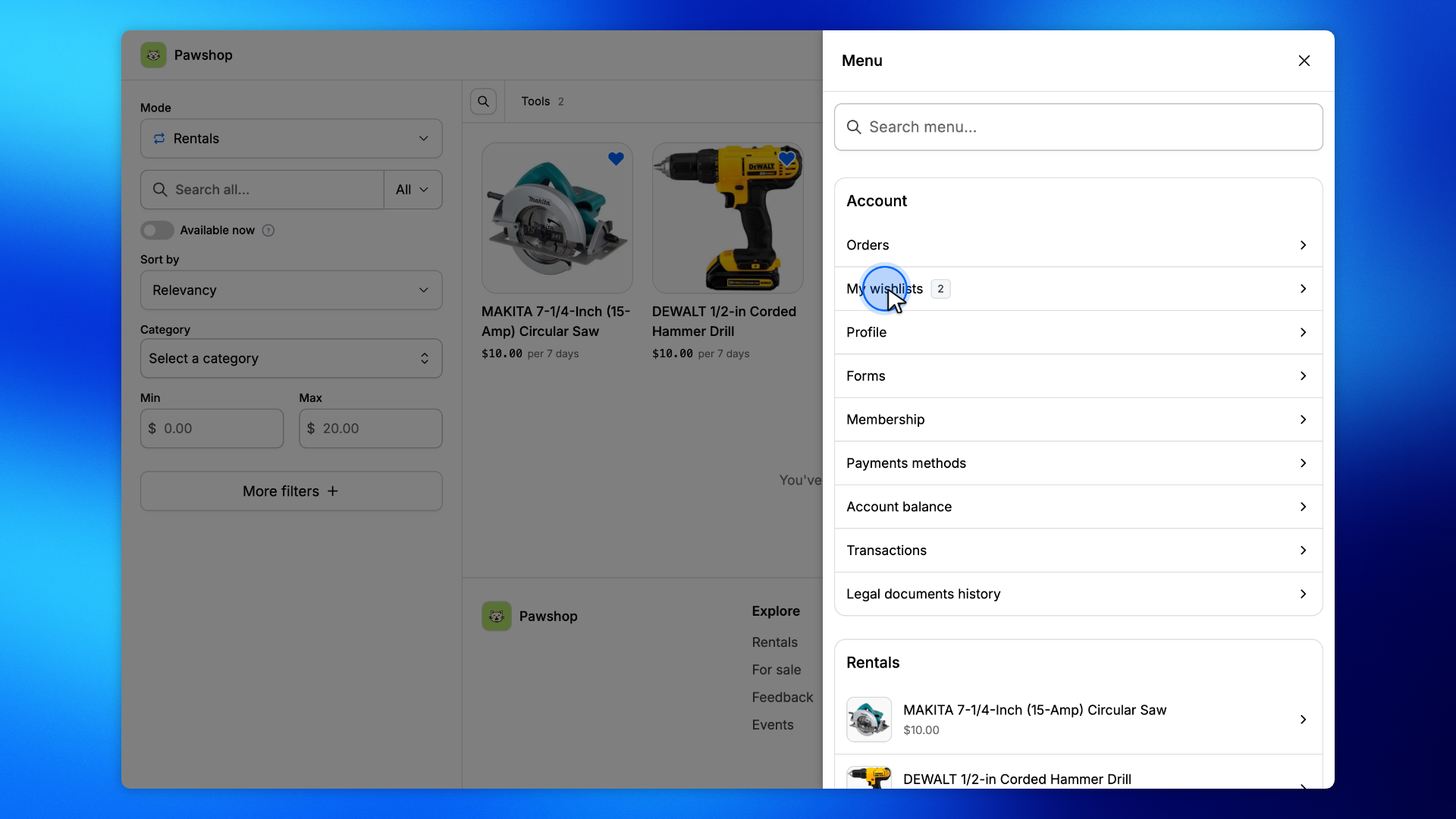
Open the menu at the top right and click My wishlists. The number beside it counts the items you saved.
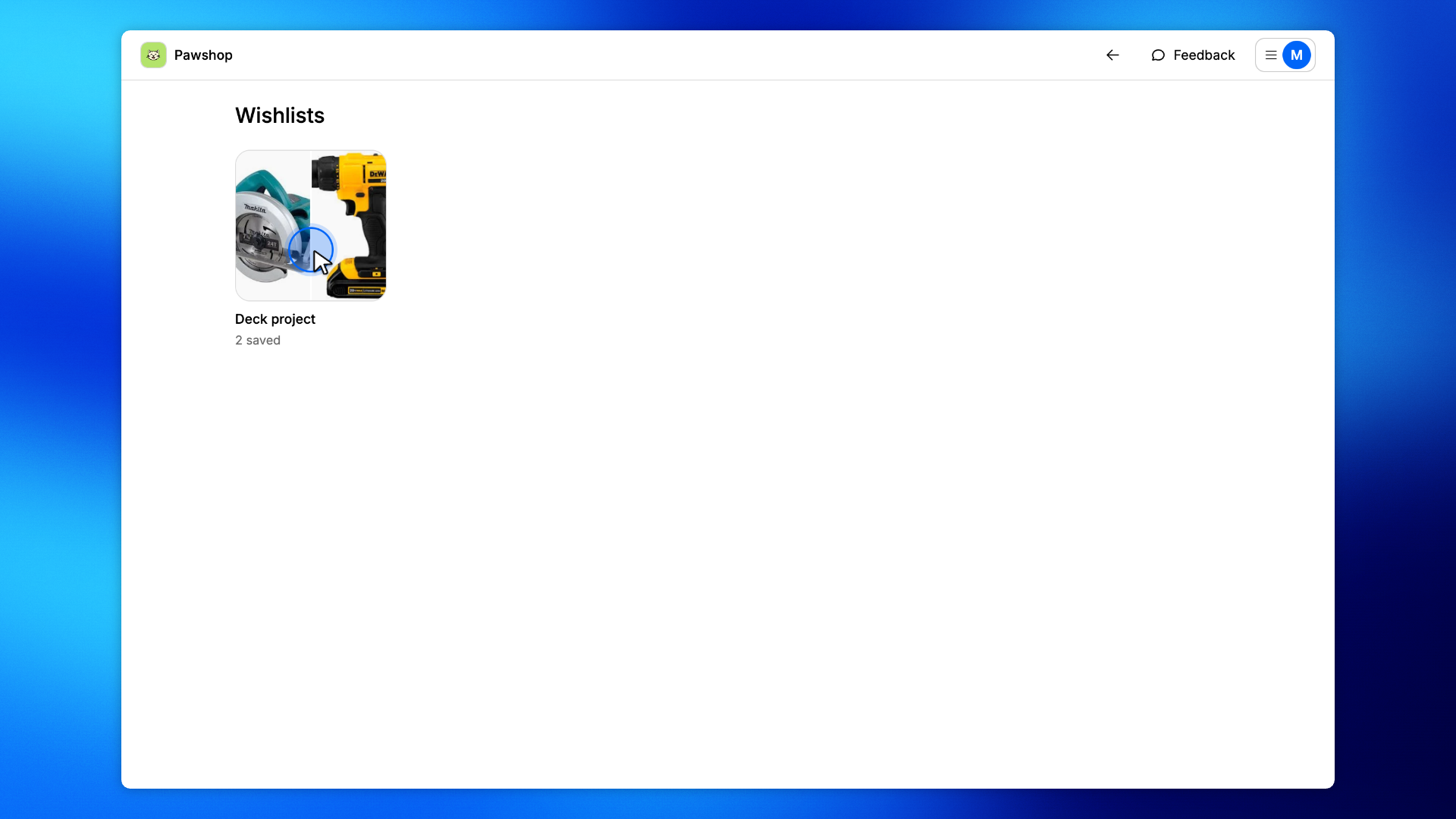
Each wishlist shows the photos of the items you saved last, its name and how many items it holds. Click one to see its items.
Tap a filled heart to take the item out of its wishlist. This works anywhere in the shop, not only here.
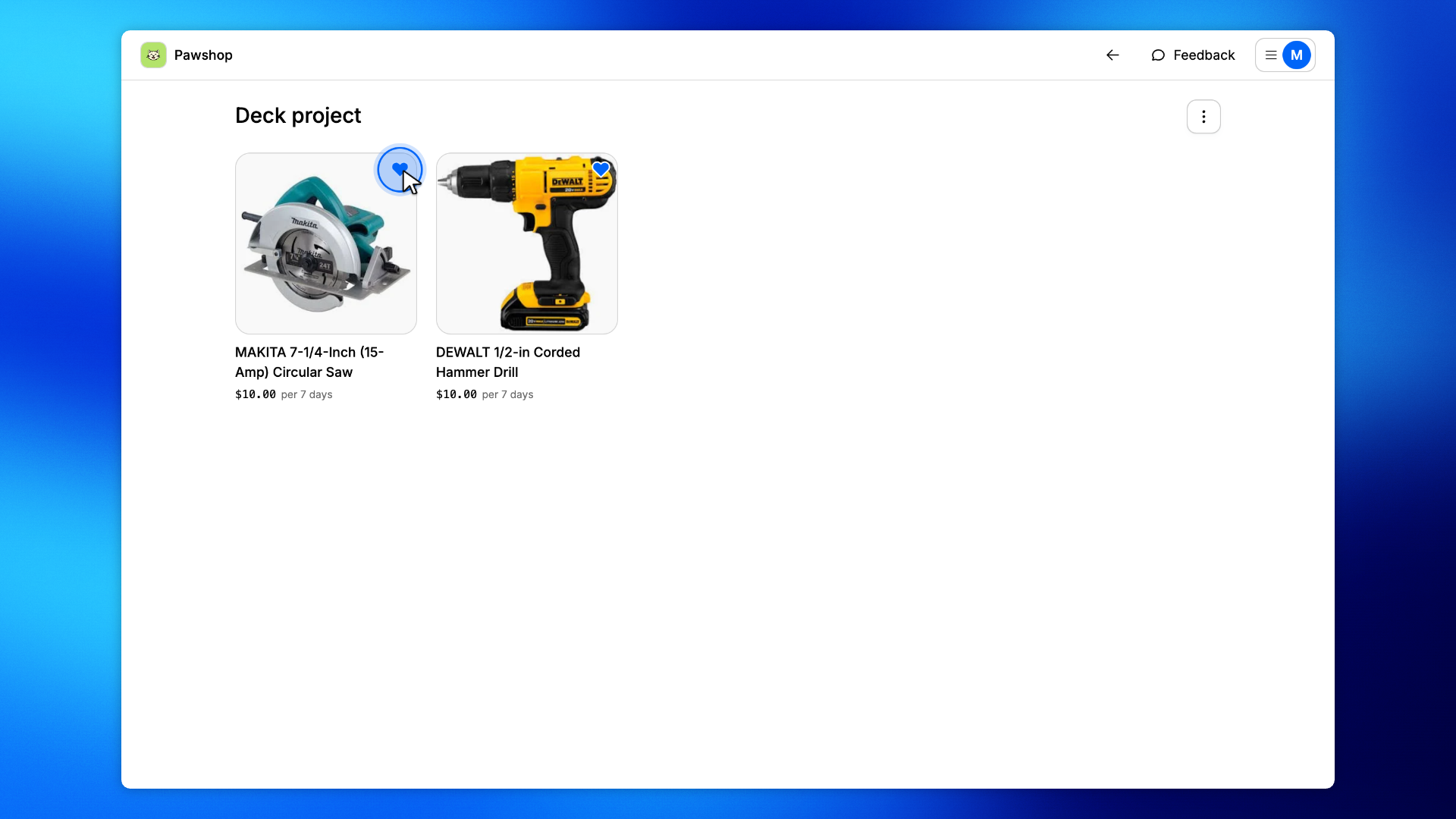
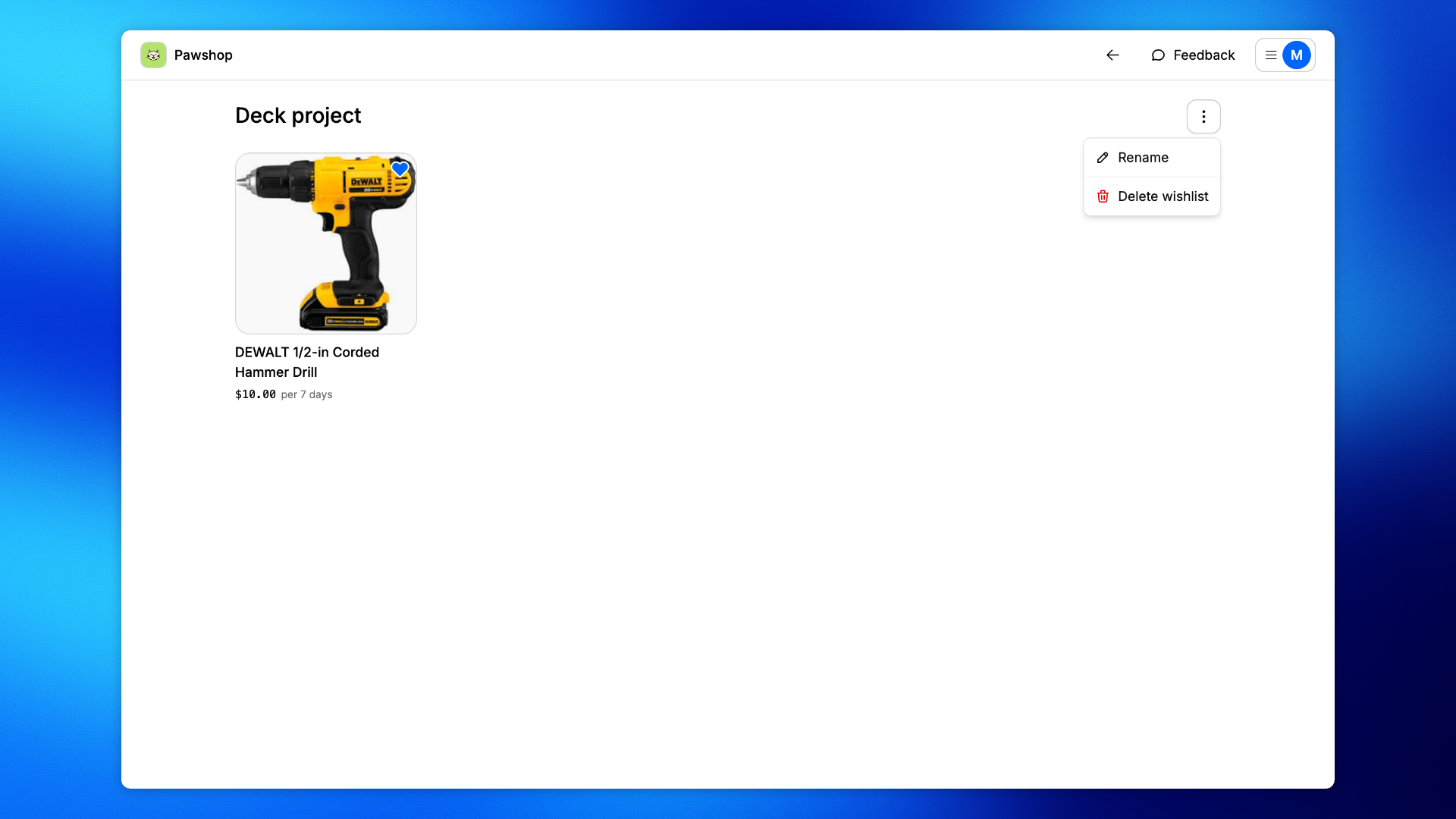
Click the ⋮ button beside the wishlist's name, then Rename or Delete wishlist. Deleting a wishlist also takes out everything saved in it.