Some answers are checked in person before items leave the desk, like the Student ID of members of a Student plan. This article walks the whole checkout for a customer who still needs that check.
Choosing the customer and adding items work as usual. The checkout page then names the answers staff still need to check and holds the checkout until the customer is verified. You verify them right there, without leaving the checkout, and finish as usual.
For a customer who needs no check, see Check out items to a customer.
Choose the customer
1. Find who you're checking out
Open Orders from the workspace sidebar, then click Order.
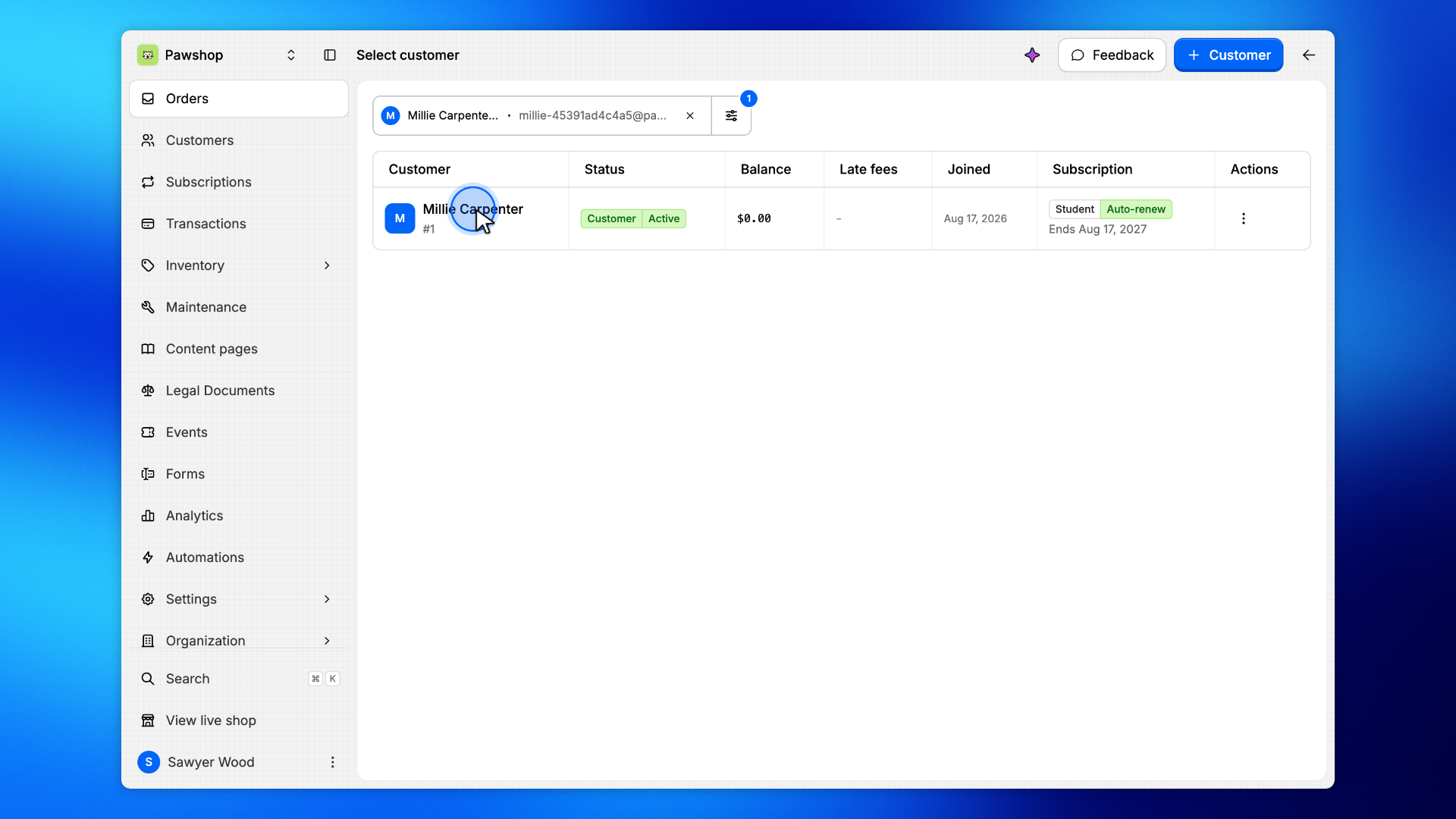
You'll land on Select customer. Search by name or email, pick the customer from the list, then click their row. Checkout starts with a person, so the loan is recorded on the right account.
2. Confirm it's the right customer
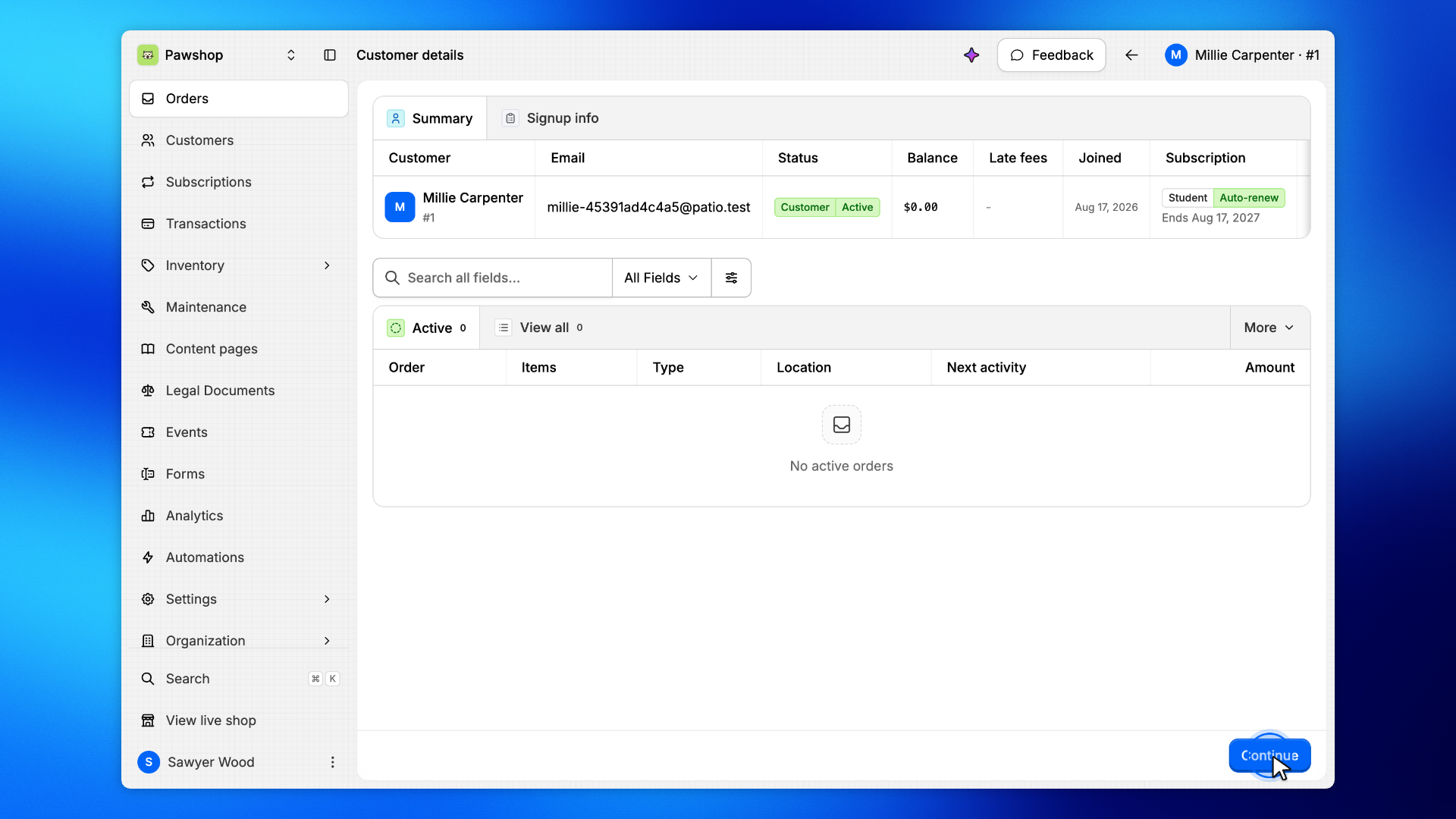
Customer details shows who you're checking out. When it's the right person, click Continue.
Confirm the name and membership so the items and payment land on the right account.
Add items
1. Add items to the cart
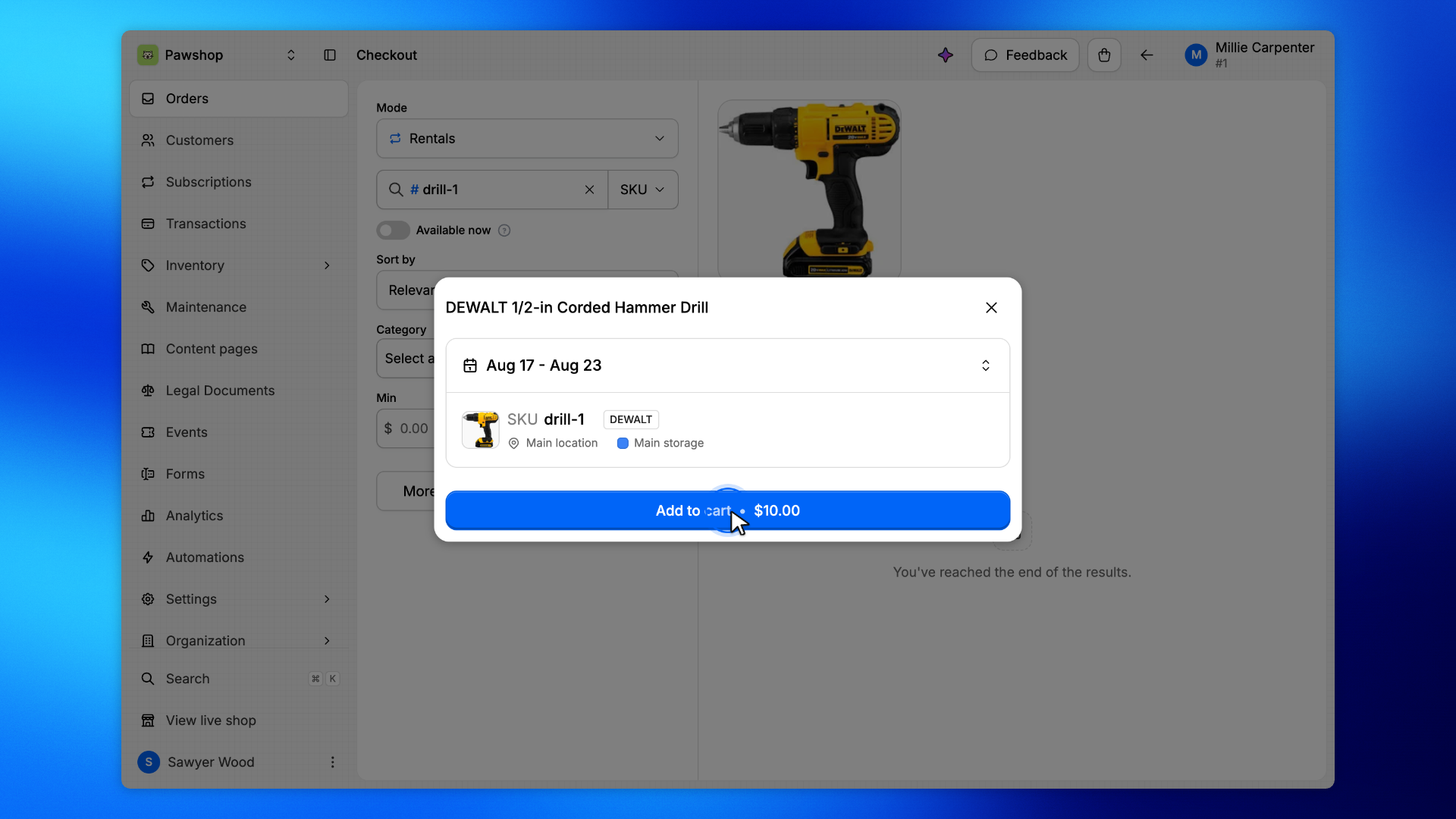
Search for the tool or item by name or SKU. You can type # followed by the SKU. Open it and make sure the rental starts today: click the dates, pick today, and click Done. Then click Add to cart.
Repeat for any other items the customer is taking today. The cart is what will be recorded on the order.
2. Go to checkout
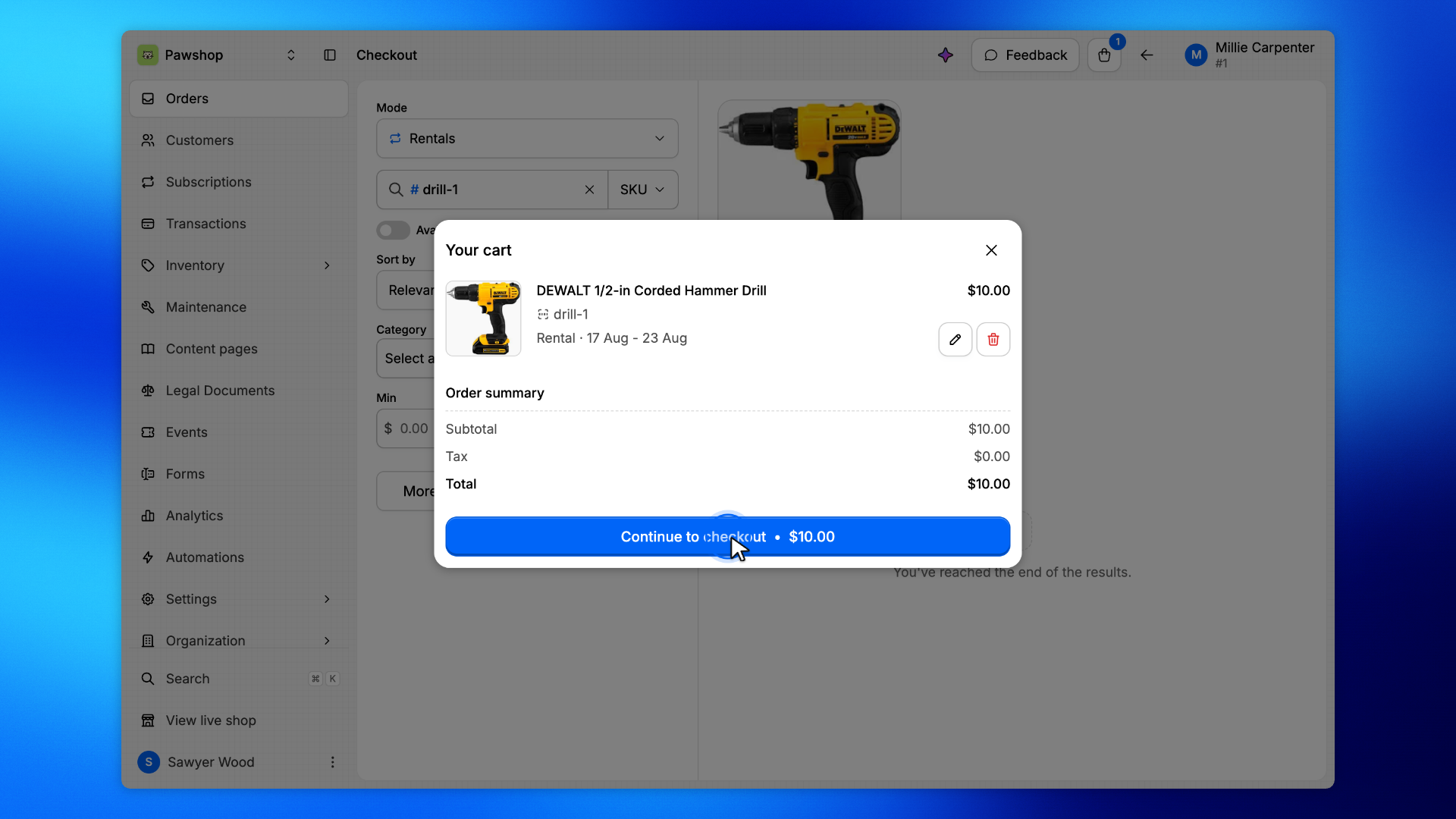
Click the bag at the top of the page to see the cart, then click Continue to checkout.
Verify the customer
1. Read the warning
Confirm Checkout names the answers staff still need to check, at the top of the page and under Payment summary, like "Verify Student ID before handing these items over."
The checkout button is hidden until the customer is verified, so the items cannot go out by mistake.
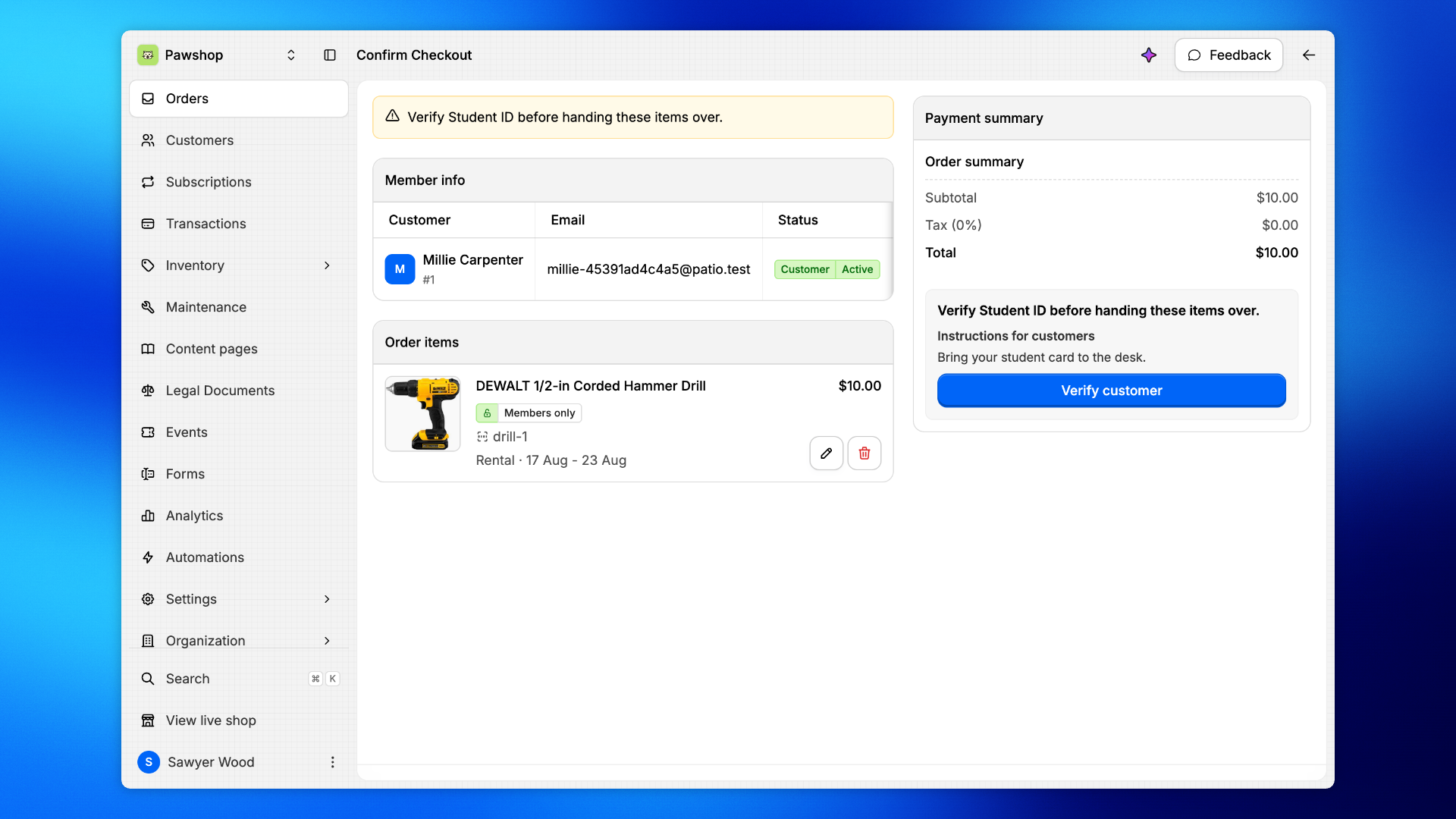
2. Open the verification
Click Verify customer under Payment summary. The dialog shows each answer to check. Student ID asks for a required Expiration date: click it and pick the end date printed on the student card in the calendar. The names have none, because they never run out.
The Instructions for customers just above the button say what the customer was asked to bring.
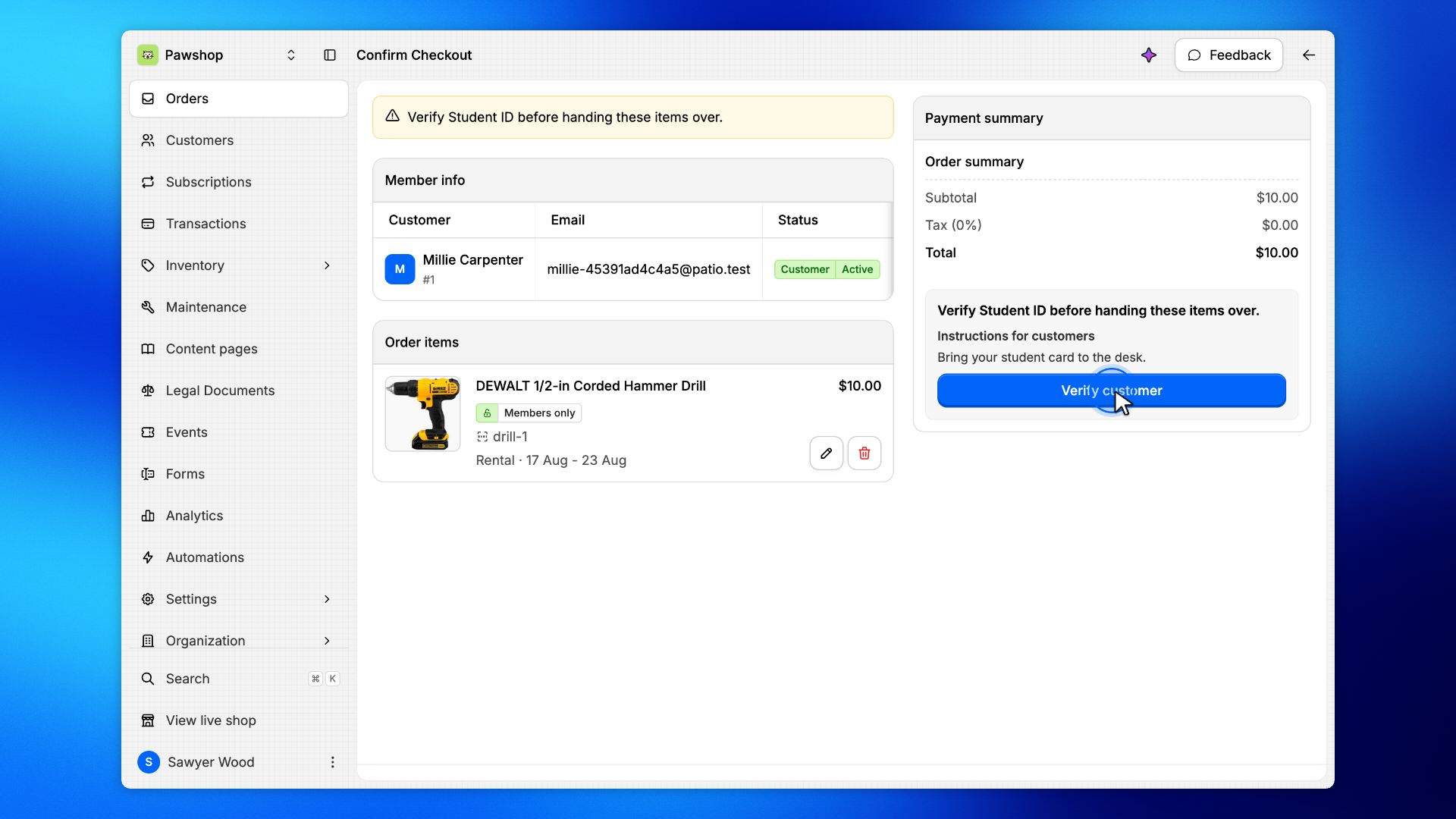
3. Mark as verified
Compare the answers and the date with the customer's card, and click Mark as verified.
Patio records who verified the customer. A change the customer makes later goes to staff for review.
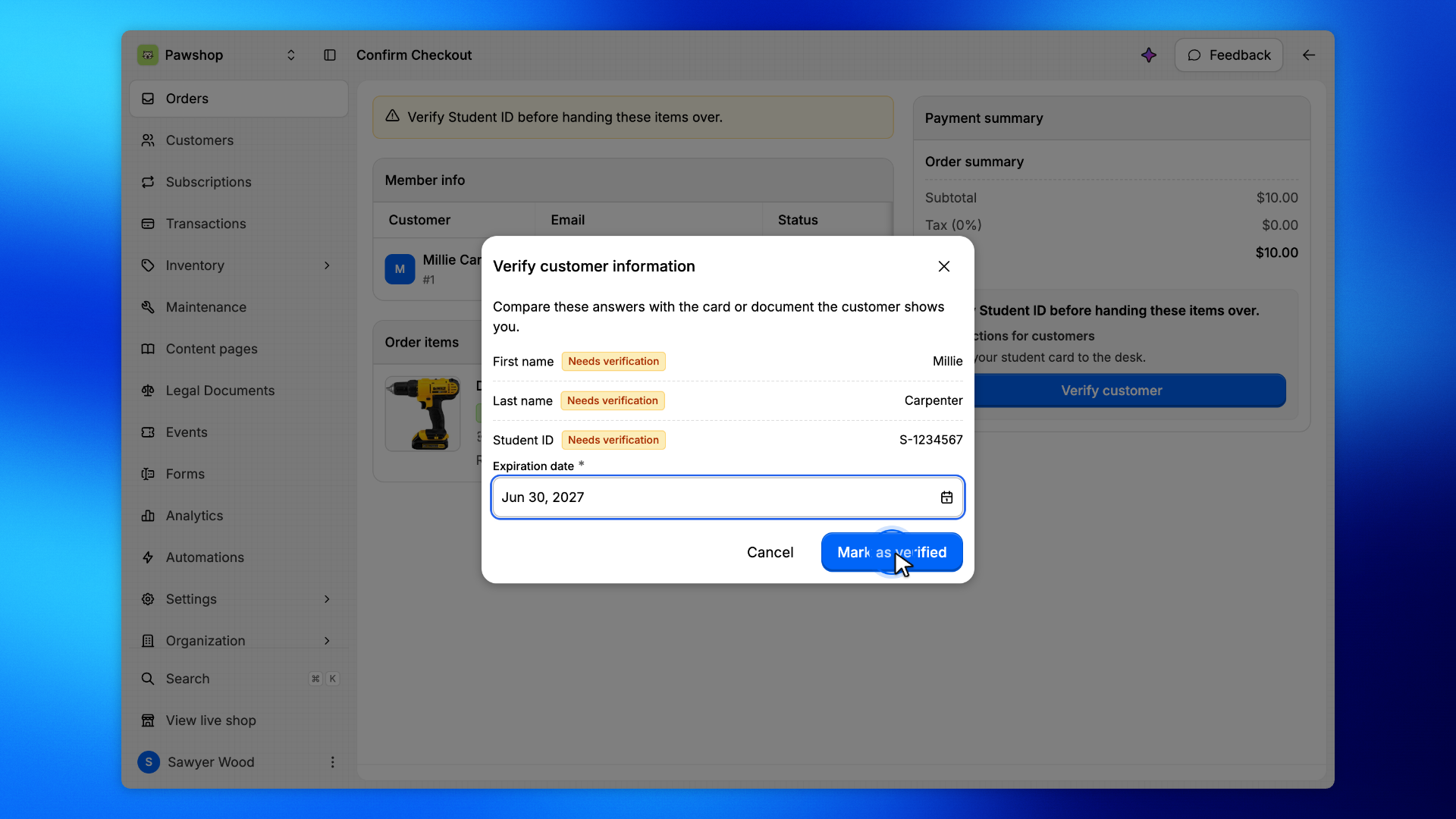
Take payment
1. Review the order and choose payment
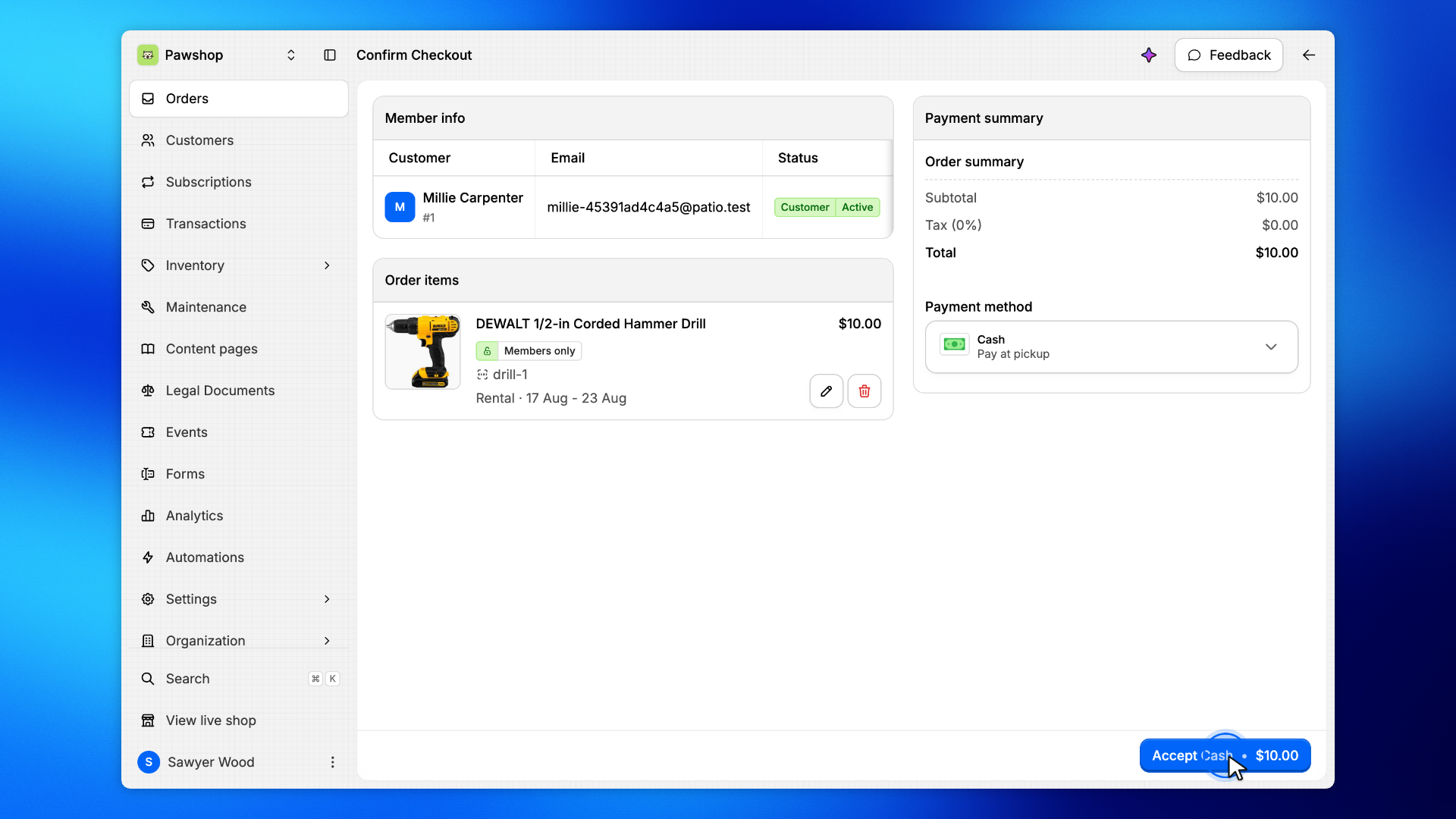
The warning is gone and the checkout button is back. Check that the customer, items, and amounts look right. Open the payment section and choose how they'll pay.
They can pay with a saved card, cash, or their account balance. A customer with no saved card starts on Cash. If you charge the account and they don't have enough credit, you'll be asked to confirm before continuing.
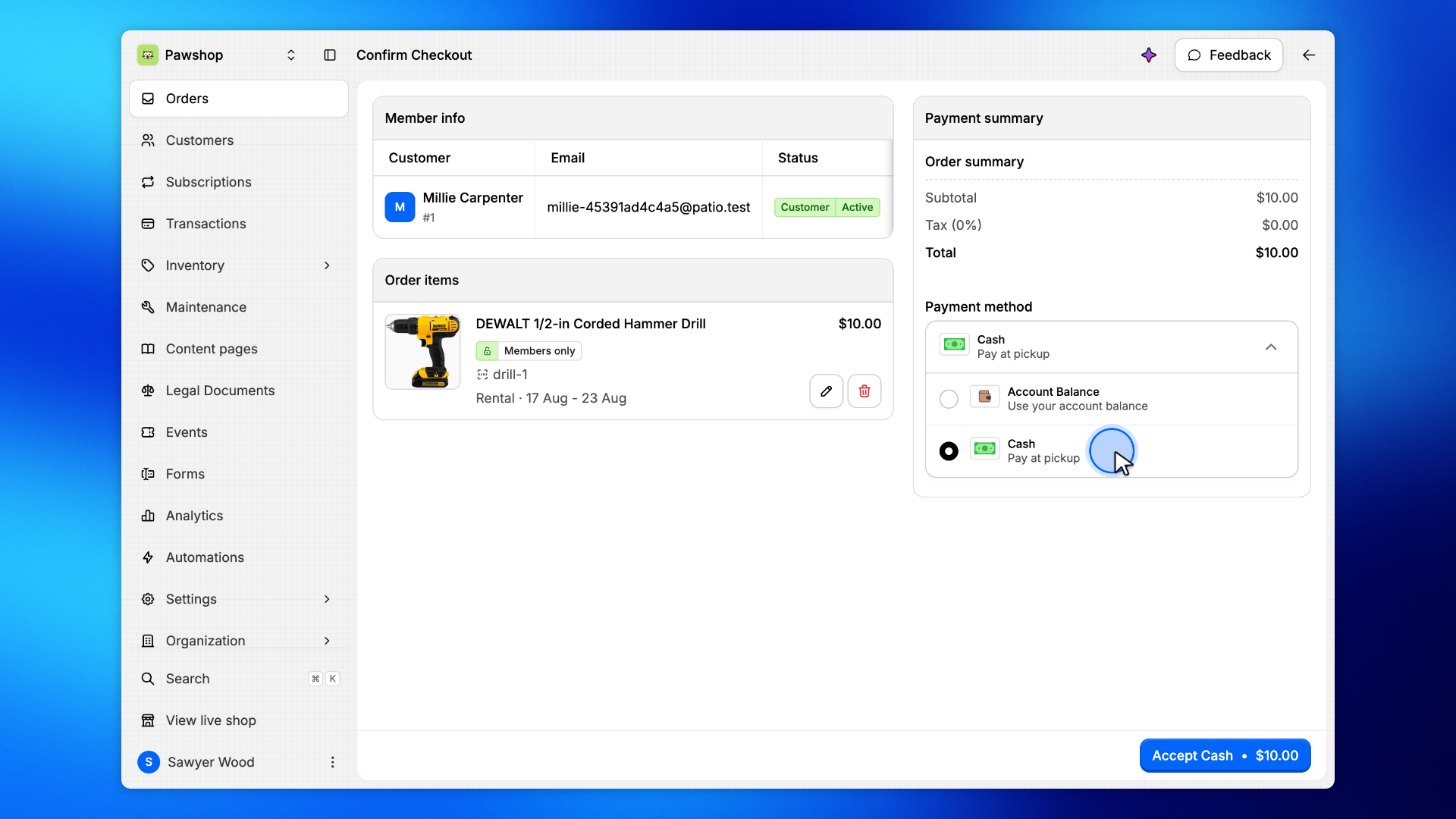
2. Finish checkout
Click Accept Cash, choose the Amount received, and click Confirm checkout. If the customer pays another way, click Complete checkout and confirm the payment if a dialog appears.
This records the loan. The verification stays on the customer's account until it runs out, so their next checkout goes straight through.
Confirm the rental
1. Confirm the order was created
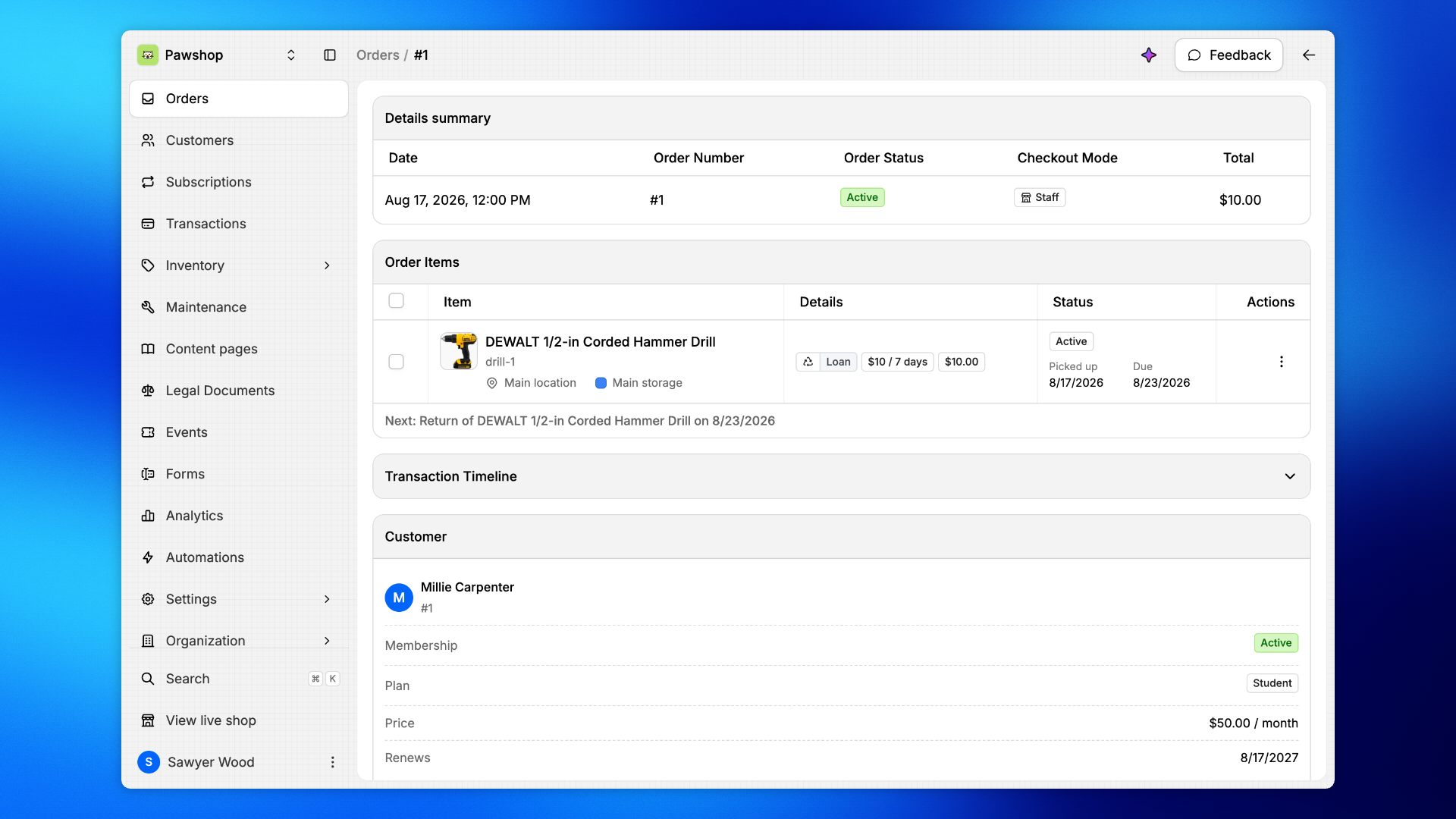
You'll land on the order page.
Check that the customer, items, and status look right. That's your confirmation the rental was created and is now active on their account.
If the customer cannot show proof today
Click the pencil on each item, click the dates, choose a later start day, click Done, then click Update item.
If the checkout button comes back, the checkout becomes a reservation. The note stays as a reminder, and you verify the customer when they pick the items up (see Verify a customer at pickup).
If the warning changes to "before taking this reservation", the answer is set to Block reservations and pickup, so the customer needs the check first. An answer set to Remind only, never block never blocks a checkout.
