Add items to an order by scanning their labels
By Julien RiouxUpdated October 13, 2026
Scan the label of each item a customer takes to add that exact unit to their cart, instead of searching for it.
By Julien Rioux·Updated October 13, 2026
Scan the label of each item a customer takes to add that exact unit to their cart, instead of searching for it.
When a customer brings items to the desk, scan each one's label to add it to their order. The scanner finds the unit and opens it in the cart, its SKU already picked.
Start the order as usual: Orders › Order, choose the customer, then click Continue. For the whole checkout, see Check out items to a customer.
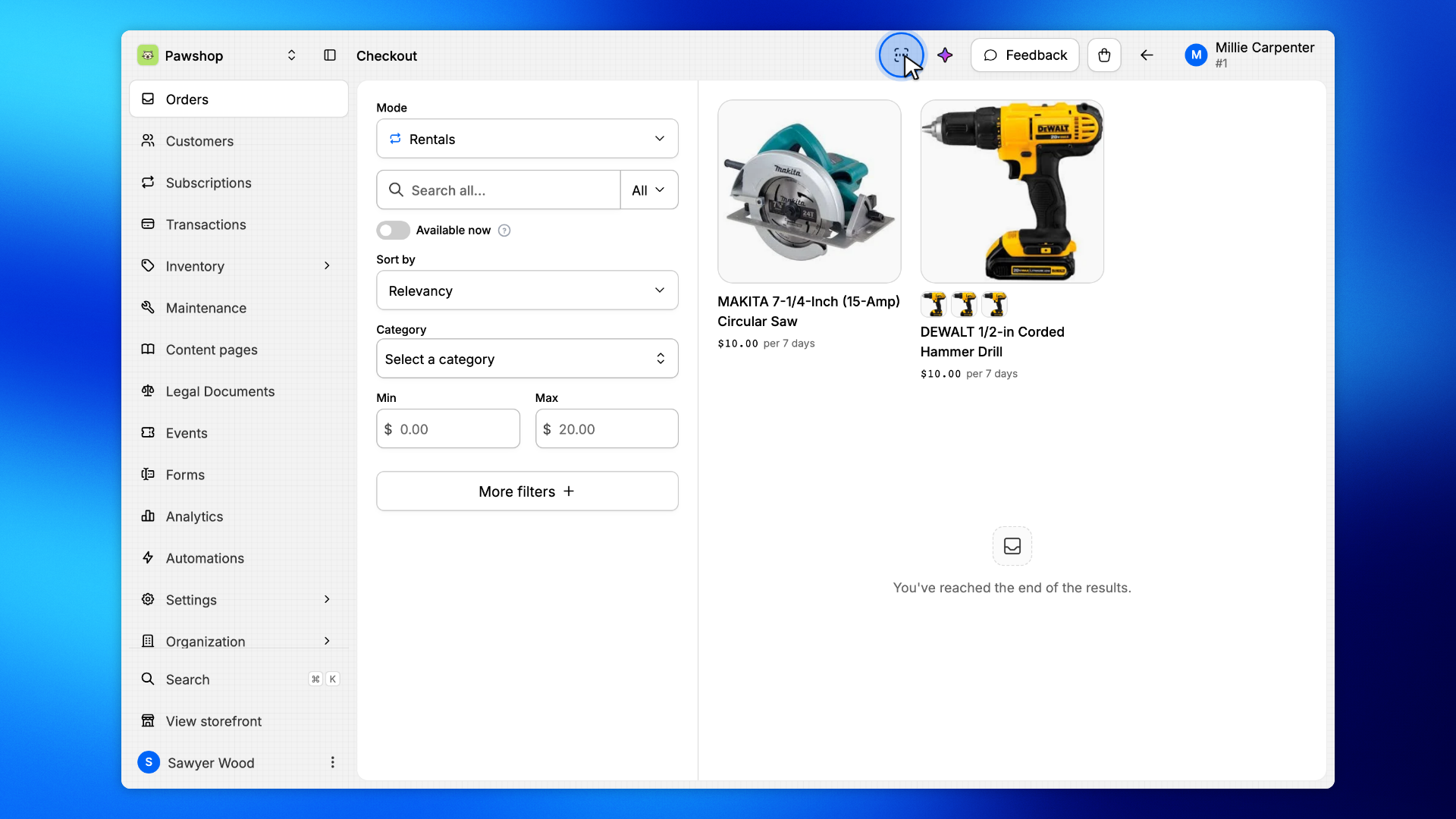
With the customer's cart open, click the barcode button at the top right of the page, Scan a label. On a phone, it is in the menu at the bottom of the screen.
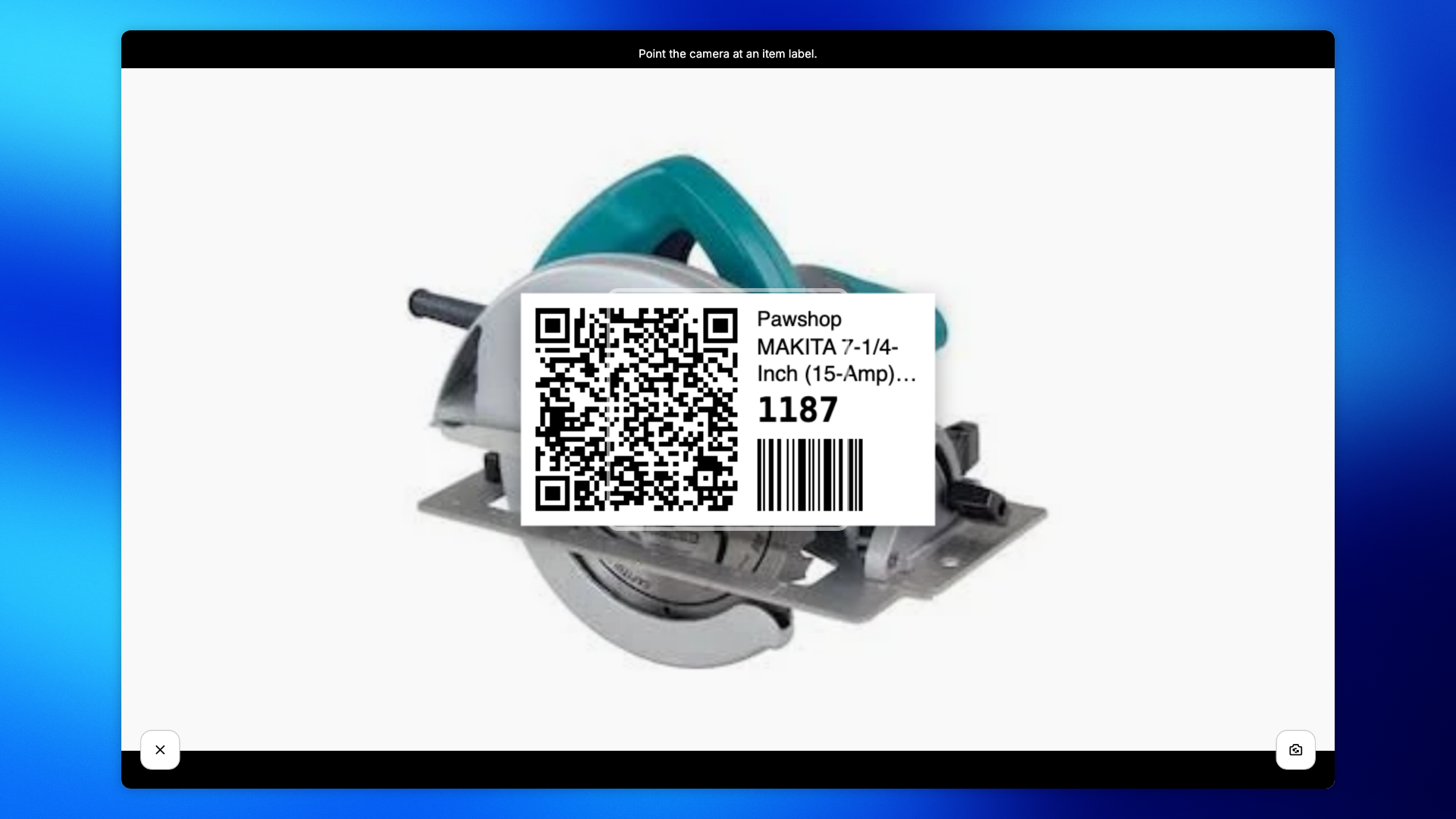
Hold the label in front of the camera and keep it steady until the picture is sharp. When the scanner finds the unit, it takes you back to the cart on its own.
On a computer, the webcam's picture starts mirrored: the button at the bottom right turns it the right way round.
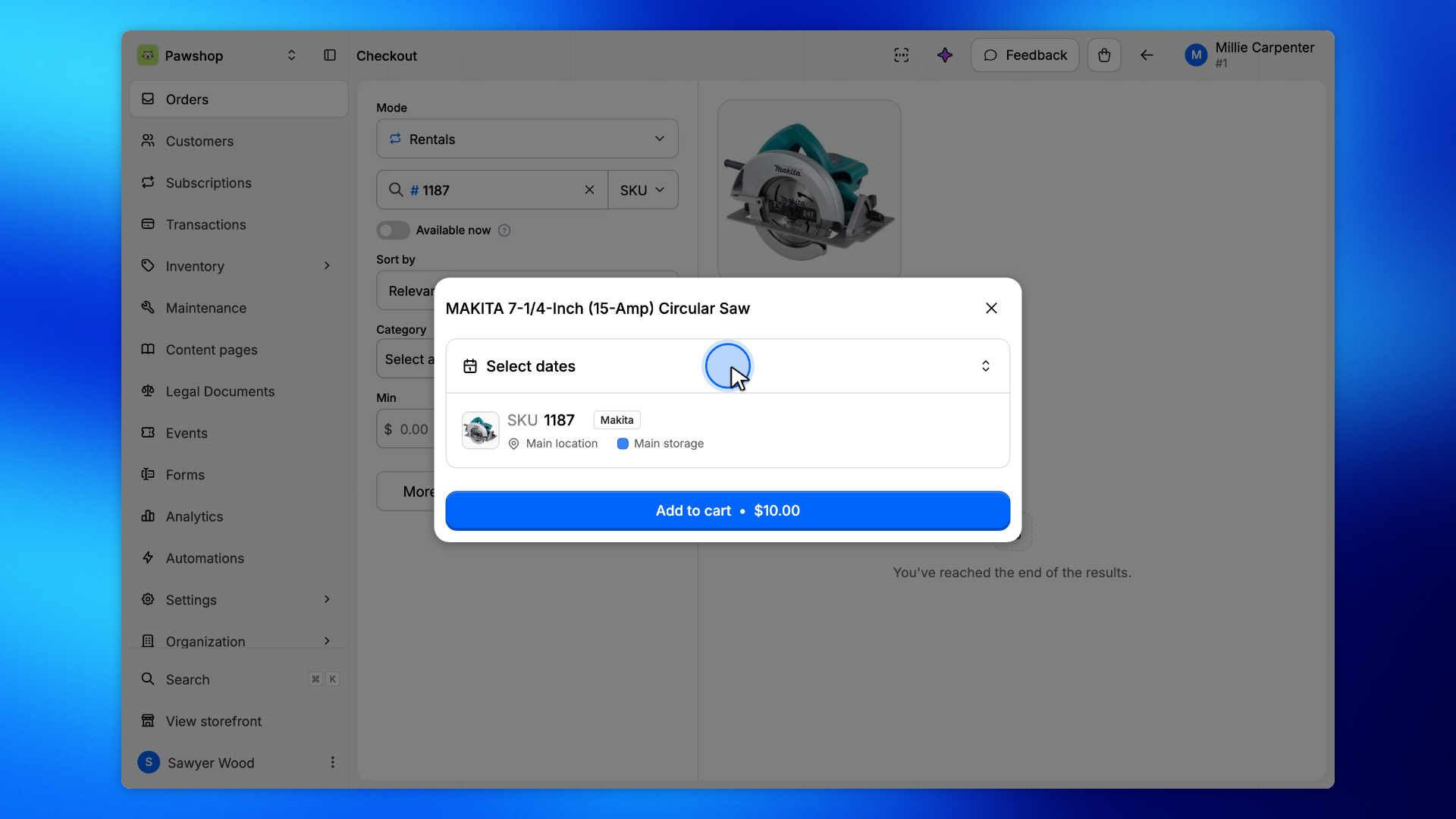
The item opens on the unit you scanned: its SKU is already picked. Click the dates, pick the day the rental starts, then click Done.
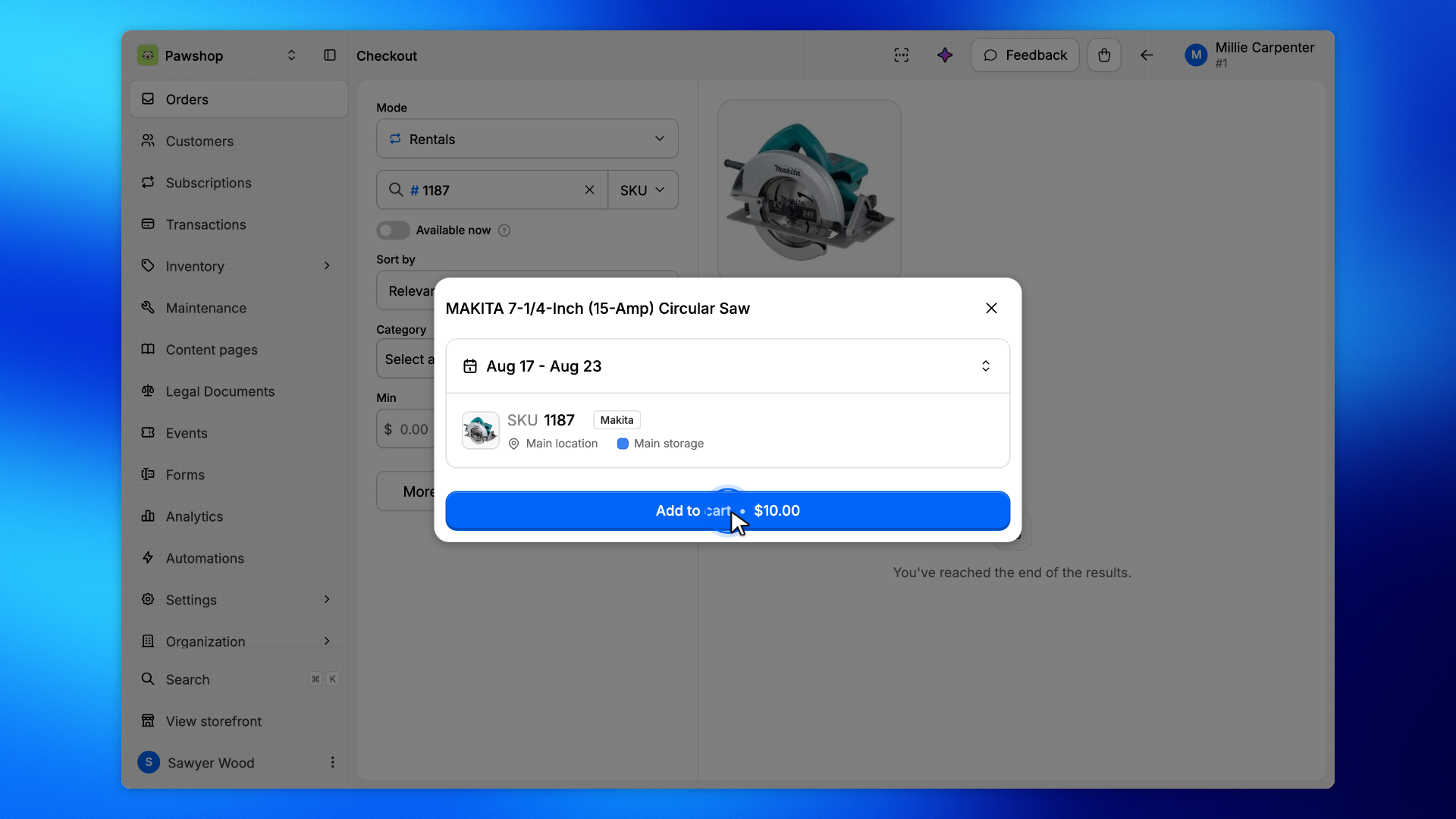
Click Add to cart. Scan the next item the same way.
When the cart holds everything, click the bag at the top of the page, then Continue to checkout.