Review a change a customer asked for
By Julien RiouxUpdated September 27, 2026
Accept or decline a change a customer made to an answer staff verified.
By Julien Rioux·Updated September 27, 2026
Accept or decline a change a customer made to an answer staff verified.
When a customer changes a verified answer in their profile, Patio does not use it right away. The verified answer stays in use, and the change waits for staff to review it.
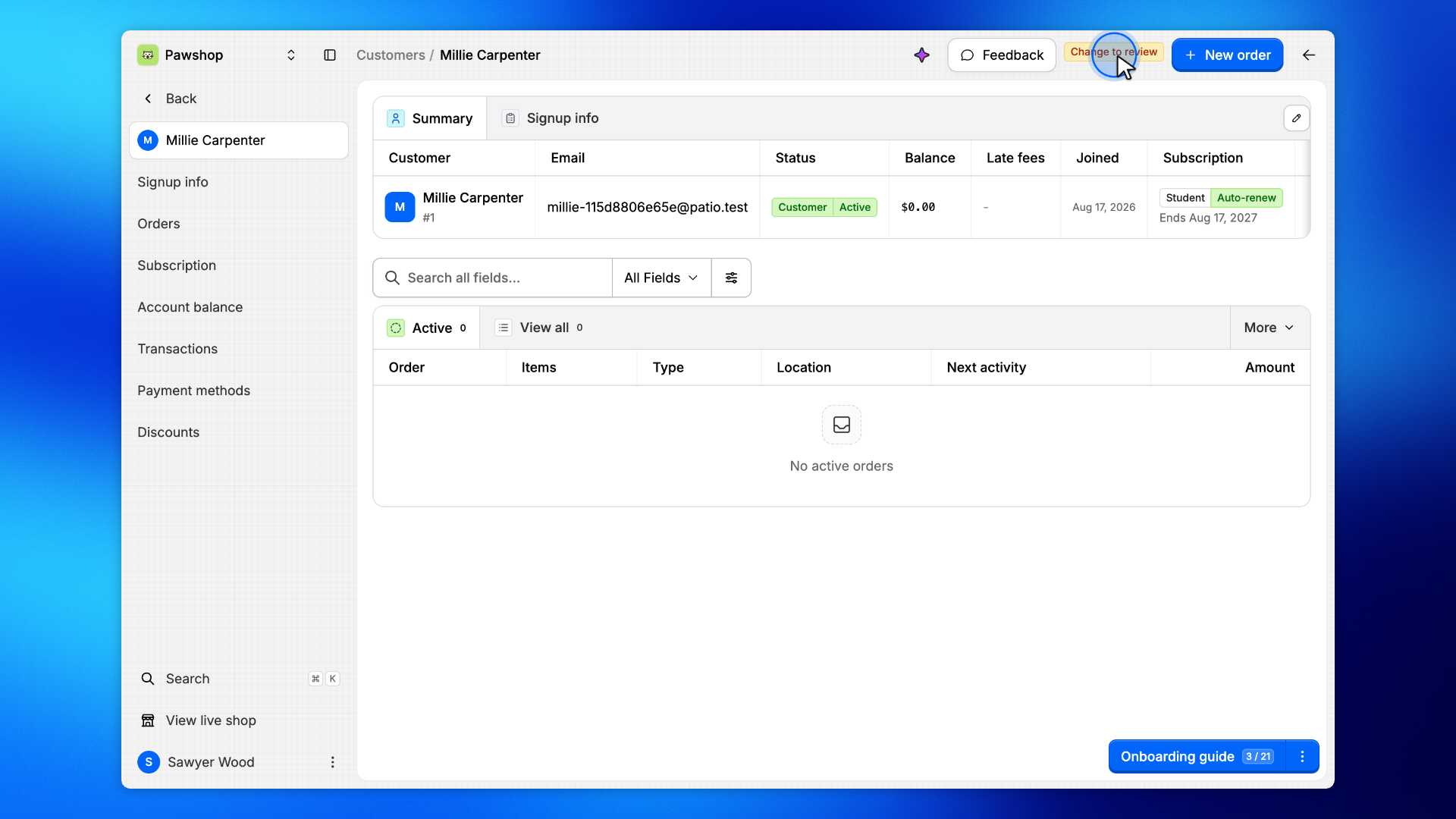
A customer with a change waiting shows Change to review at the top of their page, and the Customers filter Changes to review lists them. Patio does not email staff about it.
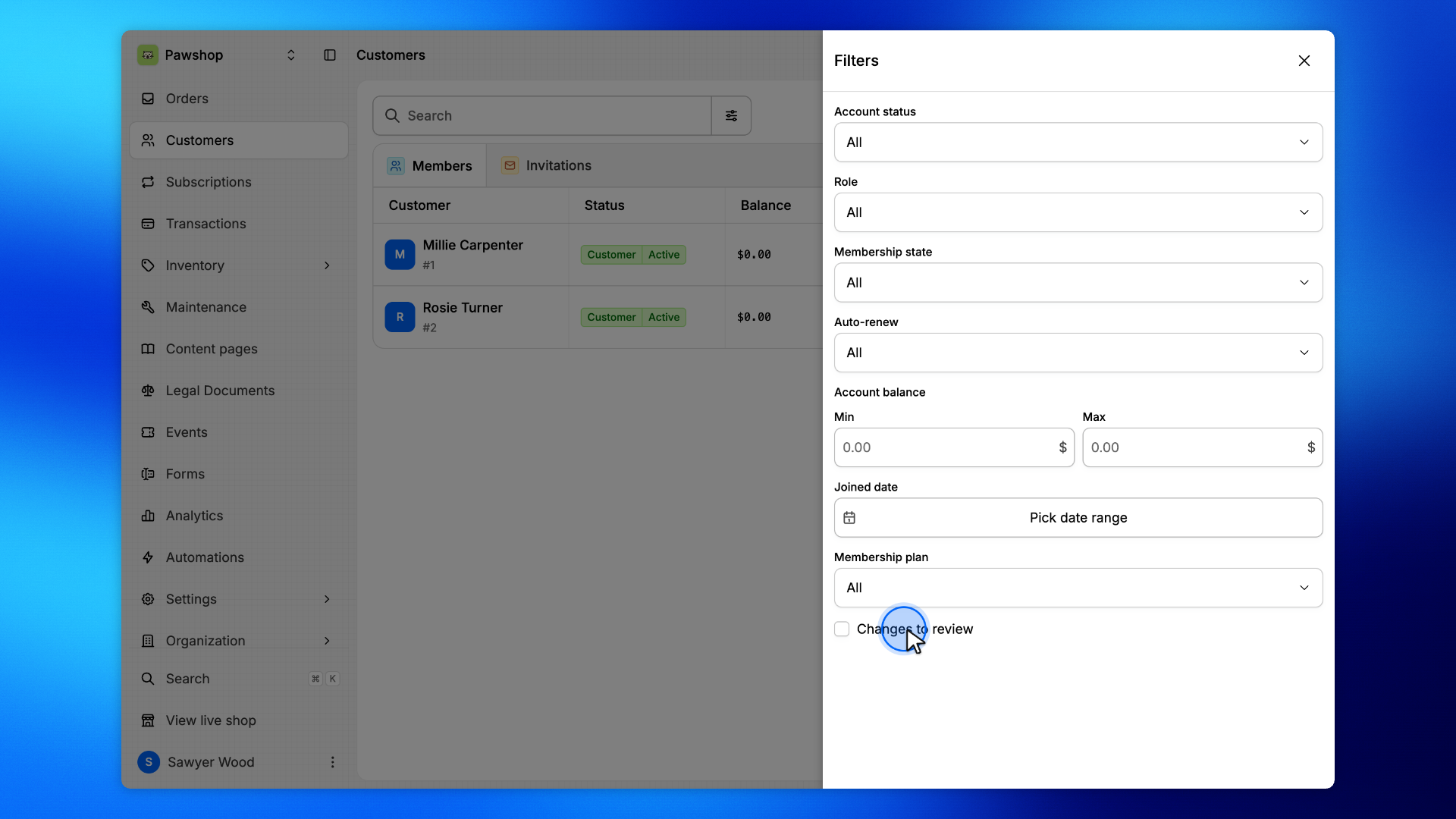
In Customers, open the filters and tick Changes to review.
The list keeps only the customers with a change waiting.
Close the filters and click the customer. Change to review at the top of the page opens their Signup info.
A warning names the answers the customer asked to change. Each of them reads Change to review, with the answer On file, who verified it, and the New answer they asked for.
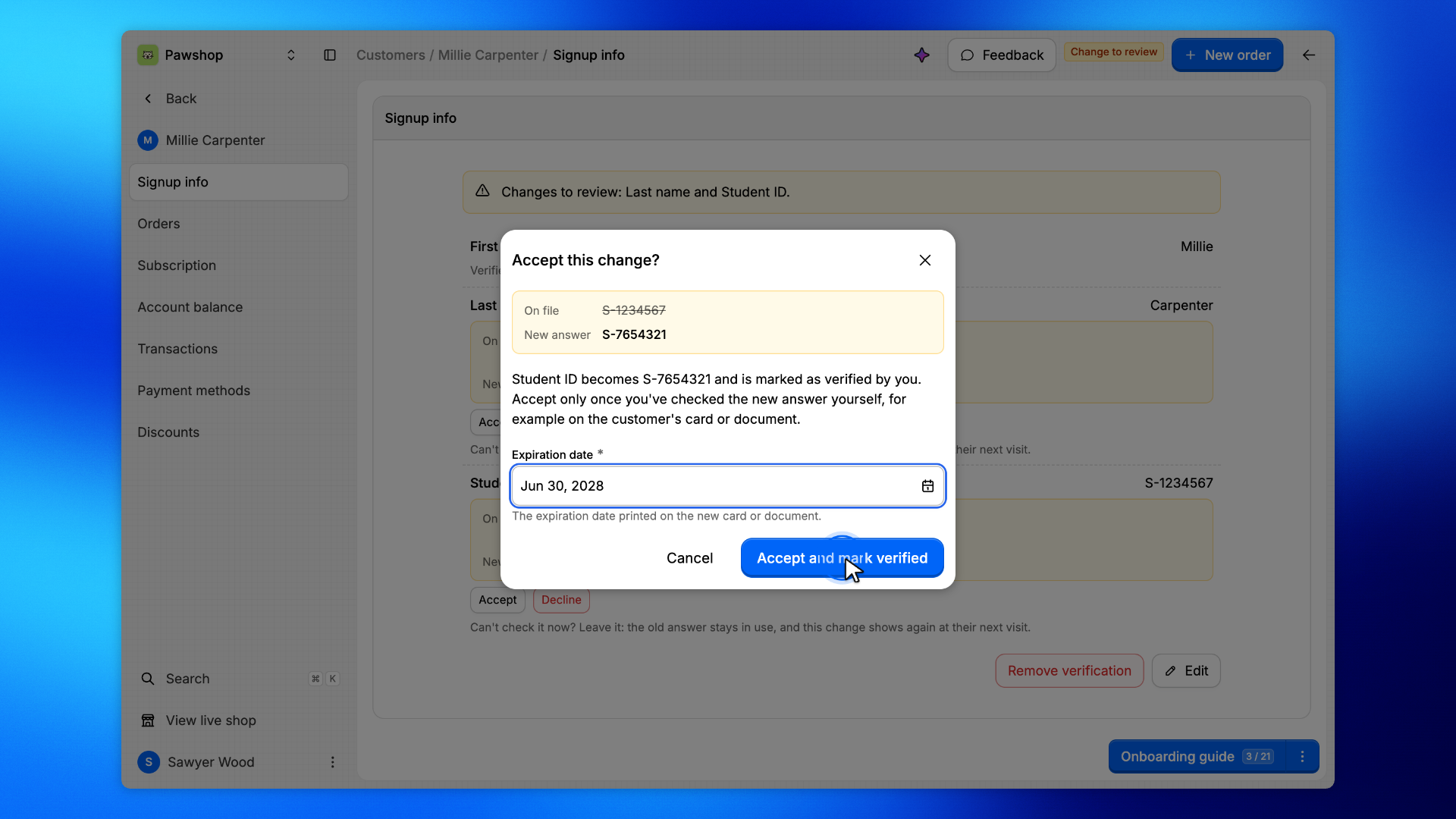
Click Accept. A confirmation shows the answer on file and the new answer, and accepting marks the new answer as verified by you. Accept only once you have checked the new answer yourself, for example on the customer's card or document.
For Student ID, enter the Expiration date printed on the new card: it replaces the old card's date. Then click Accept and mark verified.
Can't check it now? Leave the change as it is. The old answer stays in use, and the change shows again at the customer's next visit.
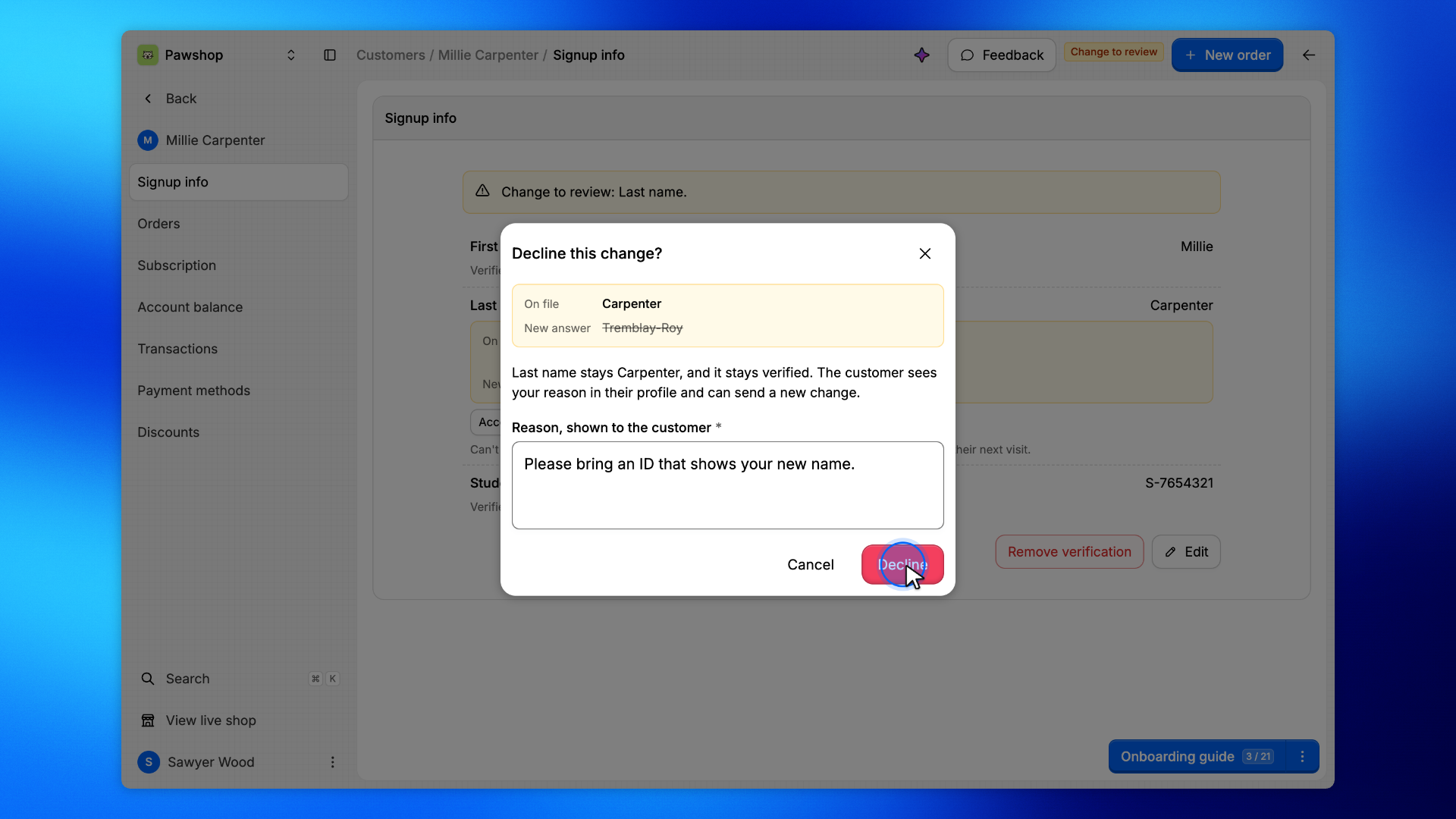
Click Decline. A confirmation shows the answer on file and the new answer: the answer on file stays in use, and it stays verified. Write why in Reason, shown to the customer, which is required, and click Decline.
The customer sees the reason in their profile and can send a new change. Nothing is sent by email.