Print labels for many units at once
By Julien RiouxUpdated October 13, 2026
Select units in Inventory › Units and print all their labels in one go, on a label printer roll or on sheets of labels.
By Julien Rioux·Updated October 13, 2026
Select units in Inventory › Units and print all their labels in one go, on a label printer roll or on sheets of labels.
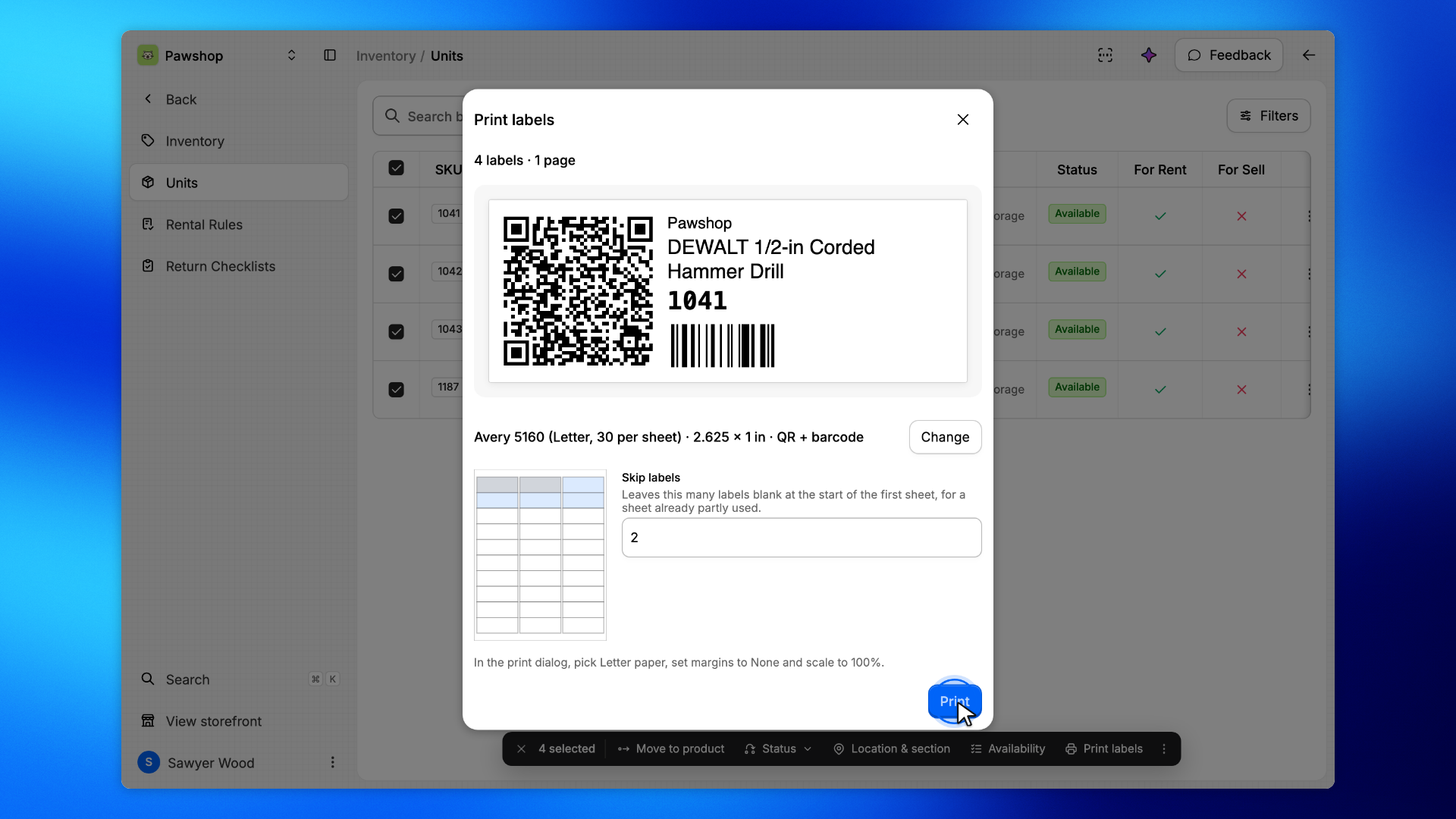
New stock to label, or labels to replace? Select the units in Inventory › Units and print all their labels at once: each label carries the unit's QR code and barcode, with the product name and your organization's name.
To print one label, or to download it, see Print a label for an item.
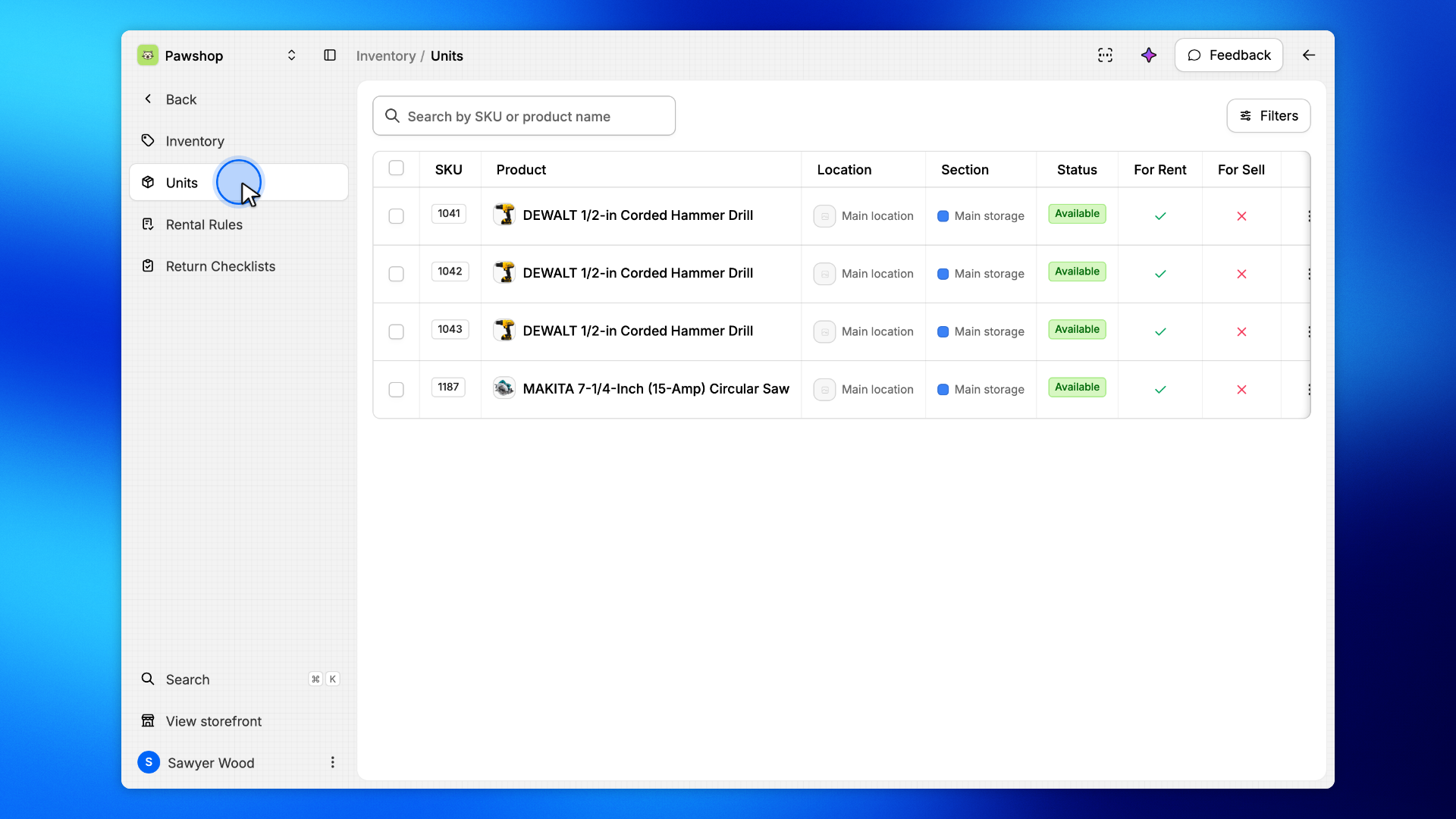
Go to Inventory › Units. It lists every unit of every product.
Only need some labels? Search the list by SKU or product name, or use Filters to narrow it by location, section or status.
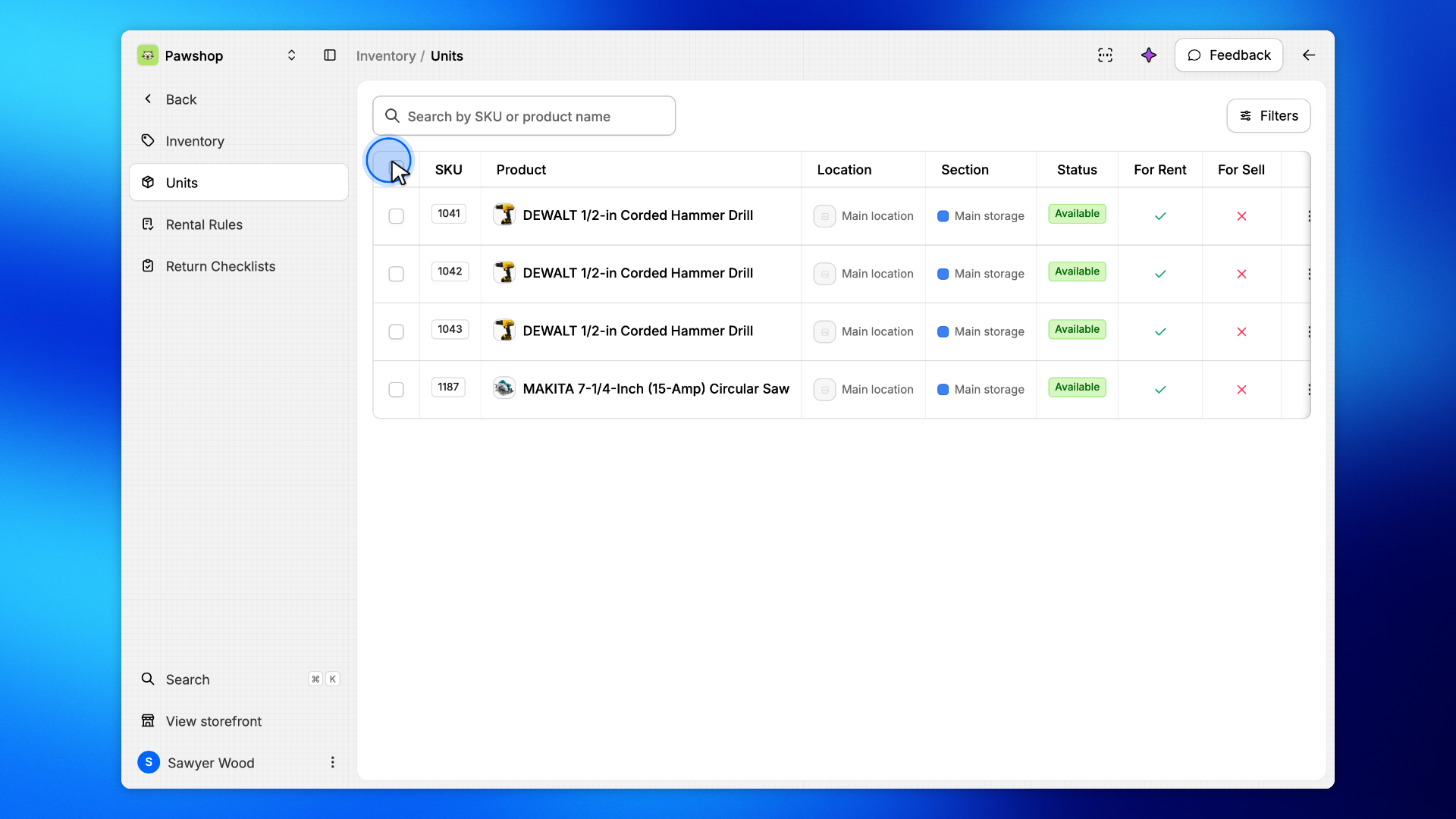
Tick the box at the start of each unit you need a label for. The box in the header selects every unit on the page.
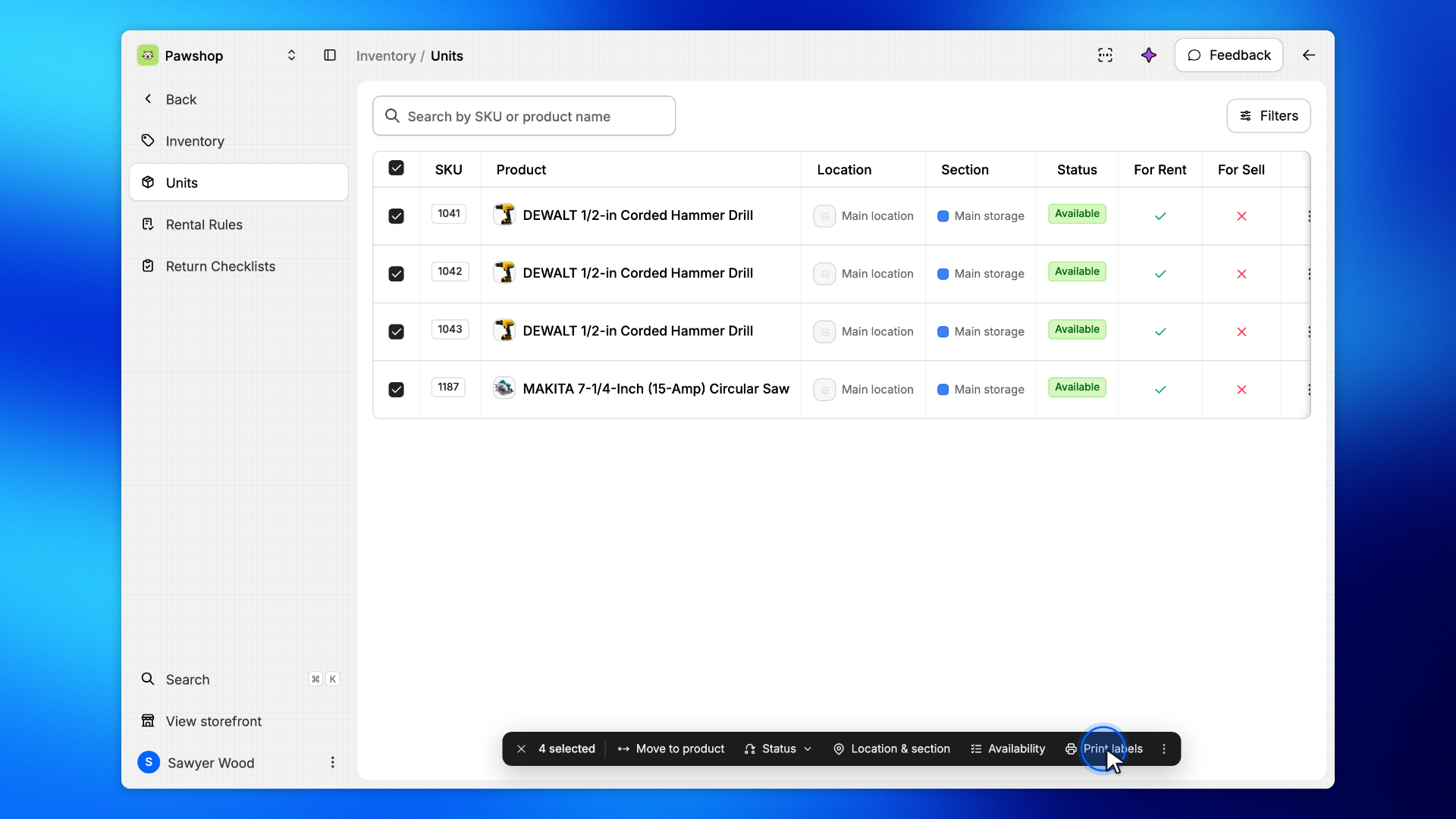
The bar at the bottom of the page acts on the units you selected. Click Print labels.
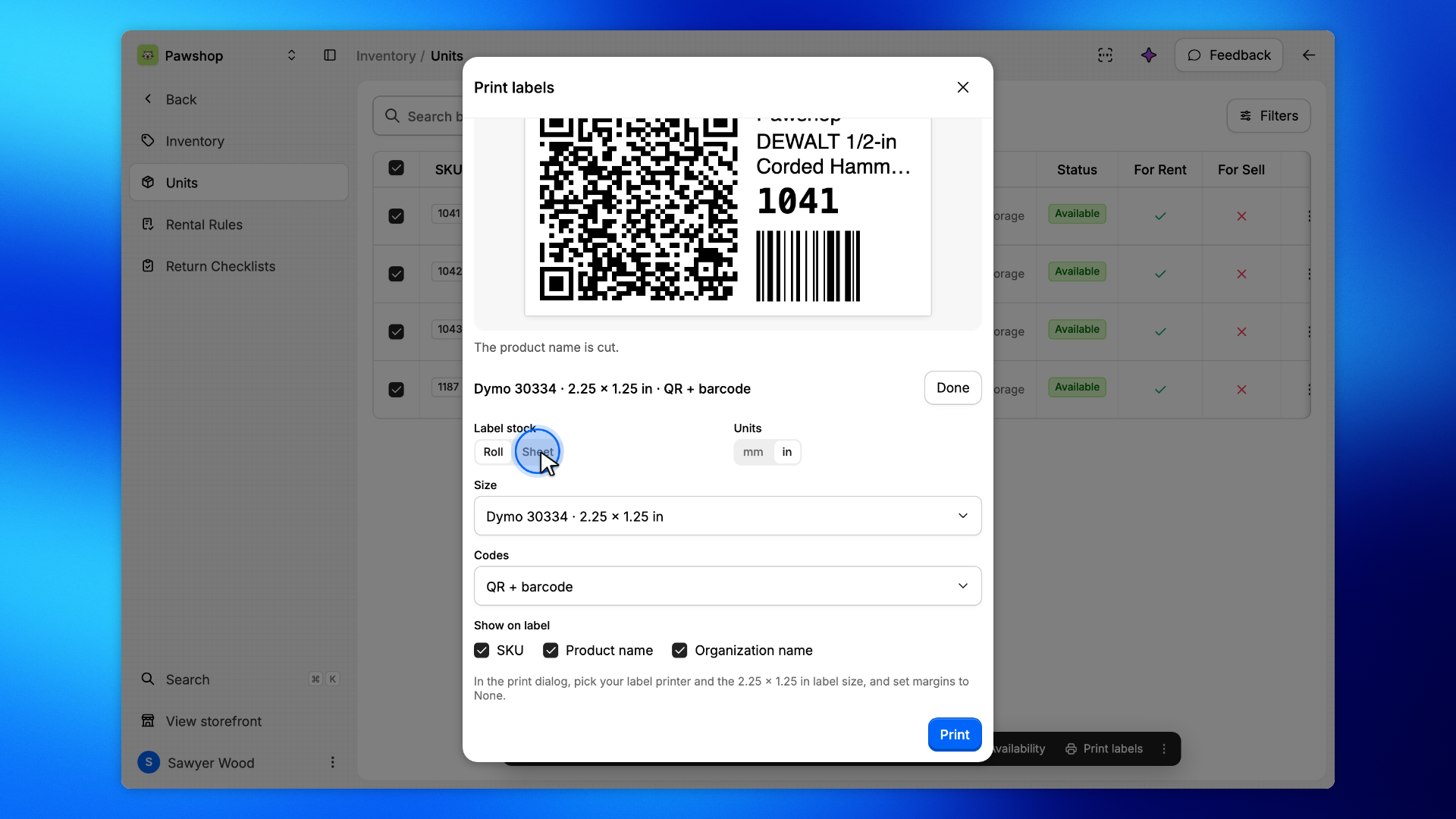
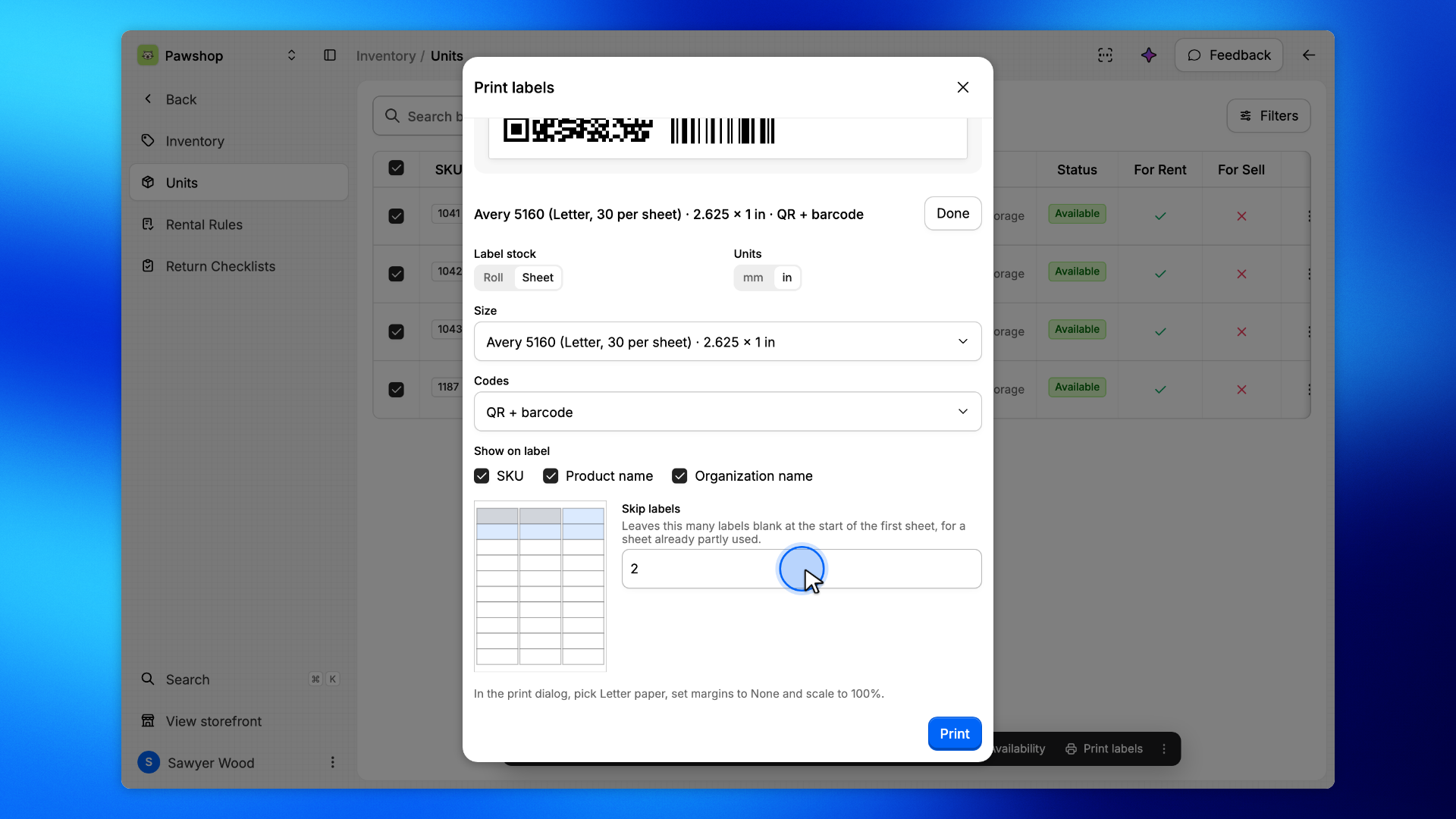
Click Change. Roll prints one label after the other on a label printer. Sheet fills sheets of labels on a regular printer: pick yours under Size, such as Avery 5160 on Letter paper or Avery L7160 on A4.
Printing on a sheet you already used part of? Enter how many labels are gone in Skip labels. The drawing of the sheet shows the spots left blank and where your labels go.
Click Done to fold the settings away. The top of the window sums up the print: how many labels, on how many pages. A unit with no SKU gets no label, and the line under the summary counts it.
Click Print. In the print dialog, pick the sheet's paper, set the margins to None and the scale to 100%, as the hint above the button says.