Verify a customer's information
By Julien RiouxUpdated September 27, 2026
Check a customer's answers at the desk, mark them verified, and handle later changes.
By Julien Rioux·Updated September 27, 2026
Check a customer's answers at the desk, mark them verified, and handle later changes.
Open a customer and choose Signup info. Each answer staff check shows its status next to its name: the answers for everyone who rents, plus the extra ones of their plan. While some still need a check, a warning at the top names them.
Patio records who checked each answer and when, plus the expiration date staff entered for an answer that asks for one. Every change is written to the workspace Logs.
Go to Customers, open the customer, and choose Signup info.
Needs verification next to an answer means it still has to be checked.
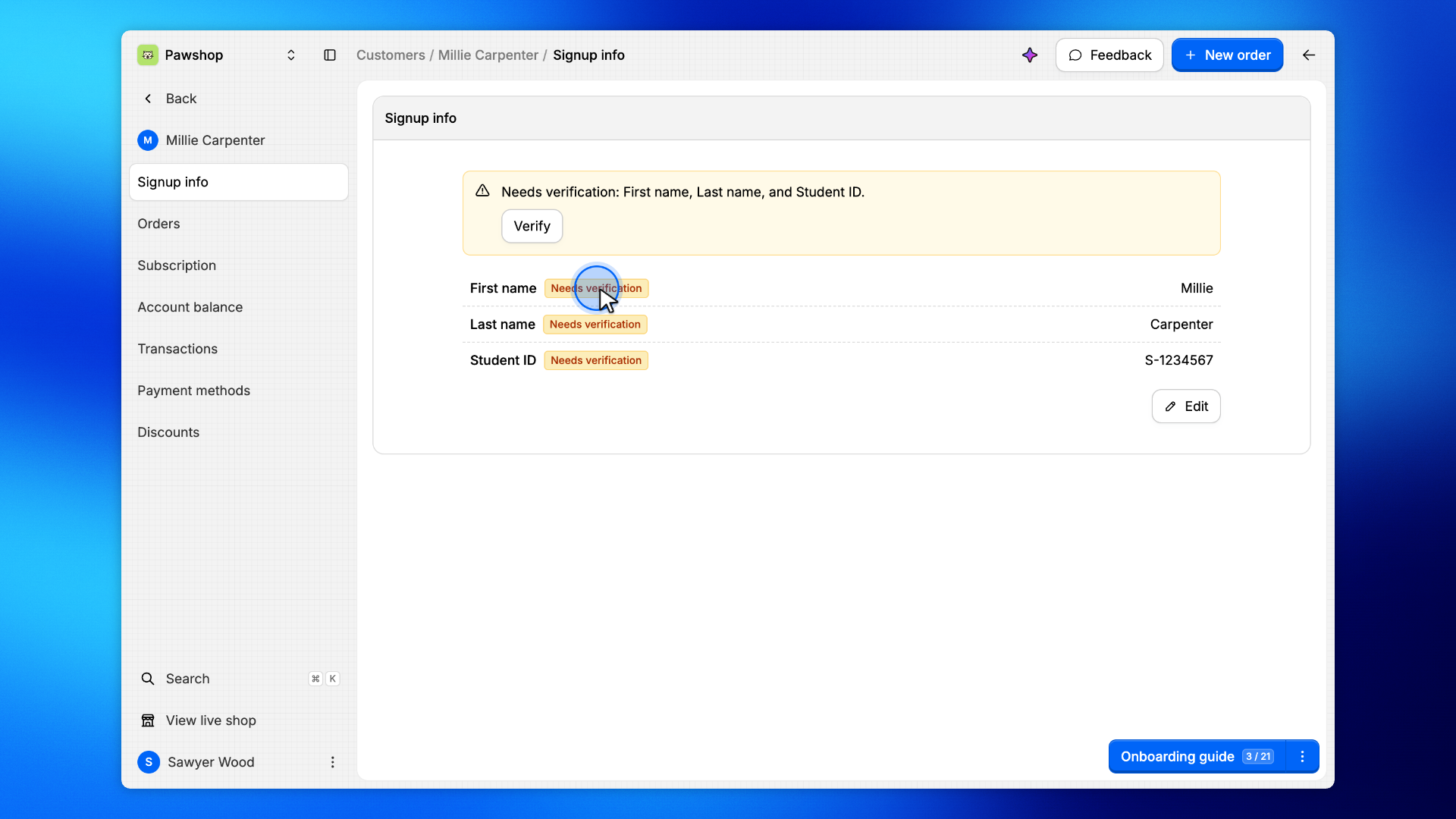
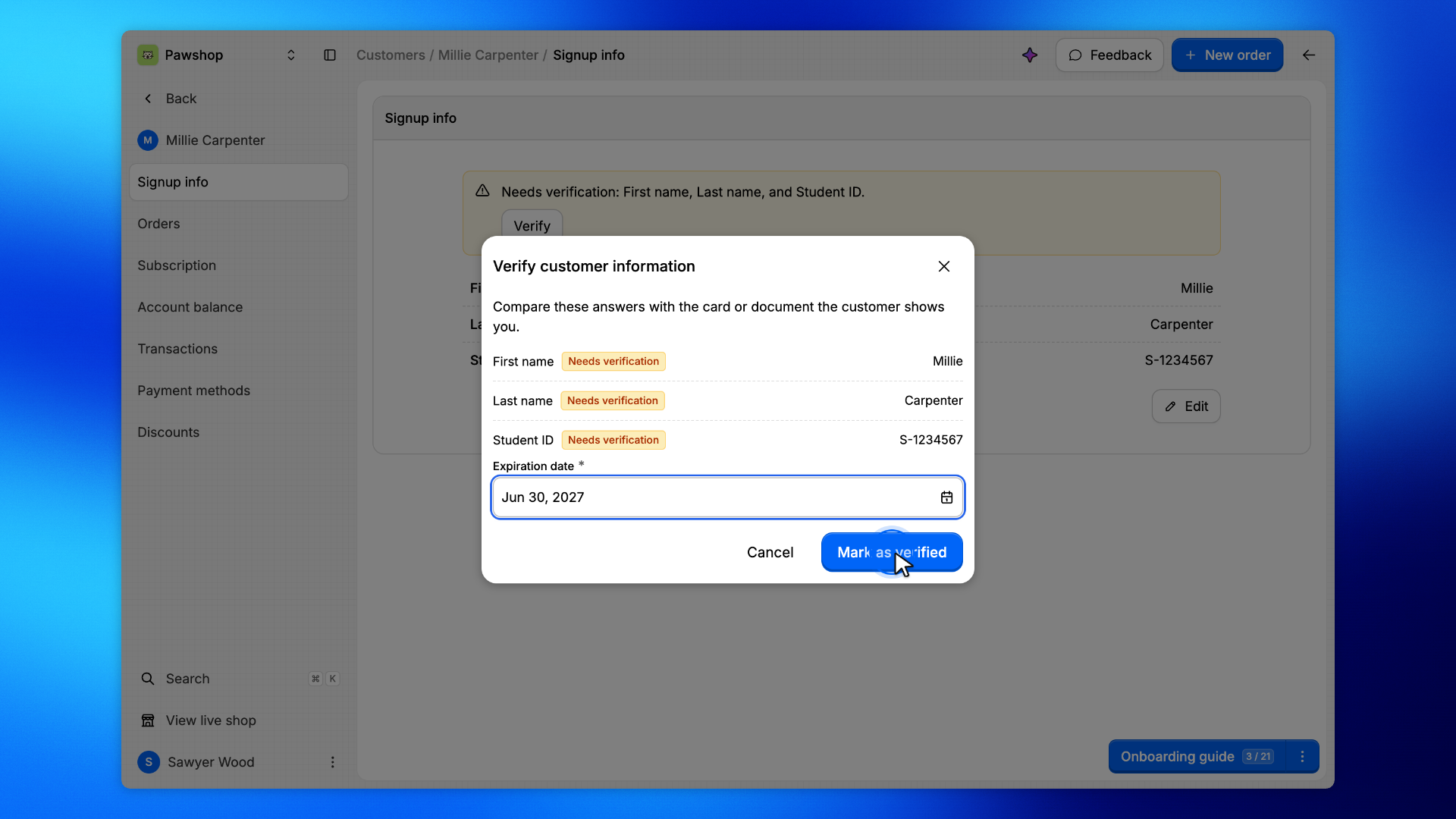
The warning at the top names the answers that still need a check. Each one shows the customer's answer on its row.
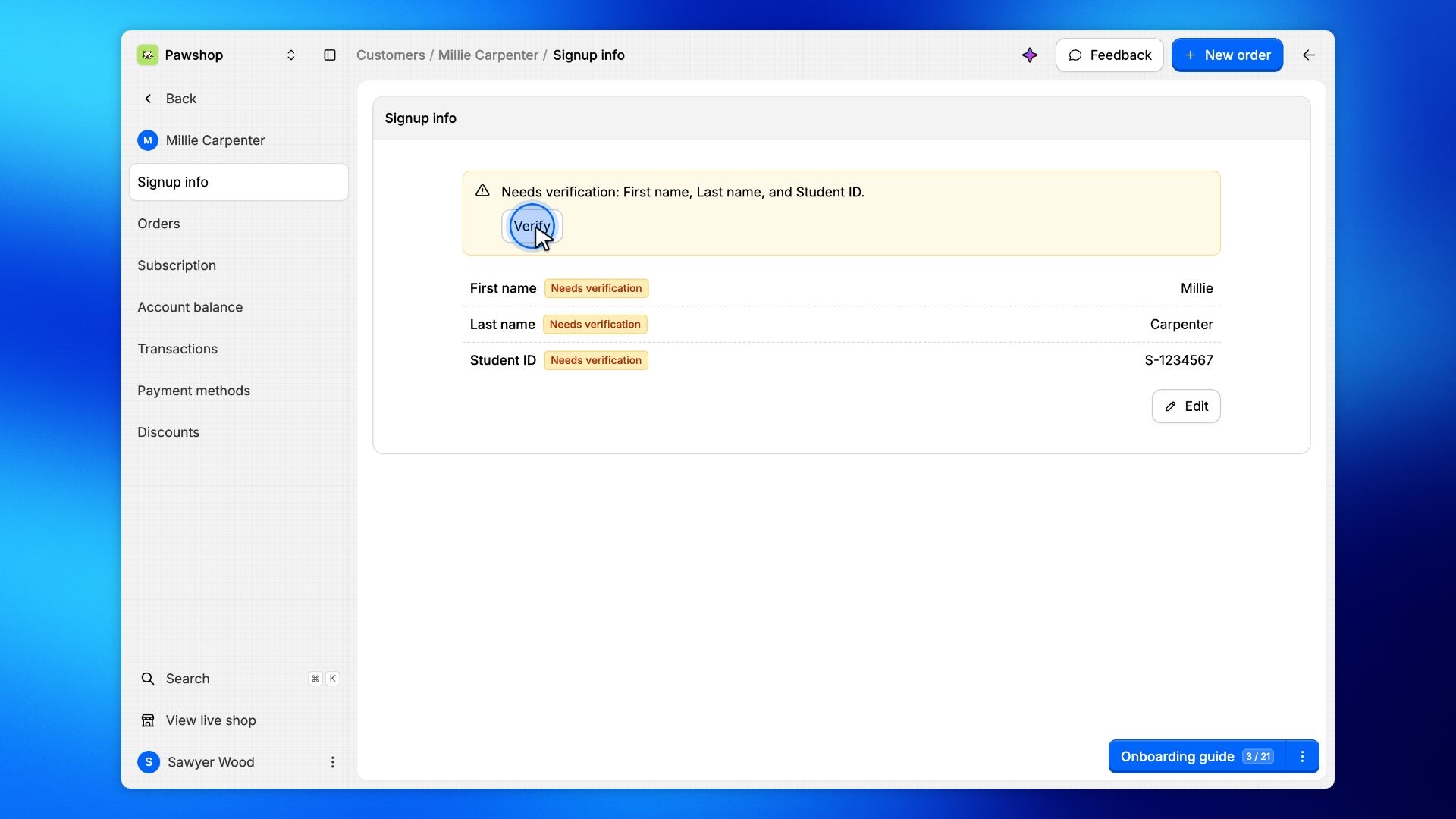
Click Verify to check them all at once.
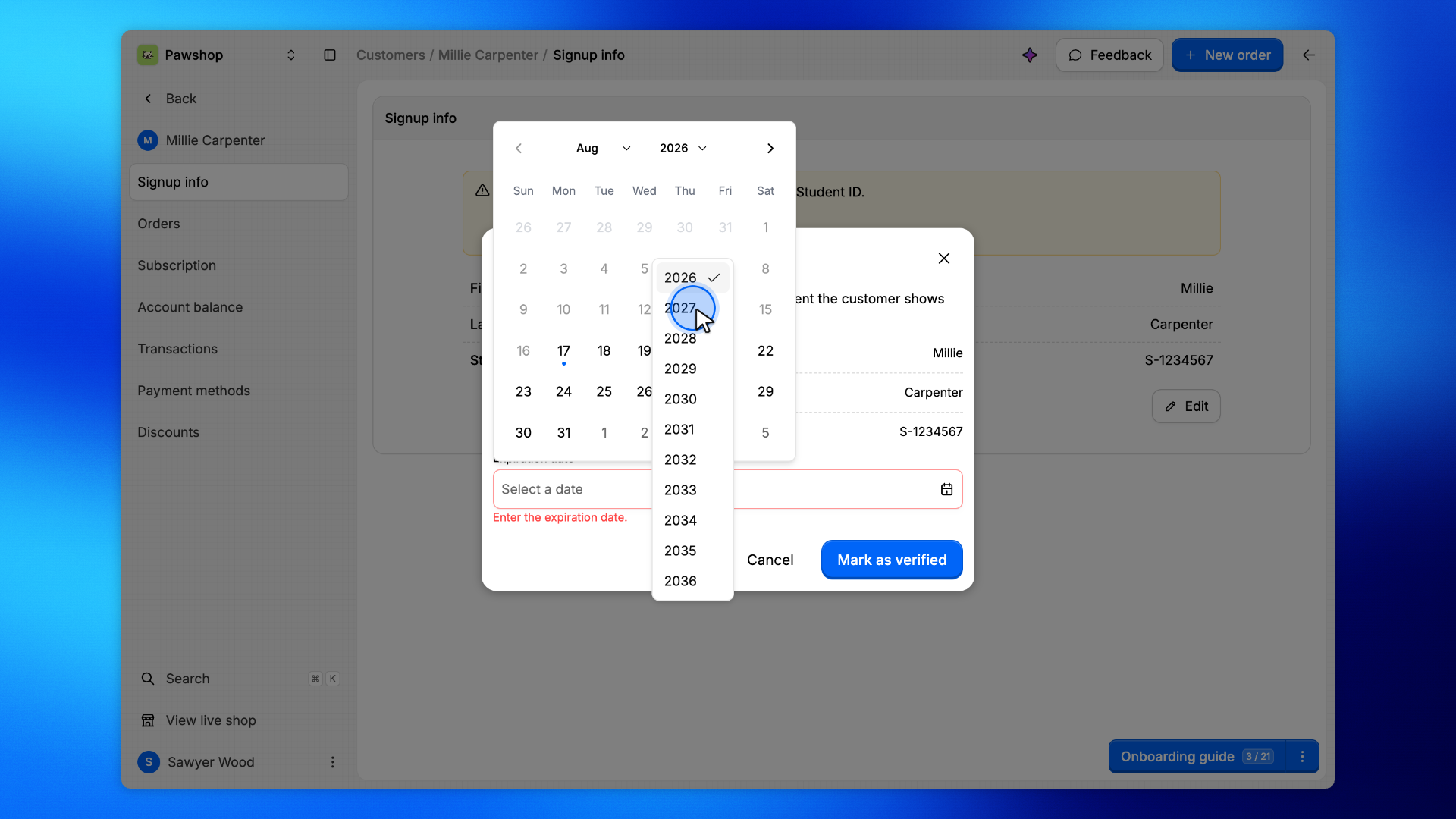
Student ID asks for an Expiration date, such as the end date printed on the student card. Click the field and pick that day in the calendar: its month and year menus jump straight to a later month or year. The date is required: without it, Mark as verified says so and saves nothing. Once the date passes, the customer needs a new verification.
First and last name have no date, because a name never runs out. Their verification never expires.
Compare the answers with the customer's card and click Mark as verified.
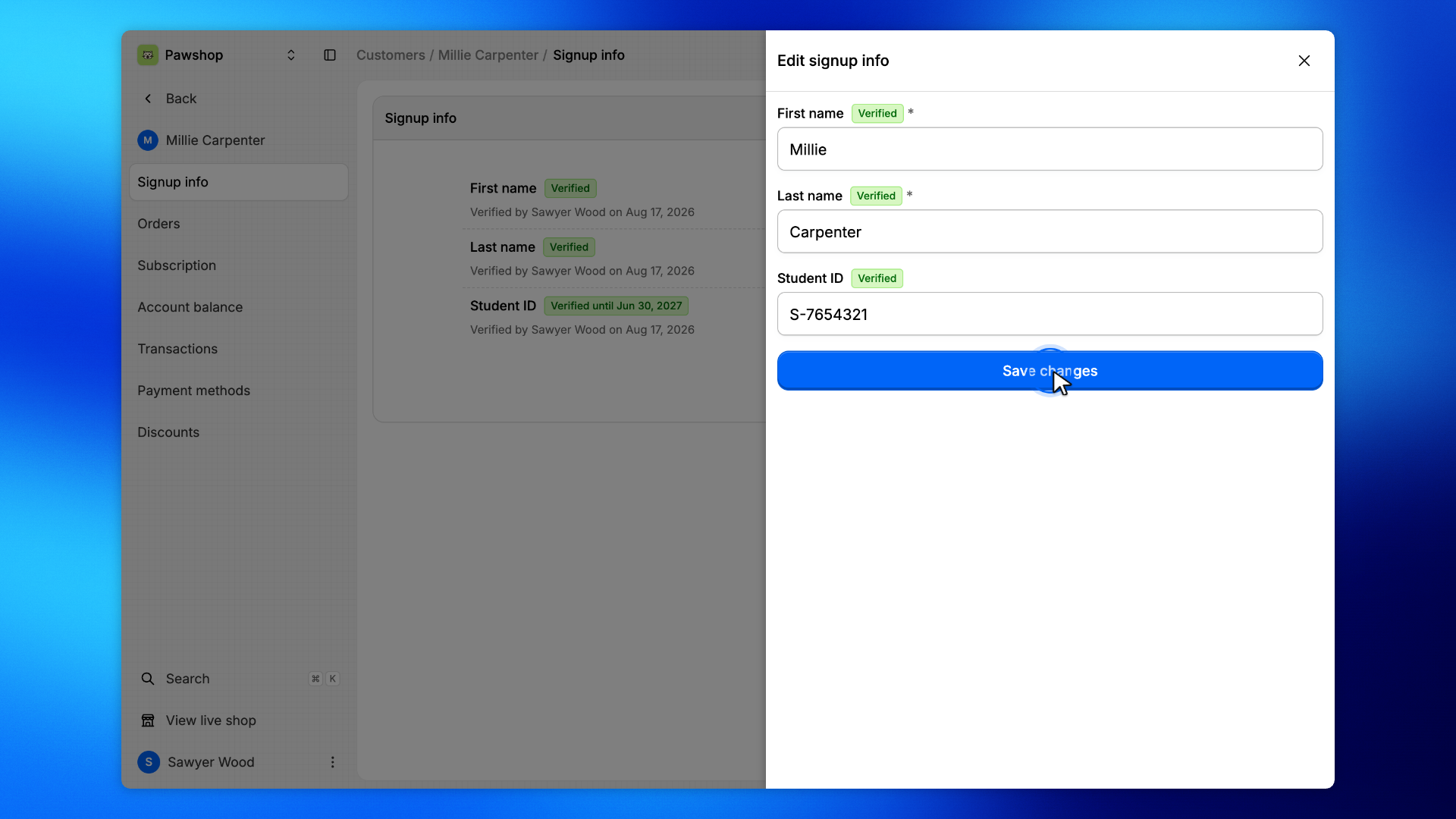
If the customer changes a verified answer later, the change comes to staff for review.
Click Edit, change the answer, and click Save changes.
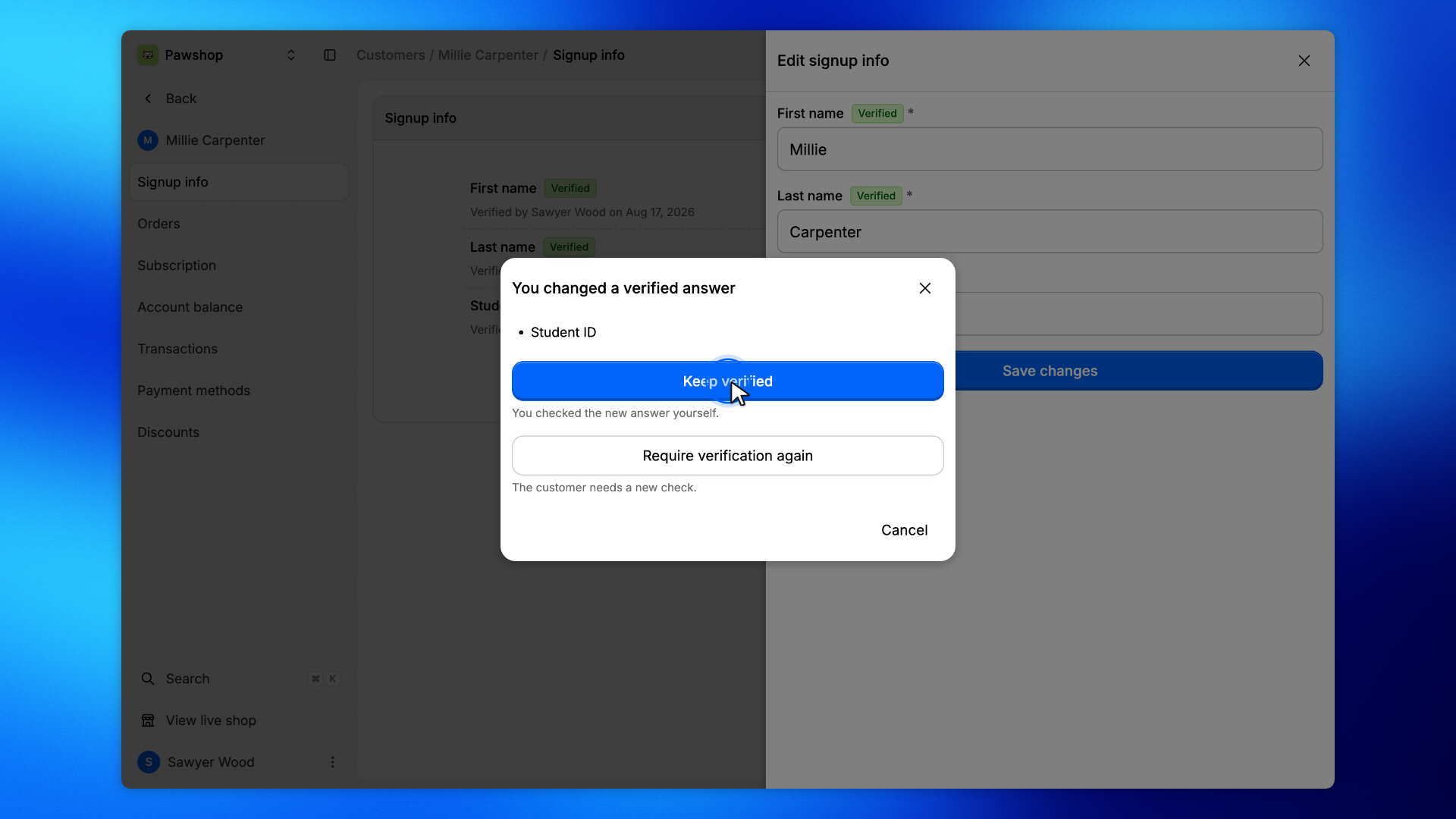
Patio asks what happens to the verification before it saves.
Choose Keep verified if you checked the new answer yourself, or Require verification again if the customer needs a new check.
Either choice is recorded in the workspace Logs.
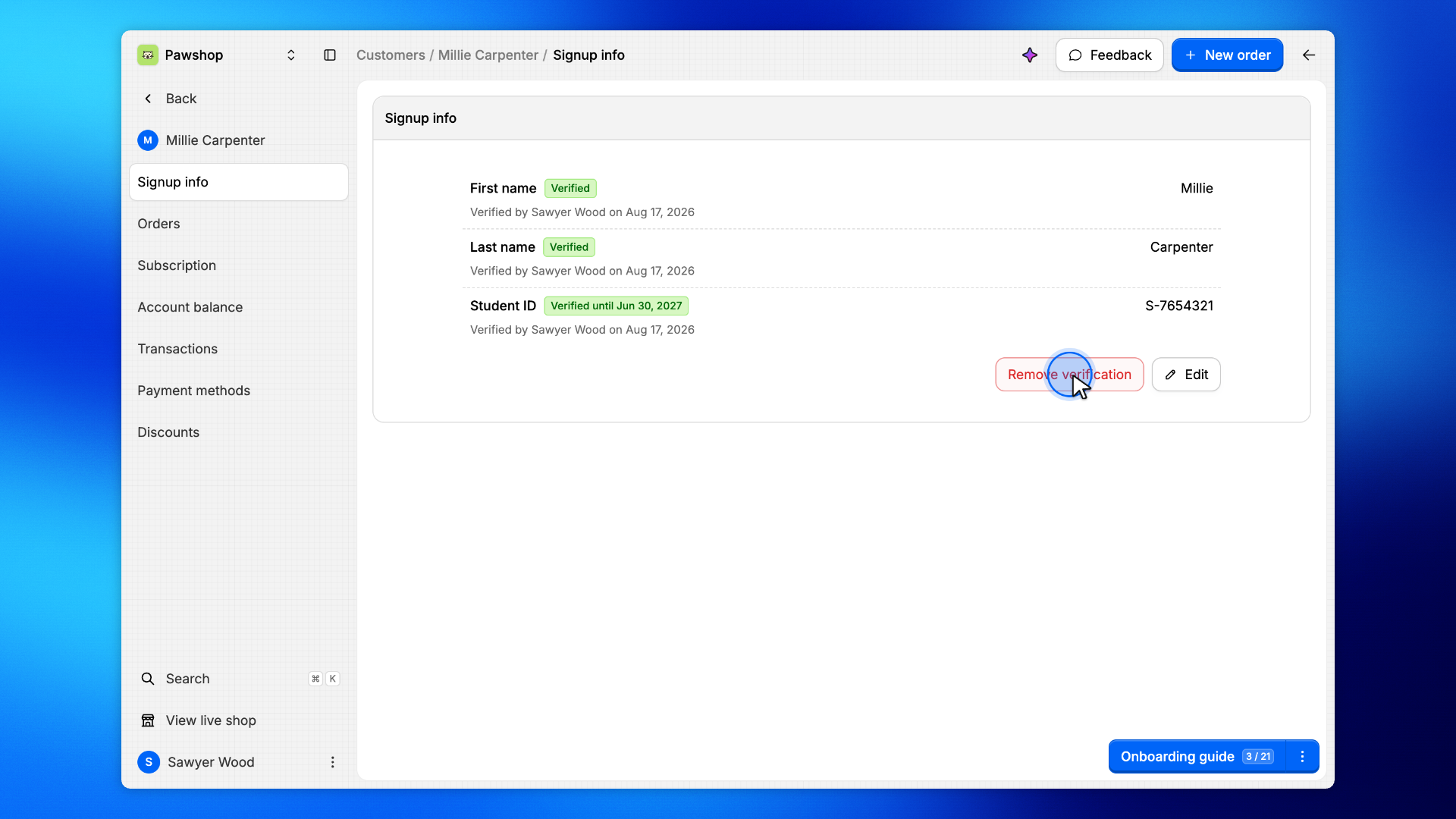
Click Remove verification, next to Edit under the answers, and confirm.
Every answer needs a new check, and change requests waiting for review are dropped.