Make one item members-only
By Julien RiouxUpdated September 22, 2026
Hold back a single product for members, without changing who can rent everything else.
By Julien Rioux·Updated September 22, 2026
Hold back a single product for members, without changing who can rent everything else.
A rental rule covers every product using it. So if you change a shared rule to members-only, every item on that rule becomes members-only with it.
To hold back one item, give that item a rule of its own from its product page.
Worth knowing before you start: an item's own rule replaces the shared rule completely, fees and rental period included. That is why the form opens pre-filled with the rule the item was using, so you only change who can rent it and leave the pricing as it was.
Go to Inventory and open the item you want to hold back.
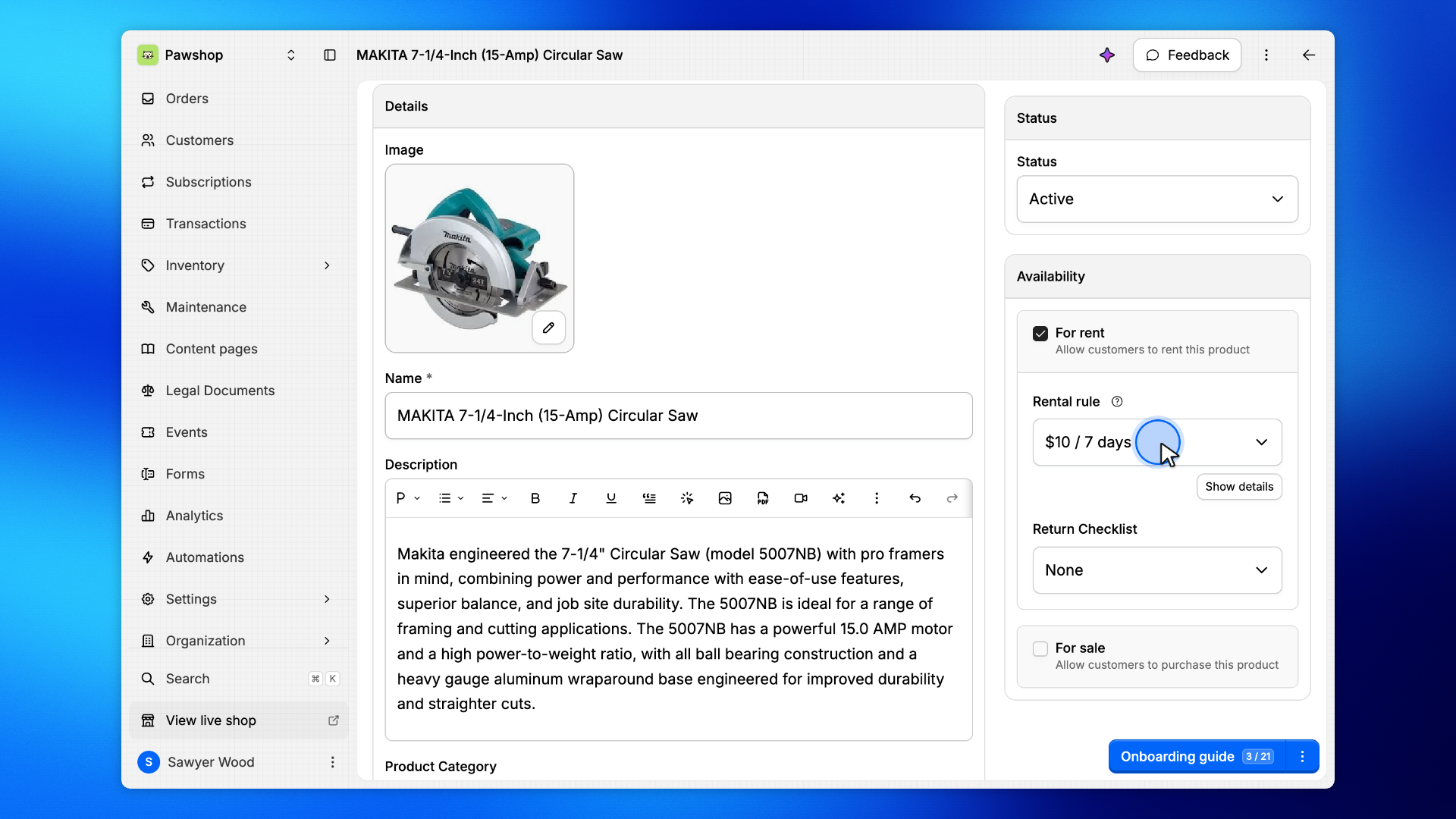
Rental Rule shows which rule it uses today. Every other product on that rule is unaffected by what follows.
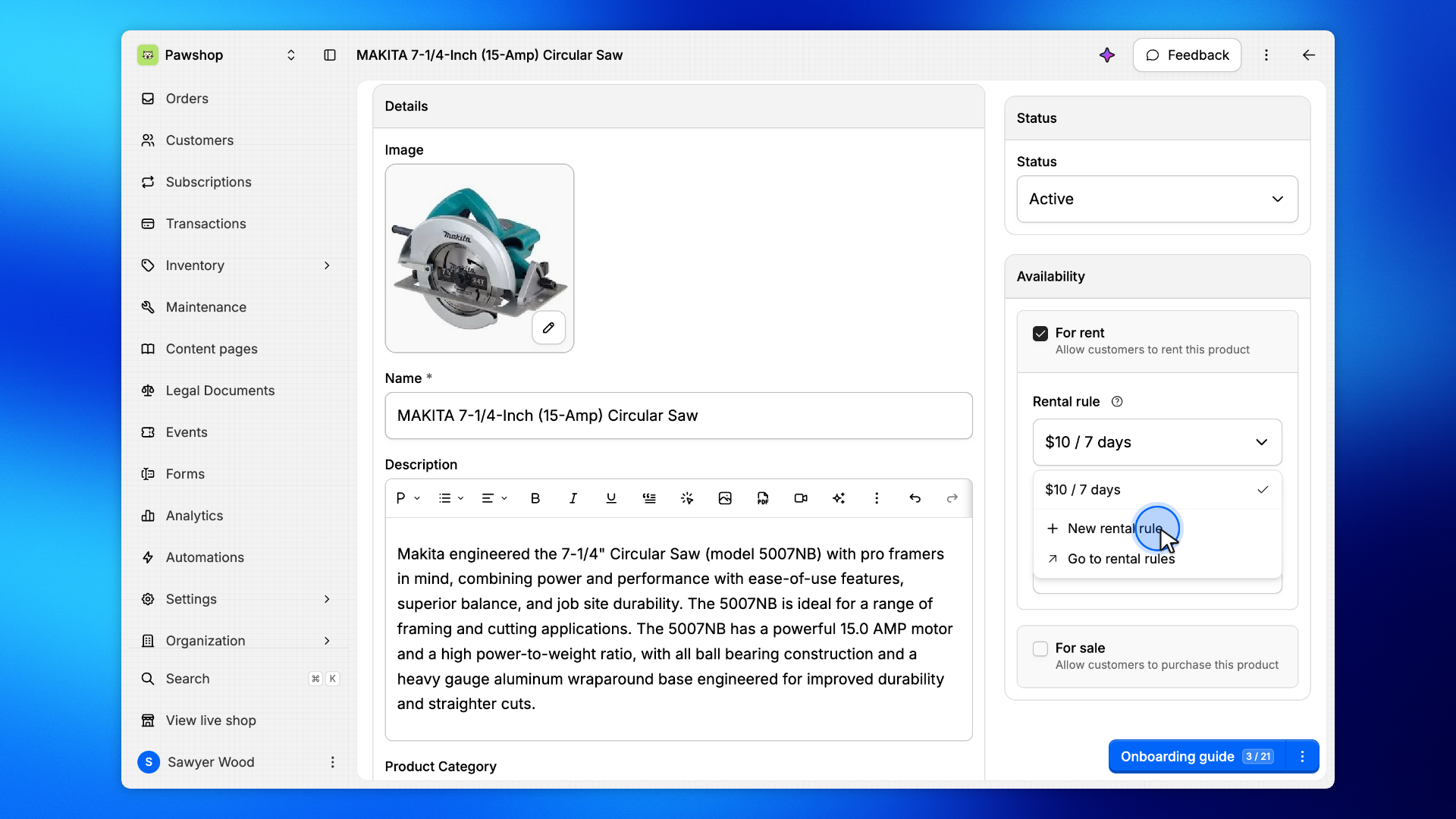
In the Rental Rule menu, pick New rental rule.
This makes a rule that belongs to this product alone. The list above it is your shared rules, and picking one of those would move the item onto a rule other products use too.
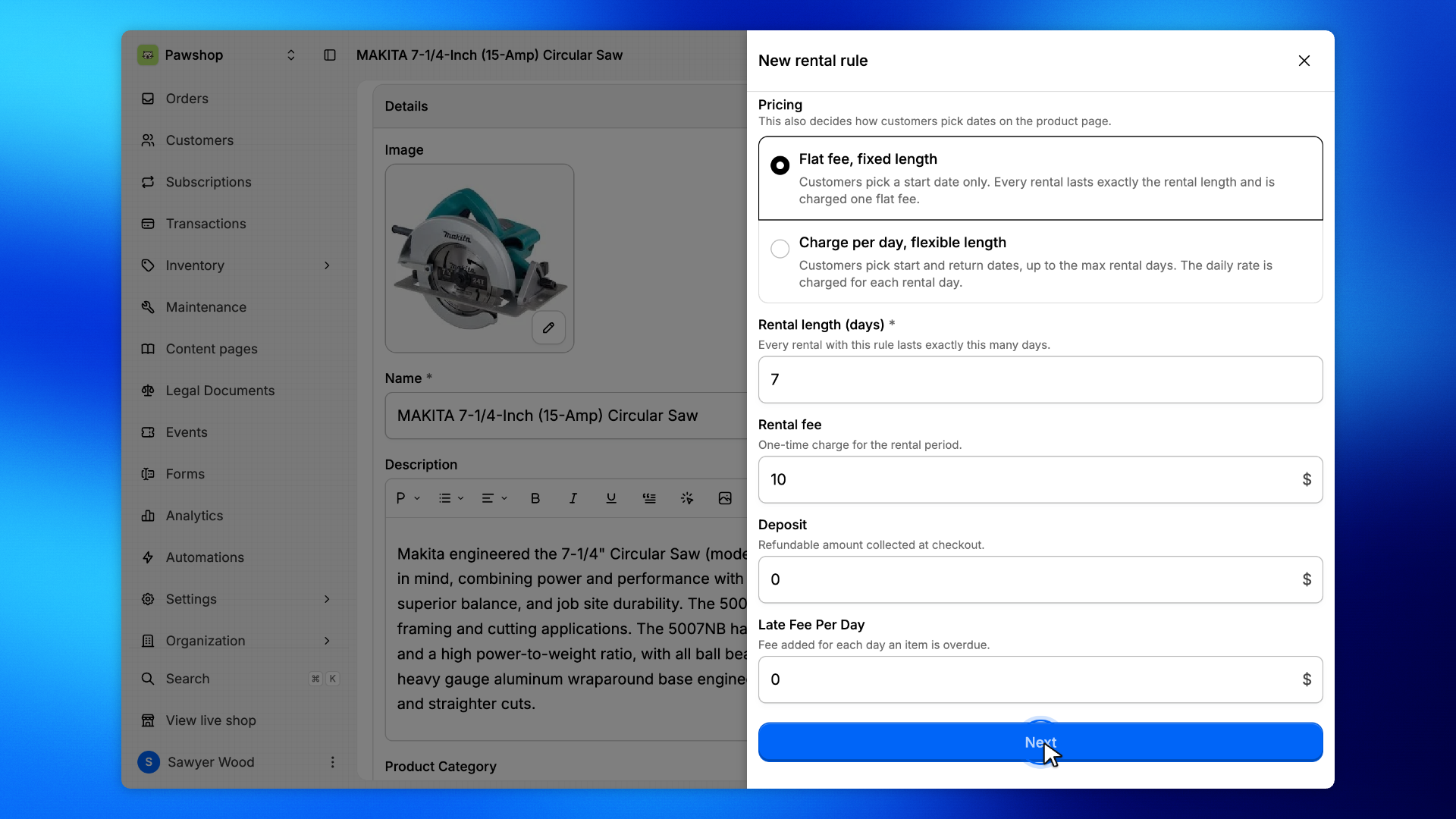
The form opens with the fees and rental period already filled in from the rule the item was using, so nothing about its pricing changes.
Click Next. Who can rent these items is on the second step.
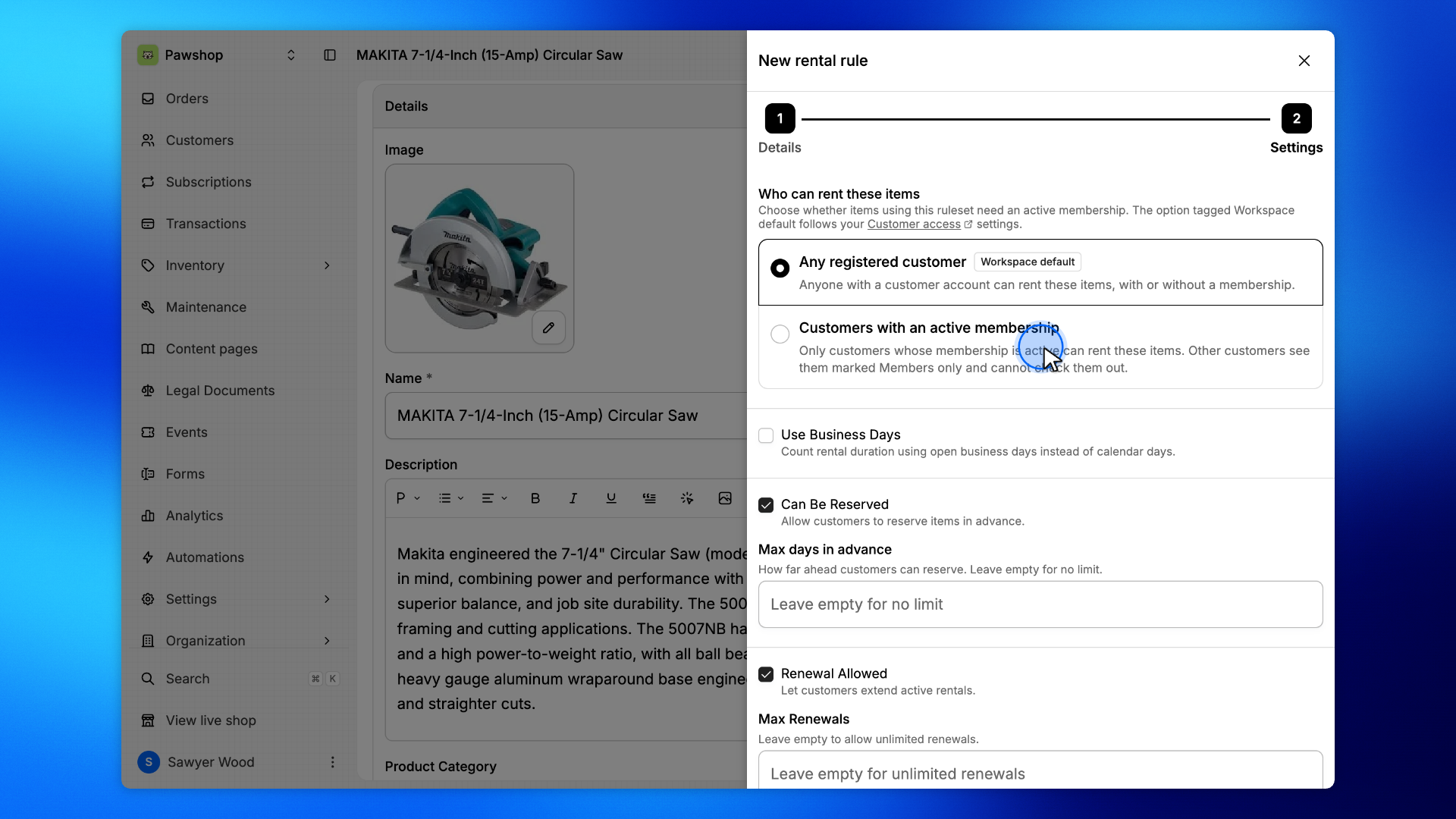
Under Who can rent these items, choose Customers with an active membership.
The option tagged Workspace default is what your Settings › Customer access choice does today. Picking the other one pins this item, so it stays members-only even if you change that setting later.
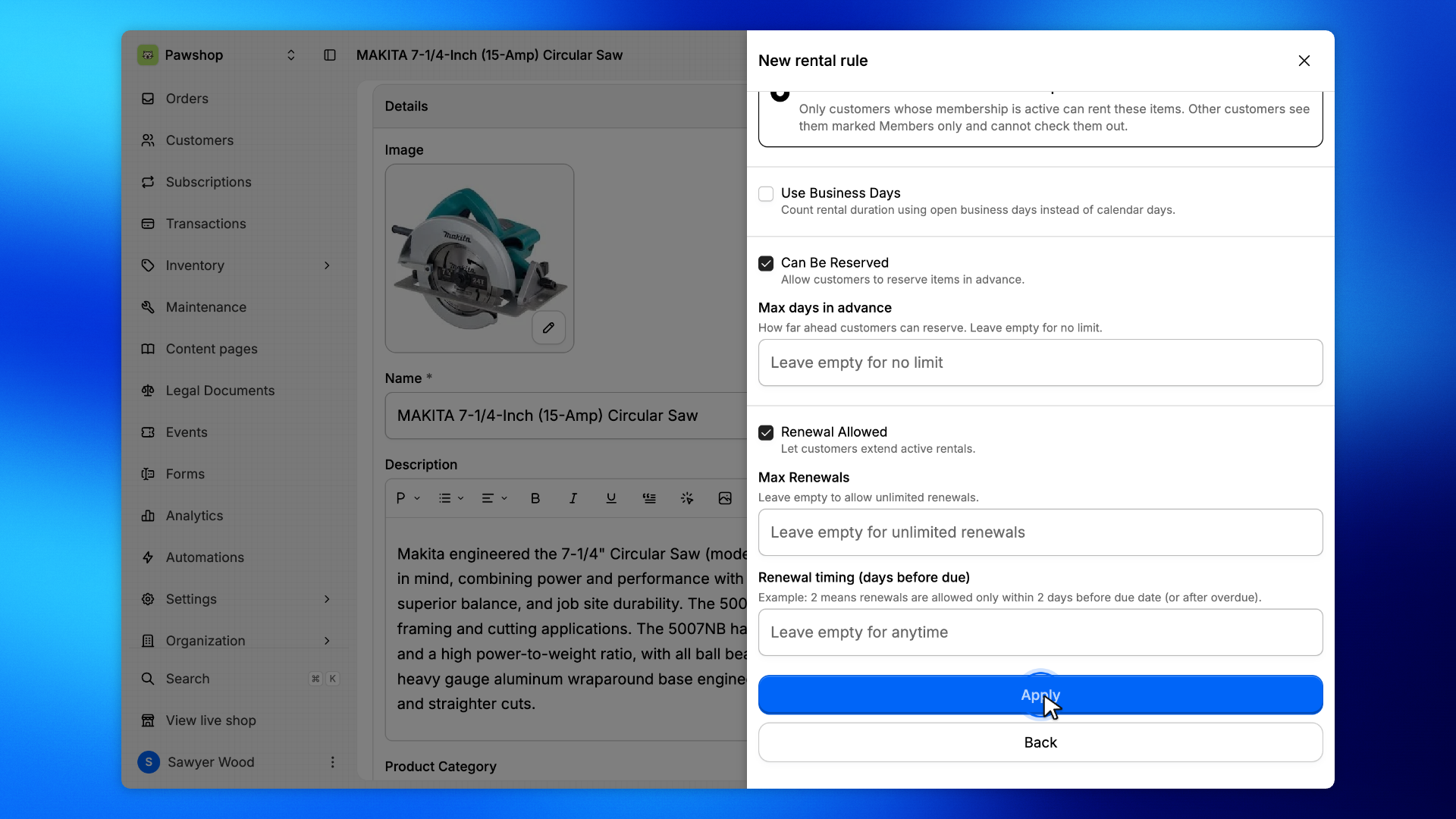
Click Apply. You are asked whether to keep the rule for reuse: choose No, apply only so it belongs to this item alone.
Then Save the product. The item now shows Members only in your shop, and the notice at checkout names it for anyone who cannot rent it yet.