Manage access with roles
By JulienUpdated August 31, 2026
Access Control lets you decide what people can do in your workspace.
By Julien·Updated August 31, 2026
Access Control lets you decide what people can do in your workspace.
Access Control lets you decide what people can do in your workspace.
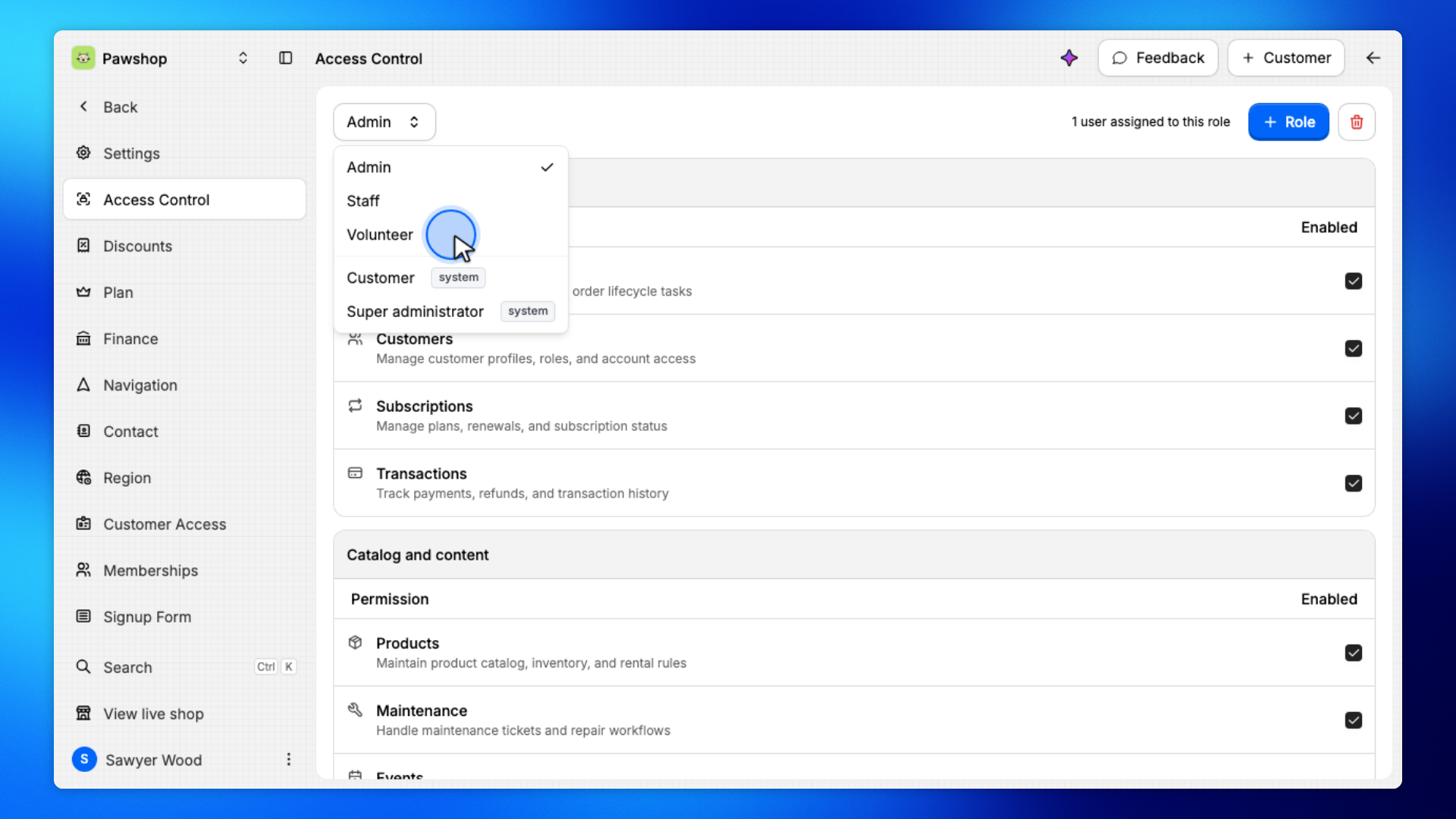
Each role controls two things:
Modules: which parts of the workspace someone can access, such as Orders, Inventory, or Customers.
Locations: which locations they can access.
After creating a role, you assign it to the people who should have those permissions.
For example, you could create a Front Desk role that can access Orders and Customers, but only at one location.
From your workspace, open Settings, then Access Control.
This page contains the roles available in your workspace and the permissions attached to each one.
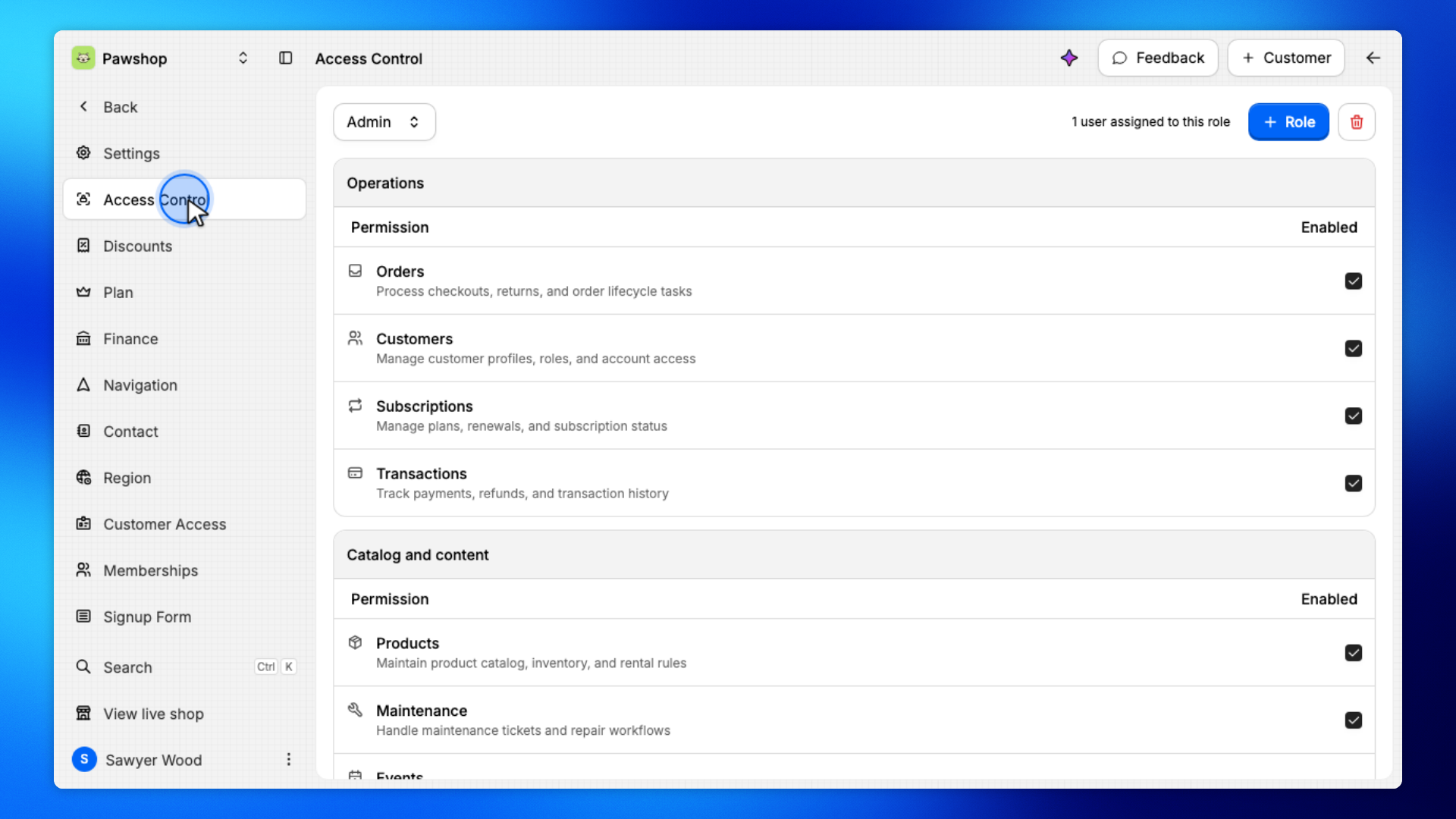
Create a new role when the existing roles don't match the access you want to give someone.
For example, you might create separate roles for volunteers, front-desk staff, inventory managers, or location managers.
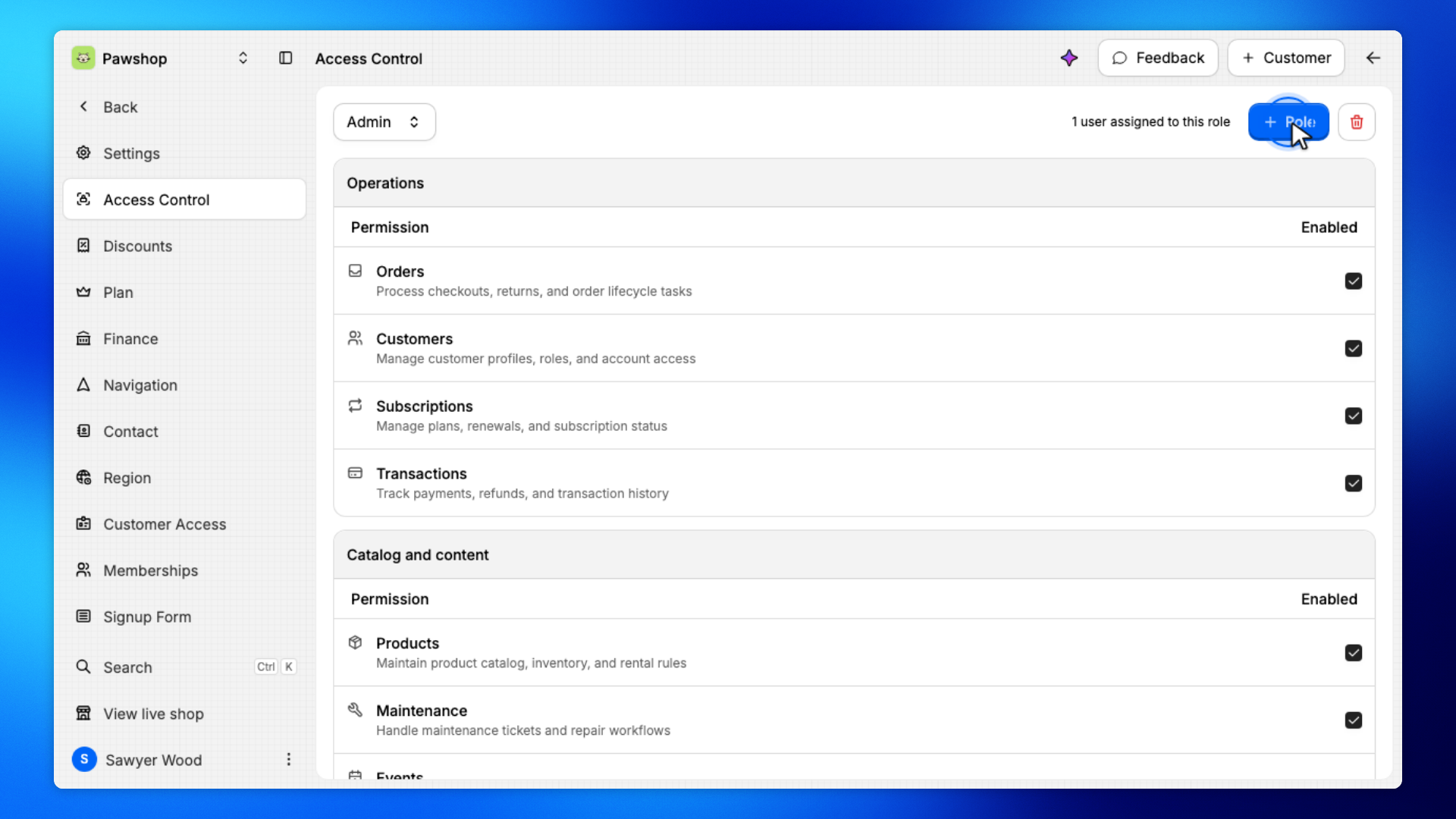
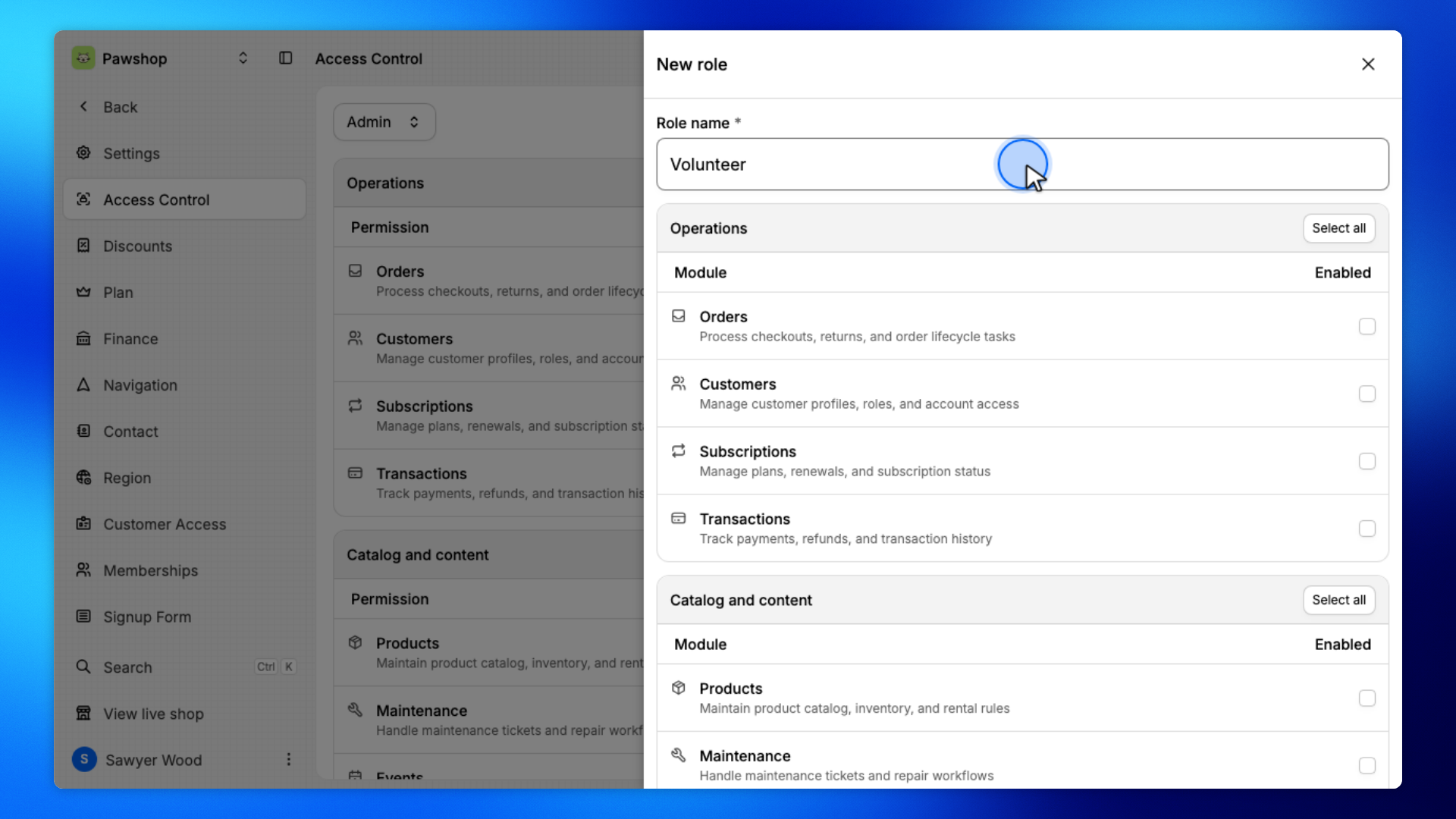
Give the role a name that describes who it is for, such as Volunteer, Front Desk, or Location Manager.
The name will also appear when you assign the role to someone later.
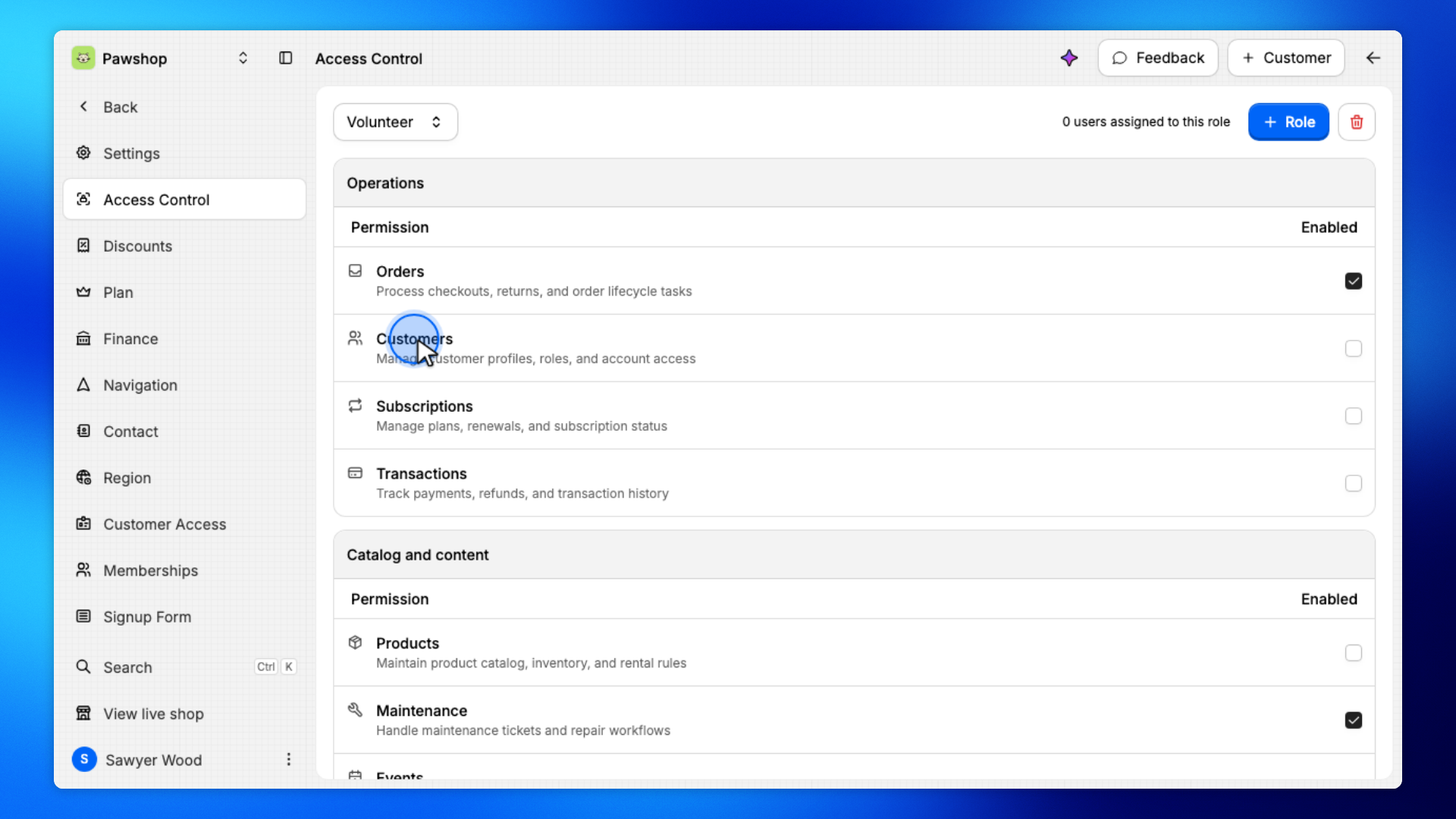
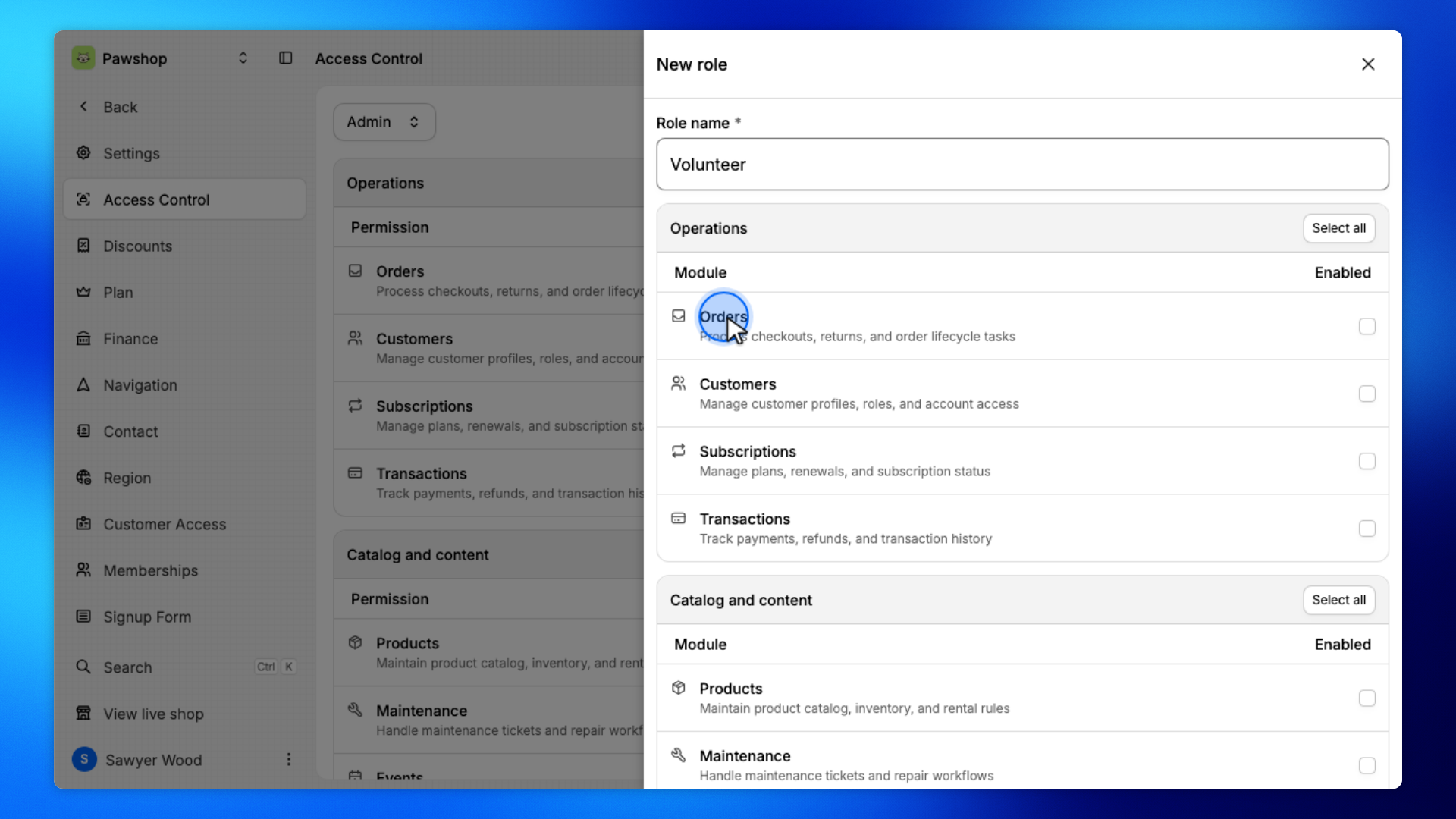
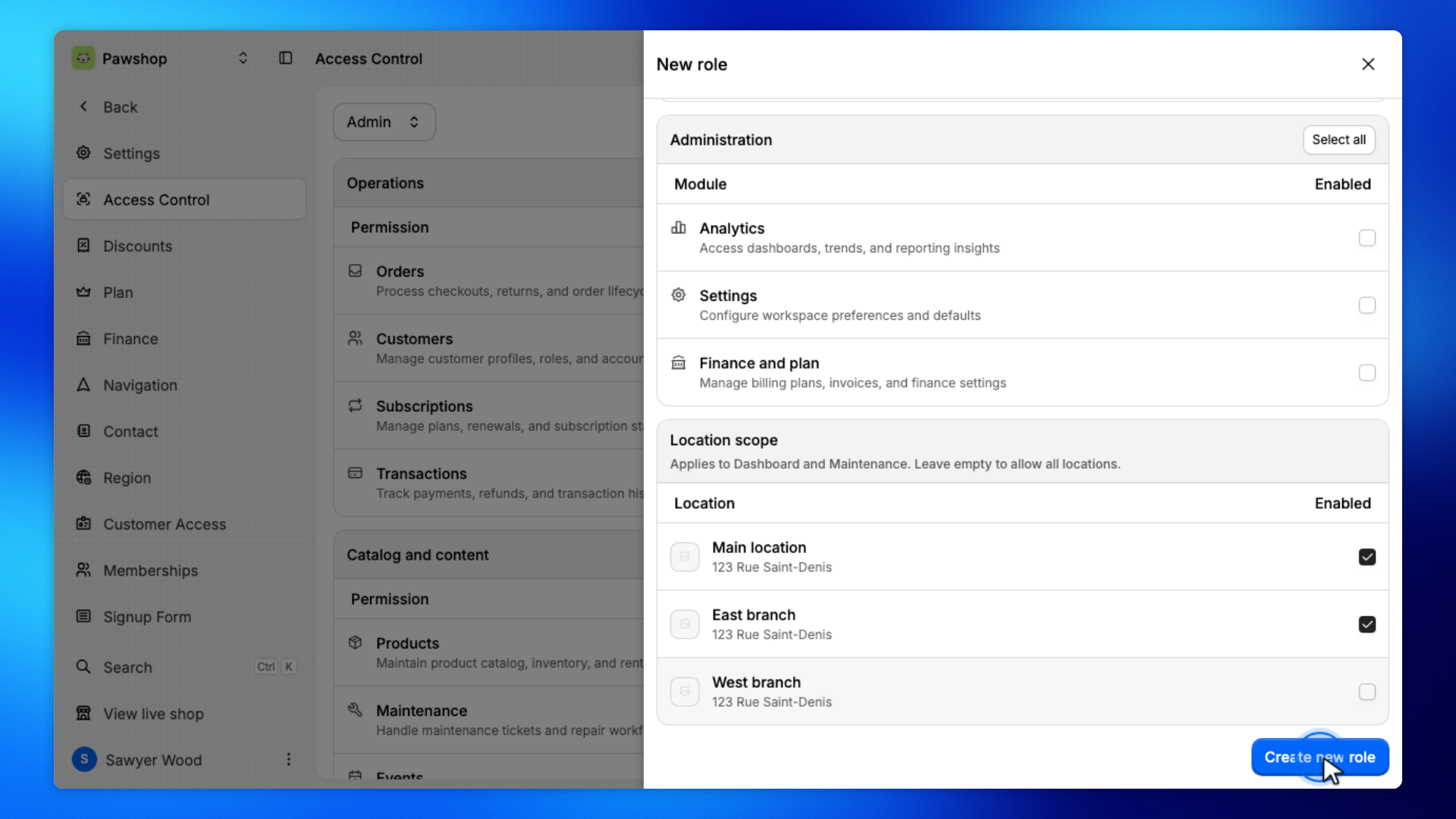
Turn on the modules people with this role should be able to open.
New roles start without access to any modules, so you can add only what the role needs.
For example, a volunteer helping with returns might need access to Orders and Customers, but not Settings.
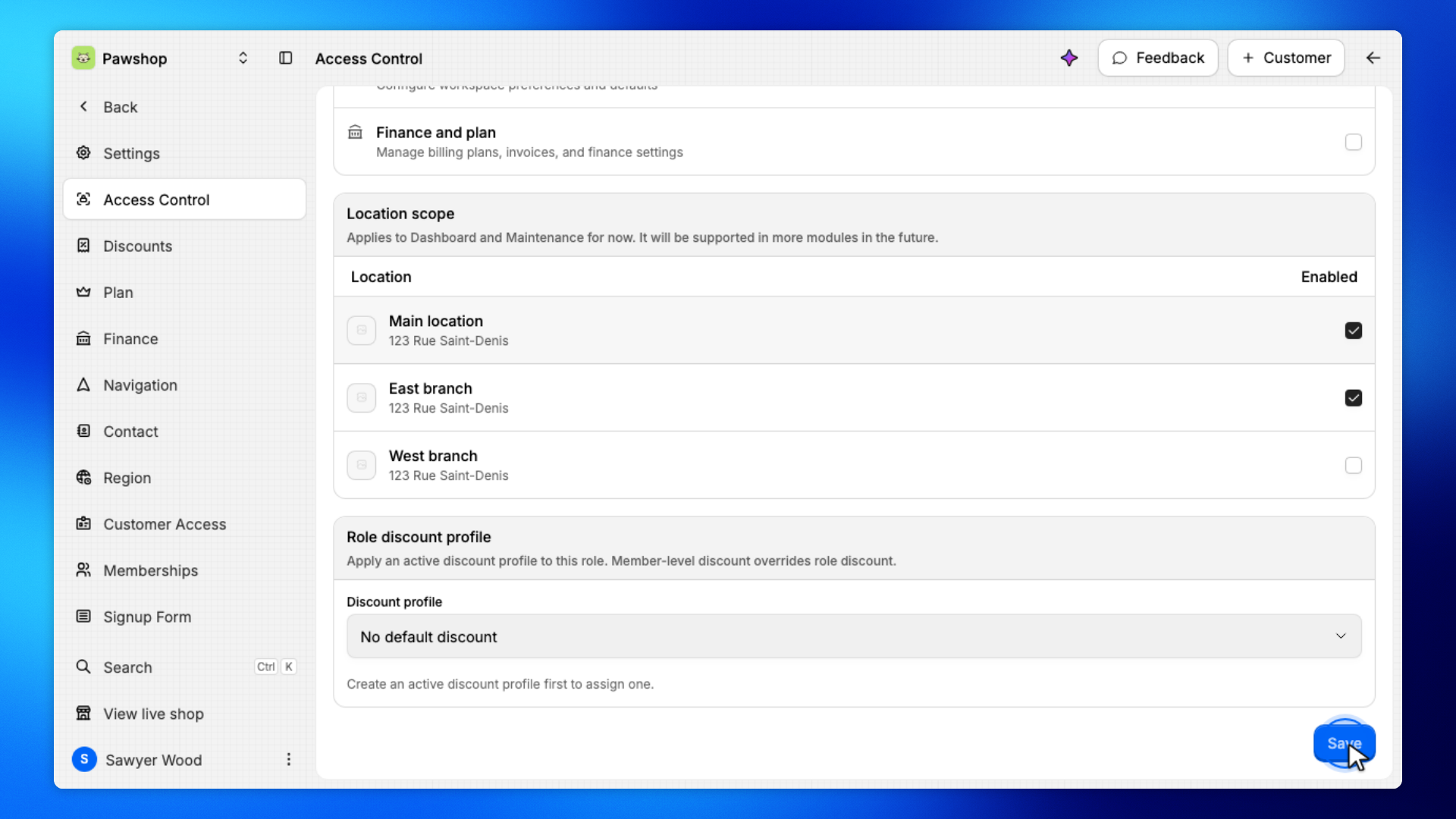
Use Location scope to control where the role can be used.
Keep the locations this role should have access to enabled and disable the others.
This is useful when someone works at only one location or should not be able to manage activity elsewhere.
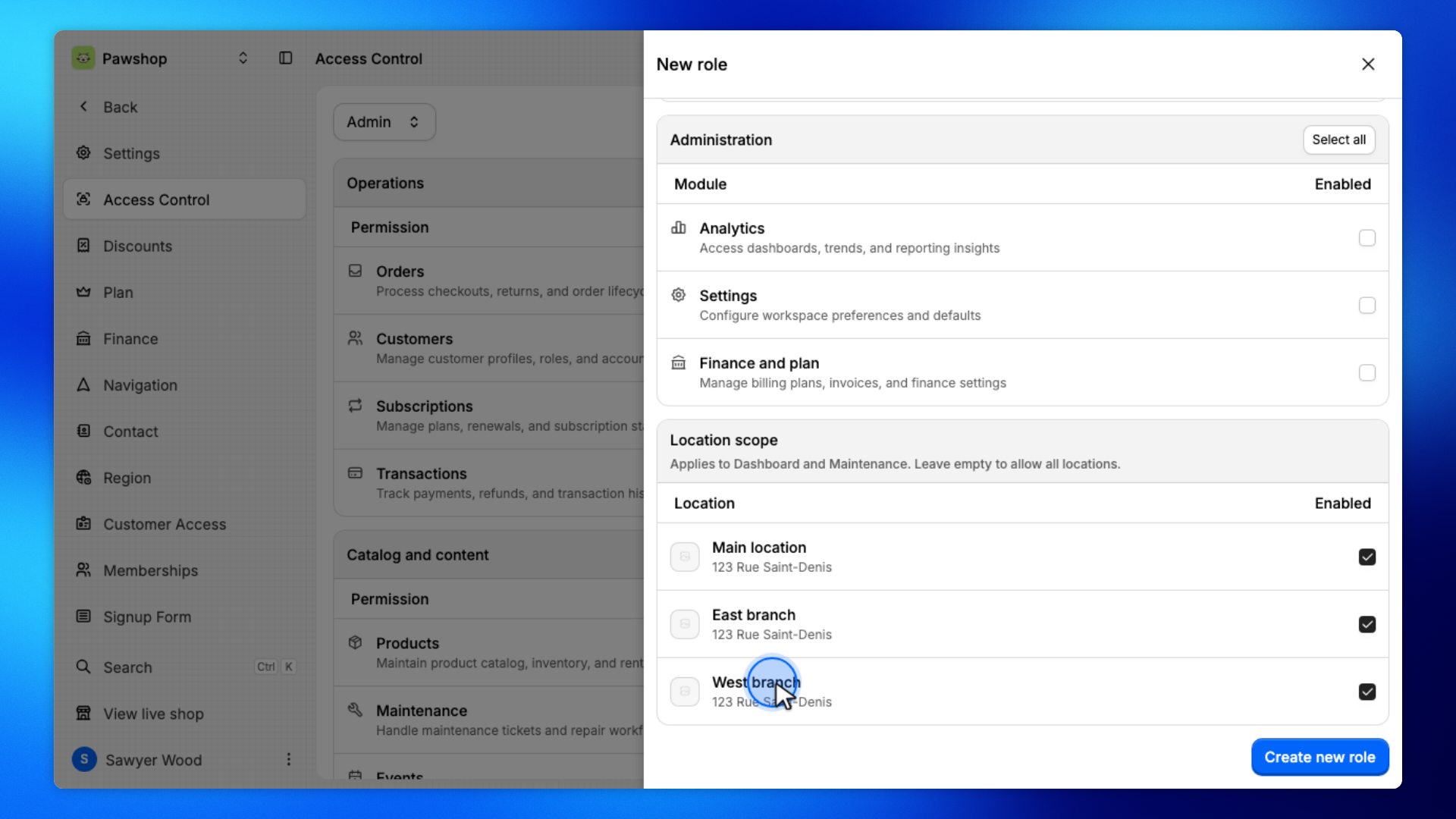
Save your changes to create the role.
At this point, you've created a set of permissions, but nobody has been given those permissions yet.
Next, assign the role to the people who should use it.
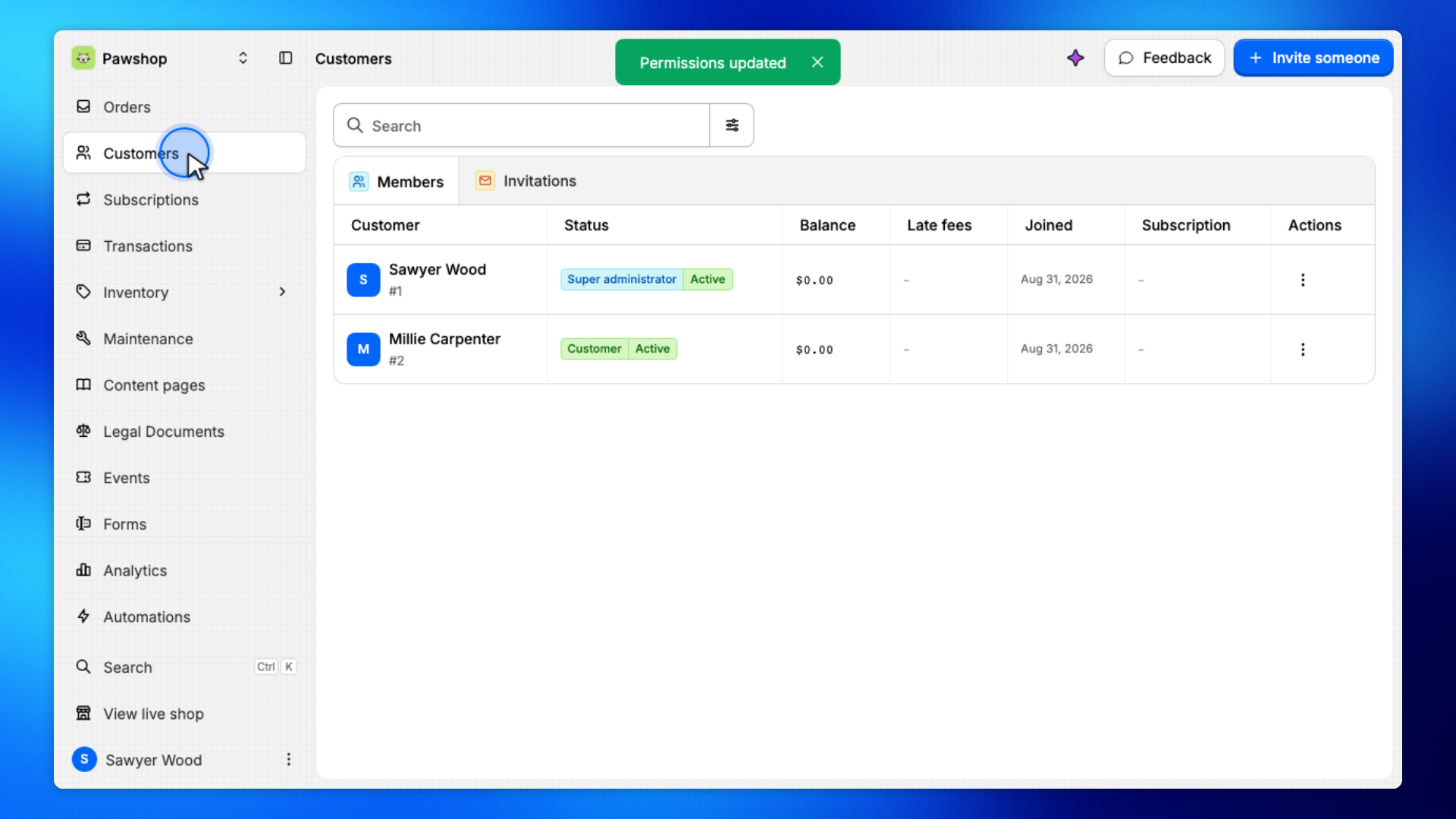
Roles are assigned from the person's account rather than from Access Control.
Open Customers from the sidebar.
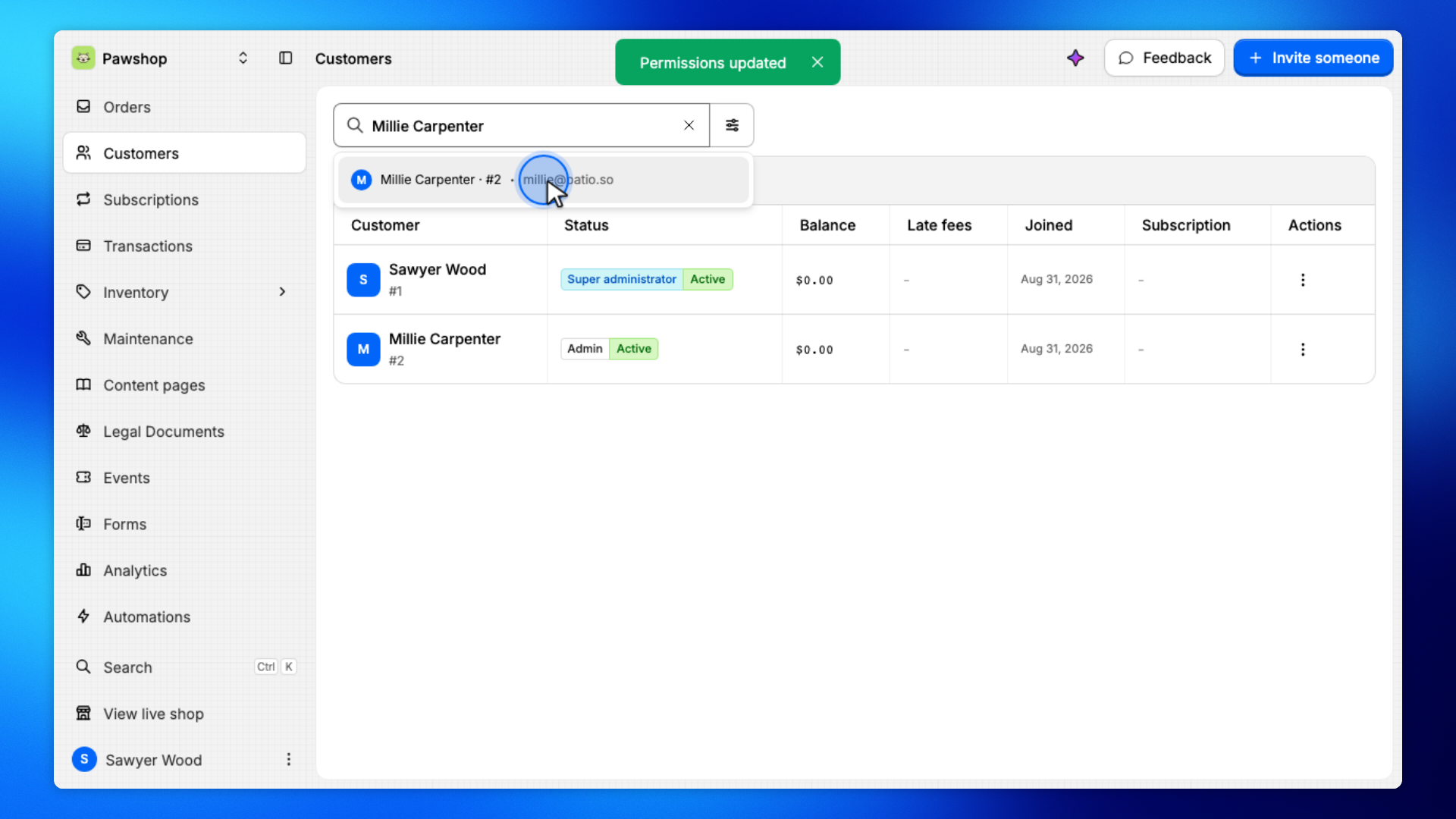
Search for the person by name or email and open their account.
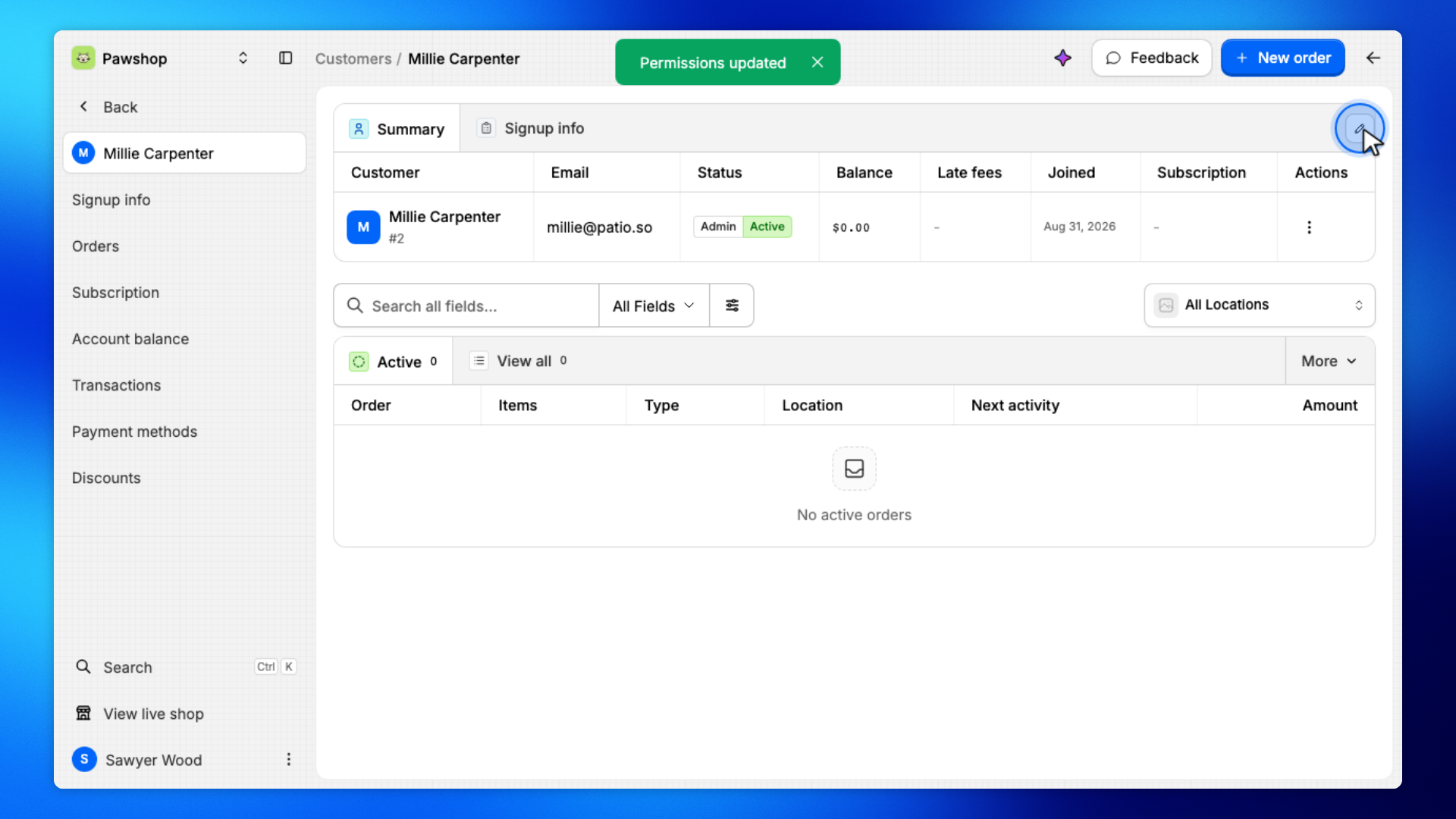
Open Edit customer information.
Under Role, select the role you want to assign.
The person will receive the module and location access configured for that role.
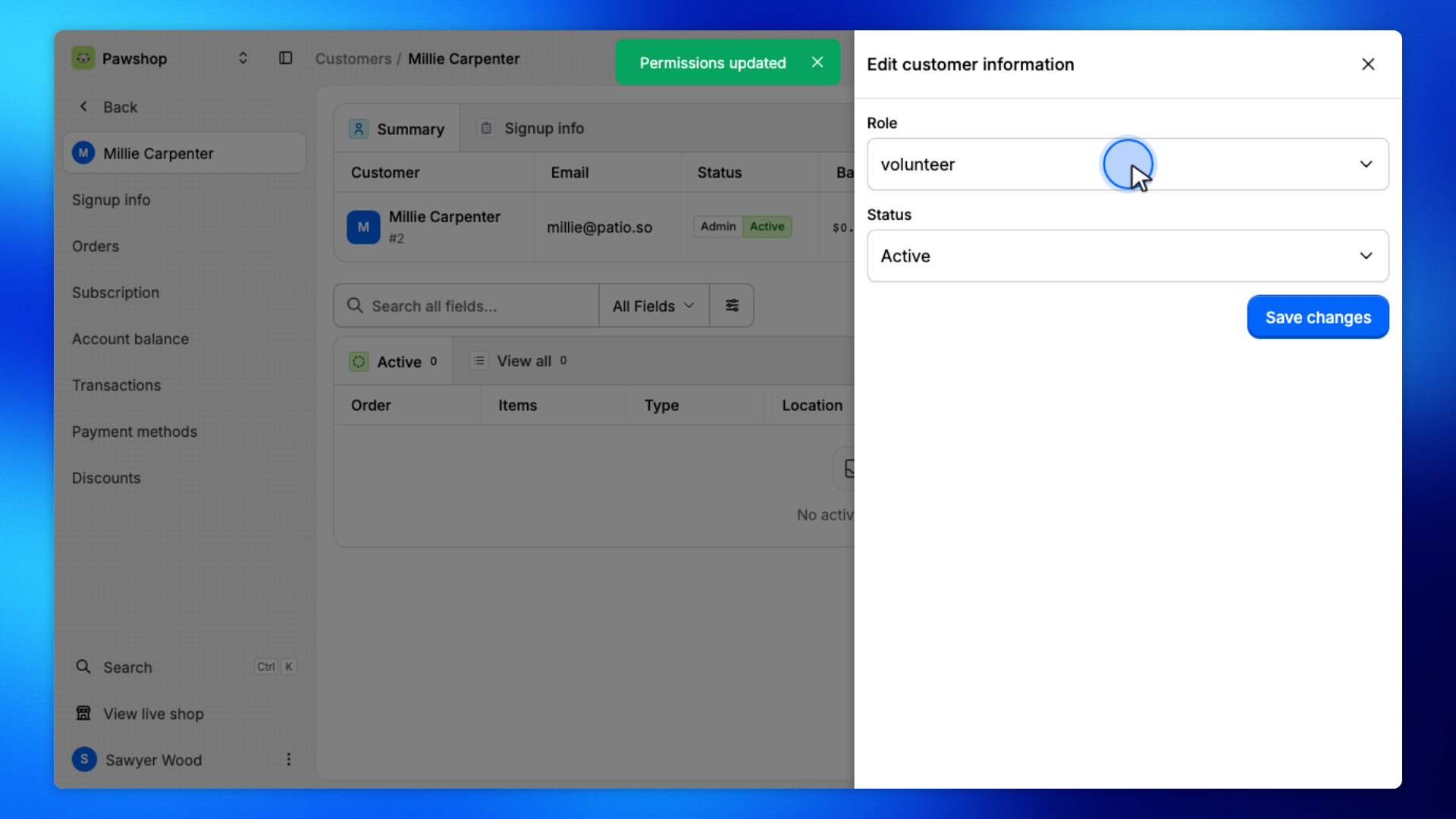
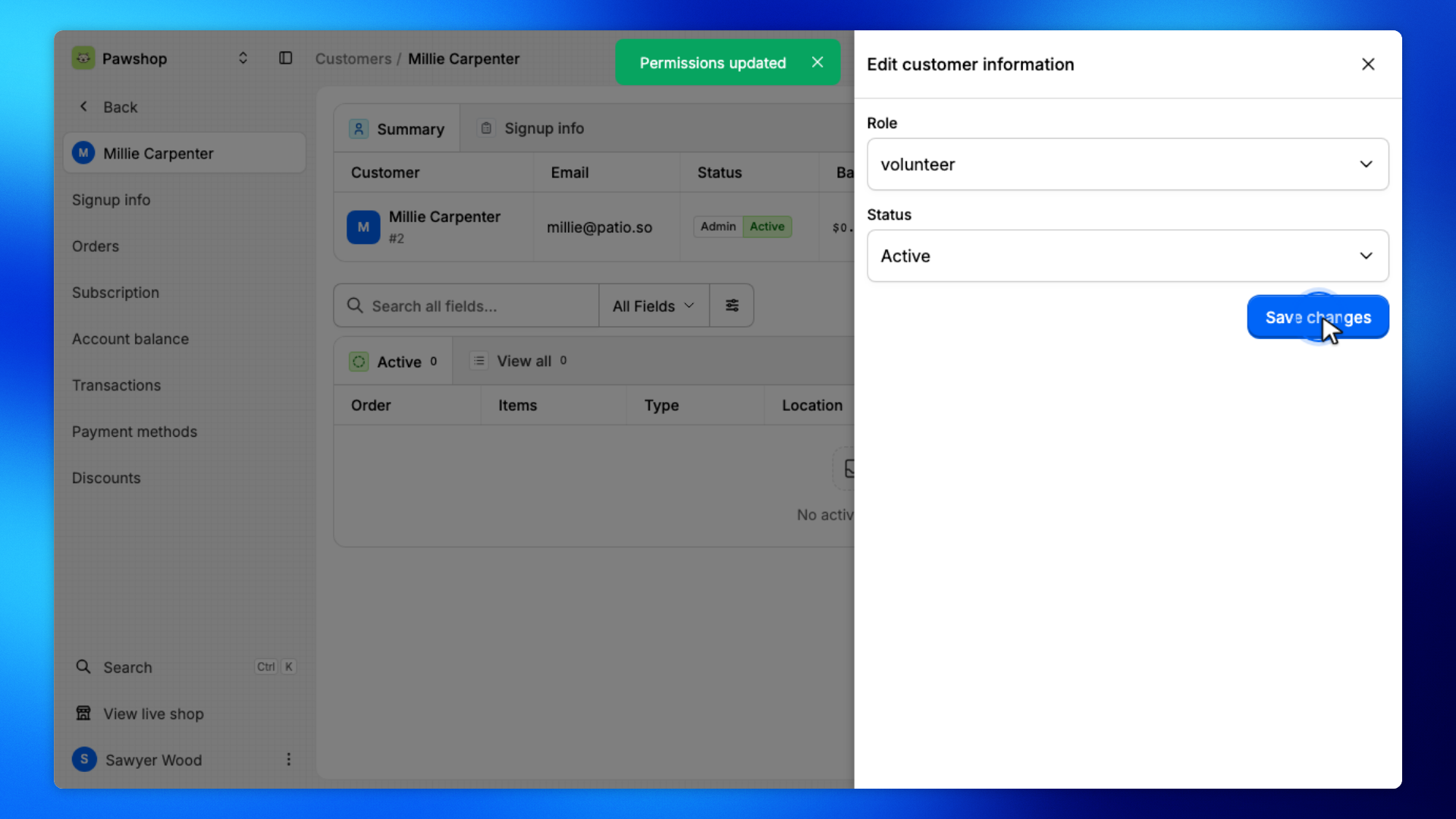
Save the account.
The person can now access the workspace according to the permissions of their assigned role.
You can update a role at any time instead of editing each person individually.
Open Settings, then Access Control, and select the role you want to change.
Turn modules or locations on or off, then save your changes.
Everyone assigned to that role will use the updated permissions, so changes to a role can affect multiple people at once.