Settings › Customer verification lists the answers your staff verify in person, like a student ID or a home address.
Staff compare the answers with a card or document the customer shows, then mark the customer as verified. Patio never stores the document.
Verification comes in two layers. Everyone who rents holds the answers every customer needs verified, member or not. Extra verification adds answers for members of some plans: your student plans can ask for a student ID that your regular plan does not. One extra verification can cover several plans, like a monthly and a yearly student plan. An answer verified once counts for every plan.
Verification applies to rentals only. Purchases are never blocked.
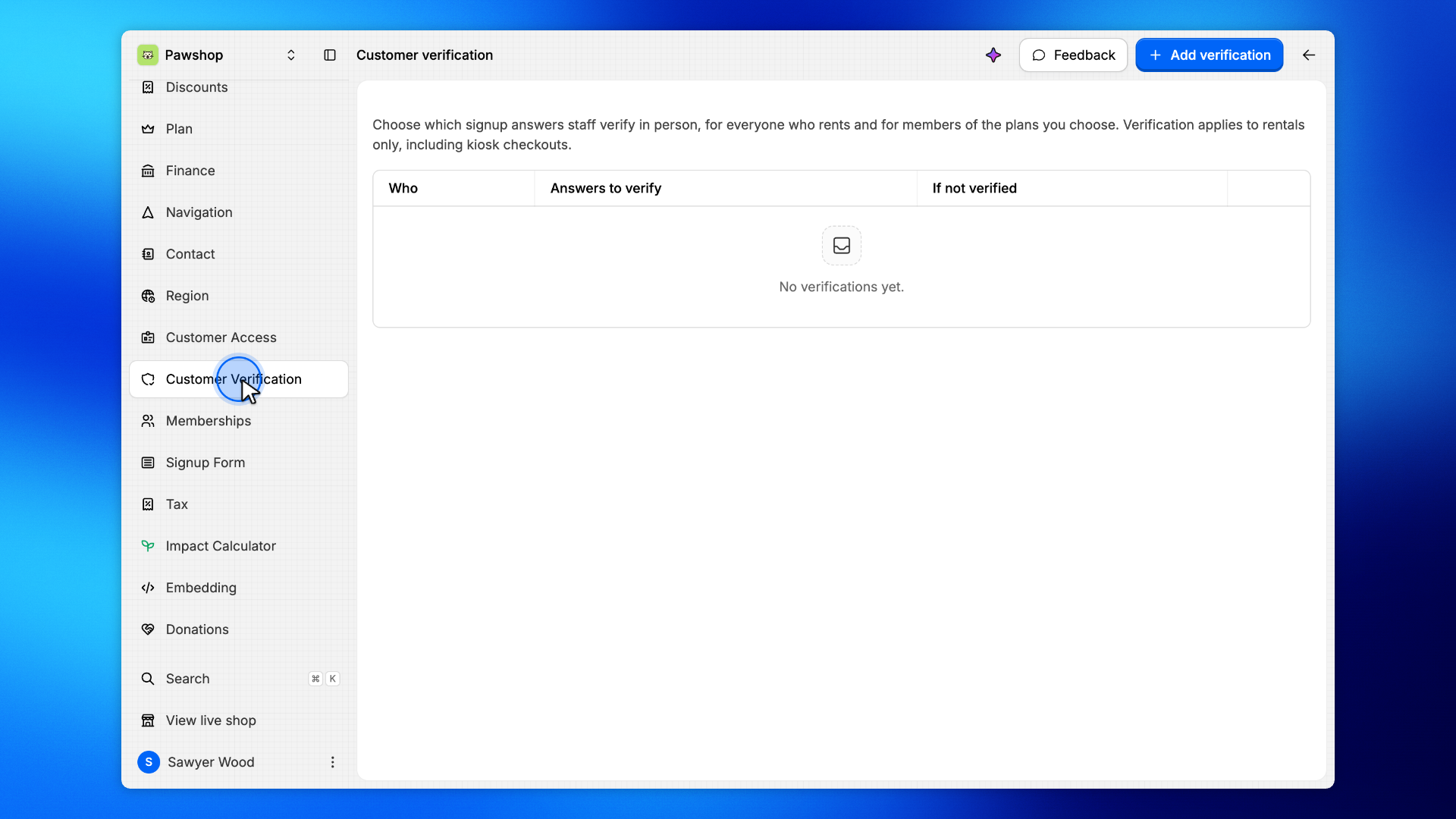
1. Open Customer verification
Go to Settings › Customer verification.
Each row is a verification your staff do at the desk. There are none yet.
2. Add verification for everyone who rents
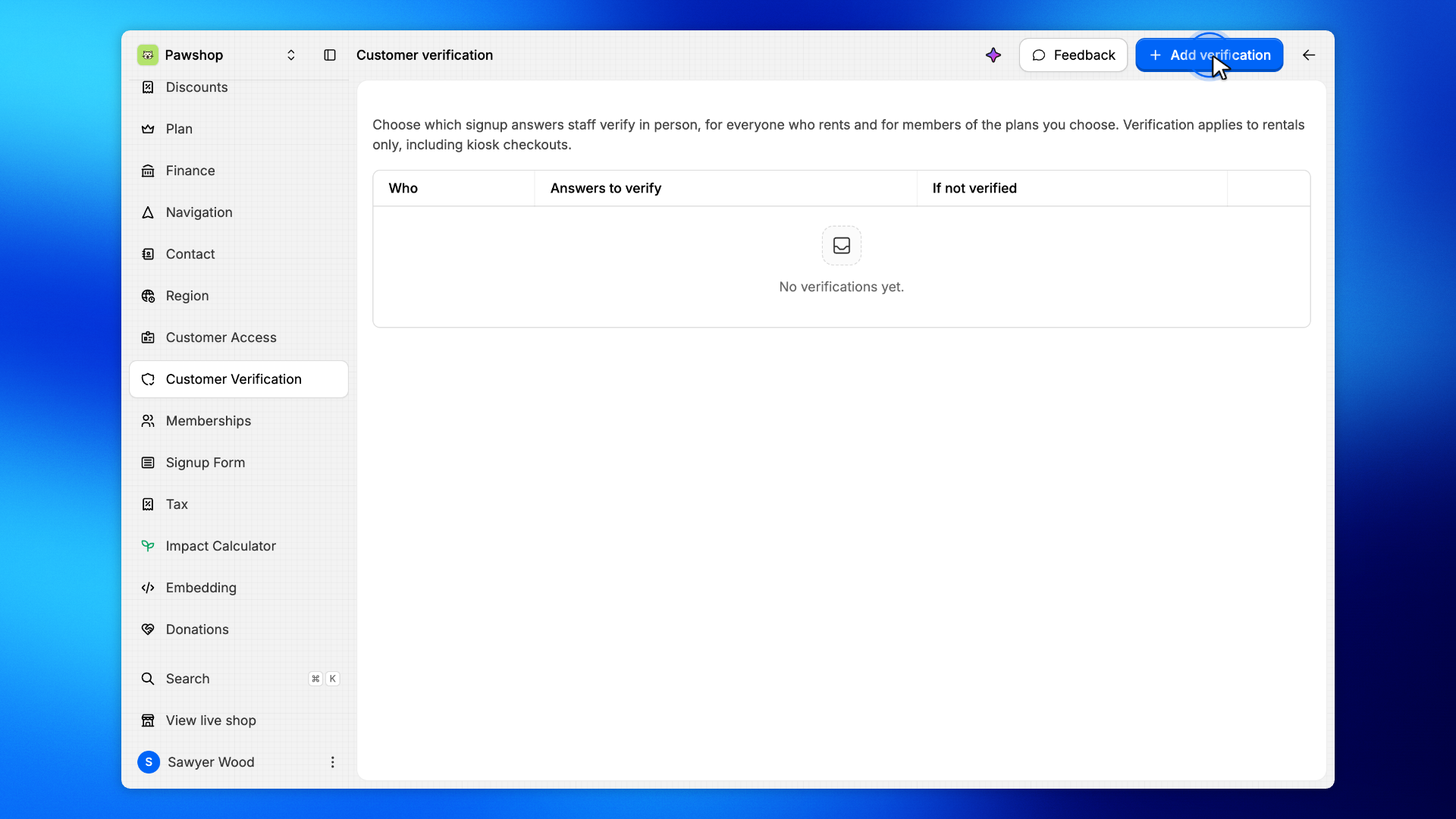
Click Add verification at the top of the page.
The Add verification page opens. Who needs it starts on Everyone who rents: this verification applies to every customer who rents, member or not. The other choice, Members of some plans, adds extra verification for the plans you pick.
3. Choose the answers to verify
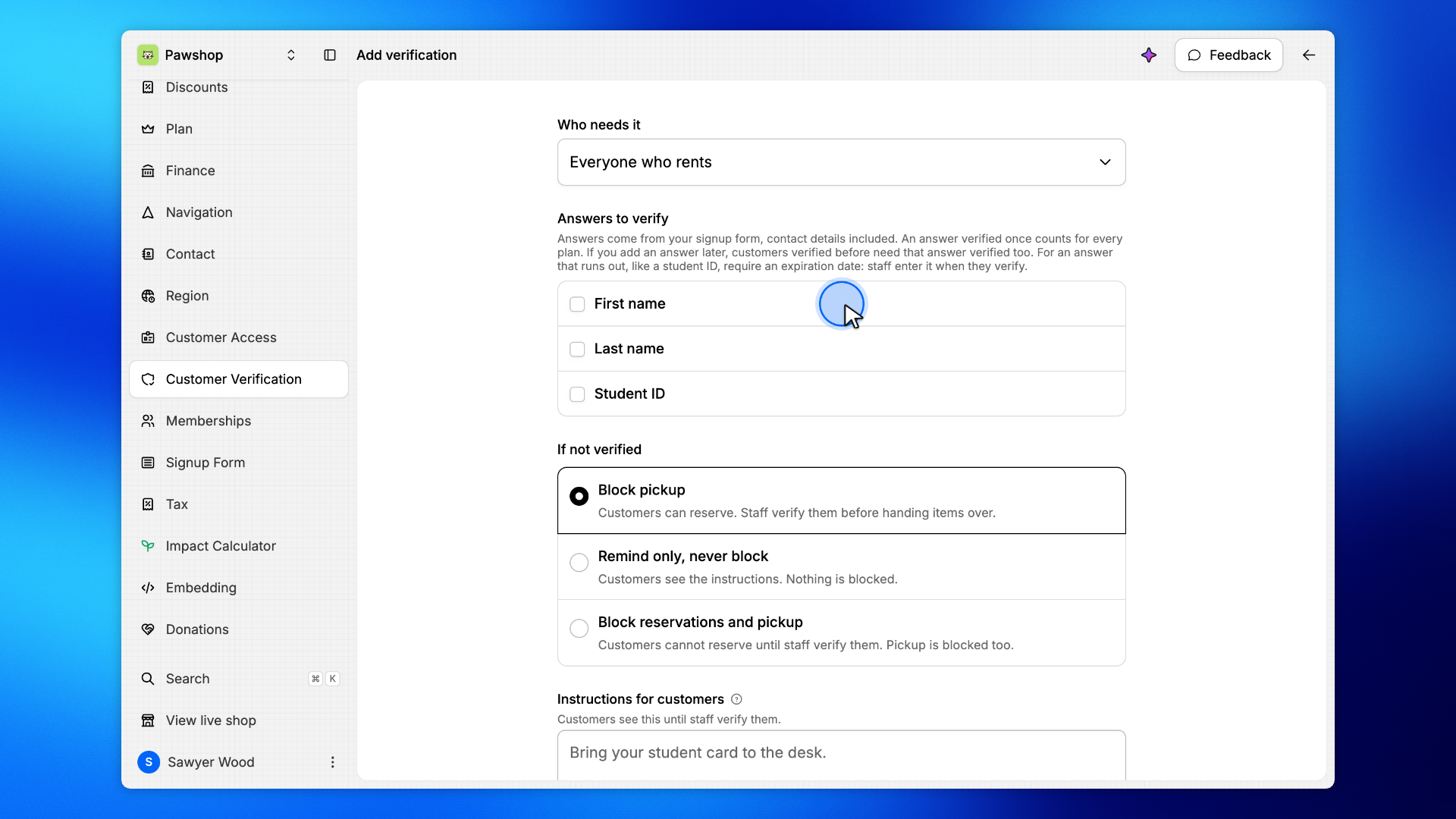
Tick the answers staff verify, here First name and Last name.
The list comes from your signup form, contact details included. If you add an answer later, customers verified before need that answer verified too.
4. Require an expiration date only when an answer runs out
Under each ticked answer, turn on Require expiration date to make staff enter the date the document runs out when they verify that answer, like the end date printed on a student card. Once that date passes, the customer needs a new verification.
A name does not run out, so leave it off for First name and Last name. Their verification never expires.
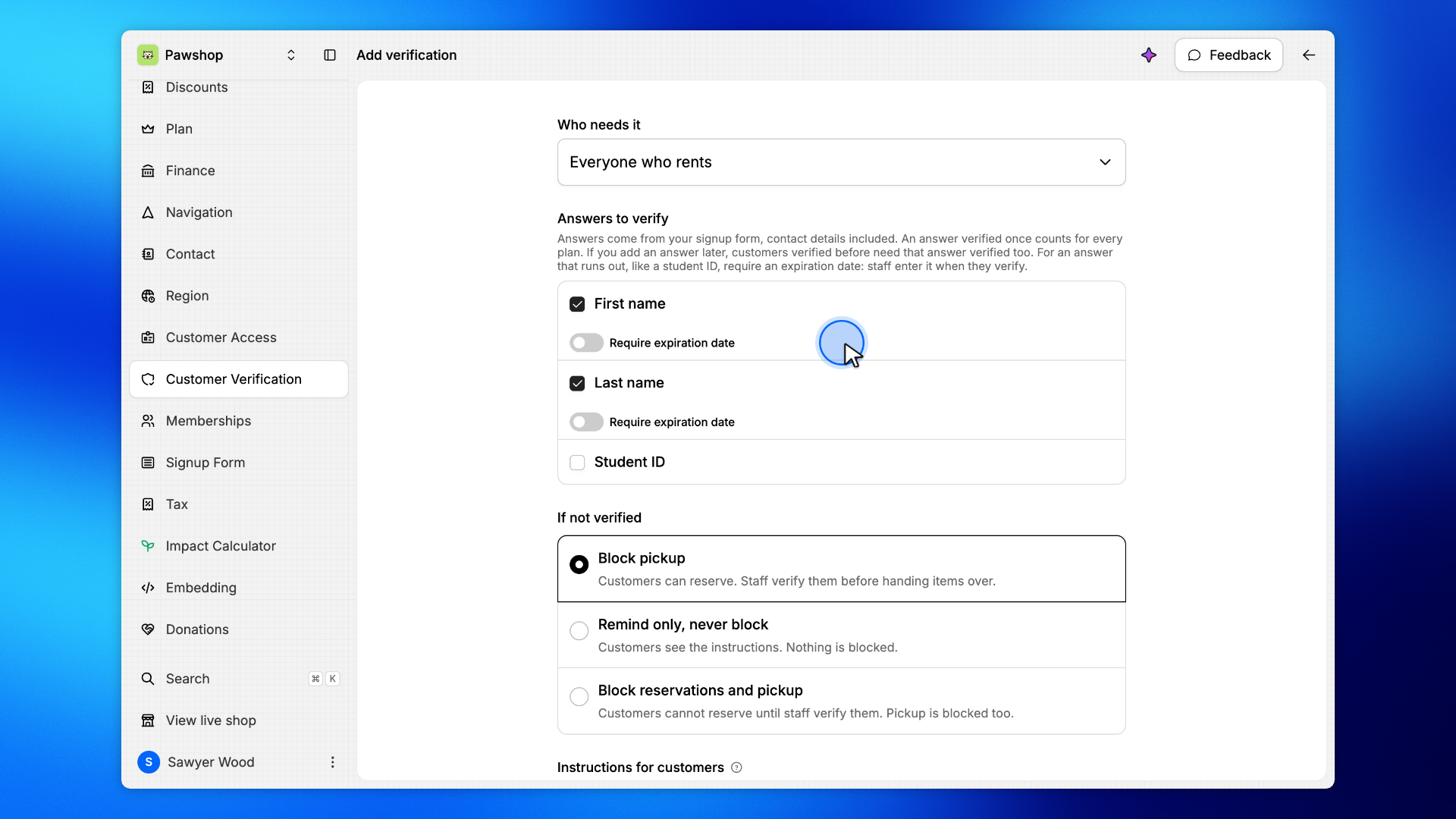
5. Choose what happens if an answer is not verified
Pick Remind only, never block for these answers.
Block pickup lets customers reserve, and staff verify them before handing items over. Remind only, never block reminds the customer and your staff, and never stops a rental. Block reservations and pickup stops online reservations and is checked again at pickup.
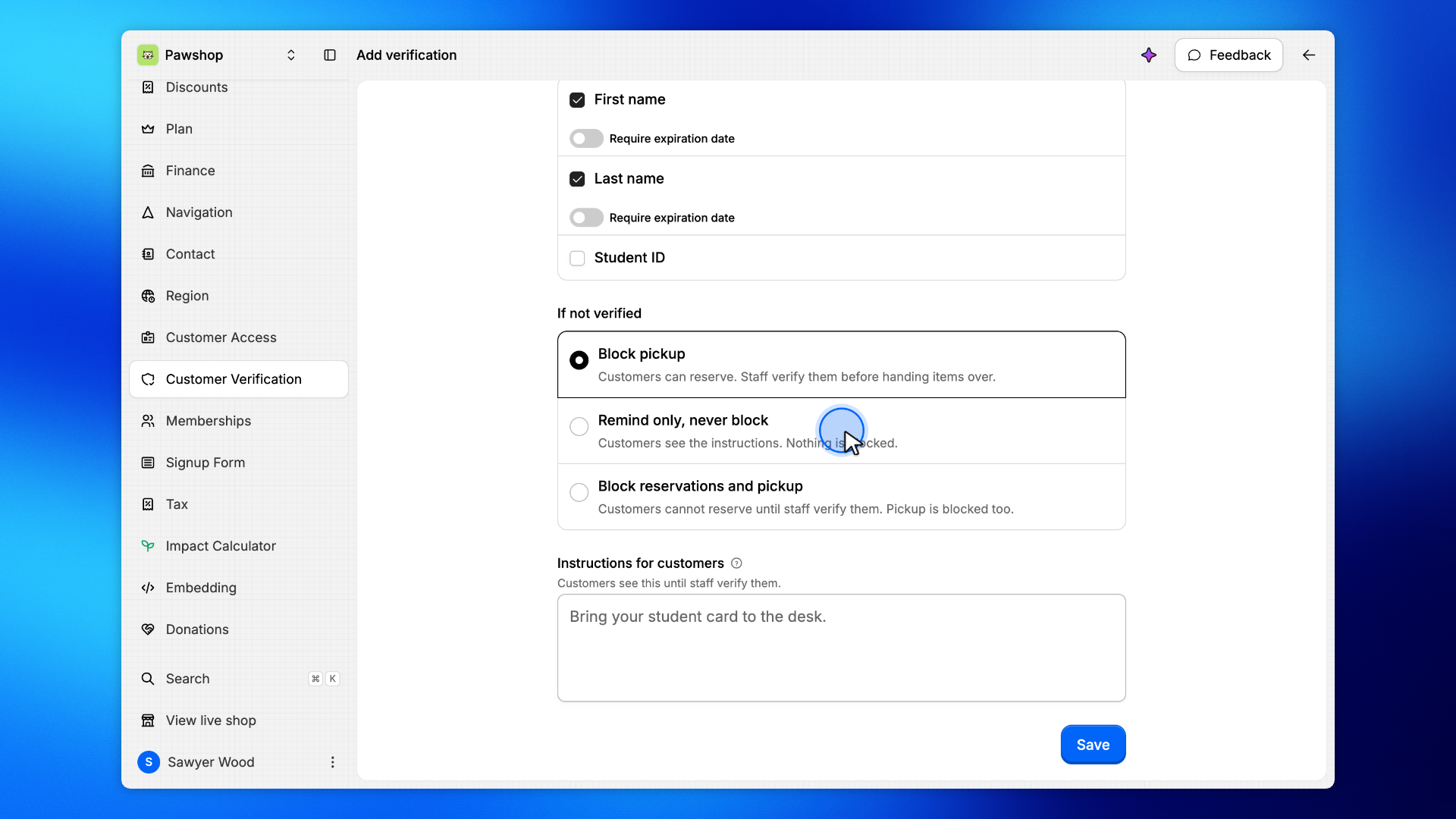
6. Tell customers what to bring
Fill in Instructions for customers.
Customers see them until they are verified.
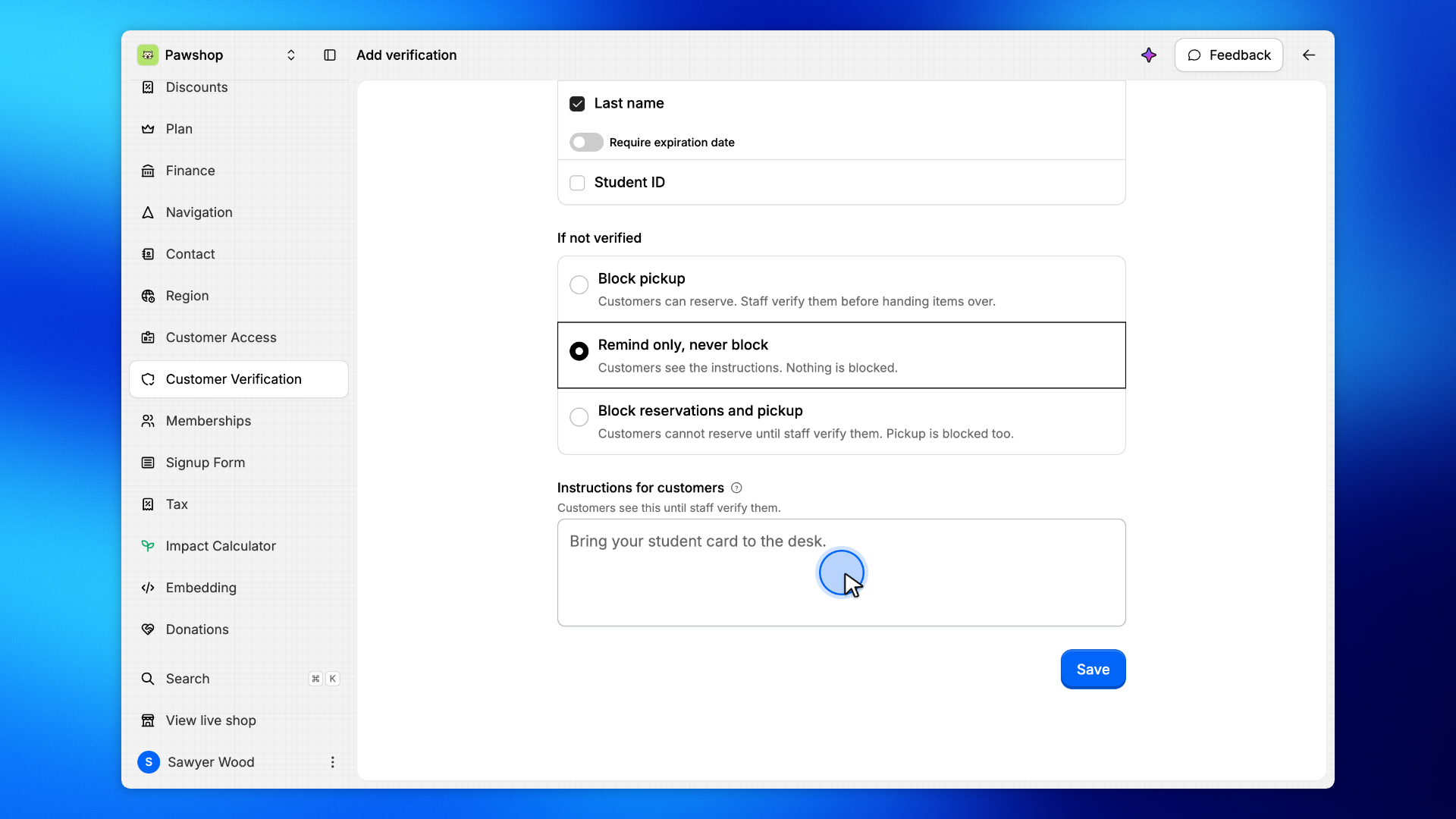
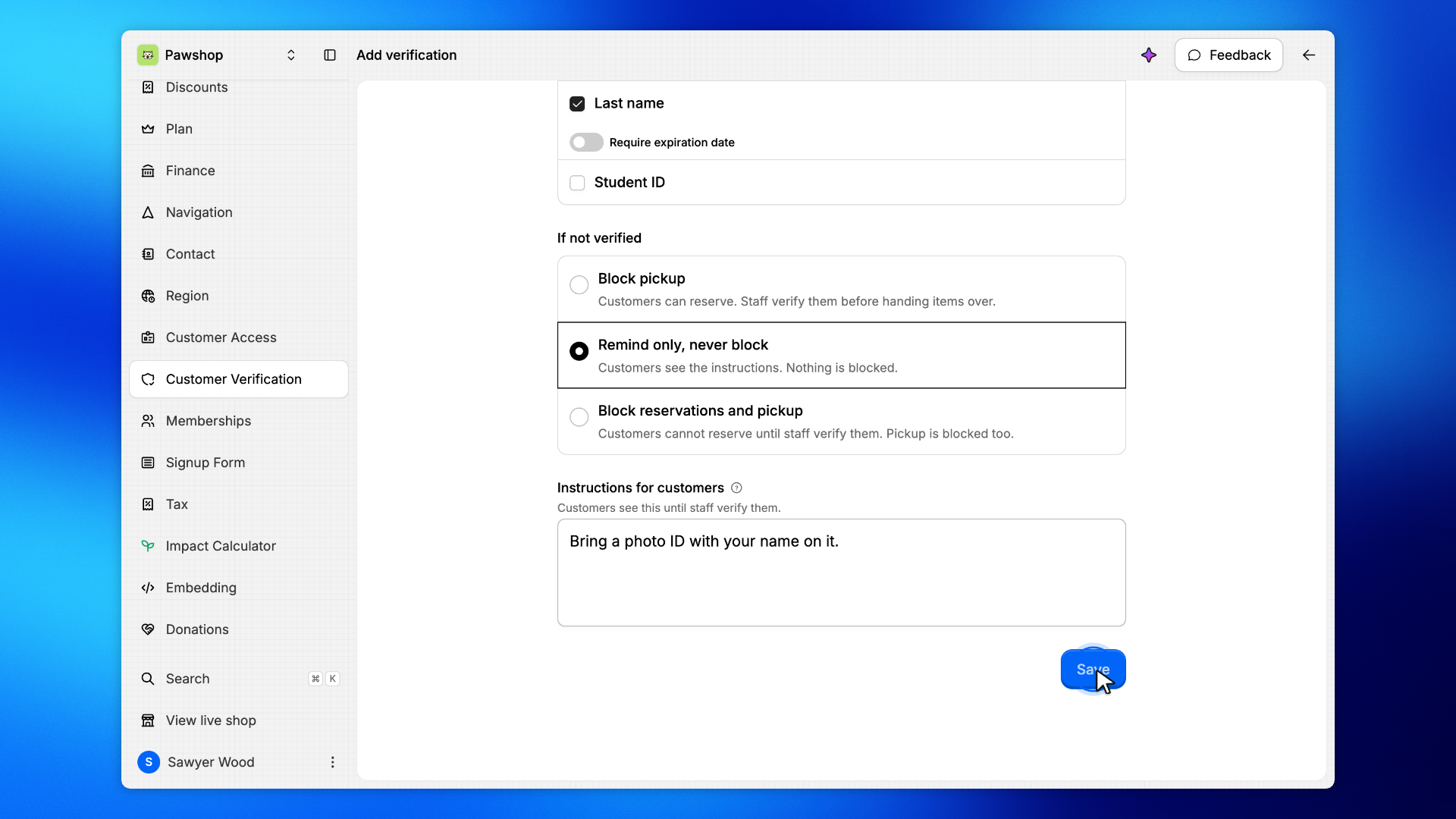
7. Save
Click Save.
The verification applies right away, and Patio takes you back to the list.
8. Add extra verification for some plans
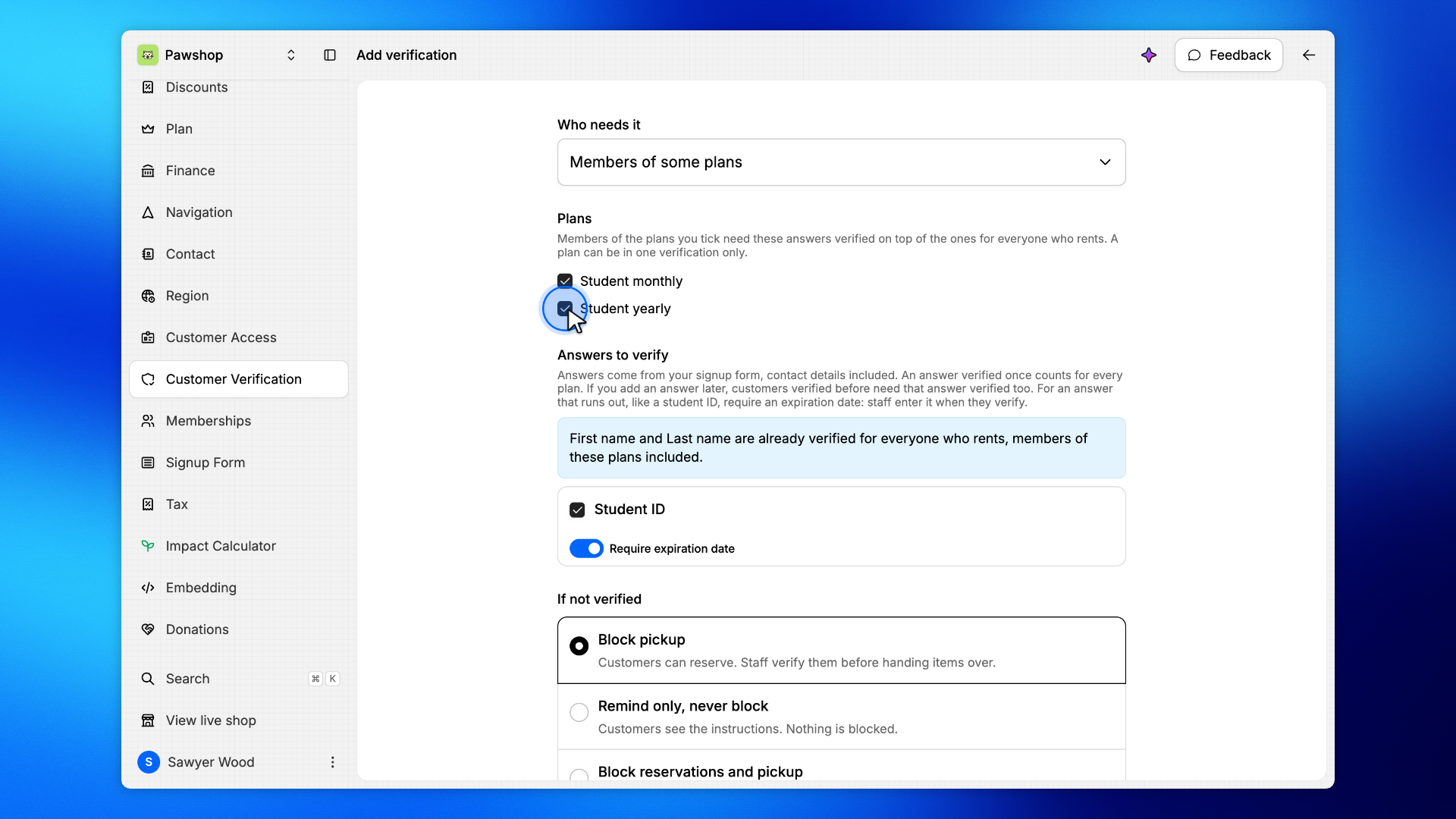
Back on the list, click Add verification again. Who needs it is on Members of some plans, since everyone who rents already has a verification. Under Plans, tick every plan this verification is for, here Student monthly and Student yearly. Answers to verify leaves out First name and Last name: everyone who rents already verifies them, members of these plans included. Tick Student ID and, under it, turn on Require expiration date: a student card runs out, so staff enter its end date when they verify it. Keep Block pickup, write the instructions, and click Save.
Members of those plans need these answers verified on top of the ones for everyone who rents. One verification can cover several plans: they share its answers and settings, and you change them together. A plan can be in one verification only. A member who switches to another plan is only asked for answers that were never verified.
9. Check the list
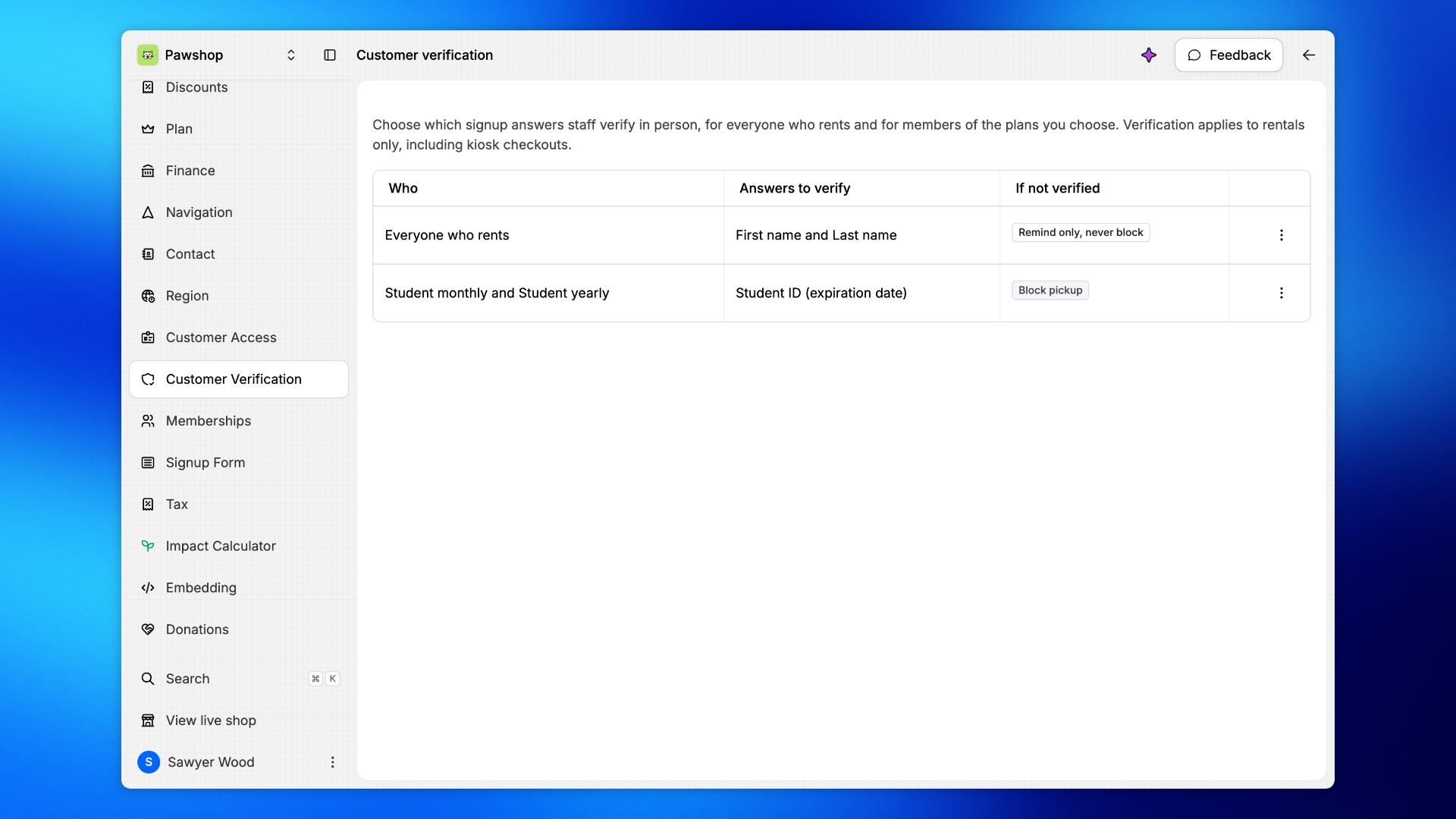
The list shows one row per verification: who needs it, the answers to verify, and what happens if an answer is not verified. An answer that requires an expiration date says so, like Student ID (expiration date). A verification for several plans names them all on one row.
Click a row, or Edit in its ⋮ menu, to open its page and change it, its plans included. Delete removes the whole verification. When a save takes an answer off every row, Patio first names the answers whose verification customers lose. Once everyone who rents and every plan have a verification, Add verification is gone.
What you cannot delete while it is checked
Signup questions. A checked question shows a shield icon in the signup form builder, and its panel names the verifications that use it. You can still rename it, change its options or make it optional. You cannot delete it, delete the page it is on, or hide a checked contact detail. First take the answer out of verification settings: in Settings › Customer verification, open each row that verifies it, untick the answer and save, or choose Delete in its ⋮ menu when it is that row's only answer. Open verification settings in the builder opens that row's page, or the list when several rows verify the answer.
Plans. A plan with extra checks shows an Extra verification badge in the plans list and cannot be deleted. First take the plan off those checks: in Settings › Customer verification, open their row, untick the plan under Plans and save, or choose Delete in its ⋮ menu when it is that row's only plan. The other plans of the row keep their checks. A plan that has or had memberships cannot be deleted at all, so turn off Active on the plan instead.
Taking an answer off every row removes customers' verification of it, and adding it back later means customers need to be verified again.
10. See which questions are checked
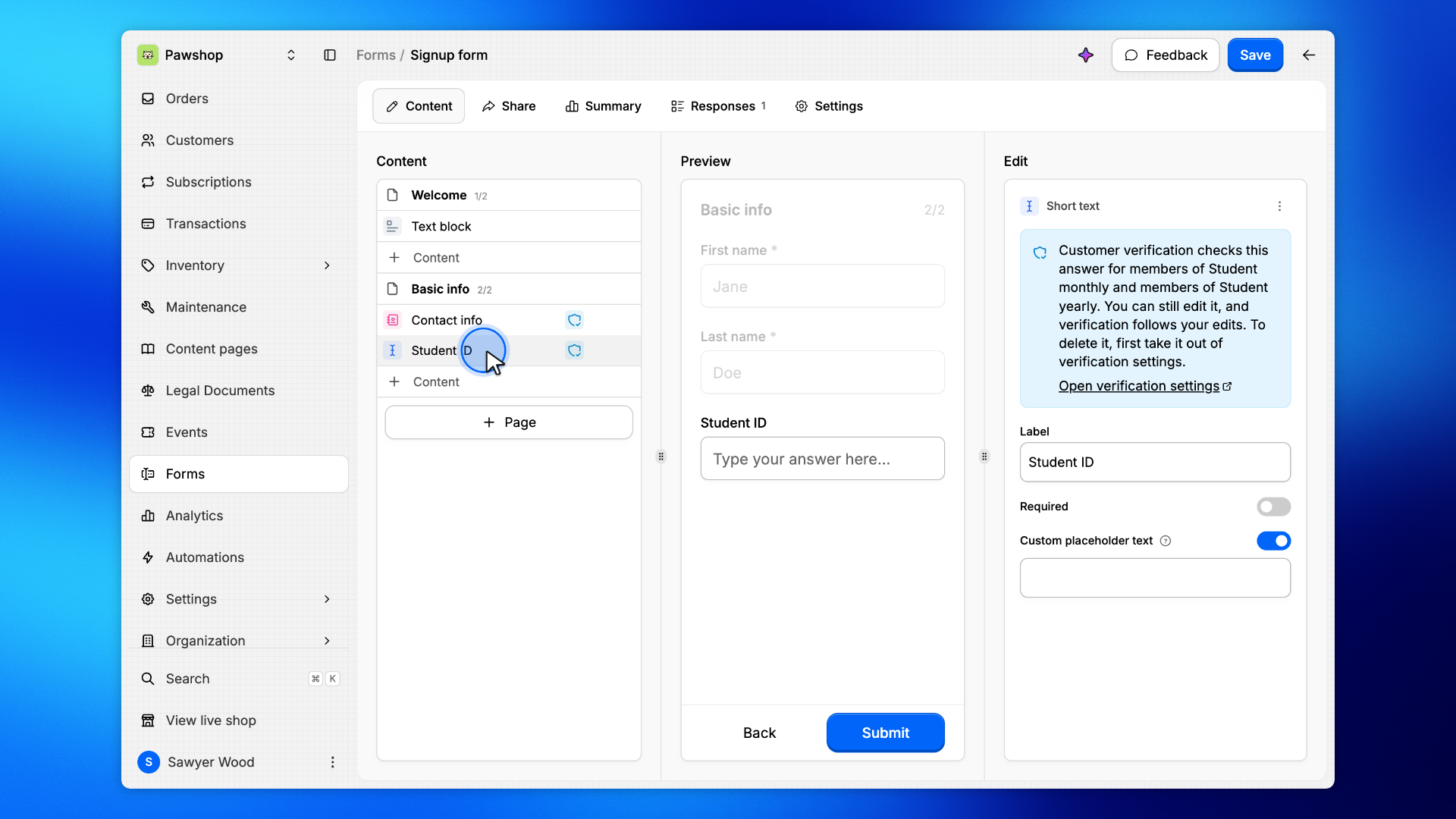
Open the signup form in Forms. A shield icon marks each question customer verification checks.
Click the question: its panel names who it is checked for, here the members of both student plans. You can still edit it, and Open verification settings opens that verification in a new tab.
11. Deleting a checked question
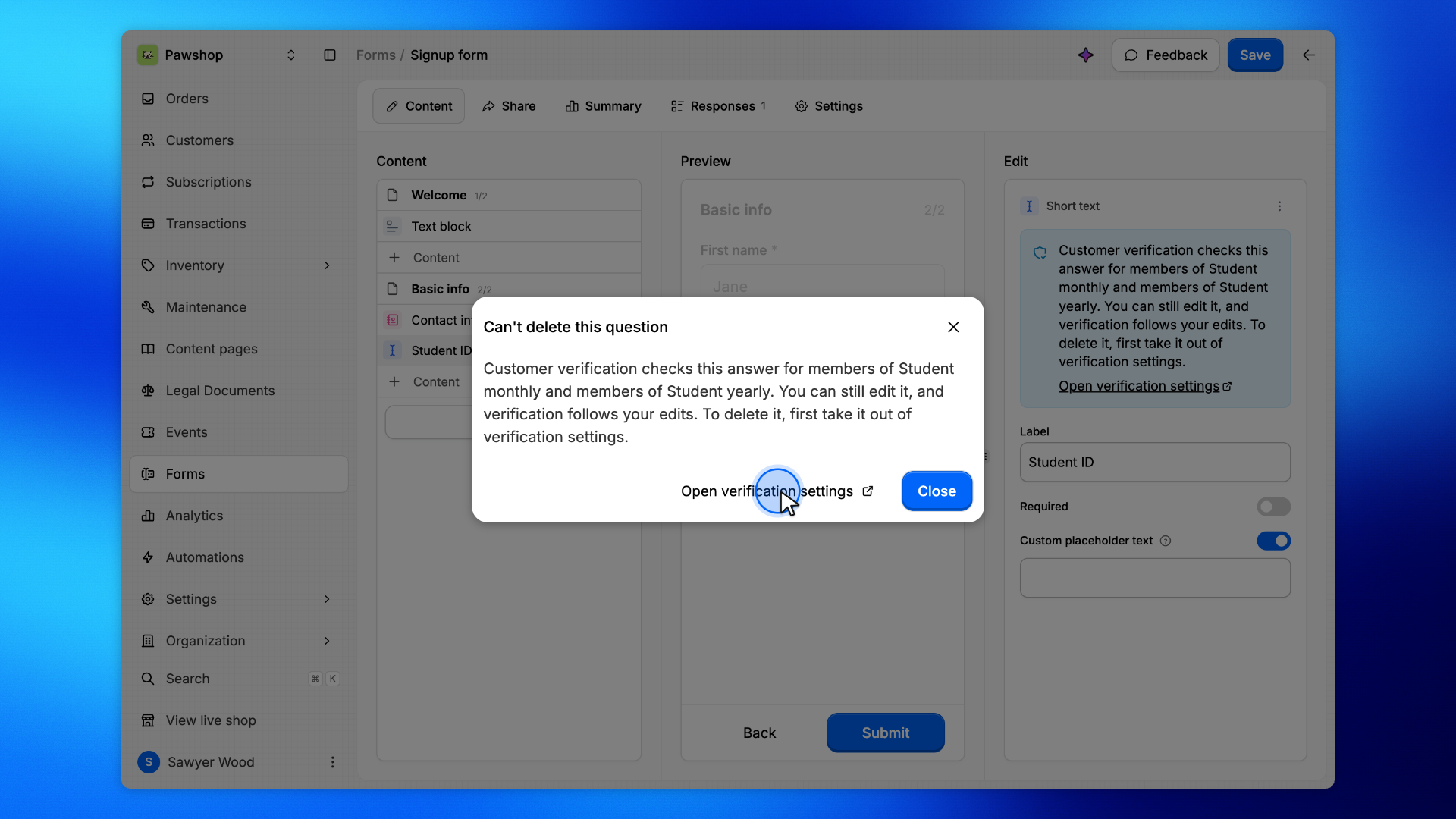
Delete on a checked question, or on the page holding it, explains what uses it instead of deleting it.
Take the answer out of verification settings first, then delete the question. To delete only the page, move the question to another page first.
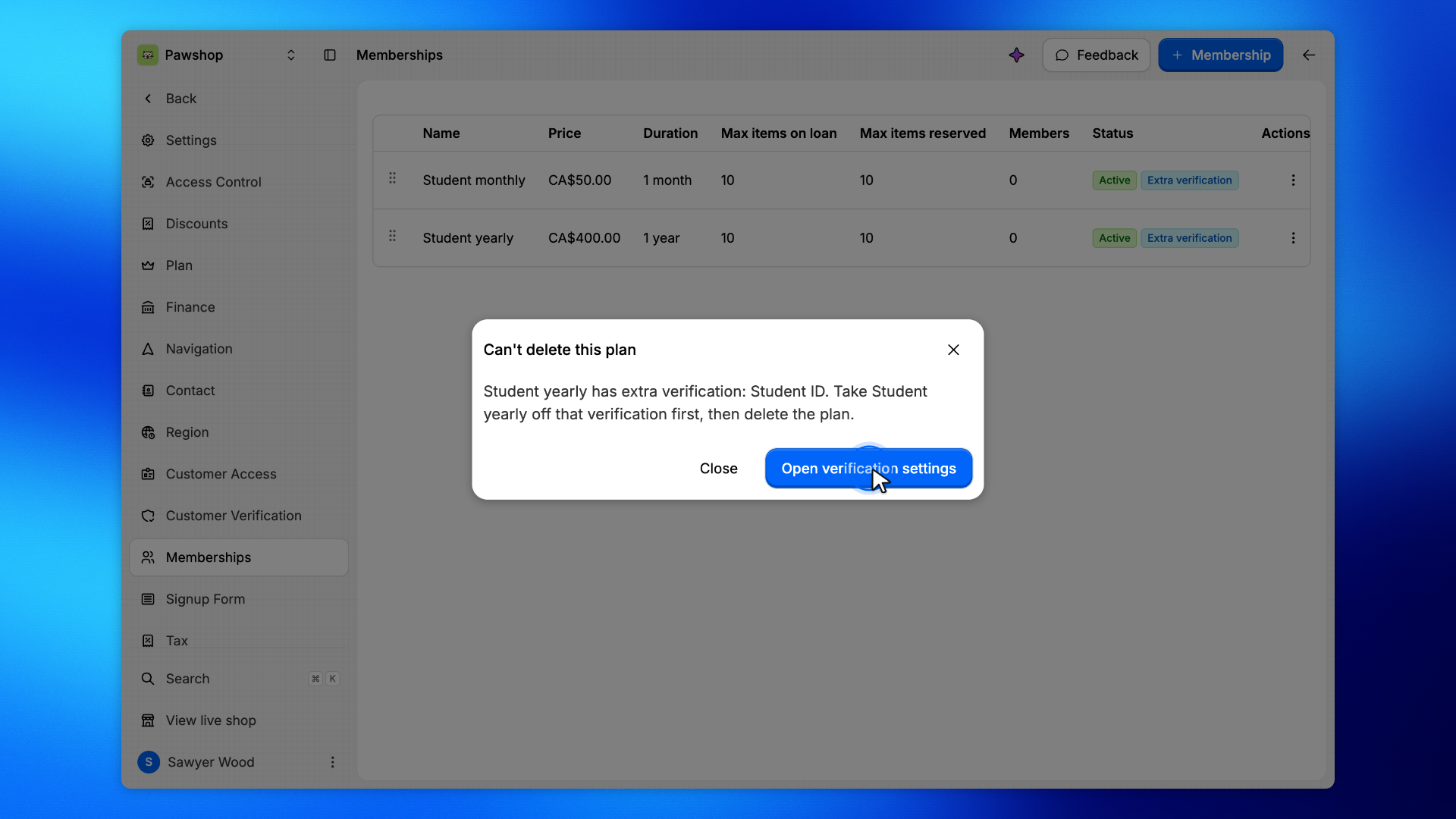
12. Deleting a plan with extra verification
In Settings › Memberships, every plan with extra verification shows an Extra verification badge, here both student plans. Delete on one of them explains what uses it instead of deleting it.
Open verification settings opens the page of that verification. Untick the plan under Plans and click Save, or click Delete when it is its only plan. Then come back to Settings › Memberships and delete the plan.