Add photos to a product and its units
By Julien RiouxUpdated October 26, 2026
Give a product several photos, choose the one that fronts it, and add photos of each unit, so customers see the exact tool they will get.
By Julien Rioux·Updated October 26, 2026
Give a product several photos, choose the one that fronts it, and add photos of each unit, so customers see the exact tool they will get.
A product can carry up to 10 photos, and so can each of its units. Customers page through them on the product's page in your shop: the chosen unit's own photos first, then the product's.
The first product photo is the cover: it fronts the product in your shop's catalog and in search.
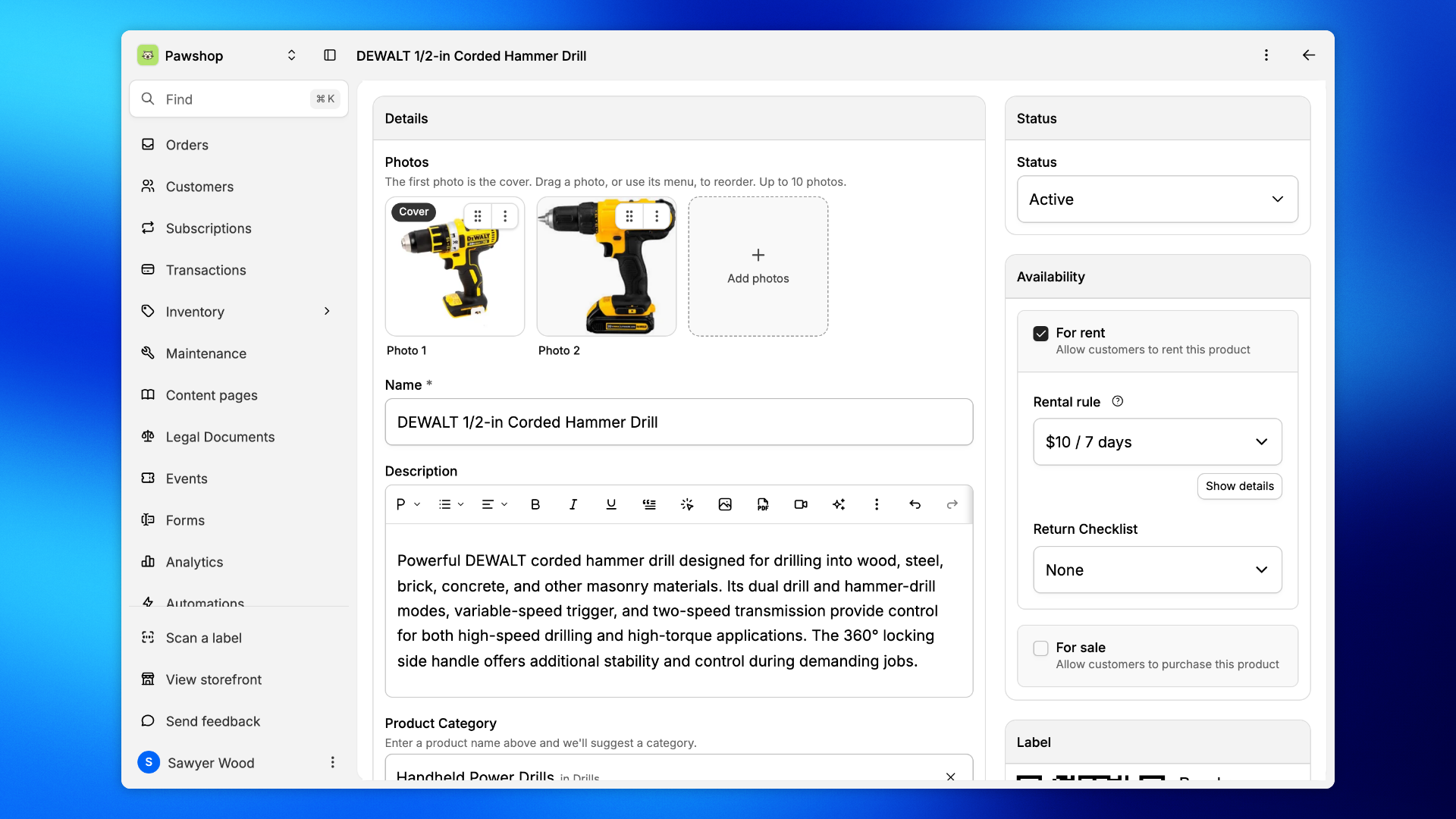
Go to Inventory and open the product. Under Details, Photos shows every photo of the product, the cover first. Each photo carries a grip to drag it and a menu for everything else.
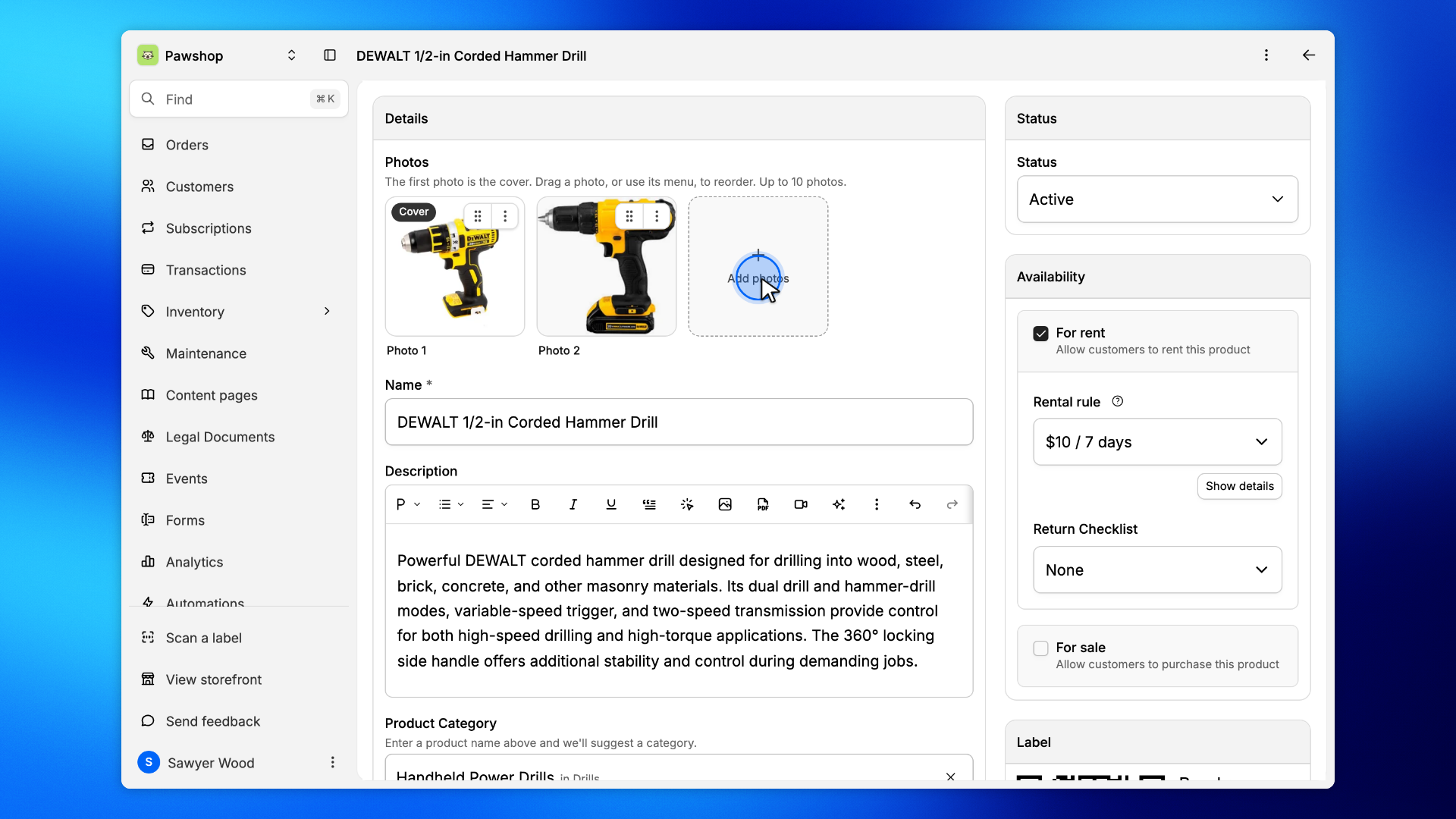
Click Add photos and pick one or several pictures from your computer or your phone. They join the end of the row; a product holds up to 10.
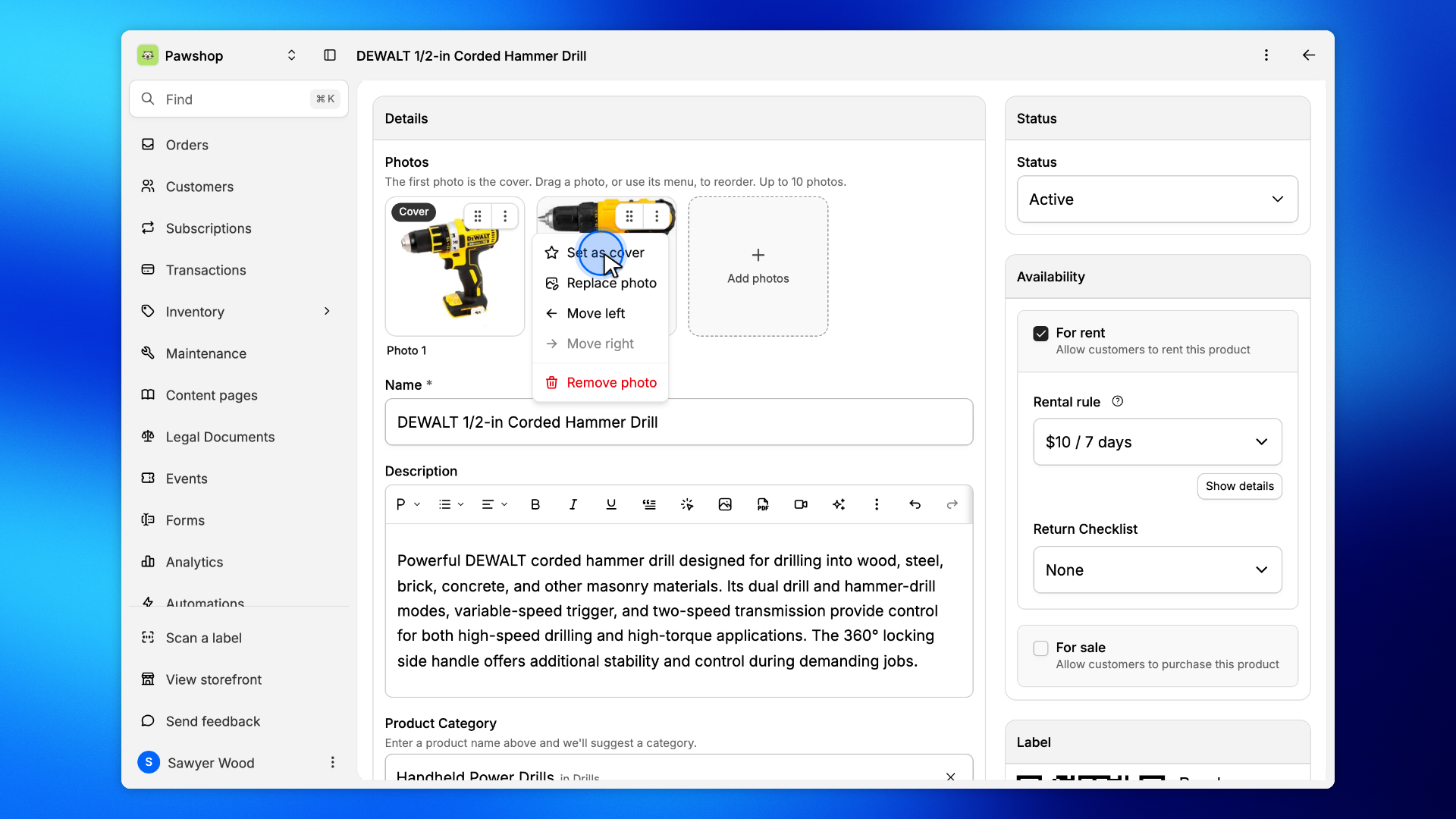
Drag a photo by its grip to move it, or open its menu: Move left, Move right, Replace photo and Remove photo are there. Set as cover brings a photo to the front: the cover is what customers see on the product's card, and the first photo of its gallery.
Click Save. The shop shows the new order right away, and the new cover on the product's card.
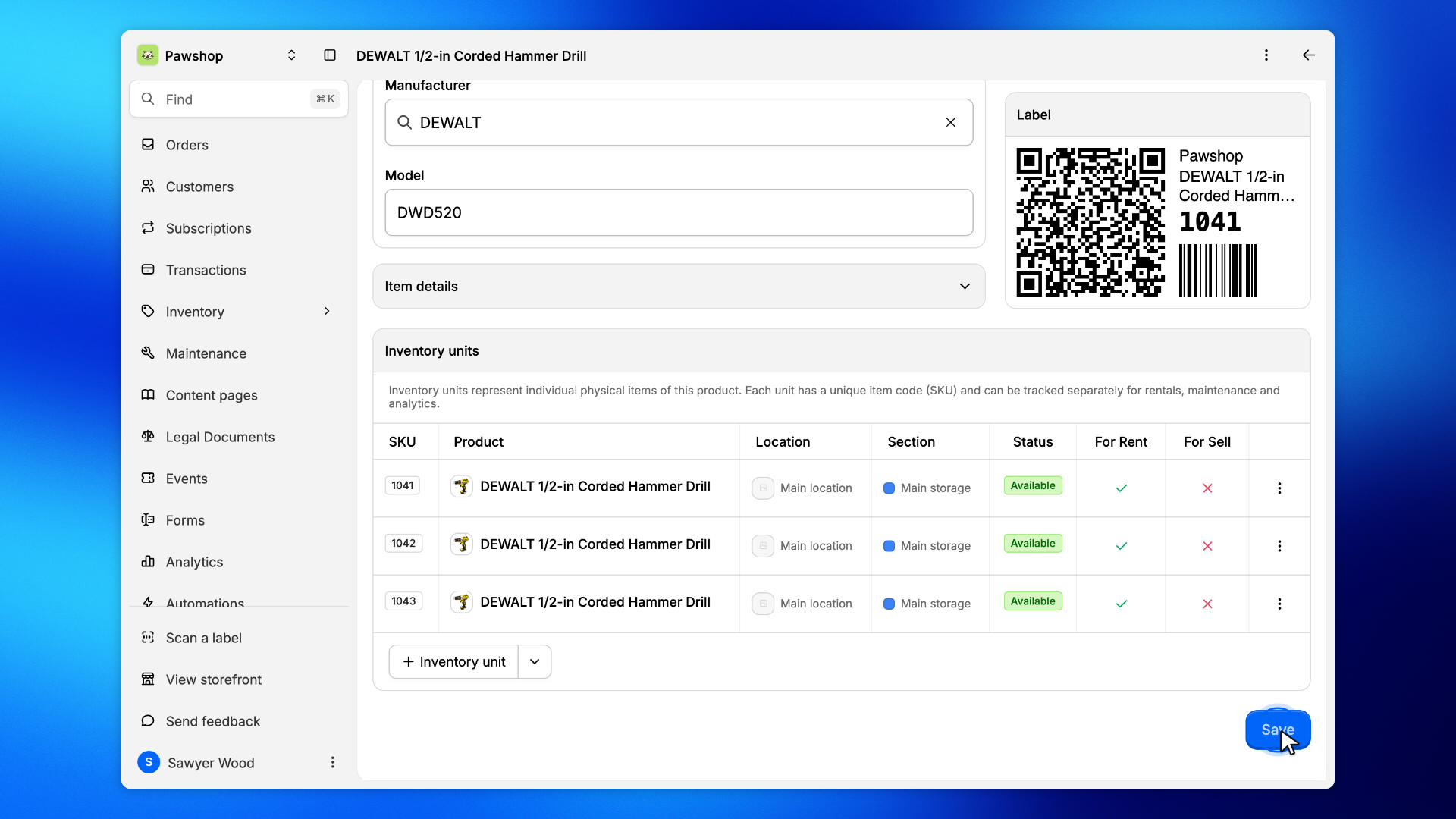
Each unit can carry its own photos: the exact tool a customer gets, its wear, its case. Under Units, click a unit to open it.
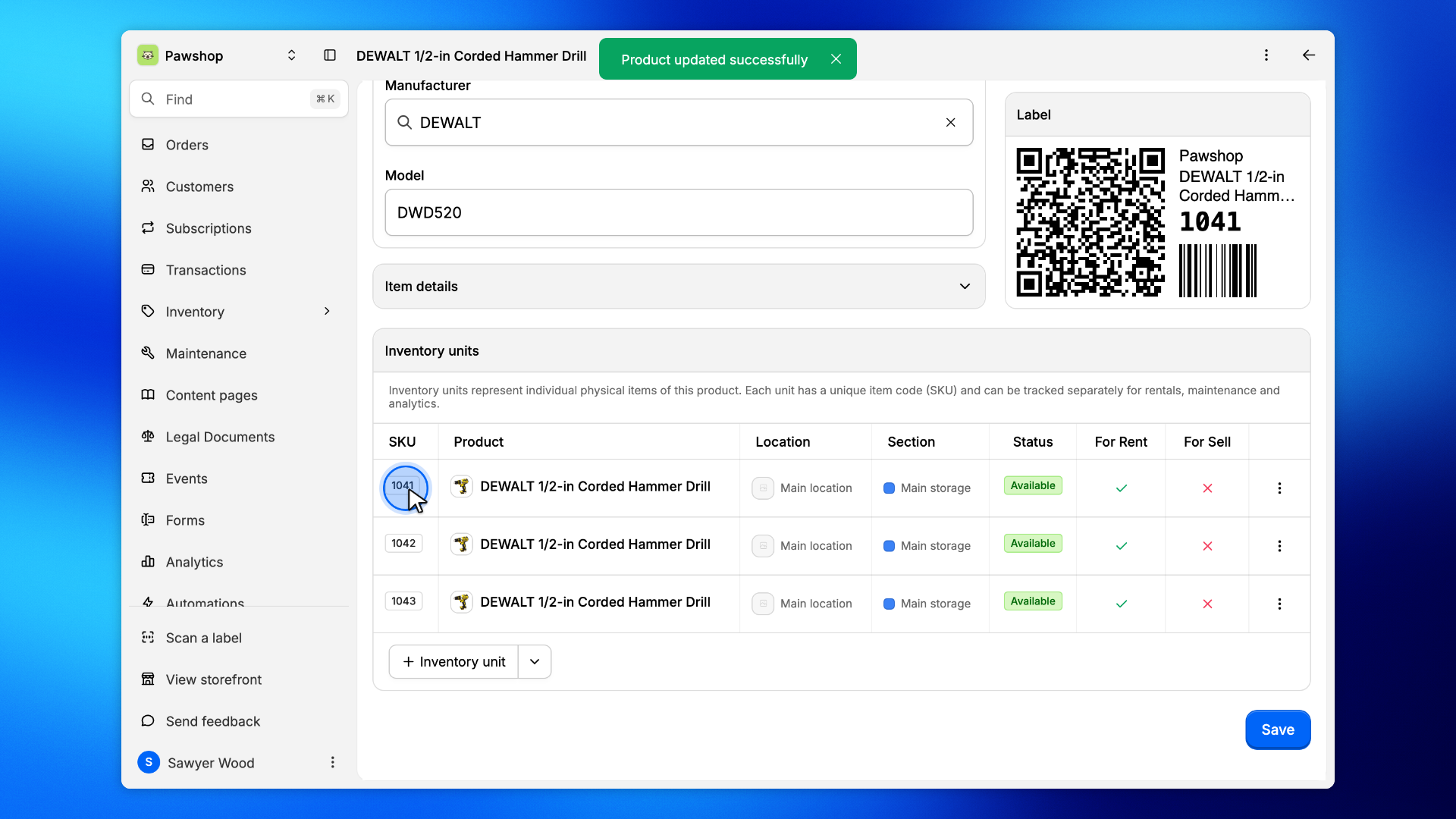
The unit's drawer has the same Photos field. Add the unit's photos here and save: in the shop they come before the product's, under the unit's SKU. A unit without photos of its own shows the product's.
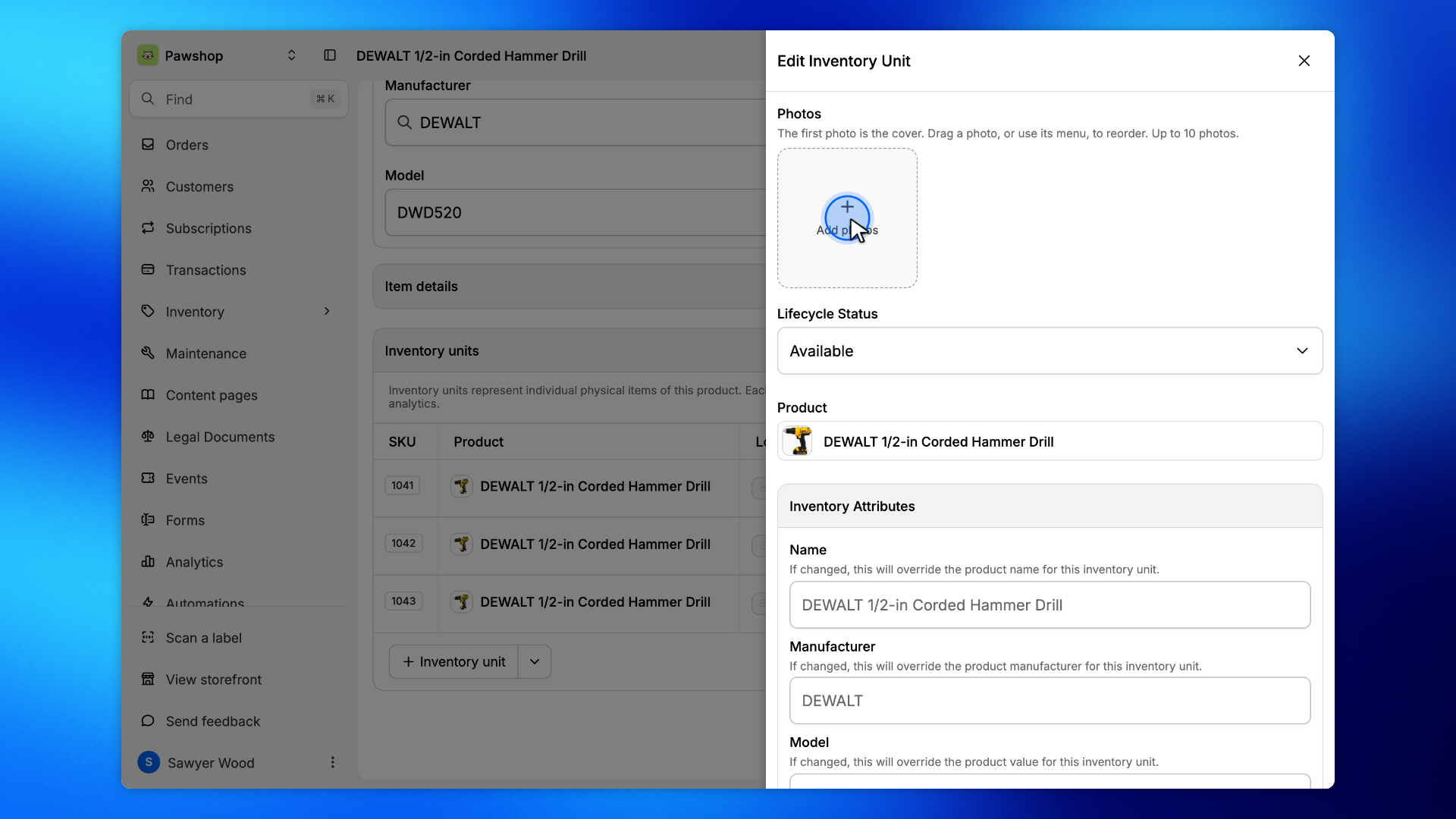
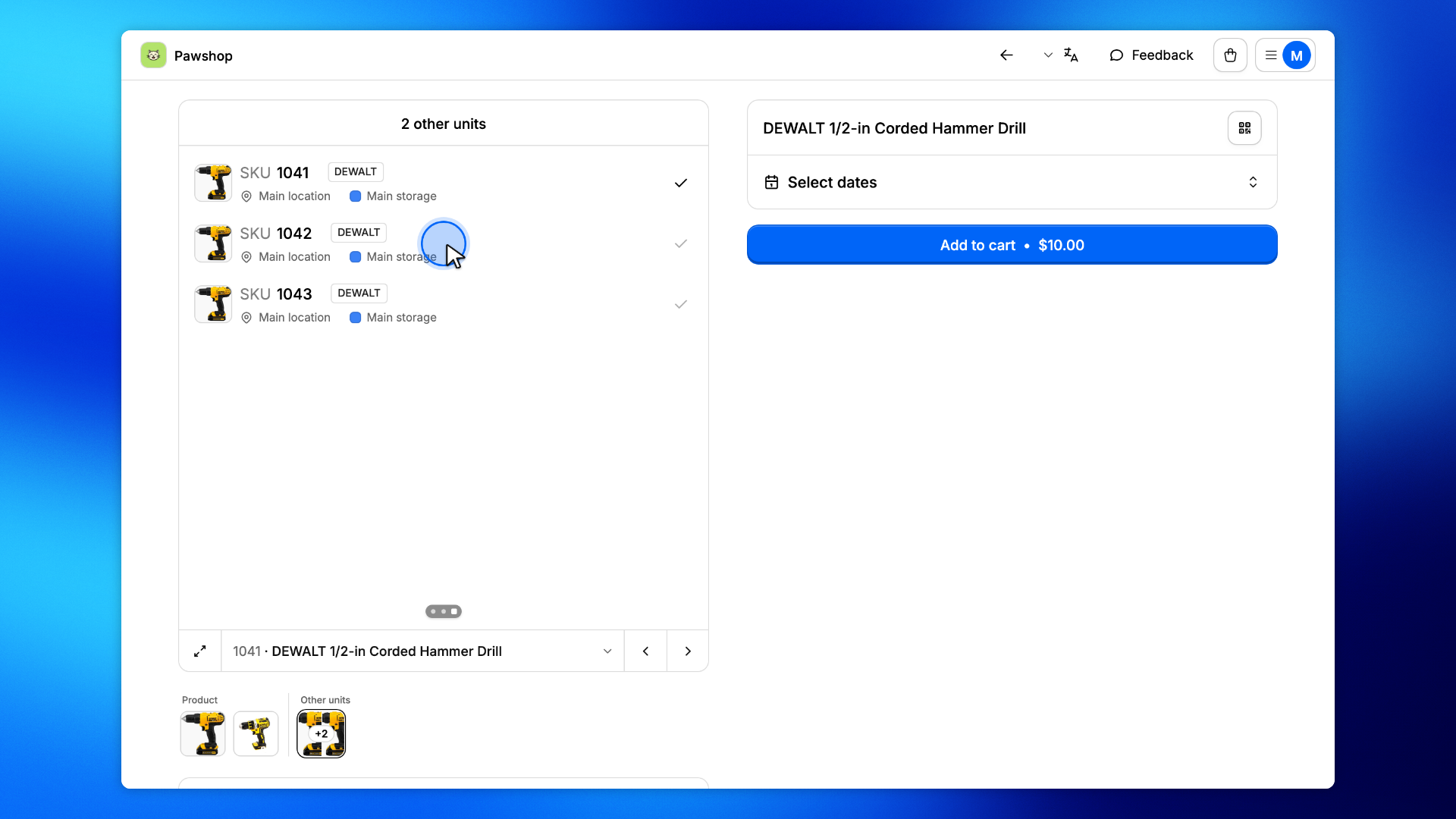
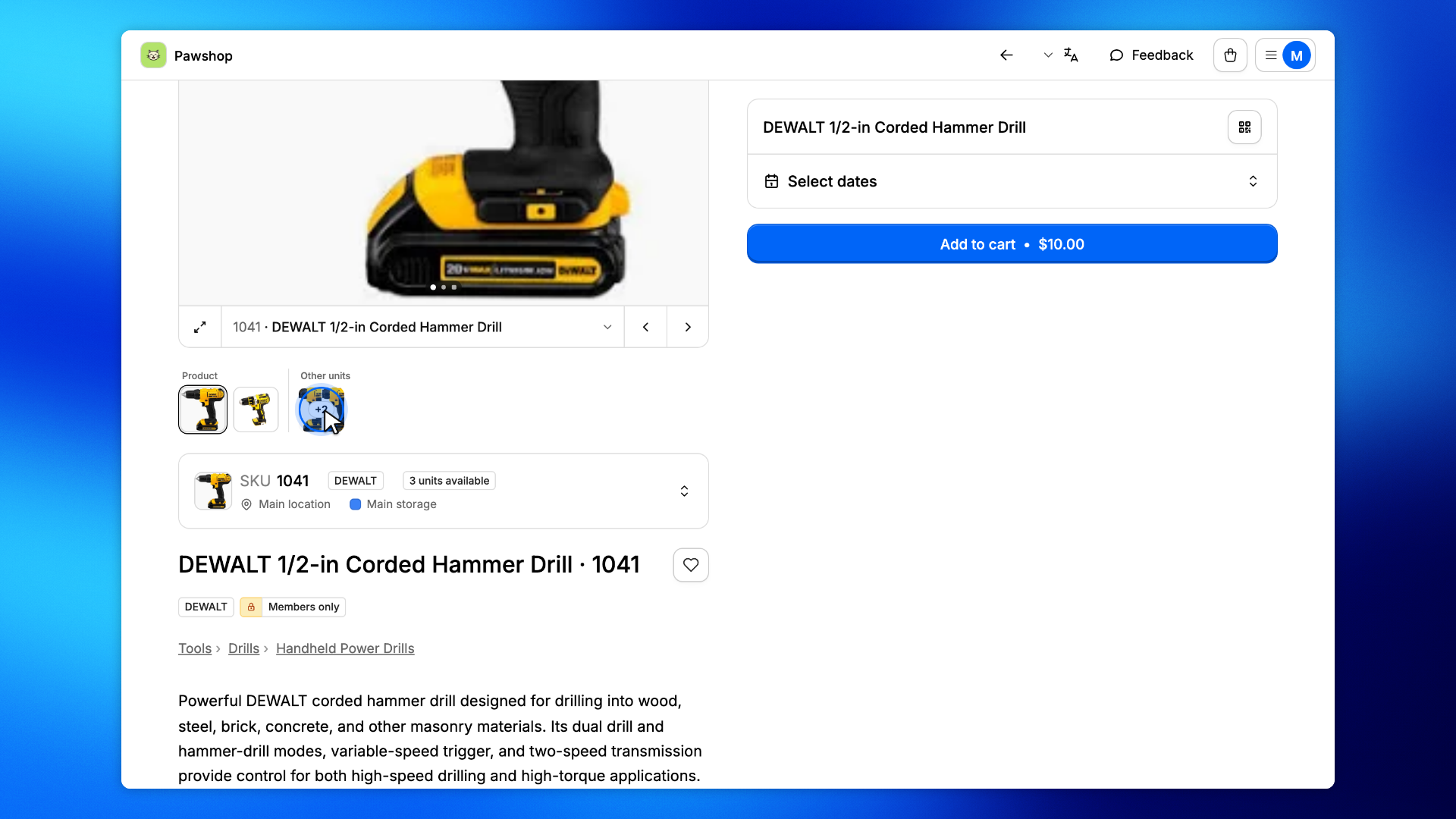
On the product's page in your shop, the gallery pages through the chosen unit's own photos, then the product's, each group under its heading in the row of thumbnails. The bar under the photo names the unit, opens it at full size and pages the photos; its name is also a menu of the other units.
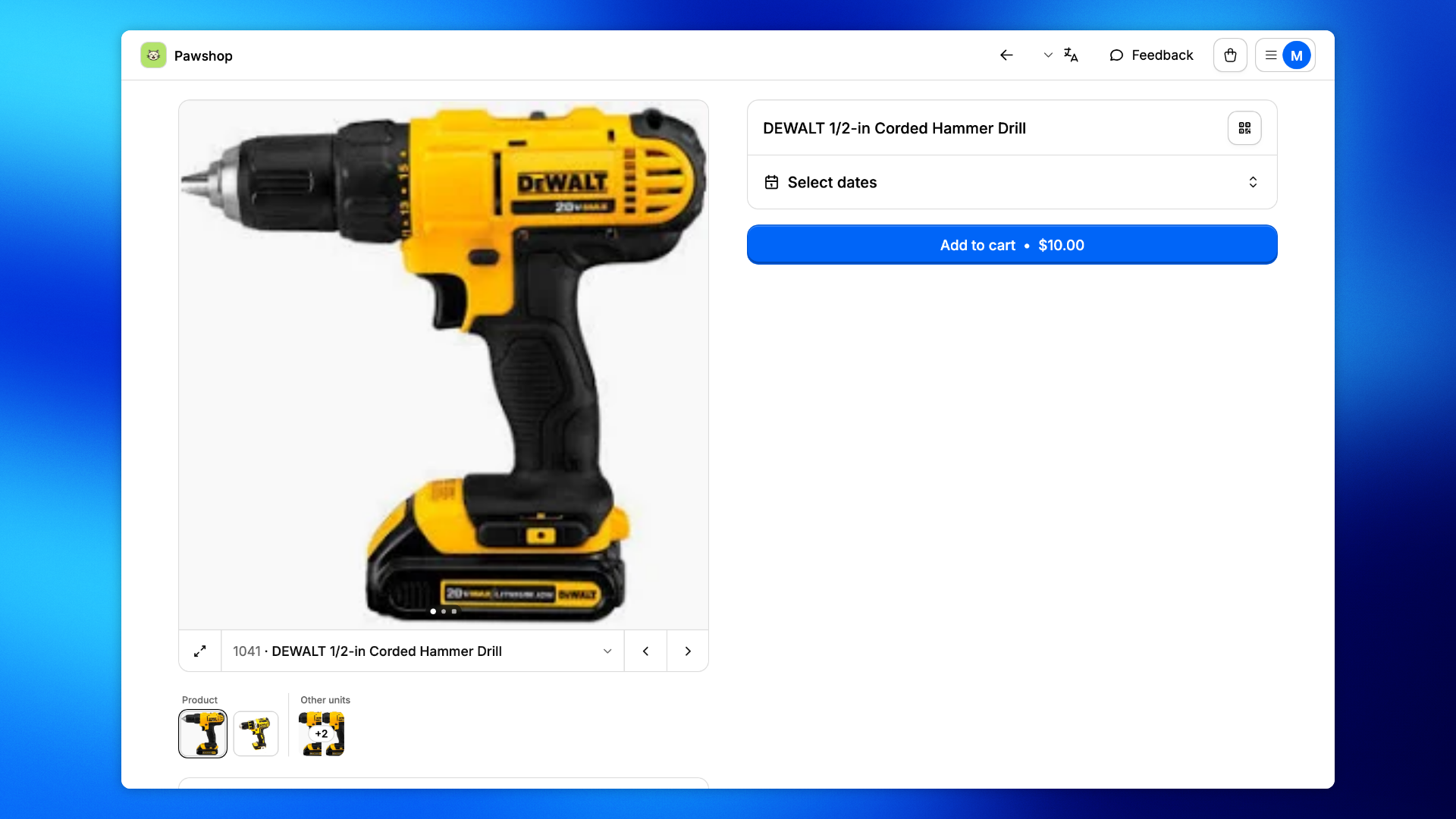
Other units closes the row: its tile shows the covers of the product's other units and how many there are. Click it, or page past the last photo, to see them.
The last card lists every unit of the product, the chosen one checked. Picking another one opens its photos.