Scan an item's label with your phone
By Julien RiouxUpdated October 13, 2026
Point your phone's camera at the QR code on an item's label to open that item in the shop, then rent it.
By Julien Rioux·Updated October 13, 2026
Point your phone's camera at the QR code on an item's label to open that item in the shop, then rent it.
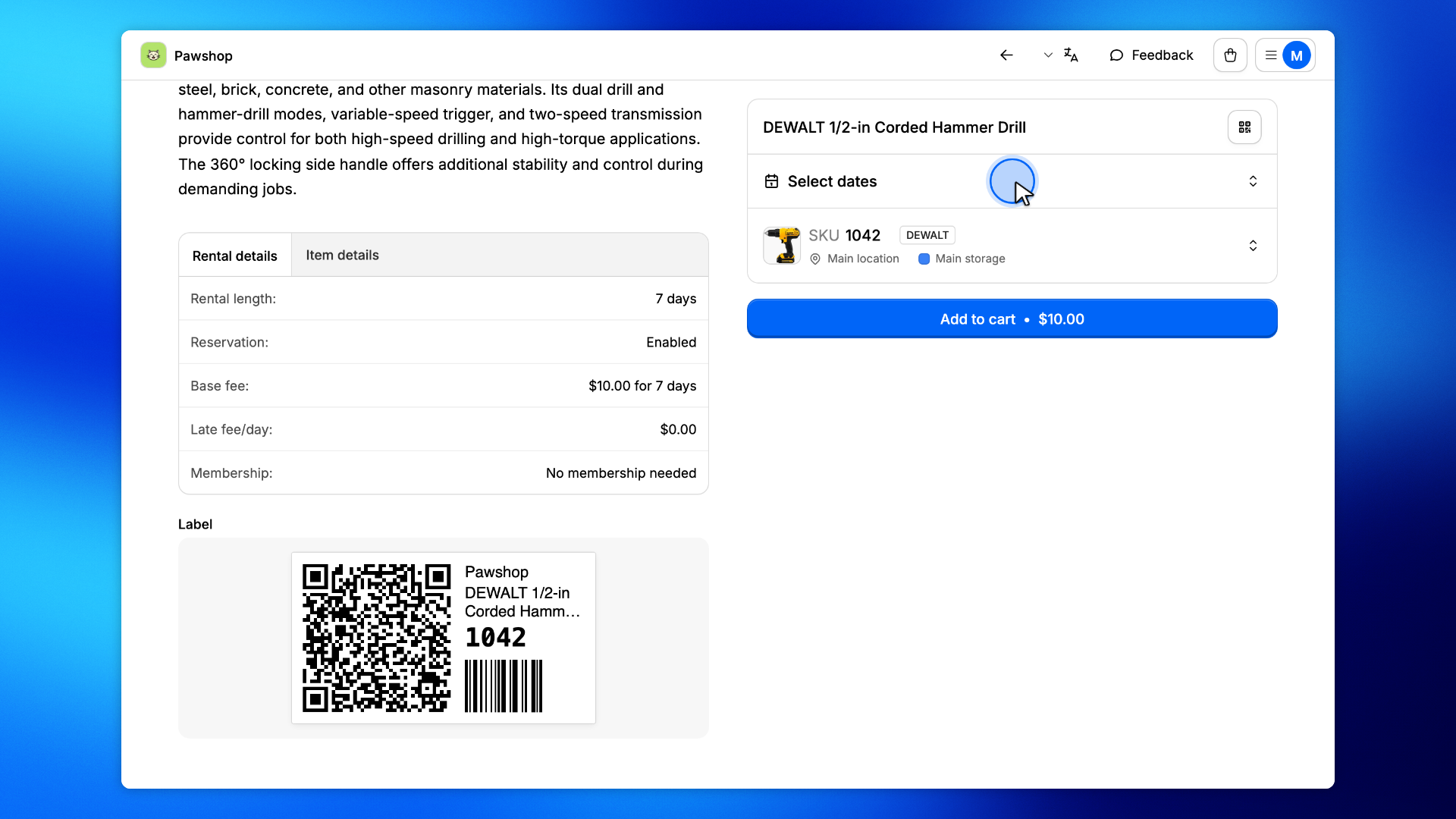
Items you can borrow carry a label with a QR code. Scan it with your phone's camera to open the item in the shop, on the exact one you are holding.
The barcode beside the QR code is for the shop's staff: your phone only needs the QR code.
Open your phone's camera and point it at the square QR code on the label, then tap the link that appears.
The item's page opens in the shop.
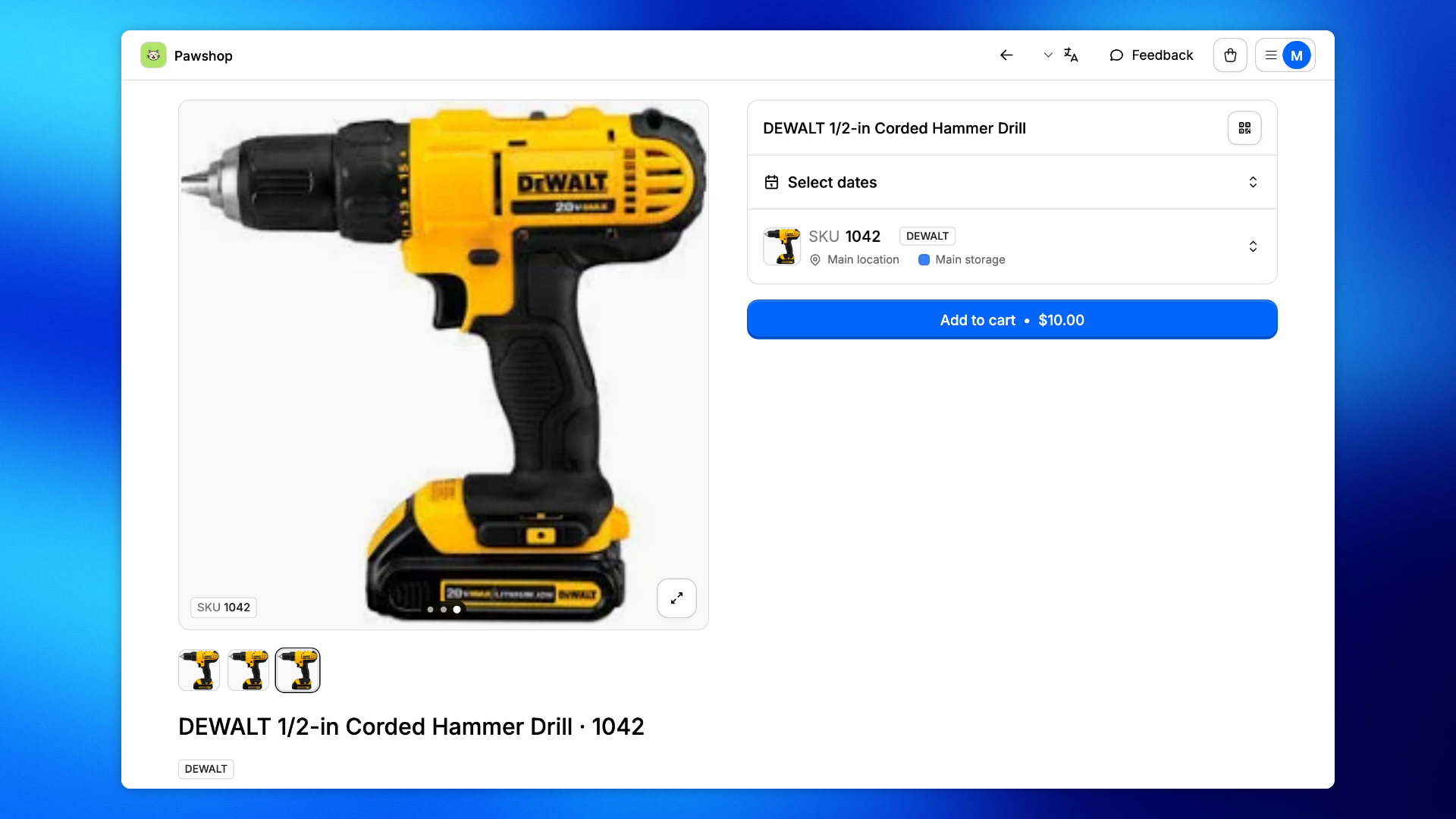
The page opens on the unit you scanned: its SKU, the number printed on the label, is already picked, with where it is kept. If that unit is on loan, it says so there too.
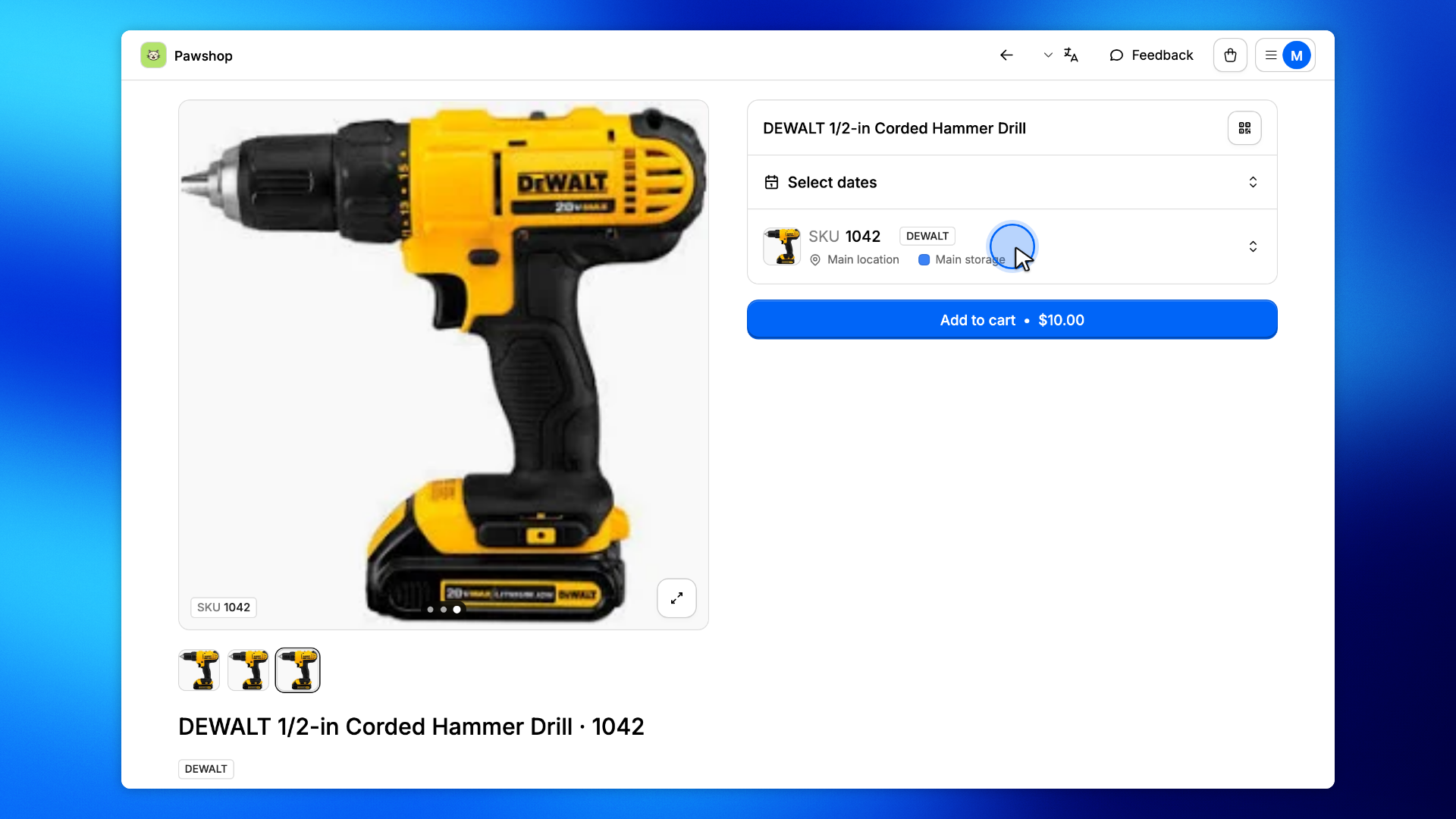
Further down, Label shows the label of the unit you picked. It matches the one on the item in your hands.
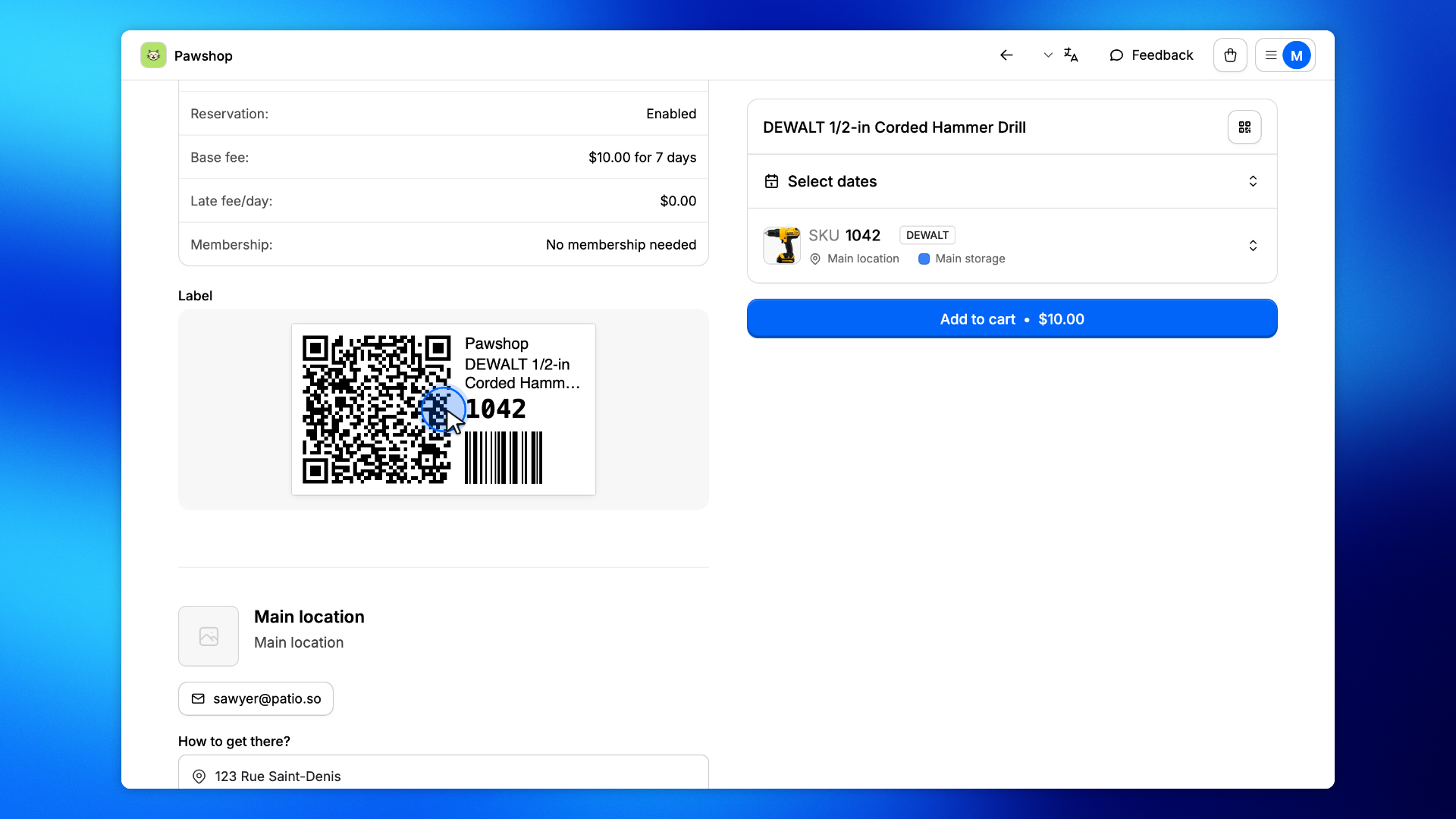
Pick your dates and add the item to your cart, as for any item in the shop. See Rent an item from the shop.