Email your customers
By Julien RiouxUpdated October 30, 2026
Write an email to one customer from their page or to several from the Customers list, check the preview, and follow what happened to it on their Communications tab.
By Julien Rioux·Updated October 30, 2026
Write an email to one customer from their page or to several from the Customers list, check the preview, and follow what happened to it on their Communications tab.
Your team can email customers from the workspace: one customer from their page or from one of their orders, or up to 100 at once from the Customers list. The email goes out under your workspace's name and logo, and replies go to your workspace's support email.
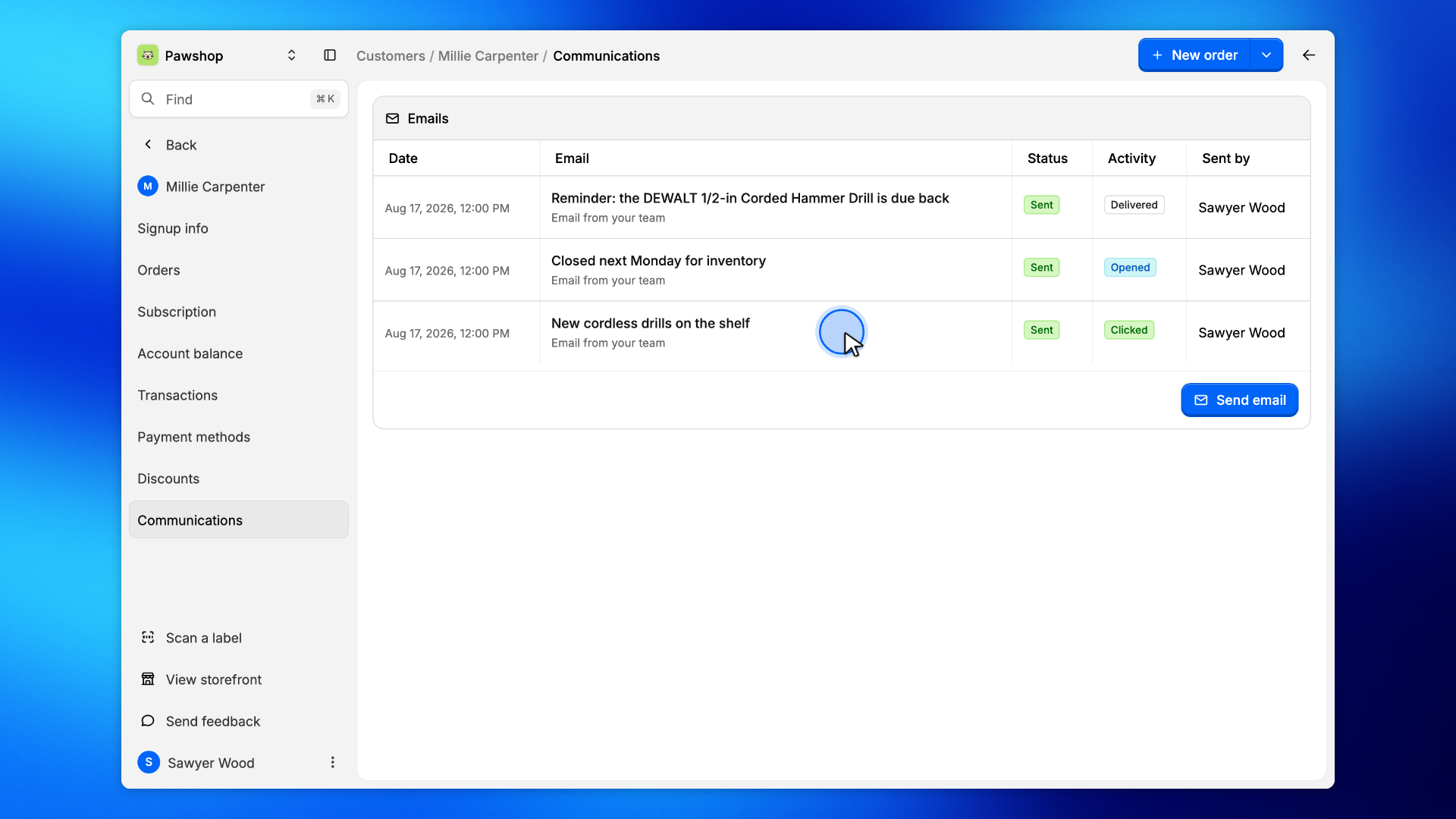
Patio keeps every email your team sends. A customer's Communications tab lists them with the automatic emails they got, and shows whether each one was delivered, opened or clicked.
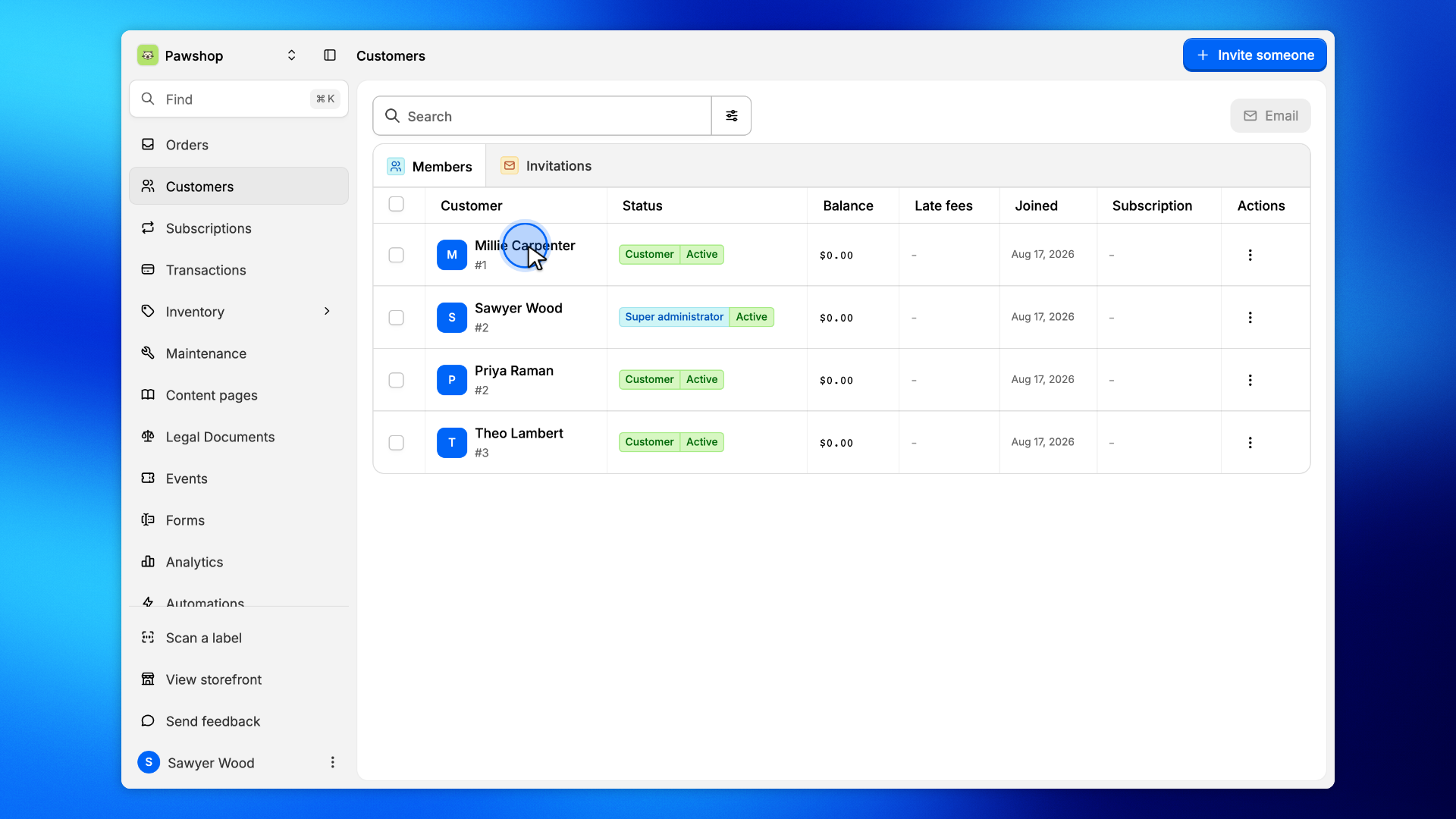
Go to Customers, search by name or email, and click the customer's row.
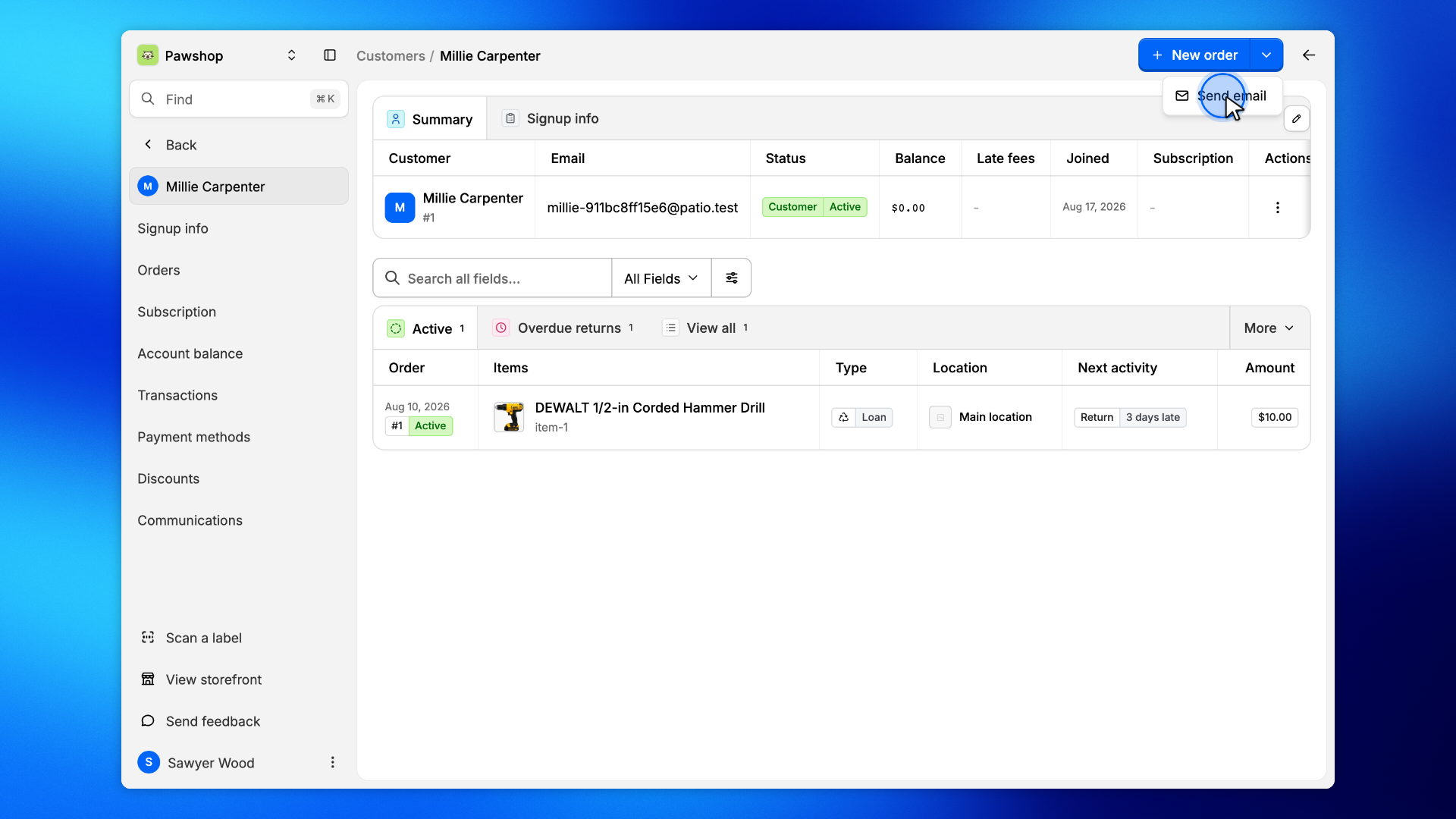
At the top right of the customer's page, open the menu next to New order and choose Send email.
The same choice is in the customer's ⋮ menu on the Customers list and on their orders, and at the bottom of their Communications tab.
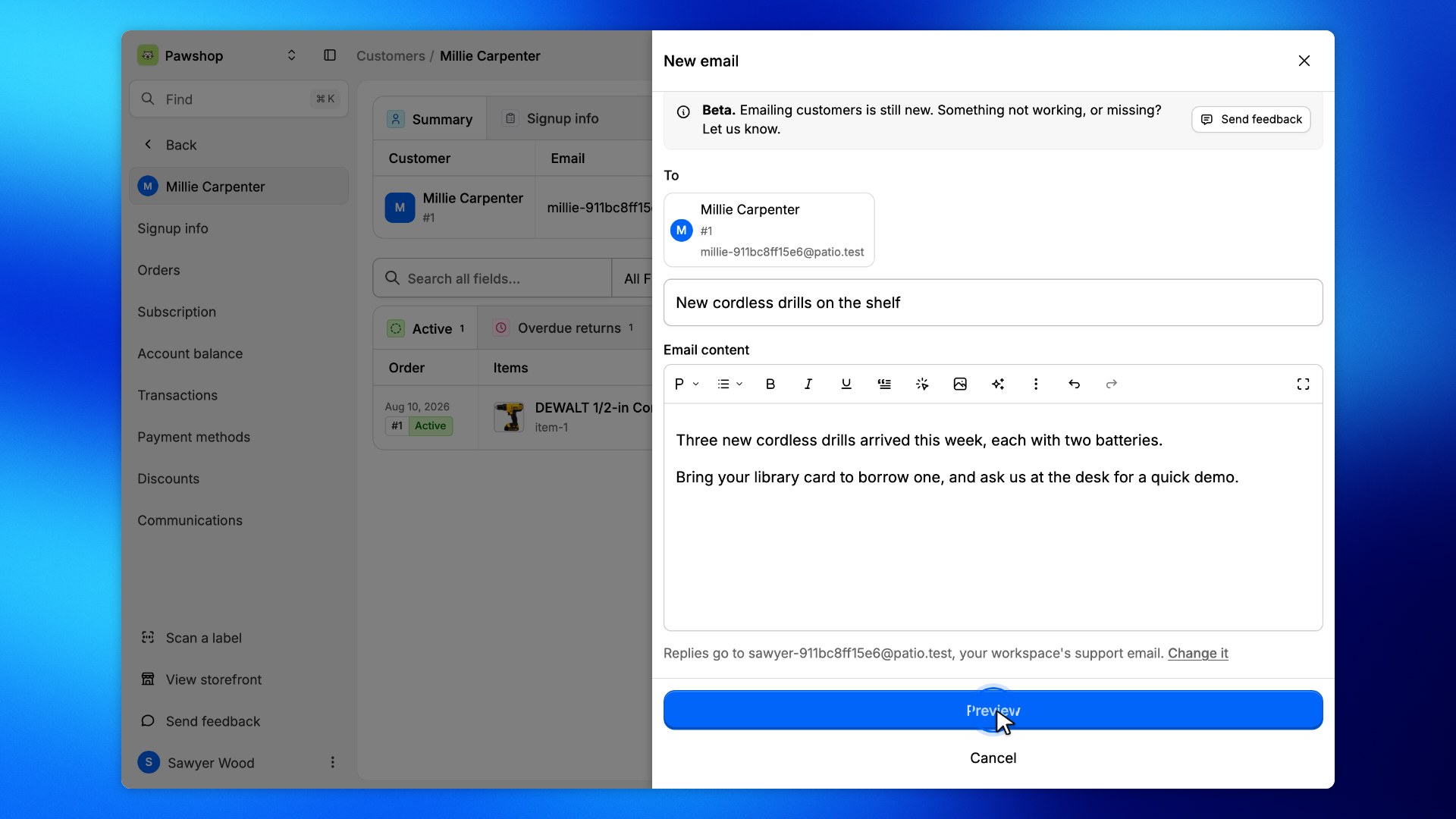
To shows who gets it. Type a subject, then the email: the toolbar formats the text and adds links and images.
Under the email, Patio says where replies go: your workspace's support email, which you can change in Settings › Contact. Emailing customers is new: Send feedback, at the top, tells us what is missing or not working.
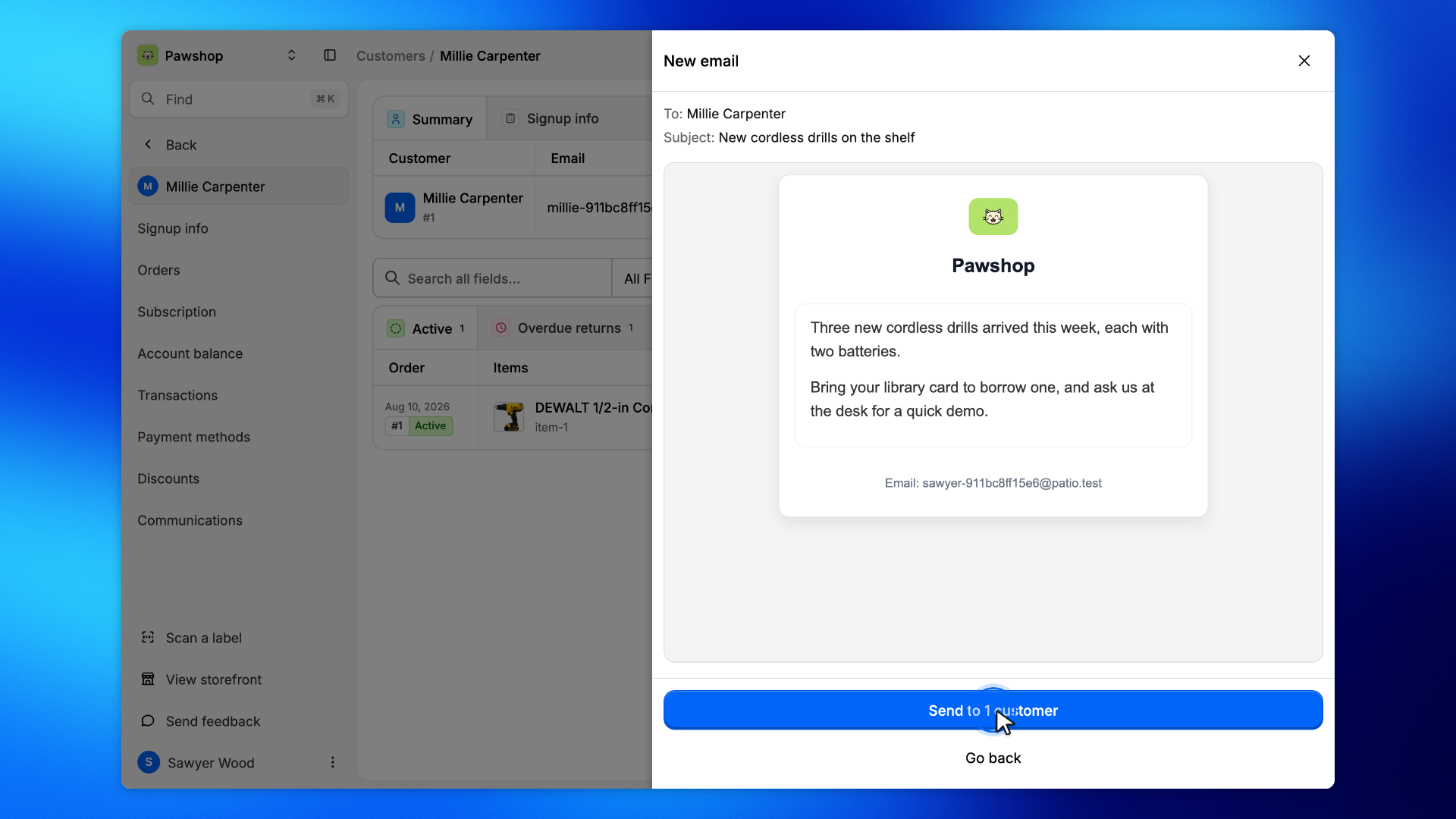
Click Preview.
The preview is the email as the customer will get it, with To and Subject above it. Go back returns to the editor.
When it reads right, click Send to 1 customer. The email goes out at once, with no further confirmation.
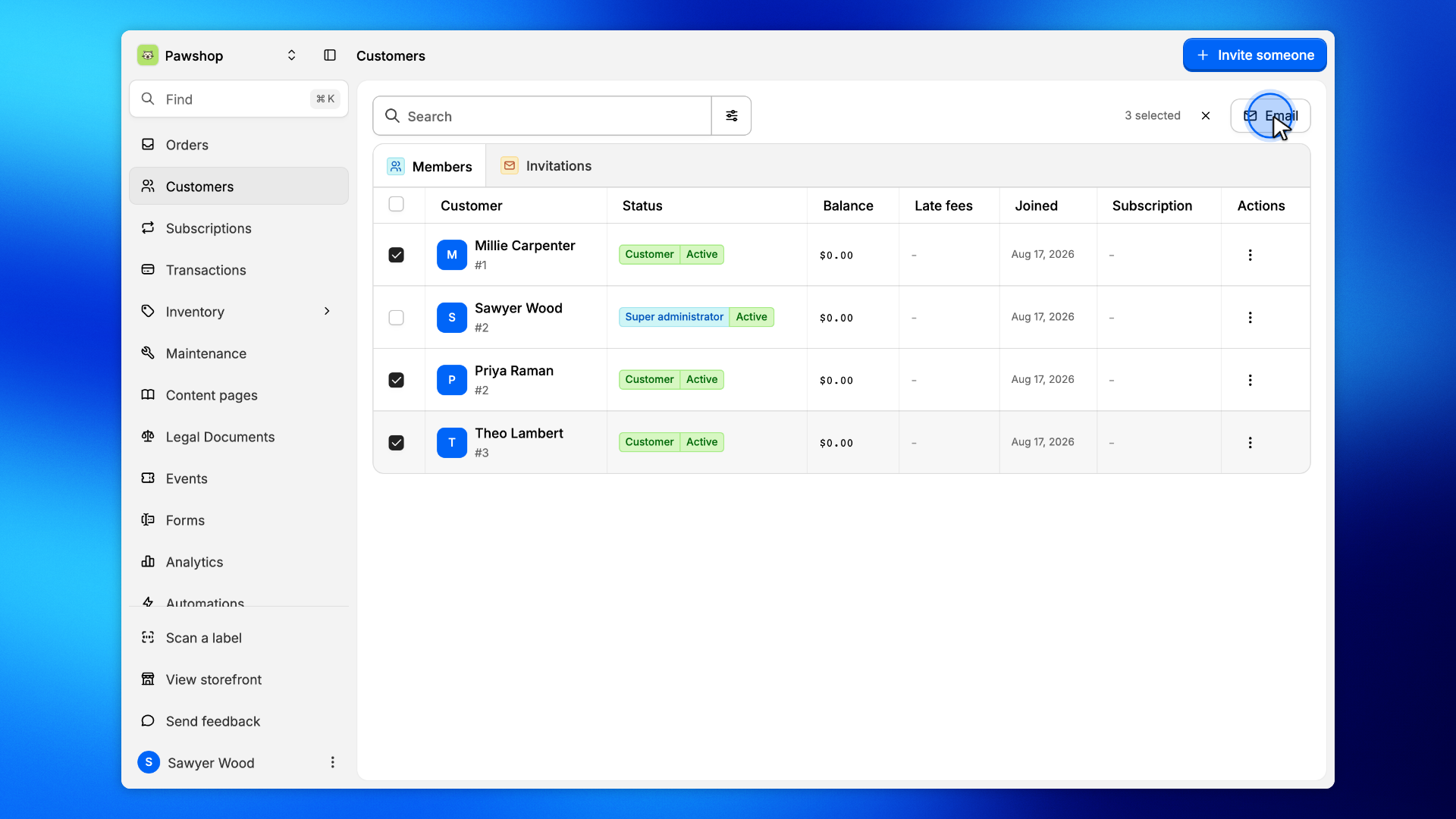
On Customers, tick each customer to email. The ticks stay while you search, filter and page through the list, and the count shows above it, next to Email. One email can go to 100 customers at most.
Click Email.
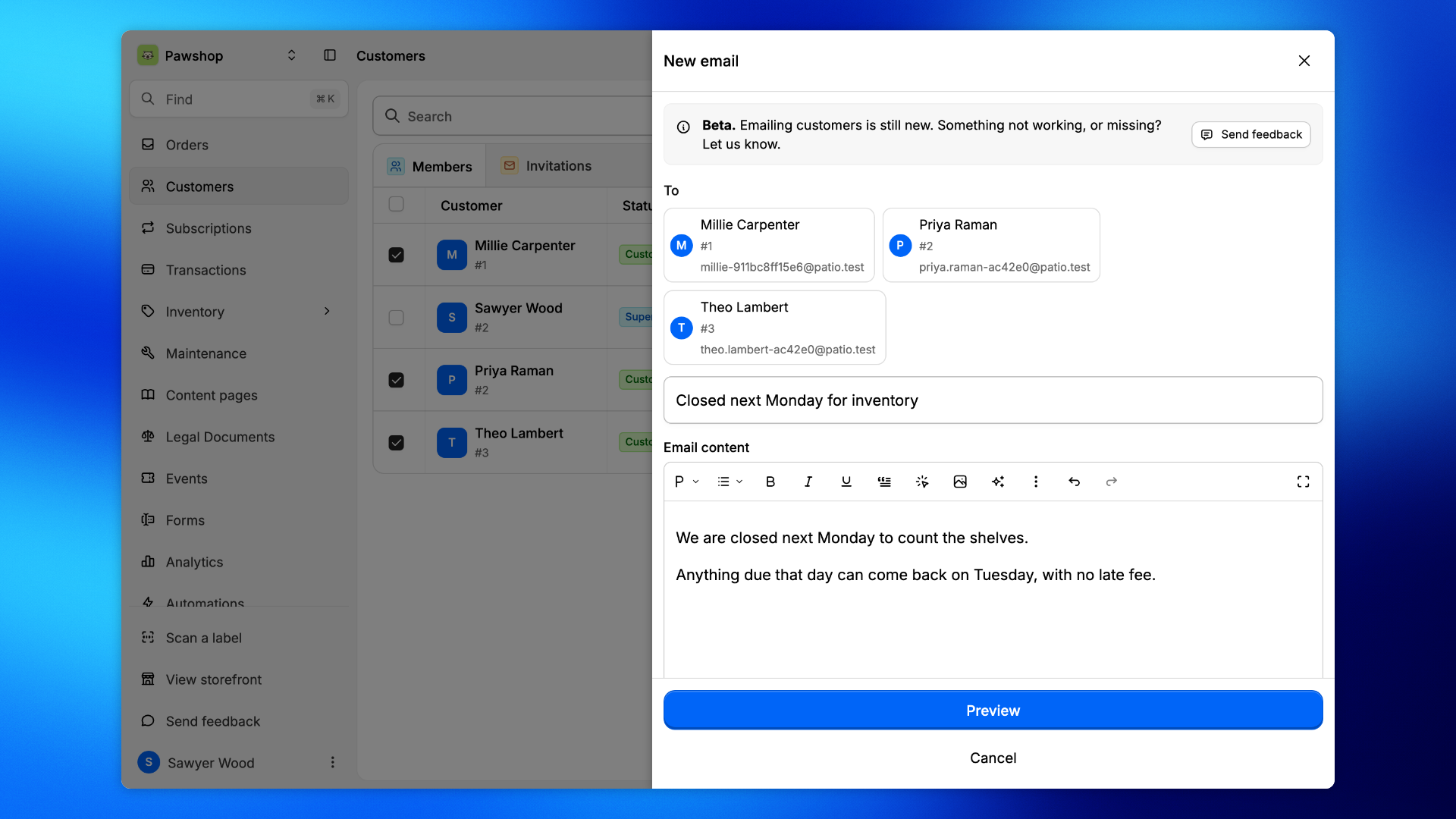
To lists everyone you ticked. A customer who can't get the email, with no email address or an invite not accepted yet, is named under the list and left out.
Write the email as before, click Preview, then Send to 3 customers. Each customer gets their own copy; nobody sees the other names.
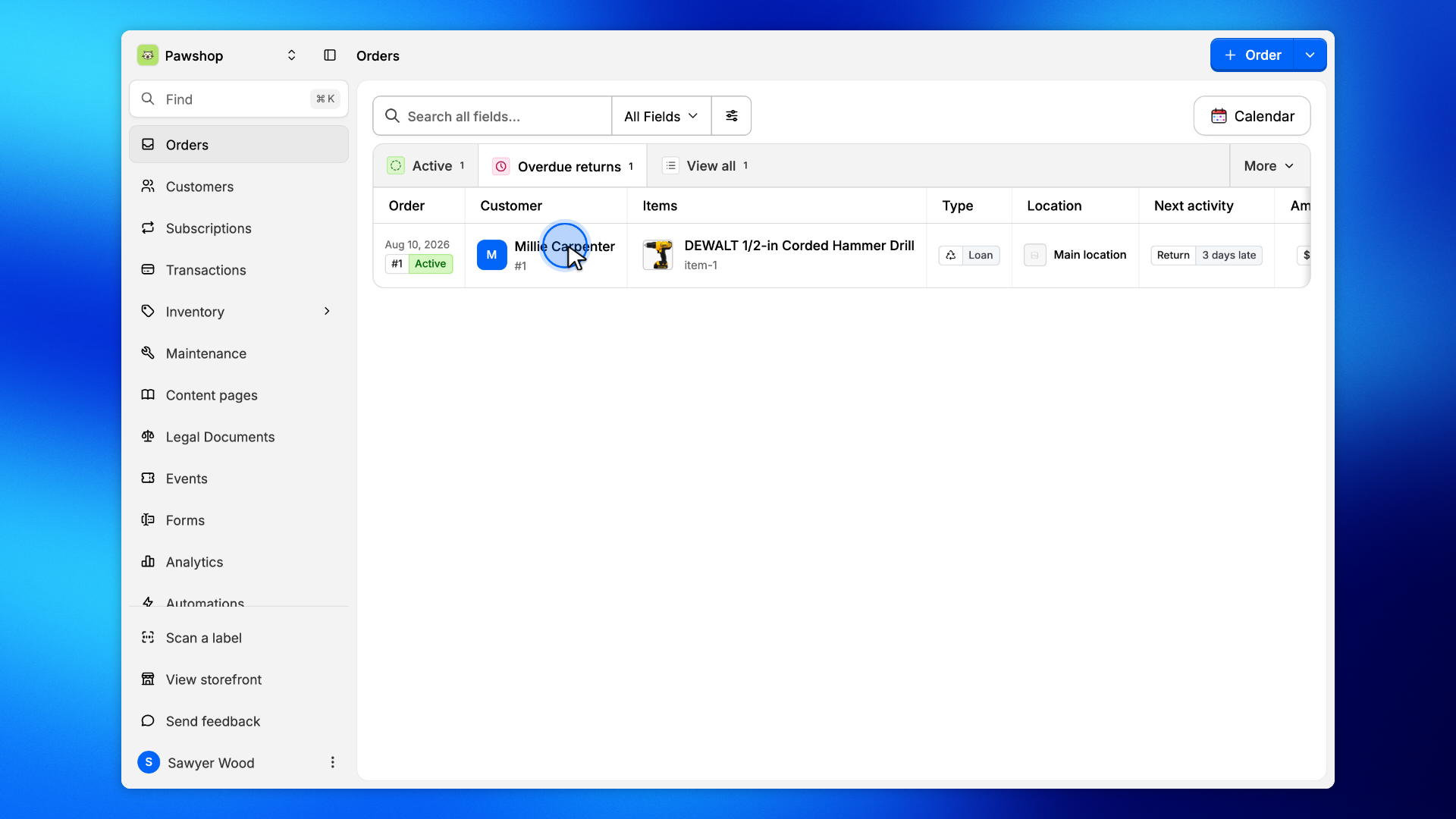
Go to Orders and choose Overdue returns: the orders with an item past its due date. Click the order.
The Customer card names who has the items. Open its ⋮ menu and choose Send email.
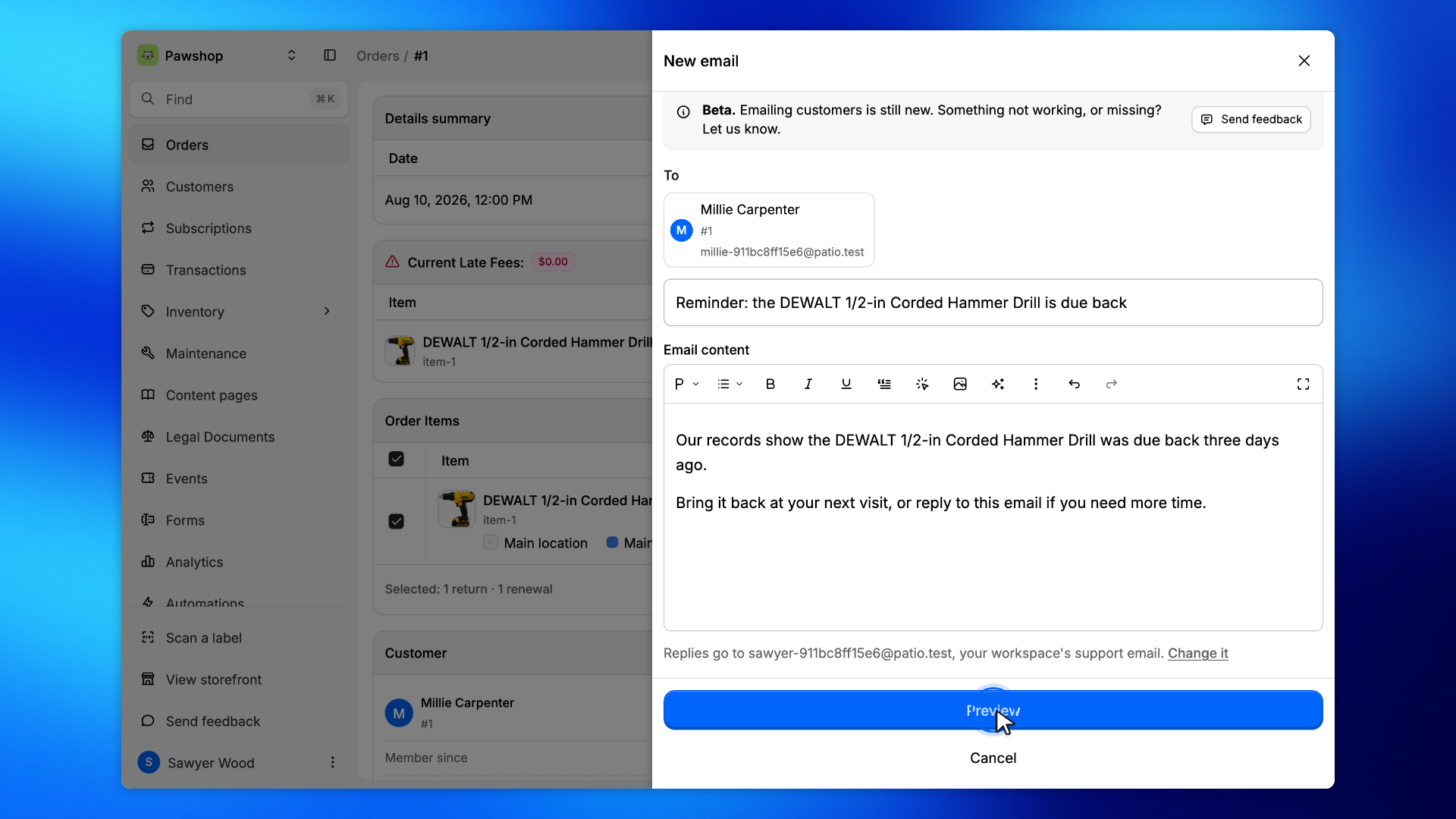
The order's items and their due dates are right there, so the reminder can name them.
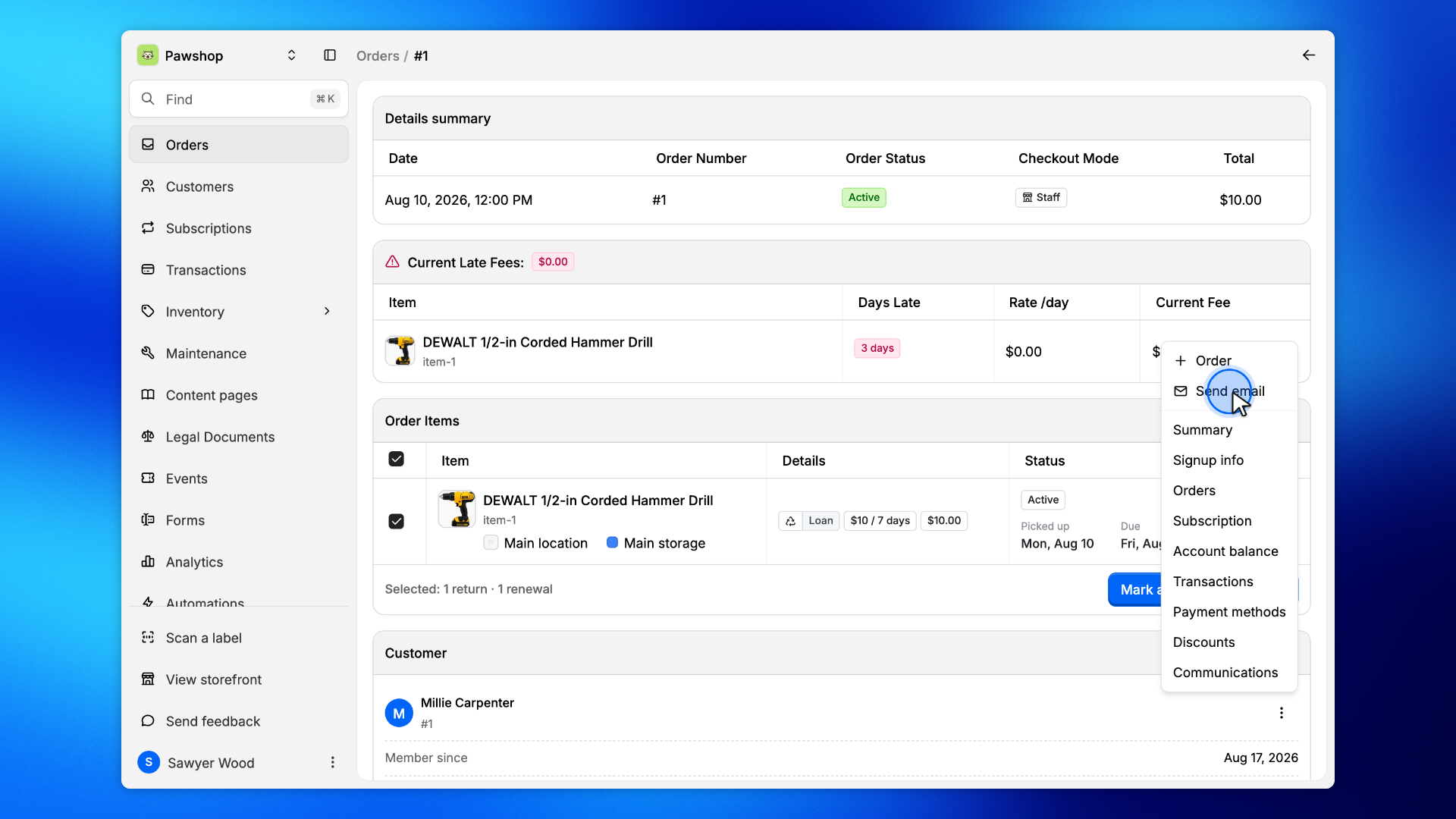
The drawer opens with the customer under To. Name the item and when it was due, then click Preview and Send to 1 customer. The email lands on their Communications tab like any other.
Open the customer and choose Communications. It lists every email your workspace sent them, newest first: the ones your team wrote, and the automatic ones like order confirmations and reminders, marked Automatic.
Status says whether the email went out. Activity is what happened next, for the emails your team wrote: Delivered, Opened, Clicked, or Bounced when their mail server refused it. Send email, at the bottom, starts a new one.
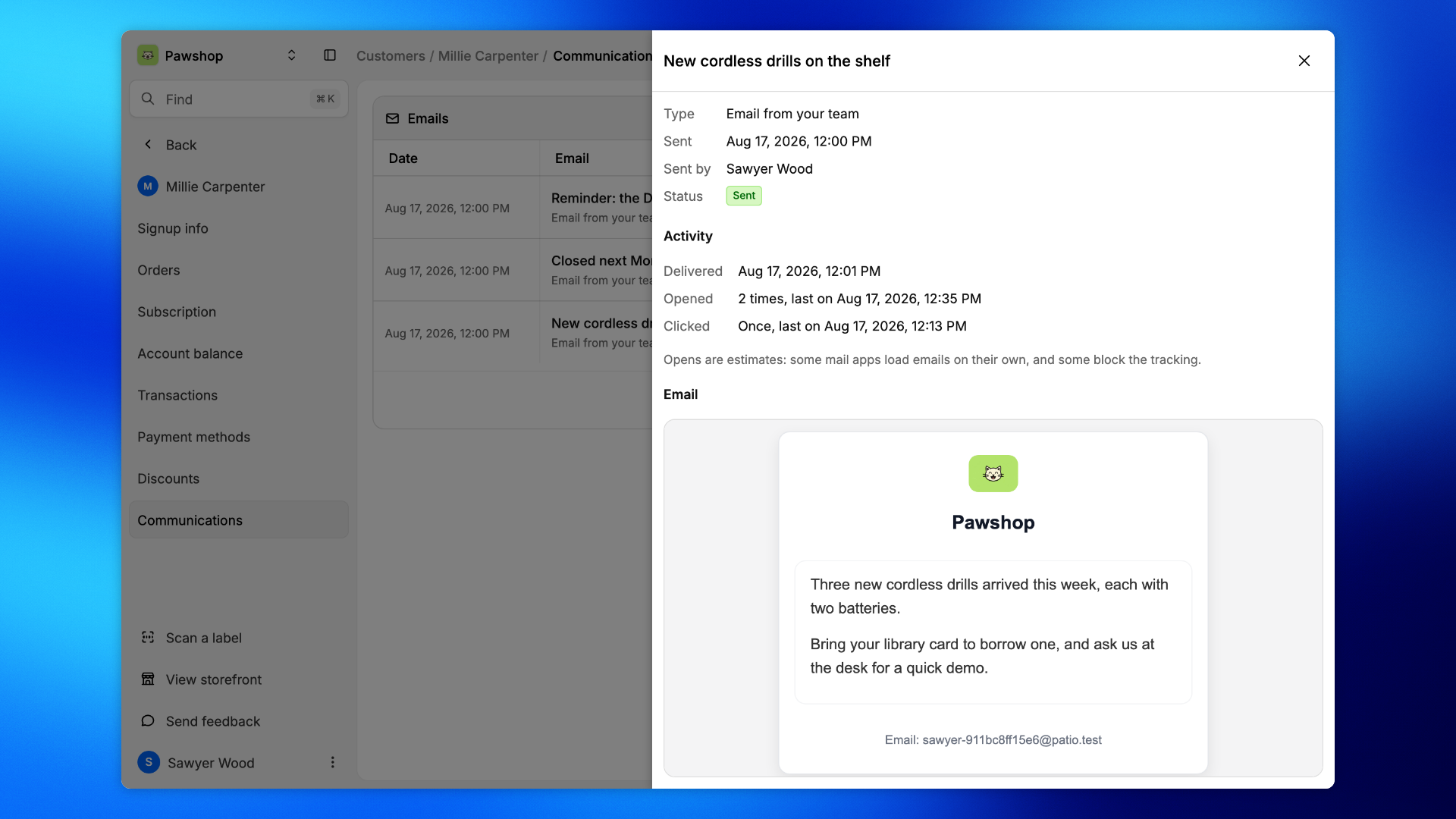
Click a row to open the email: who sent it and when, its status, then when it was delivered and how many times it was opened and its links clicked, and the email itself as it went out.
Opens are estimates: some mail apps load emails on their own, and some block the tracking.