Change an answer staff verified
By Julien RiouxUpdated September 27, 2026
Send staff a change to an answer they verified, follow it, and cancel it if you need to.
By Julien Rioux·Updated September 27, 2026
Send staff a change to an answer they verified, follow it, and cancel it if you need to.
Answers staff verified show Verified in your profile. You can still change them: the change goes to staff for review.
Until staff approve it, your verified answer stays in use, so nothing you reserved is held back while you wait.
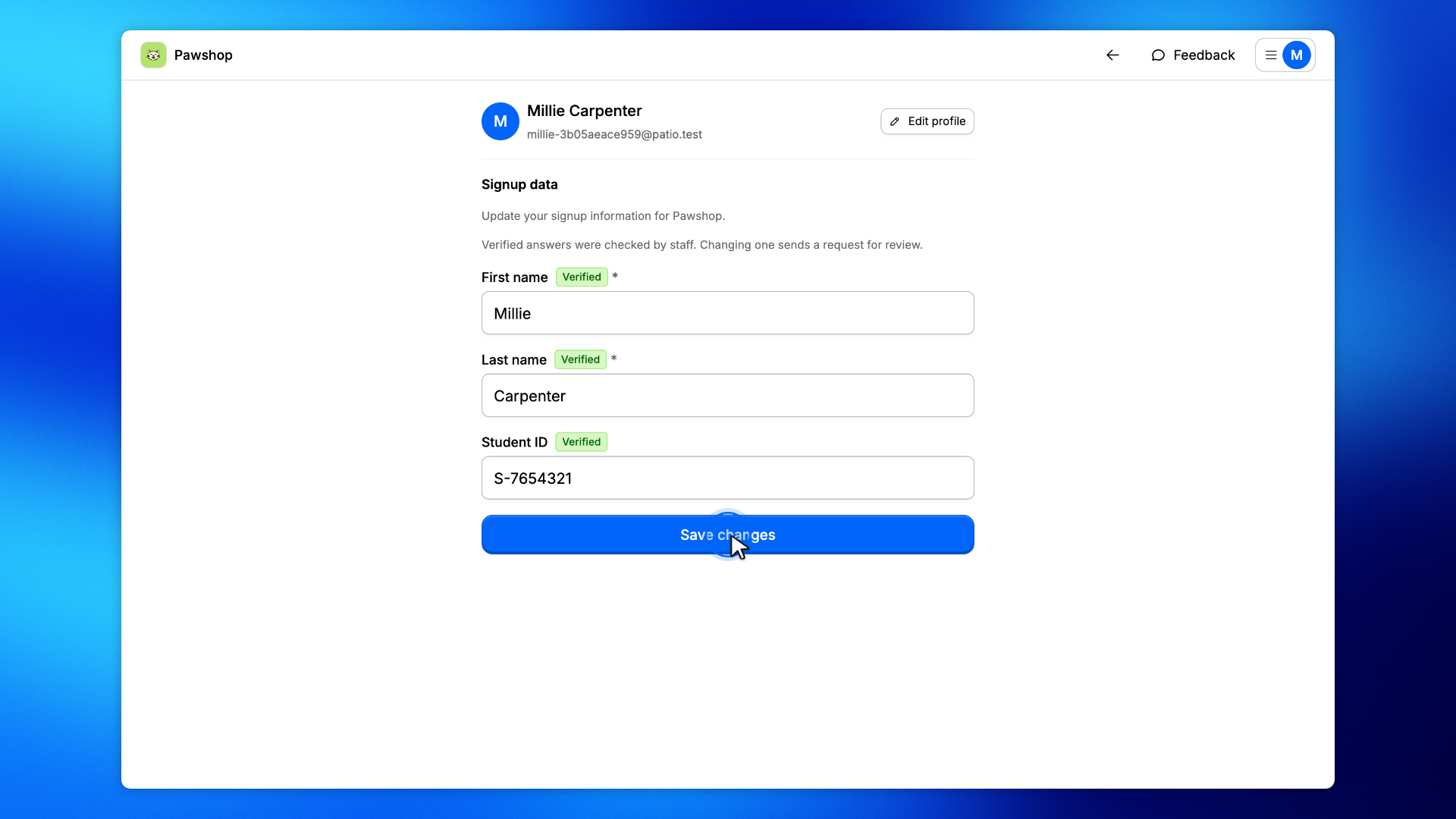
Open your Profile, change the verified answer, and click Save changes.
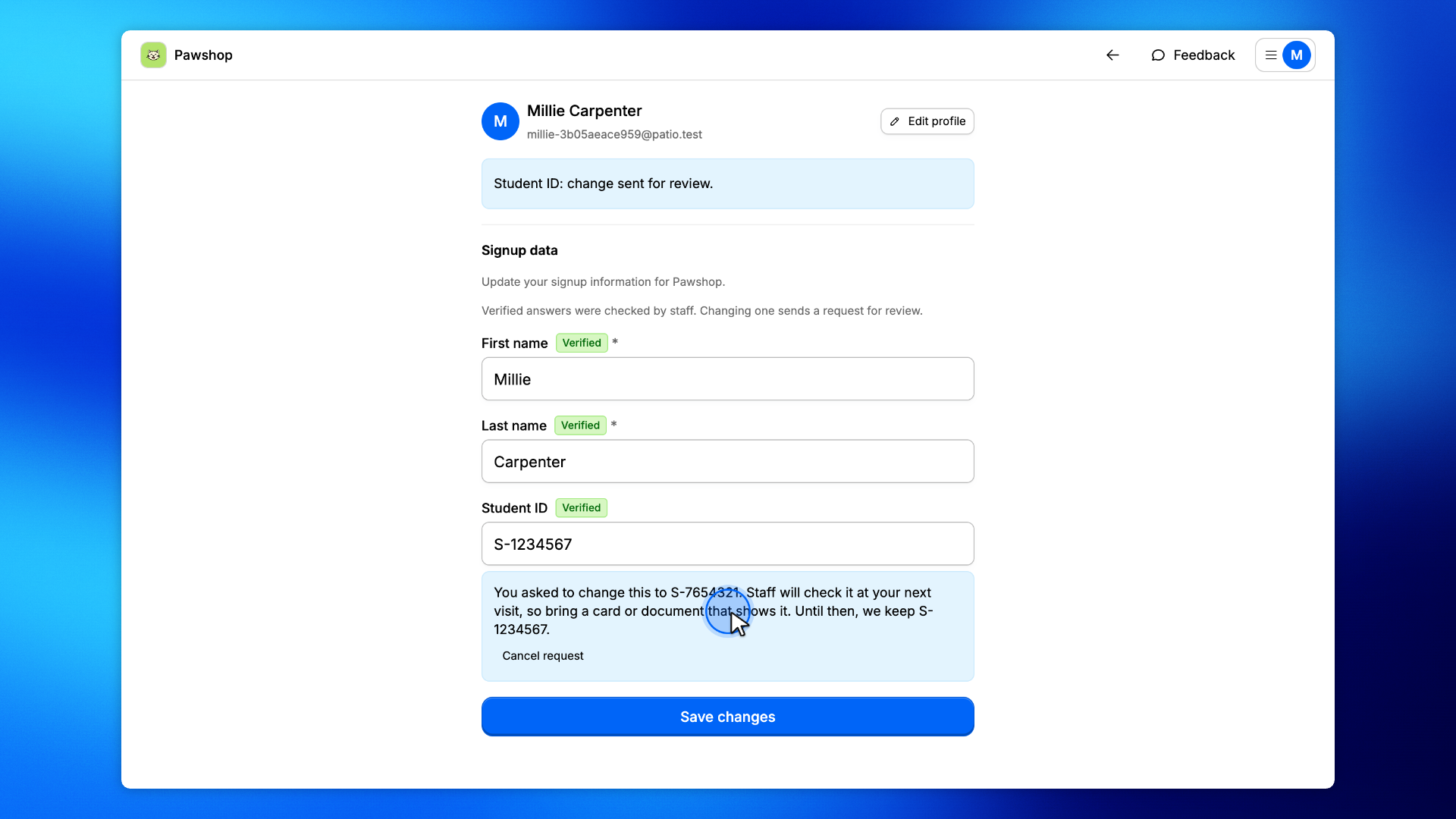
Under the answer, a note shows the value you asked for and the verified answer we keep until then. Staff check the new answer in person at your next visit, so bring a card or document that shows it. The notice at the top of the page lists the change too.
The answer itself stays the verified one until staff approve the change.
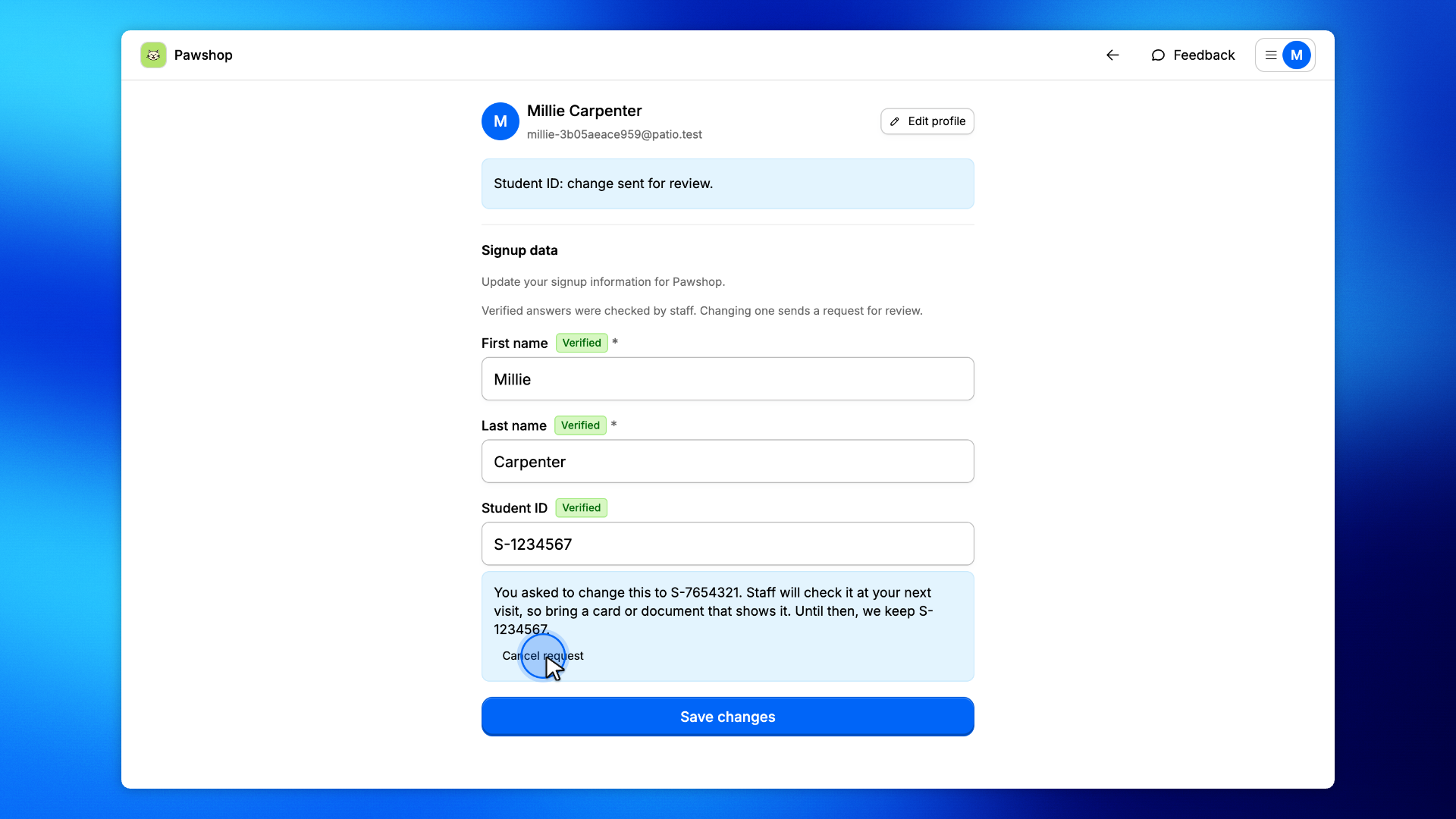
Click Cancel request under the answer.
Staff no longer see the change, and your verified answer stays as it was.
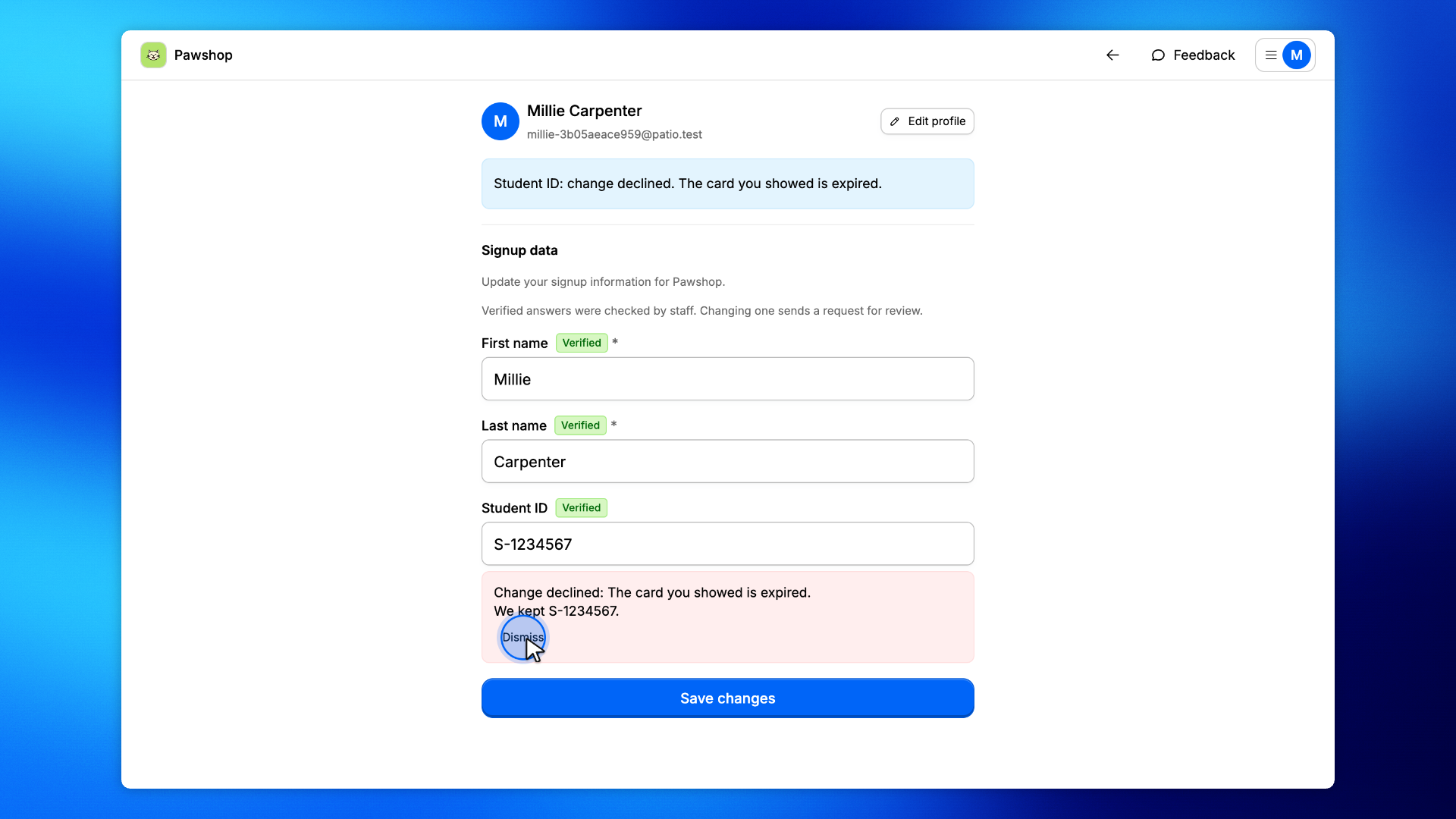
Staff can decline a change, with a reason. Under the answer, your profile says Change declined with their reason and names the verified answer we kept. The notice at the top of your profile shows the reason too.
Click Dismiss once you have read it. You can send a new change at any time.