Set up Stripe Connect to receive payments
By Julien RiouxUpdated August 31, 2026
Connect Stripe in Finance so your workspace can take membership and shop payments.
By Julien Rioux·Updated August 31, 2026
Connect Stripe in Finance so your workspace can take membership and shop payments.
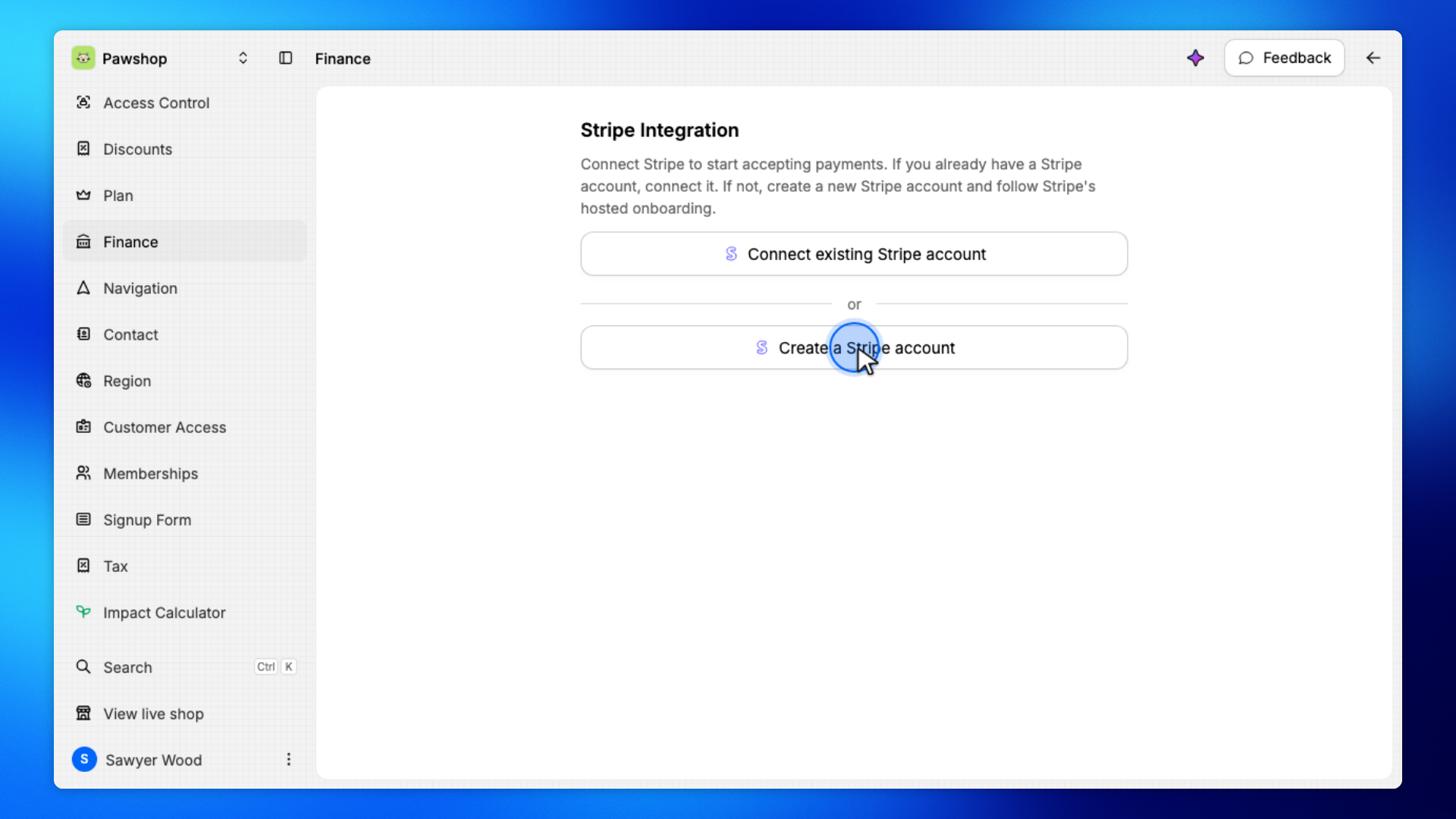
Open Settings, then Finance. If you are new to Stripe, click Create a Stripe account and finish Stripe's hosted onboarding. If you already have an account, use Connect existing Stripe account.
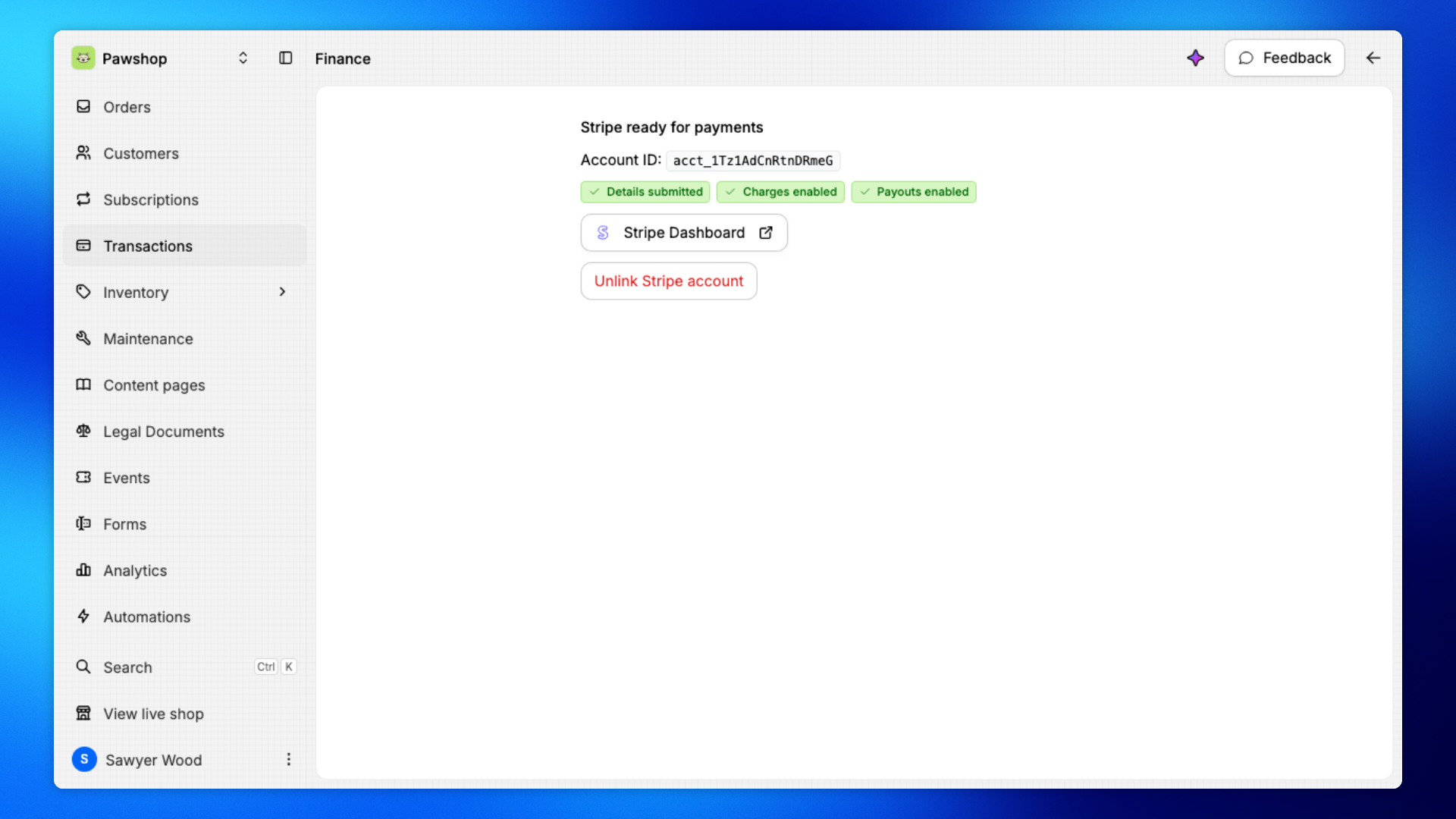
When setup is complete, Finance shows Stripe ready for payments, with Details submitted, Charges enabled, and Payouts enabled. For example, a new library can connect Stripe once, then take membership and shop payments.
Open Settings, then Finance. Under Stripe Integration, click Create a Stripe account if you are new to Stripe, or Connect existing Stripe account if you already have one.
Stripe opens its hosted onboarding in a new screen.
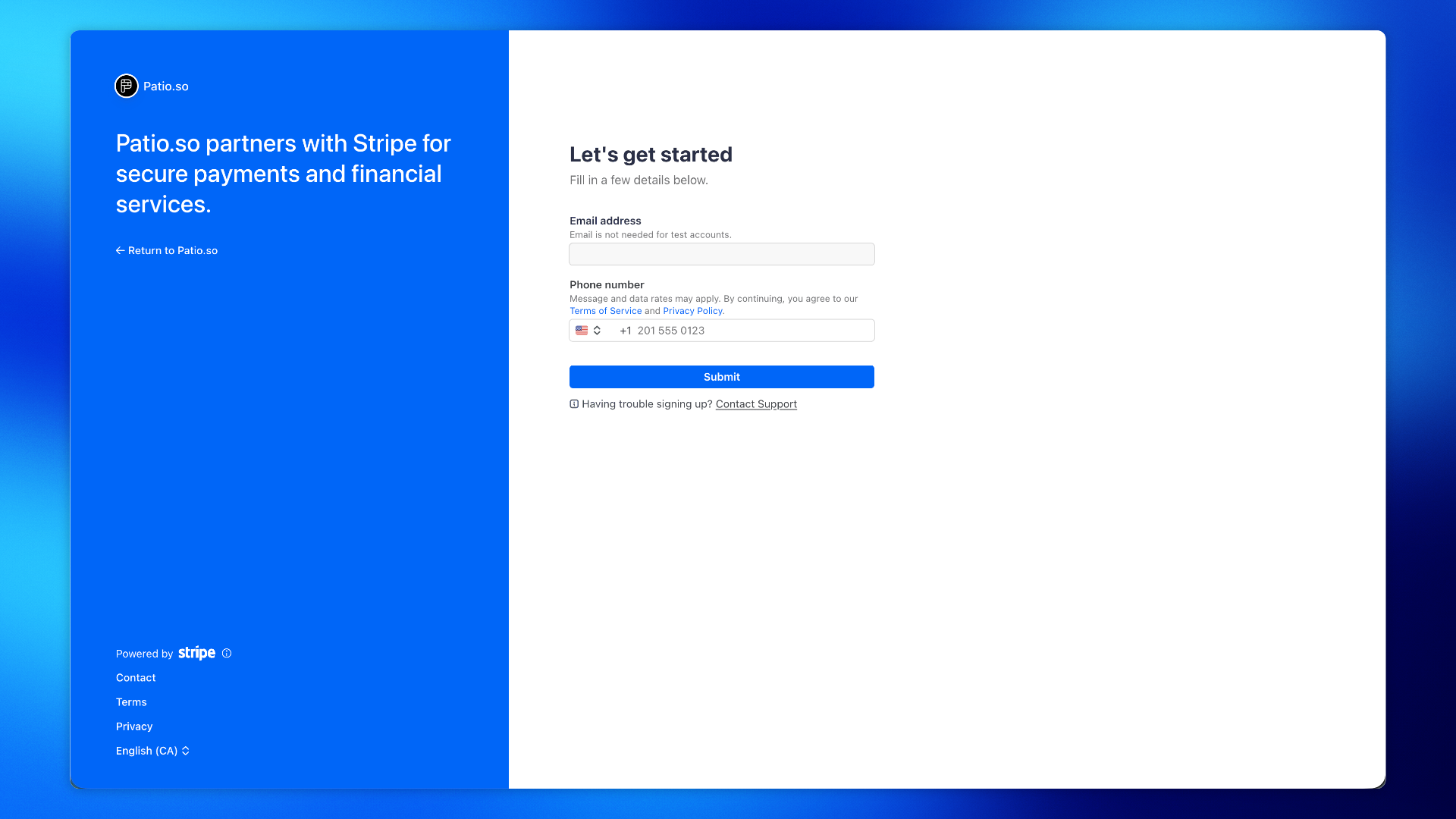
Stripe opens Let's get started. Enter your Email address and Phone number, then click Submit.
Complete Stripe's remaining screens. When you are done, Stripe returns you to Patio.
When setup is complete, Finance shows Stripe ready for payments.
You should also see Details submitted, Charges enabled, and Payouts enabled. Your workspace can now take membership and shop payments.