📤 Process Checkouts
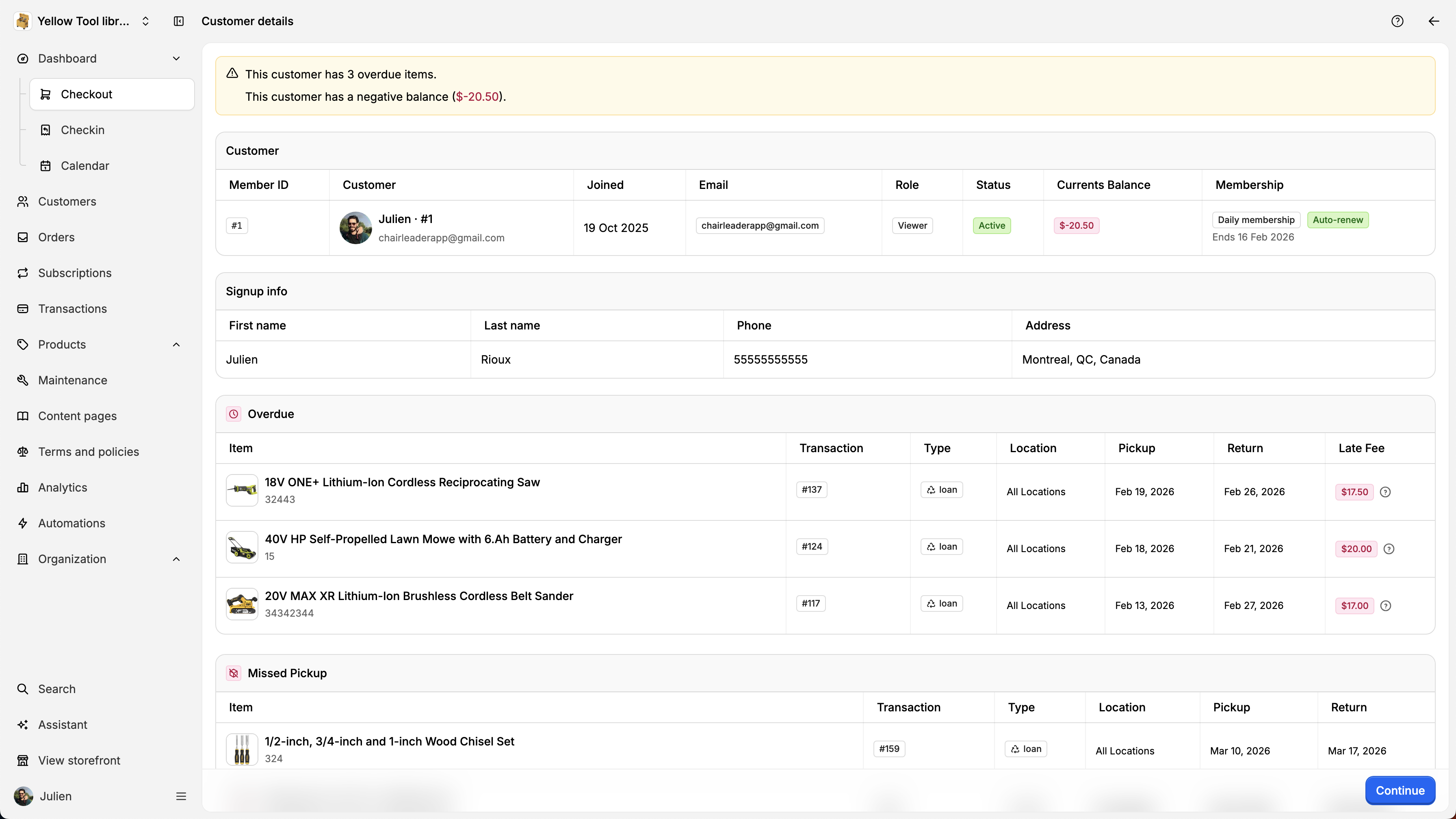
From the dashboard, click on the New order button on top right. Then, select the customer that you want to create a new order. You will then see the customer su
By Julien·Updated June 14, 2026
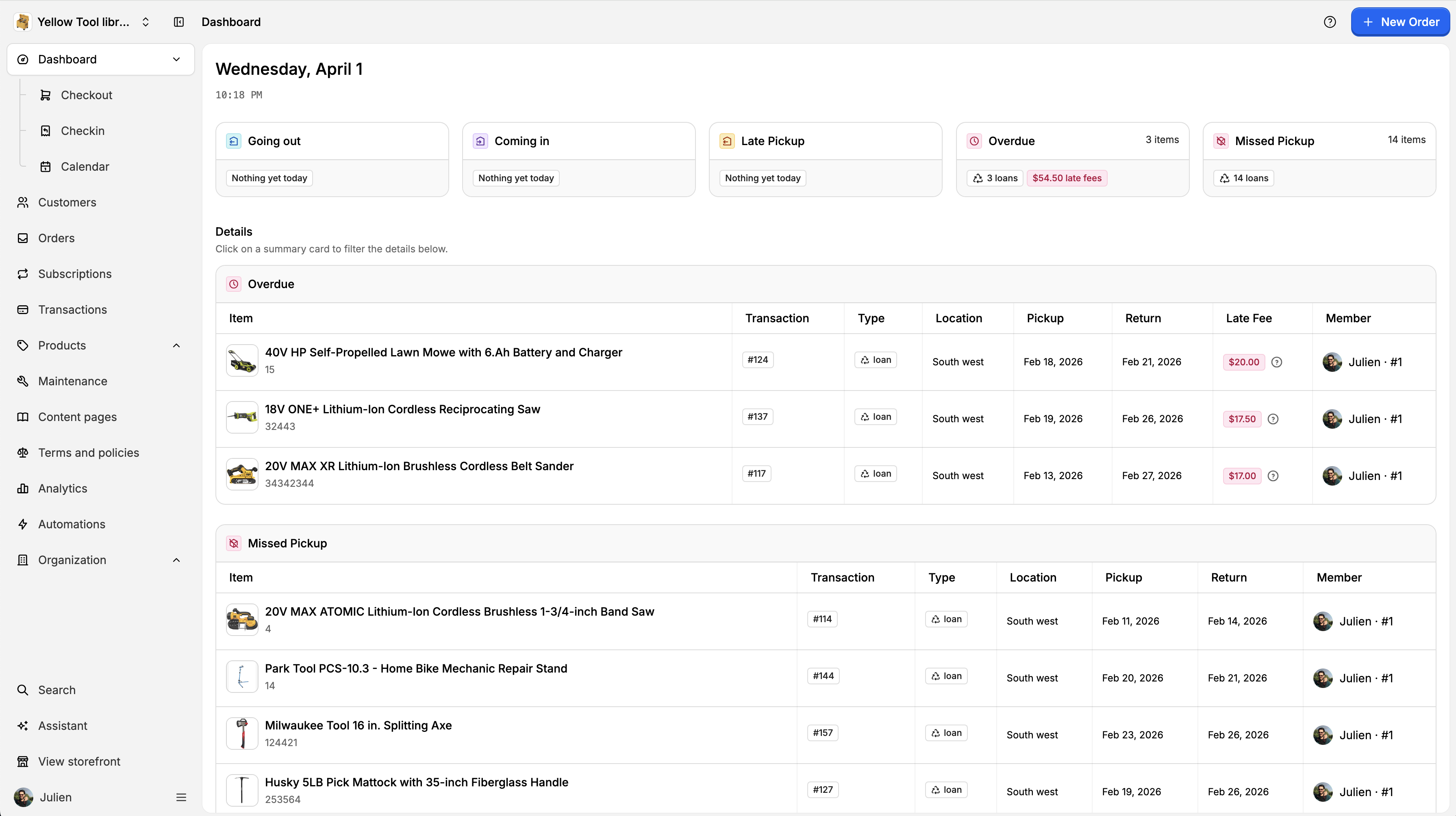
From the dashboard, click on the New order button on top right.
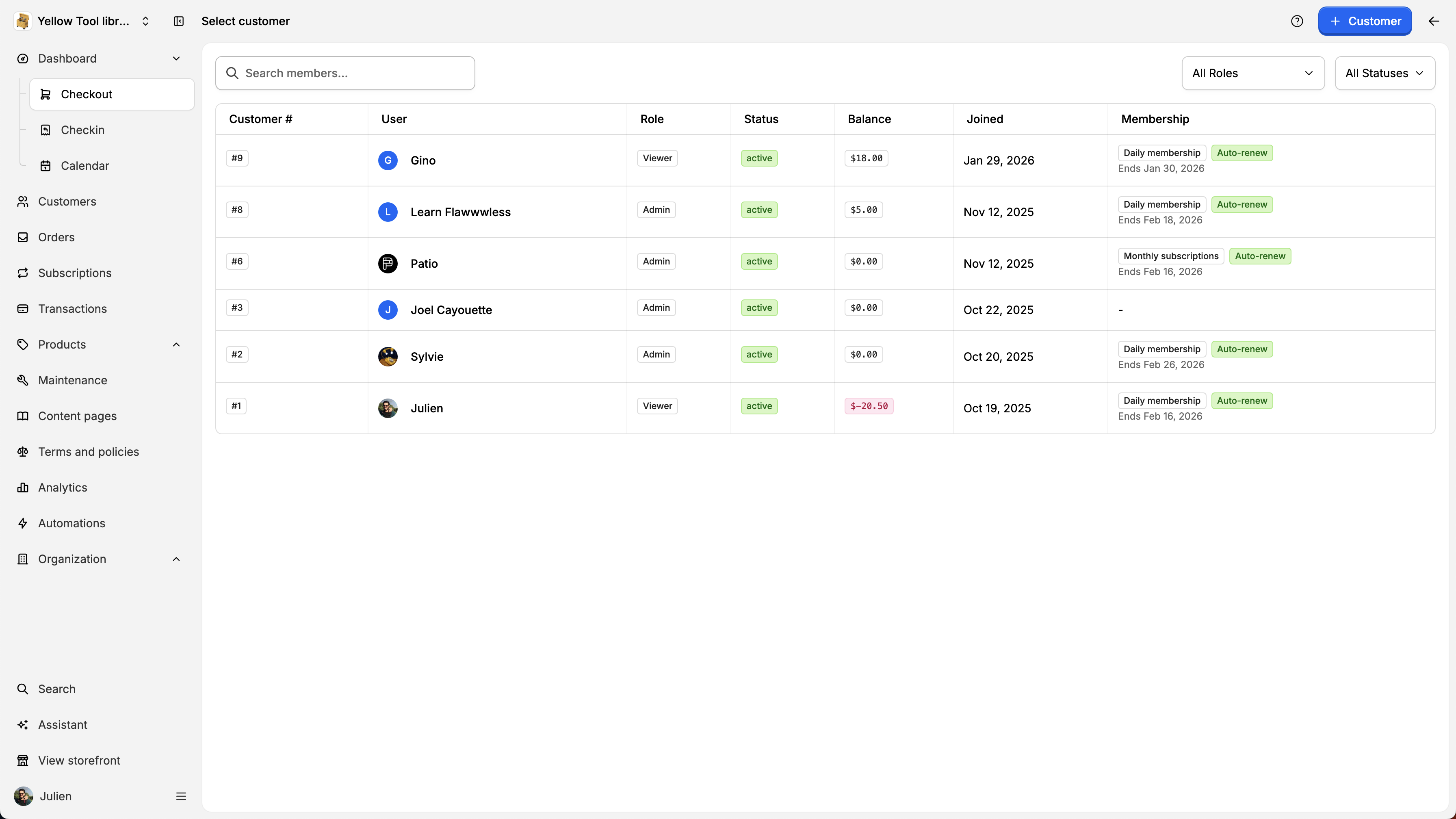
Then, select the customer that you want to create a new order.
You will then see the customer summary (current balance, item currently rented, overdue, late fees, membership, etc. Click on Continue to select the items.
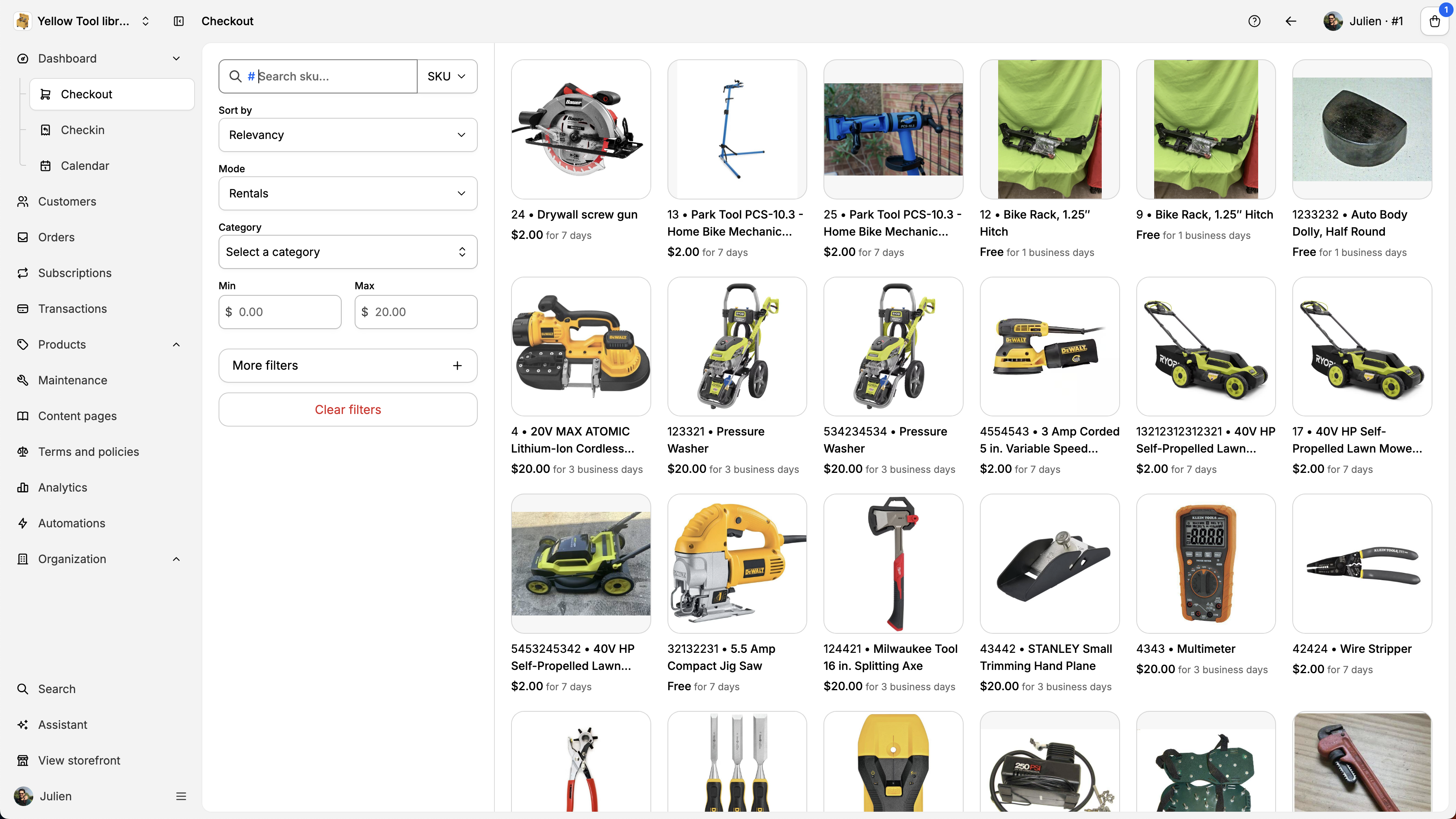
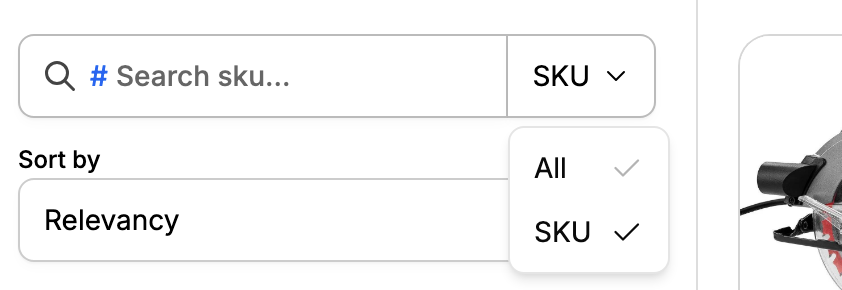
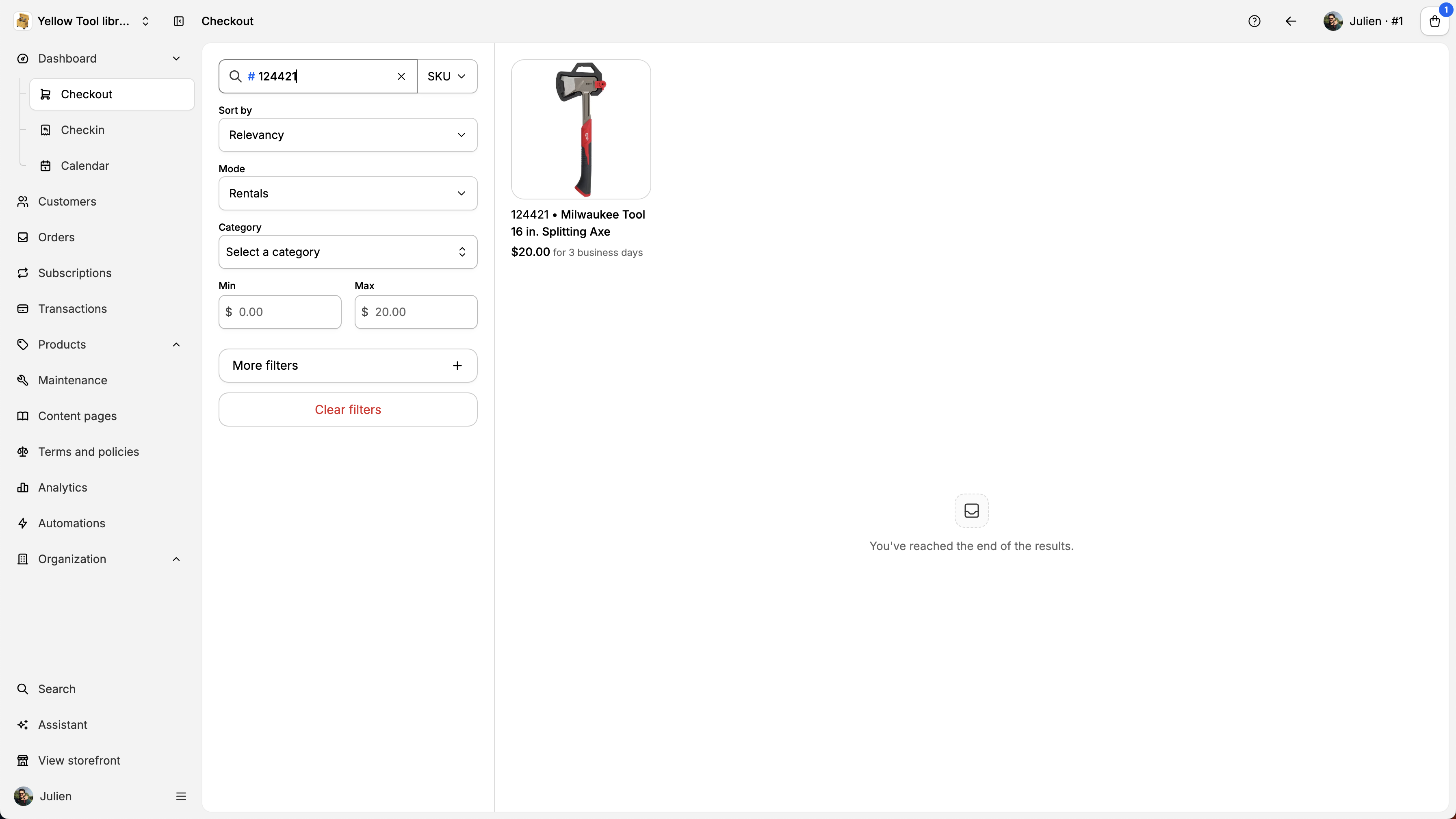
You will then see the catalog of products. You can search by SKU using the search bar. You can search by product name if you prefer using the All search.
Once the item found, you can click on the product and add it to the card.
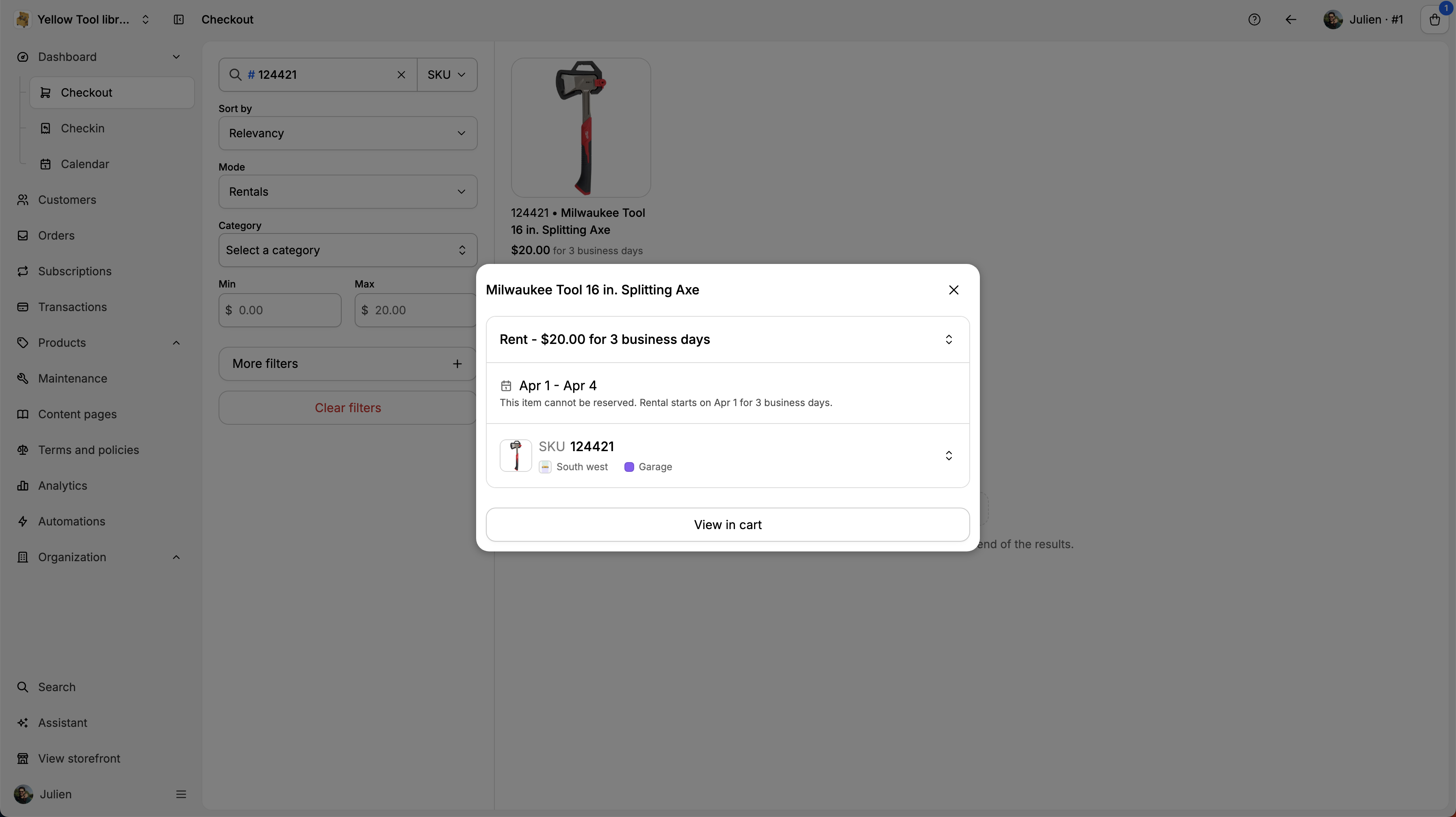
You can open the cart by clicking on the shopping bag button on the top right. To change customer or view their details, you click on the customer avatar.
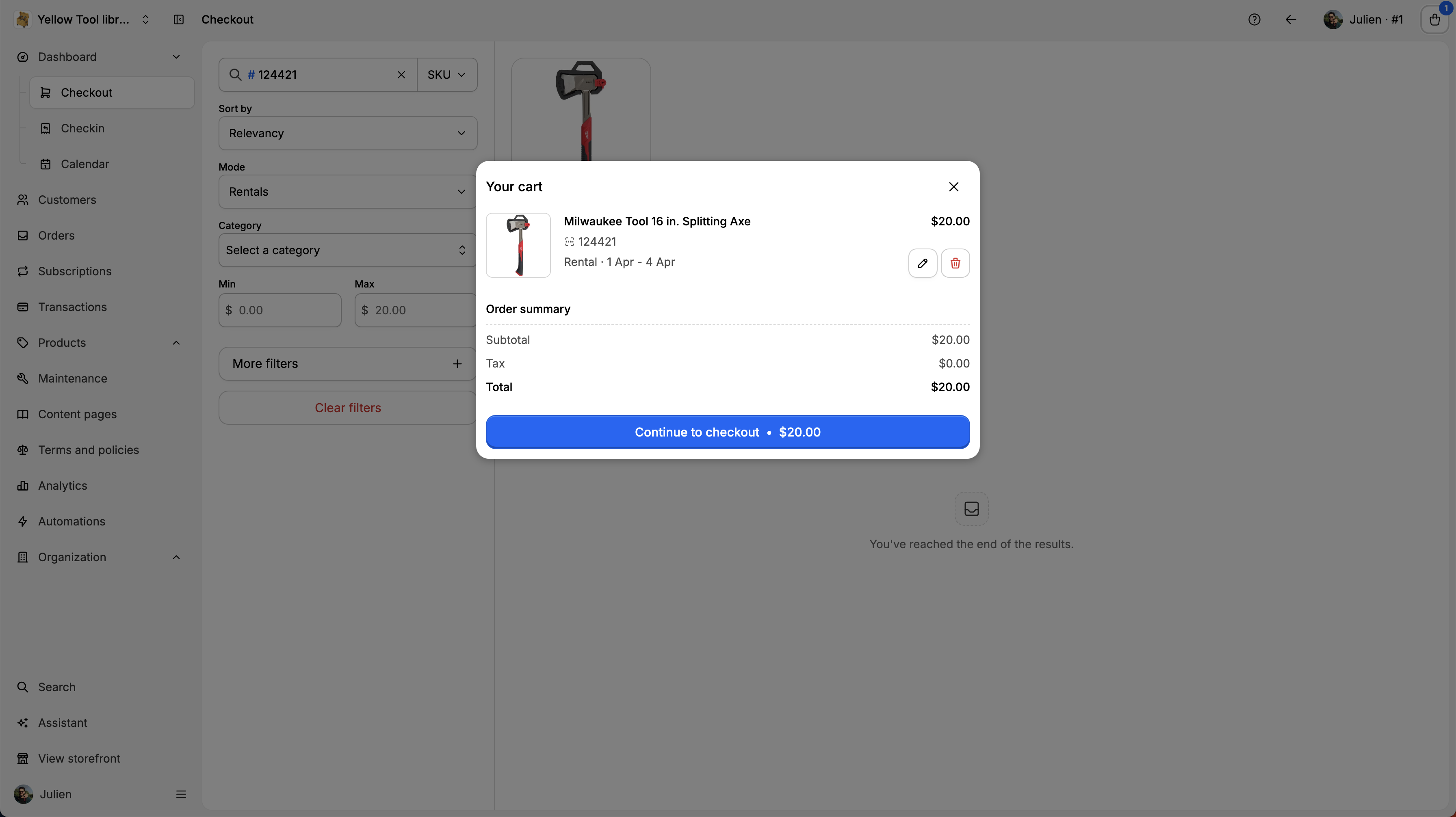
Here you will see the order details. You can edit it and select the user payment method:
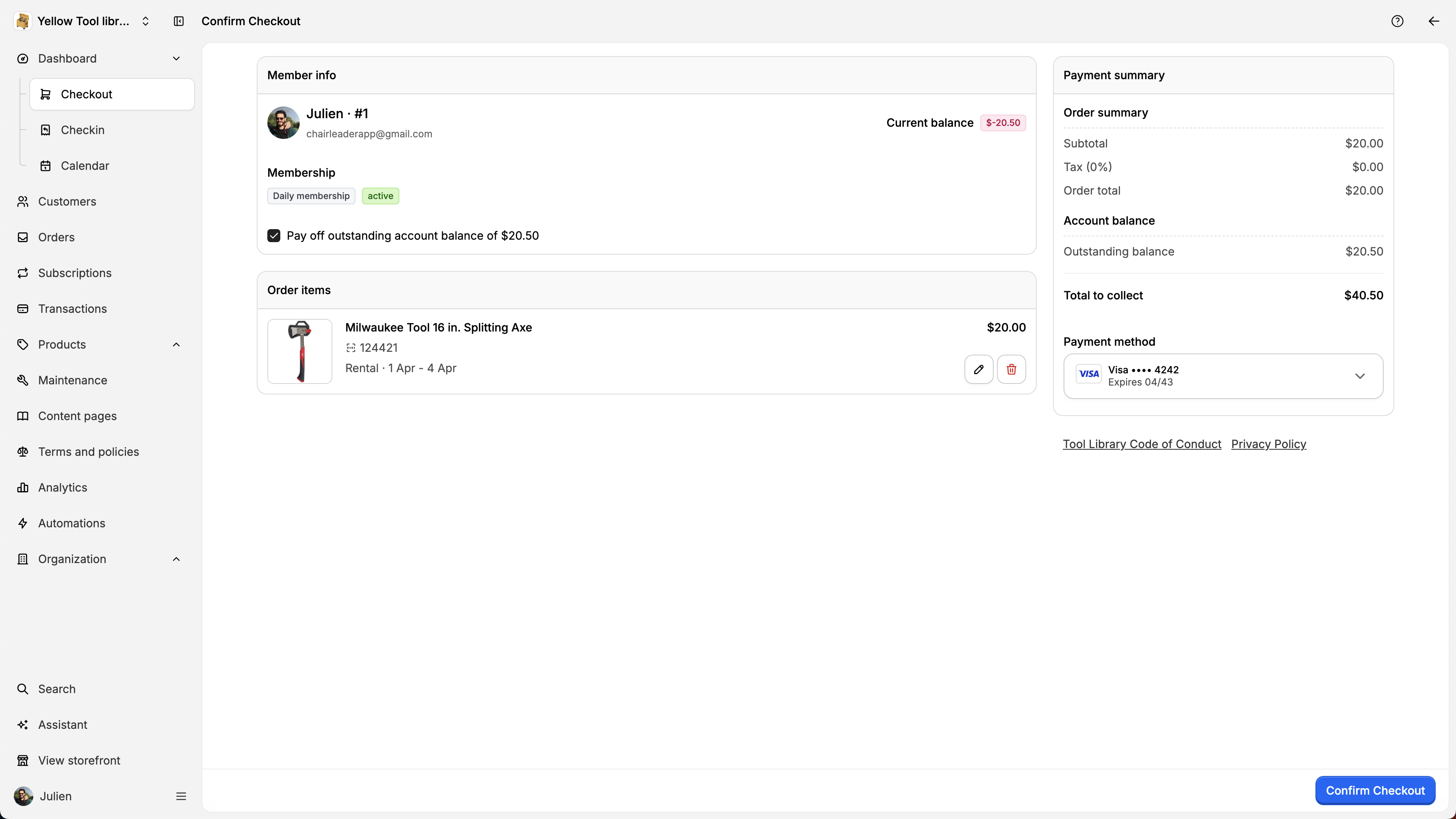
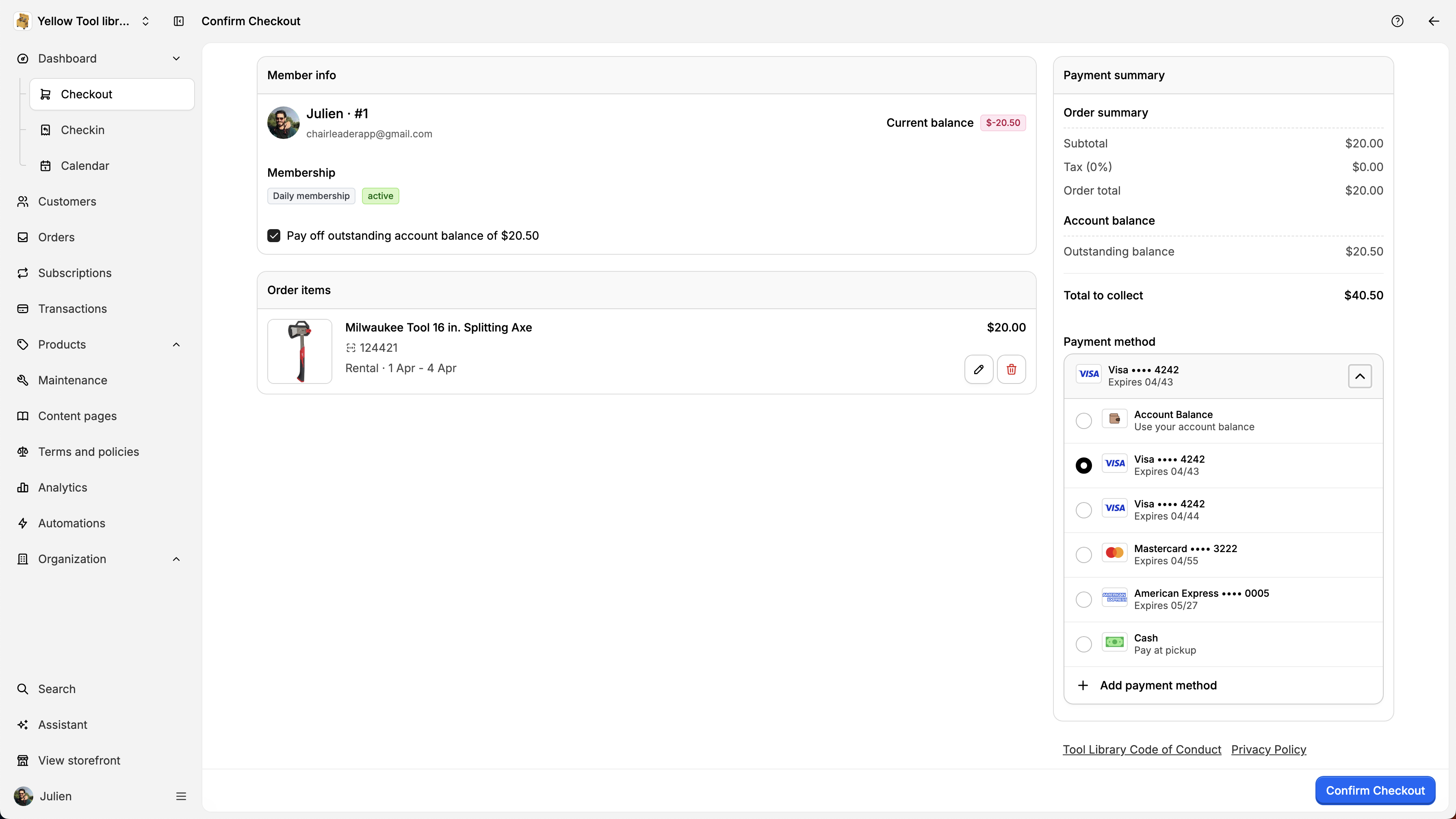
If charging to the user balance, you will see the user account balance summary.
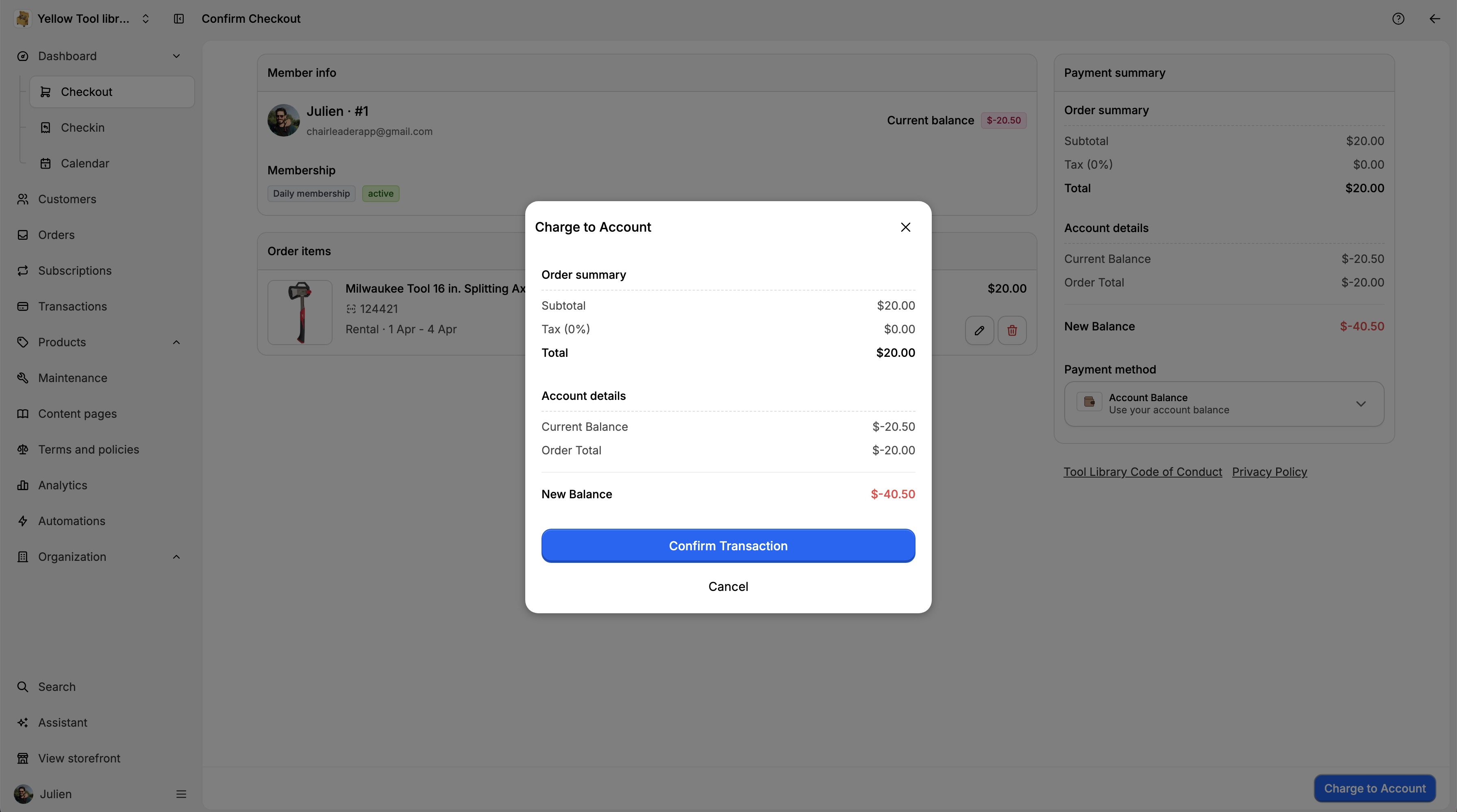
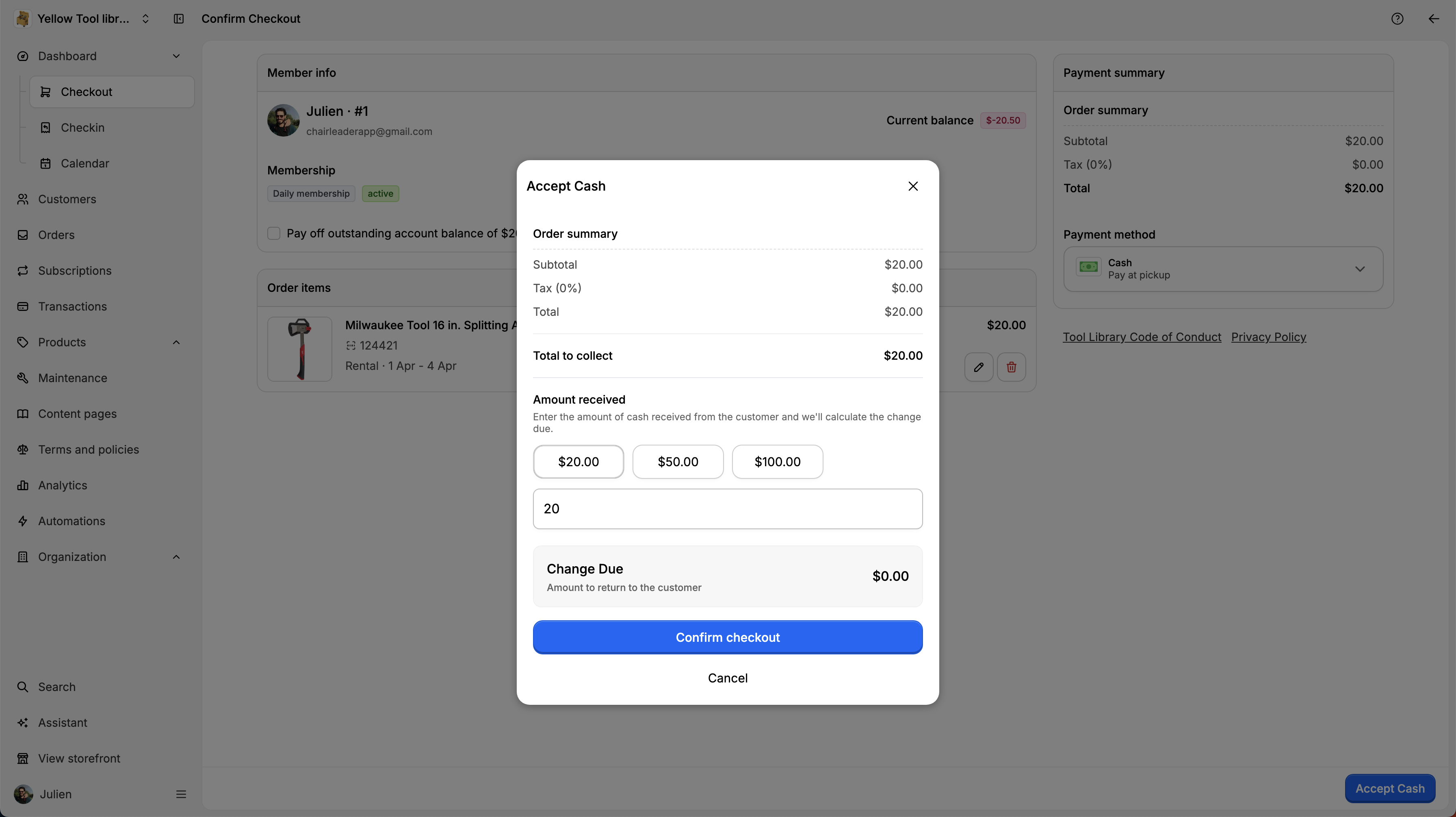
If charging using cash, you will need to enter the amount received and you’ll get the change to return if applicable.
If paying using credit card that the user previously saved, it will process the payment.
Once the payment completed, the order will be processed and you will see the order summary:
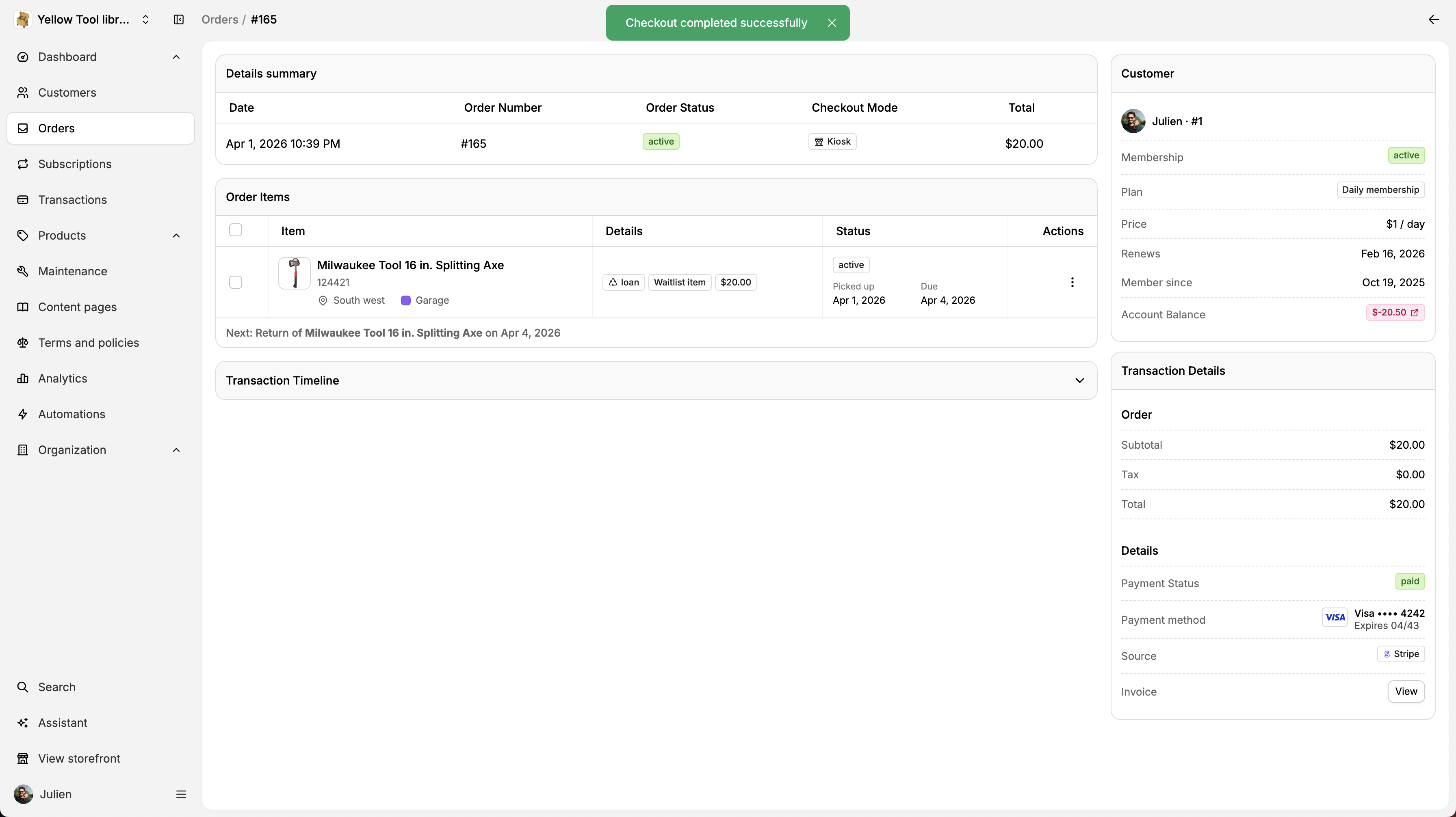
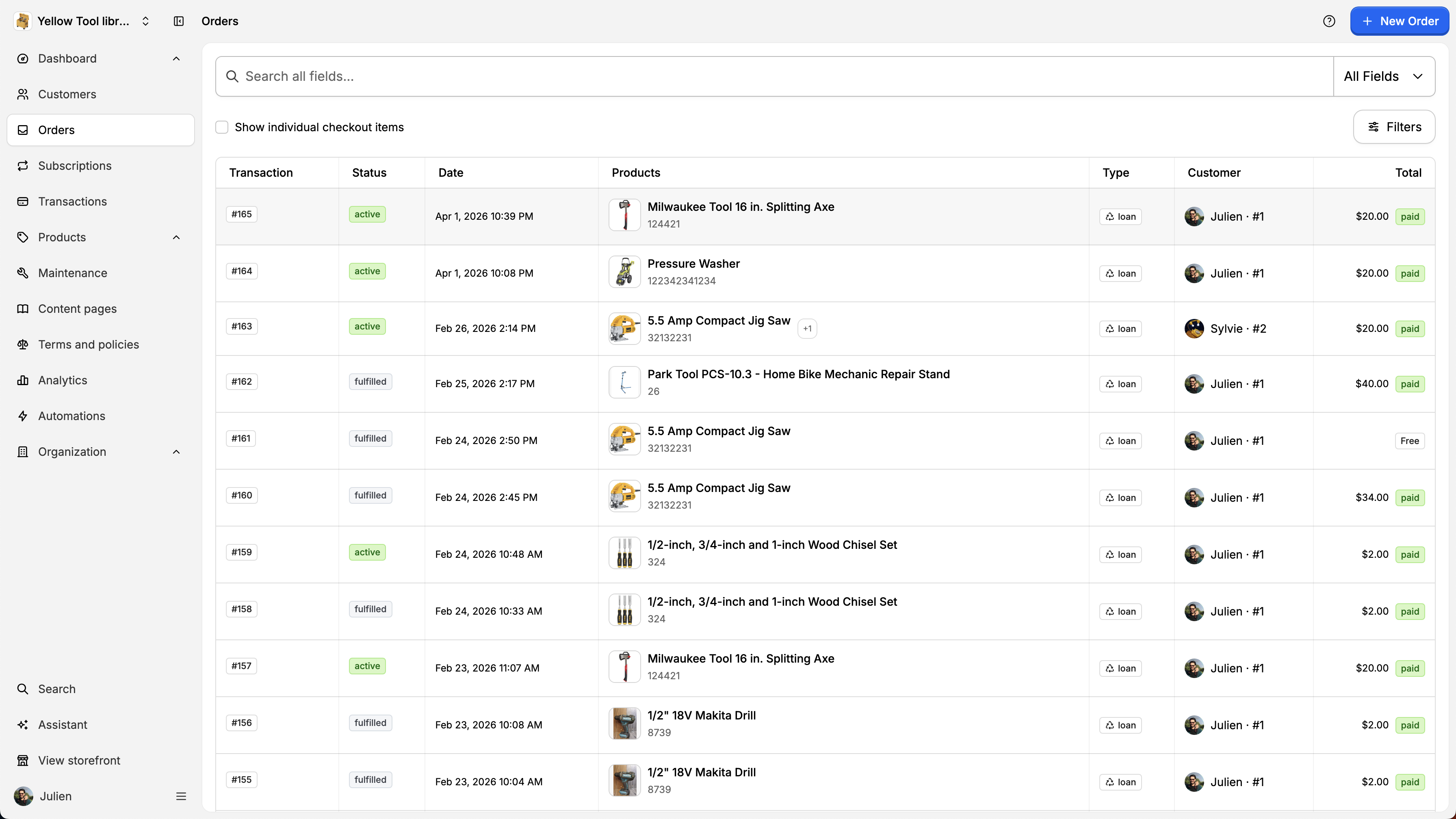
It will also appear when clicking on the Orders tab on the left sidebar: