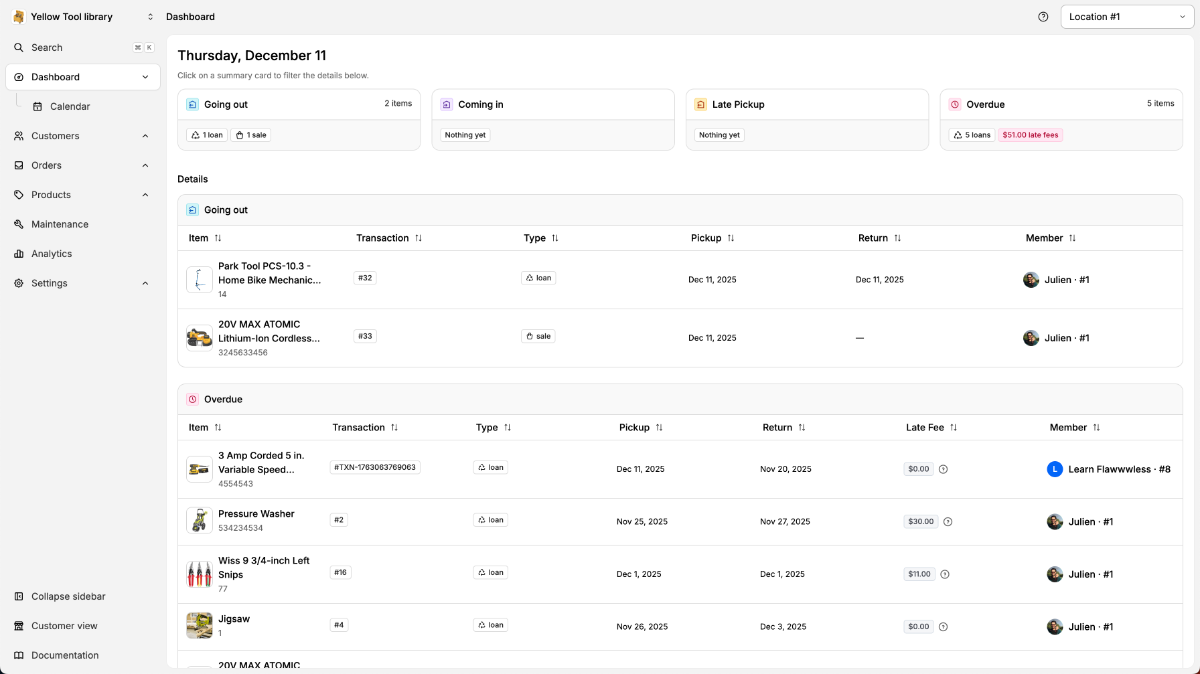
The dashboard is the day-to-day operations view of your organization. It brings together all time-sensitive actions for the current day, such as items to pick up, items to return, and overdue loans.
It is designed to help staff quickly understand what needs to be handled now, prioritize tasks, and take action without navigating through individual orders. By grouping outgoing items, incoming returns, and overdue loans in one place, the dashboard ensures that daily operations run smoothly and nothing is overlooked.
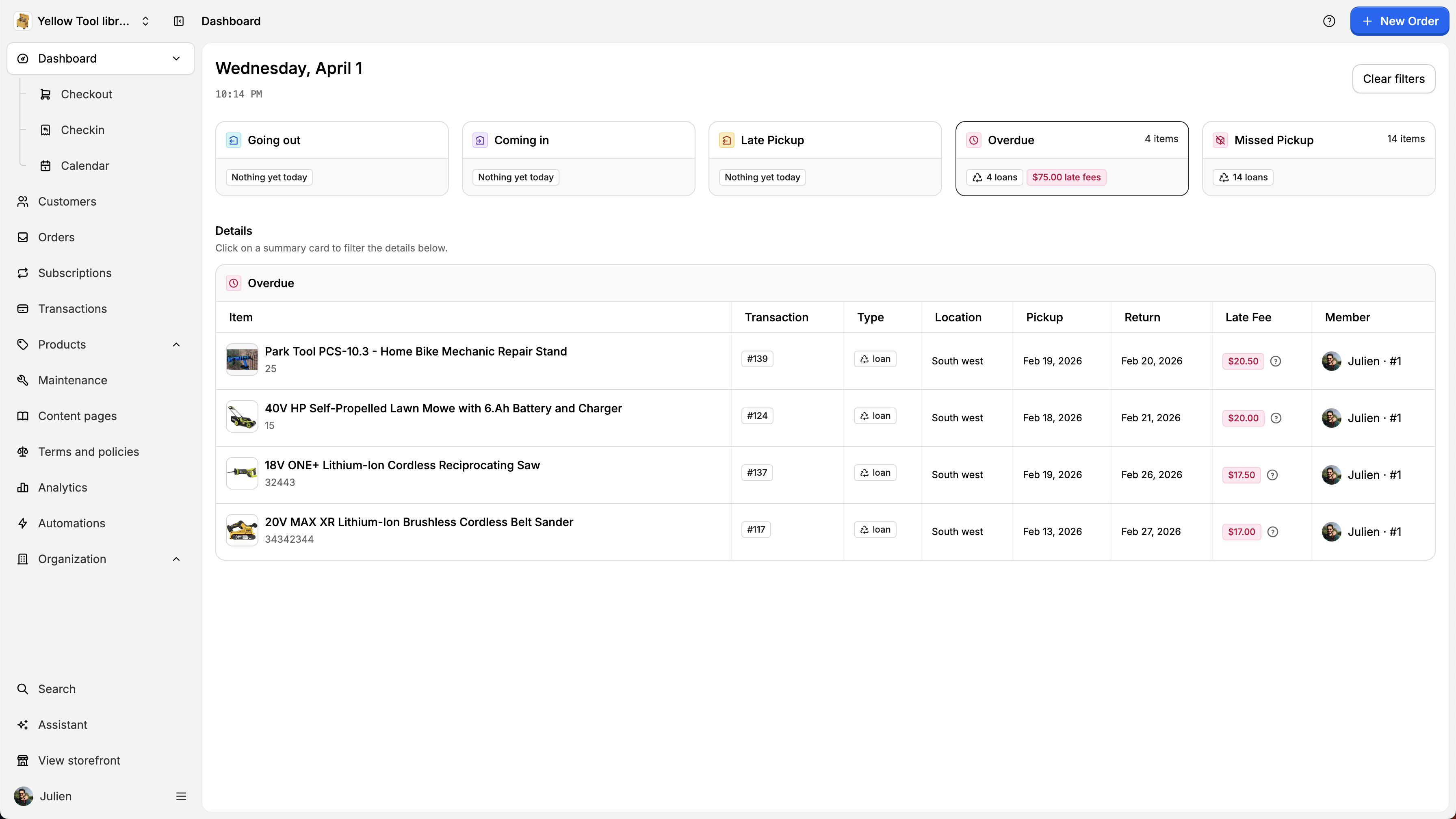
📤 Going out
Loans or sales scheduled for pickup today.

📥 Coming in
Items scheduled to be returned today.
⏰ Overdue
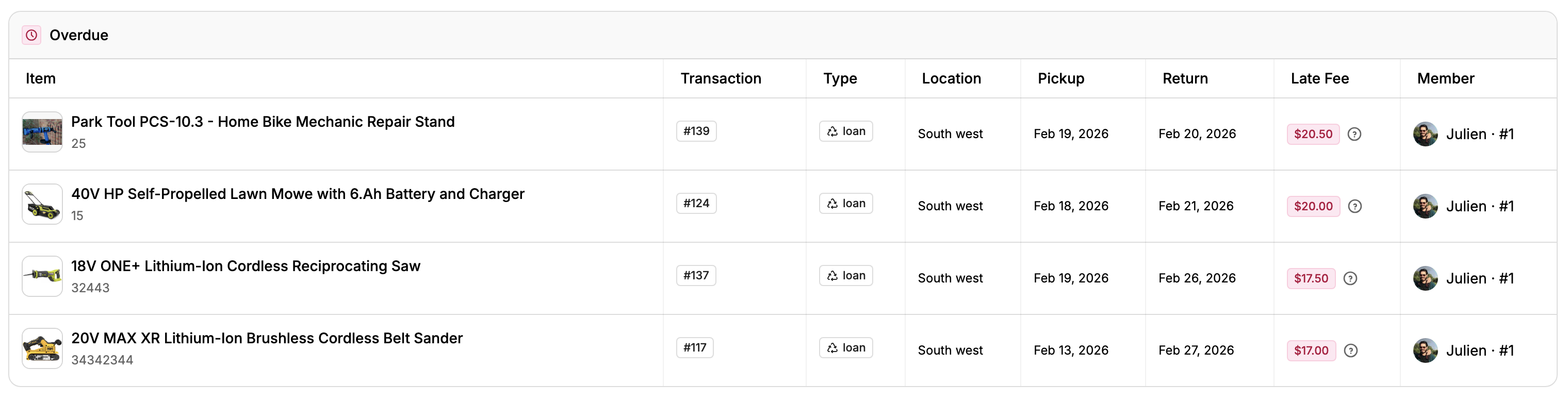
Items past their return date. Late fees are displayed when applicable.
🧾 Order page
When you click on an item from the dashboard, you are redirected to the order page.
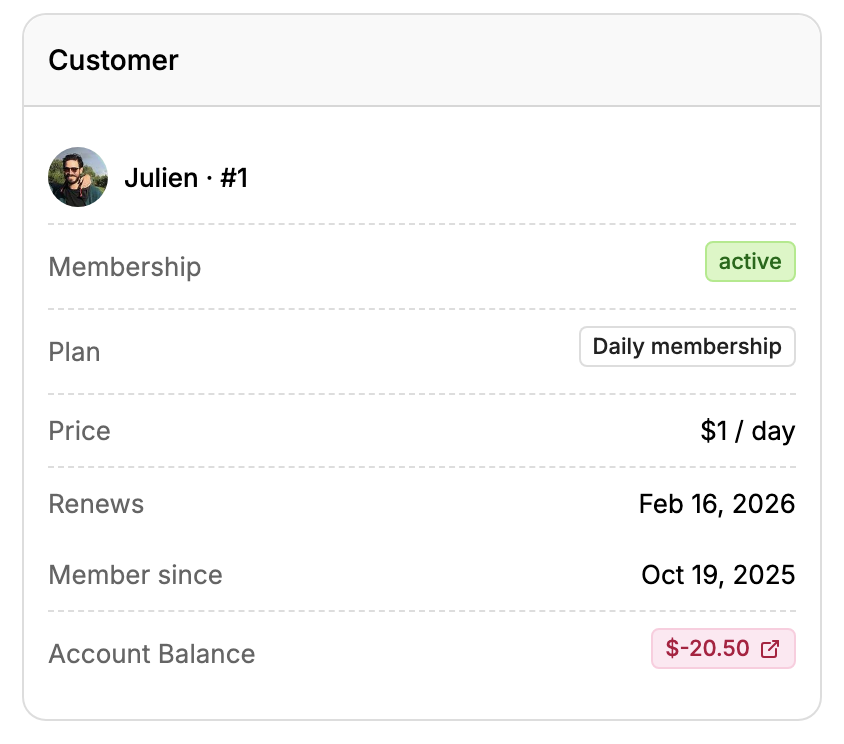
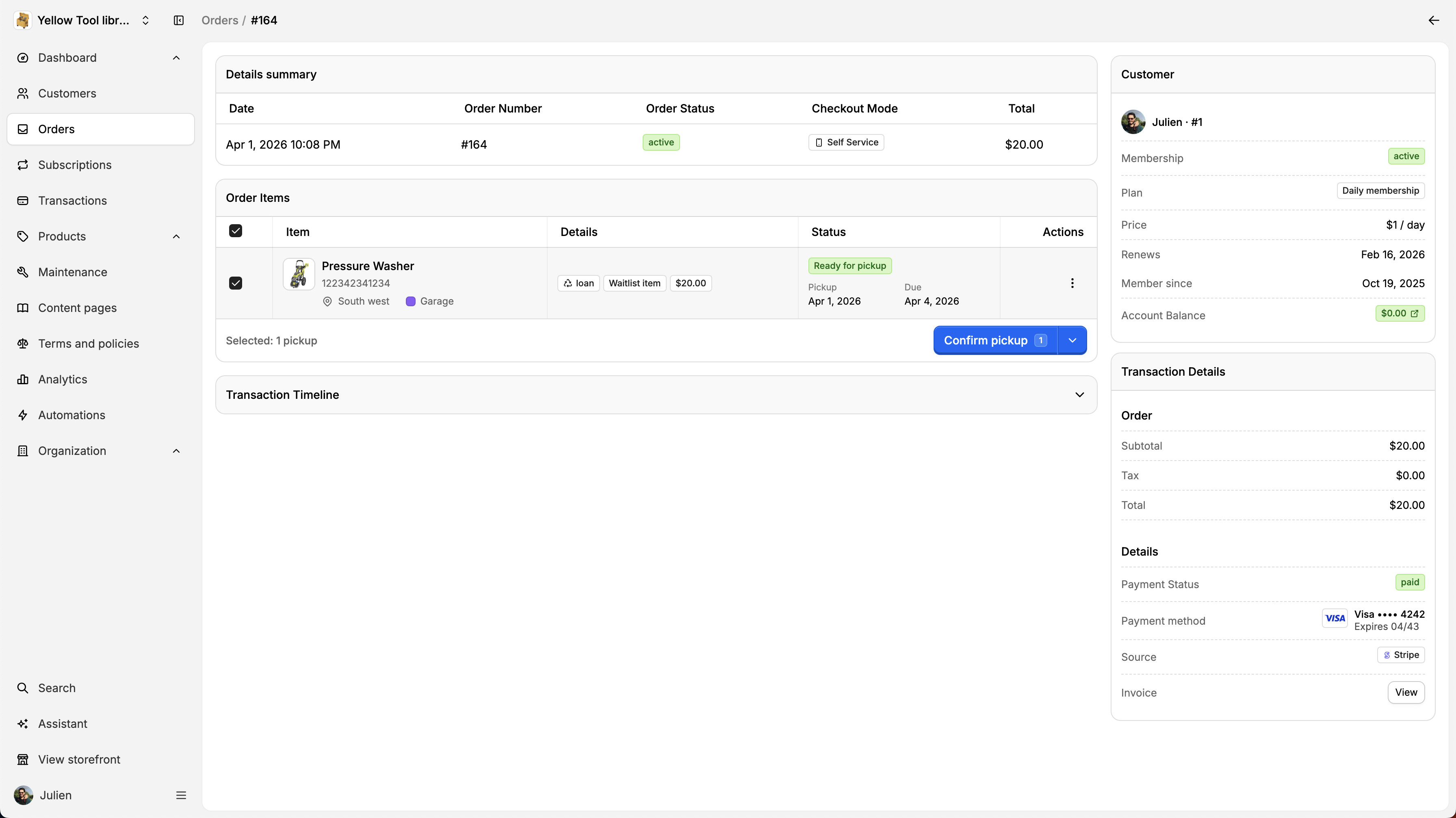
The order page displays all items that have been sold, lent, or returned as part of the order. At the top, you can see a summary including the date, transaction number, checkout mode, and total amount. On the right side, a summary of the customer’s membership is shown.
📋 Order items
Ordered items are listed in a table. For each item, you can see:
📍 Location
🗂 Section
💰 Fees
🔄 Status
📅 Pickup or return date
▶️ Available actions
⚡ Actions
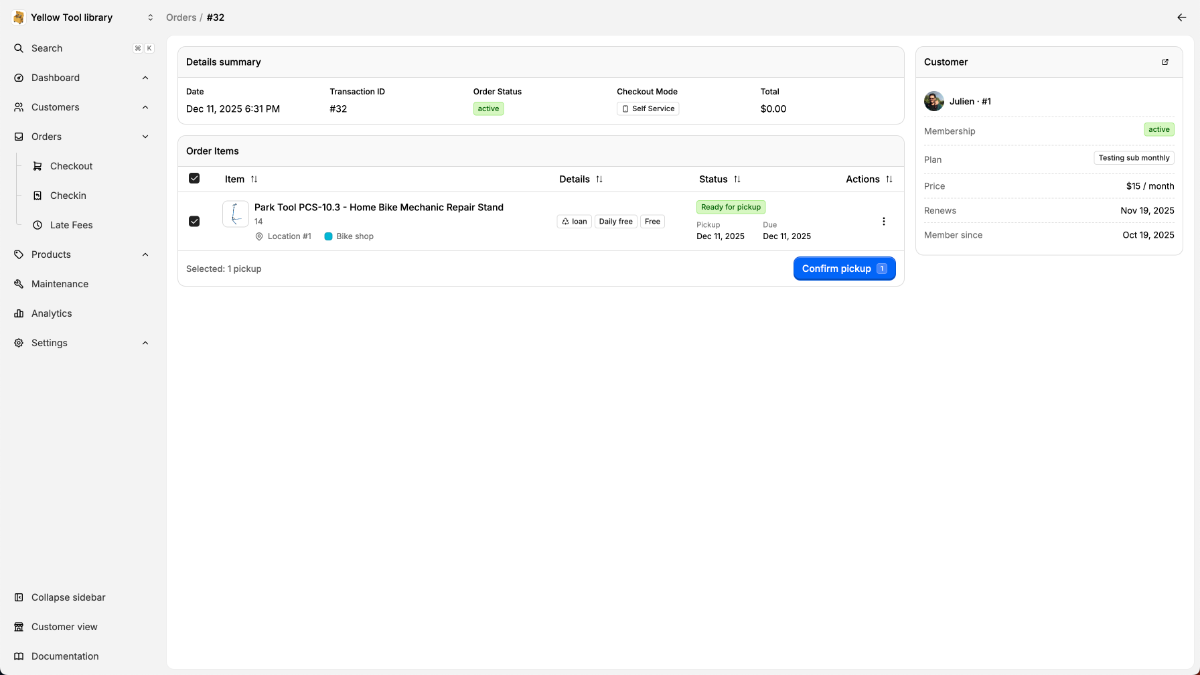
When an action is ready to be performed, it is automatically selected.
For example, if a pickup is scheduled for today, it will be pre-selected and you only need to click Confirm.
✅ Action confirmation
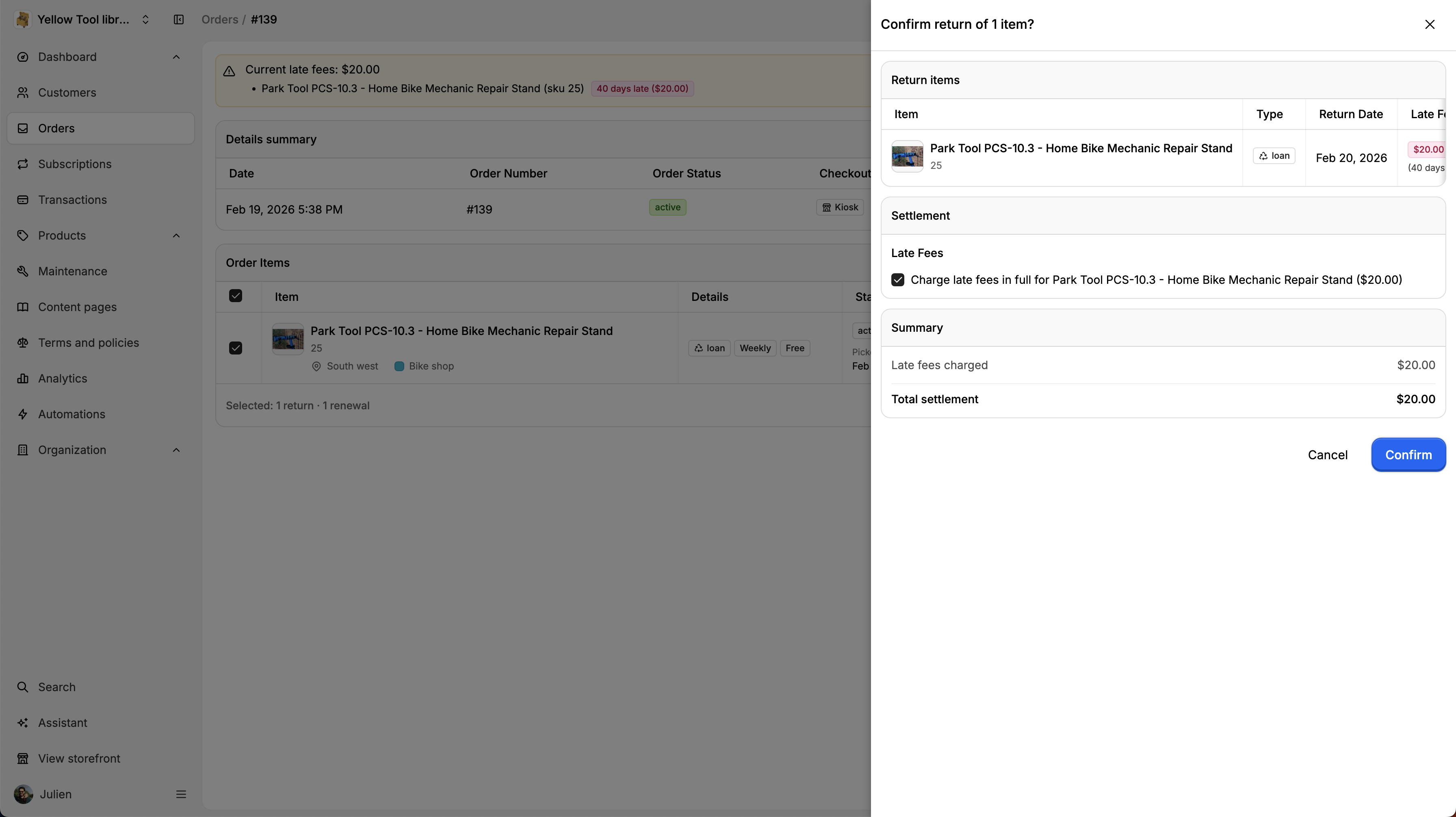
After clicking confirm, a summary of the action is displayed.
Confirming this summary updates the item status:
🎉 Order fulfilled
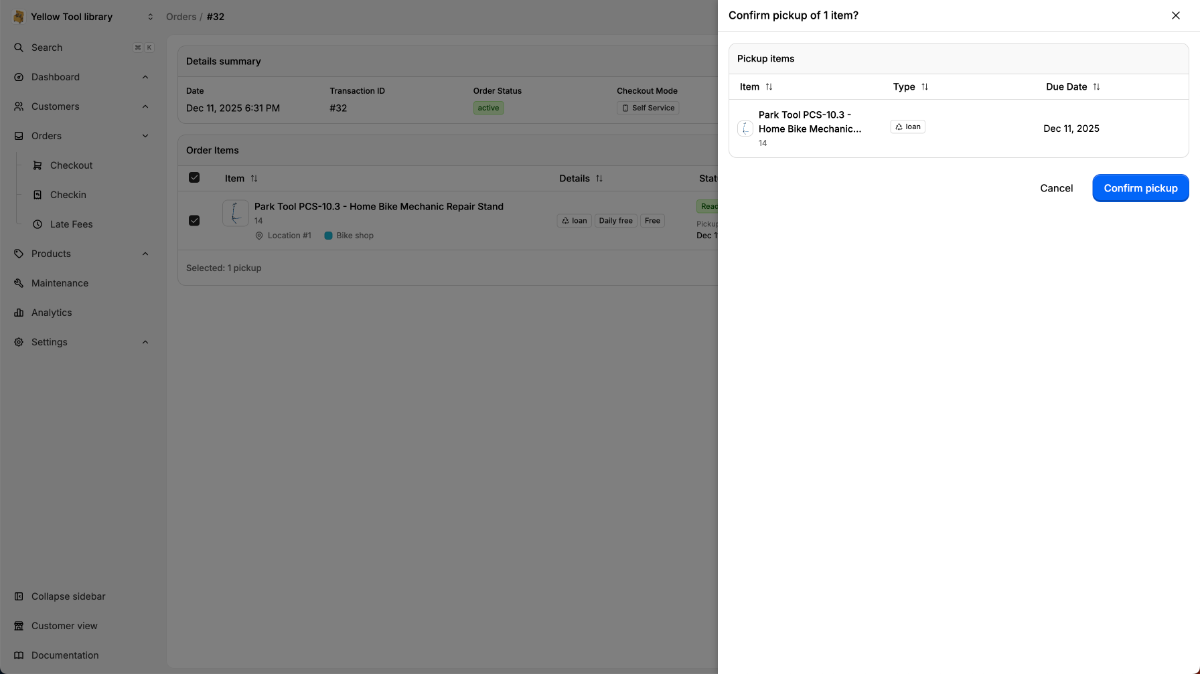
Once all required actions are completed, the order is marked as fulfilled.
🎛️ Dashboard filters
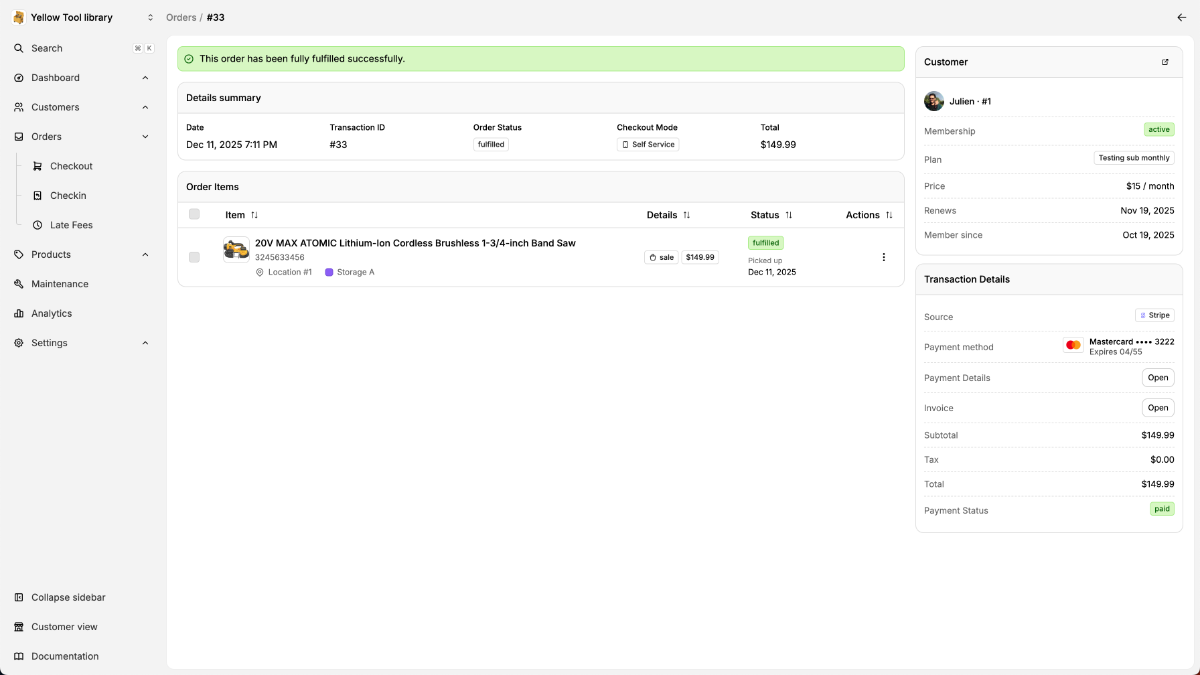
To filter items by status, use the top cards.
⏱ Late fees
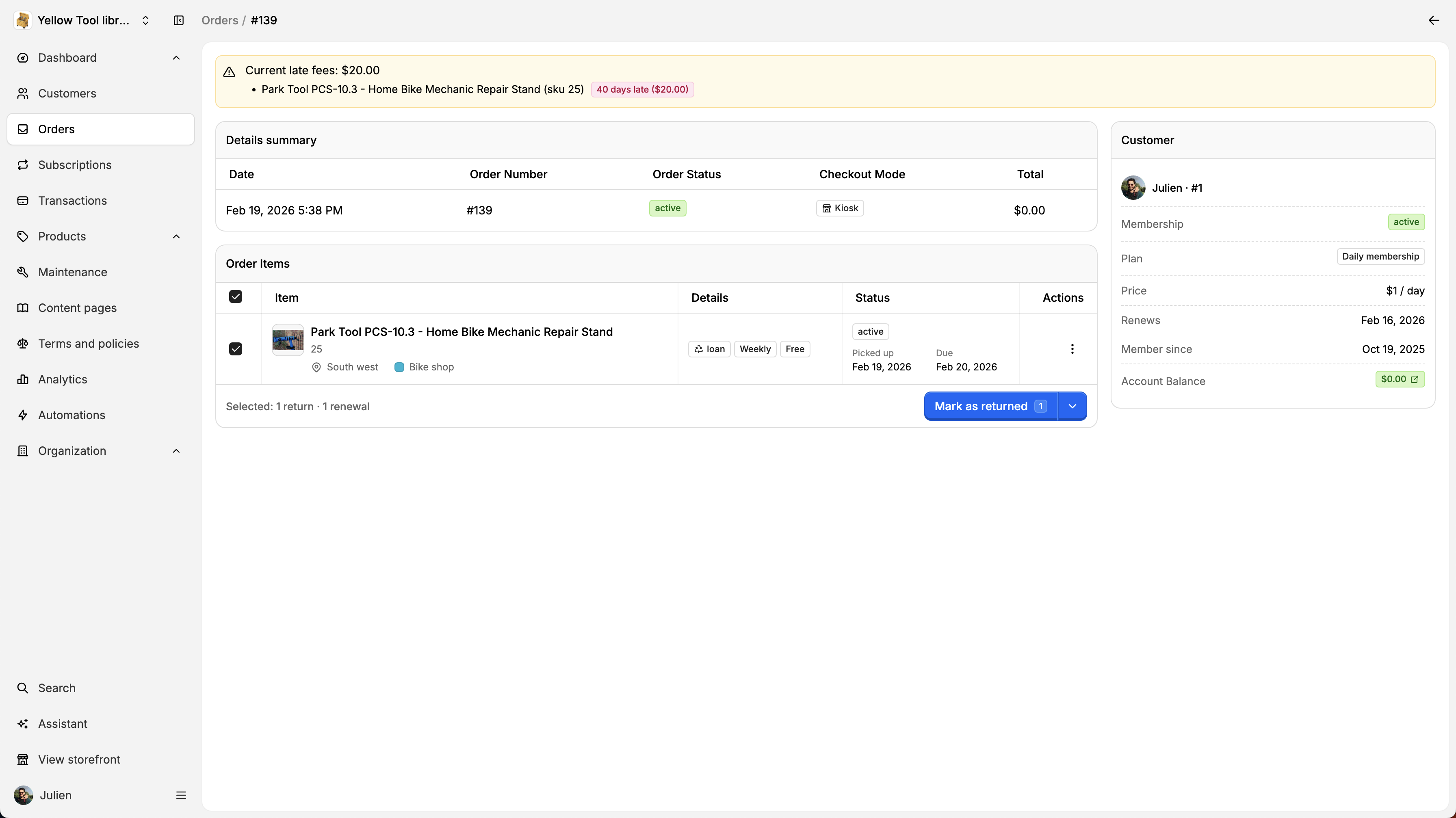
For late items, the current status is displayed at the top of the page.
Click Mark as returned to return the item.
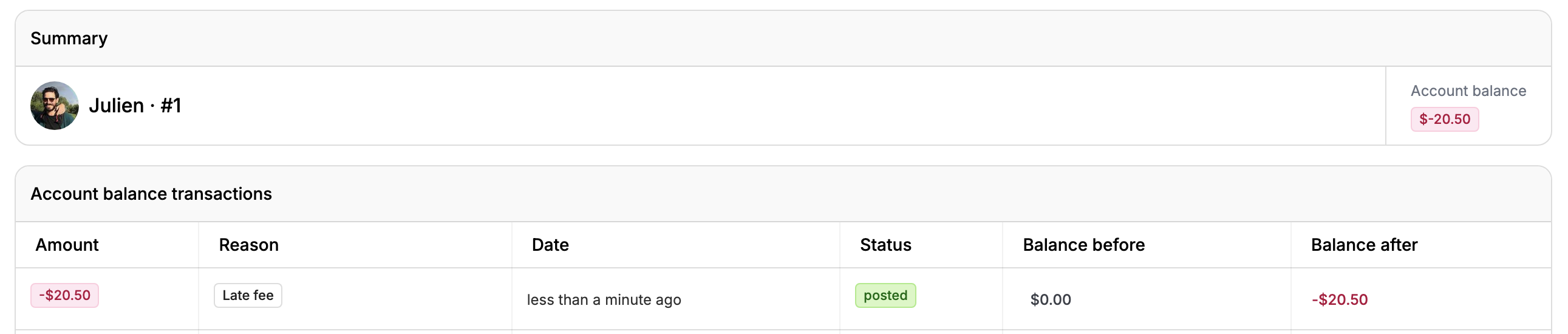
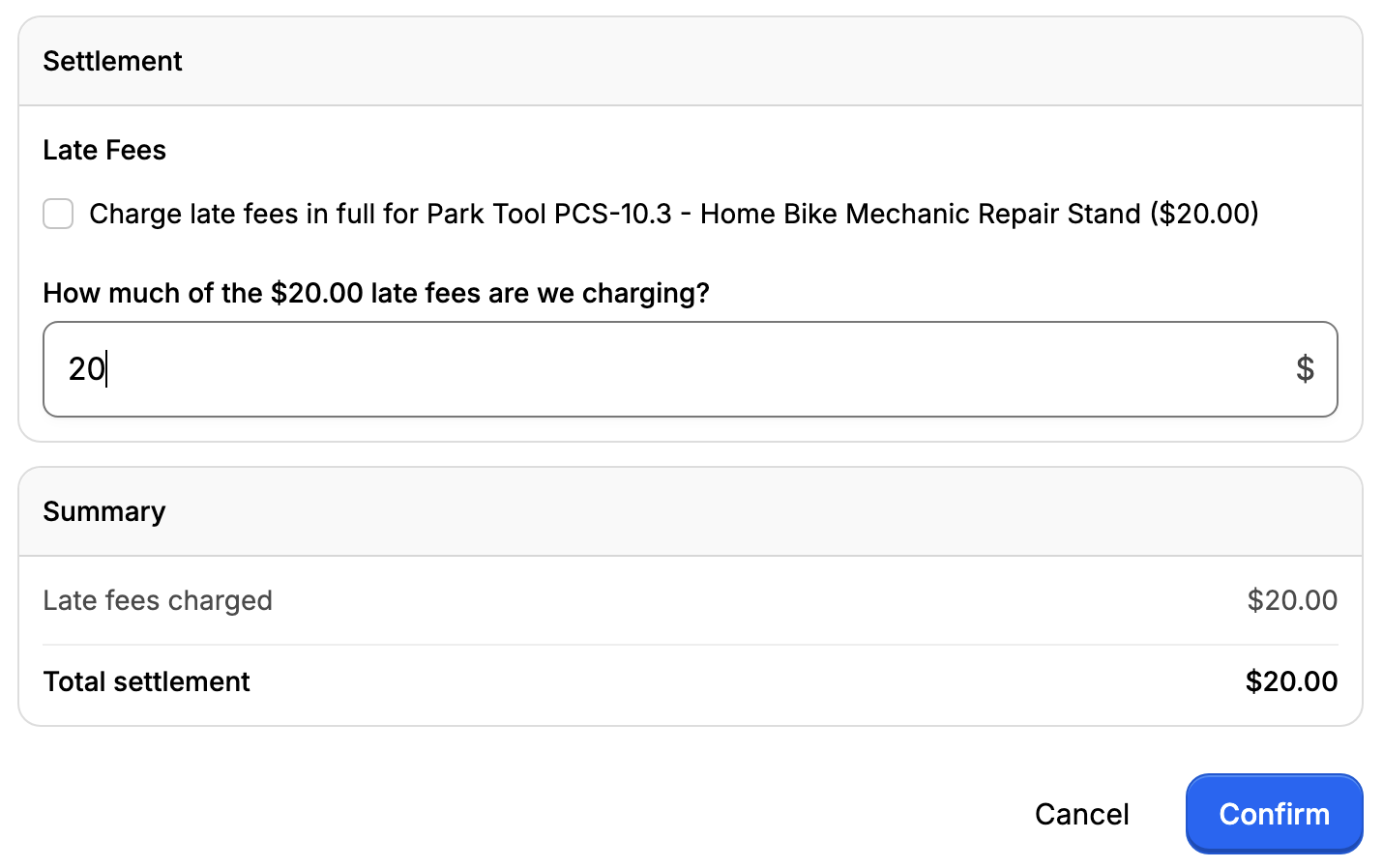
You will then see a confirmation step. Once confirmed, the late fee is automatically added to the customer’s balance.
💳 Balance update
After the return is confirmed, the late fee appears in the customer’s balance.