👥 Manage Customers
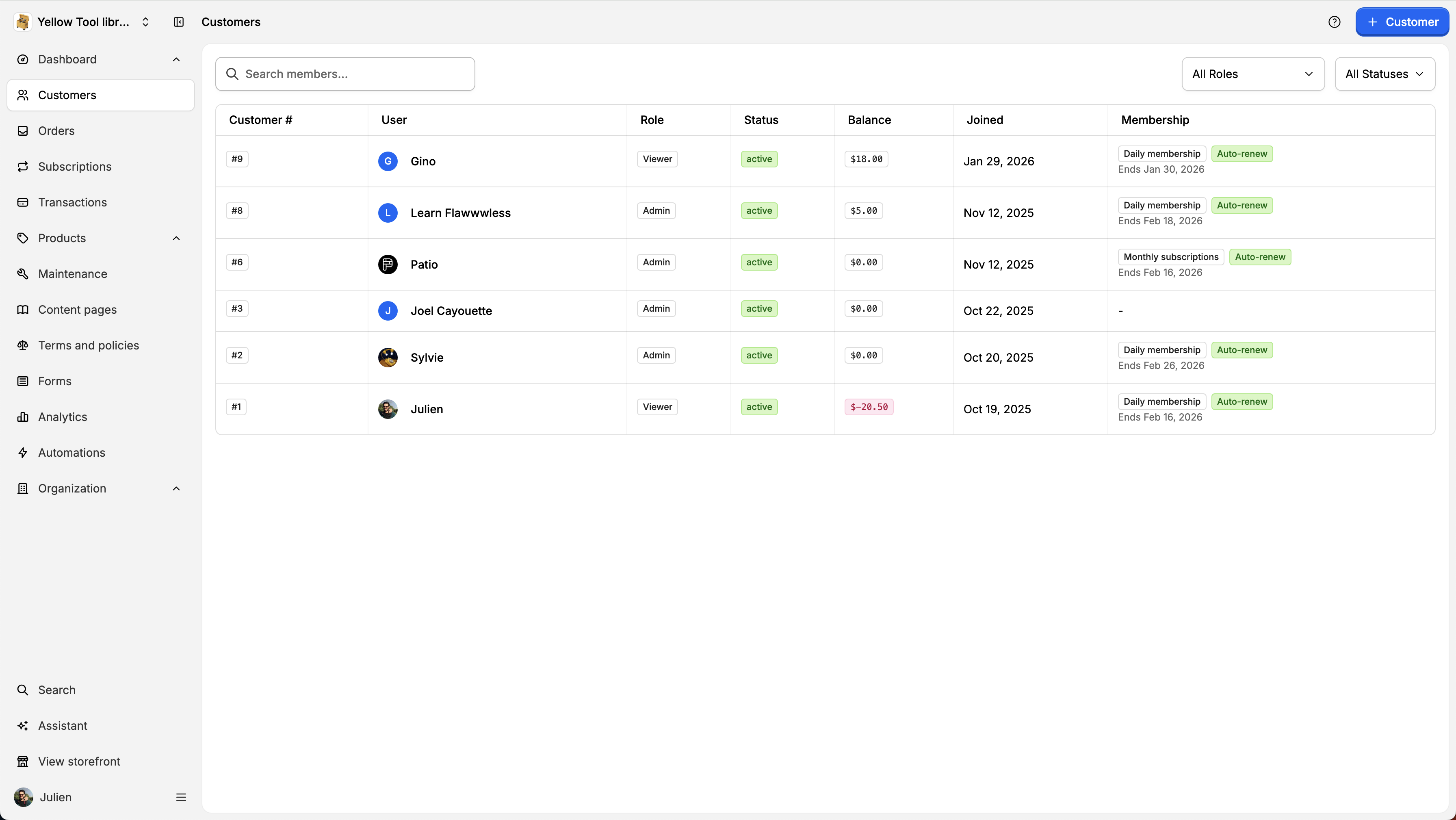
To invite staff and customer, you can go to Customer on the left sidebar. Then, click on + Customer . Then, you will be asked to enter the user email and role.
By Julien·Updated June 14, 2026
To invite staff and customer, you can go to Customer on the left sidebar. Then, click on + Customer.
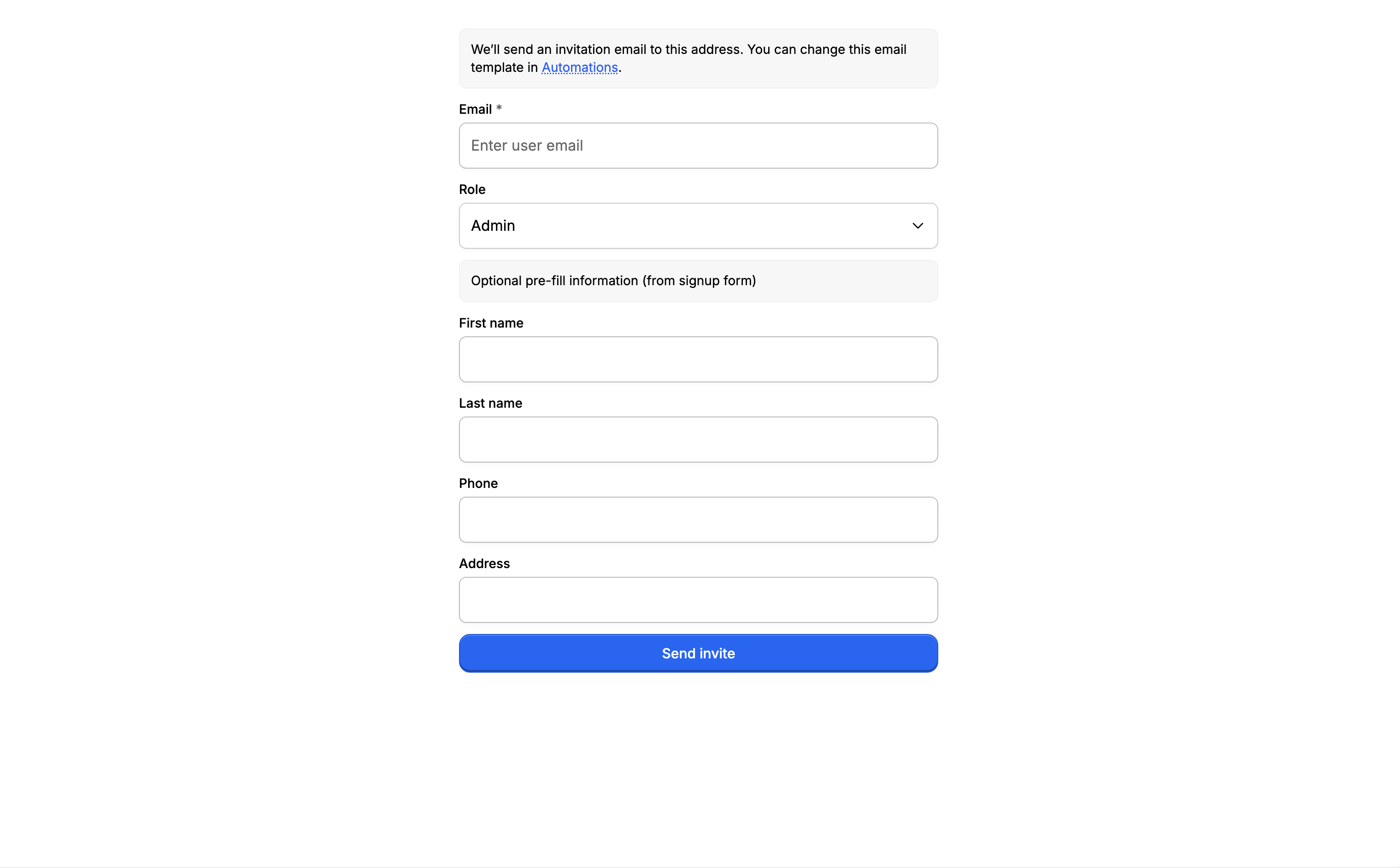
Then, you will be asked to enter the user email and role. You can also optionally pre-fill the signup form for the user. We will then send an email to your user. Once the user has signed up, the user will get the role you’ve assigned it to. This determine what access the suer will have. For more information about Access control and roles, see https://patio.so/docs/core-concepts/access-control-69c5939d1a2c4fdc67ed7b94
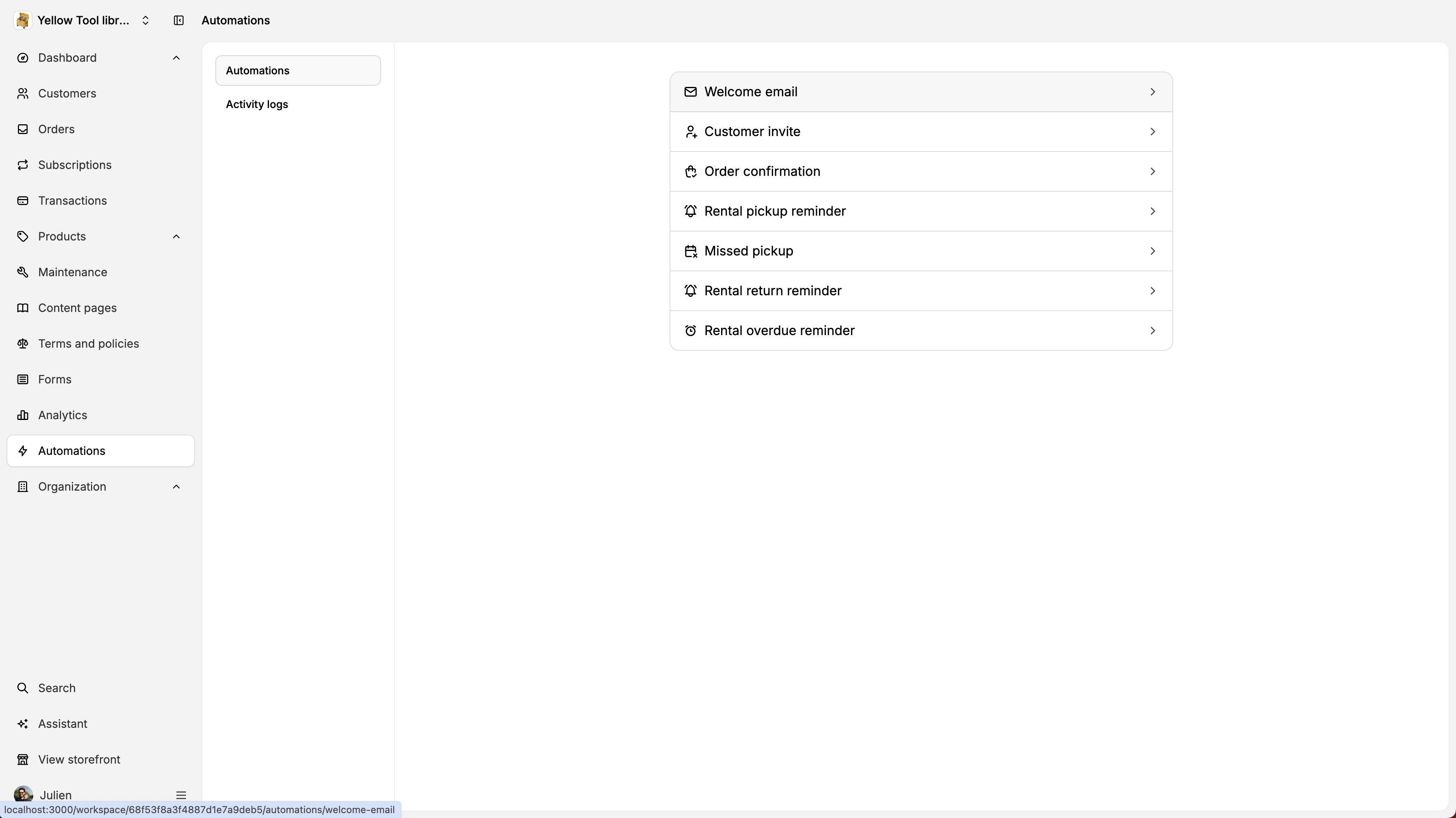
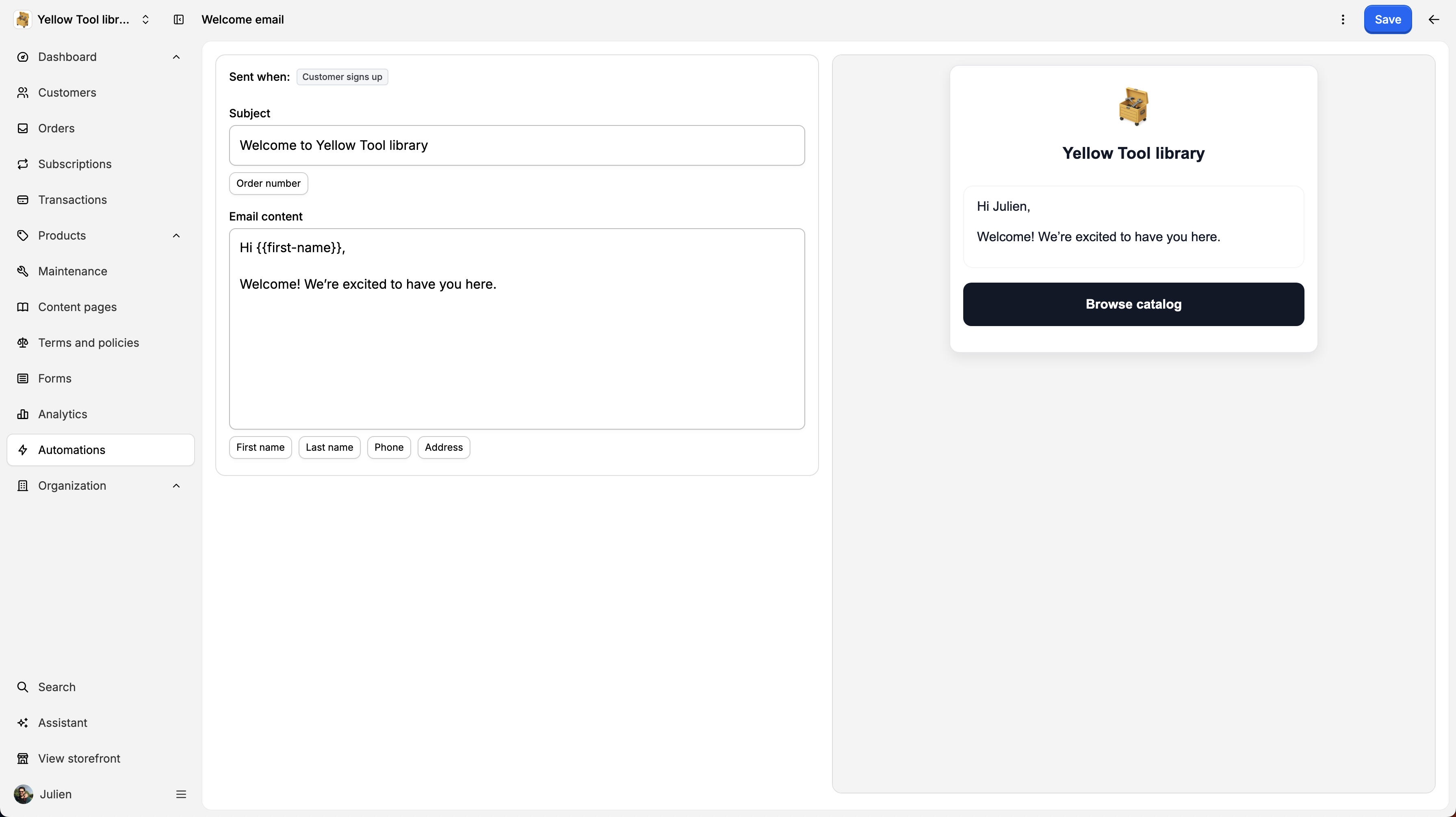
You can also modify the invitation email by going to Automations on the left sidebar and clicking on Welcome email .
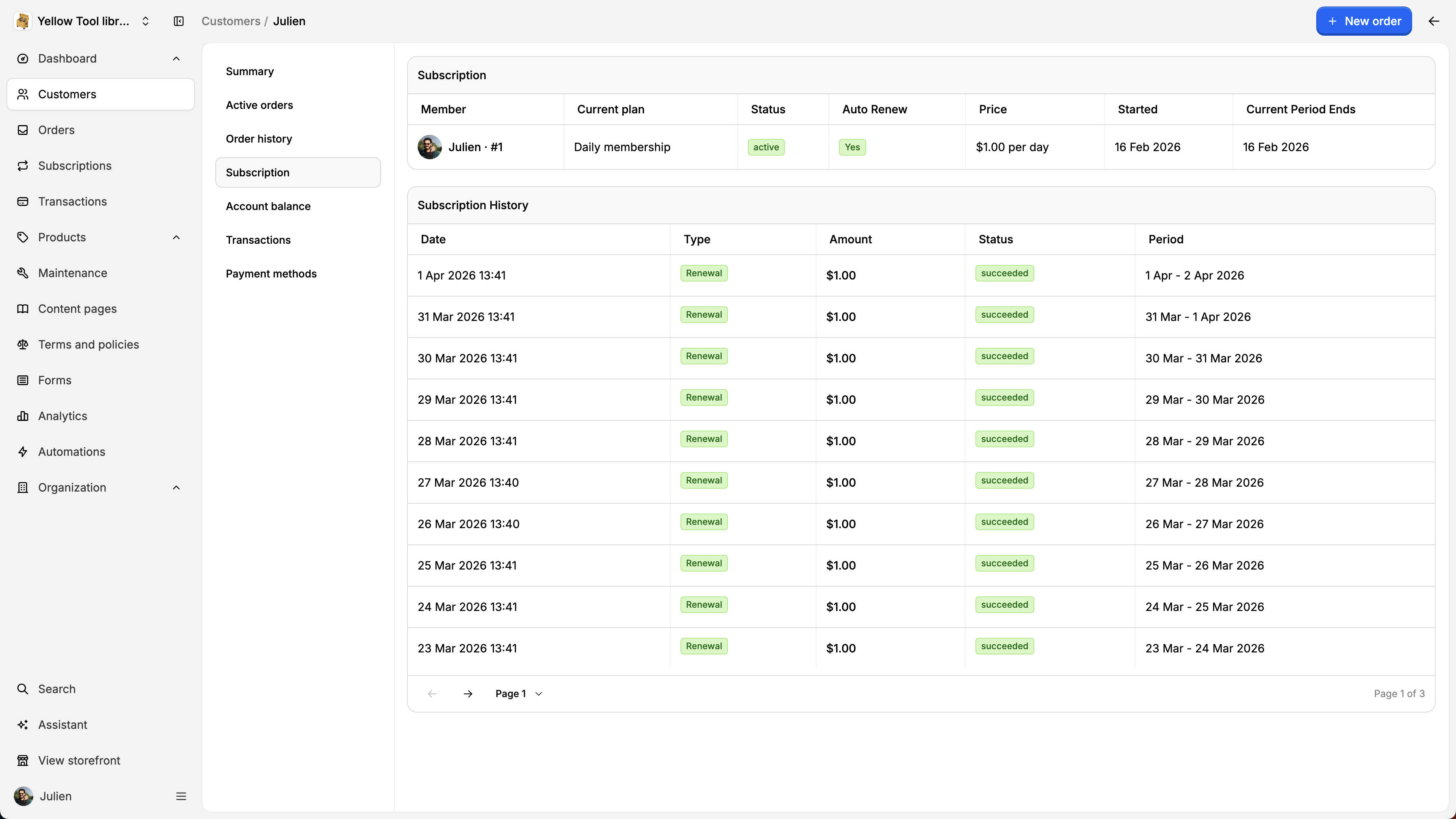
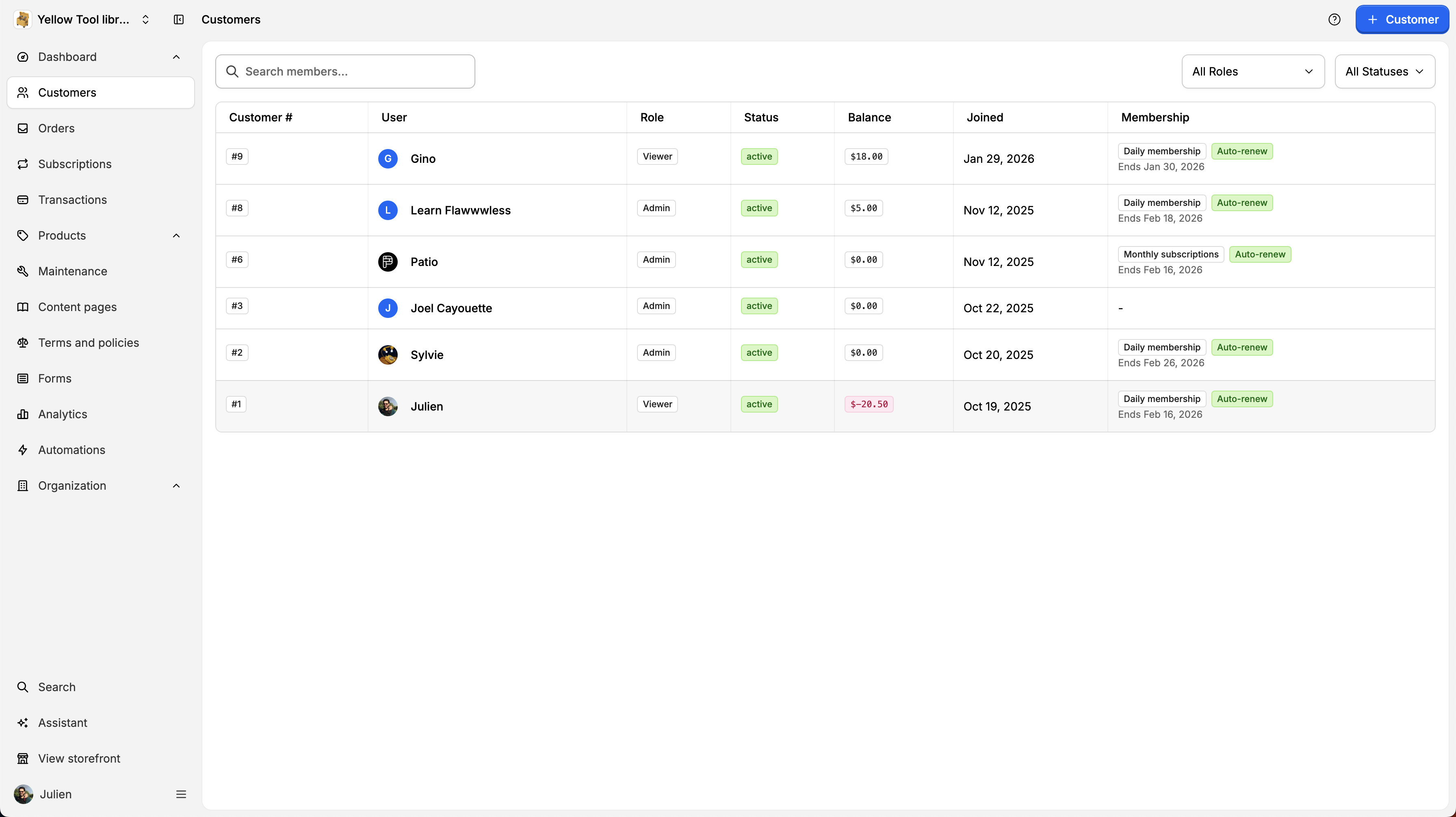
You can also see the Customer details by clicking on the customer:
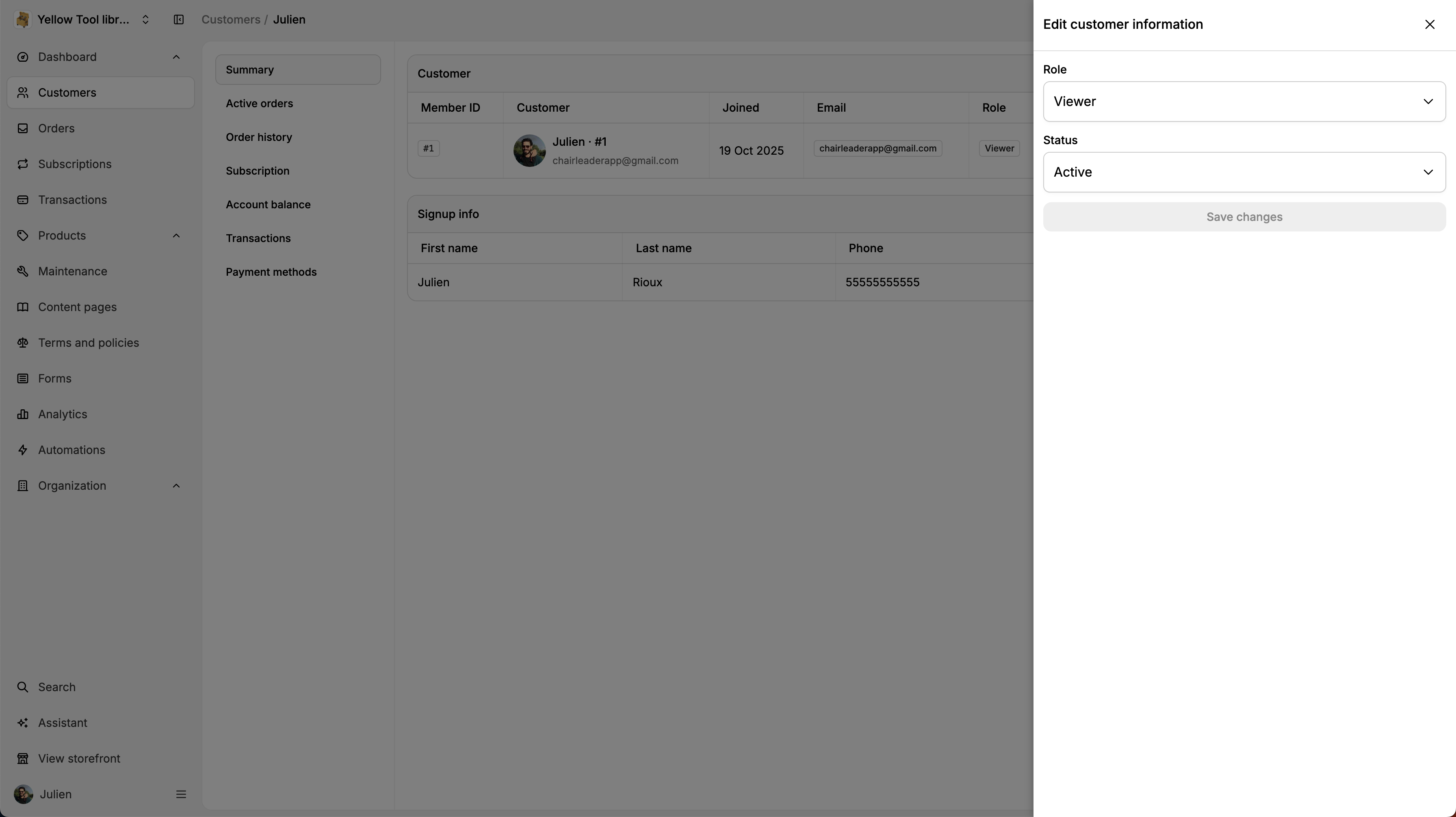
You will the see the user information summary. You will be able. to edit the role, status, signup information, etc.
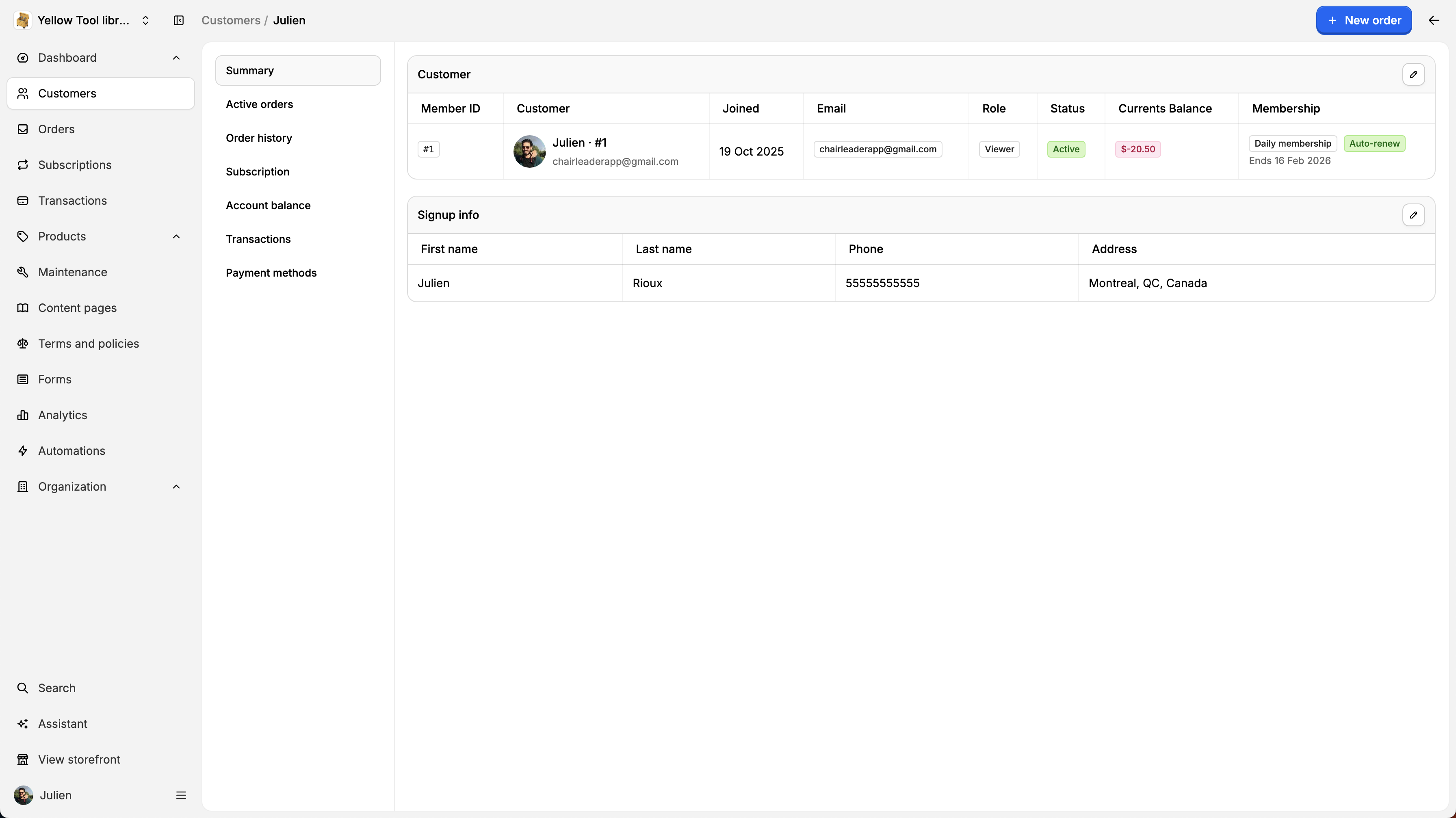
You can also see the , Active orders, Order history, Subscription, Account balance, Transactions
and Payment methods: