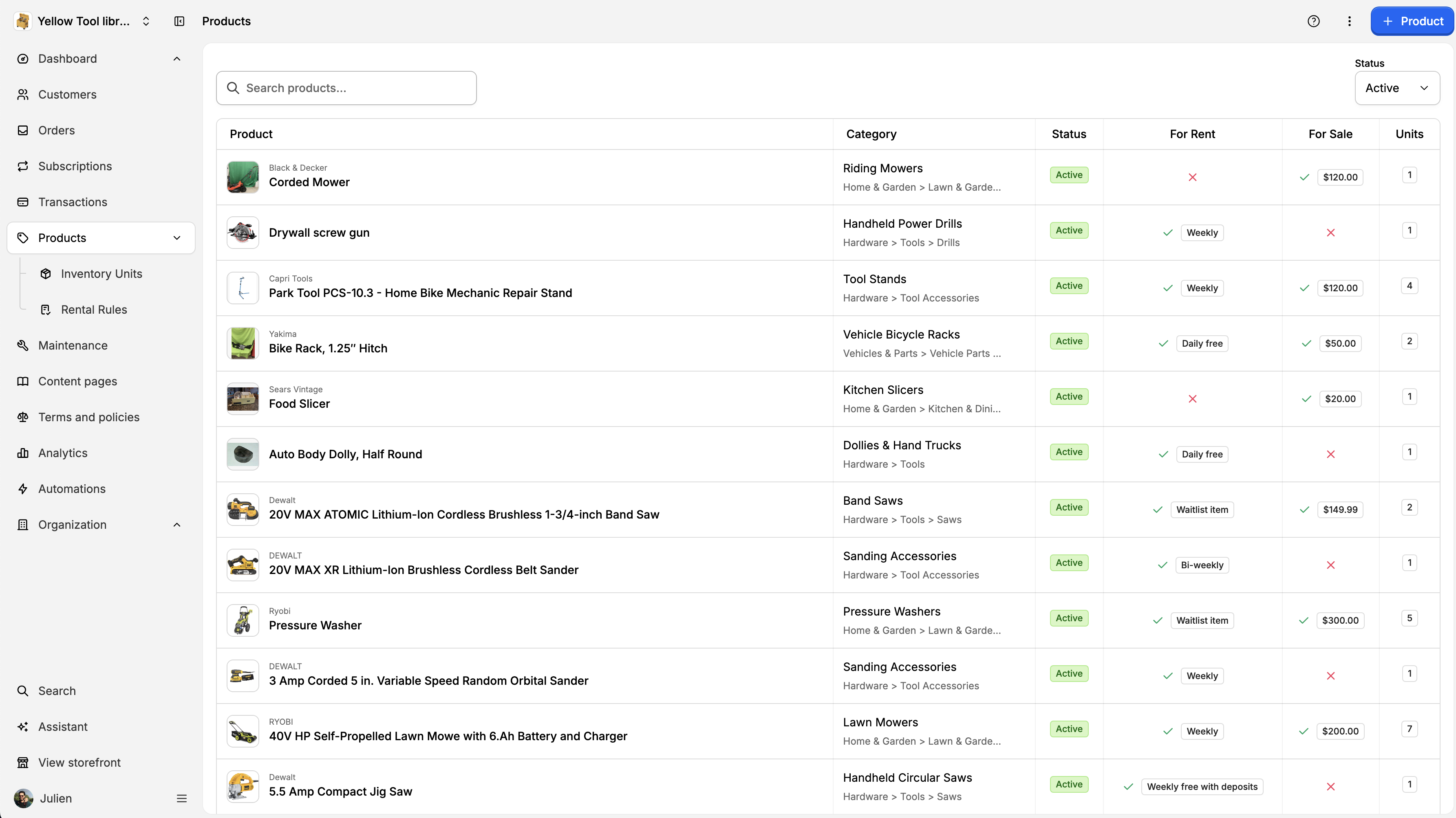
To add a new product, click on the Products left sidebar. Then, click on the + product button on the top right:
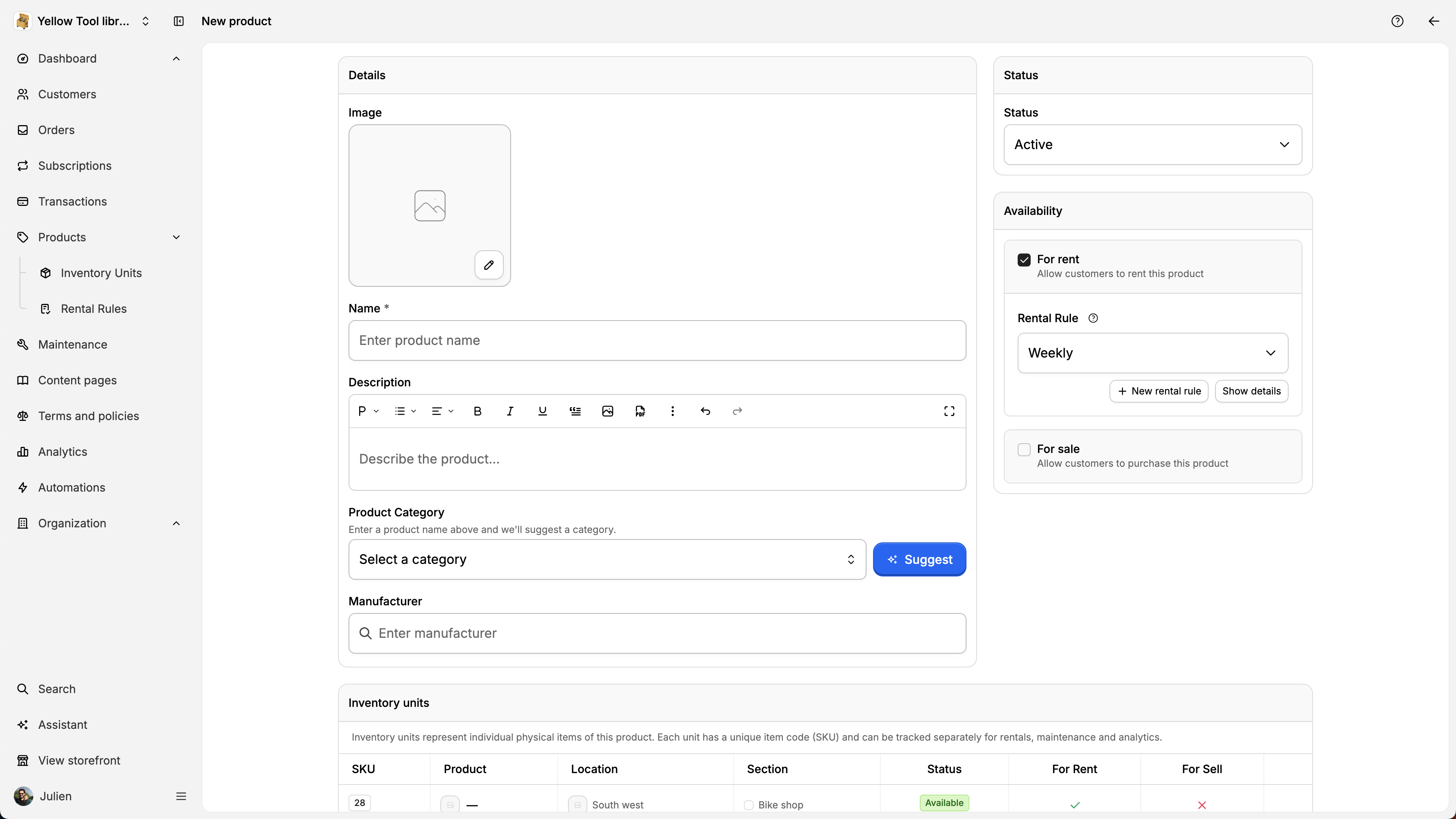
Here, you’ll be able to enter all the details needed to set up your product.
Availability
You can choose to make a product available for rent, for sale, or both.
If selling is enabled, you’ll set a sale price. If renting is enabled, you’ll select a rental rule.
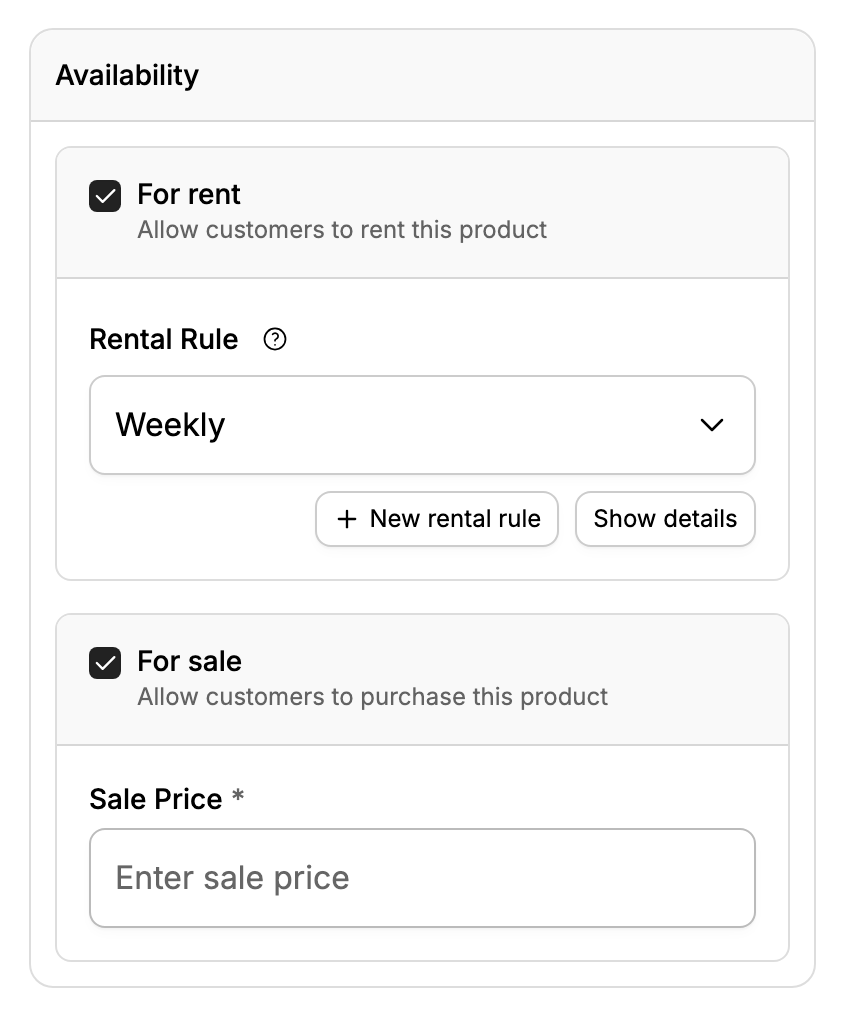
Sale price
The price at which the product is sold.
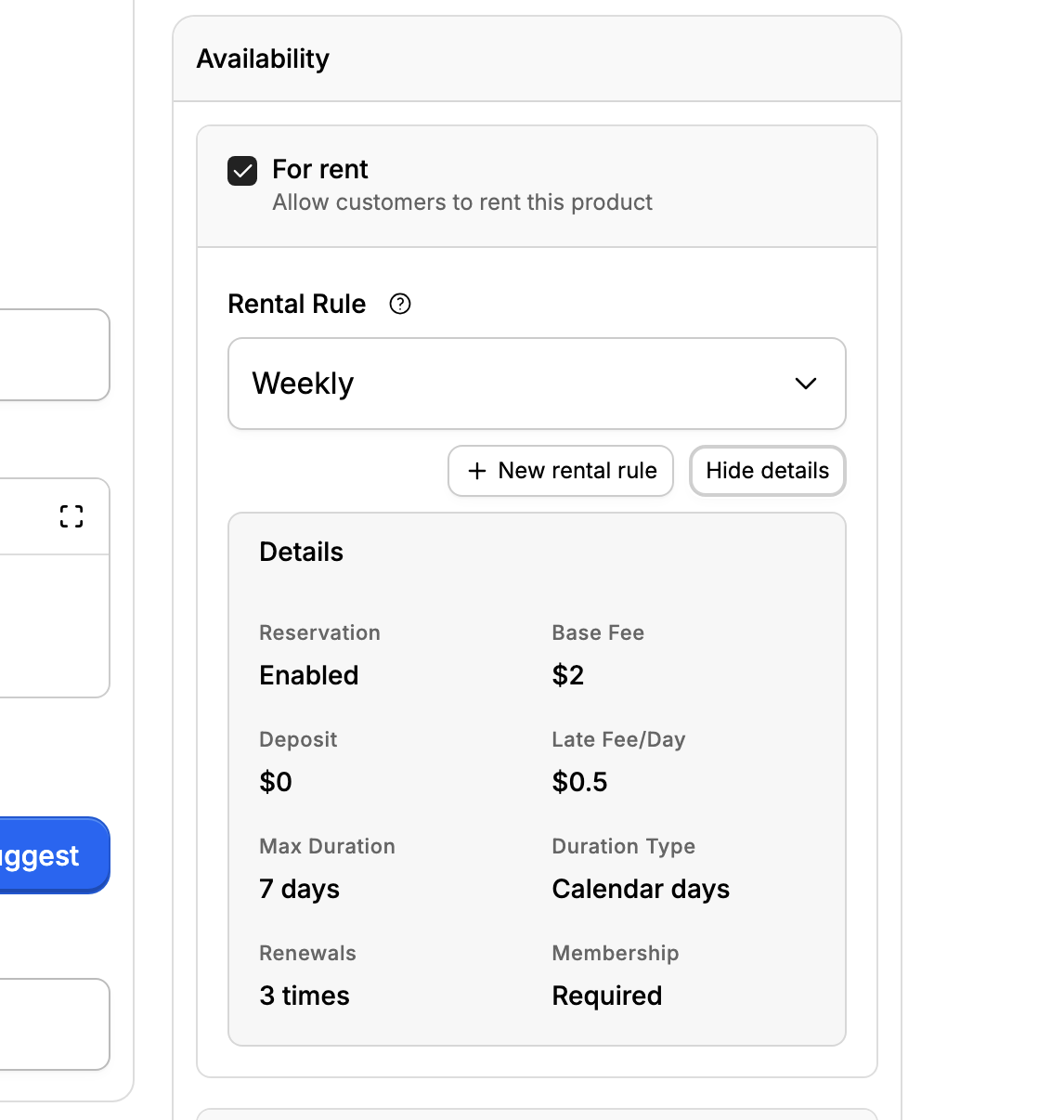
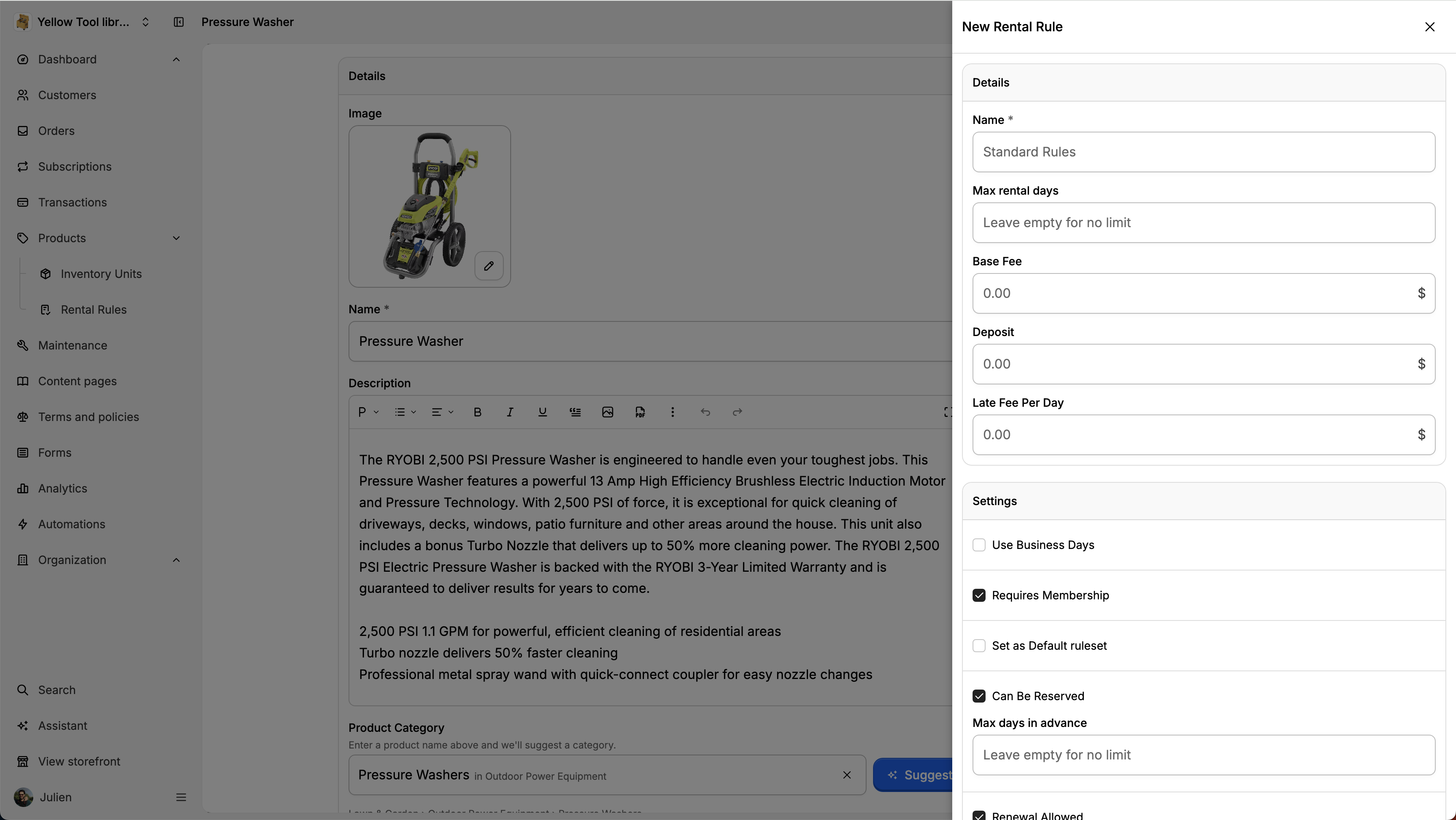
Rental rules
Rental rules define how a product can be rented (duration, fees, renewals, late fees, and more).
For more details about Rental rules, check https://patio.so/docs/core-concepts/rental-rules-693c5f071768cbaf931c080f
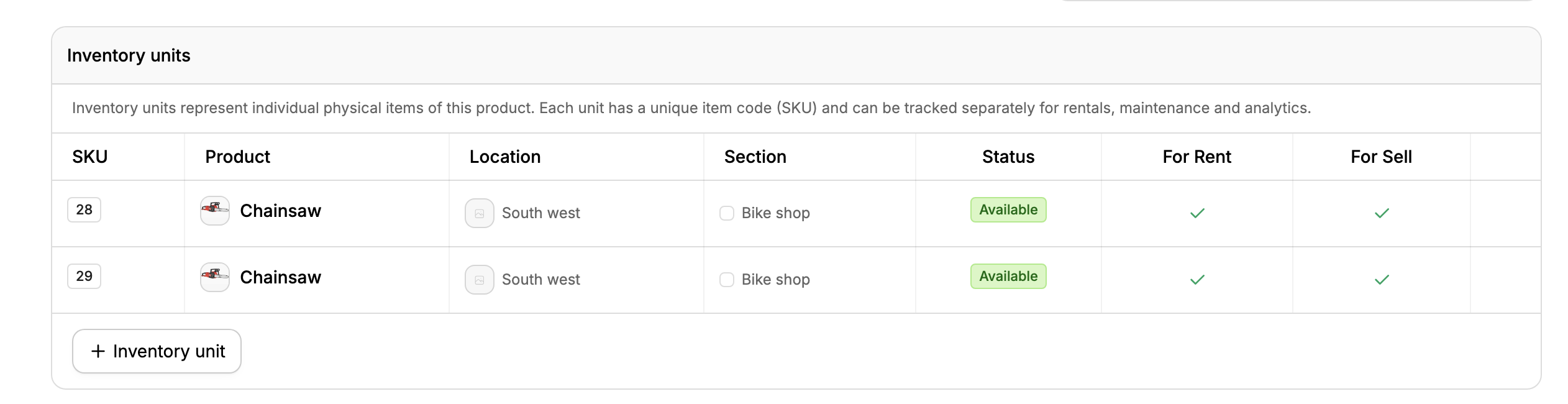
Inventory units
Inventory units represent the physical items you own.
For example, you might have a product called Park Tool PCS-10.3 – Home Bike Mechanic Repair Stand.
This single product can have multiple inventory units, each with its own:
Inventory code (SKU)
Location
Section
Status
Image
Availability
When you create a new product, one inventory unit is created automatically. You can add more inventory units as needed. For more info about Inventory units, see https://patio.so/docs/core-concepts/inventory-units-693c5e90c1f6342b7ce9c737
To modify an inventory unit, click directly on the item. You can set the SKU, the image, the location and the section where the item. is stored:
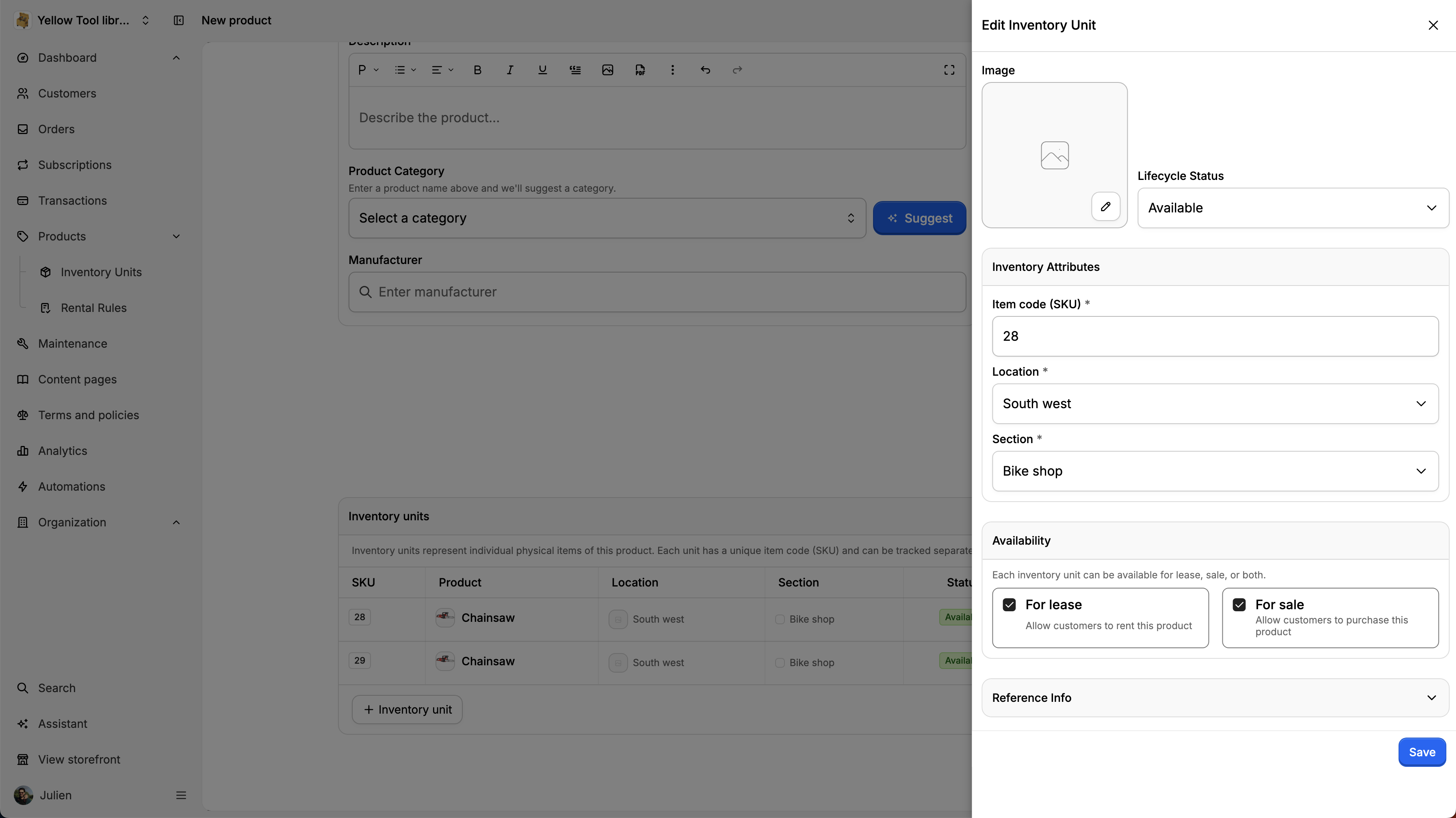
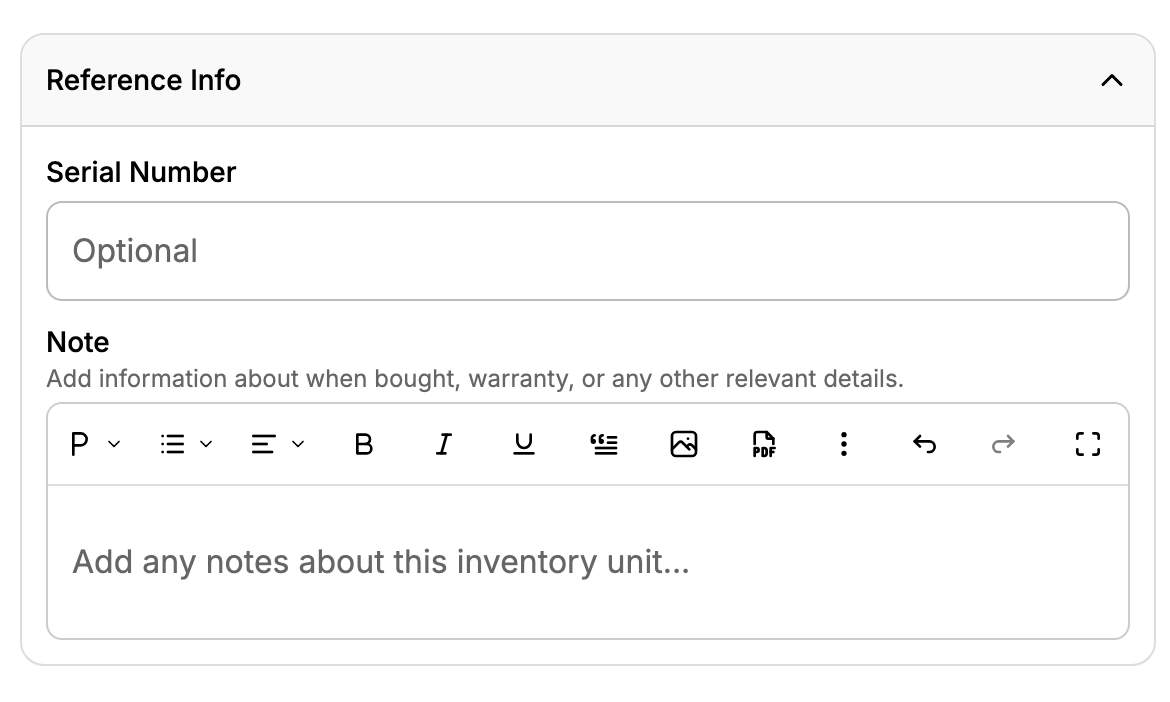
You can also add reference information such as a serial number or internal notes (for example: warranty details, purchase invoice, or maintenance history).
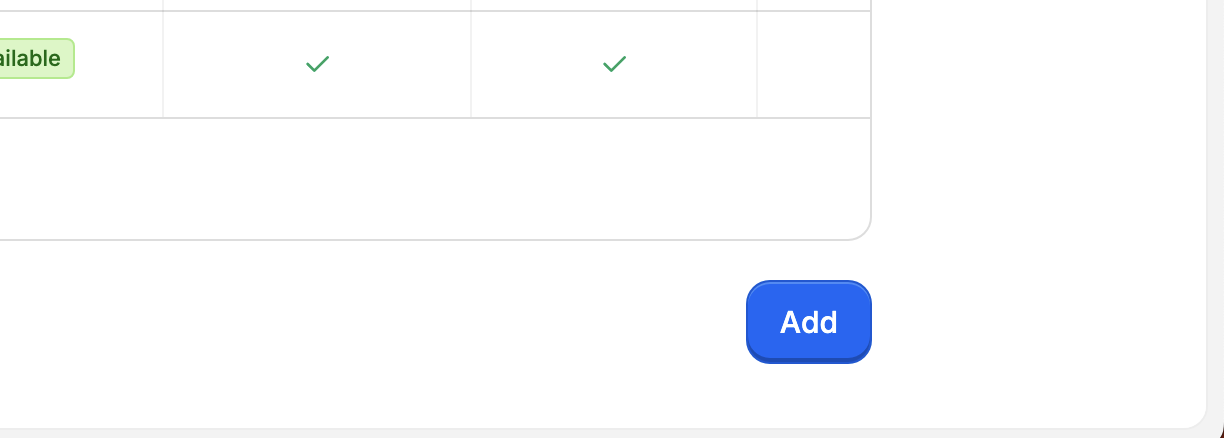
To save your new product, click on the Add button on the bottom right:
Once saved, you can manage the item in your shop using the three-dots menu button.
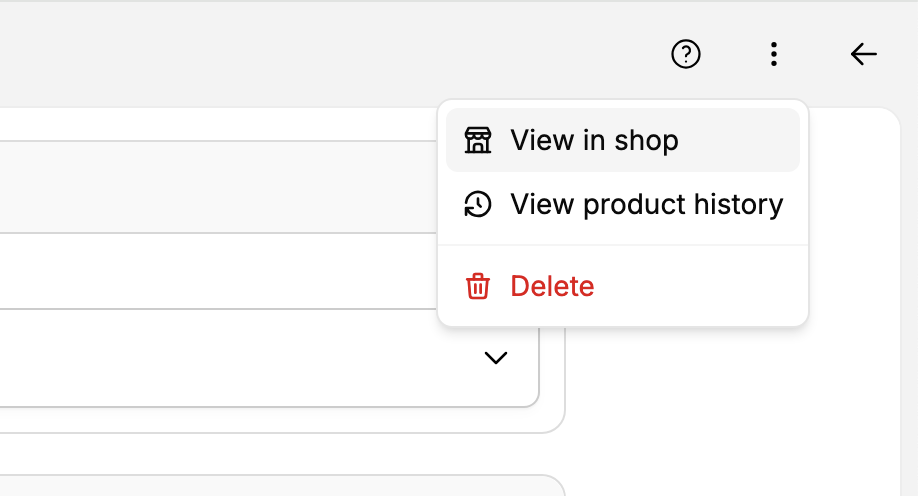
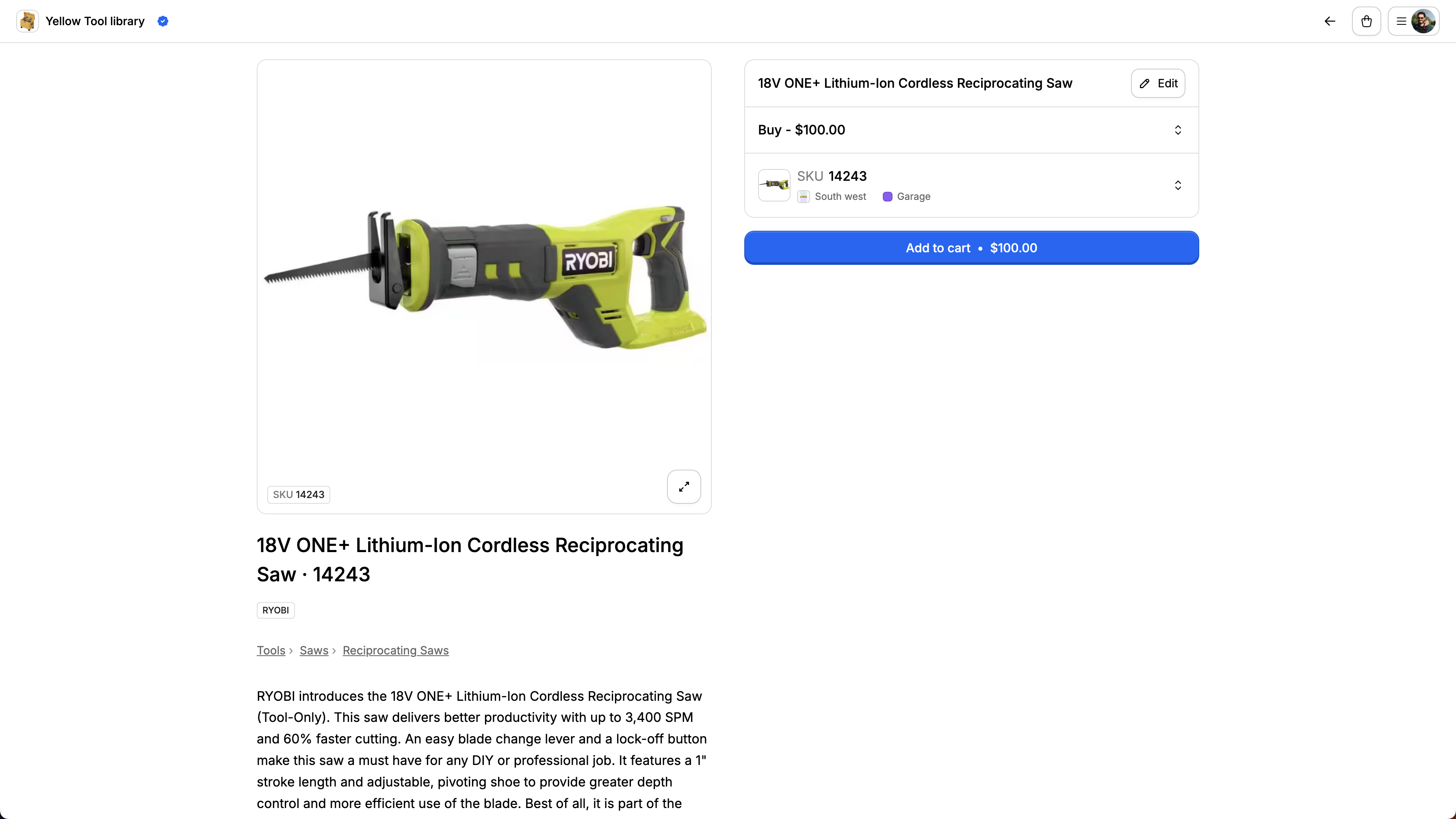
Click on View in shop to see the item in your store.
You can also see the product history clicking on View product history.
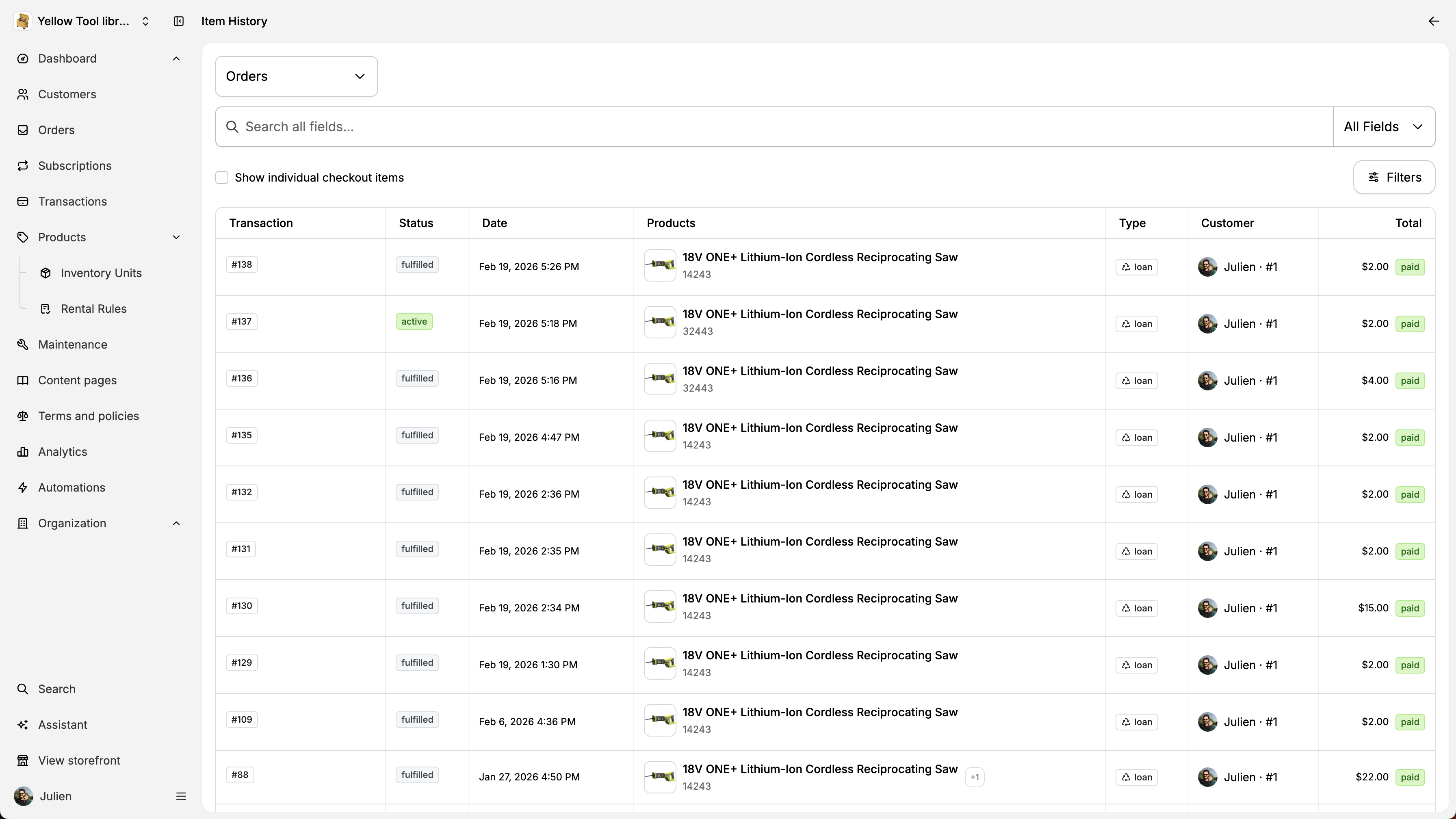
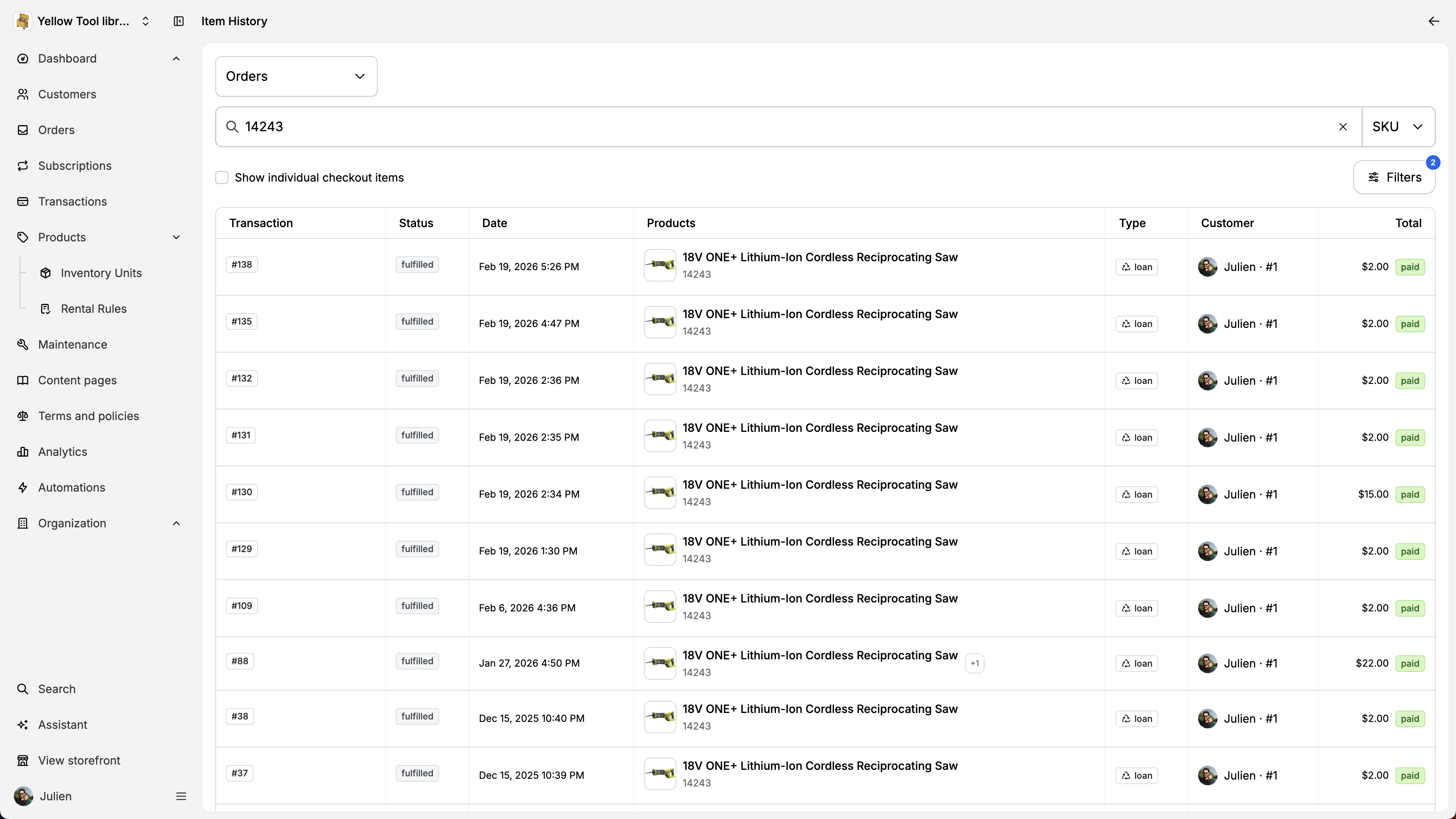
You can also check the history for a specific inventory unit by filtering by SKU.